
FaceTime Like a Pro
Get our exclusive Ultimate FaceTime Guide 📚 — absolutely FREE when you sign up for our newsletter below.

FaceTime Like a Pro
Get our exclusive Ultimate FaceTime Guide 📚 — absolutely FREE when you sign up for our newsletter below.


Tap your iPhone back to perform quick actions like taking a screenshot, running a shortcut, opening the front camera, etc.
 ByVikhyat
I’m always looking for ways to make everyday iPhone tasks faster, and Back Tap is one feature that deserves far more attention than it gets. Despite being around for years, many iPhone users still don’t know it exists. Once enabled, it can help you perform common actions in seconds without changing the way you normally use your iPhone.
If you love discovering hidden iPhone tricks, this is one feature worth checking out. Here’s how to find it and set it up.
Back Tap is an accessibility feature that allows your iPhone to recognize double-tap and triple-tap gestures on the back of the device. You can assign different actions to these gestures, turning the back of your iPhone into a customizable shortcut.
Some people use it to take screenshots or turn on the flashlight, while others prefer using it to open the camera, access Control Center, or lock their iPhone. It also supports Shortcuts, which means a simple tap can trigger everything from launching an app to running a custom automation.
Back Tap is available on iPhone 8 and later models running a recent version of iOS. If you don’t see the option, make sure you’re using an iPhone 8 or later and running a recent version of iOS.
I’ve found that most people don’t use Back Tap simply because they don’t know where to find it. Apple has tucked the feature away in Accessibility settings, so it’s easy to miss.
Once you know where it is, though, setting it up is straightforward and takes less than a minute.
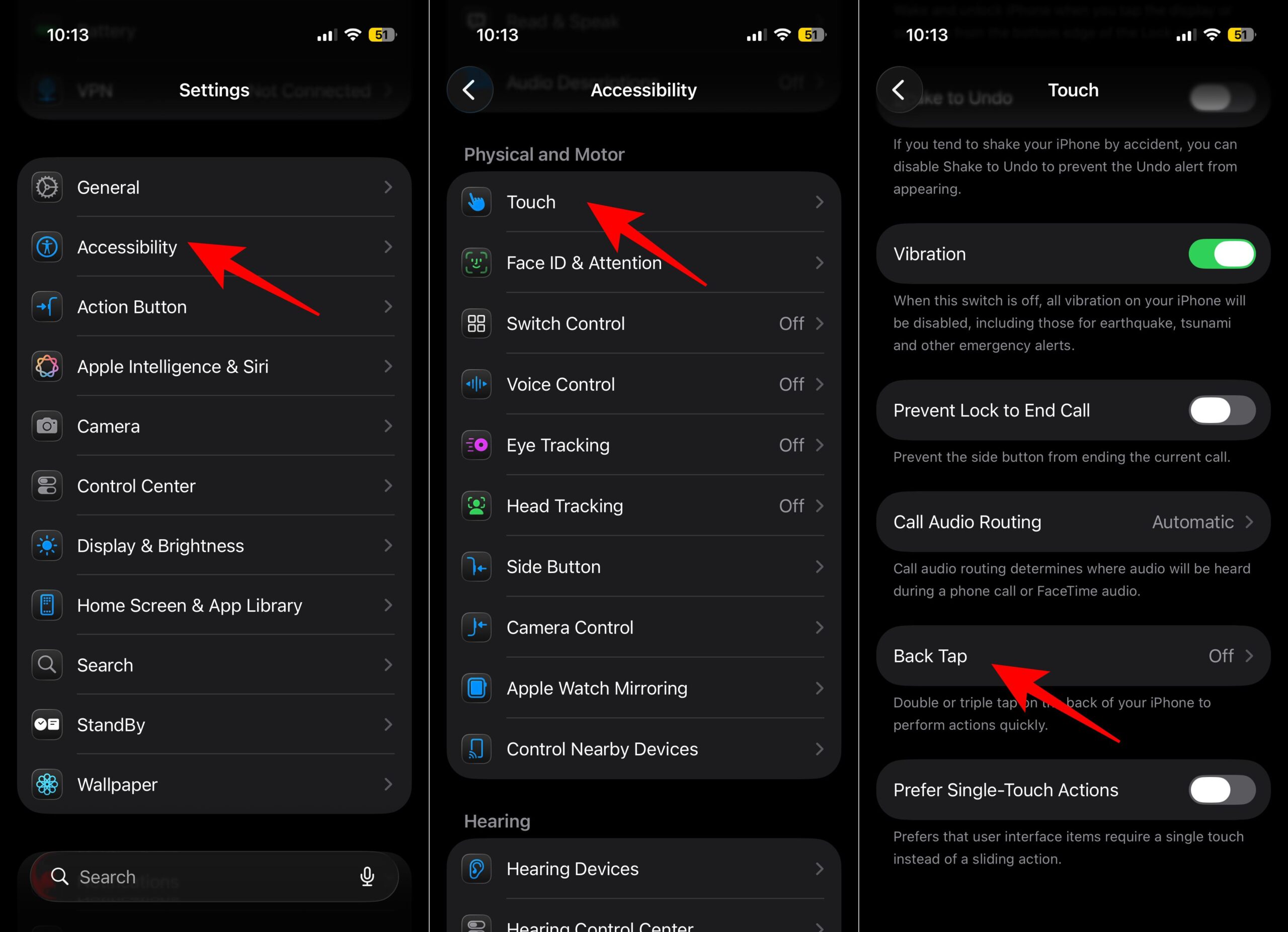
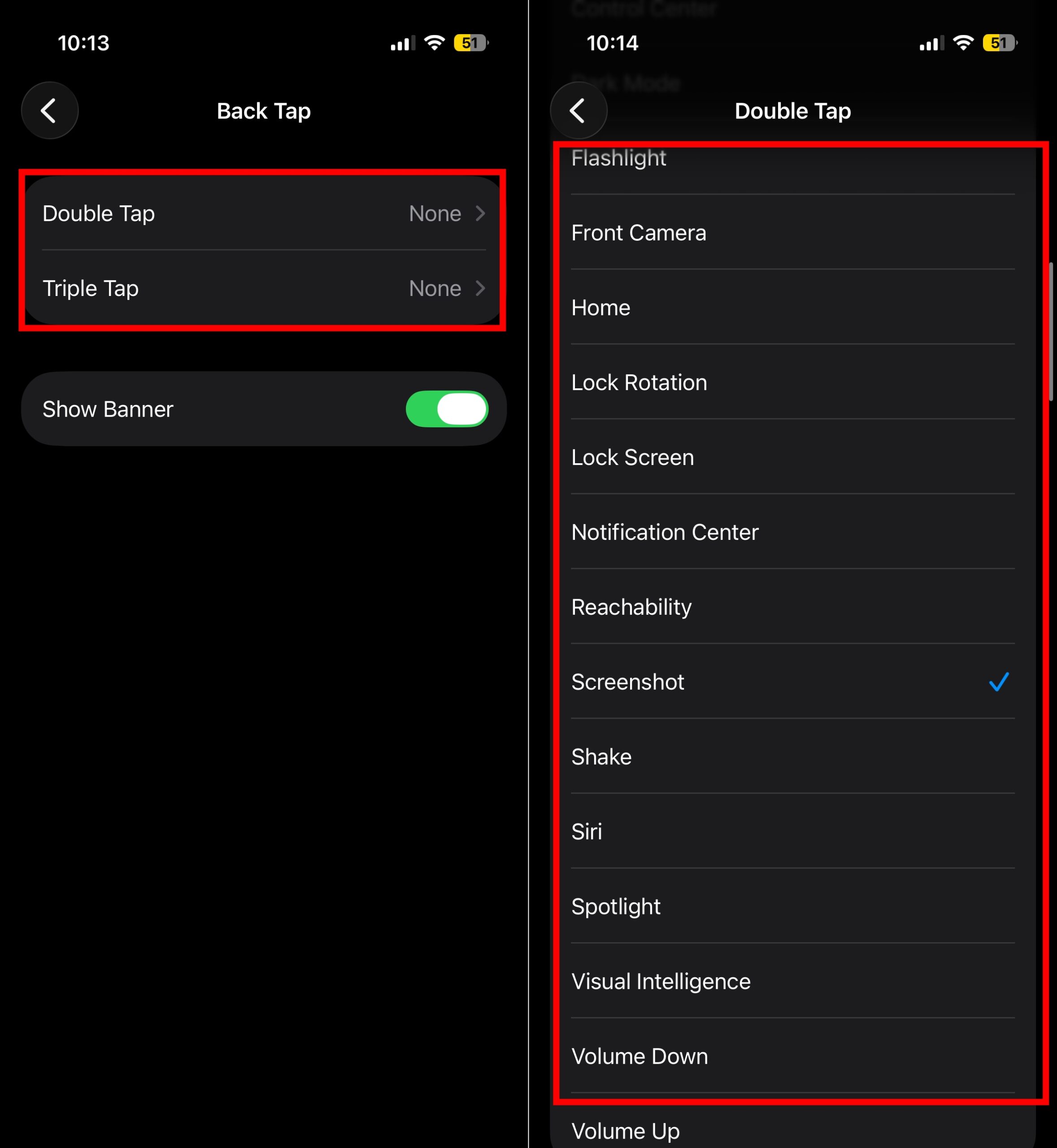
Once configured, tap the back of your iPhone two or three times to trigger the assigned action.
Back Tap becomes far more useful when paired with actions you use regularly. Here are some of the best options:
Run custom Shortcuts
This is where Back Tap becomes truly powerful. You can trigger automations, start focus modes, send messages, open playlists, and much more through the Shortcuts app.
Take screenshots instantly
Instead of pressing the Side button and Volume Up button together, you can capture screenshots with a simple tap gesture.
Open the camera
If you want faster camera access, Back Tap can launch the Camera app instantly. You can even set it up to open directly to the front-facing camera, making it easier to capture selfies without extra taps.
Turn on the flashlight
A double tap on the back of your iPhone can be much faster than opening Control Center when you need a light source.
Launch your favorite app
You can create a Shortcut that opens apps like ChatGPT, Instagram, Spotify, or Notes.
Open Notification Center
Quickly check notifications from anywhere on your iPhone. Useful if you frequently clear or check notifications throughout the day.
Access Control Center
Open Control Center with a quick tap instead of swiping from the top-right corner.
Scroll up or down a page
Perfect for reading long articles, PDFs, ebooks, and webpages with one-handed use.
After experimenting with different Back Tap actions over the years, I’ve settled on a setup that saves me the most time day to day.
I use Double Tap for screenshots because it’s much faster than pressing the Side button and Volume Up button together. Whenever I need to save something quickly, a simple double tap on the back of my iPhone gets the job done.
For Triple Tap, I run a custom Shortcut that I use frequently. This gives me instant access to a task I perform regularly without hunting for an app icon or navigating through menus.
You can customize it around your own habits. My setup works well for me, but you might prefer using it for the flashlight, Camera app, Control Center, or any Shortcut that fits your workflow.
If Back Tap doesn’t respond consistently, try these fixes:
Because Back Tap relies on motion sensors rather than a physical button, responsiveness can vary depending on grip and case thickness.
If you’re always looking for ways to get more out of your iPhone, Back Tap is definitely worth trying. It takes only a minute to set up and can make common tasks feel much more convenient.
You’re not stuck with a single action and can change it whenever your needs change. A setup that works perfectly for me might be completely different from what works for you.
Back Tap is one of those rare iPhone features that takes less than a minute to set up but can save time every day. If you’ve never tried it, it’s worth experimenting with a few different actions to find what fits your workflow best.
Have you enabled Back Tap on your iPhone yet? Let us know what action you’ve assigned to it in the comments.
Explore more:












