
FaceTime Like a Pro
Get our exclusive Ultimate FaceTime Guide 📚 — absolutely FREE when you sign up for our newsletter below.

FaceTime Like a Pro
Get our exclusive Ultimate FaceTime Guide 📚 — absolutely FREE when you sign up for our newsletter below.


Learn how to use Local Capture on iPadOS 26 to record high-quality video and audio during video calls—right from your iPad.
 ByVikhyat


With iPadOS 26, Apple has made the iPad smarter and more functional than ever. Among the standout features is Local Capture—a powerful tool that allows you to record high-quality audio and video directly on your iPad during video calls, no matter which app you’re using. Whether you’re interviewing someone, attending virtual meetings, or creating video content, Local Capture ensures your voice is recorded with clarity and securely saved.
In this guide, you’ll learn everything about Local Capture on iPad—what it does, how it works, and how to get the most out of it.
Local Capture is a feature introduced with iPadOS 26 that enables users to record their own audio and video locally on the iPad during an active video call. It operates independently of the app’s built-in recording capabilities, giving you a high-resolution backup of your side of the conversation.
Once the video call ends, your recording is automatically stored in the Files app for safekeeping and easy sharing.
Key Benefits of Local Capture:
Local Capture is not enabled by default. You must turn it on manually whenever you want to record during a call.
When activated, Local Capture:
Make sure you have the following:
Before using Local Capture, you need to add its button to Control Center:
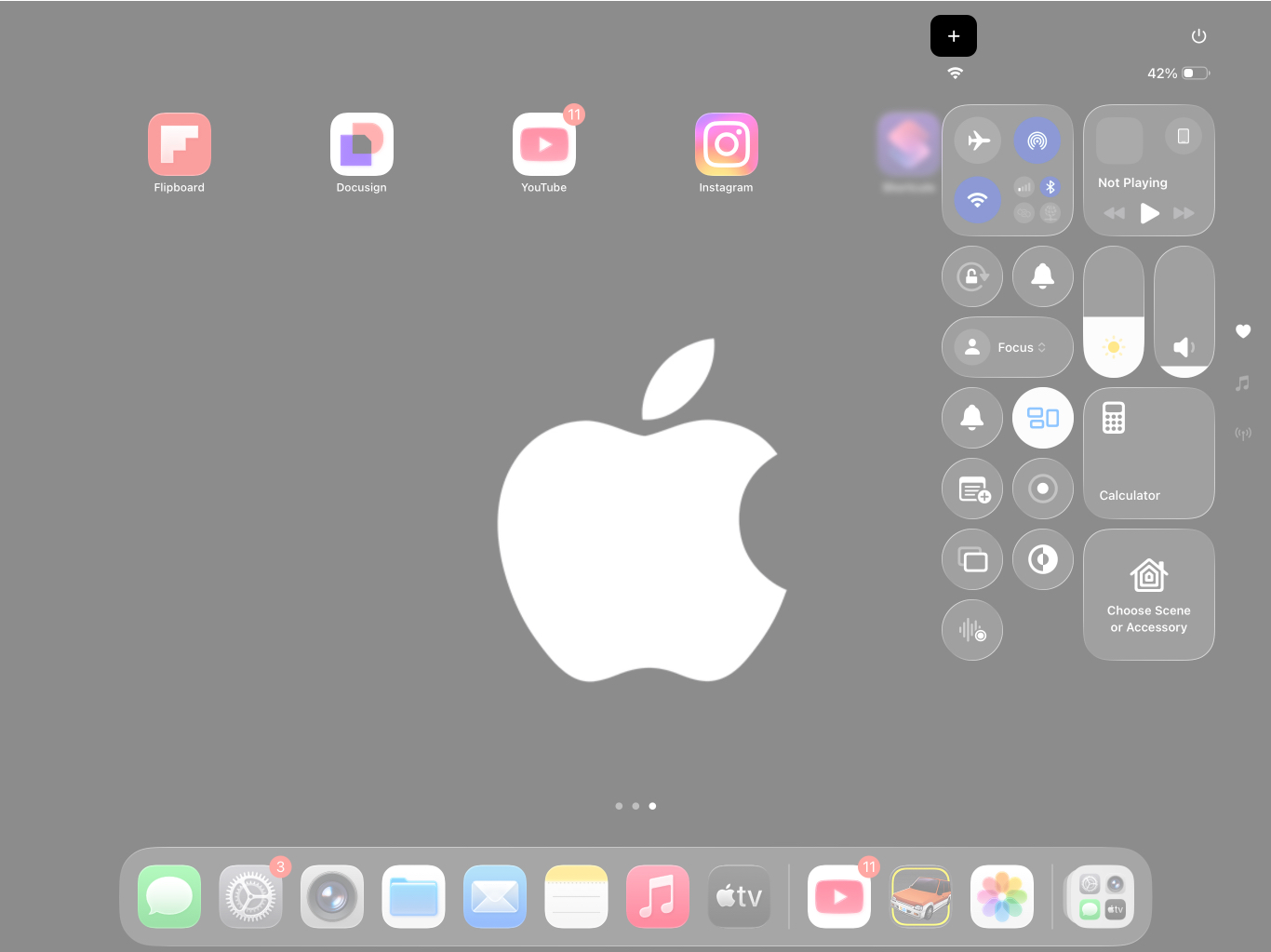
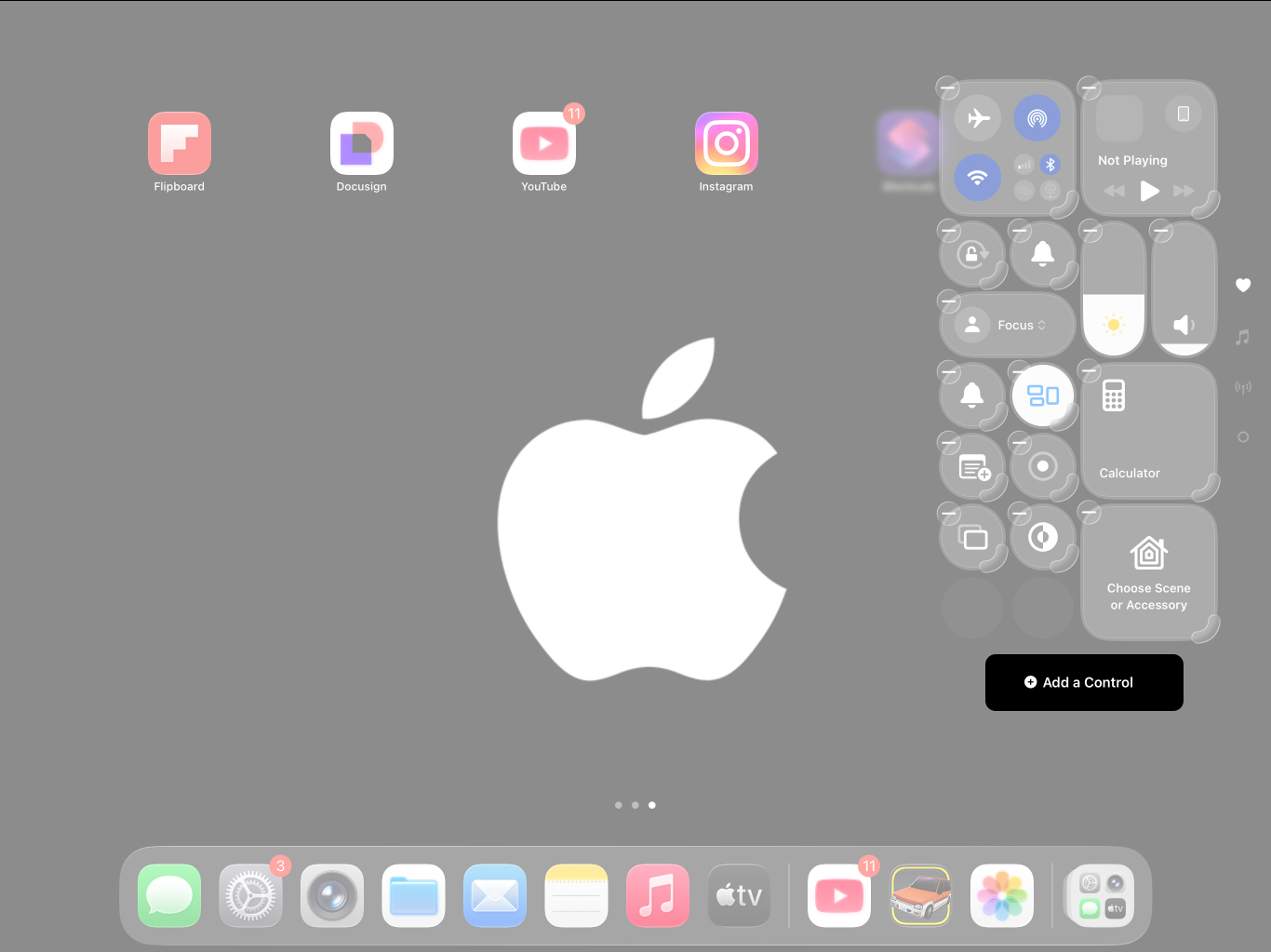
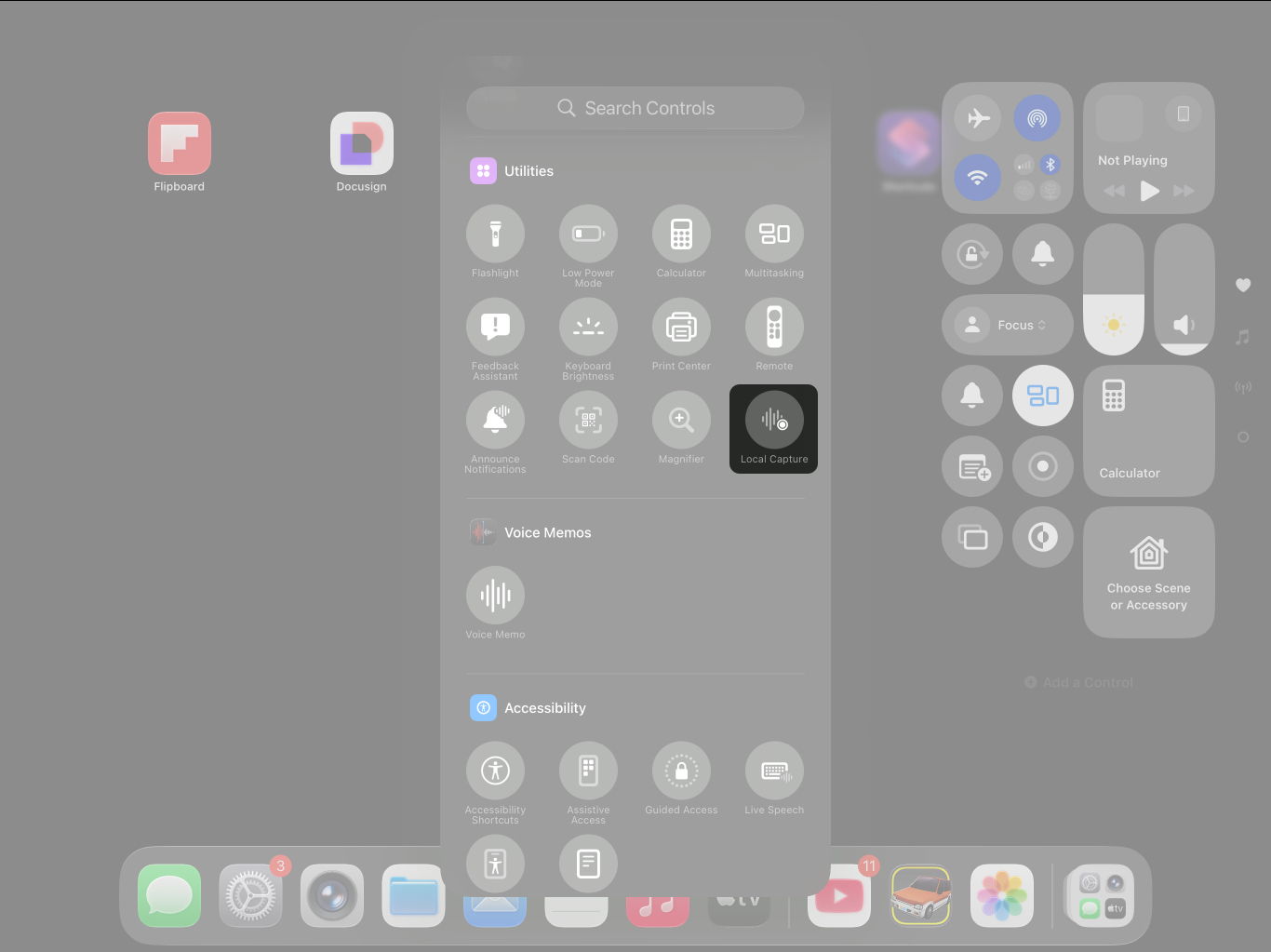
Now, Local Capture will be accessible during any video call from the Control Center.
Here’s how to start using Local Capture during a call:
You can locate your recordings in two ways:
To share the file:
Here’s a video explaining how it works:
Make your recordings shine with these pro tips:
Although Local Capture in iPadOS 26 is effortless and quick to use, you may still encounter some issues. Here are some common issues users face, along with quick fixes.
| Problem | Solution |
|---|---|
| Local Capture Not Available | Check whether your iPad supports iPadOS 26 and is updated to its latest version. |
| Local Capture Button Not Showing in Control Center | The Local Capture button isn’t available in the Control Center by default; you must add it manually. |
| Recording Not Saved or Missing | Check whether your iPad has enough free storage. If not, delete files that are no longer required. |
| Poor Audio Quality in Recording | Use Voice Isolation mode. If the issue persists, use a USB microphone. |
Local Capture turns your iPad into a mobile content creation studio. No more dependency on external apps or devices—record interviews, presentations, podcasts, or video logs effortlessly and professionally. It’s a small yet powerful feature that will redefine how creators, professionals, and students approach video calls and content capture.
Apple’s Local Capture in iPadOS 26 is a must-know feature for anyone serious about remote work, content creation, or virtual communication. It’s private, powerful, and incredibly easy to use. If you haven’t tried it yet, it’s time to give it a shot.
Have you used Local Capture on your iPad? Share your experience or favorite tips in the comments!
Related articles worth reading:









