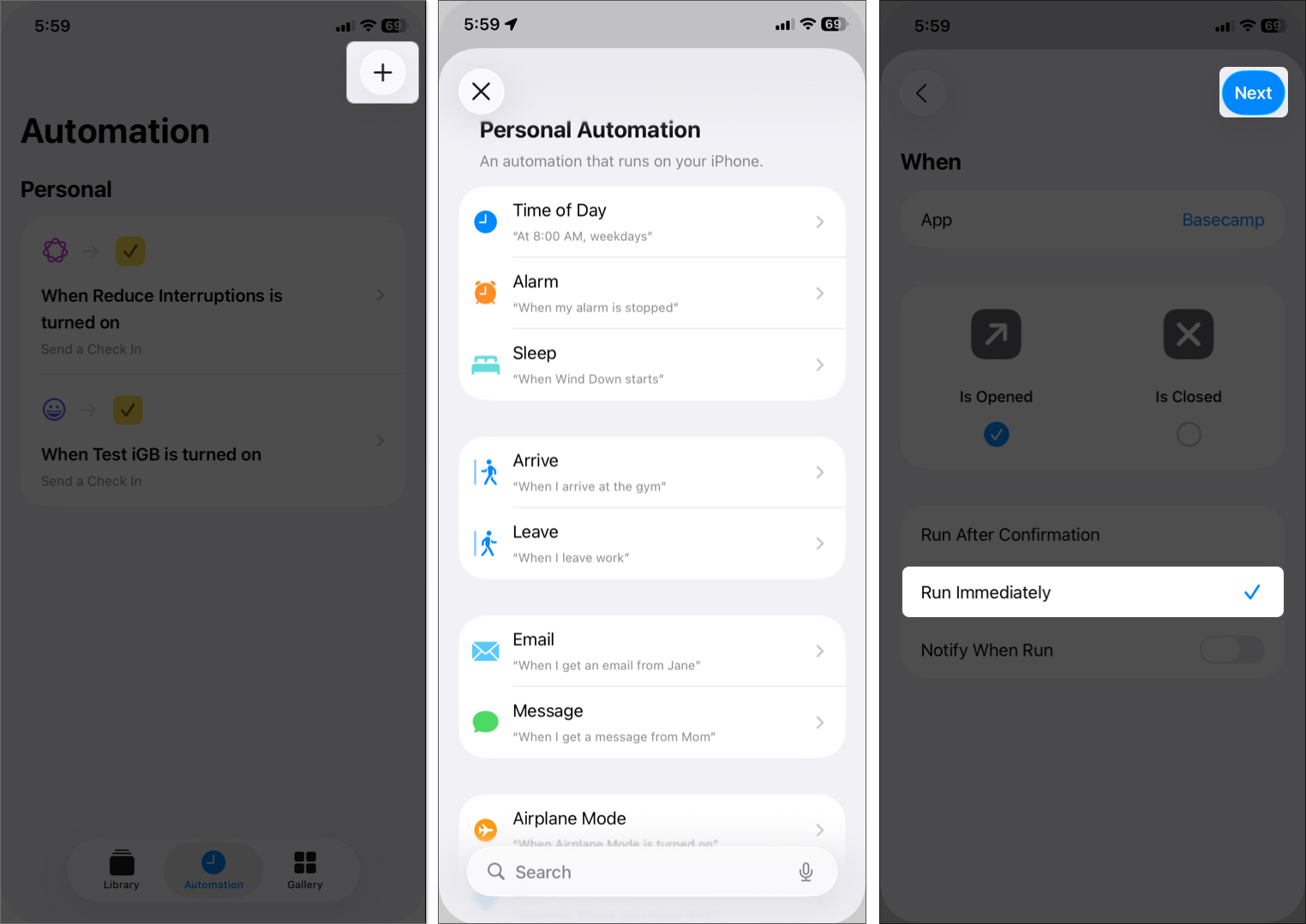
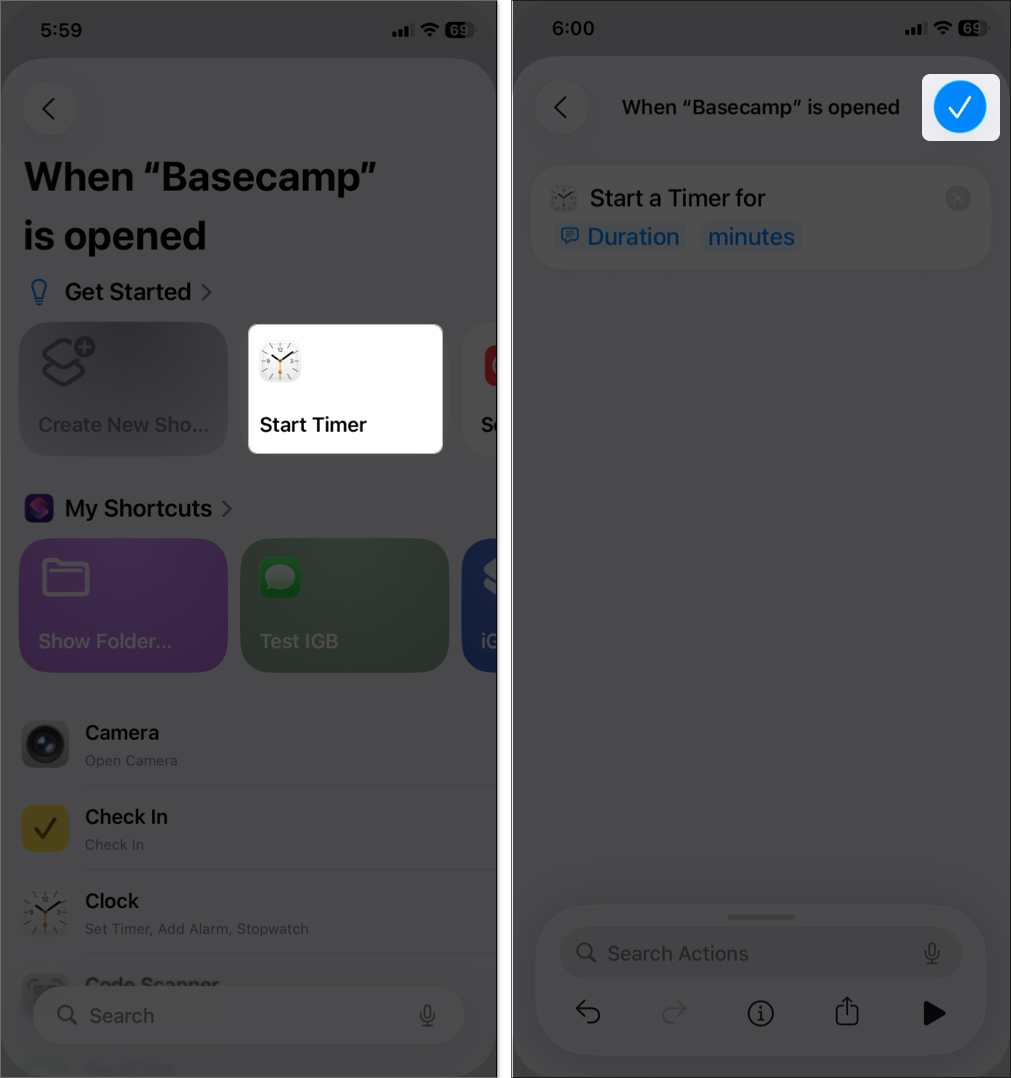
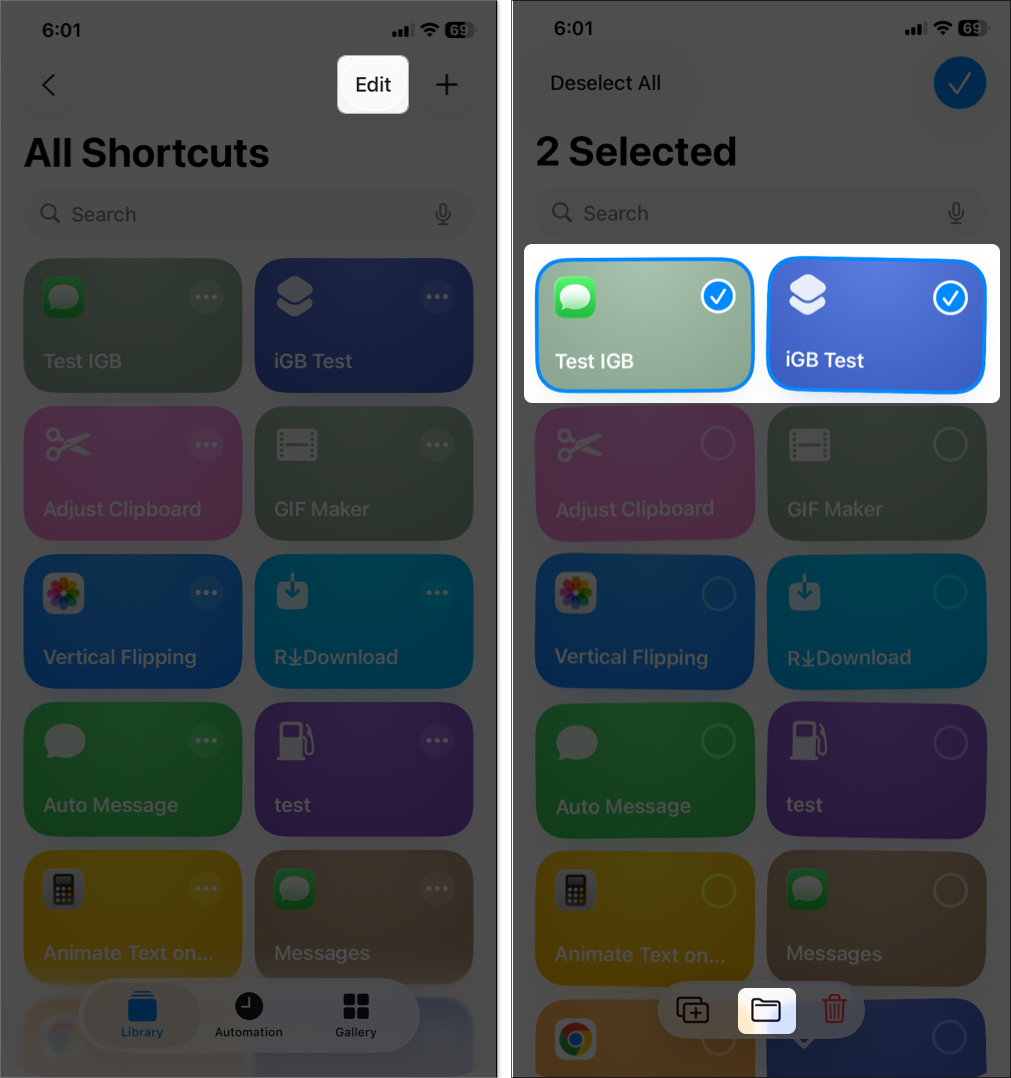
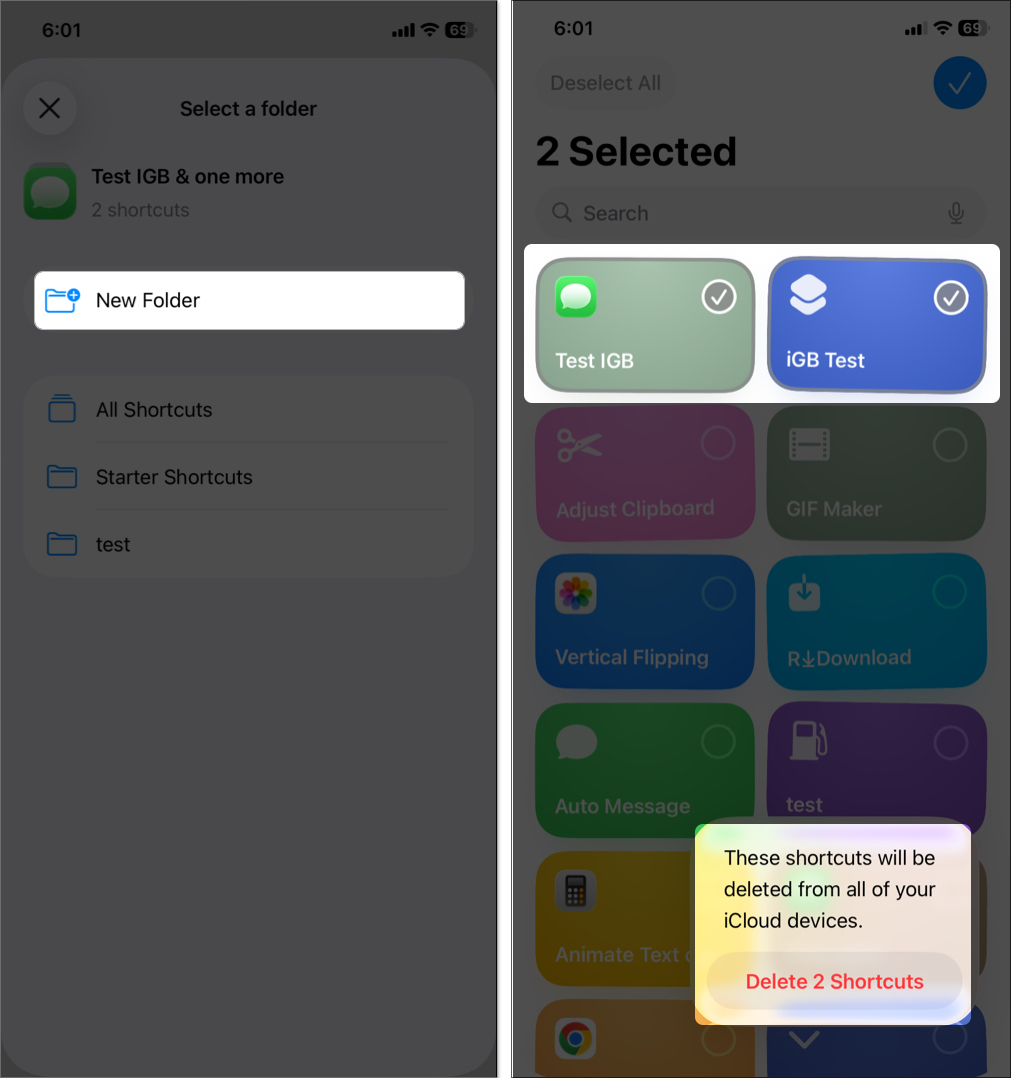
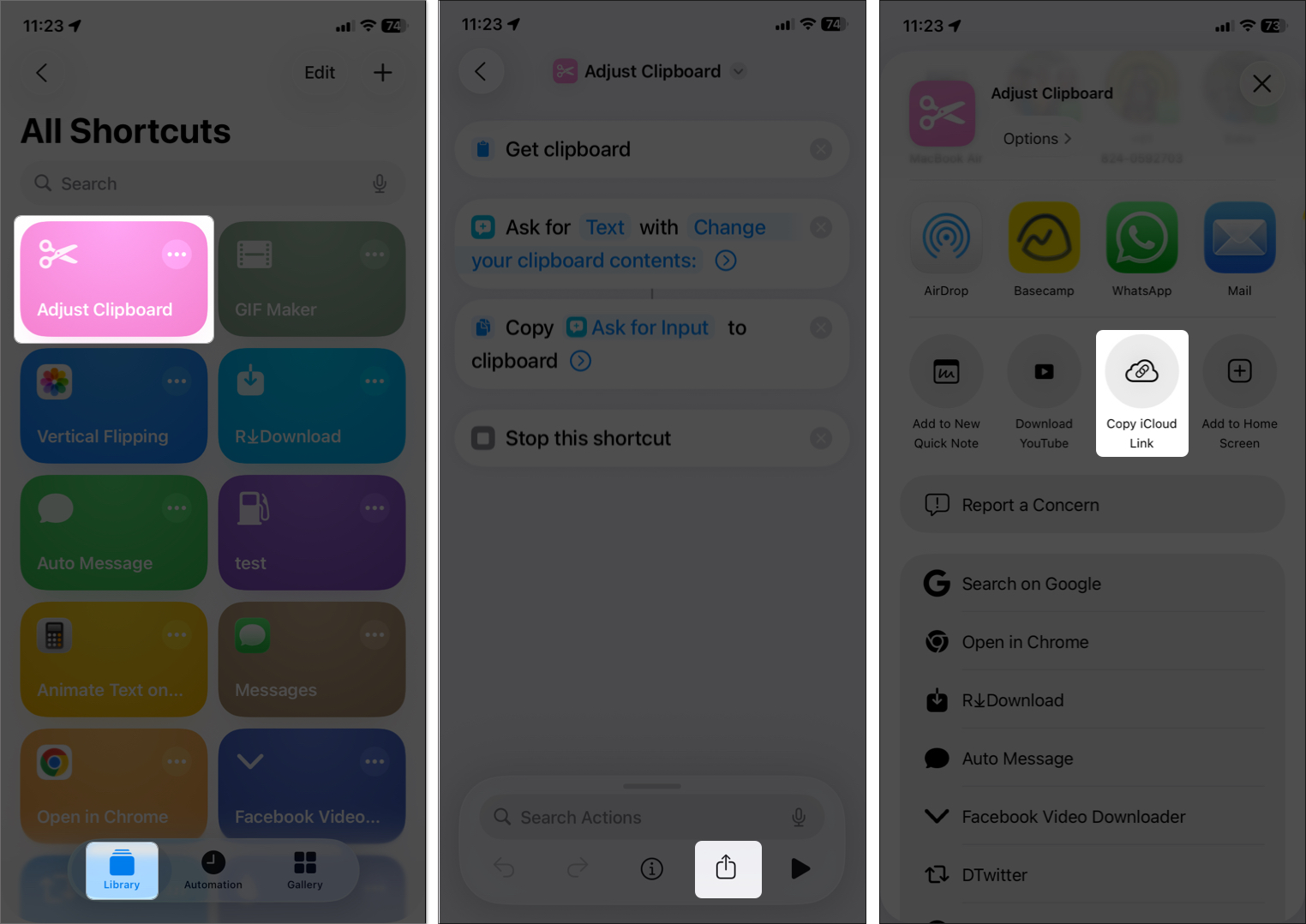
What shortcuts actually do: They’re basically automated mini-programs built from actions that handle tasks like messaging, opening apps, or even combining steps into one tap. iOS 26 gives them an extra push.
Pre-made options to save time: You’ll find a bunch of ready-to-go shortcuts in the Gallery or App Library. Just download, tweak a few settings, and you’re good.
Build your own flow: Want something unique? Pick your actions, set the order, and pop that shortcut onto your Home Screen or widget stack. Makes a difference when it’s yours.
New AI touches in iOS 26: Apple added things like text summaries and smart replies right into Shortcuts. It’s subtle but really handy once you try it.
Works across devices, but be mindful: You can run shortcuts via the app, Siri, Share Sheet, or widgets on iPhone, iPad, and Apple Watch. Just make sure each device supports the actions you’ve picked.
Shortcuts on iPhone are truly a game-changer when it comes to keeping productivity up and making simple tasks a little easier. You can automate repeated actions, create simple workflows, and even tap into Apple Intelligence features.
Whether you’ve never tried Shortcuts before or are looking to take your automation game to the next level, this is your step-by-step guide on how to use the Shortcuts app on iPhone and iPad.
Shortcuts are mini-programs that automate tasks on your iPhone or iPad. You can think of them as quick commands that combine multiple steps into a single tap or voice command. Each shortcut is made up of actions, which are individual steps. Actions do things like send a message, play music, or open an app.
For example, here’s a shortcut that combines the following actions:
Turn on Do Not Disturb
Set an alarm for 7:00 AM
Play your morning playlist
With iOS 26, shortcuts have never been more powerful. You can combine multiple Apple Intelligence actions into a single shortcut and run it from your iPhone or even with Siri. This level of integration opens up many possibilities to improve your efficiency and automate experiences for yourself, your family, or your business.
How to Find and Use Pre-built Shortcuts
Pre-built shortcuts are workflows that are already created and available for you to download and use immediately. These are great if you don’t want to build shortcuts from scratch. Here’s how to get started:
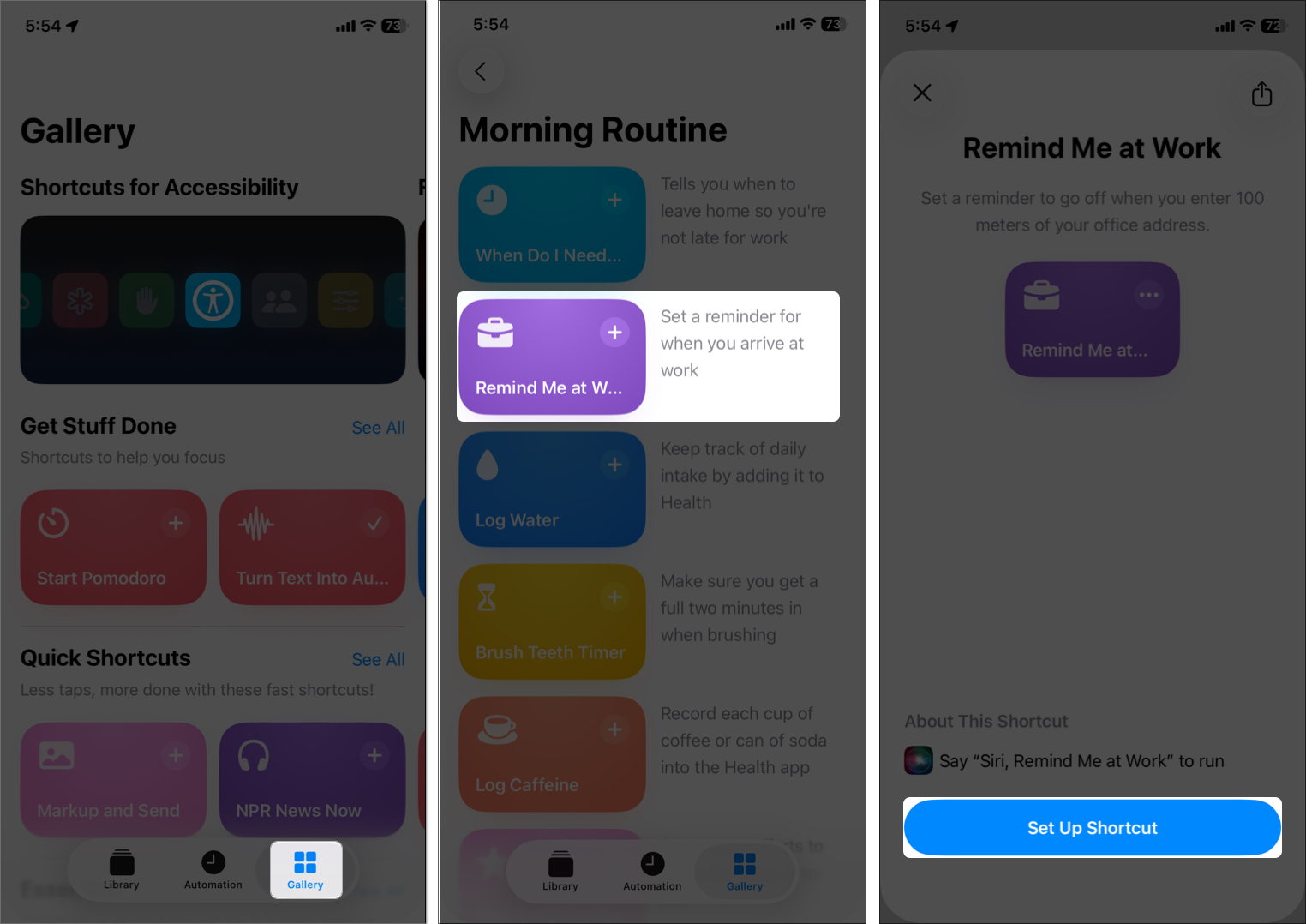
Open the Shortcuts app. If you can’t find it, download it from the App Store.
Tap the Gallery tab to browse Apple-curated Shortcuts.
Look for categories like Morning Routine or Shortcuts for Accessibility. Tap See All to explore the category.
Select a shortcut to preview its actions and access points.
Tap SetUpShortcut to save it to your library. You can edit it later if needed.
You can also discover shortcuts based on your installed apps in the Library tab. Scroll down and tap the app to view its available shortcuts.
Once added, shortcuts appear in the All Shortcuts tab, ready to run with a tap. You can also add them to your Home Screen or widgets for quick access.
If you can’t find a shortcut that fits your needs, create one from scratch. It’s easier than you think. Here’s how:
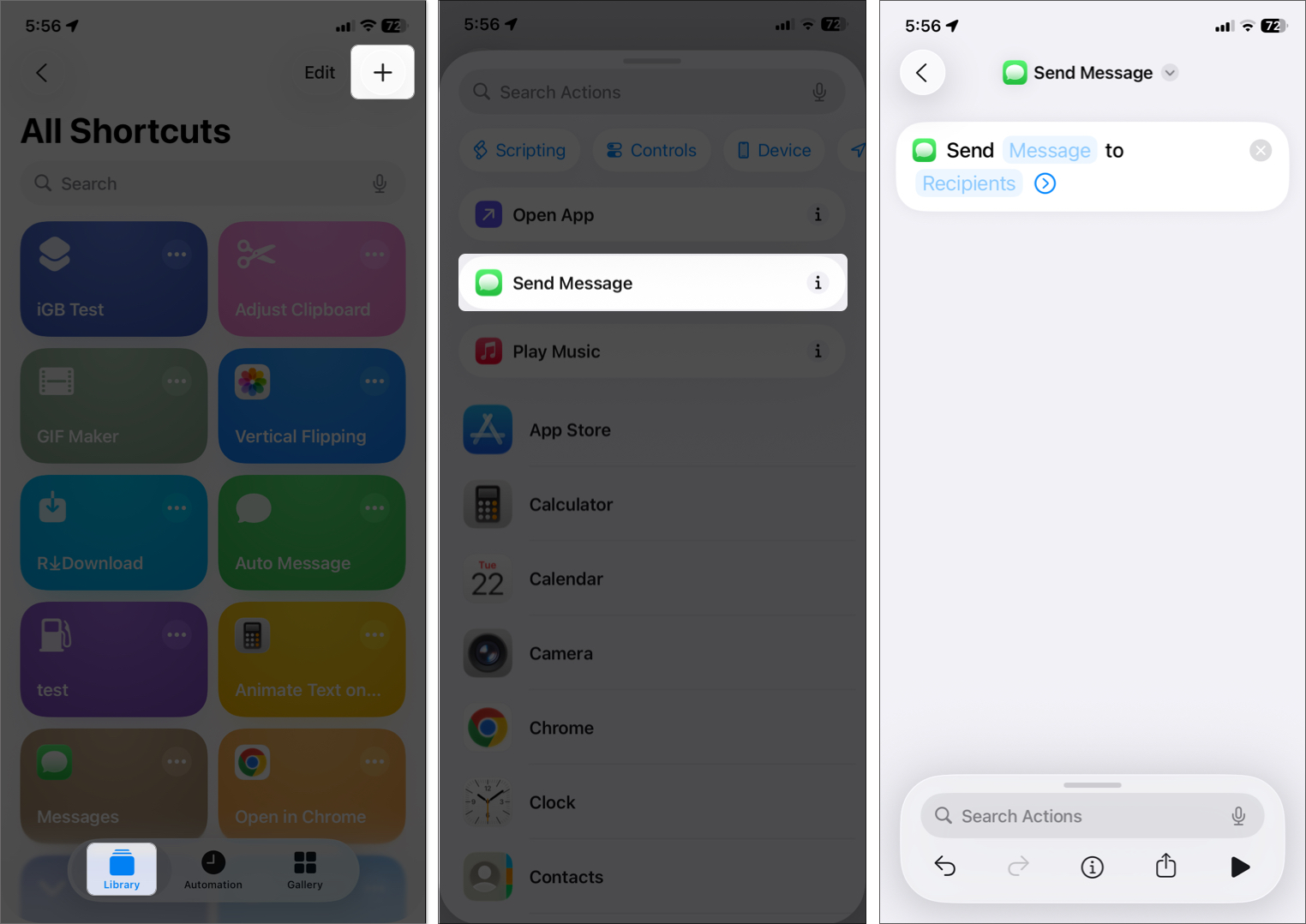
Open the Shortcuts app, go to the Library tab, and tap the + button at the top right.
Search for tasks like “Play Playlist,” explore the action categories at the top, or scroll to find app-specific actions. Combine multiple actions if needed.
Customize each action. For example, in the SendMessage action, choose a contact and type a default message or set it to paste from the clipboard.
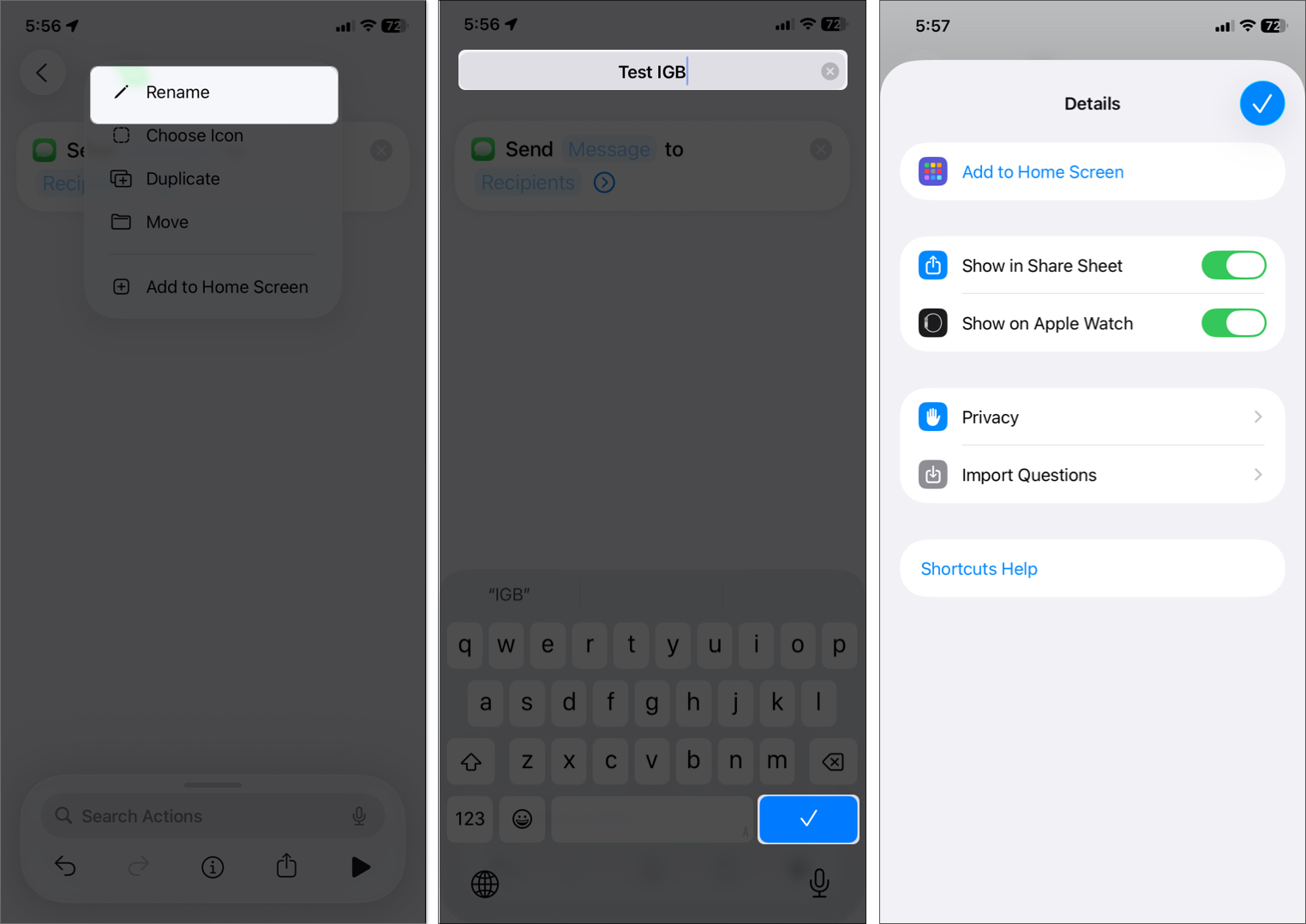
Tap the down arrow at the top, select Rename, give your shortcut a title, and tap the checkmark. You can also change its icon by selecting Choose Icon.
Tap the info (i) button at the bottom, select where the shortcut should appear—like the Home Screen, Share Sheet, or Apple Watch—and tap the checkmark to save.
Tap the play button to run your shortcut and confirm it works.
Tap the back button at the top left to save it.
With so many available options and controls, you can create shortcuts for nearly everything.
Using Apple Intelligence Features in Shortcuts (iOS 26)
With iOS 26, Apple Intelligence supercharges Shortcuts with AI-driven actions. These allow you to interact with your iPhone in smarter ways, like summarizing text or generating quick replies.
Here’s how to use them:
In the Shortcuts app, go to Gallery and explore the Apple Intelligence category.
Alternatively, start creating a shortcut and search for actions like “Summarize Text” or “Generate Image.”
Add additional actions and customize them according to your needs.
Example: Build a shortcut that summarizes voicemails and sends the summary to your Notes app.
How to Run a Shortcut on iPhone or iPad
You can run shortcuts in several ways, depending on your preference:
Shortcuts App: Open the app, go to the Library tab, and tap the shortcut.
Share Sheet: In any app, tap the Share icon and select the shortcut.
Home Screen: Tap the three dots on a shortcut, select the info (i) button, and choose Add to Home Screen.
Action Button (iPhone 15 Pro or later): Go to Settings > Action Button, choose Shortcut, and select one to run with a press.
Siri: Say, “Hey Siri, [shortcut name]” to run it hands-free.
Use Widgets for Quick Access
Widgets make shortcuts even more accessible:
Long-press your HomeScreen or Today View, then tap Edit > AddWidget.
Search for and select the Shortcuts widget.
Swipe to choose a widget size (small, medium, or large), then tap Add Widget.
For multi-shortcut widgets, long-press the widget, tap Edit Widget, and select a folder to display.
Tap the shortcut tile to run it directly from the widget.
Widgets are great for quick access to frequent tasks, such as starting a workout or checking your calendar.
Update iOS: Go to Settings > General > Software Update.
Check Permissions: Go to Settings > Shortcuts, then enable Private Sharing.
Restart the App: Force quit and reopen Shortcuts, or restart your device.
Simplify the Shortcut: Test each action to isolate the issue.
Reset Settings: If nothing works, go to Settings > General > Reset > Reset All Settings (note: this affects other preferences too).
For Apple Watch: Make sure both devices are updated and properly paired. If Siri won’t trigger shortcuts, check Settings > Apple Intelligence & Siri.
Work Smarter, Not Harder with iPhone Shortcuts
Shortcuts empower you to do more with less effort. Whether it’s launching automations, using AI, or activating features hands-free, the Shortcuts app helps you simplify your day.
Start with something simple today. Set up a Siri command or try a pre-built automation. With iOS 26, your possibilities are only expanding—make your iPhone work smarter for you.
I have been an Apple user for over seven years now. At iGeeksBlog, I love creating how-tos and troubleshooting guides that help people do more with their iPhone, iPad, Mac, AirPods, and Apple Watch. In my free time, I like to watch stand up comedy videos, tech documentaries, news debates, and political speeches.





 ByAnkur Thakur and Ava Biswas