
FaceTime Like a Pro
Get our exclusive Ultimate FaceTime Guide 📚 — absolutely FREE when you sign up for our newsletter below.

FaceTime Like a Pro
Get our exclusive Ultimate FaceTime Guide 📚 — absolutely FREE when you sign up for our newsletter below.


Enjoy your favorite Spotify music and podcasts right from your Apple Watch—no iPhone needed. Perfect for workouts, travel, and life on the go.

 ByMehak Siddiqui and Vikhyat


Heading out for a morning run and don’t want to take your iPhone, but still want to enjoy your favorite tracks? Spotify on Apple Watch has your back.
Spotify on Apple Watch is one of the most convenient ways to listen to music and podcasts—even when your paired iPhone isn’t nearby. From controlling playback and downloading for offline use to streaming music directly, it brings your favorite tunes right to your wrist.
Here’s everything you need to know to get the most out of Spotify on Apple Watch.
With Apple Music integrated seamlessly into the Apple ecosystem, you might wonder, “Why use Spotify at all?” Here’s why millions prefer Spotify—even on their Apple Watch:
Related: Apple Music vs. Spotify: Which is the best music streaming platform?
Before diving in, make sure your setup checks all the boxes:
If you’re a Spotify Premium subscriber, you can stream music directly on your Apple Watch. Here’s how:
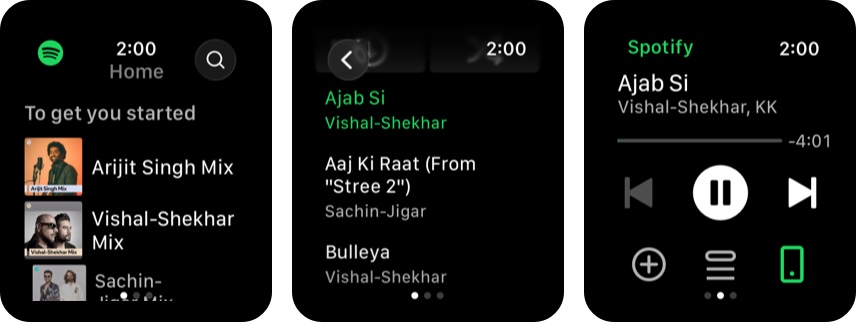
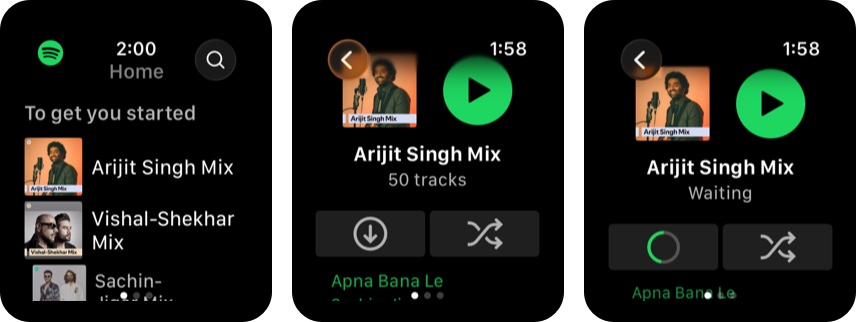
Spotify Premium users can download audio to their Apple Watch for offline listening—ideal for flights, gyms, or no-signal zones.
To download directly from your Apple Watch:
To queue downloads from iPhone, iPad, or Mac:
Even if your Apple Watch isn’t on your wrist, you can still queue downloads:
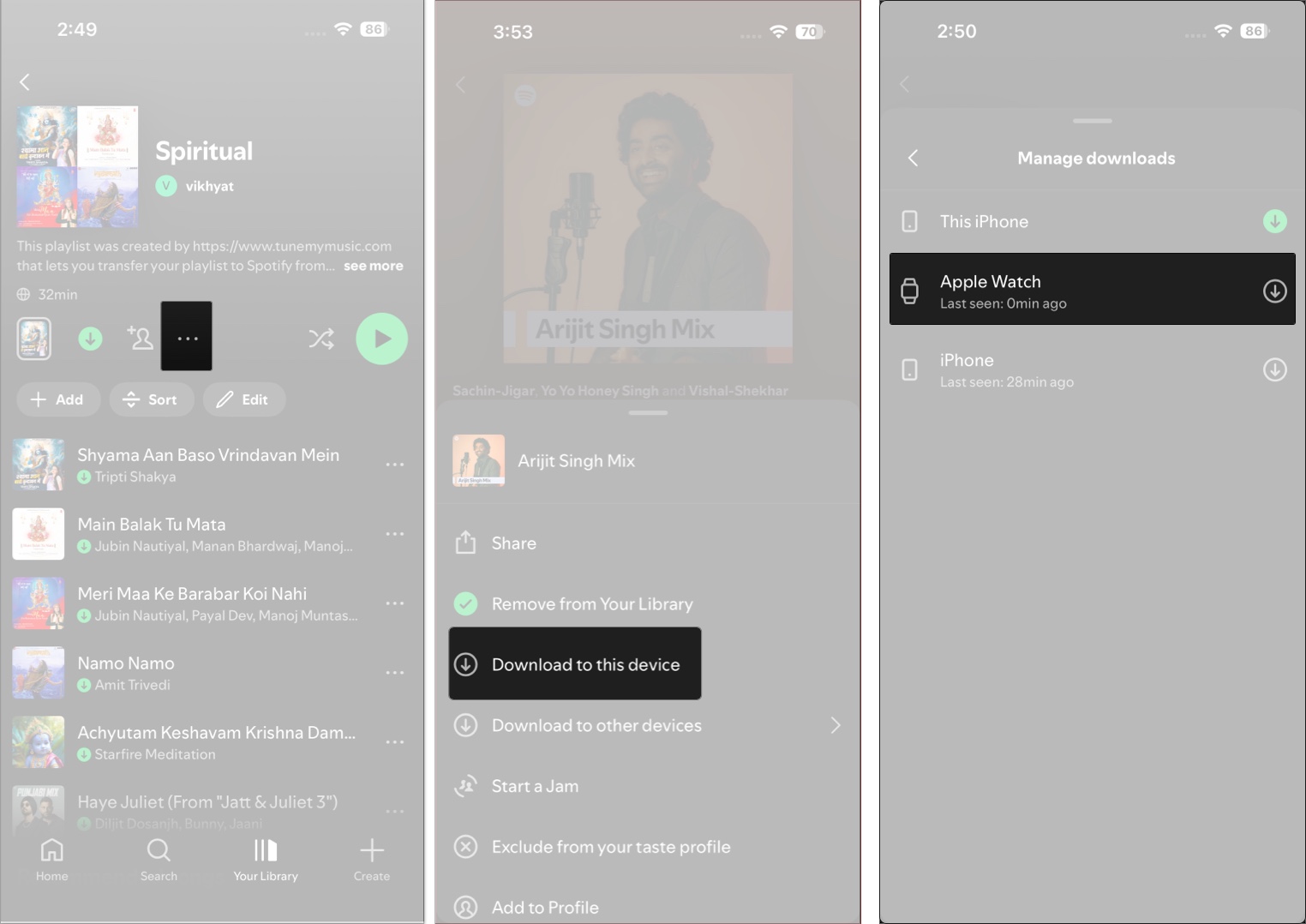
Your Watch will start downloading the files automatically when it’s charging and connected to Wi‑Fi.
Control Spotify without touching the screen:
Say:
“Hey Siri, play [artist or playlist name] on Spotify”
Want even faster access? Add Spotify to your Watch face:
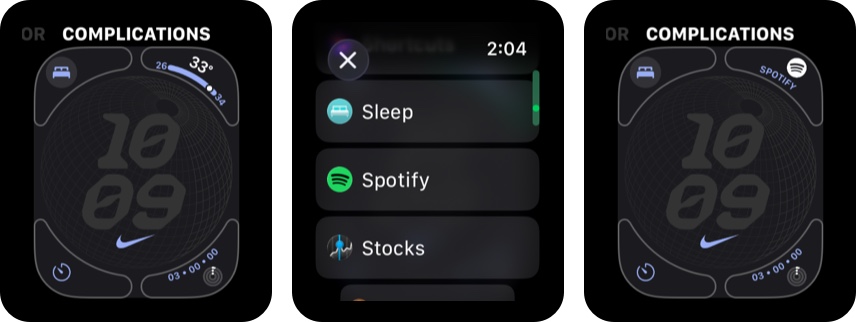
Now, just tap the Spotify complication to open the app instantly.
Run into a hiccup? Try these quick fixes:
| Issue | Solution |
|---|---|
| Spotify is offline | Ensure your Watch is connected to Wi-Fi or has a nearby paired iPhone. |
| App not showing on Watch | Check the Watch app on iPhone and reinstall Spotify if necessary. |
| Can’t download music | Ensure you have Spotify Premium and a Wi‑Fi connection. |
| Playback keeps cutting out | Reconnect Bluetooth headphones or restart the Spotify app/Apple Watch. |
Spotify turns your Apple Watch into a mini music hub—perfect for runs, workouts, commutes, or simply disconnecting from your iPhone. With streaming, offline playback, Siri support, and watch face complications, you’ve got everything you need—right on your wrist.
Got any tips or questions about Spotify on Apple Watch? Share them in the comments below!
Related articles worth reading:









