What the Workout app does: Apple Watch’s Workout app tracks dozens of activities and syncs data with Health and Fitness apps for complete progress insights.
How to start and stop a workout: Open Workout, pick an activity, tap Play after the countdown, and swipe right when you’re ready to finish.
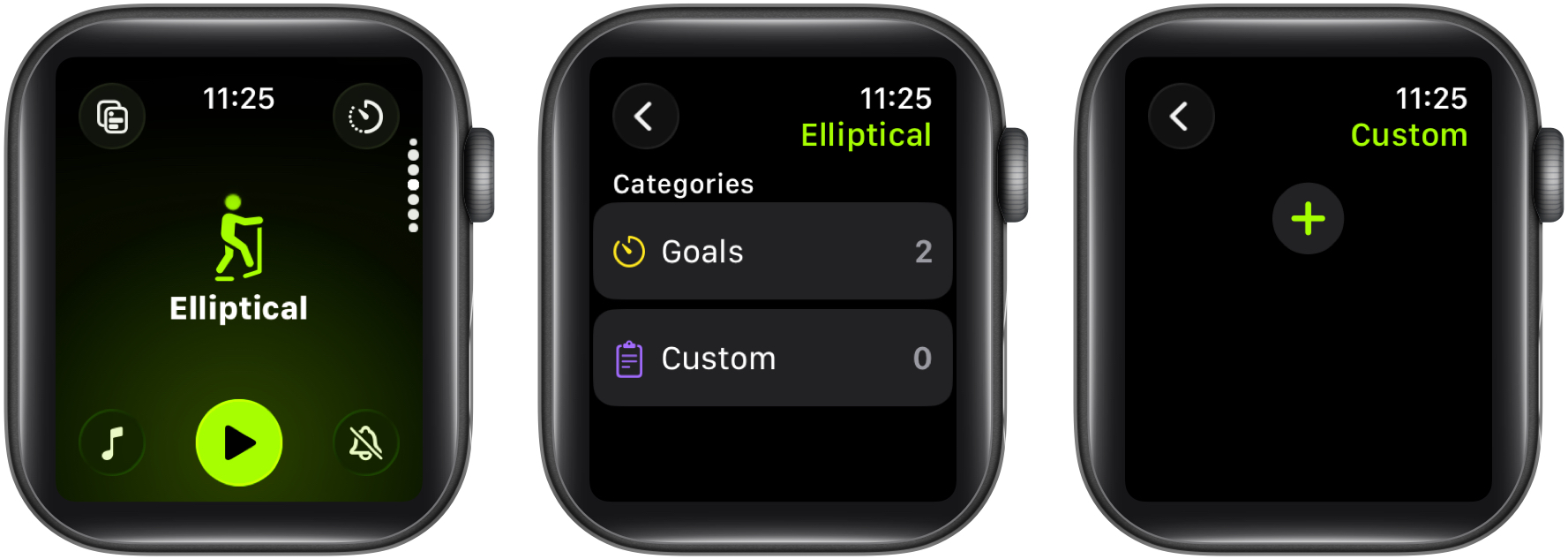
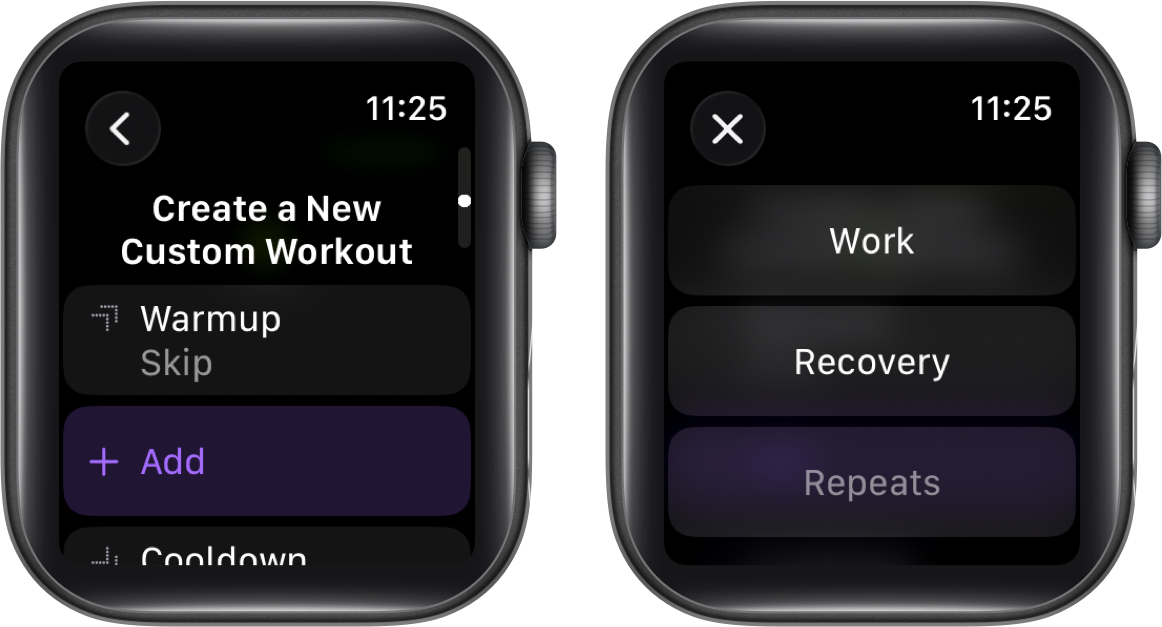
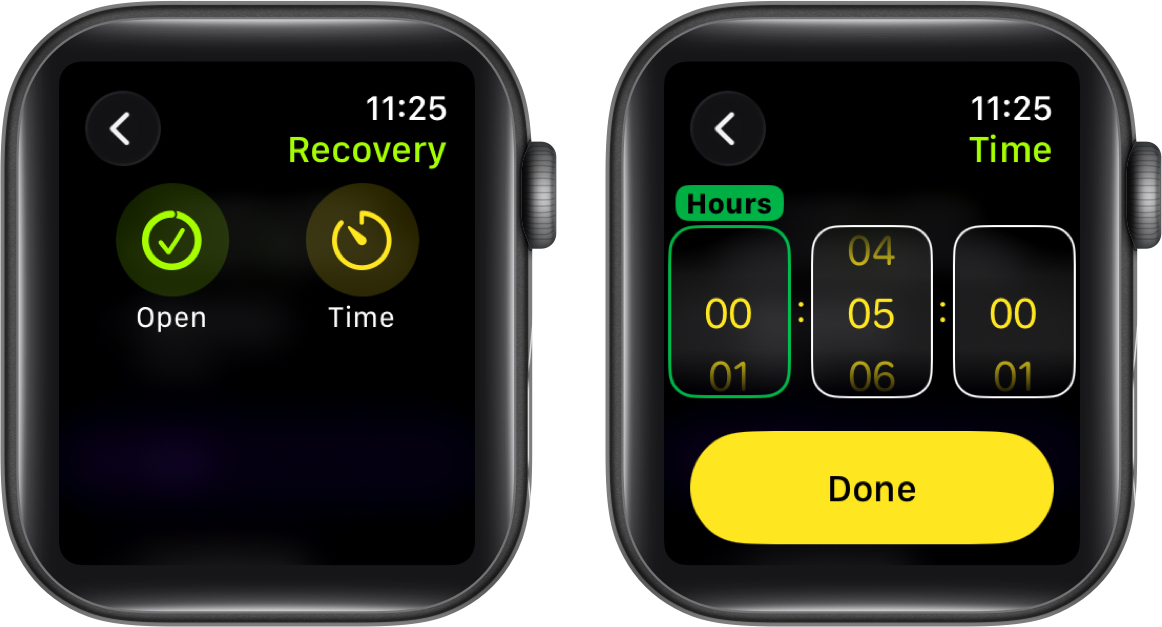
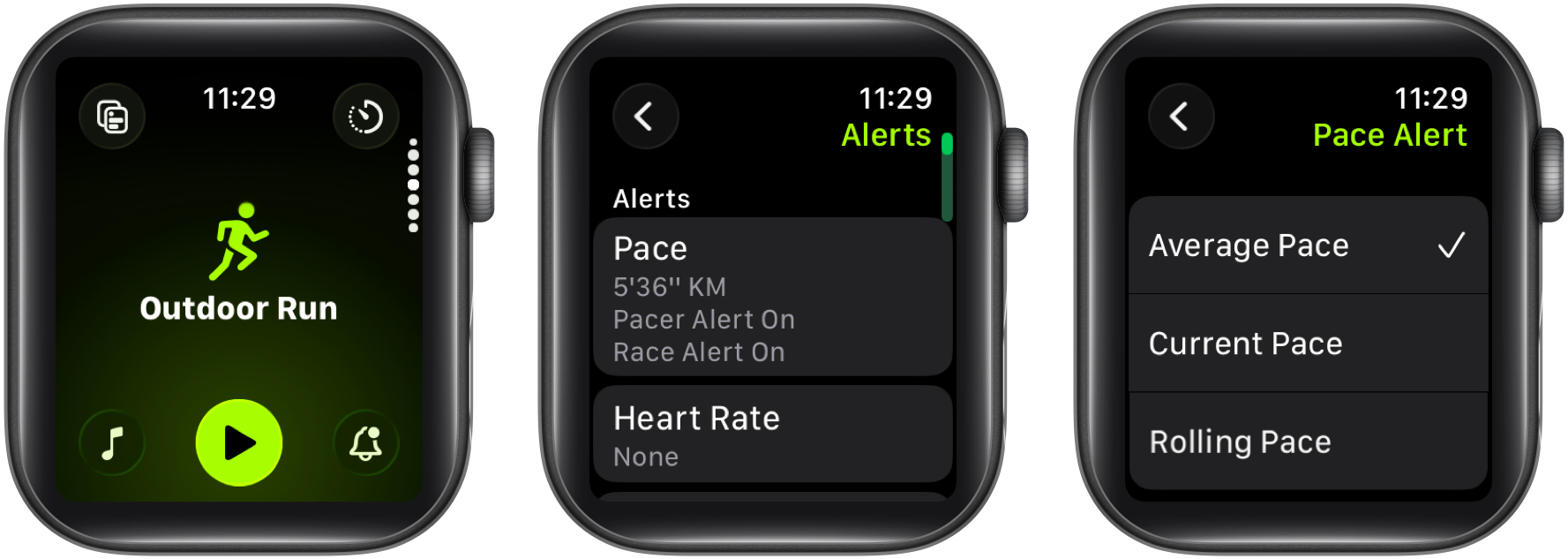
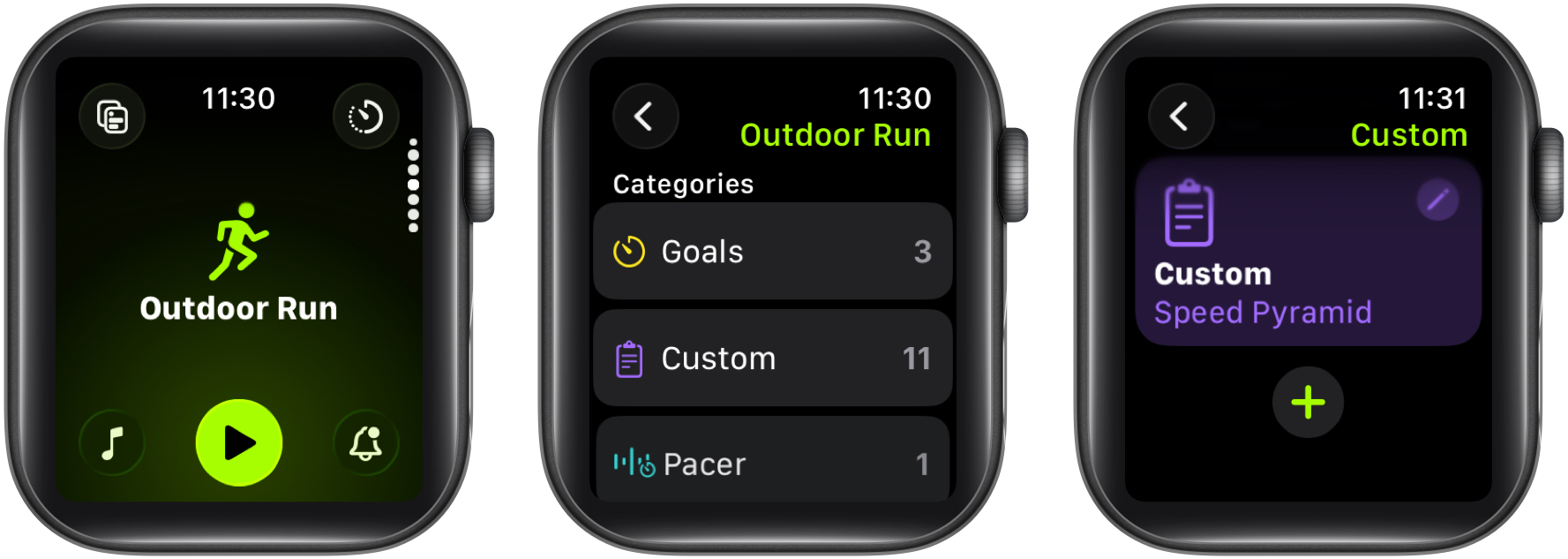
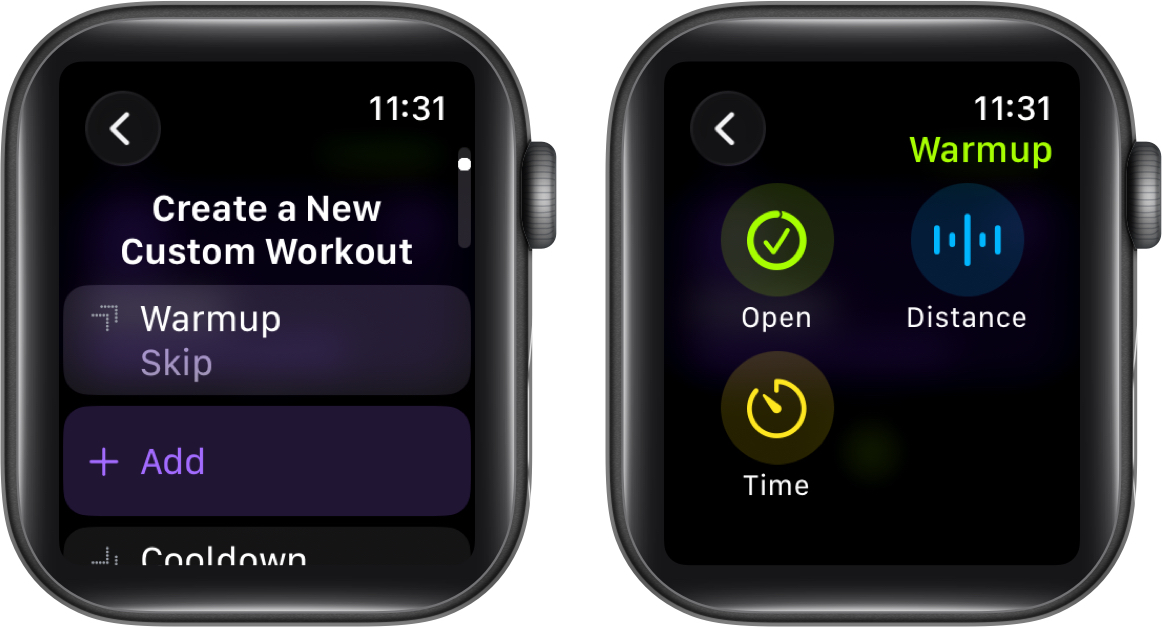
Ways to customize your workouts: You can set heart rate zones, create structured intervals, and enable pace alerts to match your training goals.
Extra tools for advanced athletes: GPS maps, swimming mode, cadence and form tracking, haptic alerts, and auto-pause cater to serious fitness routines.
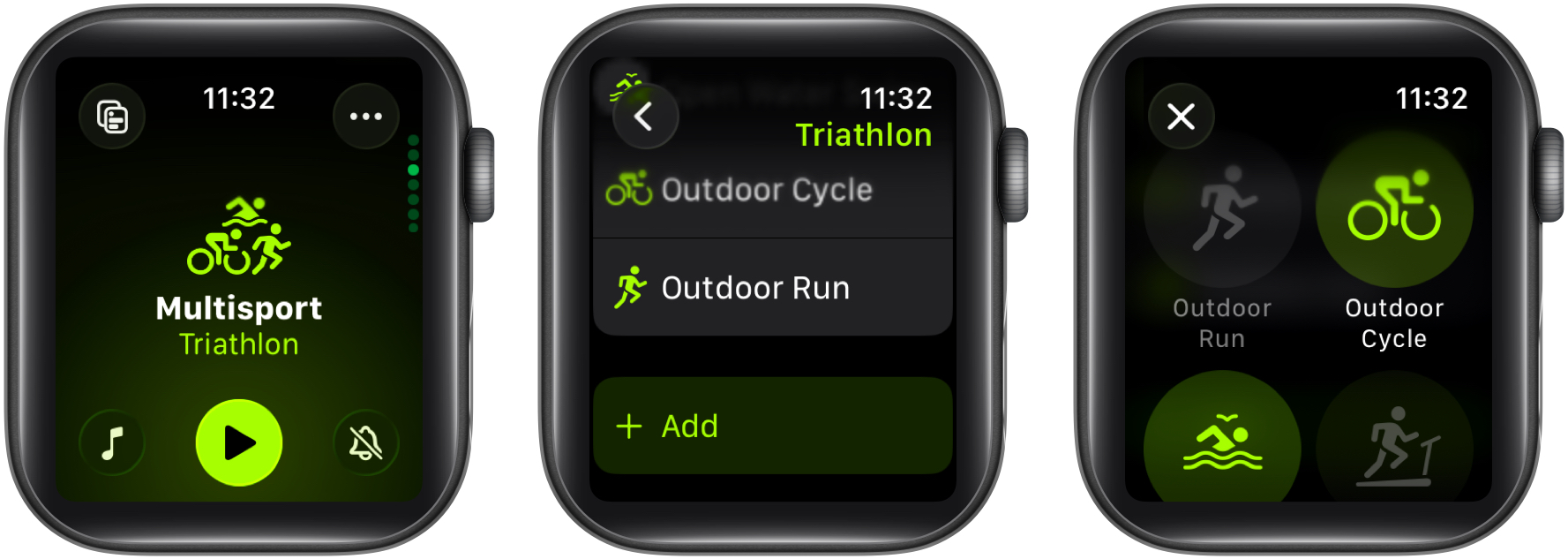
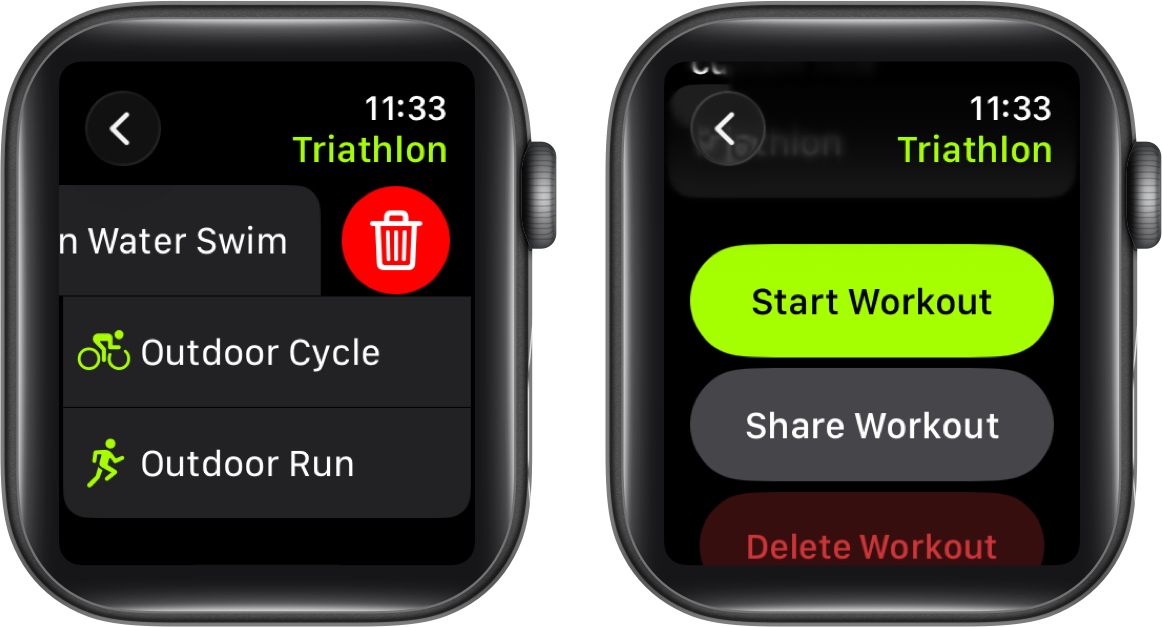
How Multisport workouts work: You can combine running, cycling, and swimming in one session, with each activity tracked separately but saved as a single workout.
An Apple Watch isn’t just a sleek fashion accessory; it’s a powerful fitness tracker on your wrist. Whether you’re doing an intensive HIIT session or just a casual indoor walk, the Workout app on your Apple Watch transforms each activity into a detailed performance log. When used properly, the app provides accurate stats, personalized training insights, and even coaching-style feedback powered by AI.
This guide explains how the Workout app works, its customization options, advanced features, and tips to maximize your Apple Watch fitness tracking.
The Workout app is Apple Watch’s built-in fitness tracker that helps you start, monitor, and analyze workouts while syncing data seamlessly with the Health and Fitness app on your paired iPhone. It supports a wide range of activities, including but not limited to:
Outdoor and indoor running
Walking and hiking
Cycling
Swimming (pool and open water)
High-intensity interval training (HIIT)
Yoga, Pilates, and Dance
Rowing and Elliptical
Strength training
Custom Workouts
Once recorded, your data integrates with the iPhone’s Health and Fitness apps, giving you an easy-to-read breakdown of progress, trends, and health insights over time.
How to Access and Start a Workout on Apple Watch
Getting started with the Workout app is simple:
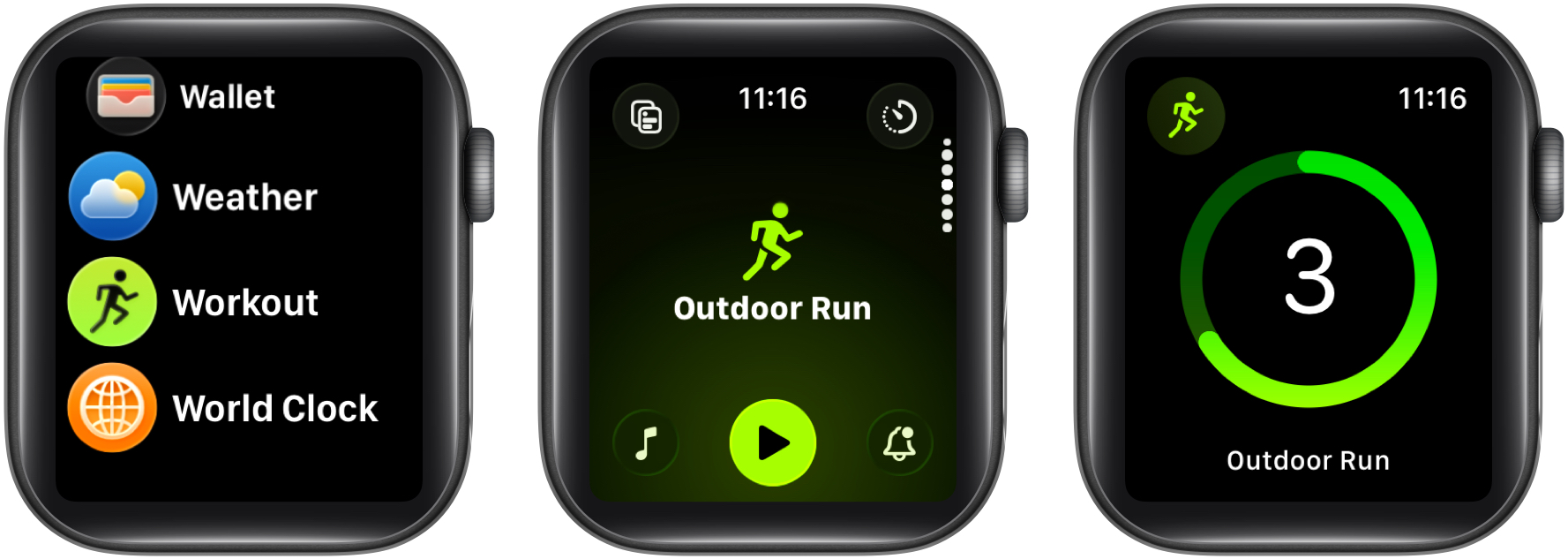
Open the Workout app on your Apple Watch.
Scroll down to choose from the available pre-added workouts.
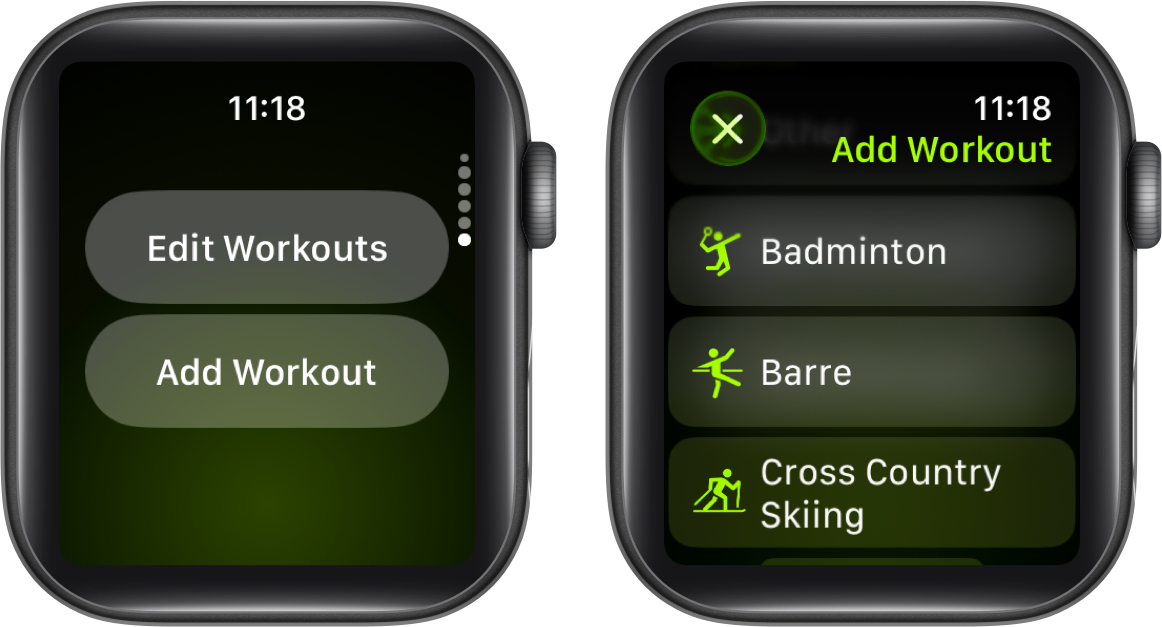
Alternatively, if you can’t find the workout you’re looking for, scroll down to the bottom and tap the Add Workout button to choose a workout that isn’t available by default.
Once selected, tap the Play (Start) button, and the workout will begin after a 3-second timer.
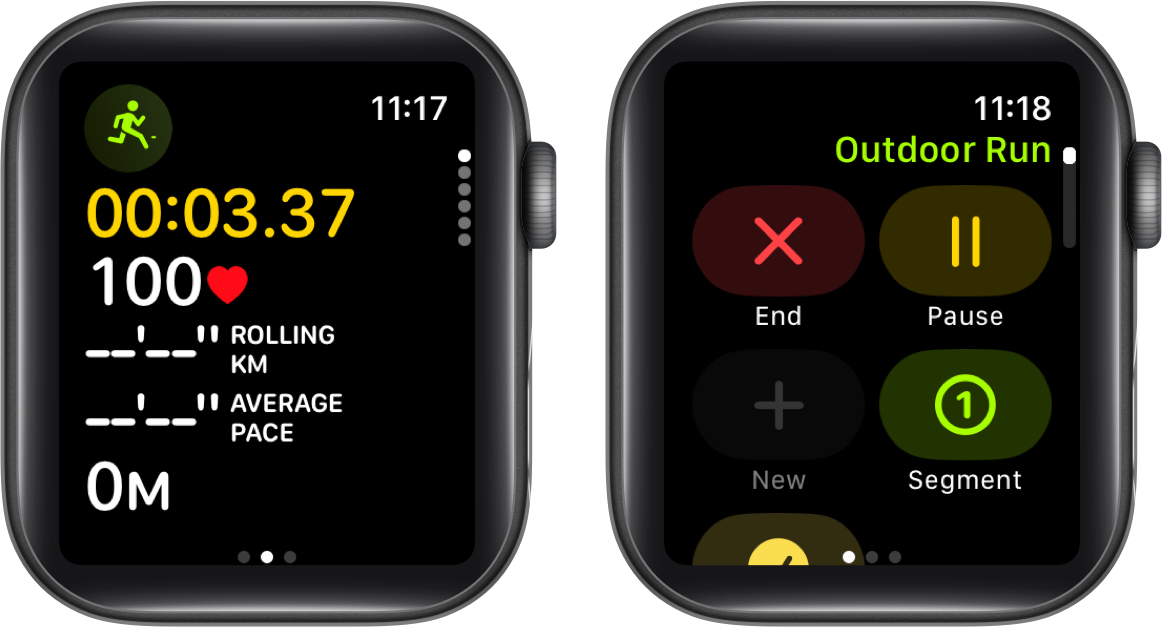
To end the workout, simply swipe right and tap the End button.
Customizing Your Workouts
Personalization is key to making the most of the Workout app. You can tailor metrics, set intervals, and add pace alerts.
Change Metrics
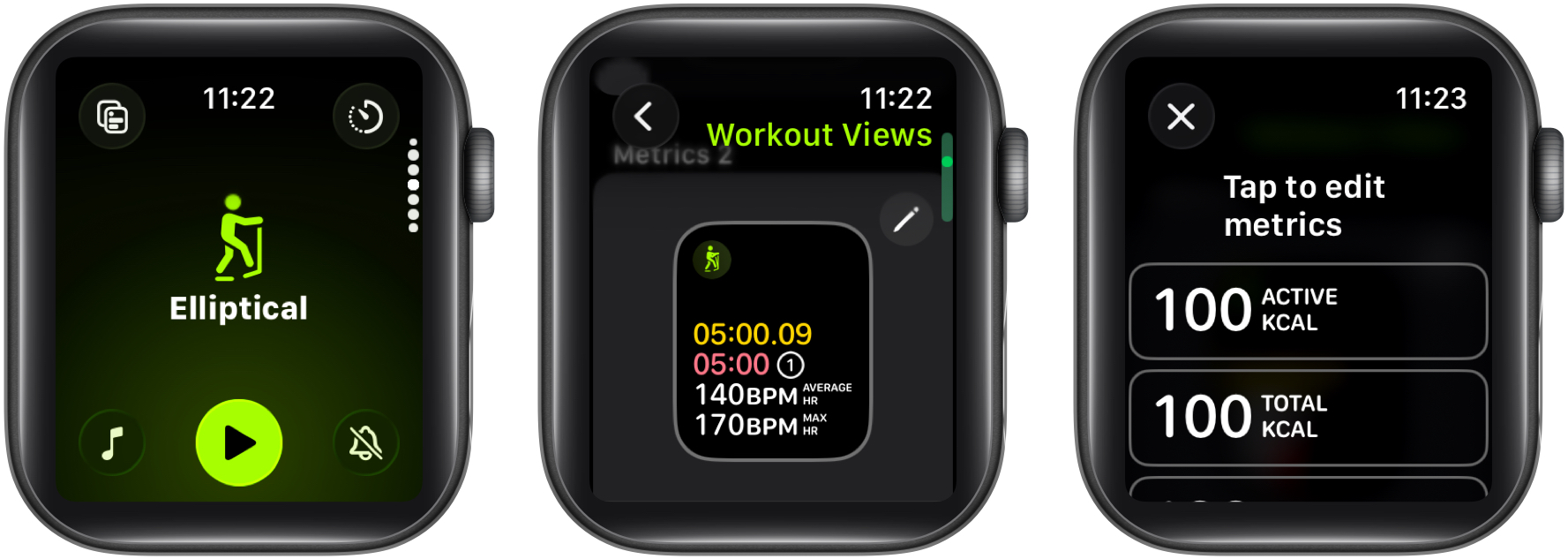
If the default workout view doesn’t appeal to you, tap the Display Metric icon at the top left to change views and display metrics like pace, heart rate, or elevation.
Select one of the available workout views.
Alternatively, tap the Pen icon on a workout view to edit metrics in it.
The selected workout view will now appear during all your current and future workout sessions.
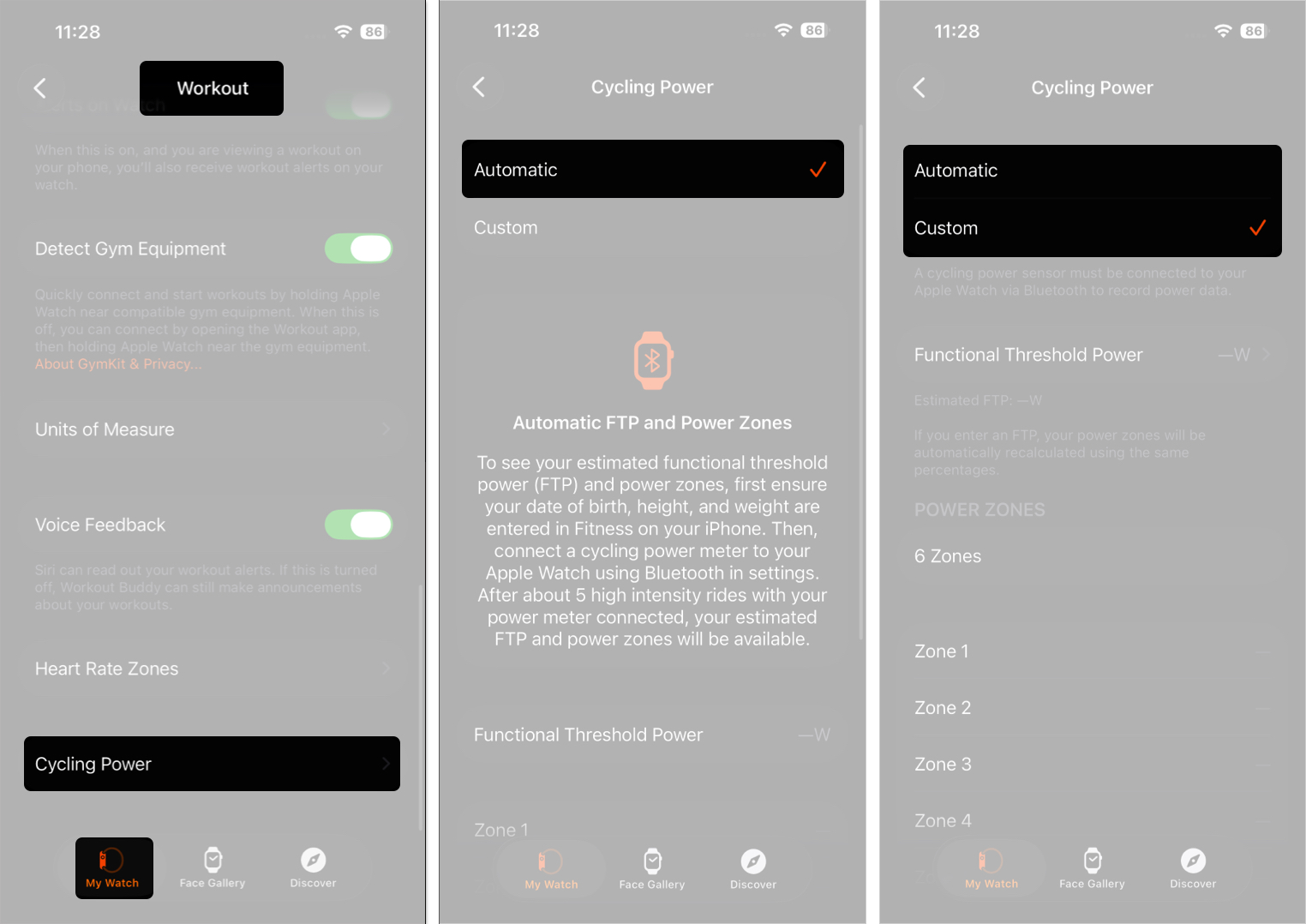
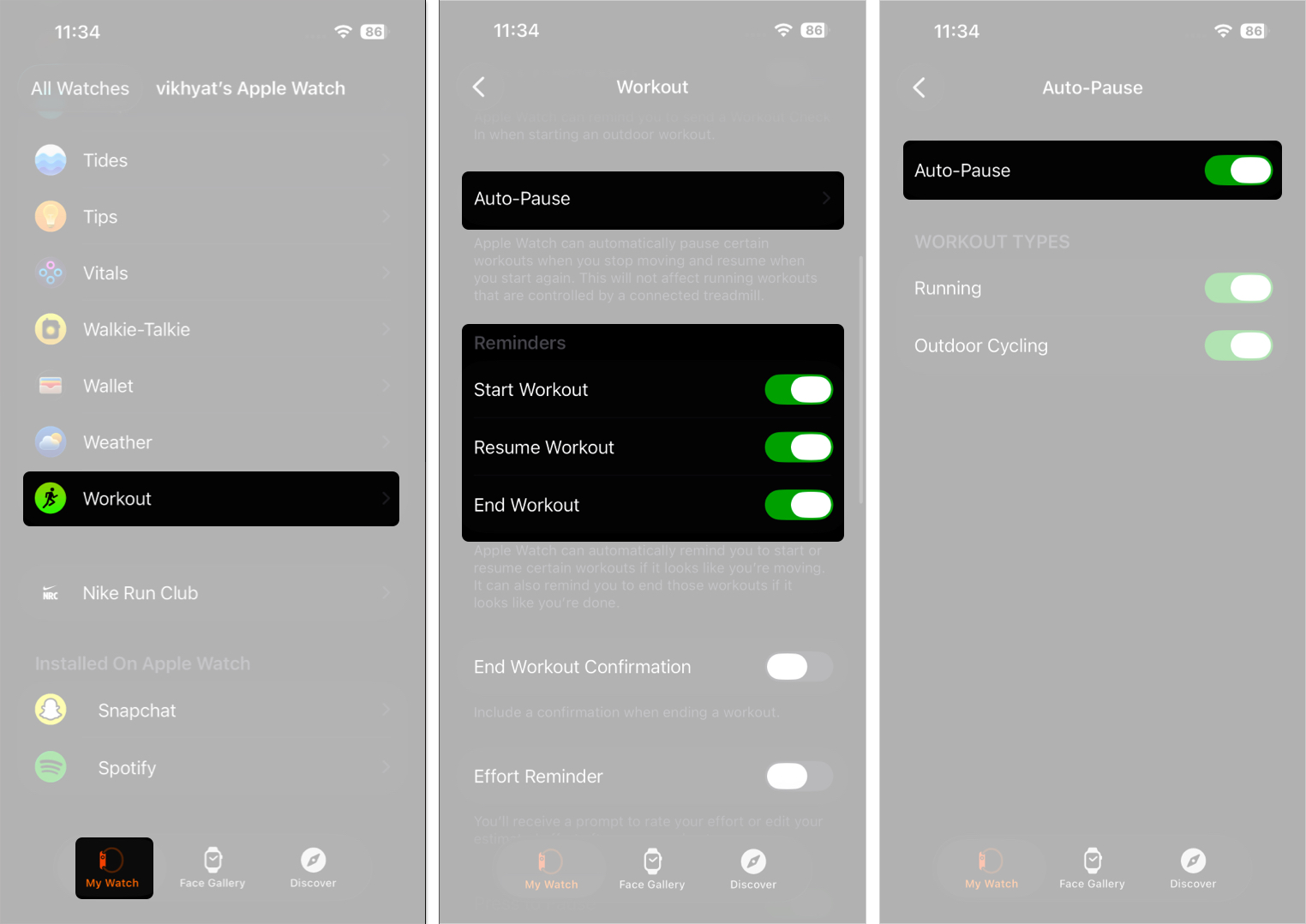
Open the Watch app on the iPhone and make sure you are on the My Watch tab.
Select the Workout app.
Toggle on Start Workout, Resume Workout, and End Workout.
Tap on Auto Pause, then toggle on Auto Pause in the subsequent menu.
Toggle on the preferred workout types.
Viewing, Editing & Deleting Workout Data
As your Apple Watch is a companion device to your iPhone, all the tracked data is shared with the paired iPhone. Therefore, you can view your workout data on both the watch and the iPhone, but deleting data is only possible on the iPhone. Here’s how:
On Apple Watch
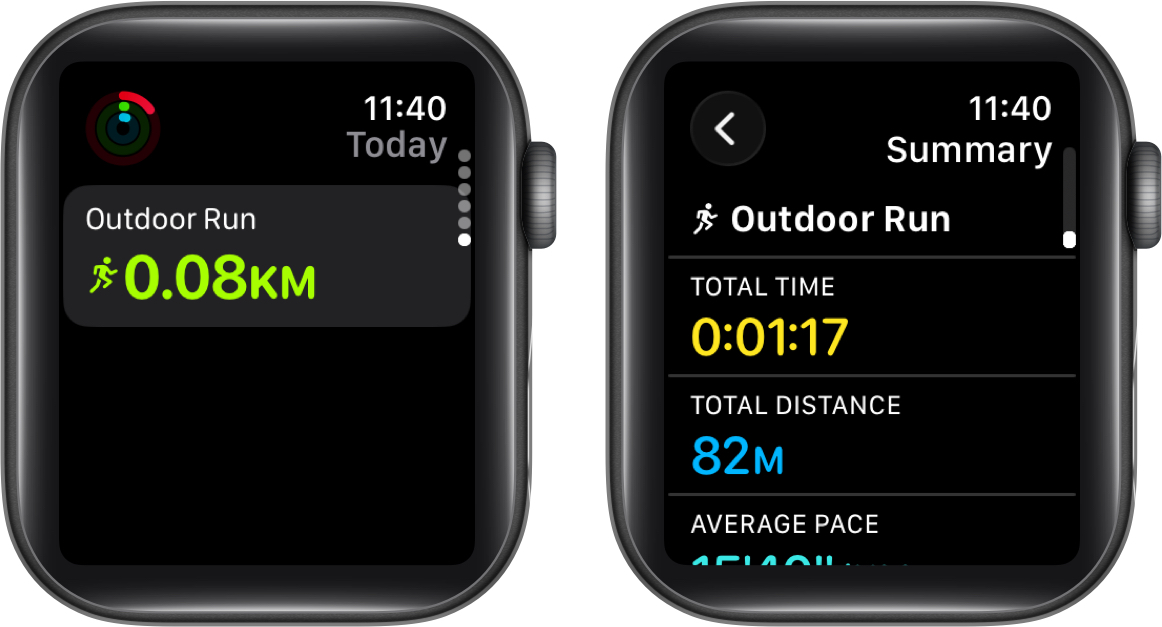
When you finish, you’ll see a summary on your watch. Moreover, if you performed the multisport activity, you can check the related summary in the Activity app as well.
Open the Activity app and scroll down to the Today tab.
Tap the Multisport tab, and all the related data will appear.
On iPhone
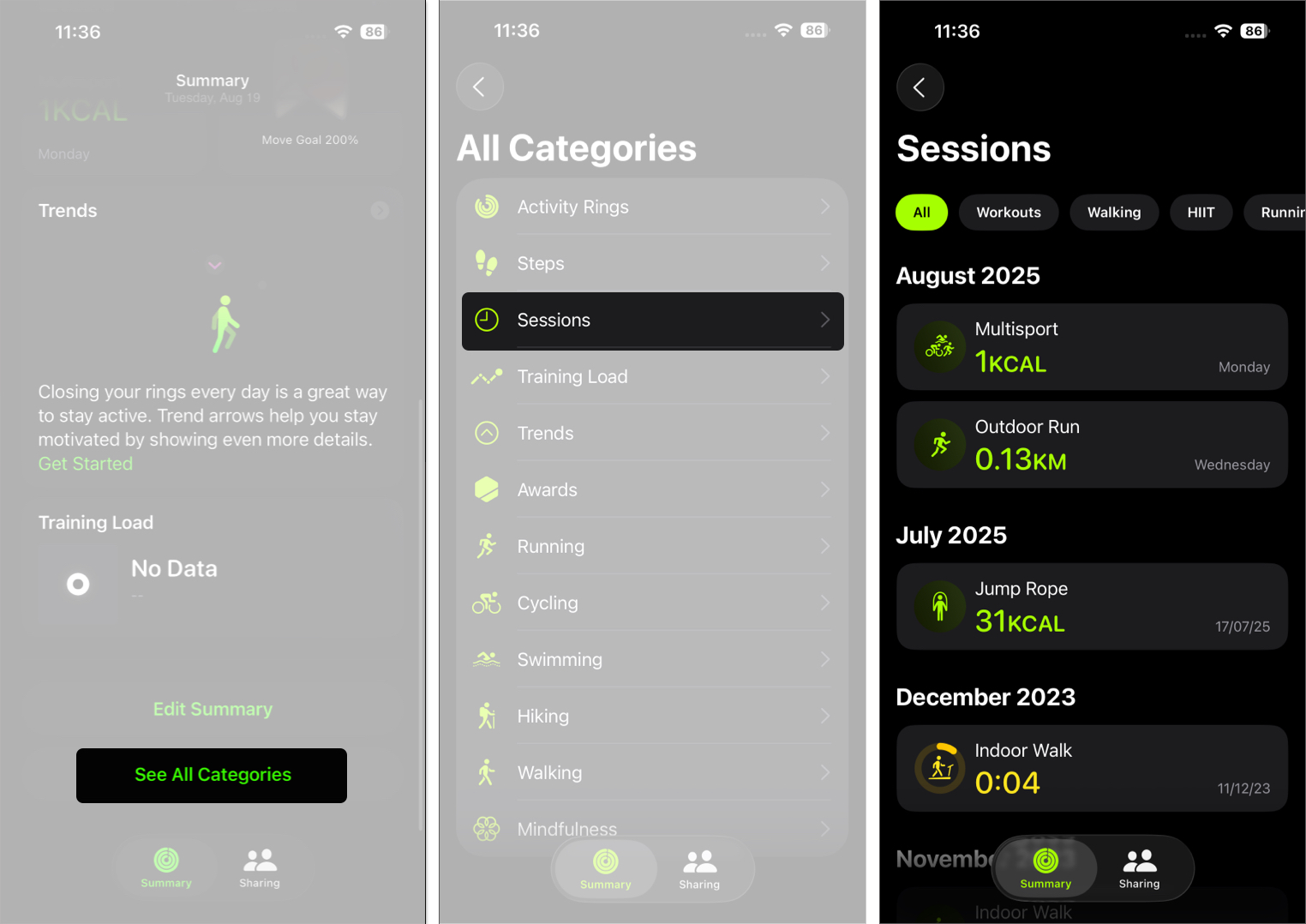
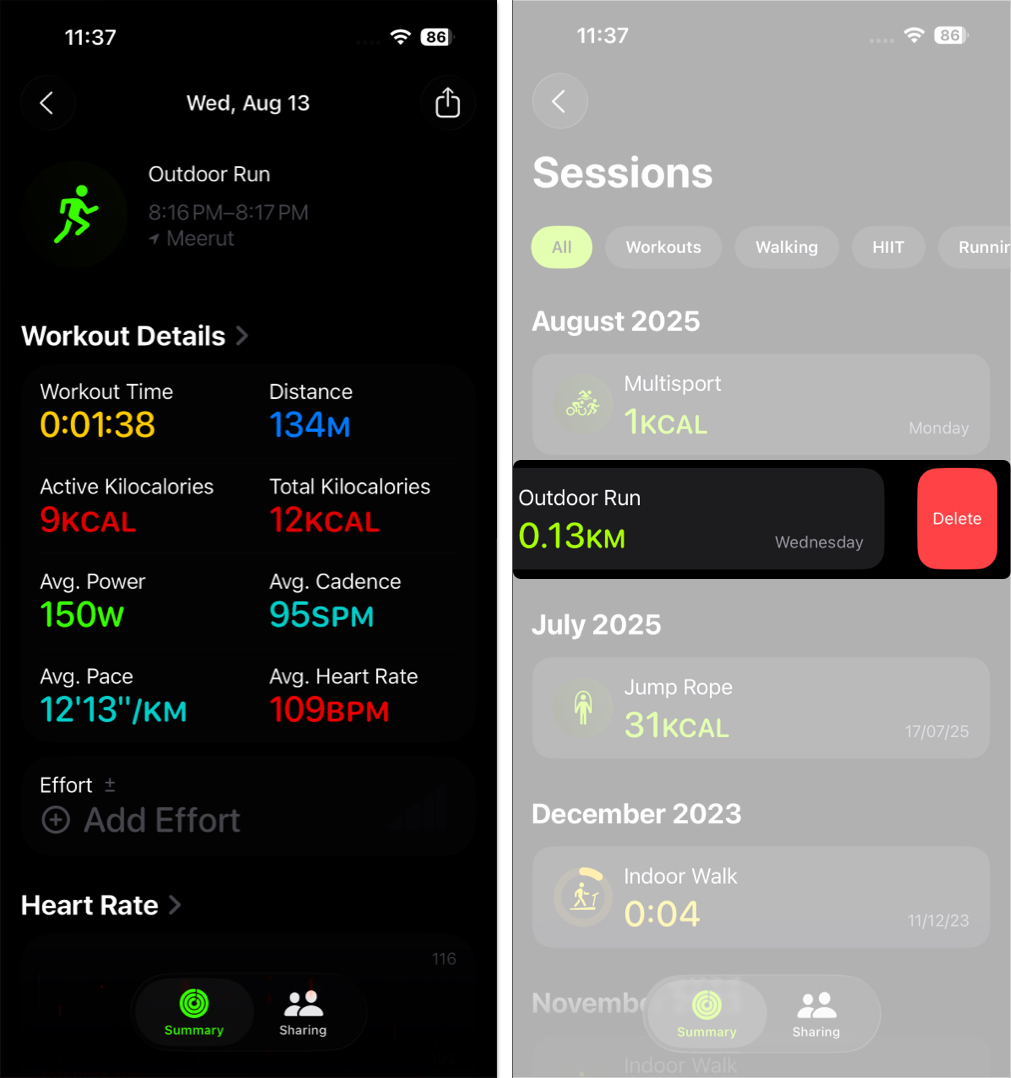
Open the Fitness app, scroll down on the summary screen and tap See All Categories.
Select the workout type whose related data you want to view. We’ve selected Sessions.
Here, you’ll see all your recent workout data. Select one.
Next, tap Workout Details for detailed stats, maps, and trends for the related activity.
To delete workout data, swipe left on it and tap Delete.
Tips for Getting the Most Out of the Workout App
While the Workout app excels at what it’s designed to do, knowing how to make the most of it helps you get better tracking and the insights you’re looking for.
Set Clear Goals Before Starting: Decide whether you want to improve endurance, burn calories, or build strength. Having a clear goal allows the Workout app to provide more accurate tracking and insights.
Enable Voice Feedback: Turn on audio cues so your Apple Watch can update you on distance, pace, and heart rate without needing to glance at your wrist mid-workout.
Use Auto-Pause for Runs and Walks: If you often stop at traffic lights or take breaks during workouts, enable Auto-Pause in Settings so the Watch pauses tracking automatically.
Combine Workouts with the ‘Add’ Feature: If your routine involves multiple activities (like running followed by cycling), you can add workouts back-to-back for a complete session log.
Review Trends in the Fitness App: After your workout, check the Fitness app on your iPhone to view long-term progress, trends, and detailed charts that aren’t visible on the Watch.
Sync with Third-Party Apps: Connect apps like Strava, Nike Run Club, or MyFitnessPal with Health for additional insights and challenges.
Optimize Battery Usage: If you’re going for a long run or hike, enable Power Saving Mode to extend battery life while still tracking essential metrics.
Customize Display Metrics: Rearrange workout screens to show the most important data for you such as pace or heart rate zone so you don’t have to scroll through defaults.
Celebrate and Share Achievements: Close your activity rings, earn badges, and share your workout summaries with friends for motivation and accountability.
Safety & Wellness Features During Workouts
Apple Watch isn’t just about fitness—it safeguards your health too:
Fall Detection: Calls emergency services if you’re immobile.
Workout Recovery Tracking: See how quickly your heart recovers post-exercise.
Indoor vs. Outdoor Tracking Differences
Feature
Workouts (GPS)
Indoor Workouts (No GPS)
Distance Tracking
Uses GPS for high accuracy.
Uses accelerometer and stride calibration.
Speed/Pace
Calculated from GPS and motion sensors.
Estimated from wrist movement and cadence.
Elevation
Measured via barometric altimeter.
Not available.
Route Mapping
Full GPS route available in Fitness app.
Not recorded.
Calibration
Improves with outdoor runs
Relies on outdoor calibration
Troubleshooting Common Workout App Issues
Problem
Possible Cause
Solution
GPS not accurate
Weak signal / not calibrated
Do a 20-min outdoor run with iPhone
Heart rate not recording
Loose fit / dirty sensors
Wear snugly, clean sensors, restart
Workout didn’t save
Sync glitch
Check iCloud sync, restart, force-quit app
Battery drains too quickly
Always-On Display or full tracking enabled.
Use Low Power Mode, turn off Always-On Display during workouts.
Auto detection not working
Feature disabled in settings.
Go to Watch app > Workout > Toggle on Start/End/Resume Reminders..
Your Apple Watch, Your Personal Trainer
That’s everything you need to know about the Workout app on Apple Watch. From casual walks to triathlons, it’s designed to support every fitness journey. Whether you’re just closing rings or training competitively, mastering these features helps you perform better and build healthier habits.
Have you tried the Workout app yet? Share your favorite feature or tip in the comments below!
Jignesh Padhiyar is the co-founder of iGeeksBlog.com, who has a keen eye for news, rumors, and all the unusual stuff around Apple products. During his tight schedule, Jignesh finds some moments of respite to share side-splitting content on social media.





 ByJignesh Padhiyar and Vikhyat