FaceTime Like a Pro
Get our exclusive Ultimate FaceTime Guide 📚 — absolutely FREE when you sign up for our newsletter below.

FaceTime Like a Pro
Get our exclusive Ultimate FaceTime Guide 📚 — absolutely FREE when you sign up for our newsletter below.


Use the correct wallpaper resolution for your iPhone. This guide groups models by screen size, explains how to avoid awkward crops, and shows the iOS 27 setup steps.

 ByVikhyat and Ravi Teja KNTS
Use your iPhone’s screen resolution as a starting point when choosing a wallpaper. Matching the screen’s shape helps avoid awkward crops; using a larger image keeps it sharp when you zoom in.
If you are not sure which iPhone you have, find the model name and number first.
An image with the wrong shape may lose its edges when iOS fills the screen. A file smaller than the display can also look soft after you enlarge it. The chart below groups models that share a resolution, so you can choose the right size without sorting through every launch year.
These are portrait display resolutions. Aspect ratios are approximate; iOS may crop the image slightly when you set it.
| iPhone models | Screen size | Resolution (width × height) | Approx. aspect ratio |
|---|---|---|---|
| iPhone SE (2nd and 3rd generation) | 4.7 inches | 750 × 1334 | 16:9 |
| iPhone X, XS, 11 Pro | 5.8 inches | 1125 × 2436 | 19.5:9 |
| iPhone XR, 11 | 6.1 inches | 828 × 1792 | 19.5:9 |
| iPhone XS Max, 11 Pro Max | 6.5 inches | 1242 × 2688 | 19.5:9 |
| iPhone 12 mini, 13 mini | 5.4 inches | 1080 × 2340 | 19.5:9 |
| iPhone 12, 12 Pro, 13, 13 Pro, 14, 16e, 17e | 6.1 inches | 1170 × 2532 | 19.5:9 |
| iPhone 12 Pro Max, 13 Pro Max, 14 Plus | 6.7 inches | 1284 × 2778 | 19.5:9 |
| iPhone 14 Pro, 15, 15 Pro, 16 | 6.1 inches | 1179 × 2556 | 19.5:9 |
| iPhone 14 Pro Max, 15 Plus, 15 Pro Max, 16 Plus | 6.7 inches | 1290 × 2796 | 19.5:9 |
| iPhone 16 Pro, 17, 17 Pro, 18 Pro | 6.3 inches | 1206 × 2622 | 19.5:9 |
| iPhone 16 Pro Max, 17 Pro Max, 18 Pro Max | 6.9 inches | 1320 × 2868 | 19.5:9 |
| iPhone Air | 6.5 inches | 1260 × 2736 | 19.5:9 |
For the sharpest result, use a portrait image at your iPhone’s native resolution or larger, with a similar aspect ratio. There is no universal extra-pixel rule: a larger file gives you more room to zoom, but a close ratio matters just as much because iOS crops the image to fill the screen.
If your image is smaller than the display, it may look blurry when enlarged. If it is much wider or taller, iOS will trim the excess. Keep faces, text, and logos away from the edges so the crop does not cut them off.
Portrait images fit an iPhone screen with less cropping. A landscape photo can still work, but iOS must enlarge and crop it to fill the tall display. Choose one with open space around the subject, or use a portrait version if you want to keep the whole scene.
Keep the main subject clear of the top-centre camera cutout and leave room for the clock and widgets. Their position can vary with your Lock Screen setup, so check the preview before saving. For a Home Screen wallpaper, avoid placing important details where app icons will cover them.
On current iOS, add the image from Settings:
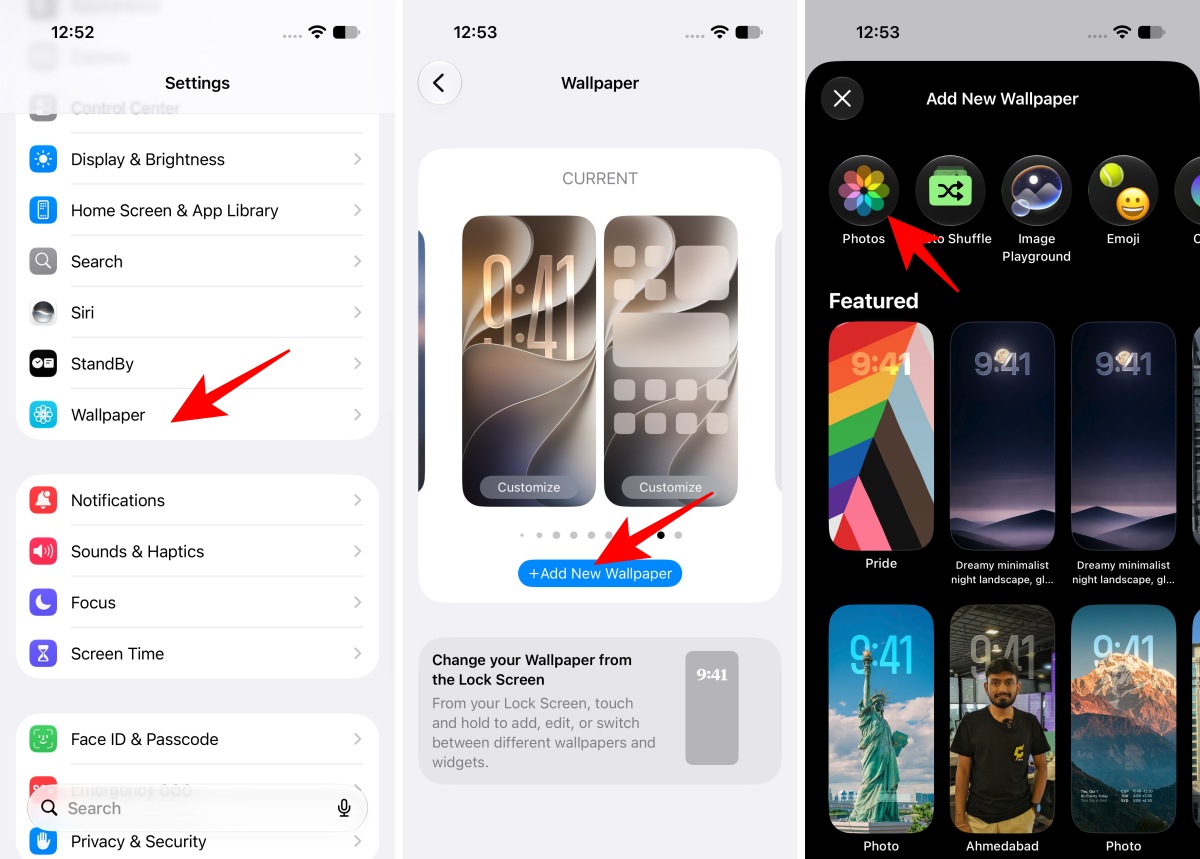
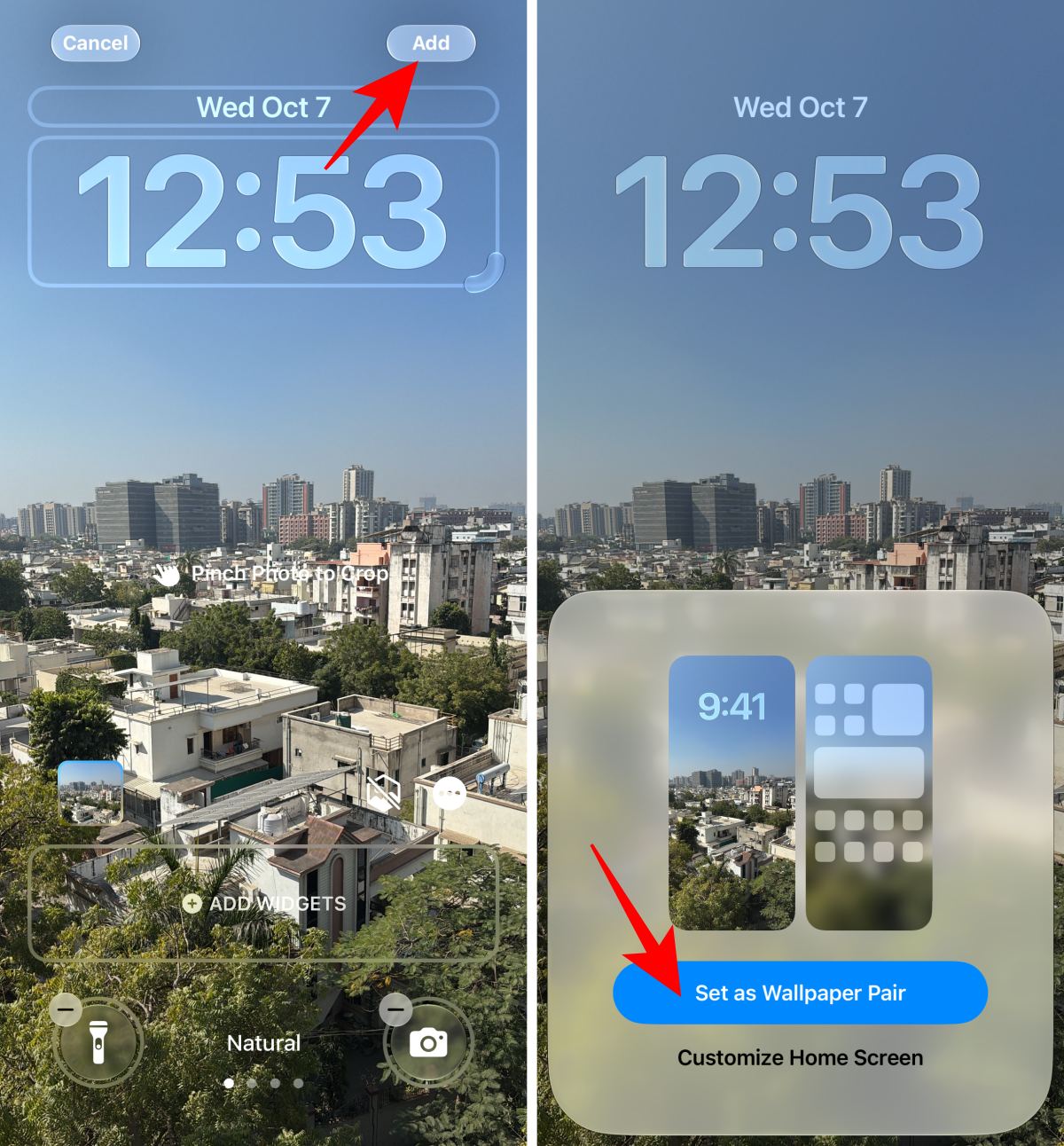
If the image is already open in Photos, the Share menu is a shortcut to the same wallpaper preview:
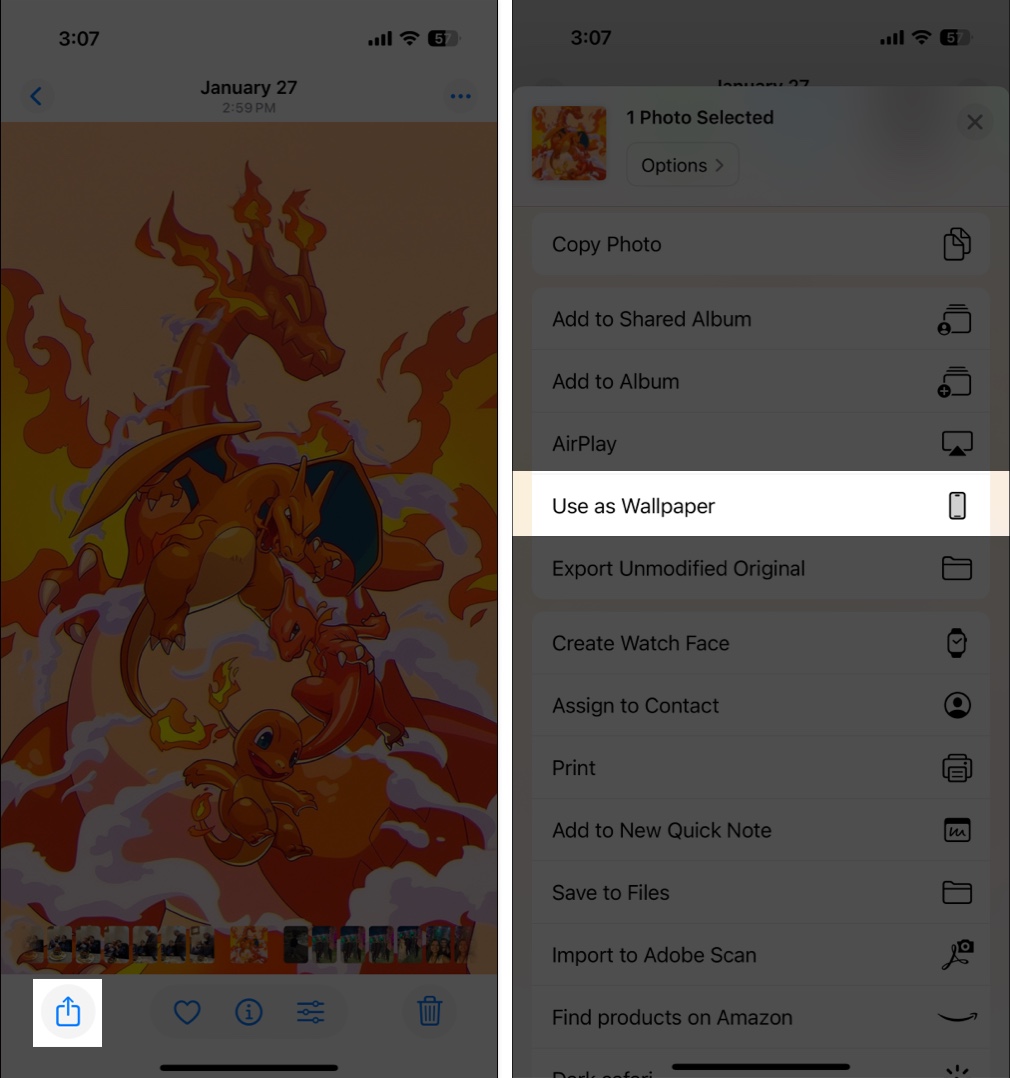
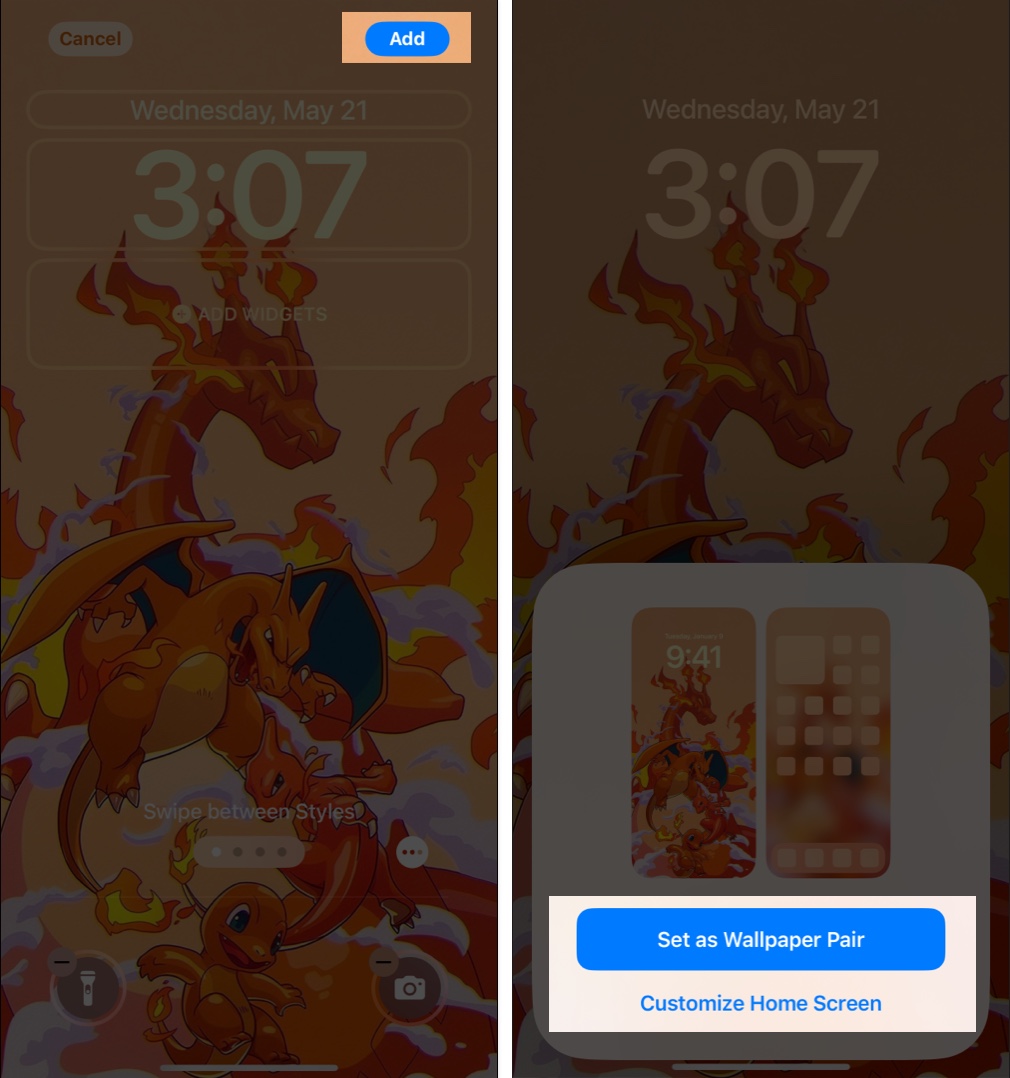
Browse aesthetic, minimalist, and Dynamic Island wallpapers for designs made around the iPhone’s tall screen. Use the largest download available for your model, then check the Lock Screen preview before applying it.
For most iPhones, matching the portrait shape and keeping the file at or above the screen resolution is enough. Adjust the crop only if the preview cuts off something you want to keep.
Related articles: