
FaceTime Like a Pro
Get our exclusive Ultimate FaceTime Guide 📚 — absolutely FREE when you sign up for our newsletter below.

FaceTime Like a Pro
Get our exclusive Ultimate FaceTime Guide 📚 — absolutely FREE when you sign up for our newsletter below.


Is your MacBook not charging? Learn why it happens and try these quick fixes to get your laptop charging again before calling Apple Support.


No matter how powerful the MacBook is as a machine, it won’t serve any of its primary purposes if it simply fails to charge. MacBook not charging is an issue that has baffled countless MacBook users, especially those who depend on it for work, study, or creative projects. While you might want to seek professional help, most of the time, the issue isn’t that serious and can be resolved with a few simple checks and adjustments.
Keep reading to learn about the potential reasons why your MacBook isn’t charging and discover troubleshooting tips to fix the issue on your own.
Before you begin troubleshooting, it’s important to be aware of the common causes why this dreaded issue might have occurred in the first place:
Now that you’re aware of the various common issues behind the MacBook not charging when plugged in issue, it’s time you learn how to fix it on your own:
First and foremost, check whether the power switch of the socket to which you’ve plugged the MacBook charger is turned on. This is because it’s common to forget to turn on the switch and think why the MacBook isn’t charging.
Next, rule out any chances of a loose connection. It’s possible that the power adapter isn’t plugged in correctly into the power socket, or the MacBook’s USB-C, MagSafe, or other connector isn’t securely connected.
If everything turns out OK, test the wall socket by plugging in another device to confirm it’s working.
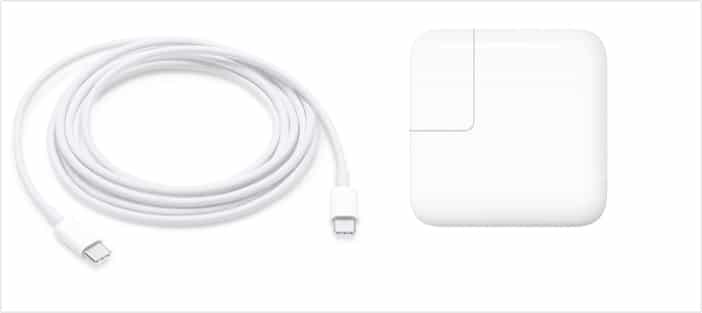
If the power outlet is working fine, check for any visible wear and tear on the charging adapter and charging cable. With prolonged usage, it’s common for the cables to fray and adapters to fail. Try using another Apple-certified charger and cable to charge your MacBook, and if it works, you’ll know the problem lies with your original adapter.
Sometimes a simple restart clears temporary glitches that may interfere with charging. To restart your Mac:
Over time, dust, dirt, or lint can accumulate on the MagSafe connector or inside the charging port, which in turn prevents the charging cable from properly connecting. To clean your MacBook’s charging port, first, turn off your MacBook if it’s on, then use a soft brush or a can of compressed air.
Note: Avoid using sharp objects, as they can damage the connectors.
If everything else is working fine, it may be that your MacBook’s charging port itself is damaged. Inspect the charging port for any bent pins, cracks, or irregularities. If you find any, seek professional help.
A degraded battery may struggle to charge properly. To check:
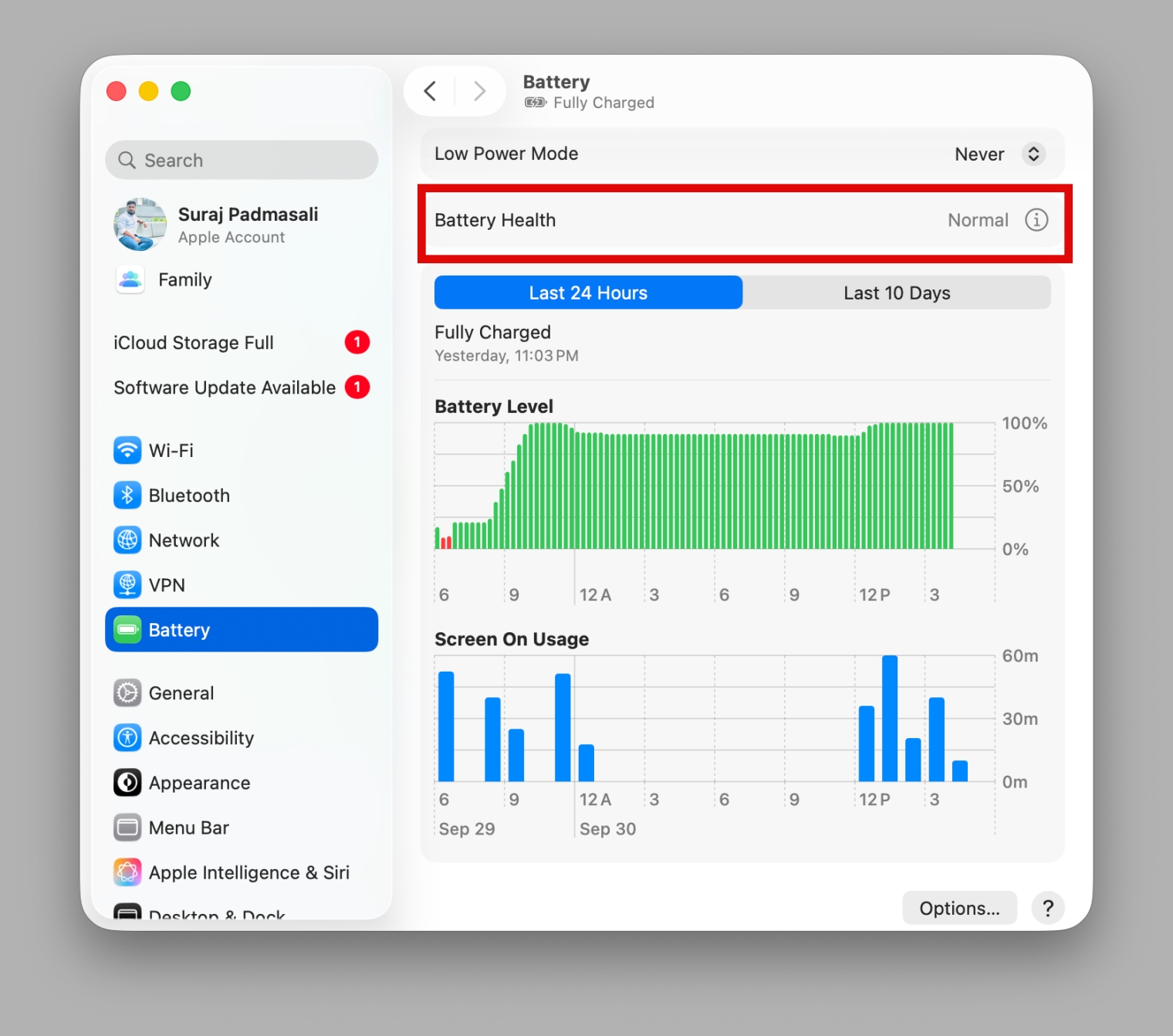
If the status says Normal, the battery is fine. However, if it shows Service Recommended, the battery may need replacement.
To prevent battery damage, macOS pauses the charging process if it detects that the MacBook is overheating. If you feel your MacBook’s temperature is above normal, power it off and let it cool down for a while before plugging in the charger again.
Additionally, avoid charging on soft surfaces like beds or couches, as they can trap heat.
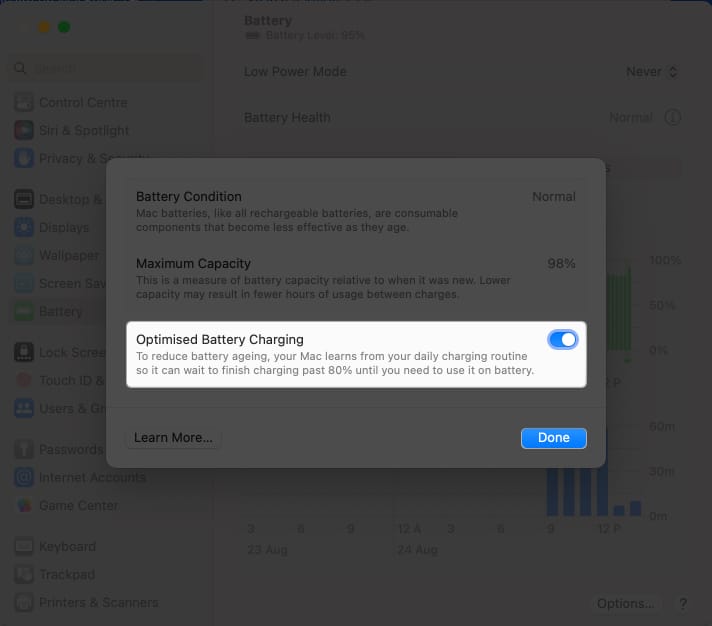
All modern MacBooks come with an Optimized Battery Charging feature that reduces charging speed after 80% by learning your charging habits. This is done to slow down battery aging. While useful, it may sometimes make it seem like your MacBook is stuck at 80% and isn’t charging 100%.
If you’re experiencing slow charging speeds after reaching 80%, try turning off Optimized Battery Charging. Here’s how:
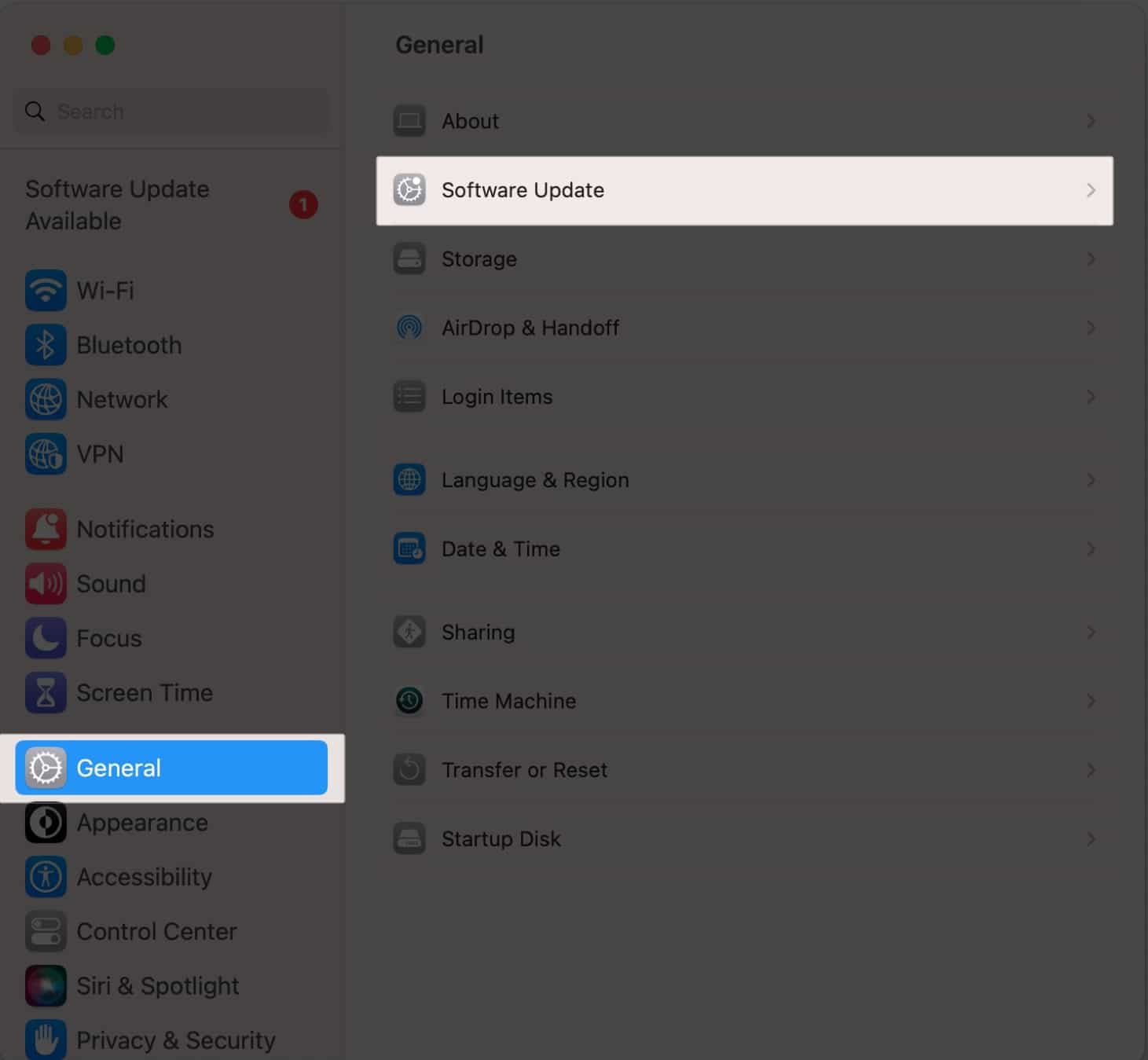
While minor bugs and system glitches can be eliminated with a simple restart, software issues that affect battery and power management require the latest macOS installed. Apple often releases software updates with the latest bug fixes and performance improvements.
And that’s it; we hope you were able to fix the MacBook not charging issue using these troubleshooting tips. However, if the problem persists, we recommend you contact Apple Support as early as possible, as the problem might be hardware-related, which requires expert intervention.
You can make a Genius Bar reservation at your closest Apple Store or visit an Apple Authorized Service Provider.
Did one of these fixes work for you? Share your experience in the comments below.
Check out next:









