
FaceTime Like a Pro
Get our exclusive Ultimate FaceTime Guide 📚 — absolutely FREE when you sign up for our newsletter below.

FaceTime Like a Pro
Get our exclusive Ultimate FaceTime Guide 📚 — absolutely FREE when you sign up for our newsletter below.


Facebook's avatar feature lets you create a customizable sticker of yourself for more personal and interactive chats, without requiring third-party apps.


Imagine using a highly customizable sticker that looks like you without relying on third-party apps! That’s Facebook avatar for you, a feature that makes your experience more exciting and interactive on the platform. You can react to chats using your avatar or use it as your profile picture, among other things.
Keep reading to learn how to create and use your Facebook avatar using your iPhone and Mac.
Just like Bitmojis on Snapchat, Facebook lets you create avatars that look like cartoon versions of you.
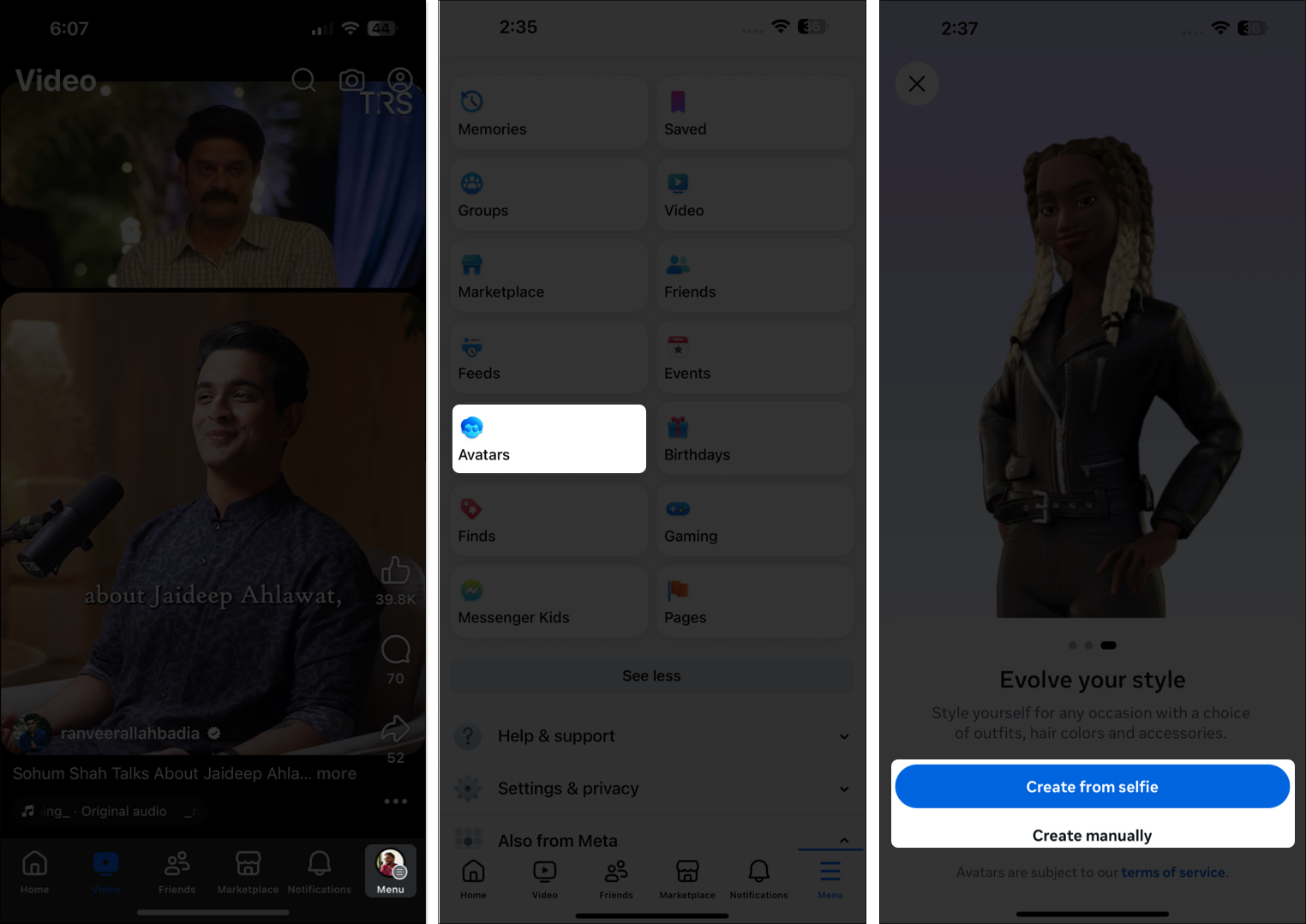
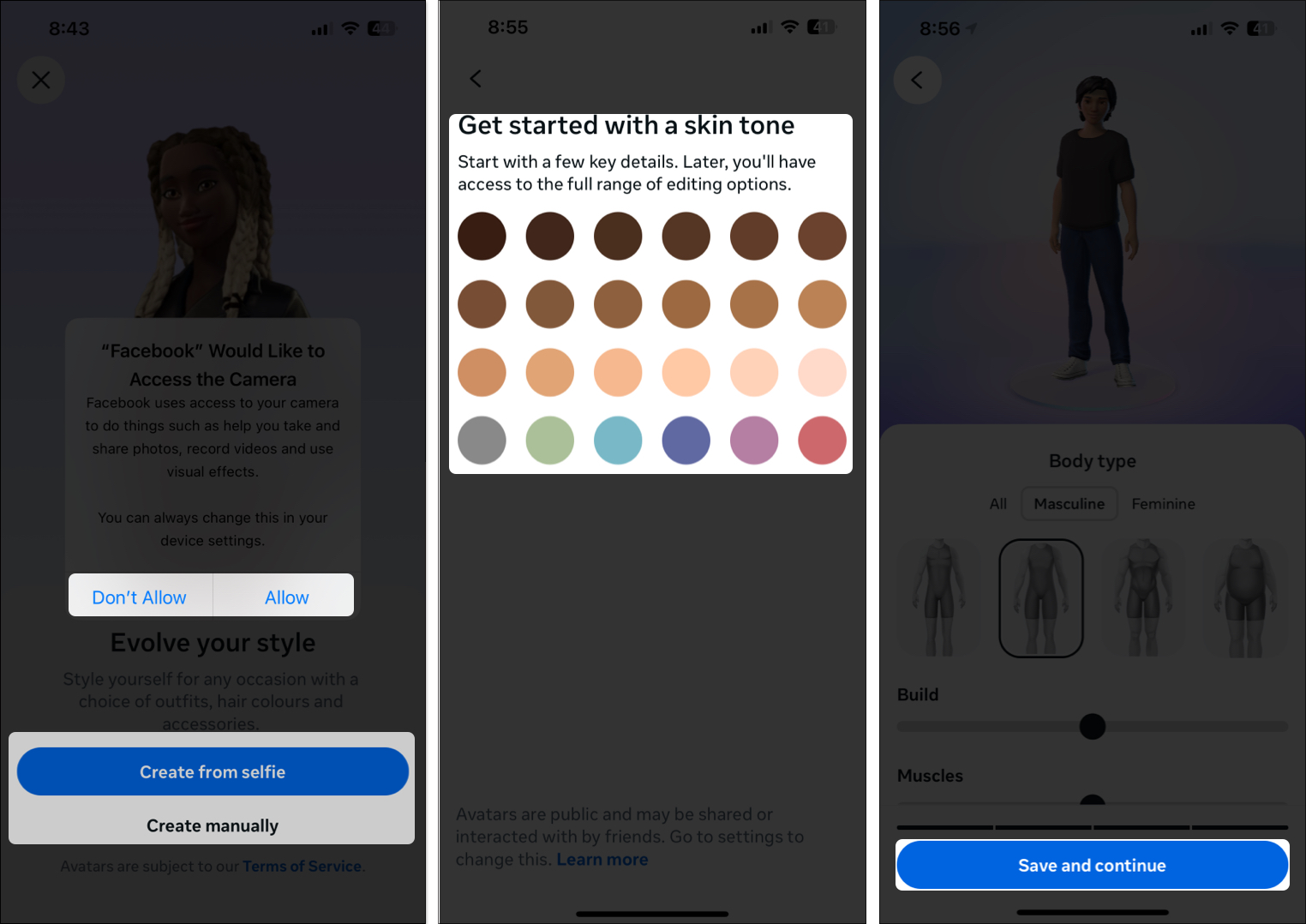
You can create your own Facebook avatar on an iPhone using the Facebook app. Here’s how:
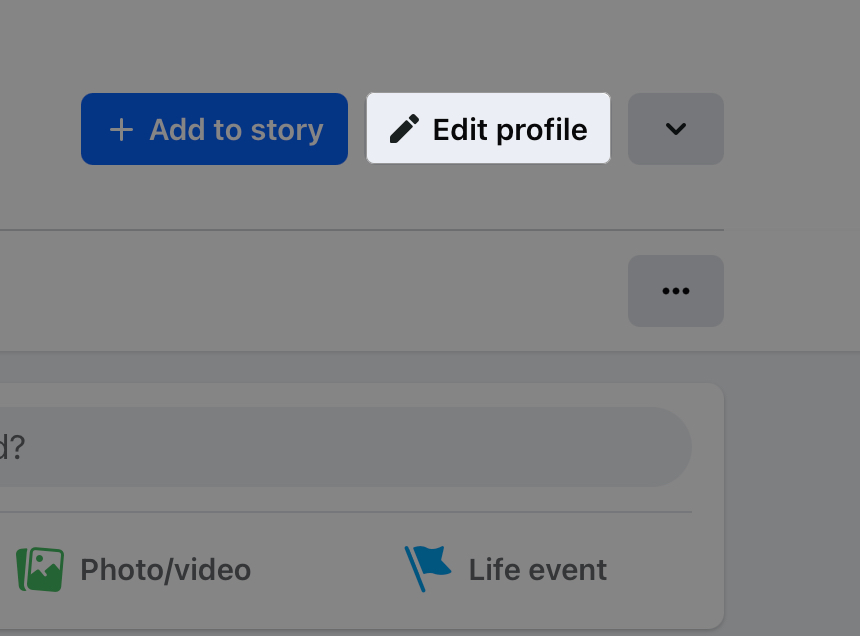
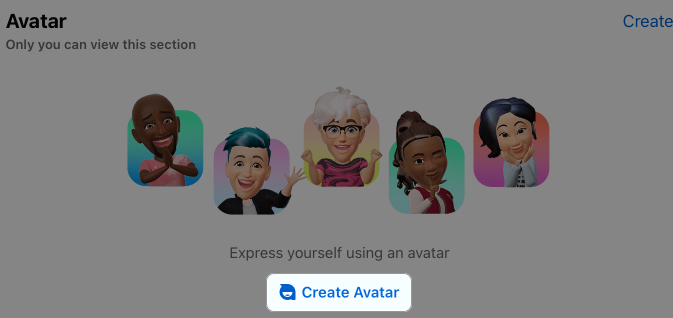
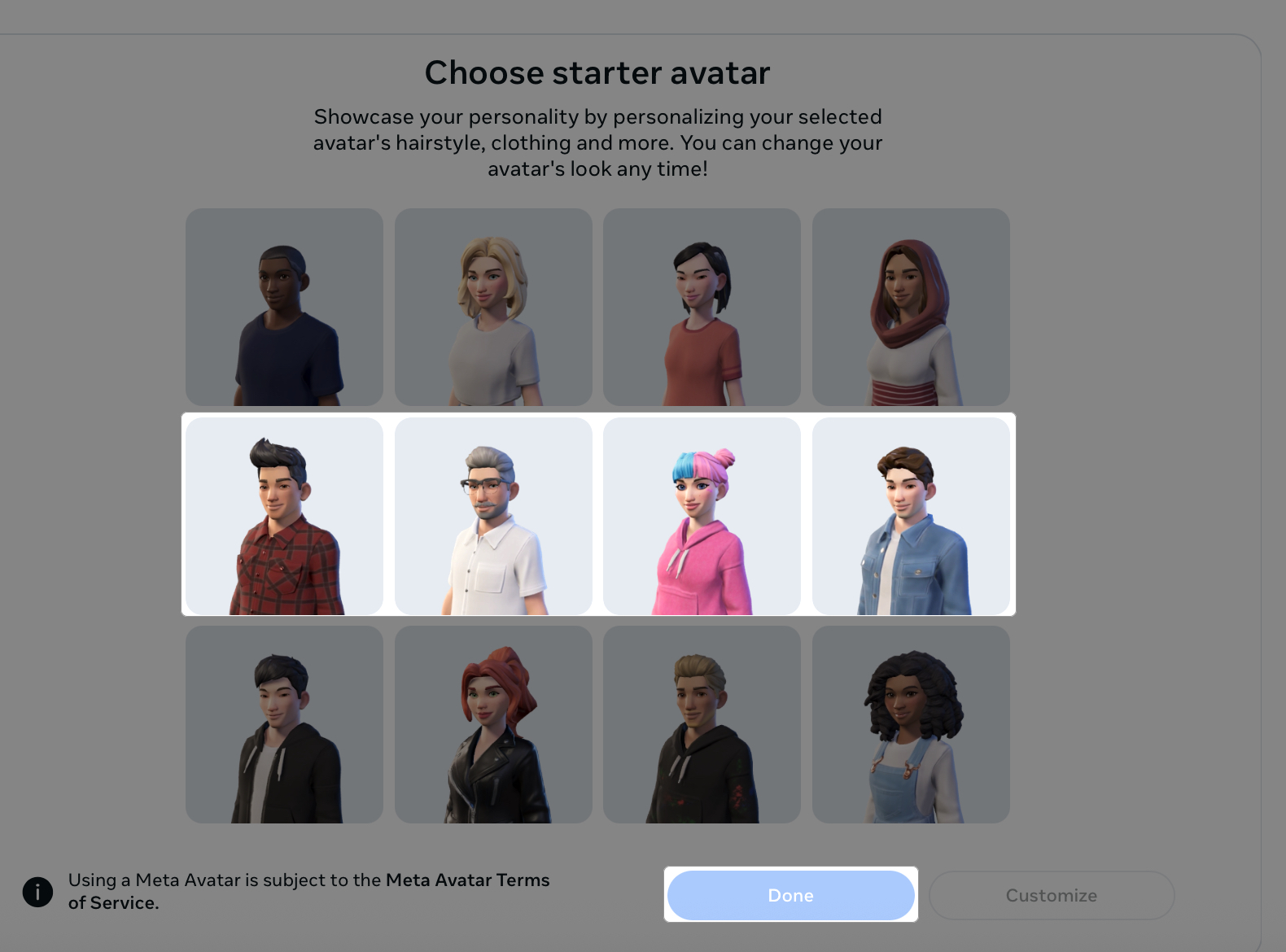
Facebook also lets you create an avatar through its website, which you can access via a browser on your Mac or Windows PC.
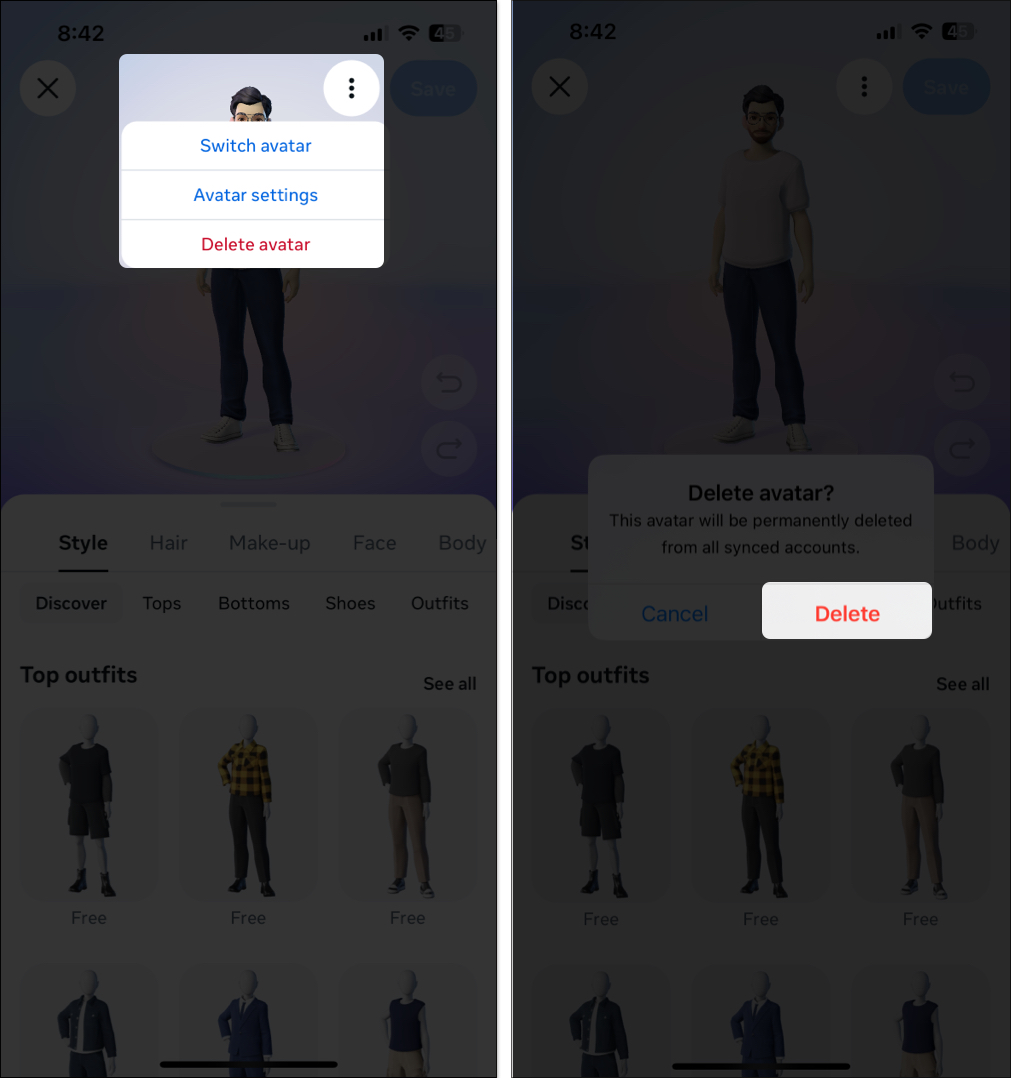
If you don’t like the avatar you just created, you can edit it and make your desired changes. You can even delete it completely if you don’t want to use it anymore. The best part is that you can do all of it in the Facebook app on your iPhone itself, so you don’t have to rely on your Mac or PC.
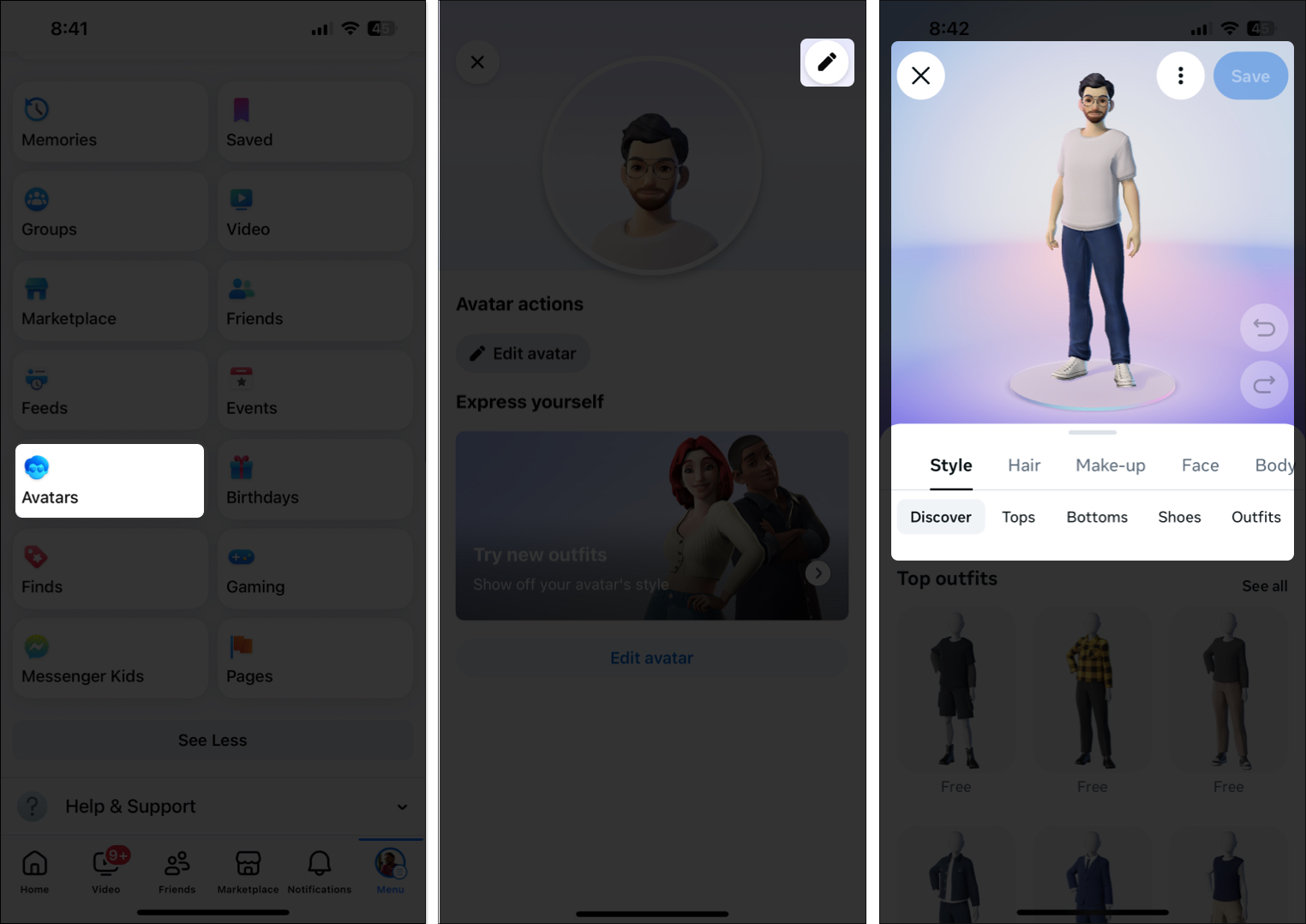
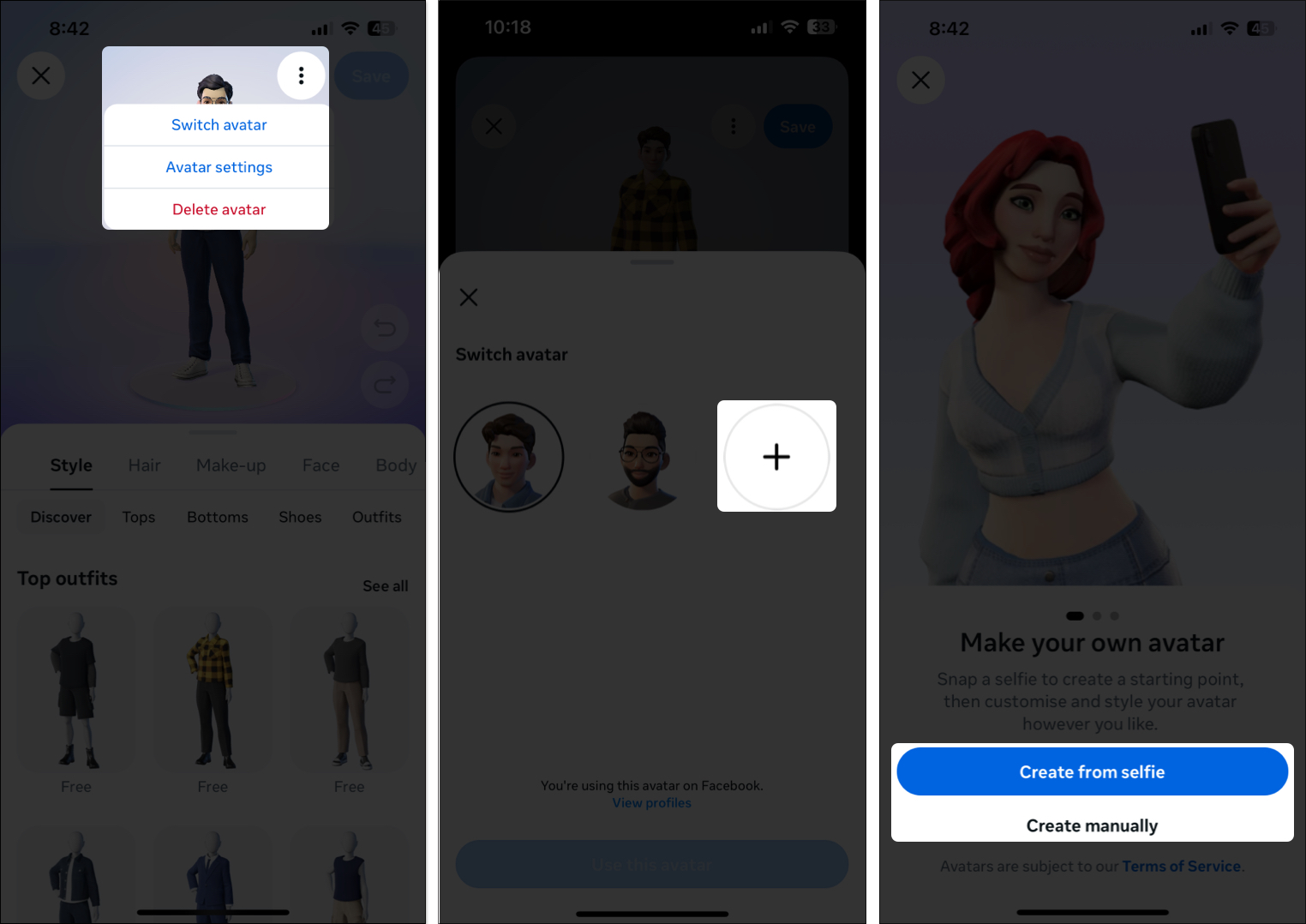
There are multiple ways of using your Facebook avatar. Apart from setting it as your profile picture, you can use it for reacting to comments under your posts, share it on your Facebook stories, or use it while chatting with friends on Messenger.
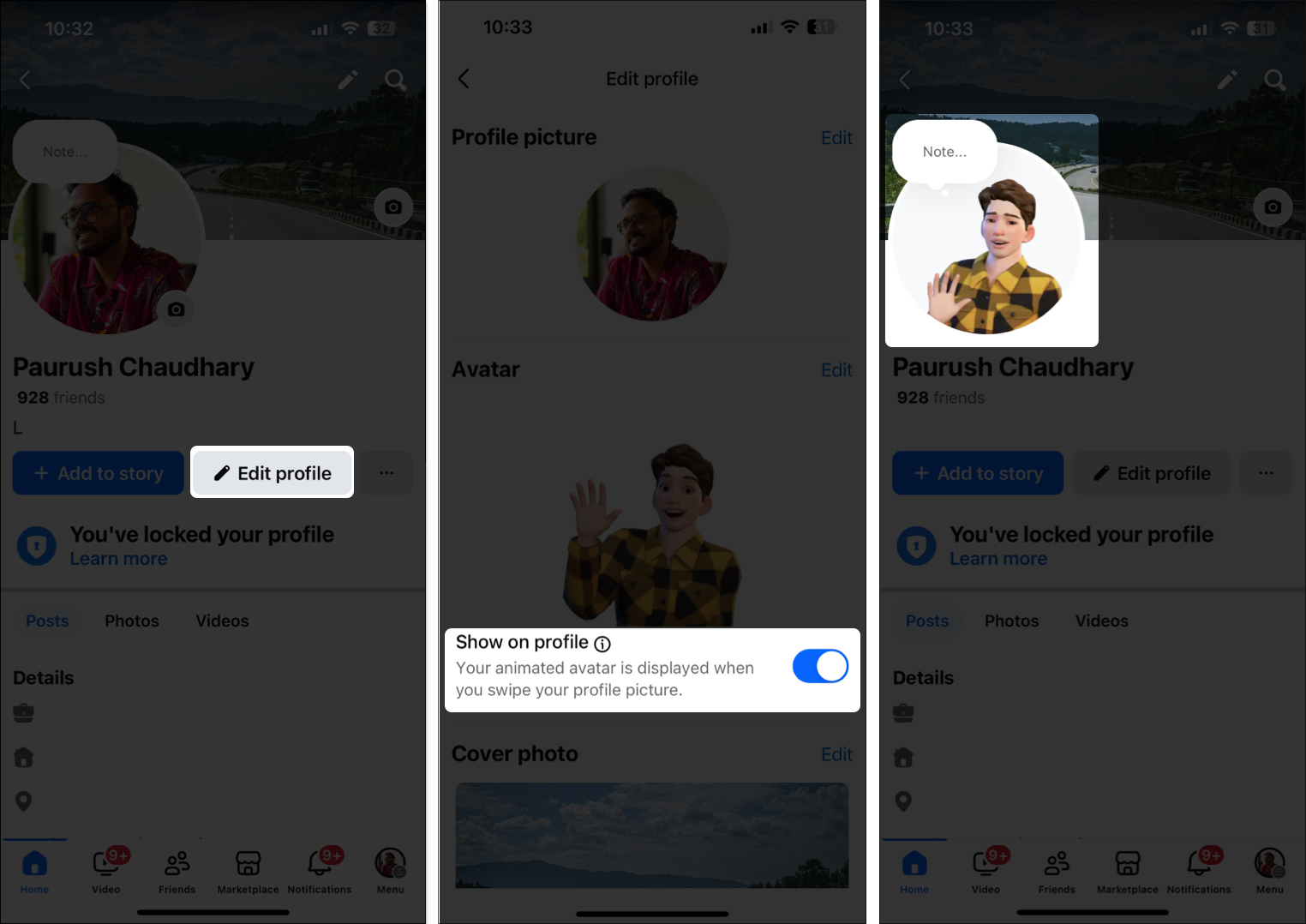
You can do away with your Facebook profile picture and replace it with your newly-created avatar. Just follow these steps:
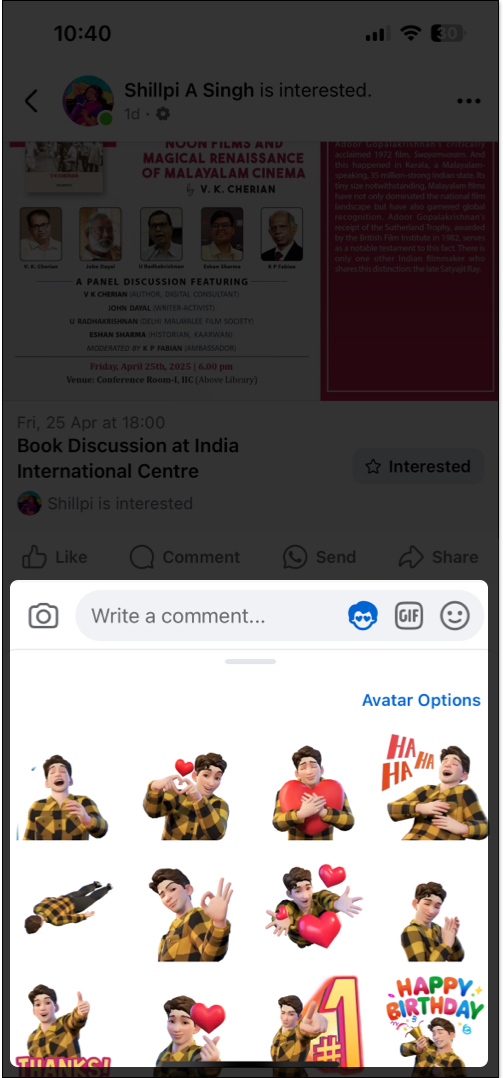
To use your avatar in comments and the Messenger app, go to the comments section and select the avatar icon. You will see lots of stickers created by Facebook based on your avatar. Tap the one that you wish to use.
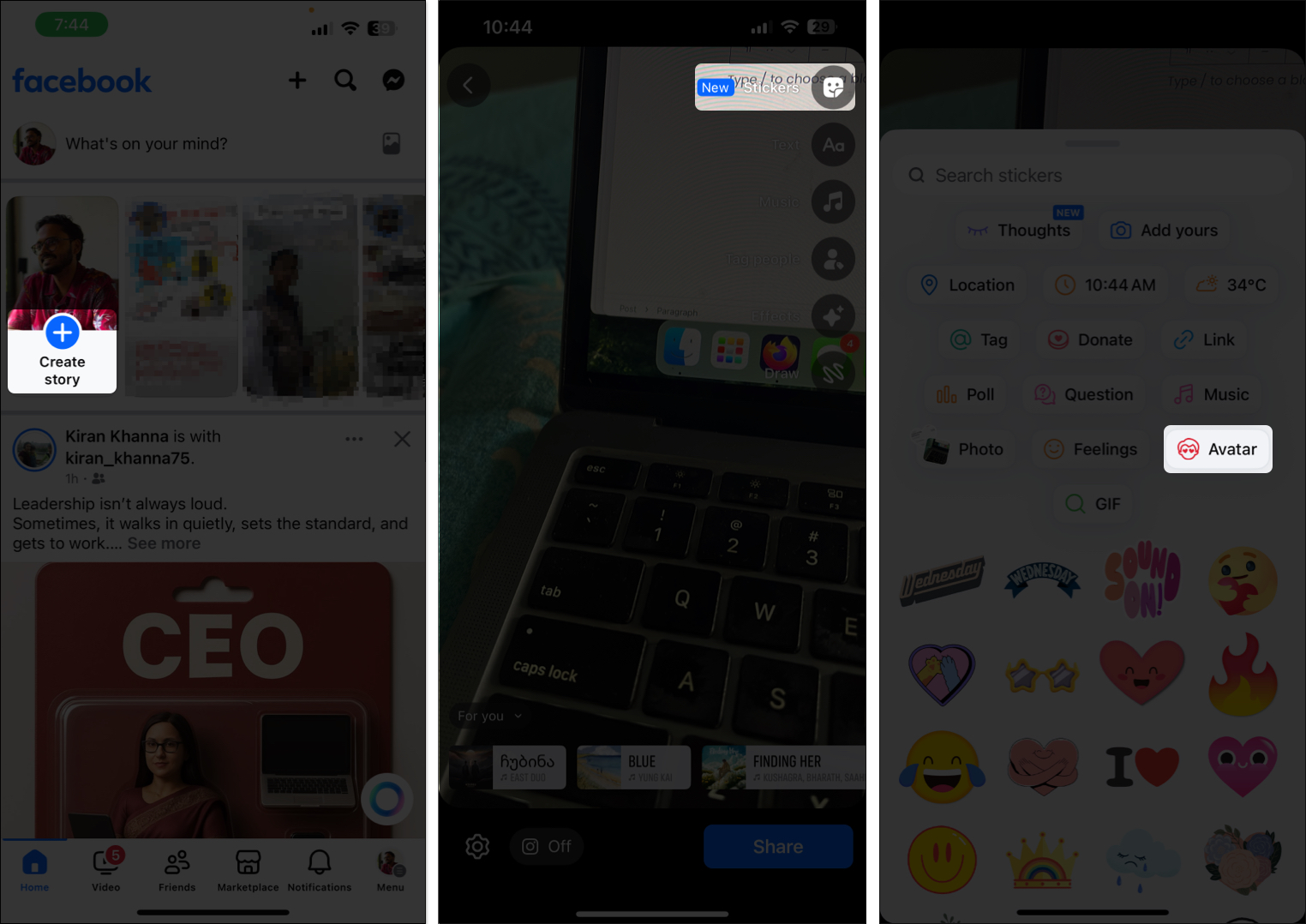
To add your avatar to your Facebook stories, tap on Create Story in the Facebook app, select the Camera icon to click your picture, tap on Stickers, and select Avatar. You can now choose from a plethora of options for stickers with different emotions. Once selected, tap on Share.
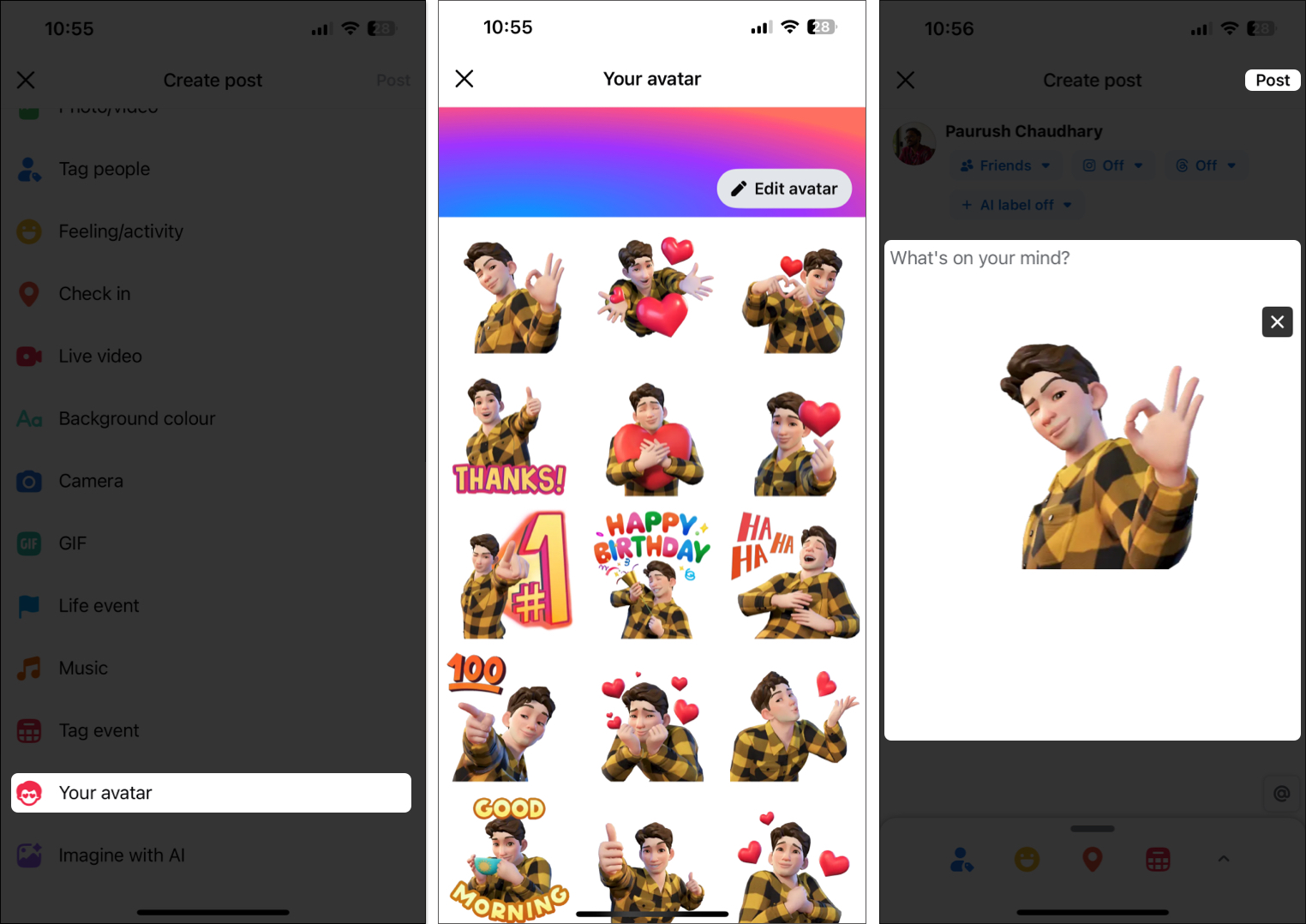
To add your avatar to a post, add a new post, select Your Avatar, choose one of the sticker options, and then tap Post.
If you can’t use the Facebook avatar you just created, these fixes can help:
Wrapping up
A Facebook avatar adds a personal flair to your interactions on the platform. Its versatility gives you the freedom to use it however you choose. Plus, you can even use it on other Meta platforms like Instagram and WhatsApp. So, create your avatar if you haven’t already, and make interactions with your connections more engaging.
Do you like using your Facebook avatar? Share your thoughts in the comments.
FAQs
Yes, you can. Following the same steps mentioned above, you can choose to add more than one Facebook avatar to your profile.
Yes, you can. Since Meta owns all three apps, you can sync your Facebook, Instagram, and WhatsApp accounts to use your avatar. Open the app’s Facebook settings, go to Accounts and check if Instagram is linked.
Yes, creating them and using them is absolutely free of charge.
You may also like to read these:









