
FaceTime Like a Pro
Get our exclusive Ultimate FaceTime Guide 📚 — absolutely FREE when you sign up for our newsletter below.

FaceTime Like a Pro
Get our exclusive Ultimate FaceTime Guide 📚 — absolutely FREE when you sign up for our newsletter below.


Safari not loading pages or crashing on your iPhone or iPad? This guide walks you through simple, proven fixes to get Apple’s browser working again.


If Safari is not working on your iPhone or iPad, you are not alone. Many users report issues such as Safari not loading pages, showing a blank white screen, crashing on iOS, search not working, or feeling slow and unresponsive.
The good news is that most Safari problems are easy to fix. Issues often appear after an iOS or iPadOS update, a network change, or a minor settings adjustment. VPN apps, content blockers, corrupted cache files, or Screen Time restrictions are also common triggers.
This guide walks you through a clear, step-by-step troubleshooting process. Follow the steps in order, and Safari should be working again before you reach the end.
Before applying any fixes, confirm whether the issue is with Safari itself or just a specific website.
Try these quick checks:
If only one website fails to load, the issue is likely with the website’s server, not Safari. Server outages can cause blank pages, loading errors, or timeouts even when your internet connection is working.
If Safari is not working on your iPhone or iPad, start with these basic fixes.
Safari can freeze in the background due to memory issues.
How to force close Safari:
This refreshes your network connection and can improve Wi-Fi or cellular performance.
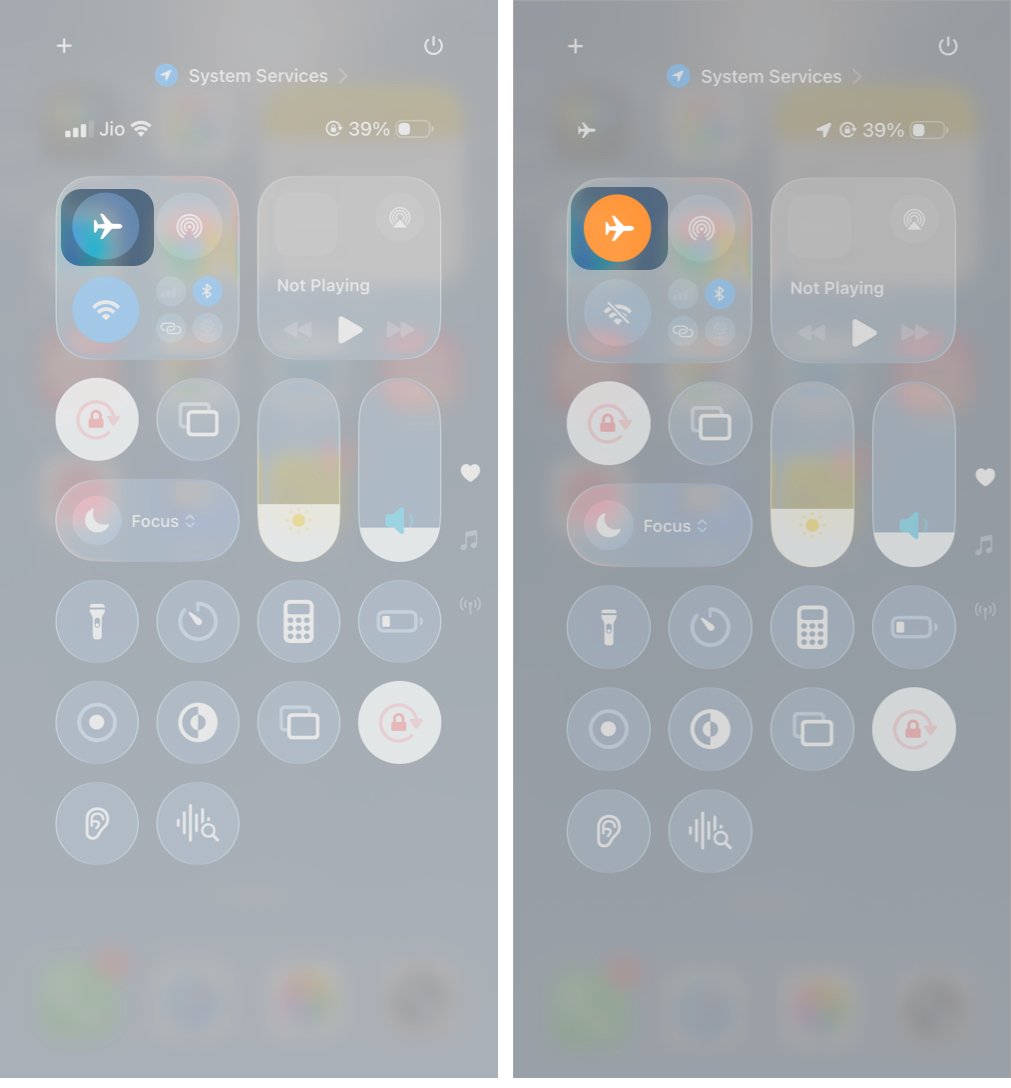
A simple restart fixes many temporary system glitches.
Screen Time can limit app usage, including Safari.
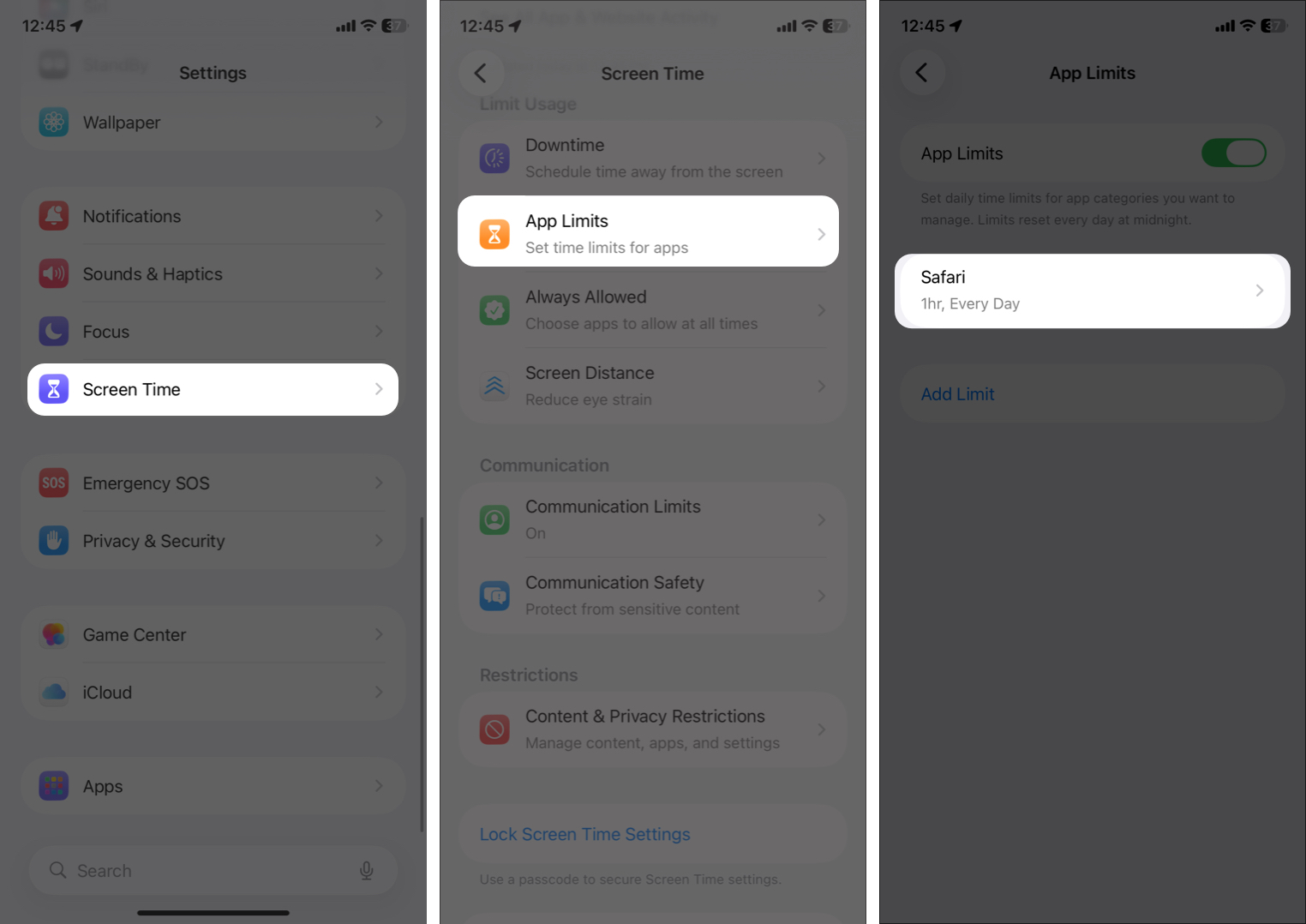
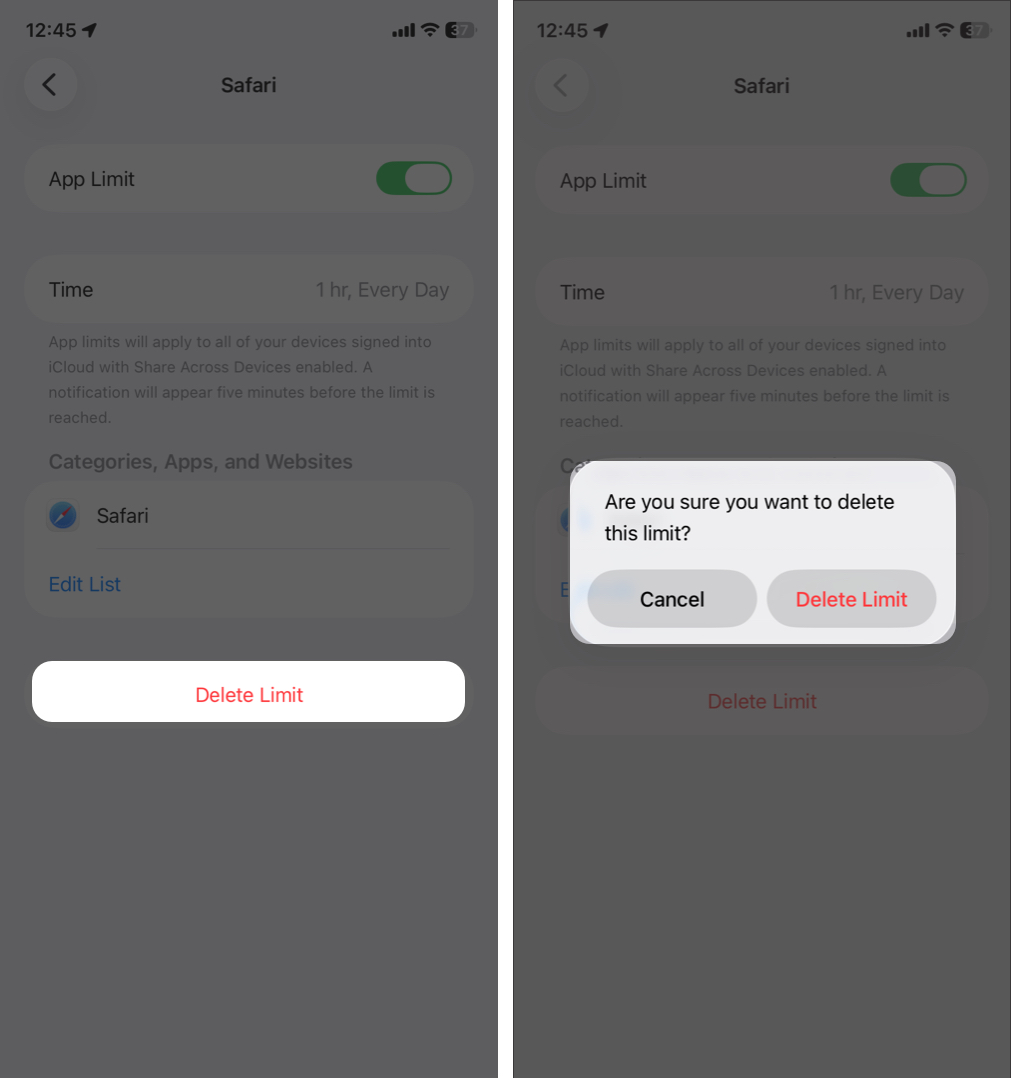
While at it, ensure Content & Privacy Restrictions are disabled. If Safari search isn’t working, restrictions are often the cause.
If Safari works inconsistently, the issue may be your network connection.
If Safari works on one network but not another, the problem is network-related.
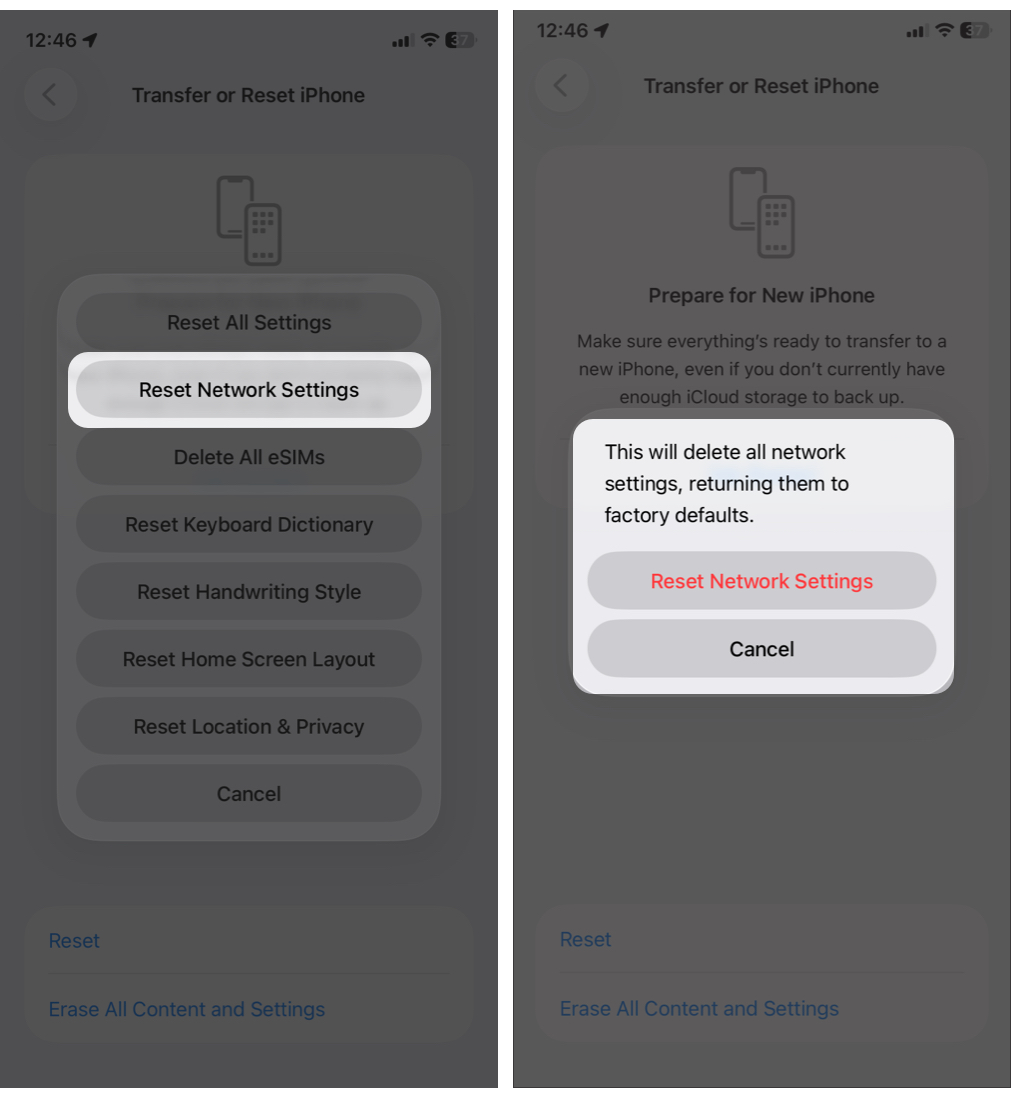
This can fix hidden network issues. It resets Wi-Fi passwords, cellular settings, and VPN configurations, but your personal data remains safe.
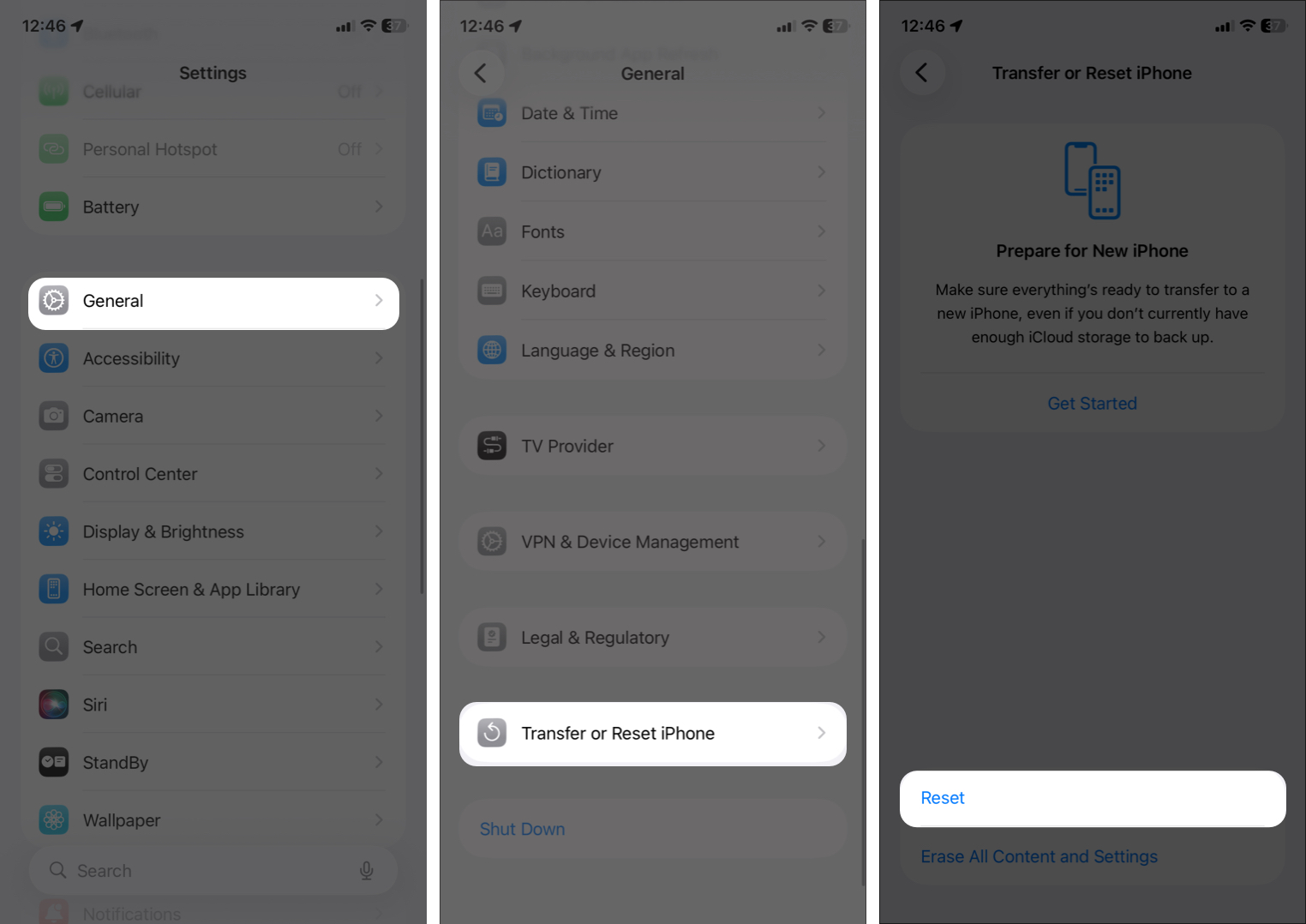
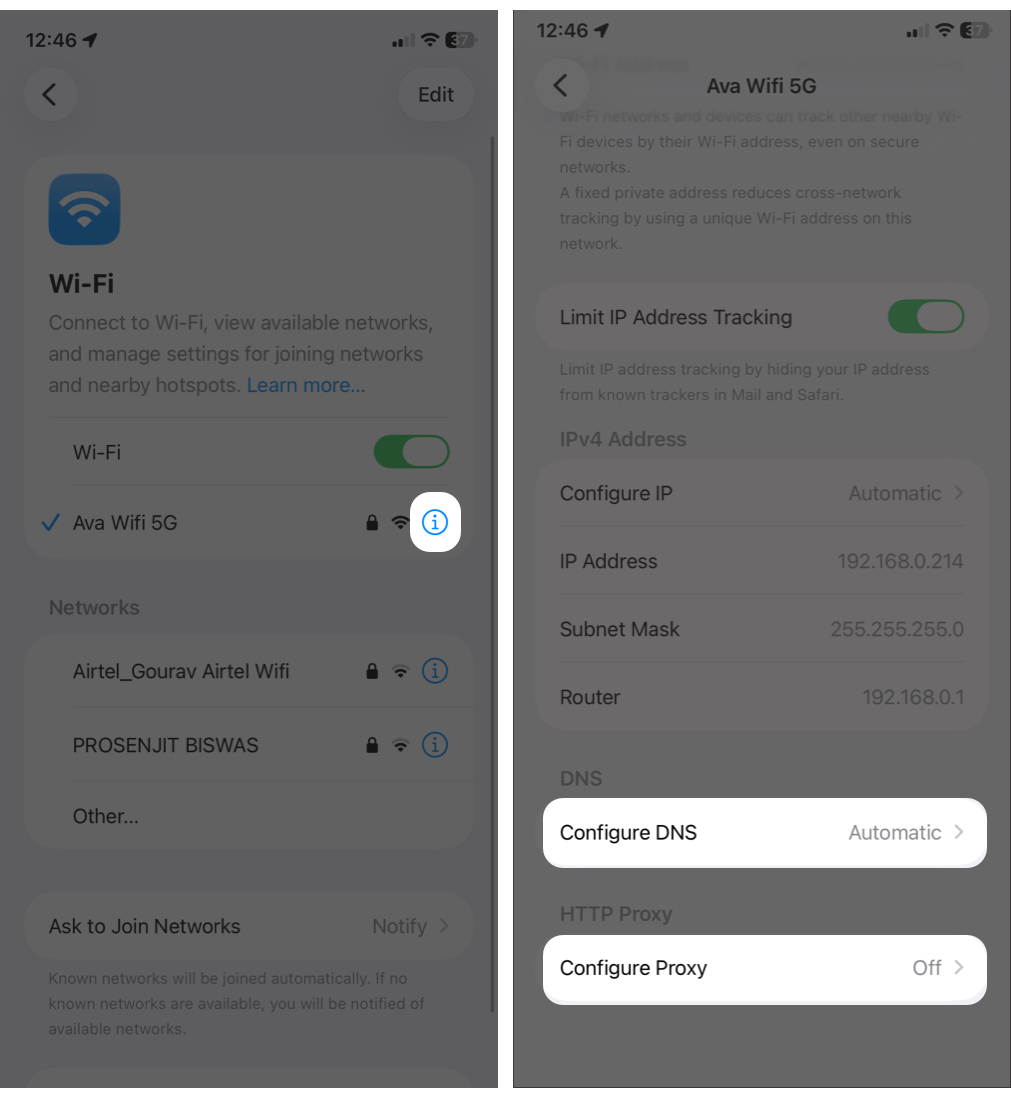
Custom DNS settings, VPNs, or proxy apps can interfere with Safari.
Safari updates are included with system updates. Running an outdated version can cause crashes or loading issues.
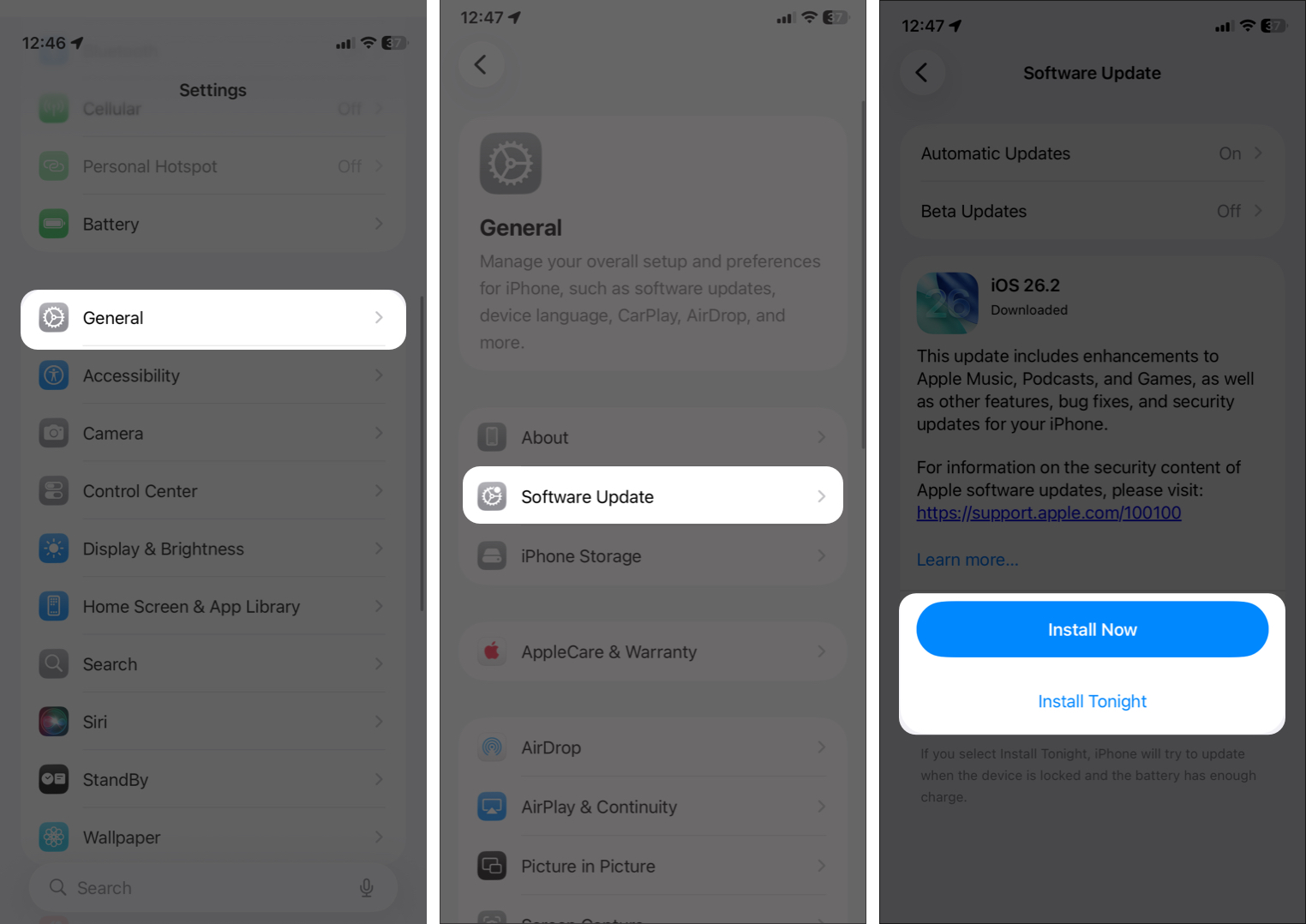
If the update fails, restart your device and try again on a stable Wi-Fi connection with sufficient battery.
If you haven’t cleared out the cached files in Safari for a long time, the junkies have piled up to become problematic for the web browser. Safari may load nothing, show a blank screen, or take a long to display website content or images.
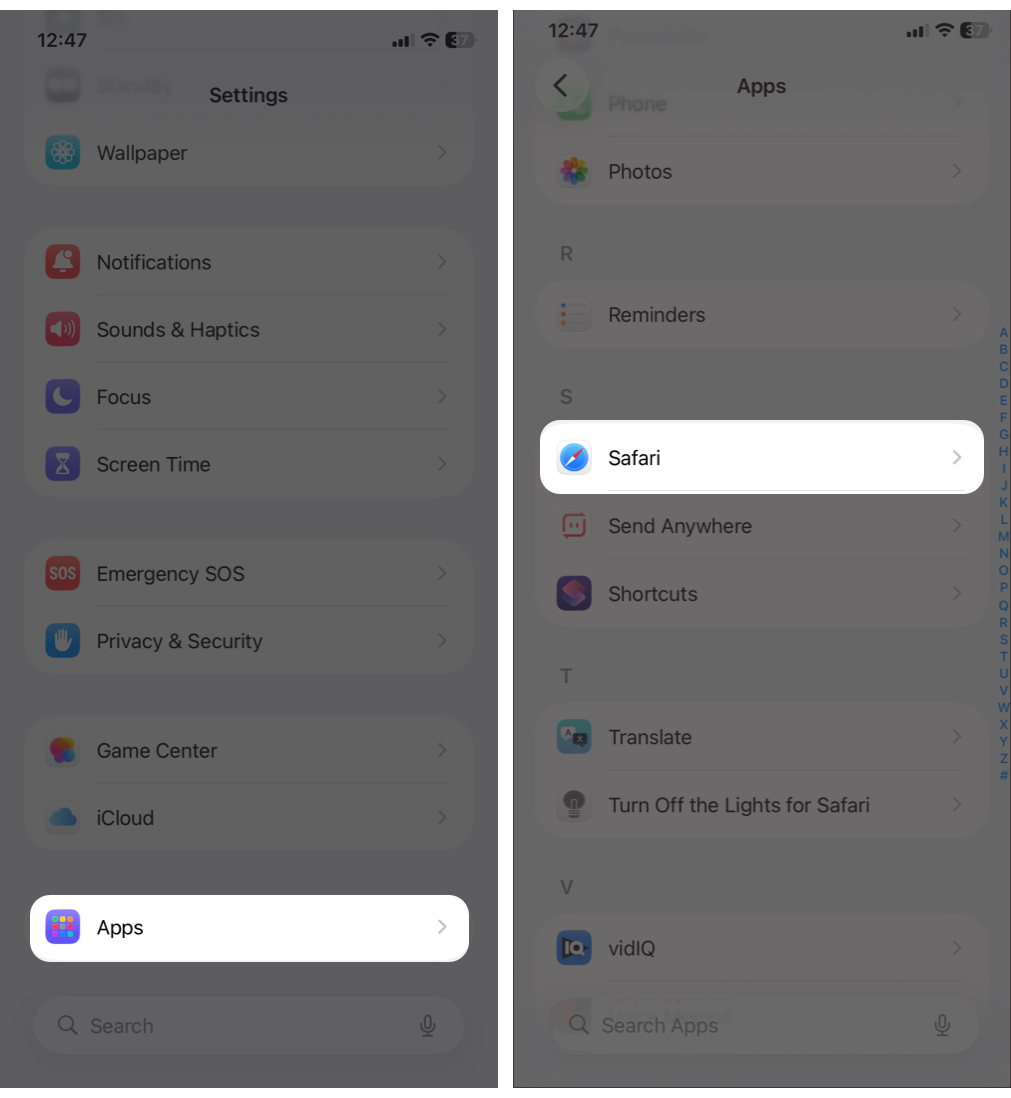
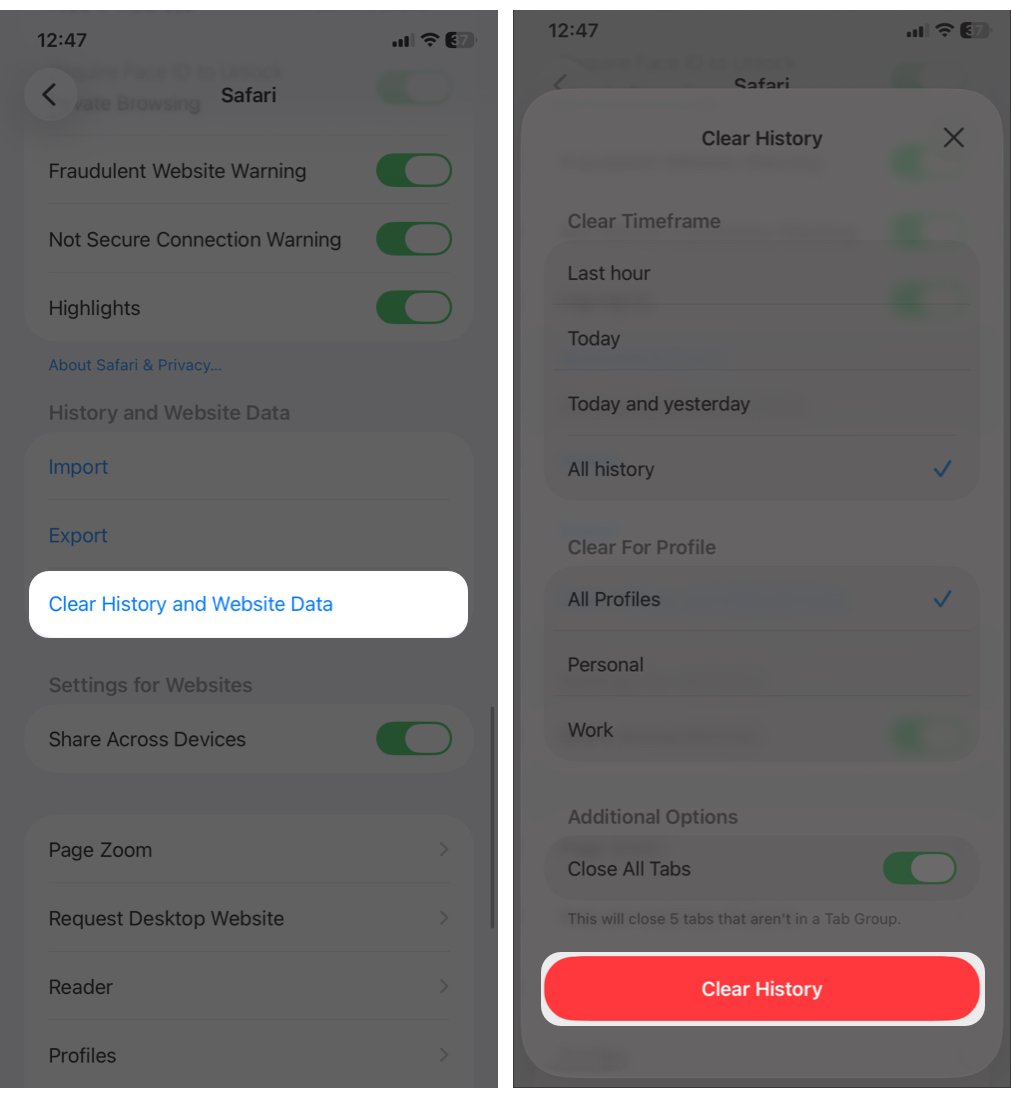
Now, this will delete all browsing activities and your website logins. If you have enabled iCloud sync and Keychain, you can still access saved passwords and bookmarks.
Sometimes, Safari crashes only on certain websites. This is probably due to ad blockers and too many overlapping Safari extensions that can break website scripts.
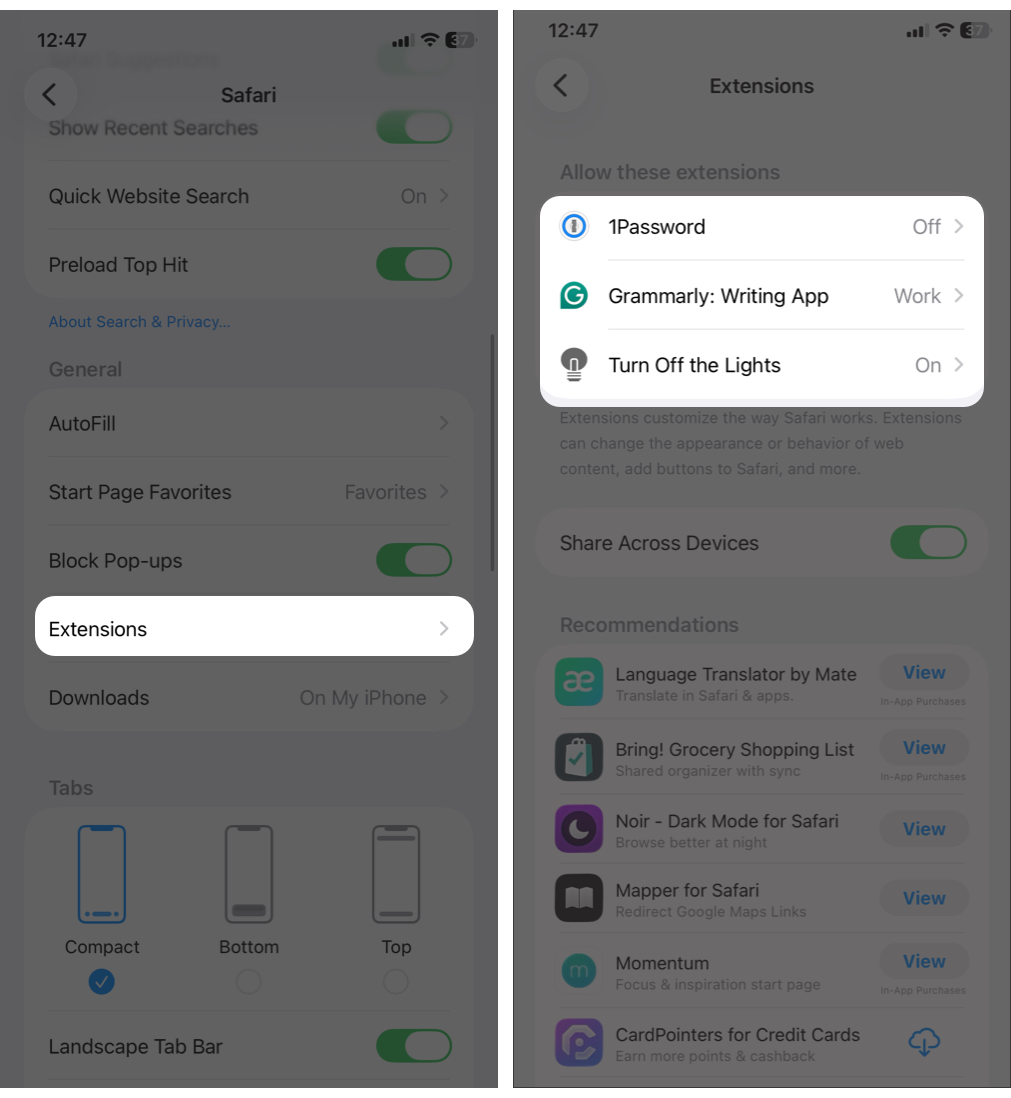
Turn extensions back on one by one to find the problem.
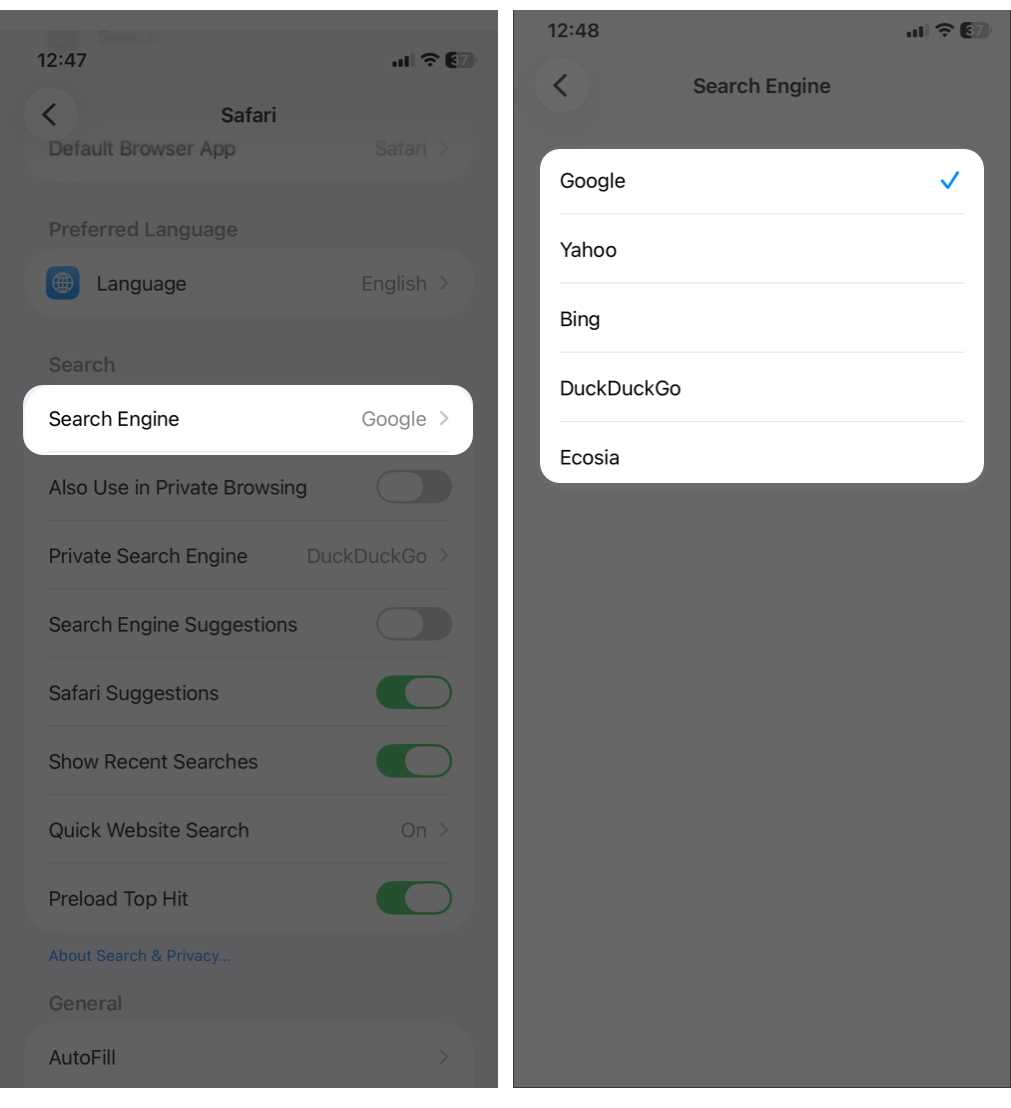
If Safari opens but search does not respond, try the following:
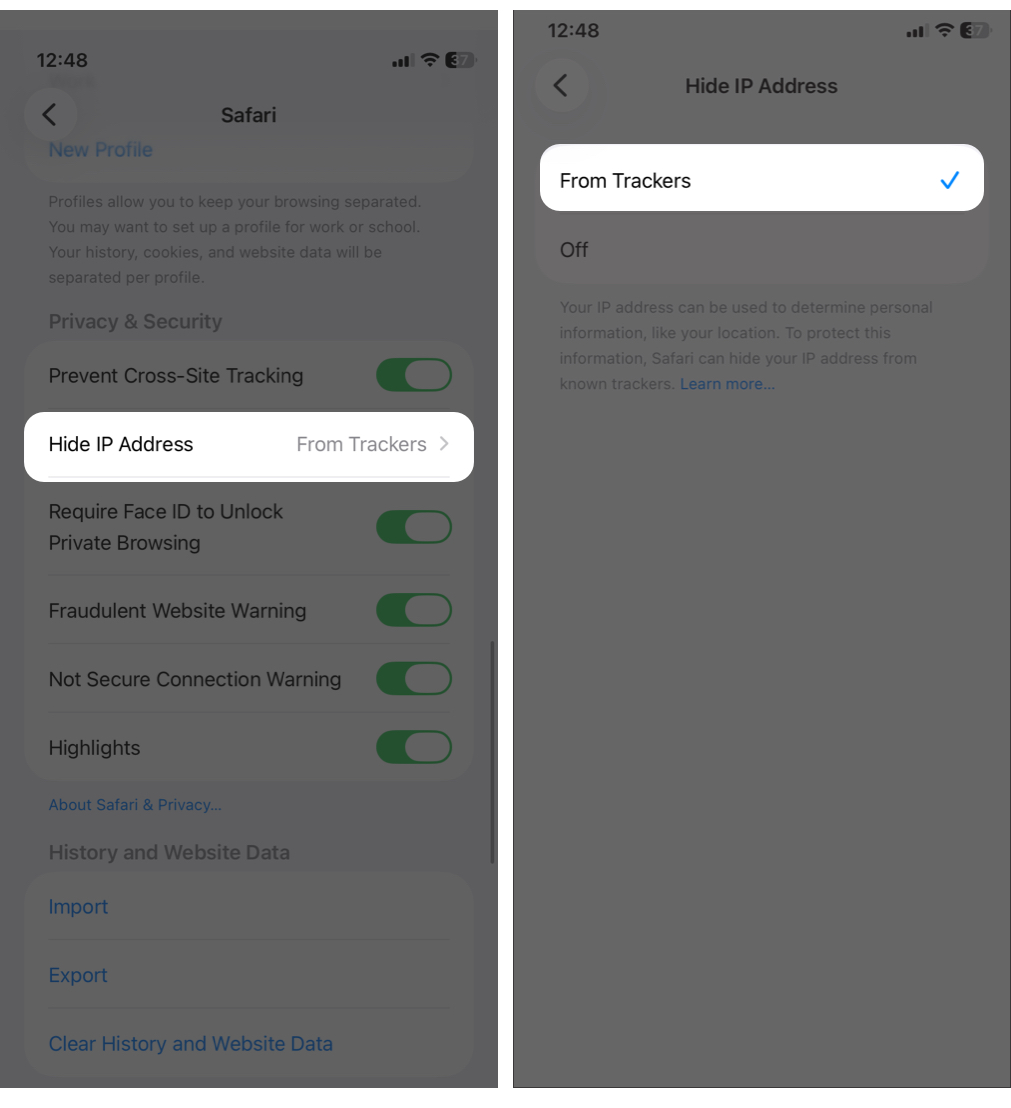
If certain websites do not load, try disabling iCloud Private Relay, which routes traffic through Apple servers and can occasionally cause access issues.
If basic troubleshooting does not help, the issue may be system-related.
This resets system preferences without deleting data.
Low storage can prevent Safari from loading pages.
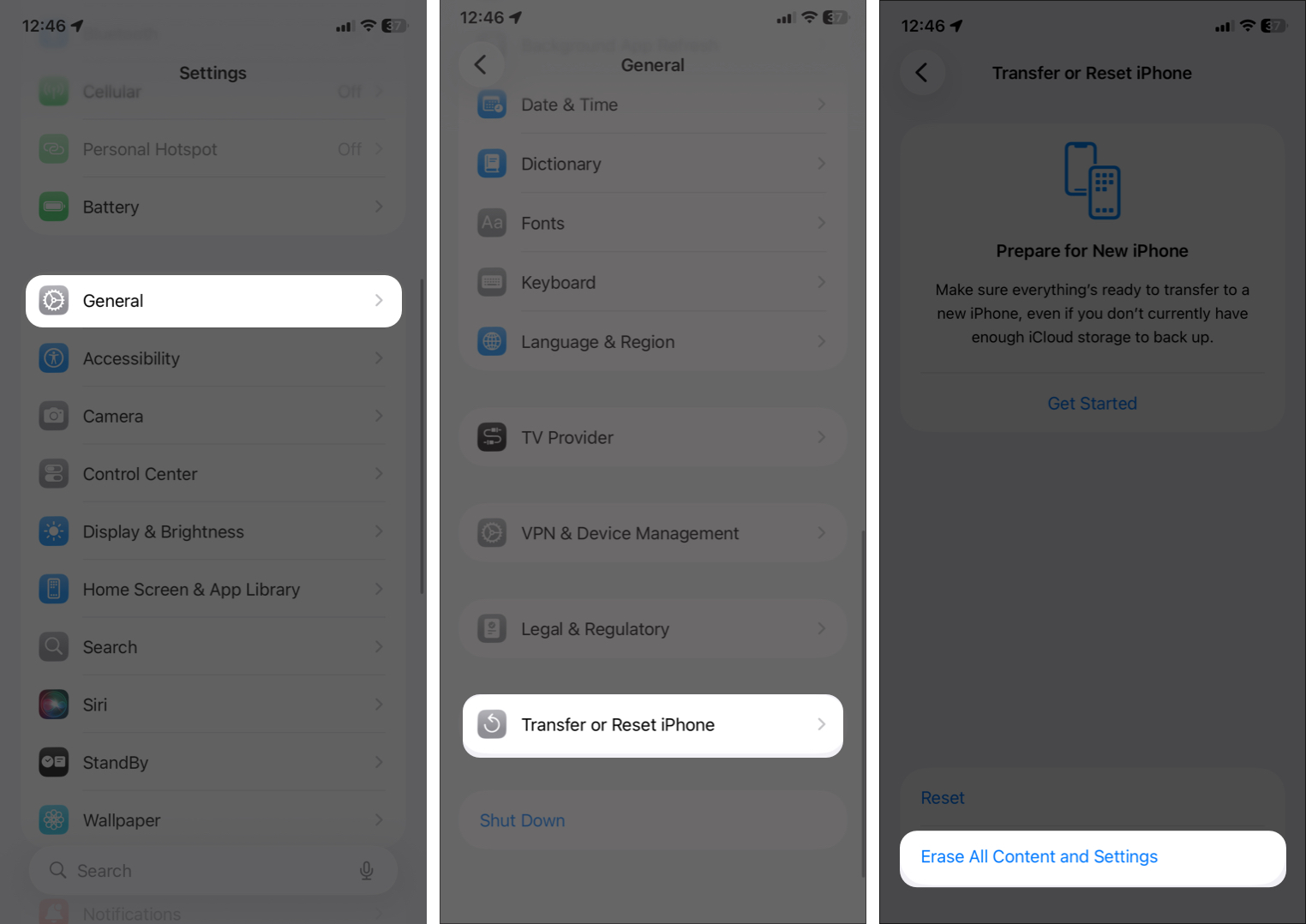
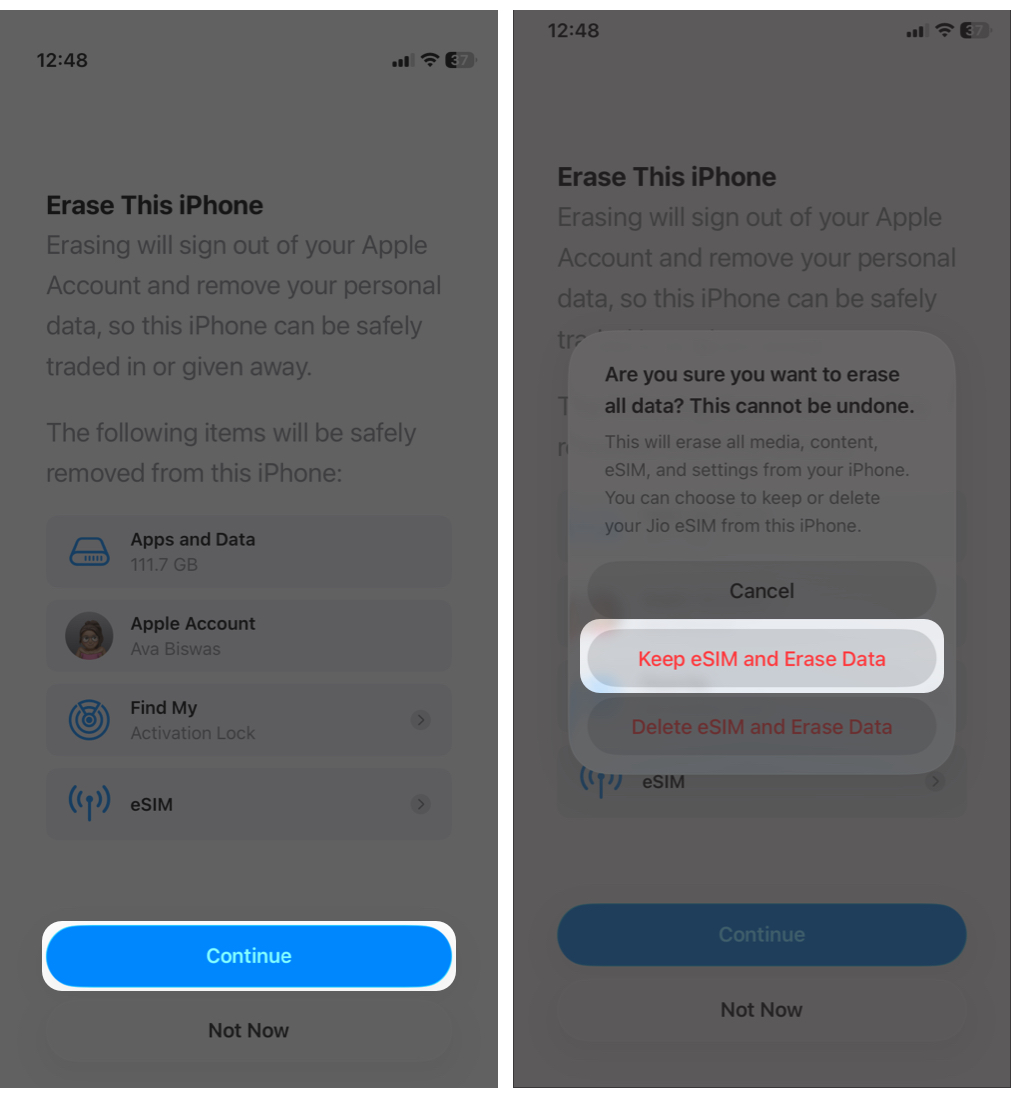
Factory reset your iPhone if nothing else works. This will restore everything, including your apps, photos, personal data, to its original software state. So, before proceeding, back up your data.
If problems persist, Apple Support may be a better option.
Be ready to share your iOS version, device model, and the troubleshooting steps you have already tried.
To keep Safari running smoothly:
To undo experimental features, go to Settings > Apps > Safari > Advanced > Feature Flags, then tap Reset All to Default.
Start with quick fixes like restarting your device and checking your network. Move step by step through clearing data, disabling extensions, and reviewing DNS or VPN settings. Most Safari issues are resolved long before advanced resets are needed.
Try each fix carefully and note what changes. If Safari still does not work after updates and resets, Apple Support is the safest next step.
If a specific solution worked for you, consider sharing it so it can help others.
FAQs
Cache corruption, problematic extensions, low storage, or an outdated iOS version are common causes.
Your Wi-Fi network, DNS settings, or router configuration may be blocking access.
No. Passwords saved in iCloud Keychain remain safe.
Safari is generally faster, more battery-efficient, and deeply integrated with iOS.
Also read:









