FaceTime Like A Pro (eBook)

Get our exclusive Ultimate FaceTime Guide 📚 — absolutely FREE when you sign up for our newsletter below.

How to Use Live Speech on iPhone, Mac, and Apple Watch (Complete Guide)

This guide explains how to use Live Speech across Apple devices. Learn how to set it up on your iPhone, Mac, and Apple Watch to turn typed text into spoken words.

Explore with AI:

Designed primarily for individuals with speech impairments or conditions that affect vocal ability, Live Speech also works as a reliable communication tool in many everyday situations. It can help while recovering from surgery, managing temporary voice strain, speaking in loud environments, or ensuring clarity during important calls and meetings.

In short, Live Speech bridges the communication gap that arises when speaking is difficult, limited, or temporarily not possible by allowing you to type what you want to say and have your device speak it instantly. This post explains what Live Speech is and how to use it on iPhone, Mac, and Apple Watch.

What Is Live Speech and How Does It Work?

Live Speech is an accessibility feature that lets you type what you want to say and have your device speak it aloud in real time. Instead of relying on your voice, you enter text into a dedicated interface, and your iPhone, Mac, or Apple Watch converts it into speech instantly.

Live Speech works system-wide, so you can use it during:

Your Complete iOS 26 Playbook:

Get our exclusive Ultimate iOS 26 Guide 📚 — absolutely FREE when you sign up for our newsletter below.

  • Cellular phone calls
  • FaceTime calls
  • Supported third-party communication apps
  • In-person conversations through your device’s speakers

The feature also integrates with Personal Voice, which lets users create a digital voice that sounds like their own. Once set up, that personalized voice can be used within Live Speech for more natural communication.

How to Turn On and Use Live Speech on iPhone

It works. The setup and usage process can be broken down into three clear stages: enabling the feature in Accessibility settings, activating it through a shortcut, and typing your message to have it spoken aloud.

After initial setup, Live Speech becomes a quick, on-demand communication tool that you can use during calls, FaceTime conversations, or in-person interactions. Here’s how:

Step 1: Enable Live Speech

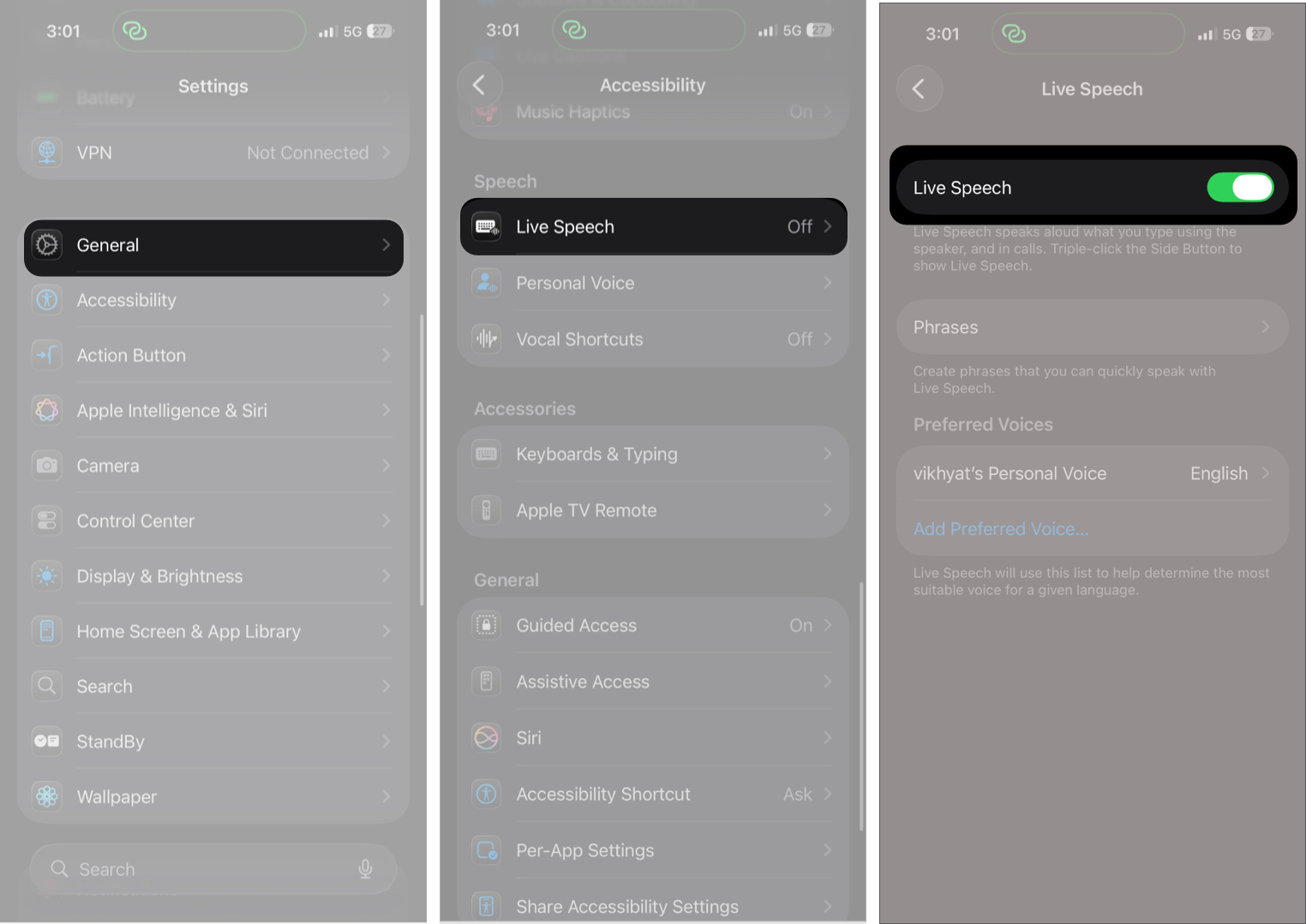
  1. Go to SettingsAccessibility.
  2. Tap Live Speech under the Speech section.
  3. Toggle on Live Speech.
    Toggle on Live Speech In iPhone
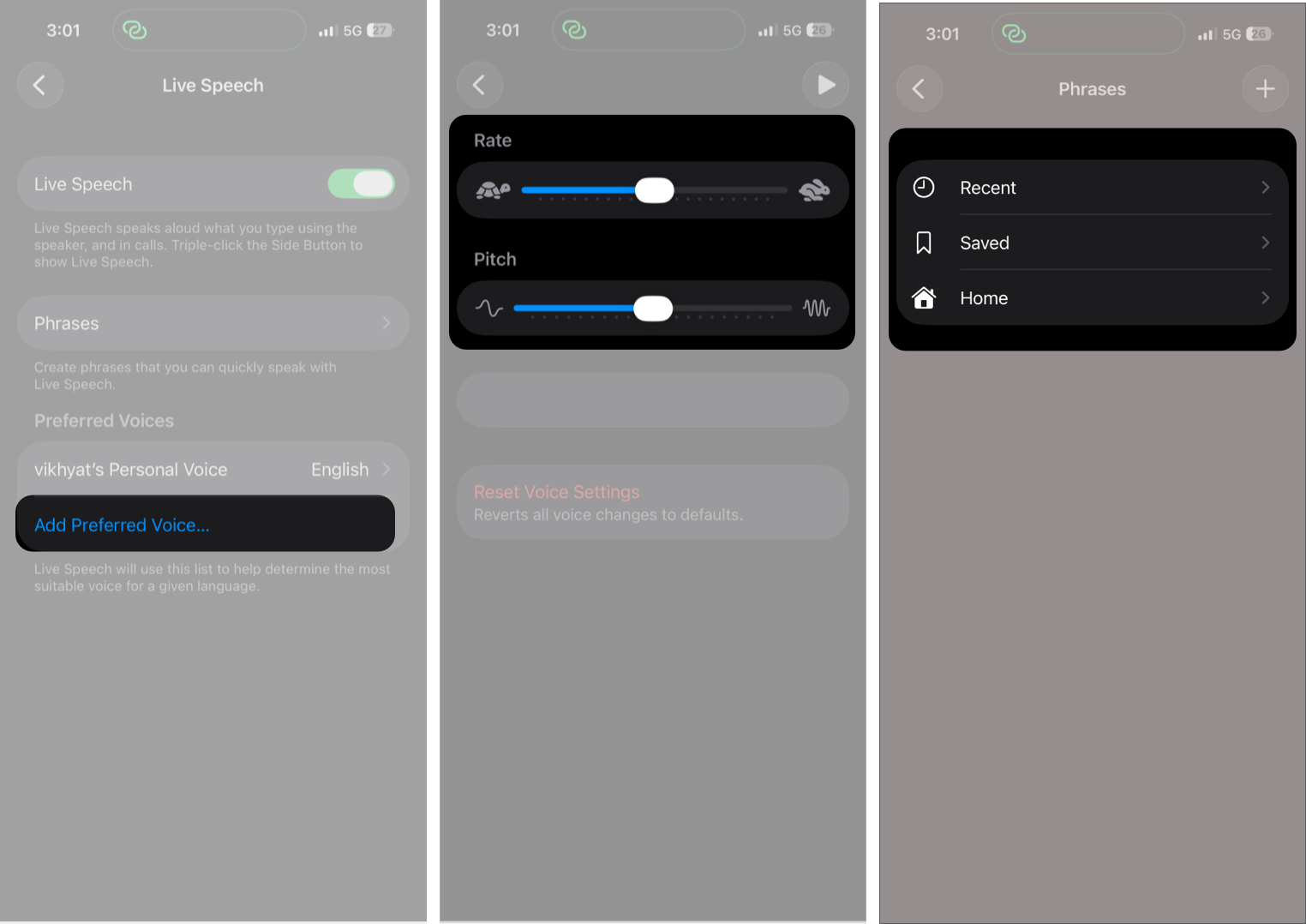
  4. Now, tap Add Preferred Voice, select the preferred language, then choose your preferred voice.
  5. Next, tap the selected voice to adjust its Rate and Pitch.
  6. You can also tap Phrases to add and organize your favorite messages in relevant categories for quicker access during conversations.
    Tap Add Preferred Voice, Select the Preferred Language, Then Choose Your Preferred Voice.

Step 2: Activate Live Speech

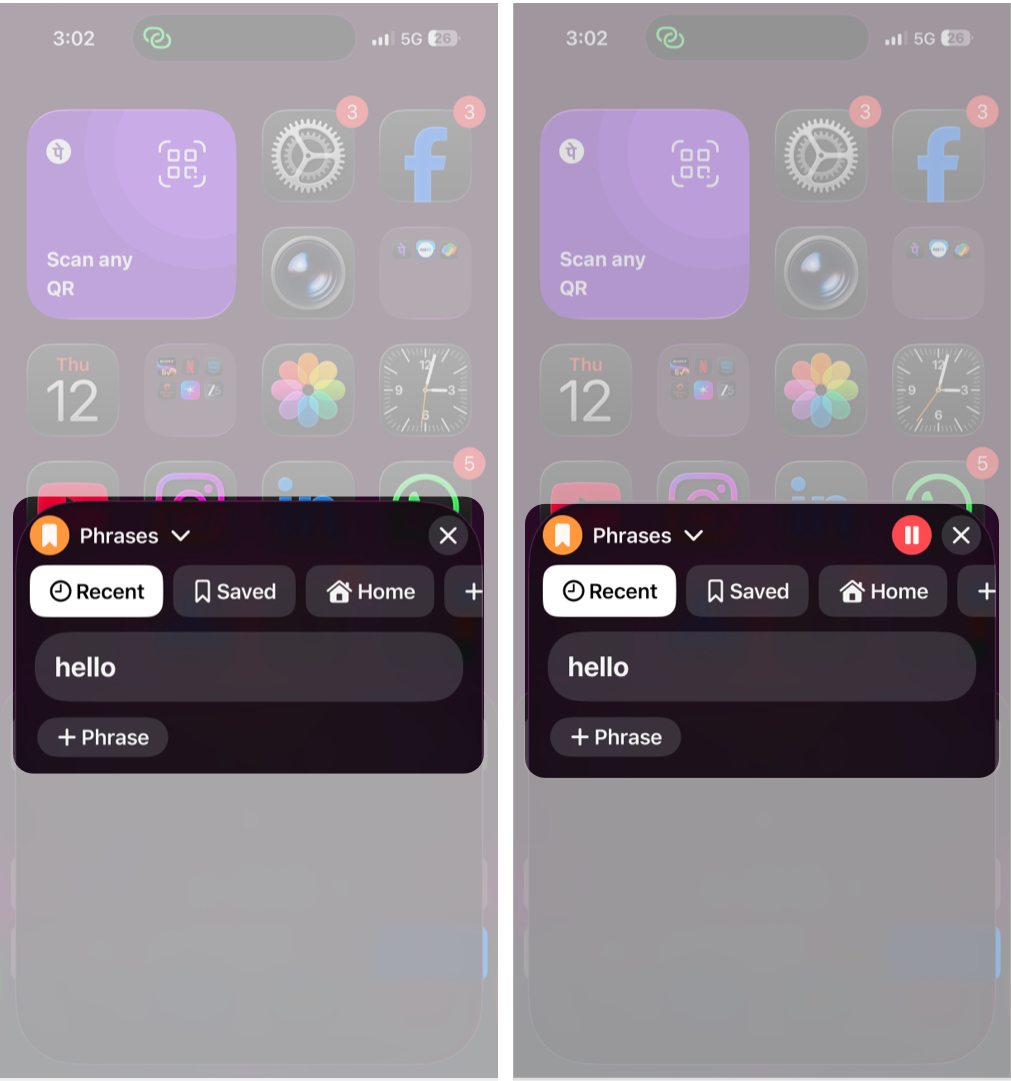
Triple-press the Side button, and the Live Speech panel overlay will appear on your screen.

Step 3: Use Live Speech

  1. In the Live Speech overlay, select any of your saved phrases to have them spoken through your iPhone’s speaker.
  2. If you want to say something new, tap the Add Phrase button, type your message in the text field, and then tap Send. Your iPhone will immediately convert text into speech.
    Activating and using the Live Speech In iPhone

How to Use Live Speech on Mac

Once you understand how Live Speech works on iPhone, using it on Mac feels familiar. The overall flow remains the same: enable the feature in Accessibility settings, trigger it with a shortcut, and type your message to have it spoken aloud. The difference lies in how you access it and how it integrates with macOS apps.

Step 1: Enable Live Speech

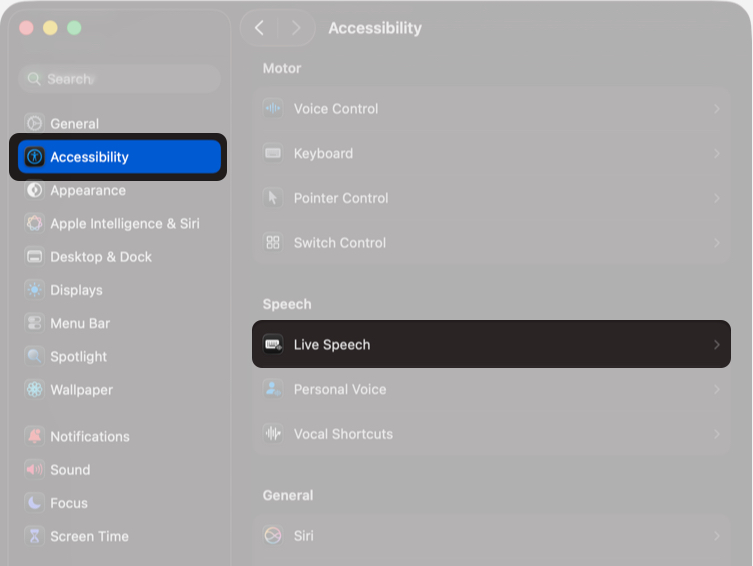
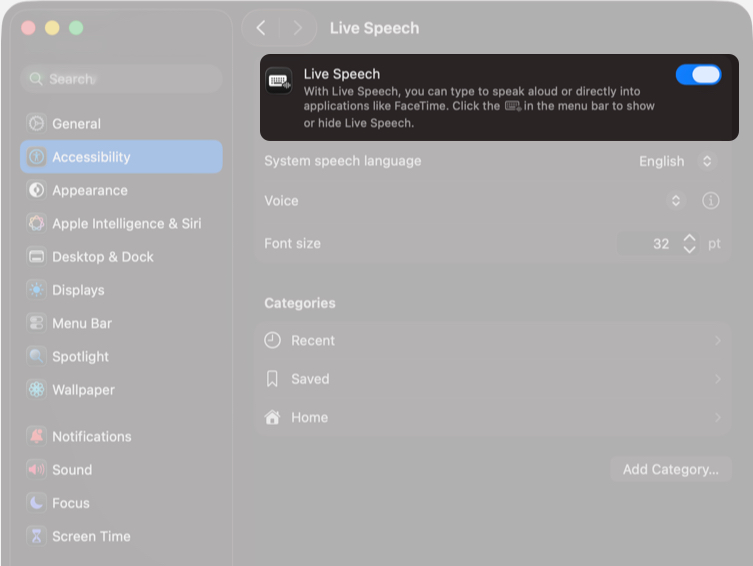
  1. Open System Settings and click Accessibility in the sidebar.
  2. Select Live Speech under the Speech section.
    Enabling Live Speech in Mac Accessibility settings.
  3. Toggle Live Speech on.
  4. Once done, a Type to Speak overlay will appear at the top center.
  5. Next, select your preferred languagevoice, and font size.
  6. You can also open Phrases to add and organize commonly used messages for quick access during meetings or calls.
    Toggle Live Speech 0n

Step 2: Activate Live Speech

On a Mac, no additional shortcut is required to activate Live Speech. Once you enable it in System Settings, the Live Speech panel automatically appears at the top center of your screen.

It remains visible and ready to use until you manually turn off Live Speech in Accessibility settings.

Step 3: Use Live Speech

  1. Click any saved phrase to have it spoken through your Mac’s speakers.
  2. To say something new, type your message in the text field and press Return. Your Mac will immediately convert the text into spoken audio.

How to Use Live Speech on Apple Watch

If you are already comfortable using Live Speech on iPhone, the experience on Apple Watch will feel intuitive. The interface is adapted for the smaller screen, and the core functionality remains consistent.

Step 1: Enable Live Speech

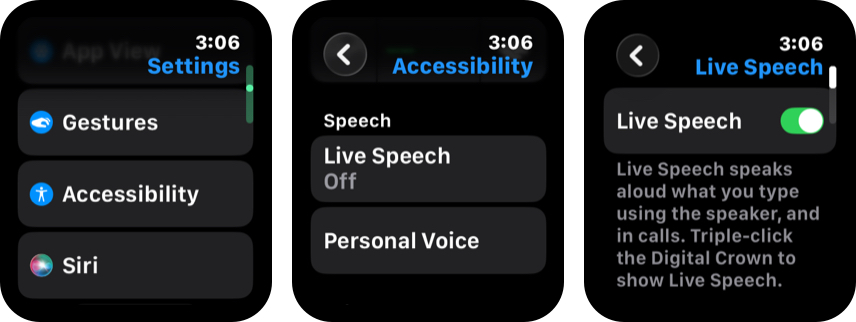
  1. Go to SettingsAccessibilityLive Speech.
  2. Toggle on Live Speech.
    Enabling Live Speech in iPhone Accessibility settings.
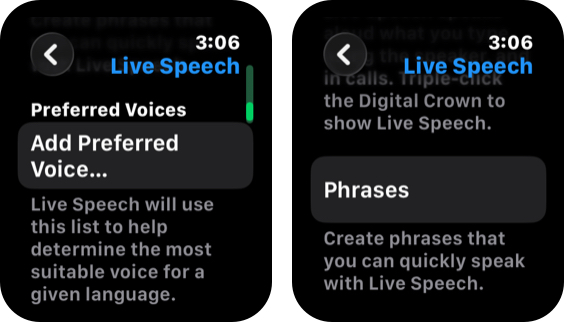
  3. Scroll down and tap Add Preferred Voice to select your preferred language and voice. 
  4. Tap Phrases to add and organize your favorite phrases in relevant categories for quicker access during conversations.
    Customizing Voice Settings and Phrases in Live Speech.

Alternatively, you can also use the Watch app on your iPhone to enable and set up Live Speech on your Apple Watch.

Step 2: Activate and Use Live Speech

Now that you’ve enabled and set up Live Speech on your Apple Watch, here’s how you can activate and use it:

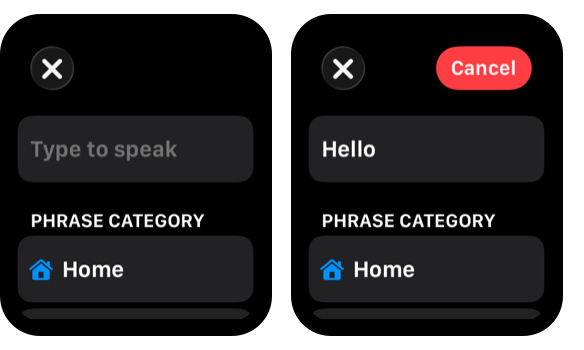
  1. Triple-press the Digital Crown, and the Live Speech interface will appear.
  2. Enter the phrase you want your Apple Watch to speak aloud or choose one from the available categories.
    Activating And Using The Live Speech Text Field

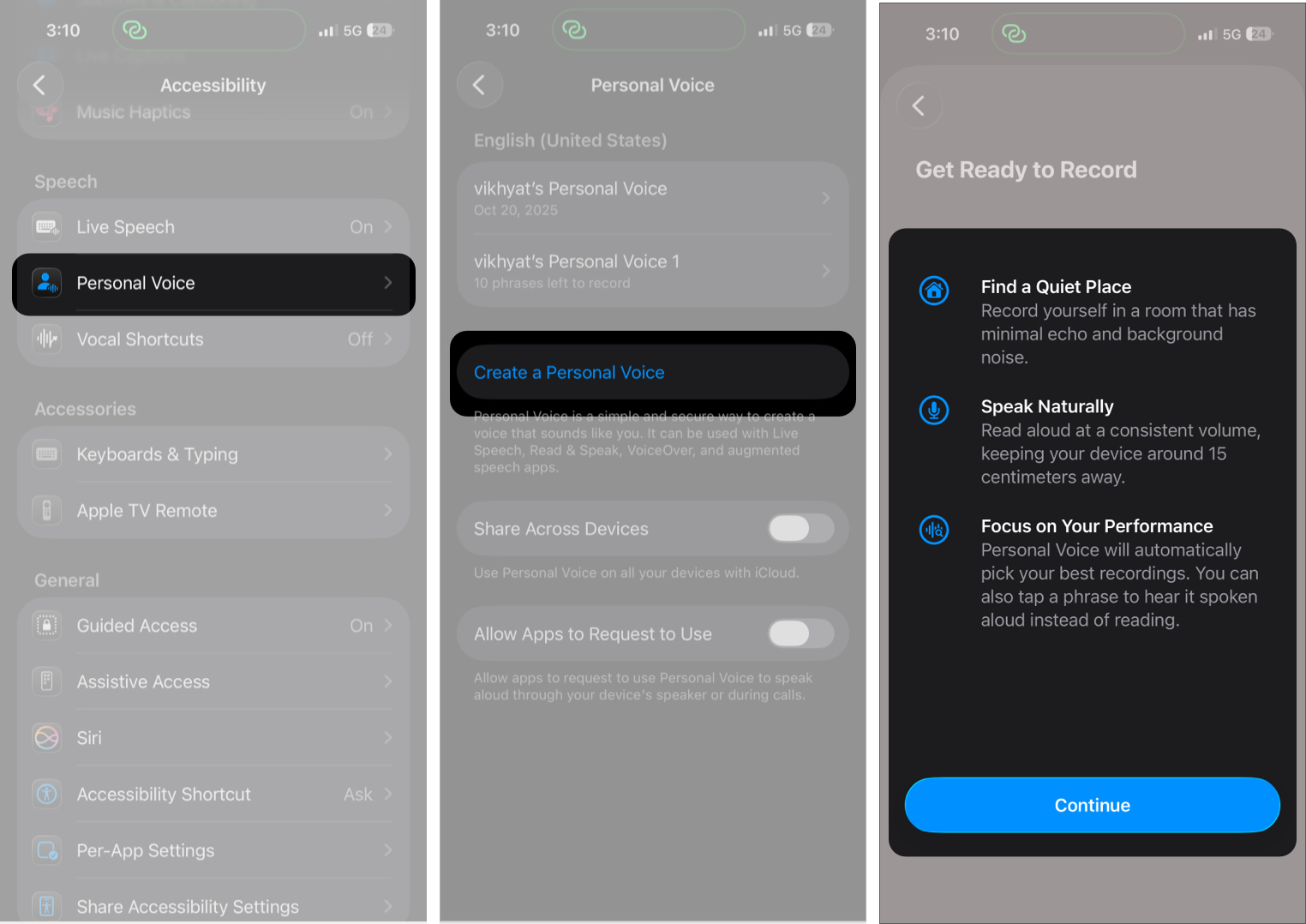
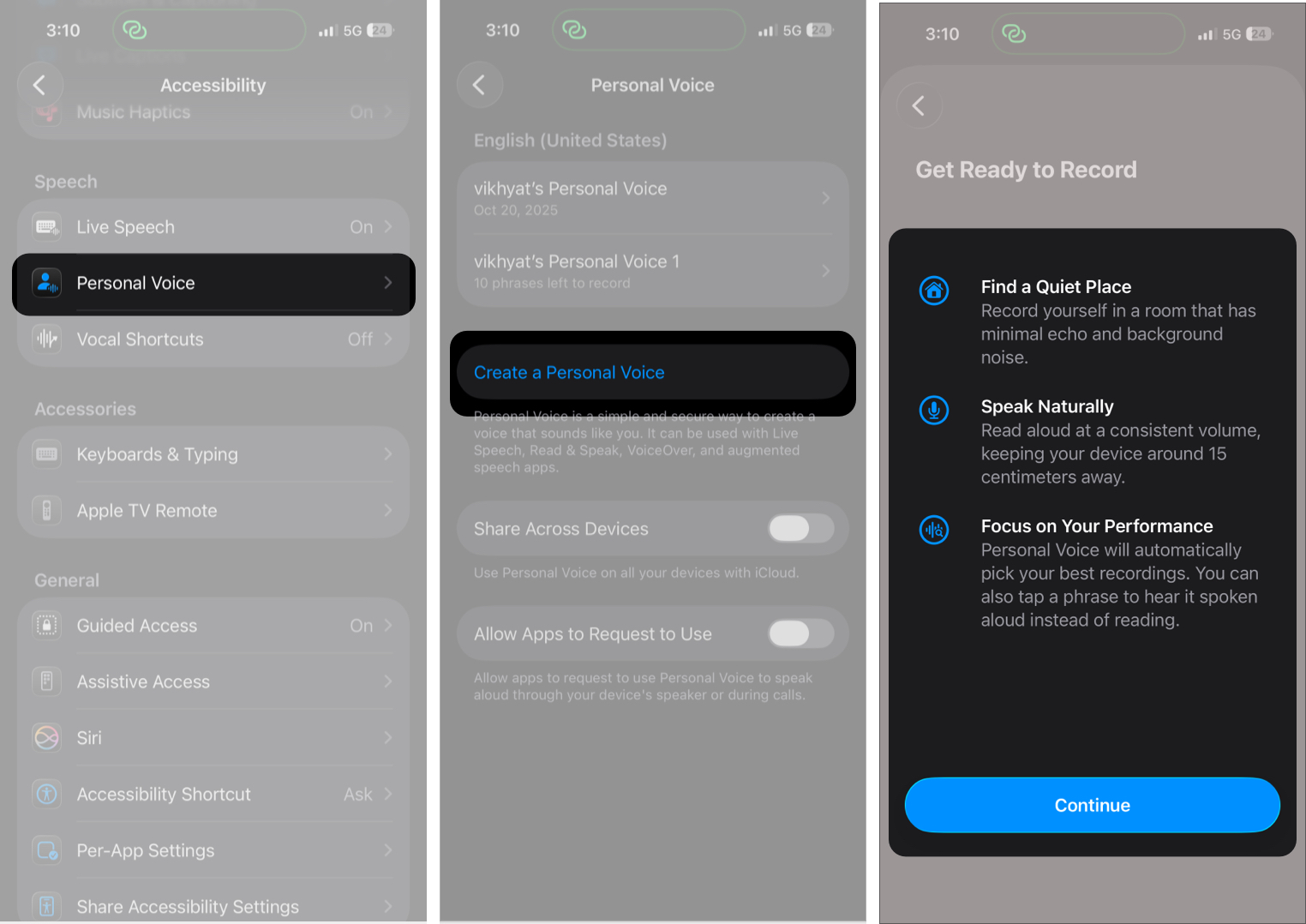
How to Set Up Personal Voice on iPhone or iPad

If you are not satisfied with the available system voices, Personal Voice lets you create a digital voice that closely resembles your own. This gives your Live Speech output a more natural tone, making communication feel more authentic.

  1. Open SettingsAccessibility.
  2. Here, tap Personal Voice under Speech.
  3. Now, tap Create a Personal Voice.
    Starting the Personal Voice creation process on iPhone
  4. Authenticate with Face ID or passcode, then tap Continue on the introductory screen.
  5. Select your preferred language.
  6. Give your voice a name and tap Continue.
  7. Follow the on-screen guided recording process.
    Starting the Personal Voice creation process on iPhone

Once created, you can select your Personal Voice within Live Speech settings.

Best Real-World Uses for Live Speech

Live Speech is helpful in:

  • Progressive speech conditions
  • Post-surgery voice recovery
  • Temporary vocal strain
  • High noise environments
  • Professional meetings
  • Situations requiring clear communication without speaking

Live Speech Limitations and Things to Know

While Live Speech is reliable and practical, there are a few limitations you should be aware of before relying on it regularly:

  • Typing speed affects response time
  • Apple Watch input is slower for longer messages
  • Voice quality depends on the selected system voice
  • Personal Voice requires a quiet setup environment

Live Speech Simplified…

That’s pretty much it; this was everything you needed to know about Live Speech on Apple devices. The feature works seamlessly across iPhone, Mac, and Apple Watch, allowing you to participate in conversations with confidence and clarity. And when paired with Personal Voice and saved phrases, it becomes a lifeline for communication.

Have you tried Live Speech on your Apple device? Share your experience or questions in the comments below.

Read more:

Explore with AI:

Add Igeekblog as a preferred source on Google

Vikhyat
Vikhyat

Vikhyat has a bachelor's degree in Electronic and Communication Engineering and over five years of writing experience. His passion for technology and Apple products led him to the tech writing space, where he specializes in writing App features, How-to guides, and troubleshooting guides for fellow Apple users. When not typing away on his MacBook Pro, he loves exploring the real world.

Articles: 604

FaceTime Like a Pro:

Get our exclusive Ultimate FaceTime Guide 📚 — absolutely FREE when you sign up for our newsletter below.


Leave a Reply

Your email address will not be published. Required fields are marked *