FaceTime Like a Pro
Get our exclusive Ultimate FaceTime Guide 📚 — absolutely FREE when you sign up for our newsletter below.

FaceTime Like a Pro
Get our exclusive Ultimate FaceTime Guide 📚 — absolutely FREE when you sign up for our newsletter below.


When your Apple Watch stops ringing, it is often due to sound settings or notification syncing issues. Here are 9 proven ways to fix it fast.
 ByVikhyat
Missing calls or notifications on your Apple Watch can be frustrating, especially when you rely on it to stay connected without constantly checking your iPhone. If your Apple Watch is not ringing for calls, alerts, or app notifications, it may seem like a hardware problem at first. In most cases, though, the issue is related to sound settings, Focus modes, notification syncing, or connectivity problems.
This guide explains how to restore ringing and notification sounds on your Apple Watch.
Apple Watch notifications are designed to intelligently switch between your iPhone and your watch so you do not receive duplicate alerts on both devices at the same time. The system decides where notifications appear based on device activity, lock status, and wrist detection.
For notifications to work properly, several conditions must be met. The watch must be worn on your wrist, unlocked, and connected to the paired iPhone via Bluetooth, Wi-Fi, or cellular. Notifications must also be enabled on the iPhone. Since Apple Watch mirrors many notification permissions from the iPhone, disabled alerts on the phone will not appear on the watch.
Before trying any fixes, it helps to understand why your Apple Watch may not be ringing.
Your Apple Watch sends alerts only when:
If any of these conditions are not met, calls and alerts may go silently to your iPhone instead.
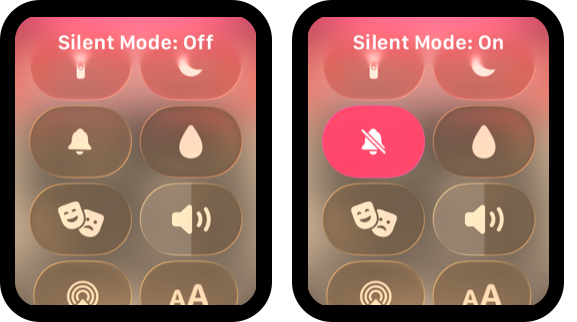
Silent Mode mutes notification and call sounds on your Apple Watch while still allowing alerts to appear on the screen or through haptic feedback. Because it can be enabled accidentally from Control Center, it is one of the most common reasons an Apple Watch stops ringing.
To turn off Silent Mode:
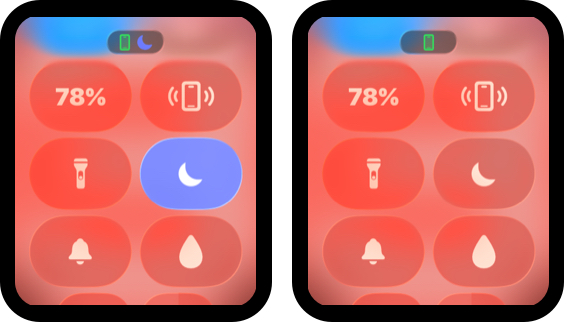
If you enabled a Focus mode on your iPhone, that setting may also be silencing your Apple Watch. Focus modes such as Do Not Disturb, Sleep, or Work sync across Apple devices when Share Across Devices is enabled.
To check:
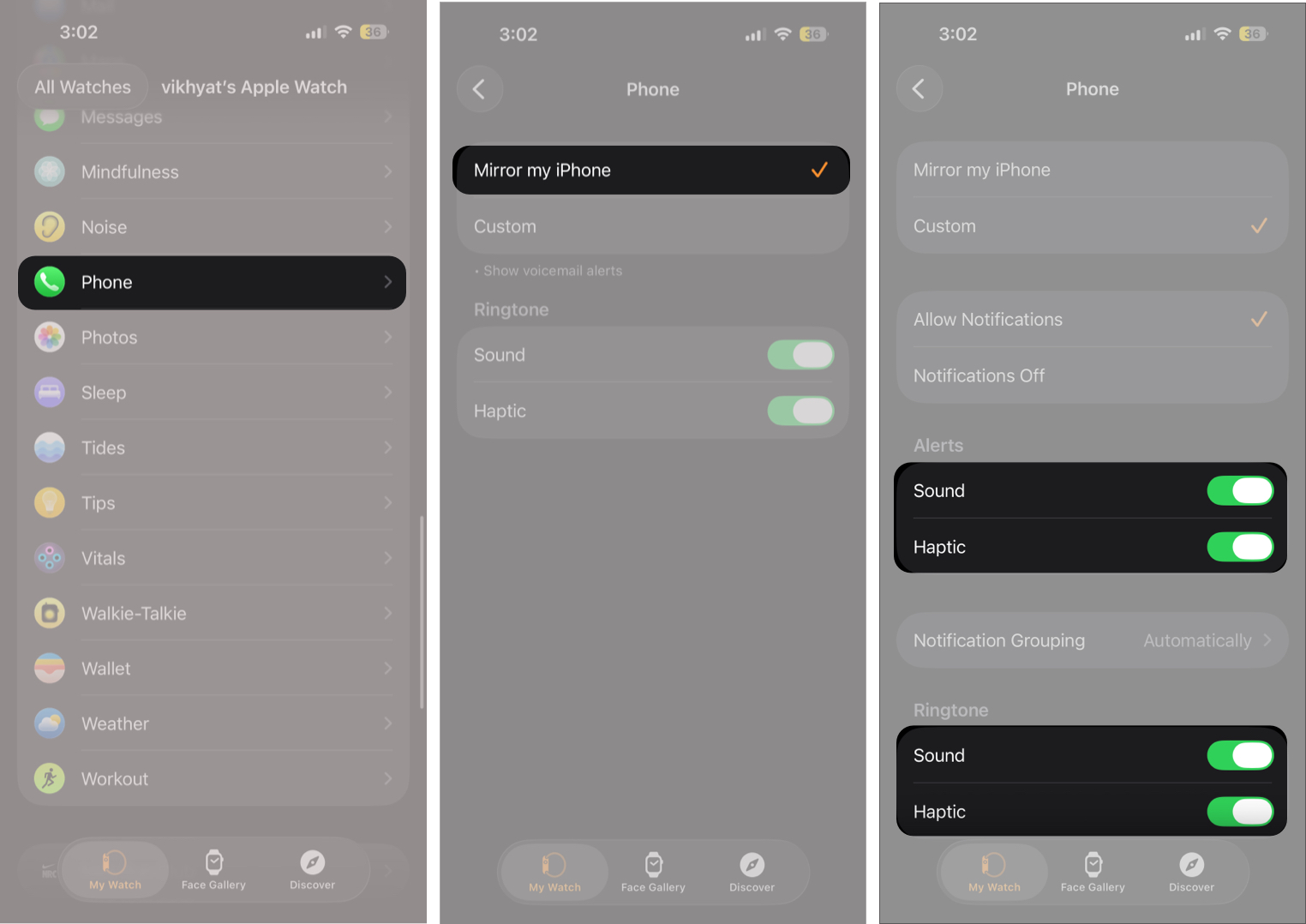
By default, Apple Watch mirrors notification settings from the Phone app on your iPhone. However, if you switched to Custom notifications and disabled Sound or Haptics, your Apple Watch may stop ringing for incoming calls even though alerts still appear.
To review these settings:
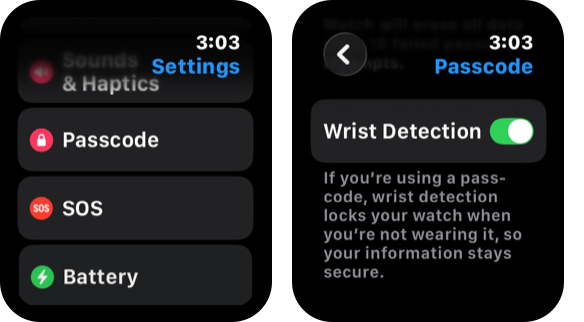
Wrist Detection tells your Apple Watch when you are wearing it and where alerts should be delivered. If it is turned off, calls and notifications may go to your iPhone instead.
To check:
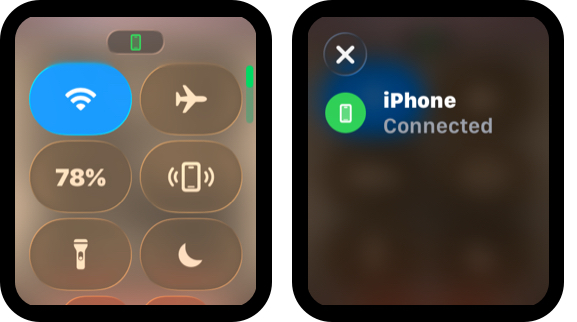
Your Apple Watch must stay connected to your iPhone to receive calls and notifications properly. If the connection drops, calls may ring only on your iPhone.
To verify:
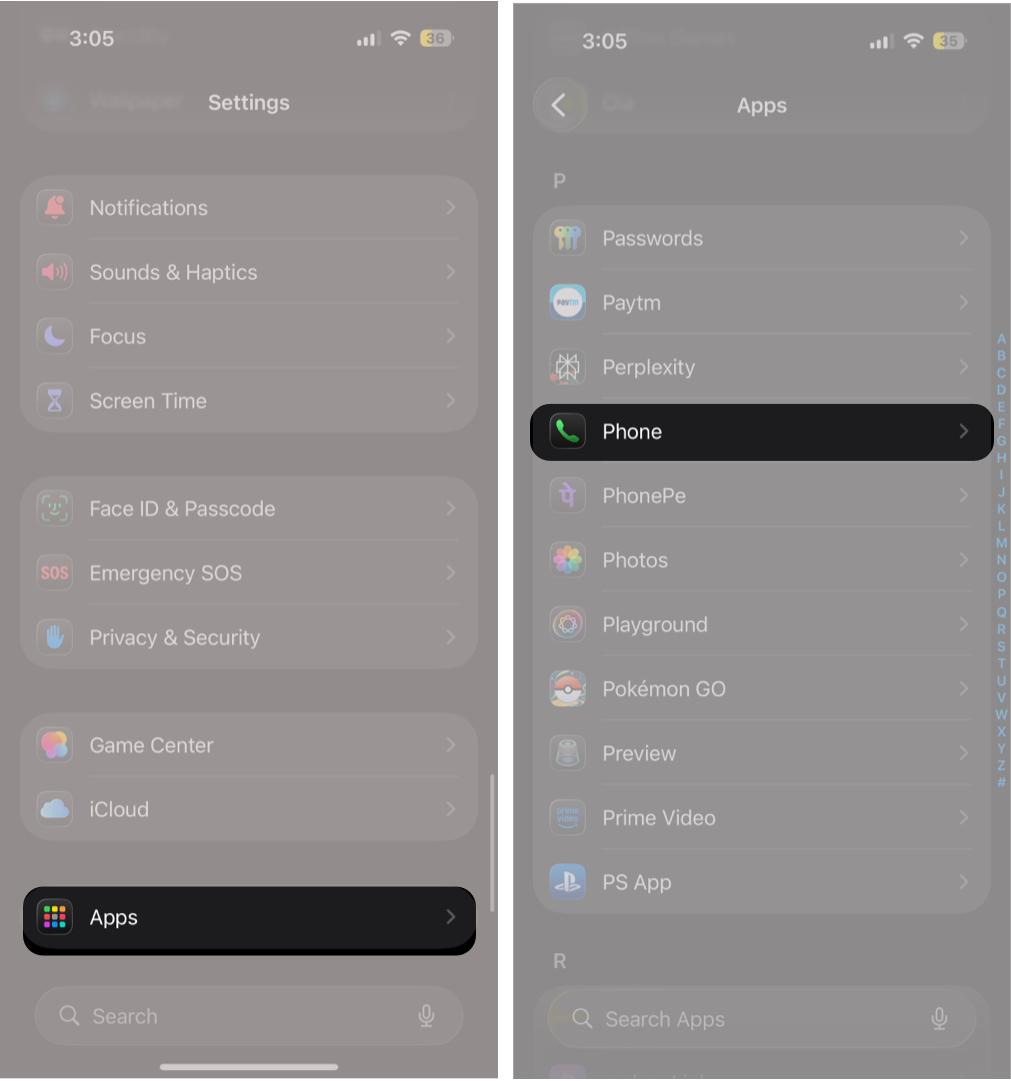
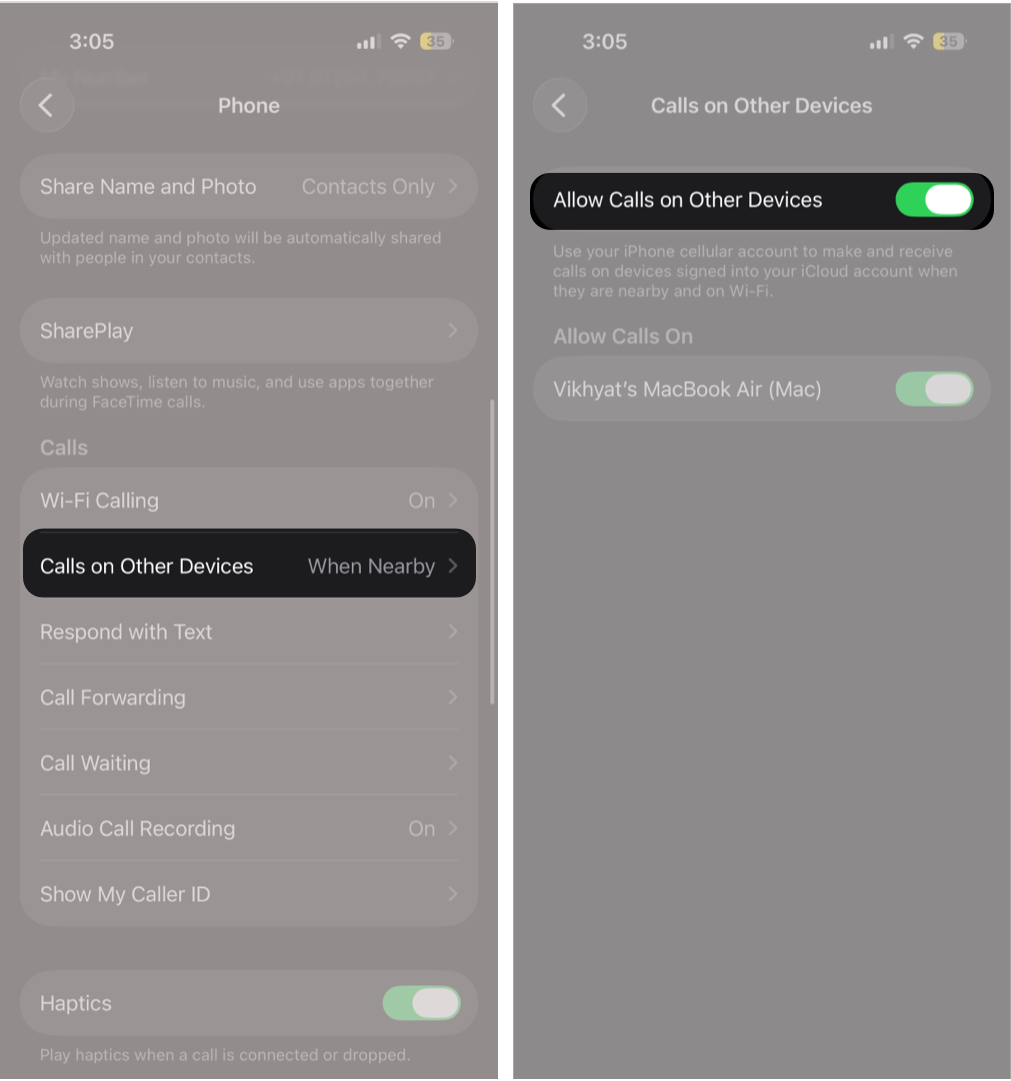
If call routing is configured incorrectly, incoming calls may ring only on your iPhone.
To confirm:
If everything appears correct but your Apple Watch is still not ringing, the issue may be a temporary software glitch. Syncing problems can prevent alerts from playing properly.
Restart both your Apple Watch and iPhone. This refreshes system processes and often resolves minor notification or sound issues.
Outdated software can also cause notification or ringing problems. Apple regularly releases updates to fix bugs related to connectivity, alerts, and syncing.
Make sure both your iPhone and Apple Watch are running the latest version of iOS and watchOS to ensure proper synchronization.
If the issue persists, resetting and re-pairing your Apple Watch may help. This removes existing connections and creates a fresh sync between your devices.
To unpair:
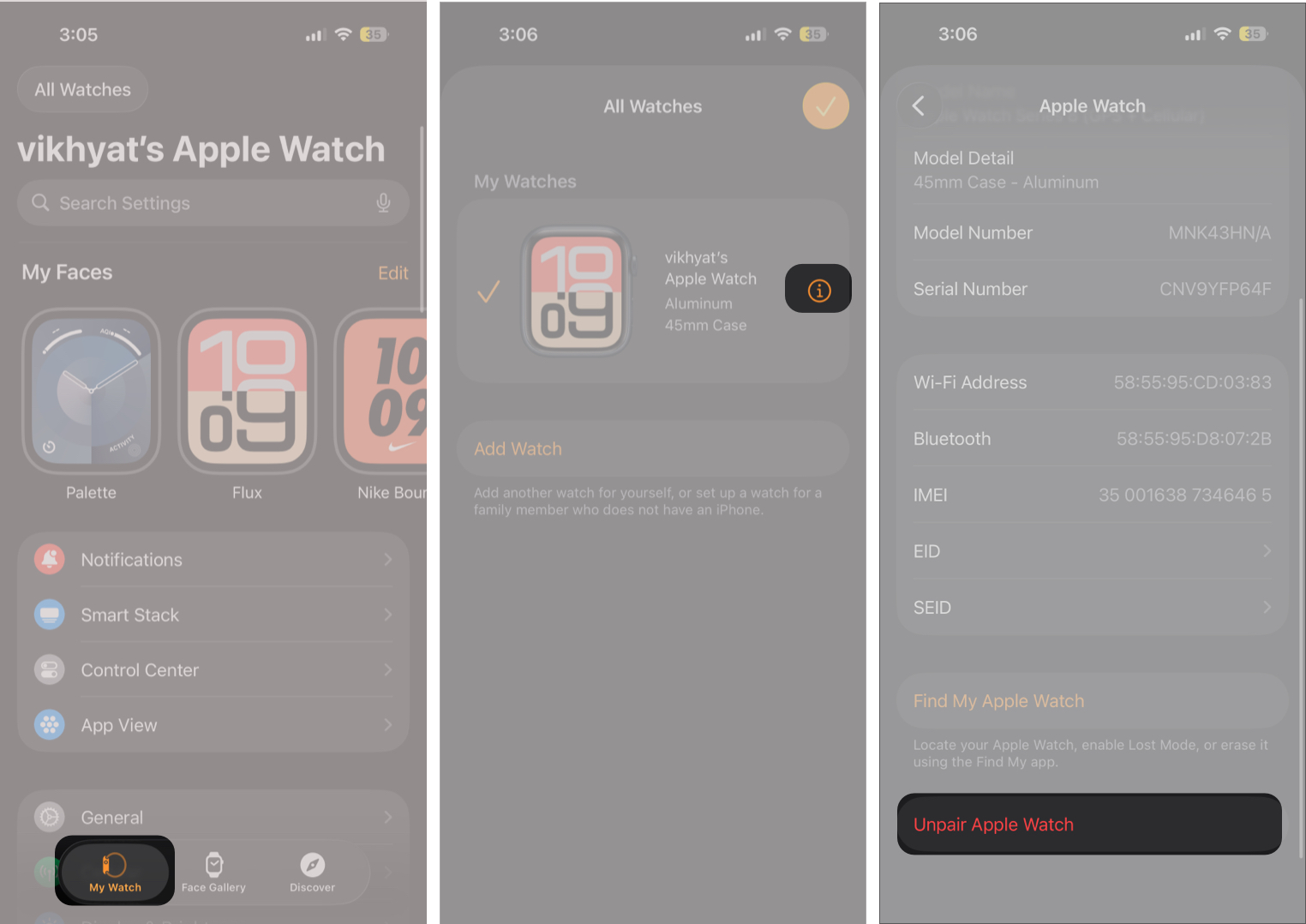
After unpairing, set up the watch again and restore from backup during setup.
If calls and notifications still do not ring after trying all the steps above, the problem may be deeper. Test the speaker by playing music or triggering a sound alert from Settings. You can also check notifications from different apps to rule out app-specific issues.
If the speaker does not produce sound, contacting Apple Support or visiting an authorized service center is recommended to diagnose possible hardware issues.
If your Apple Watch is not ringing, the cause is usually related to Silent Mode, Focus settings, notification syncing, or connectivity issues rather than hardware failure. By checking these settings one by one, you can usually restore call and notification sounds within minutes.
If you discovered another fix that worked for you, sharing it could help other Apple Watch users facing the same issue.
Related articles worth reading: