FaceTime Like a Pro
Get our exclusive Ultimate FaceTime Guide 📚 — absolutely FREE when you sign up for our newsletter below.

FaceTime Like a Pro
Get our exclusive Ultimate FaceTime Guide 📚 — absolutely FREE when you sign up for our newsletter below.


Lost your Apple Watch? Here’s how to track it using your iPhone or Find My app, even if it’s dead. Plus, what to do when you can’t find it anywhere.

 ByMehak Siddiqui and Vikhyat
Losing an Apple Watch can feel like a small heart attack. It’s not just the price; it’s the personal data, health info, and photos stored inside. The good news is that Apple has built several tools that make it possible to track or recover your Apple Watch, even if it’s lost or dead.
Below, I’ll walk you through how to find your Apple Watch using your iPhone, the Find My app, and what to do when the battery is dead.
Starting with iOS 17, Apple added a helpful feature that lets you ping your Apple Watch from your iPhone. This is perfect if you misplaced your watch somewhere nearby, like at home or in the office.
The Ping My Watch feature works the same way as “Ping My iPhone” on your Apple Watch, only in reverse. Once added to your iPhone’s Control Center, you can make your Apple Watch emit a sound so you can locate it quickly.
Here’s how to set it up and use it:
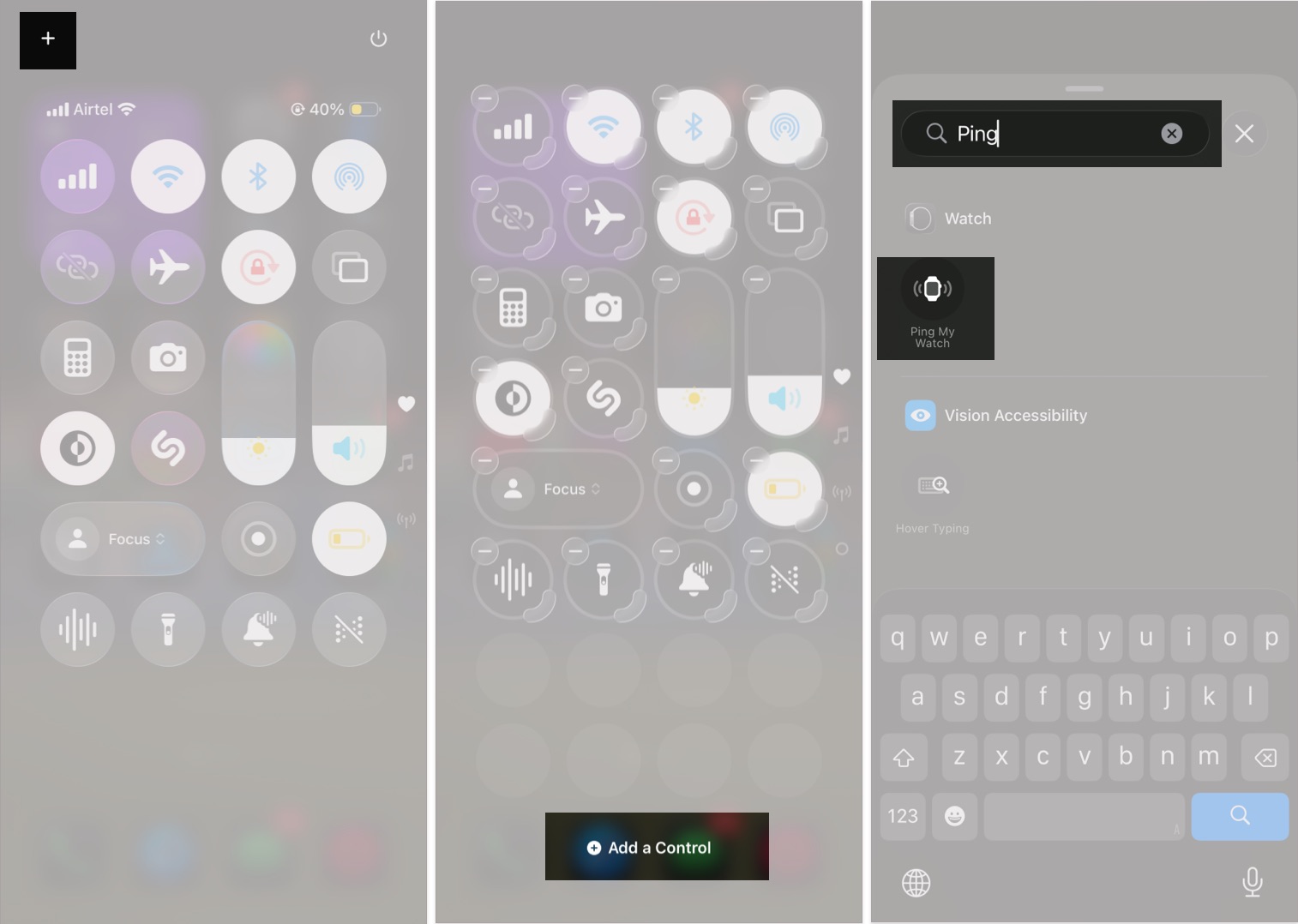
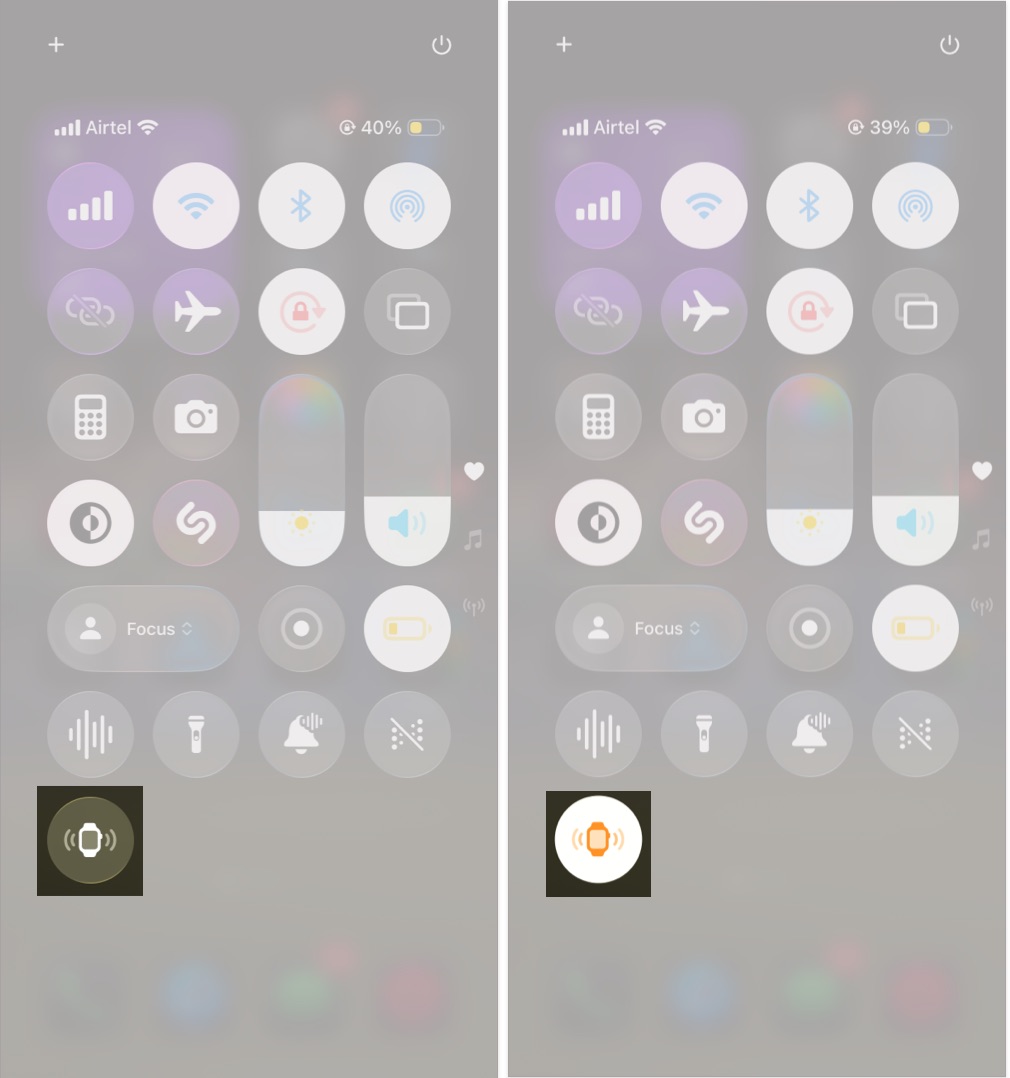
If your watch is within Bluetooth range, this is the fastest way to find it.
Apple’s Find My network connects millions of Apple devices to help you locate missing ones. If your Apple Watch is still online, you can see its live location on a map, play a sound, or get directions to it.
Important: Find My must be enabled on your Apple Watch before it goes missing.
Follow these steps:
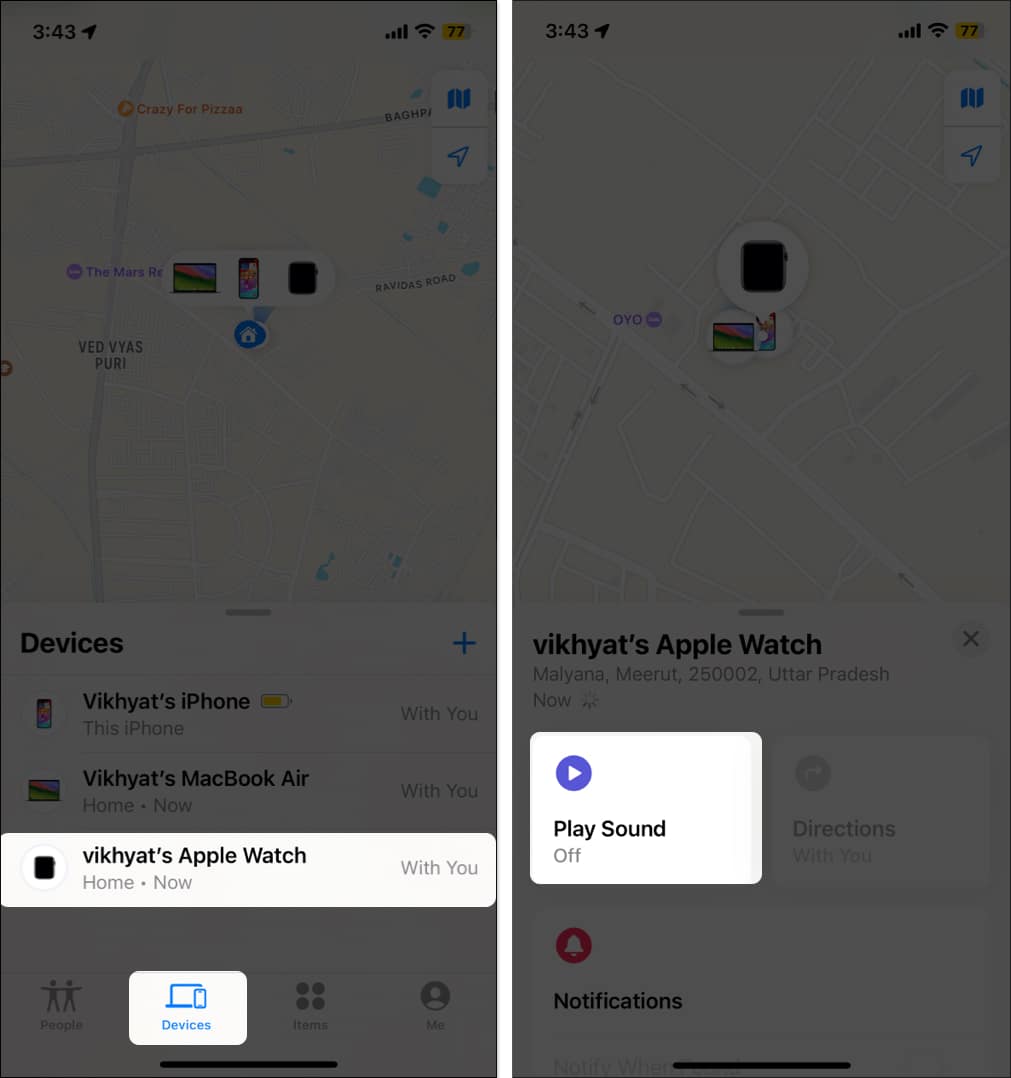
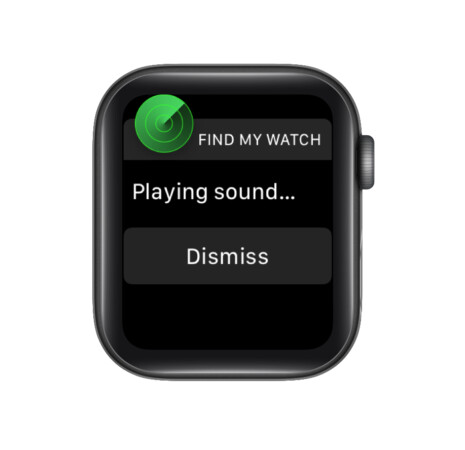
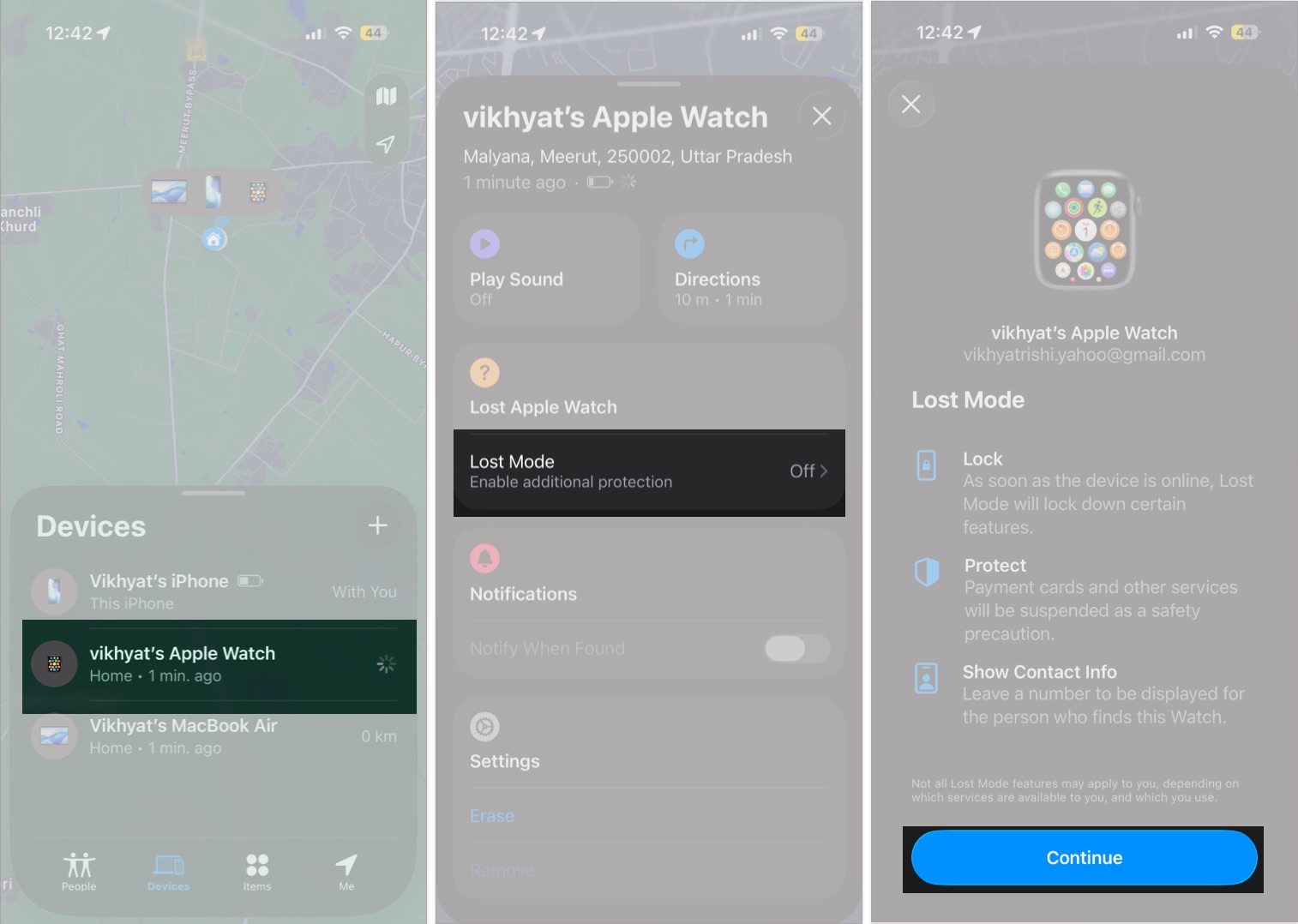
For this, you need to use the Find My app to put the watch in lost mode if it is dead and its location cannot be found.
If your Apple Watch is dead or offline, activating Lost Mode helps protect your data and increases your chances of recovery. When enabled, your Apple Watch locks itself and displays a custom message with your phone number so whoever finds it can contact you.
Here’s how to do it:
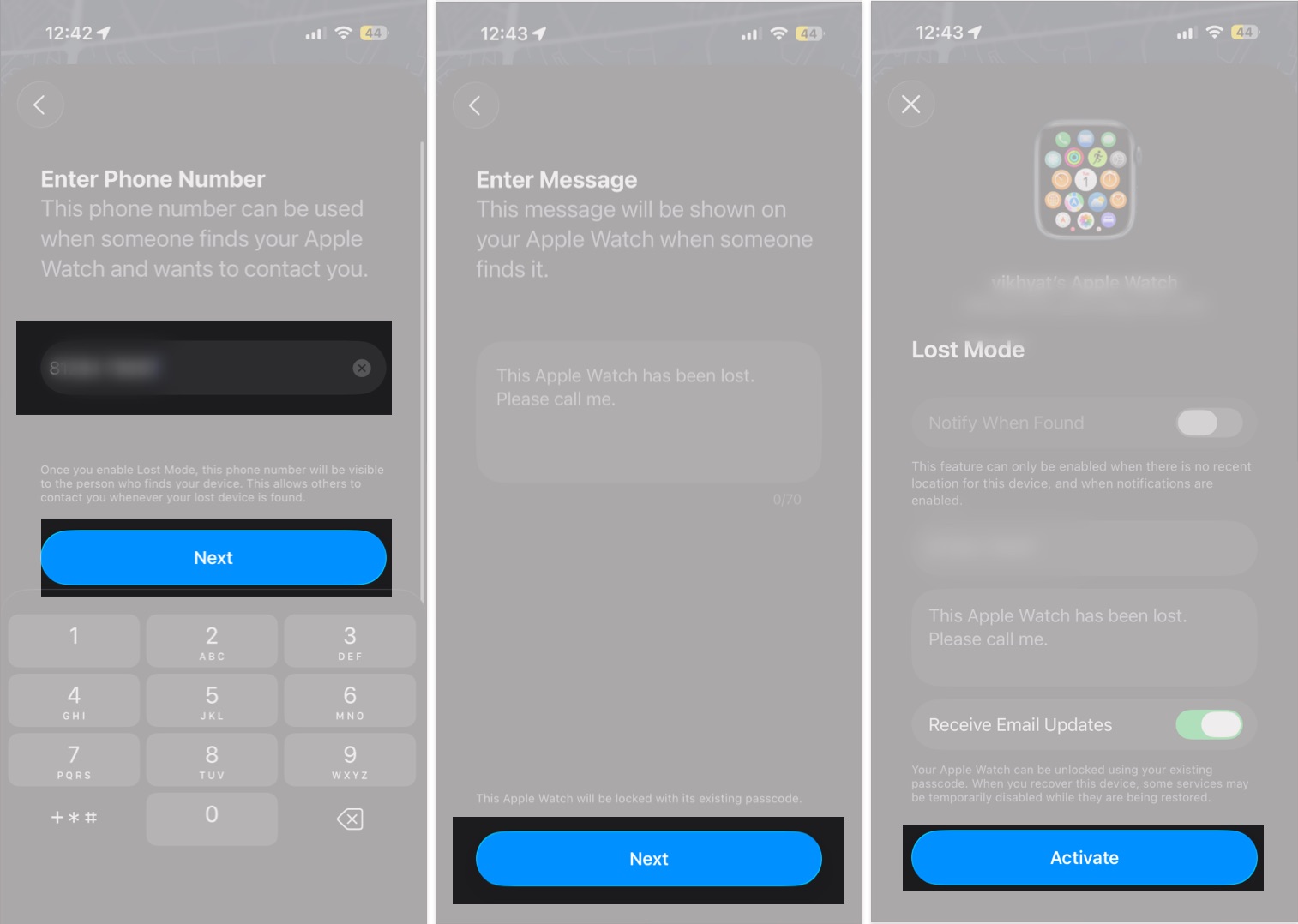
Apple will also send you a confirmation email once Lost Mode is turned on.
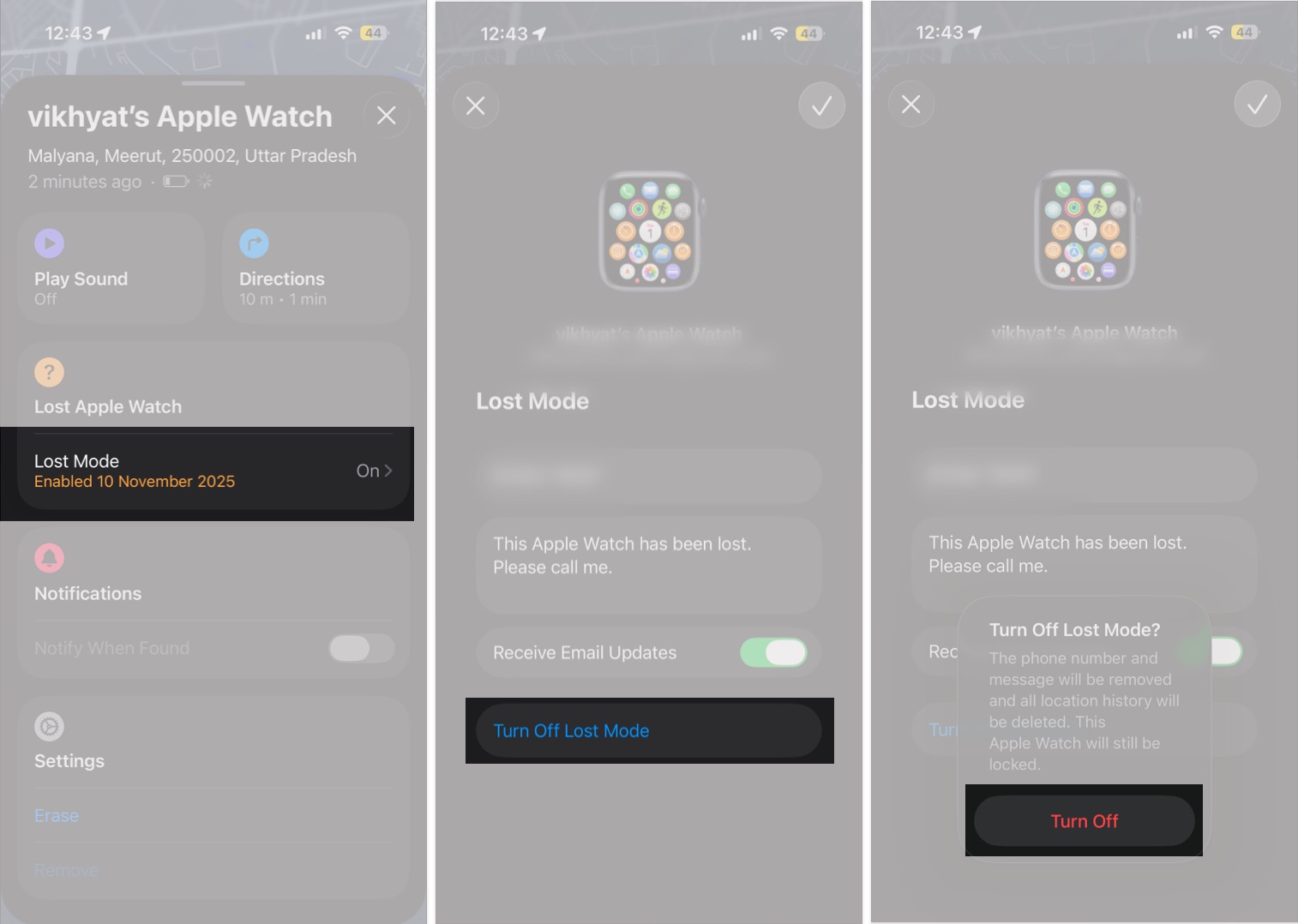
Once you recover your Apple Watch, simply unlock it with your passcode. That automatically disables Lost Mode.
You can also turn it off manually from any Apple device:
If Find My wasn’t turned on before your Apple Watch went missing, Apple can’t help you locate it. In that case, take these steps to protect your information and report the loss:
That’s everything you can do to find a lost or dead Apple Watch. To avoid future headaches, make sure Find My is turned on for all your Apple devices and get in the habit of keeping them in a designated place when not in use.
If you still have questions, drop them in the comments.
FAQs
No. Once the Apple Watch battery dies, you can’t track its live location. However, the Find My app can show its last known location before it went offline.
Yes, but only if it’s connected to Wi-Fi or has a cellular plan. You can also check its last location through the iCloud website.
If you tend to misplace or drop your devices, AppleCare+ is a smart investment. It covers accidental damage and can make replacing a lost or stolen watch less stressful.
Explore more on Apple Watch: