
FaceTime Like a Pro
Get our exclusive Ultimate FaceTime Guide 📚 — absolutely FREE when you sign up for our newsletter below.

FaceTime Like a Pro
Get our exclusive Ultimate FaceTime Guide 📚 — absolutely FREE when you sign up for our newsletter below.


Cellular issues on Apple Watch can stem from plan, network, or settings problems. This guide walks you through simple, proven fixes that actually work.
 ByVikhyat


Apple Watch is available in two variants: Wi-Fi only and cellular. While both deliver the same core smartwatch experience, the cellular version adds true independence. With a cellular Apple Watch, you can make and receive calls, send messages, stream music, and use apps even when your iPhone is not nearby.
This convenience is what makes the cellular Apple Watch so appealing, especially if you are trying to reduce screen time. However, when cellular stops working, the experience breaks instantly. You may see “No Service,” stuck activation, missing signal bars, or apps that refuse to load without Wi-Fi.
This guide explains why Apple Watch cellular stops working and shares the most effective ways to fix it.
An Apple Watch cellular model looks similar to and functions almost identically to a Wi-Fi–only model. The key difference is that the cellular model includes eSIM (embedded SIM) technology. When activated, it mirrors your iPhone number through your carrier. Calls and messages reach your watch on the same number, even though it connects to the network independently.
Apple designed the watch to automatically switch between Bluetooth, Wi-Fi, and cellular. When your iPhone is nearby, Bluetooth is used to conserve battery life. If Wi-Fi is available, the watch connects to it next. Cellular is used only when the other connections are unavailable.
Apple Watch cellular runs on an embedded eSIM that your carrier activates during setup. Activation happens through the Watch app on iPhone and links your watch to a wearable plan on your account.
For cellular to work properly, you must meet these requirements:
Once activated, you can check cellular status from Control Center on your Apple Watch:
Check out: All Apple Watch Icons and Symbols Meanings Explained
Apple Watch cellular problems usually appear in predictable ways:
Follow these steps in order to identify the cause and restore connectivity.
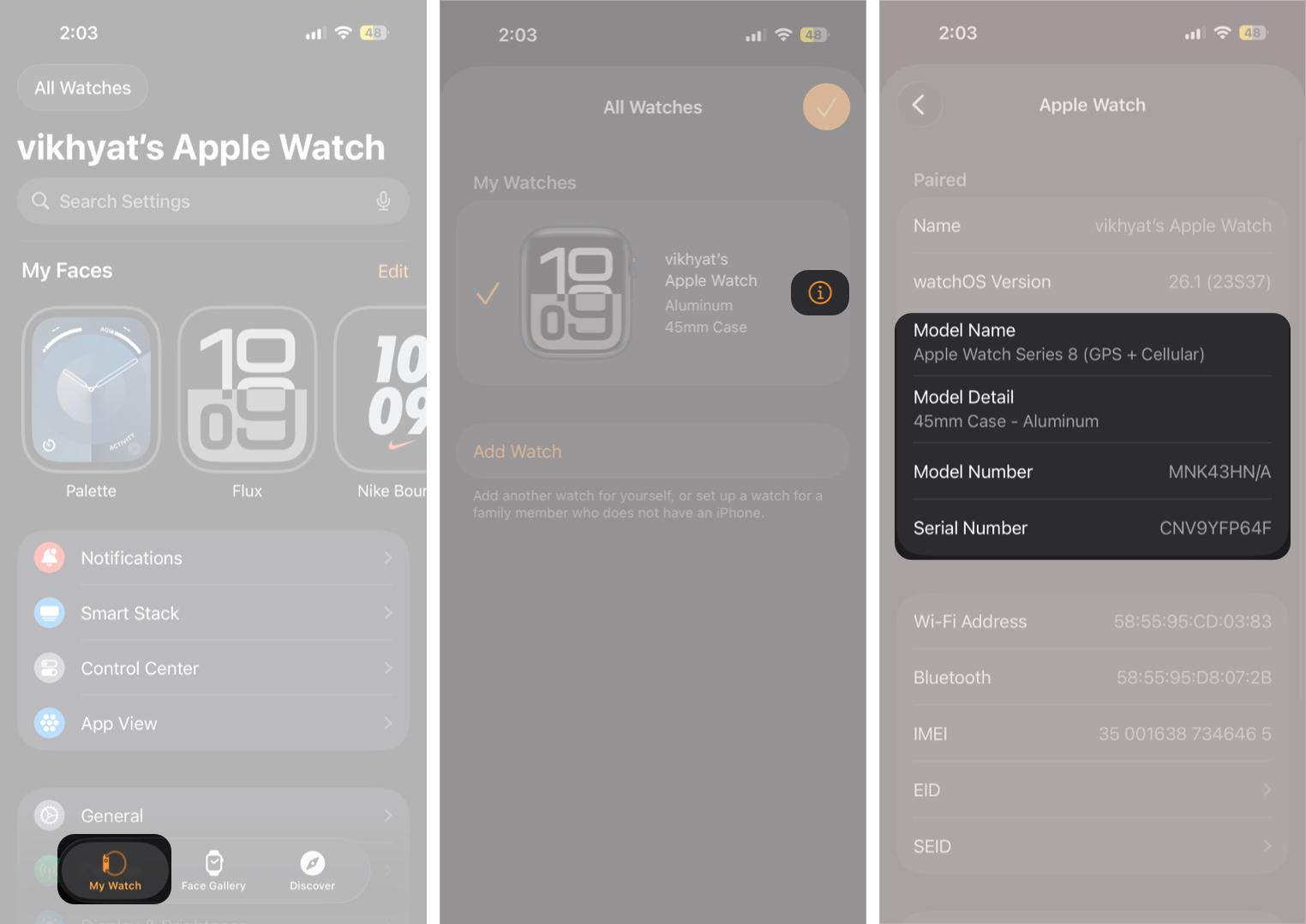
This is a common oversight. Only models labeled GPS + Cellular support mobile networks. If your watch is GPS only, you will not see cellular signal bars or activation options.
To confirm:
Temporary network registration errors can often be fixed by restarting both devices. Restarting clears minor bugs and glitches that may disrupt cellular service.
If restarting does not help, try toggling Airplane Mode to force the watch to reconnect to the network:
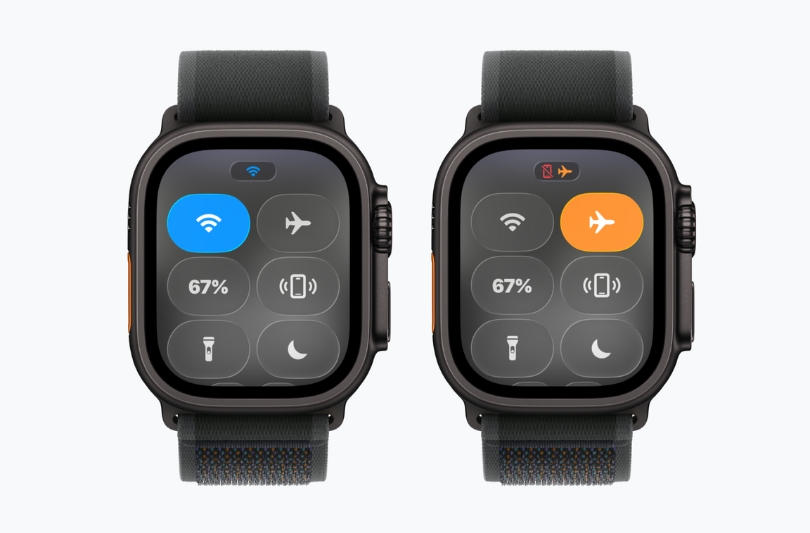
This refreshes the cellular radio and often restores connectivity.
Apple Watch has a smaller antenna than an iPhone. Because of this, it may struggle in areas with weak signal strength. Move to a location with better coverage and test again.
If you have been using your Apple Watch independently for most of the day and cellular suddenly stops working, you may have reached your carrier’s data allowance. Some carriers temporarily restrict data or throttle speeds after the limit is reached.
Check usage details in the Watch app on your iPhone or in your carrier account to confirm that the plan is still active.
Most Apple Watch cellular issues trace back to incomplete or failed eSIM activation.
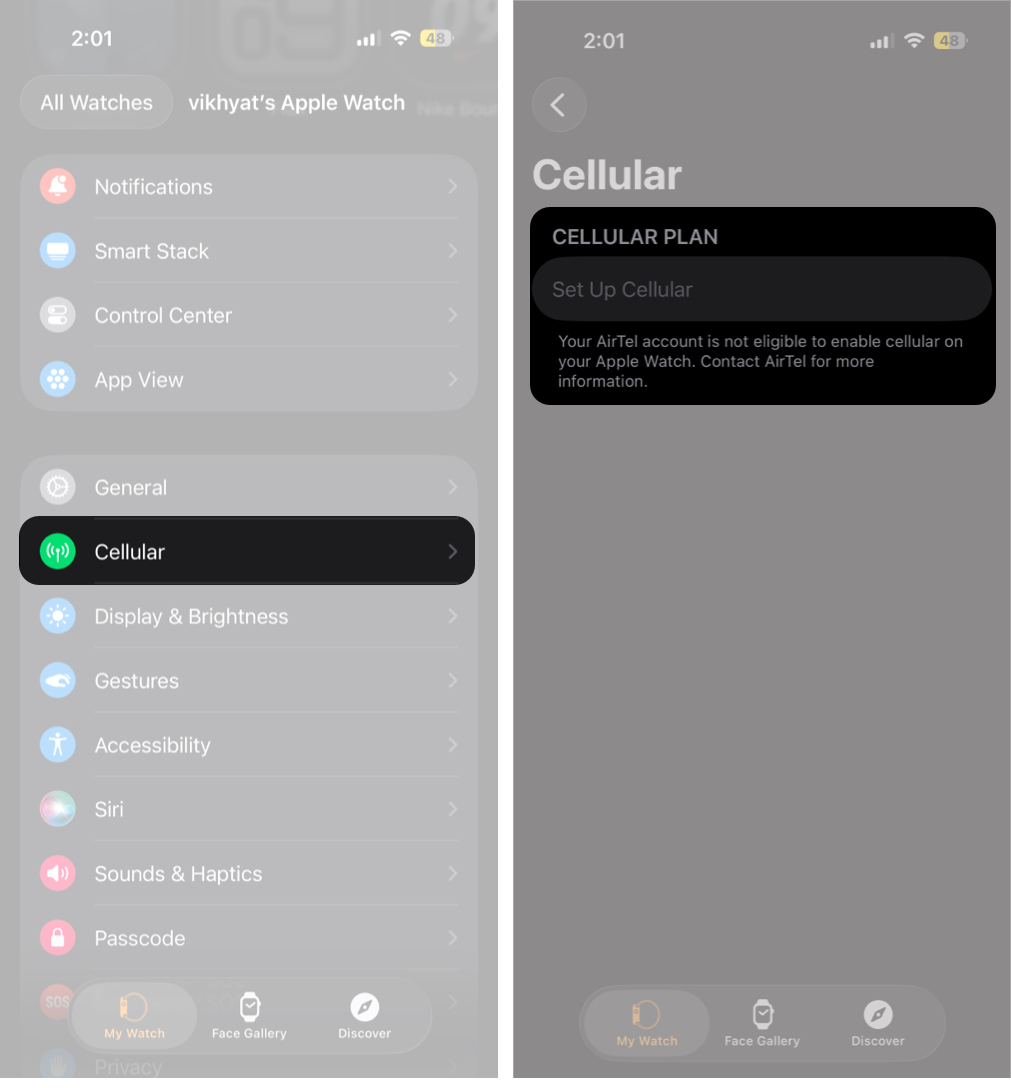
If provisioning appears stuck, remove the existing plan instead of waiting:
In most cases, activation completes successfully unless there is a carrier-side issue.
Once activation is confirmed in the Watch app, verify it directly on the watch:
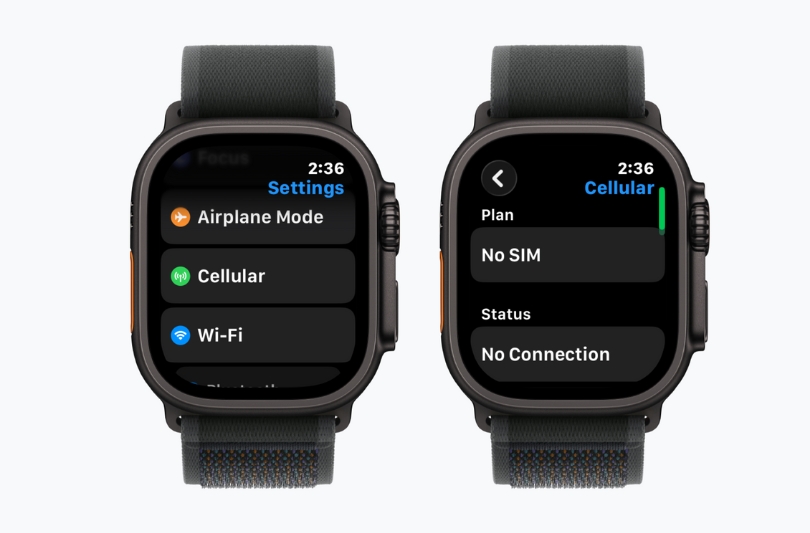
Also, check Control Center and confirm the cellular icon is green.
Carrier updates control how eSIM devices authenticate on the network.
On iPhone:
Restart both devices after updating.
If nothing works, unpairing and re-pairing the Apple Watch is the final step. This erases the watch and triggers a fresh eSIM setup, which often resolves stubborn activation issues.
If cellular still does not work, contact your carrier and ask them to confirm:
If cellular still does not work after troubleshooting and your carrier confirms there is no issue on their end, contact Apple Support. At this point, the problem is unlikely to be related to settings or plan activation.
Apple Support can run diagnostics, check for known watchOS issues, and determine whether a software fix or hardware inspection is required.
While Apple Watch cellular issues can be frustrating, most fixes come down to three things: confirming the correct model, activating the eSIM properly, and keeping software and carrier settings up to date. In most cases, cellular connectivity is restored without replacing the watch or visiting a service center.
Need help with another Apple Watch issue? Leave a comment and we will respond promptly.
FAQs
This usually happens due to incomplete eSIM activation, carrier provisioning issues, outdated software, or weak network coverage.
Yes. A cellular Apple Watch can work independently for calls, messages, and apps.
Resetting network settings removes Wi-Fi passwords and VPNs but does not delete personal data or apps.
Read more:









