How to convert slow motion video to normal on iPhone or iPad

If you are wondering how to turn the slo-mo video of your kid blowing the birthday candles or you somersaulting into a normal video on iPhone or iPad, here are the quick steps to do this.

Explore with AI:

Key Takeaways:

  • Convert in Photos App: In the Photos app, tap “Edit” on a slo-mo video and drag the slider to make it normal speed.
  • Use iMovie for More Control: For more editing control, import your slo-mo video into iMovie and adjust its speed to normal there.
  • Conversion Limitations: Converting to normal speed doesn’t reduce file size. Photos cannot convert a standard video into slo-mo.
  • Partial Speed Adjustments: You can precisely control which part of the video plays in slo-mo and which part plays at normal speed.
  • Social Media Tip: Consider your social media goals when editing; sometimes the original slo-mo is more engaging than the normal version.

iPhone slow-motion clips recorded at 120 fps or 240 fps are incredible to watch. But depending on your use case and preference, you may want to convert a slow-motion video into a standard clip that plays at a regular speed. So, if you are wondering how to turn the slo-mo video of your kid blowing the birthday candles or you somersaulting into a normal video on iPhone or iPad, here are the quick steps to do this.

How to change slow-motion video to normal speed on iPhone

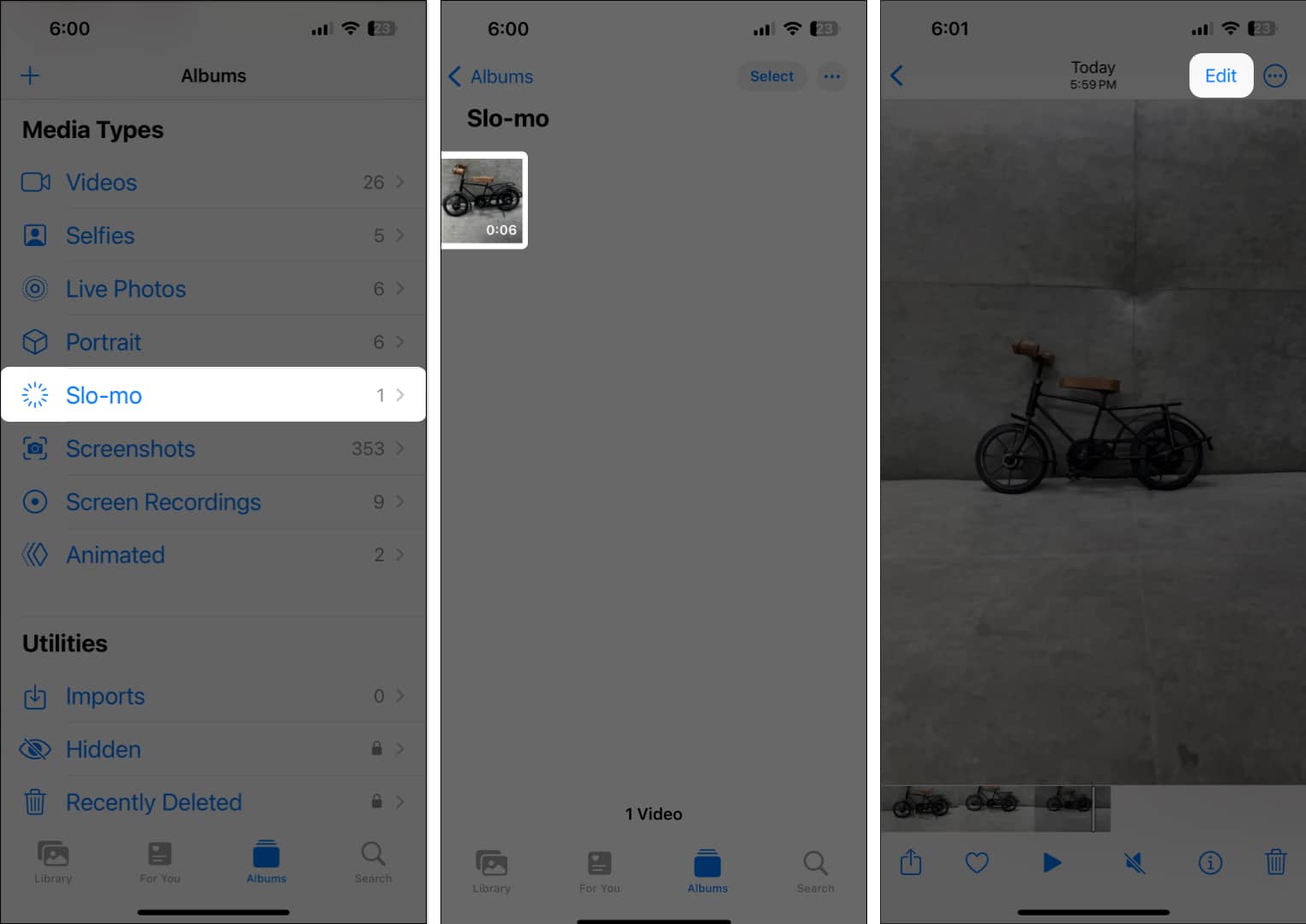
  1. Launch the Photos app → Go to the Albums tab.
  2. Scroll down and select Slo-mo under the Media Types label.
  3. Tap a video to open it in full screen → Tap Edit.

    open-a-video-and-tap-edit
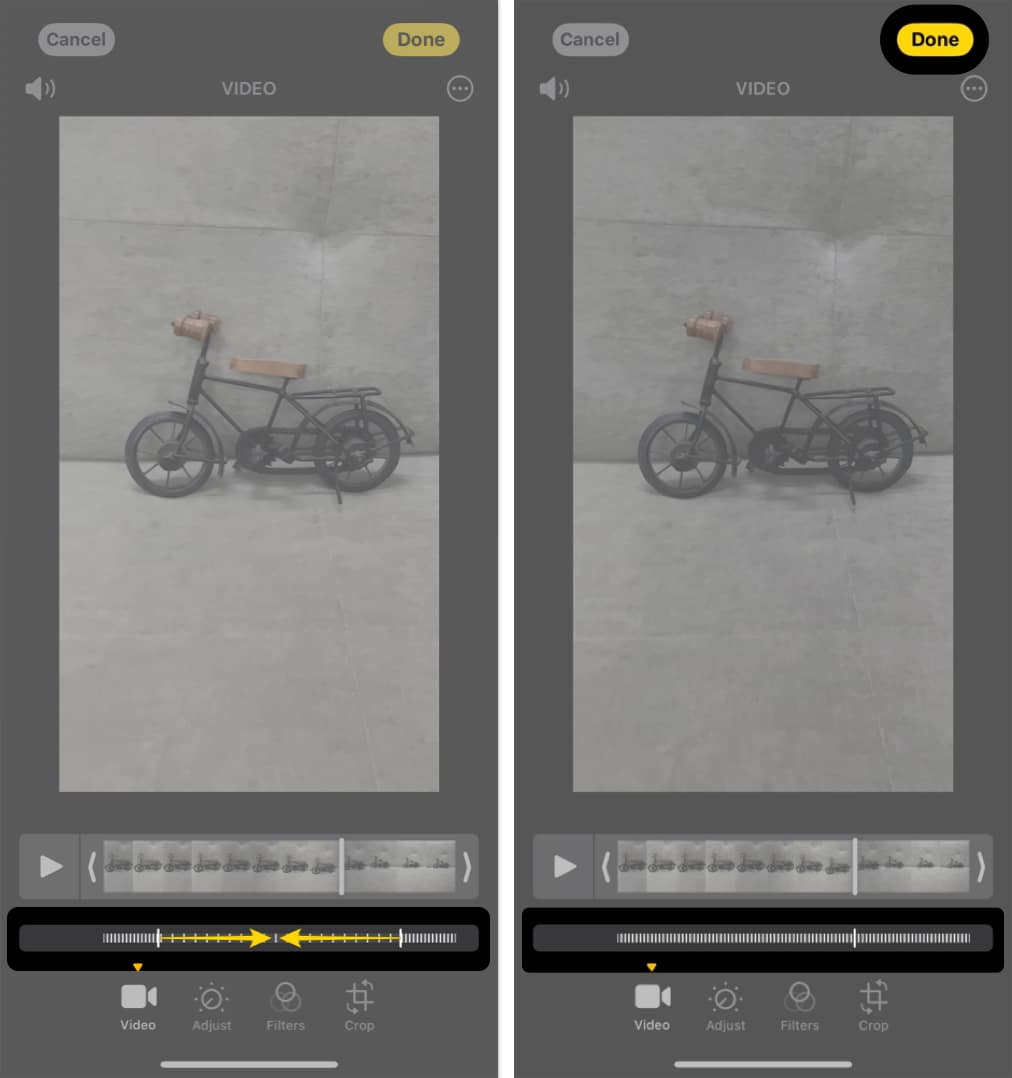
  4. Tap the slider and drag it towards the other.
    All wide-spaced lines will align tightly, denoting that video will now play at standard speeds.
  5. Tap Done to convert the slow-motion video to a standard video.

    edit-video-tap-done

The slow-motion video is successfully converted into a standard video.

Pro tip: You may also use the sliders to specify which portion of the Slo-Mo video you want to play at a slow or normal speed.

If you didn’t like the result of the converted video, you can also revert the video to its original slow-motion state, just tap on EditRevertRevert to Original.

Your Complete iOS 26 Playbook:

Get our exclusive Ultimate iOS 26 Guide 📚 — absolutely FREE when you sign up for our newsletter below.

Note

  • Even after converting to normal video, it is still listed under the Slo-mo category.
  • Conversion does not reduce the overall video size.
  • You can not convert the standard iPhone videos shot at 30fps or 24 fps to slo-mo using the Photos app. But you can use iMovie or other iPhone video editing apps for this job.

How to use iMovie to convert slo-mo video to normal on iPhone

  1. Download iMovie and launch it on your iPhone or iPad.
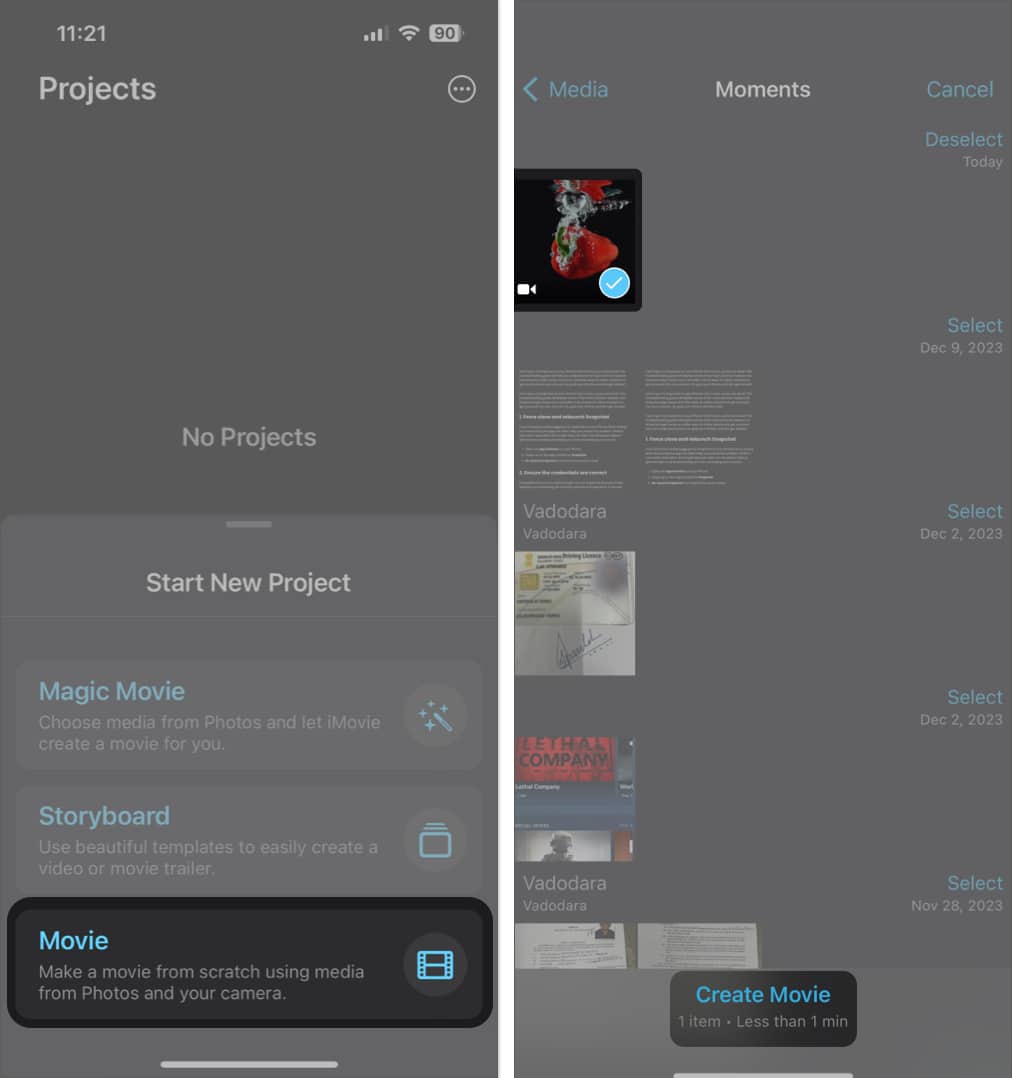
  2. Select Movie under Start New Project.
  3. Select a slow-motion video → Tap Create Movie.

    start-imovie-project
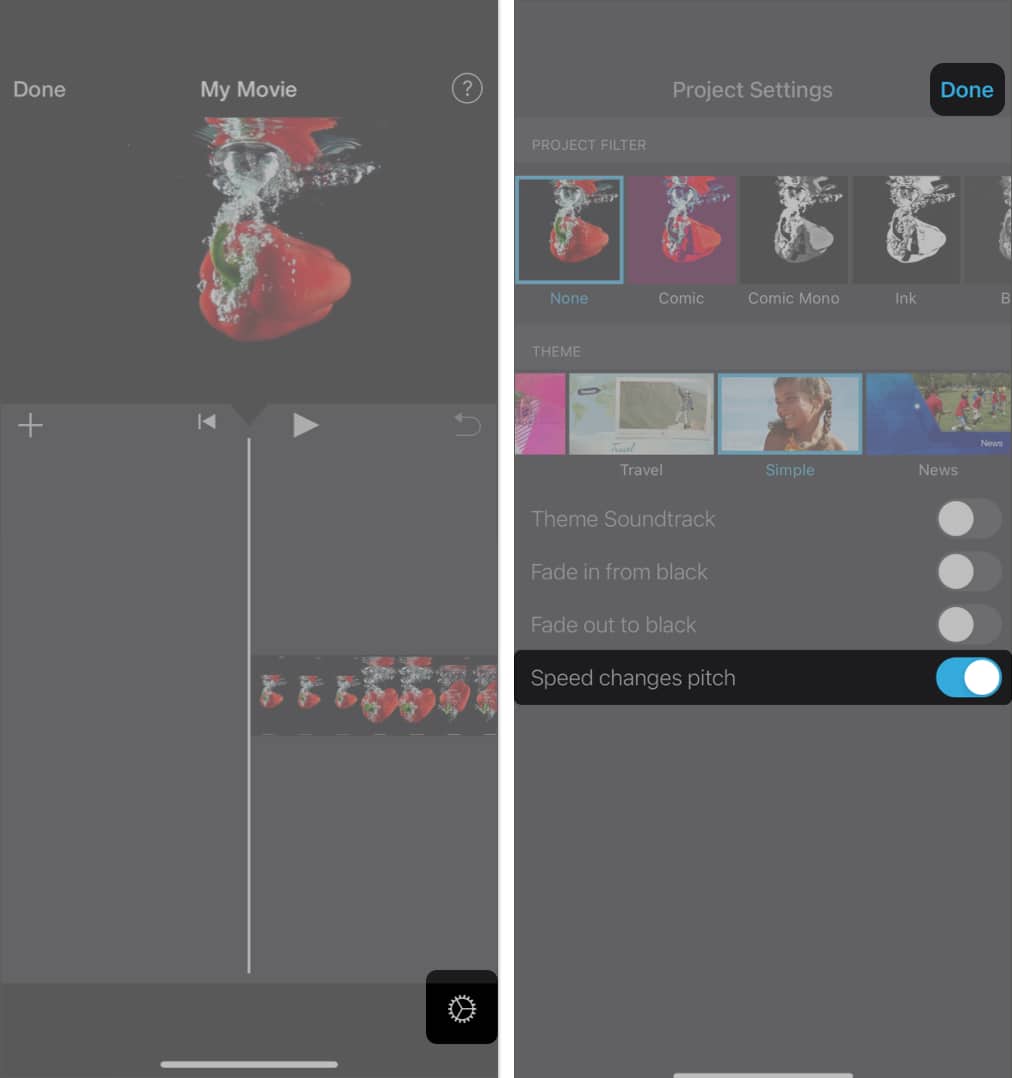
  4. Tap the Settings icon → Toggle on Speed changes pitch → Hit Done.

    toggle-on-speed-changes-pitch
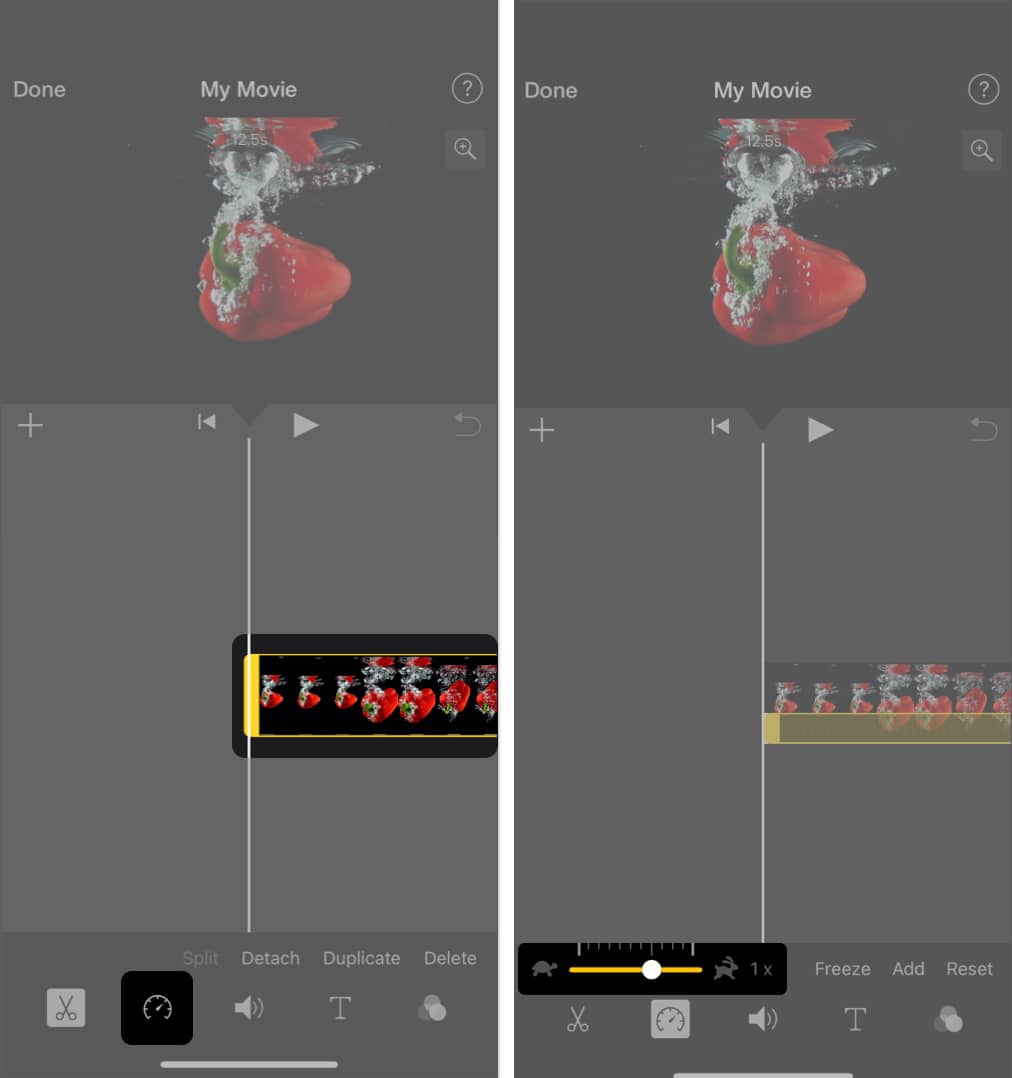
  5. Select the video timeline → Tap the speed icon in the toolbar.
  6. Push the slider to the right and set it to 1x.

    change-video-speed
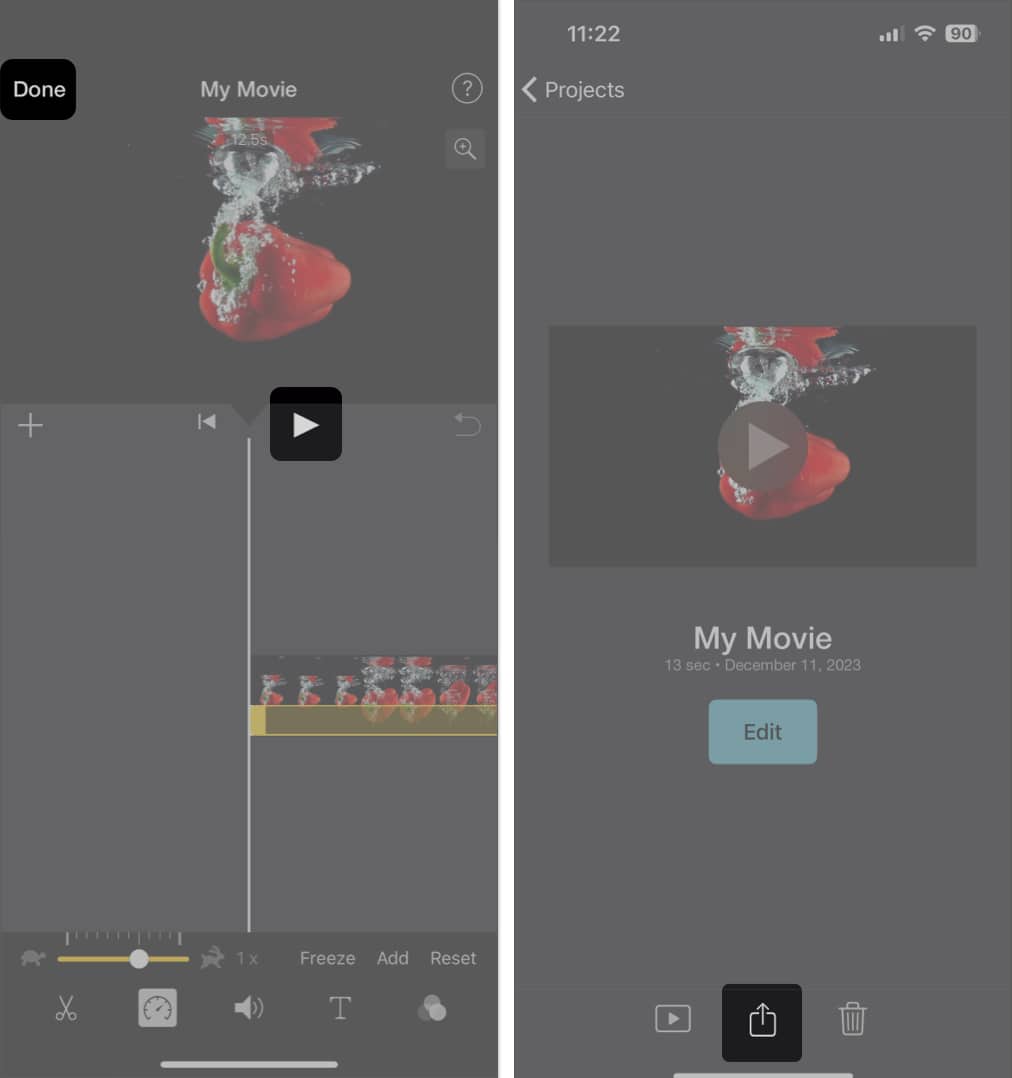
  7. Once you’re done editing, preview the video → Tap Done Share icon.

    tap-done-share-icon
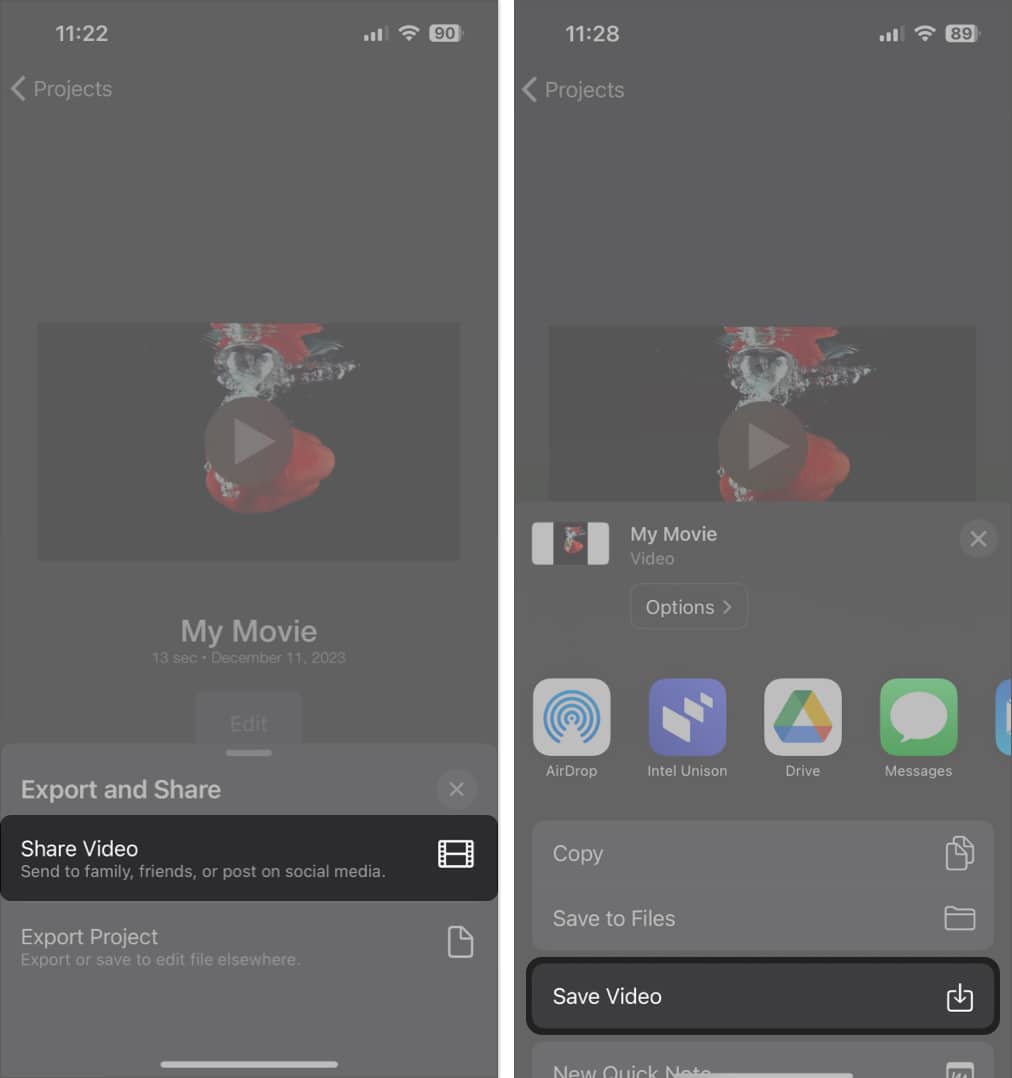
  8. Then, select Share VideoSave Video to export the edited clip.

    save-video

Wrapping up…

All of us love editing videos on the iPhone to create social-media-worthy content. But quite often, the original is more appealing than the edited or processed videos.

What are your thoughts on this? Do you take Slo-mo videos frequently, or is it a rare thing? Tell us in the comments section.

Also read:

Explore with AI:

Add Igeekblog as a preferred source on Google

Dhvanesh
Dhvanesh

The founder of iGeeksBlog, Dhvanesh, is an Apple aficionado, who cannot stand even a slight innuendo about Apple products. He dons the cap of editor-in-chief to make sure that articles match the quality standard before they are published.

Articles: 288

Leave a Reply

Your email address will not be published. Required fields are marked *