FaceTime Like a Pro
Get our exclusive Ultimate FaceTime Guide 📚 — absolutely FREE when you sign up for our newsletter below.

FaceTime Like a Pro
Get our exclusive Ultimate FaceTime Guide 📚 — absolutely FREE when you sign up for our newsletter below.


Cursor and GitHub Copilot now both run parallel coding agents. See how their editors, GitHub workflows, and prices differ before choosing one.
AI coding tools used to split neatly into two camps: full editors like Cursor, and plugins like GitHub Copilot that bolted onto whatever IDE you already used. That distinction made the choice fairly simple. Do you want a new editor built around AI, or do you want to keep your current setup and add AI on top?
That line has mostly disappeared. GitHub now ships a standalone Copilot desktop app for running multiple coding agents at once, and Cursor has answered with its own Agents Window for the same job. So the real question today isn’t “editor versus plugin.” It’s how each product wants you to organize your work, and which style actually matches how you code.
Here’s the short answer, followed by everything that goes into it. Choose Cursor if you want one AI-native editor where manual coding, chat, and multiple parallel agents all live together. Choose GitHub Copilot if you want your agent work tied directly to GitHub’s issues, PRs, and CI, or if you’d rather keep the editor you already use.
Cursor is a fork of VS Code with AI built into every layer: completions, chat, an Agent mode, and now an Agents Window for running several agents side by side. Copilot takes a different approach. It lives as a plugin across a dozen editors, adds a separate app for parallel agent work, and also shows up in the command line and on GitHub itself.
| Cursor | GitHub Copilot | |
|---|---|---|
| Core experience | AI-first editor (VS Code fork) | IDE plugin, plus a standalone app for agent-driven work |
| Desktop app | Cursor (macOS, Windows, Linux) | Copilot app (macOS, Windows, Linux) |
| Day-to-day coding | Manual editing, Tab completions, chat, and Agent in one window | Completions and agent mode inside your existing IDE |
| Running agents in parallel | Agents Window: launch, monitor, and manage several agents at once, with isolated git worktrees | Multiple isolated sessions in the standalone app, each with its own worktree, branch, and optional cloud sandbox (preview) |
| GitHub workflow | Git support, Bugbot code review | Issues, PRs, reviews, CI checks, and merging, all inside the app |
| Free tier | Limited Agent requests and Tab completions | 2,000 completions a month, plus limited chat and agent use |
| Paid plan | From $20 a month ($16 a month billed annually) | $10 a month |
| Best for | Hands-on coding, solo or in parallel, in one AI-native editor | Delegating parallel work and owning the full GitHub lifecycle |
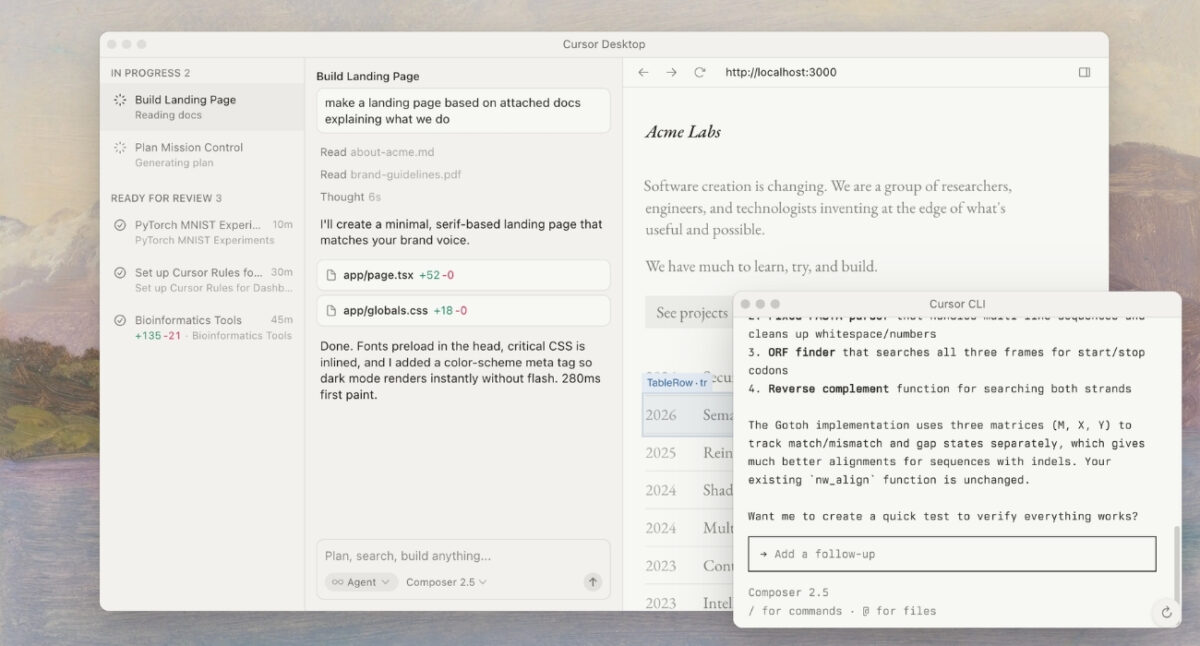
Cursor makes sense when your work is mostly reading and editing code, with AI as a constant assistant rather than the main event. Tab predictions, chat, Agent-driven changes, diffs, and a terminal all share one interface, so the loop stays tight. You can accept a suggested change, rewrite the next line yourself, ask Agent to chase down a failing test, and check the result, all without switching tools.
Coming from VS Code makes the move nearly frictionless. Cursor can import your extensions, themes, settings, and keybindings in one pass. It’s still a separate editor day to day, though, and Cursor itself notes that its VS Code base can lag a release or two behind upstream for stability.
Parallel agent work used to be Copilot’s clearest edge. That’s no longer true. Cursor’s Agents Window collects every active agent session, local or cloud, across all your repos, into a single panel. Agents can run in isolated git worktrees, so several tasks can run at the same time without stepping on each other’s changes.
Copilot’s standalone app works the same way in practice: multiple sessions, each with its own worktree and branch, running locally or in GitHub-hosted cloud sandboxes (currently in public preview). Each session can operate in Interactive, Plan, or Autopilot mode, so you can let an agent write code and run tests while you review other work in parallel.
The real difference now is what happens after the code is written. Copilot’s app can pull in context from an existing GitHub issue, open and review pull requests, surface CI results, and merge the change, all without leaving the app. Cursor’s parallel agents are built for shipping code fast inside the editor, but the GitHub side of the job- issues, reviews, and merging- still happens outside it. If your workflow already revolves around GitHub, Copilot removes more of that handoff.
Both also still work inside a regular IDE when you don’t need multiple agents. Copilot’s completions, chat, multi-file edits, and agent mode are available across VS Code, Visual Studio, JetBrains IDEs, Xcode, Eclipse, and Neovim. Feature support isn’t identical everywhere, so check GitHub’s compatibility matrix if you need one specific capability in your editor.

Cursor’s free tier is enough to try Tab and Agent for light use. Pro starts at $20 a month and adds extended agent use, frontier models, and cloud agents, with Pro+ and Ultra scaling further for heavier users. Copilot’s free tier includes 2,000 completions a month plus limited agent and CLI access, and Pro jumps to just $10 a month for unlimited completions, cloud agent access, and code review.
If your needs are mostly autocomplete with occasional agent use, Copilot Pro is the better deal outright. But don’t treat either subscription as unlimited AI labor. Cursor meters model usage, and Copilot spends “AI Credits” across chat, agents, reviews, and CLI work. Push either tool hard enough with daily multi-file agent tasks, and you’ll eventually hit an upgrade prompt or a metered overage.
The model behind either tool matters less than you’d think, since lineups shift too often to plan a subscription around one specific model. What actually matters is context: Cursor keeps your prompts, files, edits, and terminal in one place, while Copilot connects repositories, branches, issues, PRs, and CI to every session.
Whichever you choose, don’t let it merge code unreviewed. Run the tests, read the diff, and watch for invented APIs, missed edge cases, and edits that wandered outside the original request. Running several agents at once makes this more important, not less: more parallel output means more diffs to actually check before anything ships.
Both tools send your prompts and code context to the cloud, so if you’re working with private or regulated code, use your organization’s approved plan and confirm the policy first. Cursor’s Privacy Mode blocks your code from being used in training. Copilot lets individual subscribers opt out of the same thing, and Business plans add centralized controls on top.
Pick Cursor if you:
Pick GitHub Copilot if you:
Cursor is still the sharper editor, and it’s caught up on parallel agent work with the Agents Window. Copilot’s edge is no longer “it can run agents in parallel.” It’s that those agents plug straight into GitHub’s issue tracker, PRs, and CI. For solo, hands-on coding, Cursor remains the pick. For work that needs to move cleanly from issue to merge, Copilot is still the stronger choice, and its $10 Pro tier makes it the better value for most developers.
If neither fits, there’s a third path worth knowing about: a remote coding agent like Codex, which can be monitored and steered from the ChatGPT mobile app while it runs on a connected machine.
You may also enjoy: