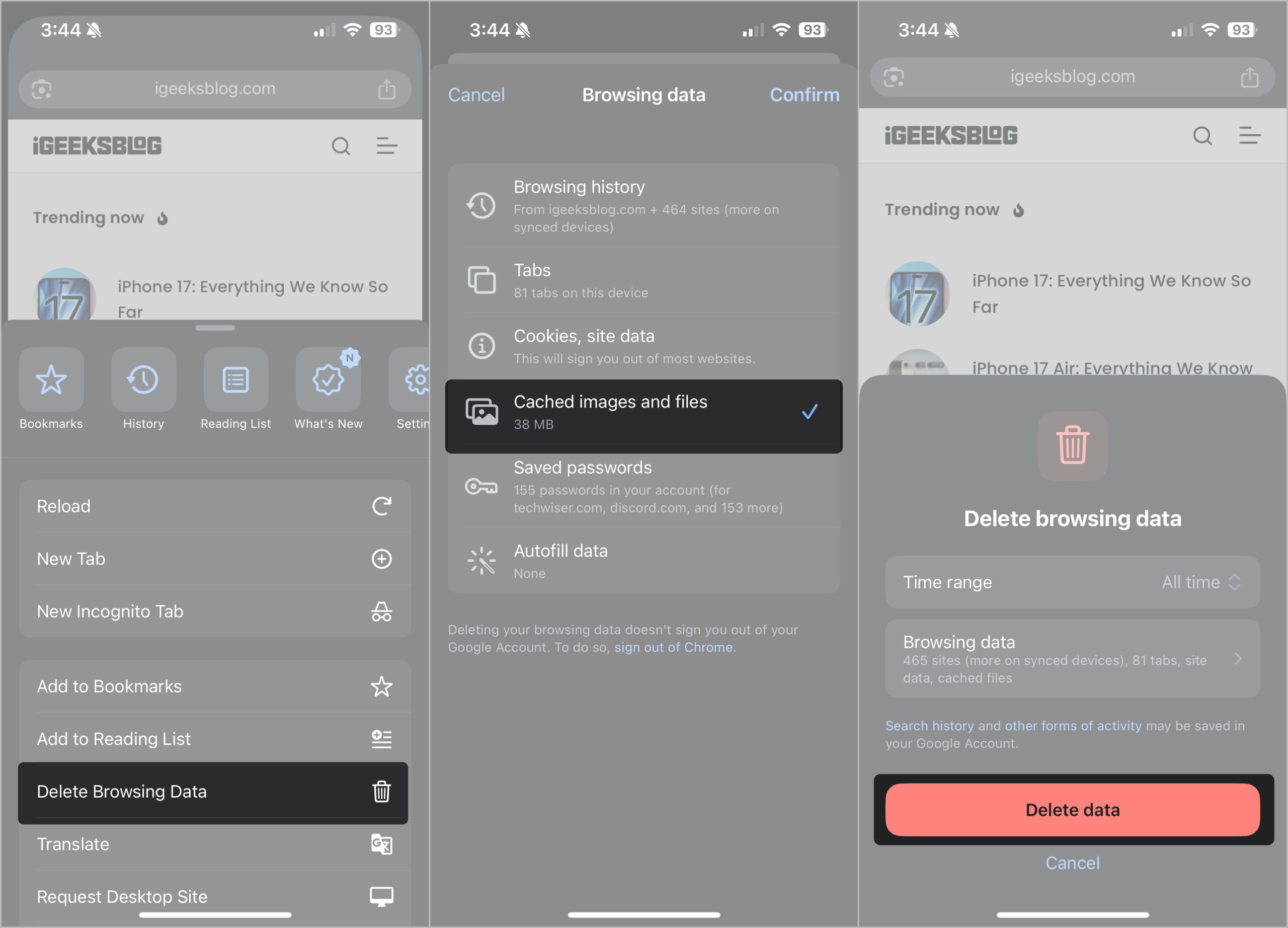
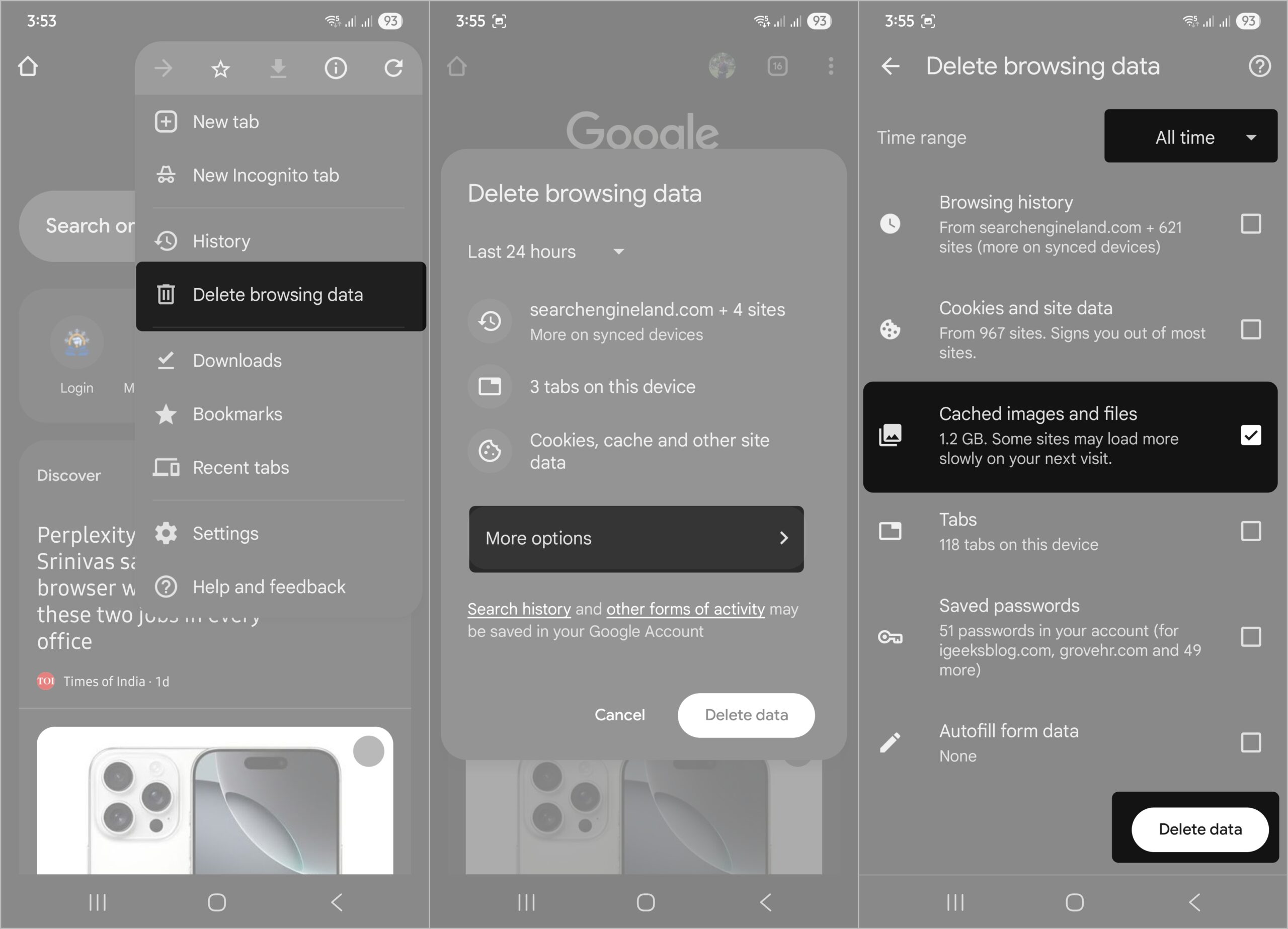
Chrome cache speeds up loading but can break pages when outdated files conflict with newer site content or designs.
Cache vs cookies vs history: Cache stores assets, cookies remember preferences, and history tracks sites; clearing cache won’t erase passwords or bookmarks.
Clear cache in Chrome desktop via Settings or shortcut: Use Ctrl+Shift+Del, pick time range, uncheck extras, then delete to refresh stored site data.
Fix a single site using Developer Tools: Right-click the refresh icon and select ‘Empty Cache and Hard Reload’ to troubleshoot specific loading problems.
Avoid frequent clearing to maintain speed: Clear cache when needed but don’t overdo it, as emptying too often slows initial page loads unnecessarily.
We’ve all been there. A webpage just won’t load right. Images look broken, buttons don’t work, or a website feels stuck in the past, even after updates. Often, the culprit behind such issues is cache. Clearing it can fix these glitches and make Chrome feel fresh again. Here’s what browser cache is and how you can remove it from Chrome.
Chrome’s cache acts like quick memory for websites. It saves parts of pages so they load faster the next time you visit. But if these saved files become outdated or corrupted, websites can start behaving unexpectedly.
In case you’re wondering, cache is different from other browser data.
Cache vs Cookies vs History:
Cache stores parts of websites like images, scripts, and layouts to help them load faster. However, outdated cache can make sites appear broken.
Cookies remember user-specific details like logins, preferences, and shopping cart items. Clearing them may sign you out of websites.
Browsing history is simply a list of websites you’ve visited. Deleting it removes the record but does not affect logins or saved data.
When you clear Chrome’s cache, only temporary files are removed. Your bookmarks and passwords remain safe, though you might need to log in again on some websites.
How to Clear Cache on Chrome for Desktop (Windows and Mac)
Chrome on desktop gives you more control over what and how much you want to clear. You can remove all cached files or limit the removal to a specific time range.
Steps:
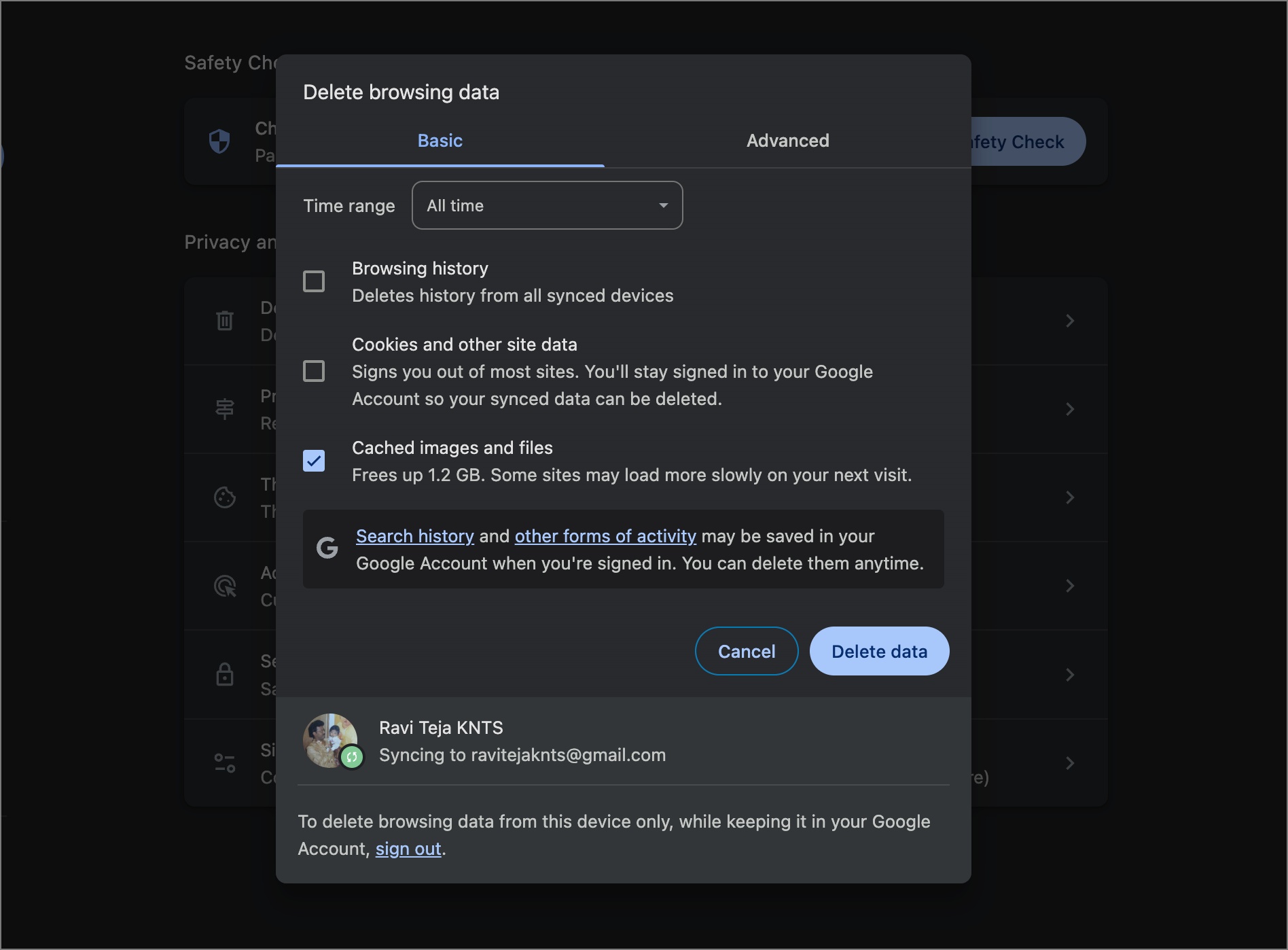
Open Chrome on your Windows PC or Mac.
Click the three-dot menu (top-right corner).
Go to Delete Browsing Data
Choose the Time range (Last hour, Last 24 hours, Last 7 days, Last 4 weeks, or even All Time).
Uncheck everything except Cached images and files. (Optionally, check Cookies if you want to log out of sites.)
Finally, click Delete data.
Pro Tip: Use a shortcut to open the clear cache window faster:
I’ve been writing about tech for over 5 years, with 1000+ articles published so far. From iPhones and MacBooks to Android phones and AI tools, I’ve always enjoyed turning complicated features into simple, jargon-free guides. Recently, I switched sides and joined the Apple camp. Whether you want to try out new features, catch up on the latest news, or tweak your Apple devices, I’m here to help you get the most out of your tech.