
FaceTime Like a Pro
Get our exclusive Ultimate FaceTime Guide 📚 — absolutely FREE when you sign up for our newsletter below.

FaceTime Like a Pro
Get our exclusive Ultimate FaceTime Guide 📚 — absolutely FREE when you sign up for our newsletter below.


A quick guide to viewing your iPhone’s repair, replacement, and service history directly in Settings.

 ByMahit Huilgol and Ava Biswas


When you send your iPhone for a repair or plan to buy a refurbished one, its service history is more important than most people realize. Apple’s Parts and Service History feature makes it easy to see whether key components like the screen, battery, display, or camera have been replaced.
In this guide, you’ll learn how to check Parts and Service History on your iPhone and understand what each label really means, so you can make smarter decisions with confidence.
Parts and Service History is a built-in iOS feature that logs any component that has been replaced or serviced. It indicates whether the part is genuine Apple hardware, an unknown third‑party component, or a used part that was previously installed in another device.
Apple introduced this feature to:
Having genuine parts is important as they work better and last longer. Also, it helps keep up the resale value of your iPhone.
Apple uses a combination of software and hardware checks to detect replaced components. When an iPhone is repaired by Apple or Authorized Service Providers, it’s logged into the History. This information is automatically populated from Apple’s repair records.
It’s made possible because each major iPhone part has a unique hardware identifier. During repair, the part does a secure pairing with the logic board so that iOS can compare it with Apple’s database to ensure originality.
The best part is:
You should check this section in several situations:
Apple gradually rolled out this feature across models starting from iOS 15.2 and later:
| Models | Parts |
|---|---|
| iPhone XR, XS, XS Max, SE (2nd and 3rd gen) | Battery |
| iPhone 11 series | Battery and display |
| iPhone 12 series and newer | Battery, display, Logic Board assembly, TrueDepth camera, and rear camera |
If you have an iPhone 15 or later, you can also see if the replaced Apple hardware was previously used in another iPhone.
Follow these simple steps:
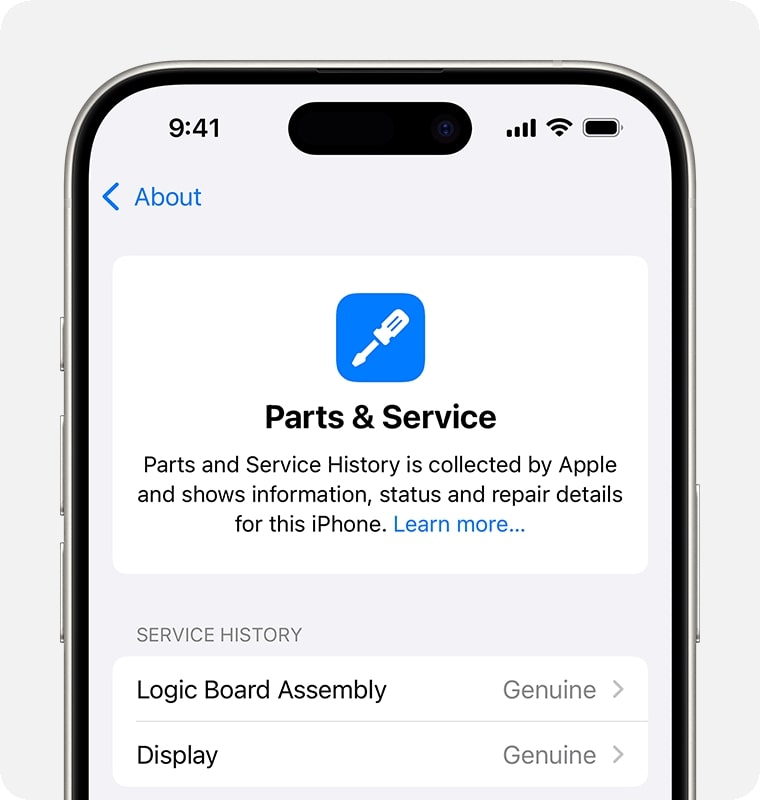
If the repair was not completed, it shows a Finish Repair message. We’ll discuss this in the next section.
A Genuine Apple Part means it was installed by Apple or an Authorized Service Provider with proper calibration and security pairing. So, your iPhone remains fully compatible with iOS features after repair.
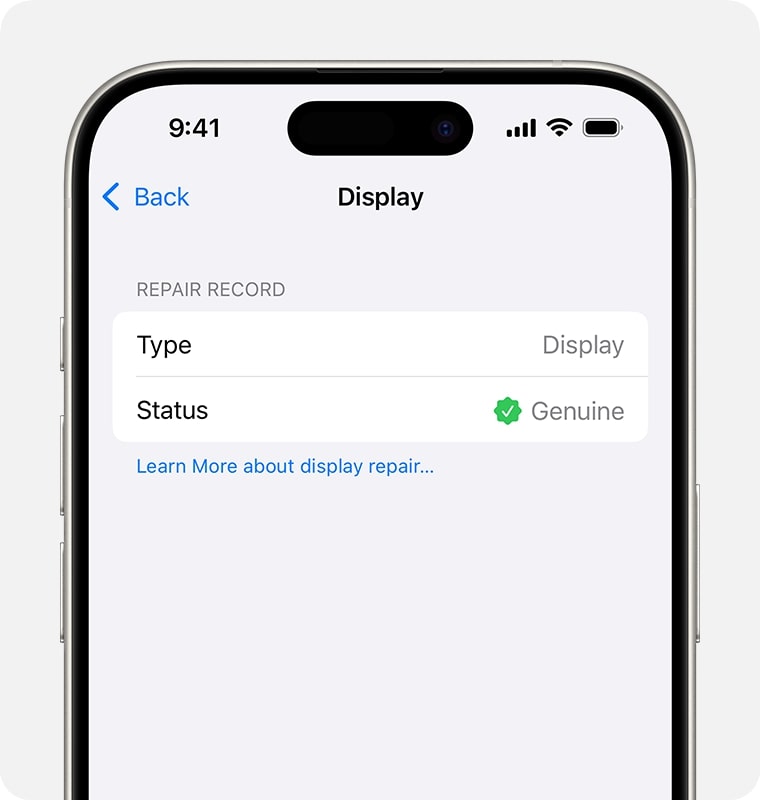
This label appears when a third-party part was used as a replacement or a genuine part wasn’t properly paired with your iPhone’s logic board, so Apple can’t verify the repair. Your phone may still work, but some features may become unavailable.
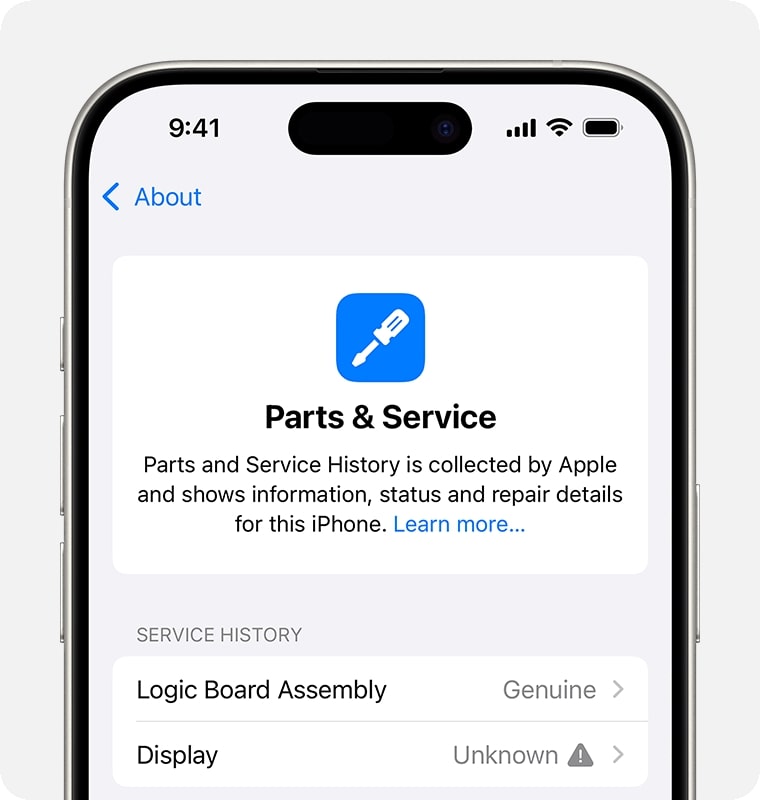
To help you combat poor-quality servicing, your iPhone shows a notification the first time you unlock it after a repair and again in five days if an unknown part is found.
This indicated the replacement part:
You can contact the repair service provider about this.
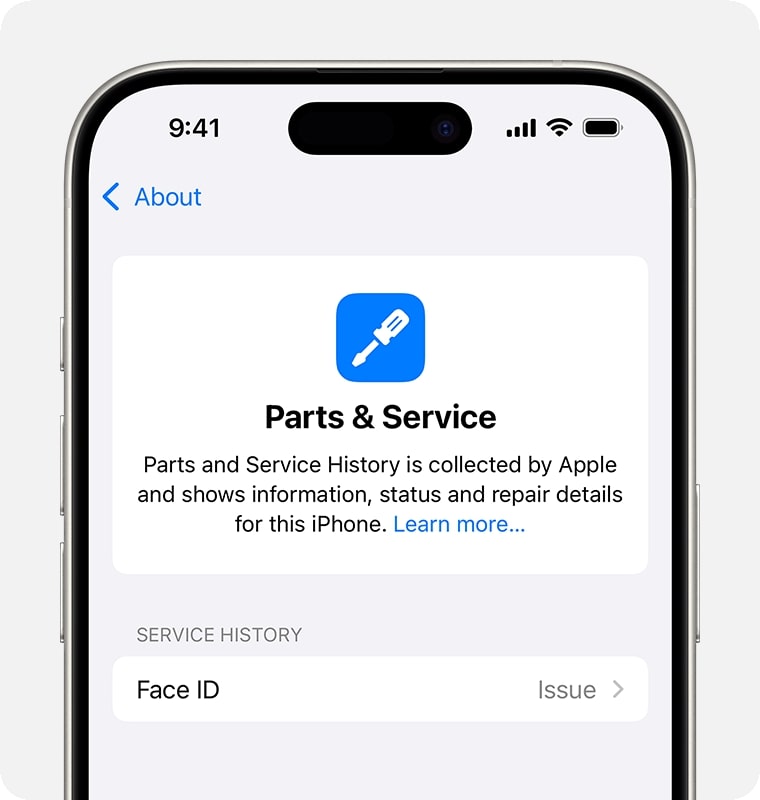
Moreover, if a component problem seriously impairs the device’s functioning and has to be fixed, you will see the issue listed in the Parts and Service History. For example, if the TrueDepth camera of your iPhone is not serviced properly, it may cause Face ID issues.
You have a few options:
If buying a used iPhone, you may negotiate the price or consider returning the device to avoid future hassles and security issues.
Checking Parts and Service History on iPhone is simple but extremely powerful. It helps buyers avoid scams, owners verify repair quality, and sellers increase trust and value.
Always go for genuine parts and authorized repairs to ensure the best performance and fewer issues. If you found this guide helpful, save it and share it with anyone buying or selling an iPhone.
FAQs
Go to Settings > General > About > Parts and Service History. It will only appear if your iPhone has been repaired before.
It can work, but performance, safety, privacy, and resale value may be lower.
No. This information cannot be erased or changed.
Yes. Unauthorized repairs may void parts of your warranty.
Yes. iPhones with genuine parts usually sell for more.
Apple may require replacement with genuine parts before providing coverage; otherwise, the warranty may be void.









