
iOS 26 Brings Live Translation to AirPods: Here’s How It Works
With iOS 26, your AirPods can now translate conversations in real time. Apple’s new Live Translation feature lets you break language barriers whether you’re traveling, on a call, or chatting with someone nearby, all directly through your AirPods.
Key Takeaways:
- Live Translation on AirPods with iOS 26: Apple adds real-time translation powered by Apple Intelligence, letting AirPods handle multilingual conversations without needing extra devices.
- Requirements before you start: You’ll need AirPods with the latest firmware, an iPhone 15 Pro or newer on iOS 26, Apple Translate, and Apple Intelligence enabled.
- How the feature actually works: AirPods capture spoken audio, send it through the iPhone Translate app, and instantly return translated speech directly to your ears.
- Languages available at launch: English, Spanish, French, German, and Brazilian Portuguese are supported now, with Italian and Japanese coming in future updates.
- Setup and precautions to note: Translation settings live inside the Translate app, but conversations may lag slightly if network speed or Apple Intelligence processing is slow.
Imagine sitting in a café abroad, chatting with a local, and having their words translated instantly into your ears through your AirPods. Sounds futuristic? With iOS 26, it’s already here. Apple’s Live Translation feature uses AirPods and Apple Intelligence to break language barriers in real-time.
Here’s everything you need to know about how Live Translation works on AirPods, how to set it up, and how to use it for conversations and calls.
Prerequisites
Before you can use Live Translation on your AirPods, make sure you meet these requirements:
- AirPods Pro 2, AirPods Pro 3, or AirPods 4 with Active Noise Cancellation and the latest firmware.
- iPhone 15 Pro or later running iOS 26.
- The Apple Translate app installed on your iPhone.
- Apple Intelligence enabled on your iPhone.
What Is Live Translation on AirPods and How Does It Work?
Live Translation is an Apple Intelligence–powered feature that delivers real-time translations directly to your AirPods.
Here’s how it works:
- Your AirPods pick up the conversation through their microphones.
- The audio is processed by your iPhone’s Translate app and Apple’s translation engine.
- The translated voice is sent directly to your AirPods, so you hear it naturally without needing to check your screen.
This makes conversations smoother, whether you’re traveling, on a call, or speaking with someone in person.
Supported Languages
Currently, Live Translation supports these languages:
- English (US and UK)
- Spanish
- French
- German
- Portuguese (Brazil)
Apple plans to add Italian, Japanese, Korean, and Chinese in upcoming updates.
Download Language Packs
For Live Translation to work, you’ll need to download language packs in advance.
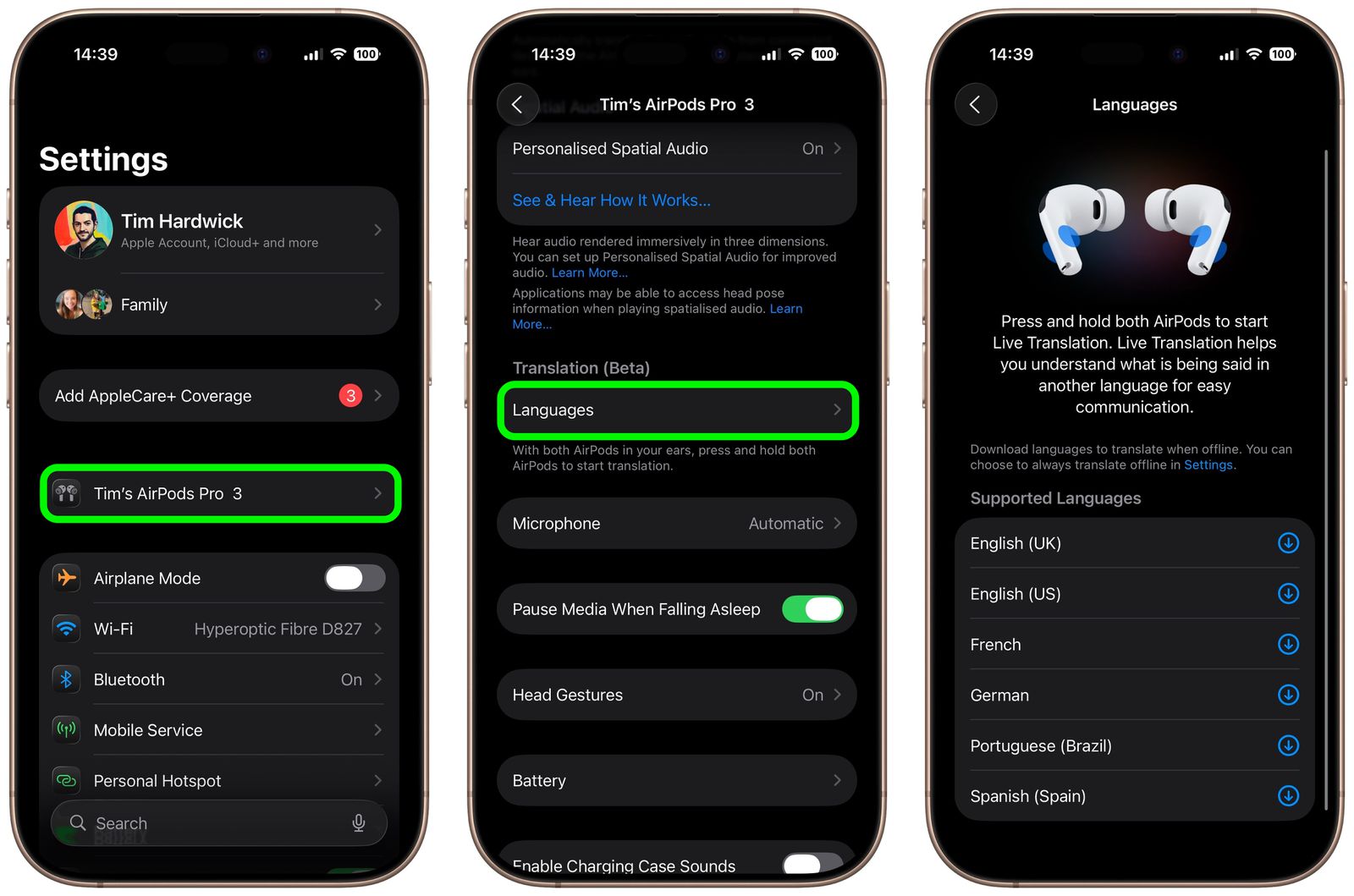
- Put on your AirPods and connect them to your iPhone.
- Now, open Settings → [Your Name] AirPods.
- Here, locate and tap Language under Translate.
- Next, select the languages you want to download.
Once downloaded, your AirPods will automatically detect the other person’s language, reduce background noise, and deliver translations directly to your ears.
How to Set Up Live Translation on AirPods
Unlike Adaptive Audio, Live Translation isn’t enabled by default. Here’s how to set it up:
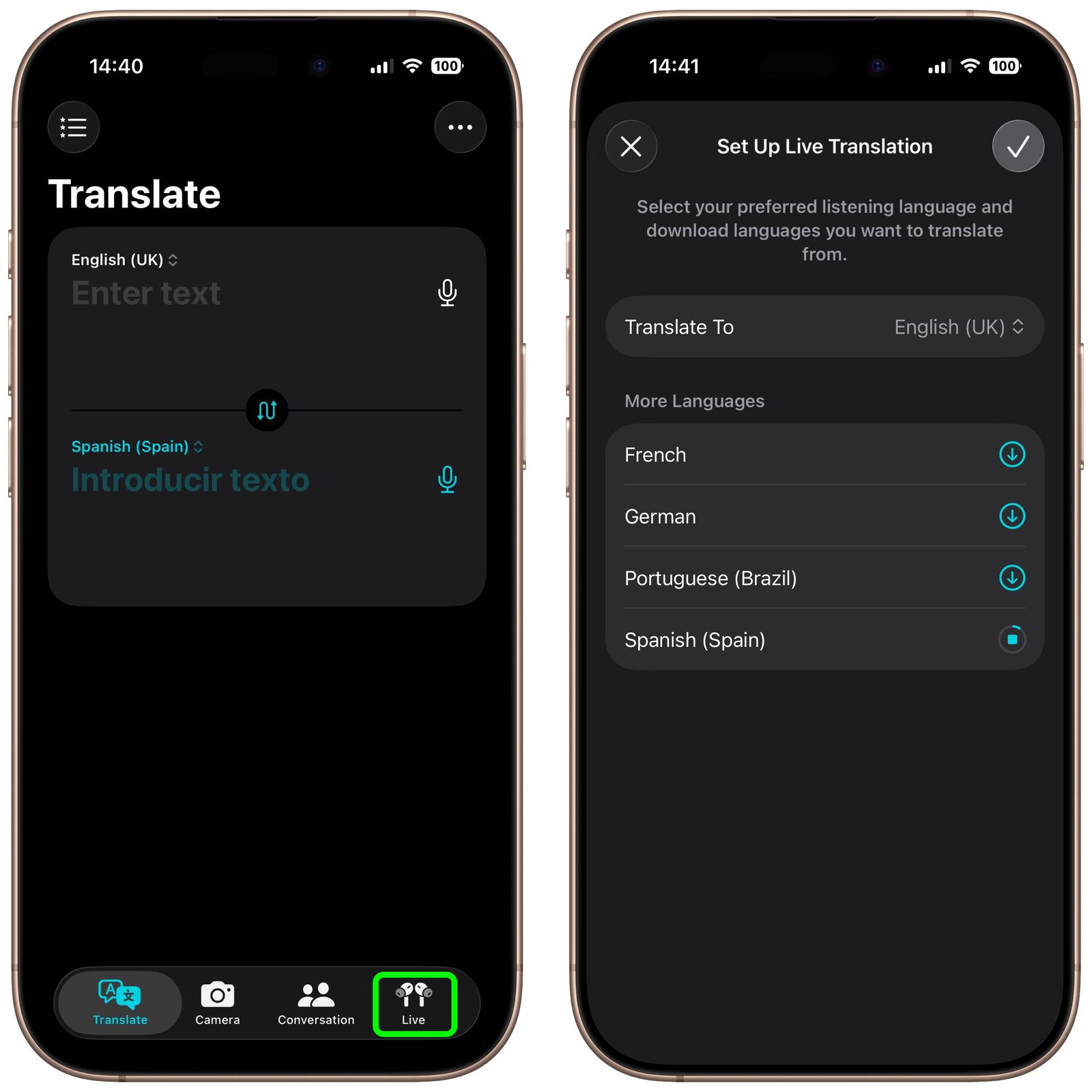
- Wear your AirPods and connect them to your iPhone.
- Now, open the Translate app and tap Live.
- Here, select the language the other person is speaking and the language you want your AirPods to translate it to.
This gives you full control over the conversation settings, including the languages and whether translations are spoken aloud or displayed on-screen.
How to Start Live Translation on AirPods
Once setup is complete, you can activate Live Translation in multiple ways:

- Press and hold the stem on both AirPods at the same time.
- Ask, say, “Hey Siri, start Live Translation.”
- Open the Translate app and tap Live. For quick access, consider assigning the Translate app to the Action button or adding the Translate app tile to the Control Center.
How to Use AirPods for Translation
There are different ways to use Live Translation depending on the situation:
- Both people wearing AirPods → Translations are played directly into each person’s earbuds, with ANC reducing background noise.
- One person without AirPods → Use the iPhone’s microphone and display translations in the Translate app. You can also tap Play to have your iPhone speak the translation aloud.
Live Translation in Calls
Live Translation isn’t just for face-to-face conversations. It also works during voice calls and FaceTime calls. iOS 26 automatically detects the foreign language and translates the conversation in real-time, streaming it into your AirPods.
Tips for the Best Experience
To get the most accurate translations, keep these in mind:
- Keep your AirPods and iPhone updated to the latest firmware and iOS version.
- Use Live Translation in quiet environments for better accuracy.
- Download language packs before traveling abroad.
- Ensure your AirPods are fully charged to avoid interruptions.
Breaking Language Barriers with AirPods
Apple’s Live Translation for AirPods makes global conversations more natural and effortless. Whether you’re traveling, working, or just connecting with someone in a new language, this feature ensures you stay focused on the conversation instead of the translation.
Have you tried Live Translation on your AirPods yet? Share your experience in the comments below.
Don’t miss these related reads:

- How to Use AirPods as a Microphone While Recording Video on iPhone
- Best AirPods Pro 3 Cases Available Right Now
- Apple AirPods Pro 3 vs Pro 2: Big Upgrade or Hype?





