FaceTime Like a Pro
Get our exclusive Ultimate FaceTime Guide 📚 — absolutely FREE when you sign up for our newsletter below.

FaceTime Like a Pro
Get our exclusive Ultimate FaceTime Guide 📚 — absolutely FREE when you sign up for our newsletter below.
Turn on Send Low Quality Photo Previews to show smaller iMessage photos sooner, and learn when Low Data Mode sends only the preview on iPhone in iOS 27.
 ByRavi Teja KNTS
When a connection is slow, a full-resolution photo can take a while to appear in a conversation. The Send Low Quality Photo Previews setting lets Messages send a smaller preview first, so the recipient can see what you sent while the original-resolution image arrives. It is useful when you want the other person to identify a photo before the full file finishes transferring. It does not make the network faster or promise that the original will arrive by a specific time.
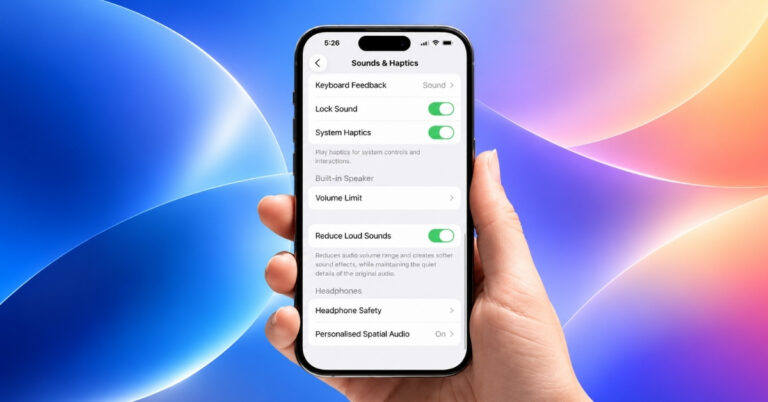
On your iPhone, open Settings > Apps > Messages. Turn on Send Low Quality Photo Previews.
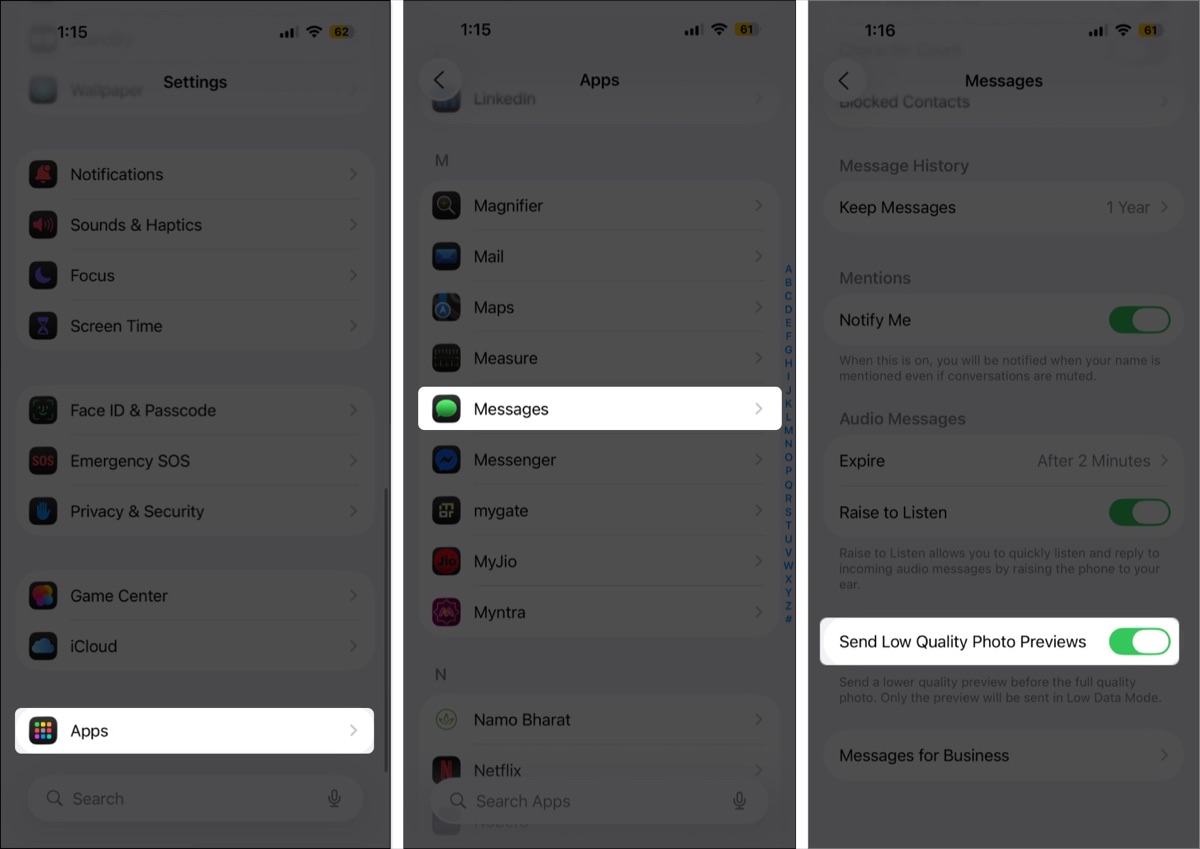
That’s all you need to do. You can keep sending photos from Messages as usual; the setting changes how a preview is delivered over a slow connection. The label and location may differ in older iOS versions. The option is in the Messages section of Settings, not in the Photos app or the attachment menu for an individual photo.
Messages sends a smaller preview before the full-resolution image arrives. The preview gives the other person an early look at the photo, but it is not the same as sending only a low-resolution copy in normal conditions.
There is one important exception: when Low Data Mode is on, Apple says only the preview is sent. If the recipient needs the original-quality image, check that Low Data Mode is off before sending. Do not use this setting as a way to guarantee an exact delivery time; the full image still depends on the connection. You can turn the preview option off later in Settings > Apps > Messages if you do not want this behavior for future photos.
Turn it on if you often send photos over a weak Wi-Fi or cellular connection and want the recipient to see a preview sooner. It can also help when you send a large photo and the other person only needs to know what it shows right away. It is less noticeable on a fast connection. If image quality matters more than an early preview, leave Low Data Mode off so the full-resolution photo can arrive. Check Low Data Mode for the network you are using, since Wi-Fi and cellular settings are managed separately.
For more ways to use Messages, browse our iMessage tips and tricks or learn how to filter and find conversations in Messages. You can also change an iMessage conversation background.
Apple describes it as sending smaller previews before full-resolution images arrive. With Low Data Mode on, only the preview is sent. That is why the setting is useful for a slow connection, but you should check Low Data Mode when the other person needs the original-quality image. With Low Data Mode off, the smaller preview is sent first, and the full-resolution image follows.
Related articles worth reading:

I’ve been writing about tech for over 5 years, with 1000+ articles published so far. From iPhones and MacBooks to Android phones and AI tools, I’ve always enjoyed turning complicated features into simple, jargon-free guides. Recently, I switched sides and joined the Apple camp. Whether you want to try out new features, catch up on the latest news, or tweak your Apple devices, I’m here to help you get the most out of your tech.