FaceTime Like a Pro
Get our exclusive Ultimate FaceTime Guide 📚 — absolutely FREE when you sign up for our newsletter below.

FaceTime Like a Pro
Get our exclusive Ultimate FaceTime Guide 📚 — absolutely FREE when you sign up for our newsletter below.


Paste MCP lets supported AI tools search and use your Mac clipboard history as context, while keeping connections local and user controlled.
Paste has added MCP support to its Mac clipboard manager, giving AI tools a way to use your saved clipboard history as context.
The new feature, called Paste MCP, works with Claude, Codex, Cursor, and other tools that support the Model Context Protocol. It runs through a built-in local MCP server on the Mac, so your AI tool can search for copied notes, links, files, screenshots, and snippets without you pasting everything into a chat manually.
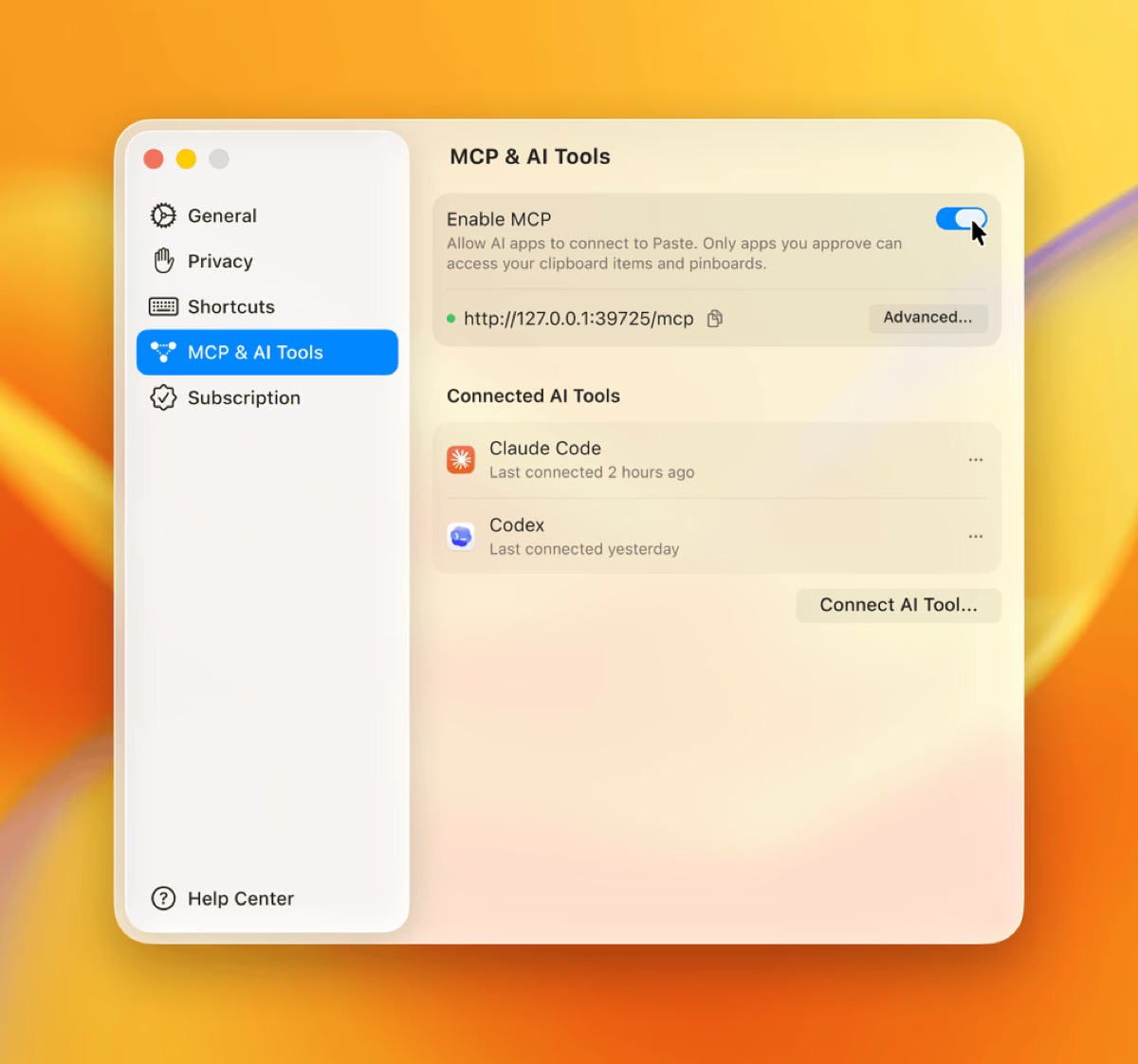
The useful bit is that Paste is turning something you already do all day into a source of context. If you copied research for a project, screenshots from a design review, links for a trip, or notes for a team update, a connected AI tool can pull those items from Paste when you ask.
That means you could ask an AI assistant to find the notes you copied earlier in the day, collect research from the week, draft an update from saved snippets, or create a Paste pinboard for one project.
For Mac users, it fits into the same shift we are seeing across AI tools: less manual setup, more local context. OpenAI recently added Appshots in Codex for Mac so users can show the agent a live app window, and Codex remote access in ChatGPT mobile made it easier to steer Mac-based work from an iPhone or iPad. Google’s Gemini Spark agent is another example of AI tools becoming more useful when they can work with approved app context.
Clipboard history can include passwords, private messages, work notes, screenshots, and other sensitive material, so the control model matters here.
Paste MCP runs locally on your Mac. Users choose which tools can connect, and they can remove access at any time. It is not an open door for every AI app on the system; it has to be enabled and connected to a supported MCP tool.
Still, the usual AI privacy judgment applies. If you ask a cloud-based AI tool to use copied content, that content may be processed under that tool’s own terms. Paste keeping the MCP server local is helpful, but it does not make every connected workflow automatically private.
The setup is handled inside Paste. Open MCP settings, enable MCP, choose the AI tool you want to connect, and follow the setup guide for that tool.
The feature is aimed at Mac users for now, which makes sense because local MCP servers are most common in desktop AI and coding workflows.
For people who copy research, links, notes, and snippets all day, Paste MCP removes one of the annoying parts of using AI assistants: remembering what context to feed them. Now, the clipboard history you were already building can become part of the conversation.
You may like to read: 7 best NotebookLM alternatives tools