FaceTime Like a Pro
Get our exclusive Ultimate FaceTime Guide 📚 — absolutely FREE when you sign up for our newsletter below.

FaceTime Like a Pro
Get our exclusive Ultimate FaceTime Guide 📚 — absolutely FREE when you sign up for our newsletter below.


I used Samsung DeX on my Galaxy S26 Ultra as my main workstation for weeks — here are the exact accessories that made it work like a laptop, and the ones that weren't worth buying.
I didn’t buy the Galaxy S26 Ultra expecting it to replace my laptop. However, after several weeks of using Samsung DeX every day, I stopped reaching for my laptop for most of my work. It handled my office work, browsing dozens of Chrome tabs, joining video calls, and even organizing photos — all from my S26 Ultra connected to a monitor.
That doesn’t mean everything is perfect. Some DeX-compatible accessories made the experience feel surprisingly close to Windows, while others turned into expensive desk clutter. If I were building a Samsung DeX desktop setup again today, I’d buy only the following S26 Ultra accessories and skip everything else.
The first time I heard about Samsung DeX, I assumed it was just screen mirroring with a fancy name. After actually using it, I realized it’s much more than that.
Samsung DeX (short for Desktop Experience) transforms compatible Galaxy phones into a desktop-style interface when connected to an external monitor or TV. Instead of seeing your phone’s home screen on a larger display like iPhone mirroring, you get a taskbar, resizable windows, keyboard shortcuts, and support for a mouse and keyboard.
Samsung also supports wireless DeX on compatible displays, though I found a wired connection to be more reliable for everyday work. For me, what makes DeX so useful is that I don’t need to carry both a phone and a laptop for light productivity. Simply plug the S26 Ultra into a monitor, pair a keyboard and mouse, and get a desktop-like workspace in seconds.
Here’s exactly what’s on my desk, why each piece earned its spot, and what I’d skip if I built this again.
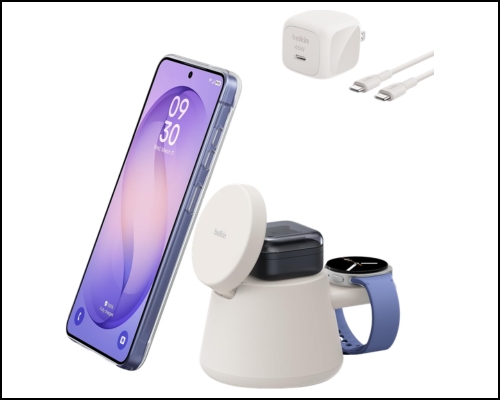
I underestimated how much a phone stand would matter until I spent an entire afternoon with my S26 Ultra lying flat on the desk. The Belkin 3-in-1 Wireless Charging Station made my entire workspace cable-free and more organized. It lets you keep your phone, Galaxy Buds, and smartwatch in one dedicated spot.
During long DeX sessions, I’d often pick up my phone to respond to a message and simply snap it back onto the charger, thanks to the strong magnetic connection with my Qi2 magnetic case. Another good feature is its adjustable design. You can keep the phone upright in portrait mode for notifications or rotate it to landscape when watching videos during breaks.
The included 45W power adapter meant I didn’t have to buy another charger, and the charging station supports Qi2.2 25W wireless charging. That said, this isn’t an essential Samsung DeX accessory. It doesn’t improve DeX performance or add new functionality like a USB-C hub or monitor does.
Pros
Cons
Best for: Anyone planning to use DeX for more than an hour at a time.
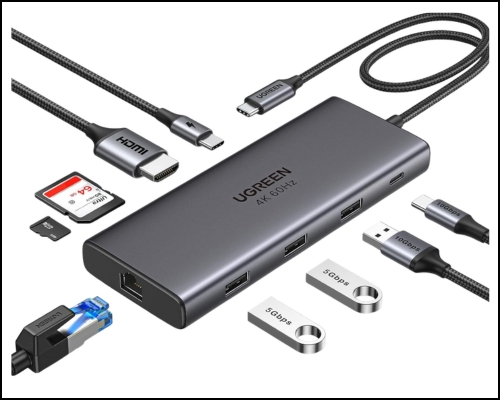
If one accessory made DeX possible, it was the USB-C hub. I initially tried connecting the phone with a basic USB-C cable and quickly realized it wasn’t enough. Technically, Samsung DeX does support a simple USB-C-to-HDMI connection, but this setup doesn’t let you connect multiple peripherals at the same time.
Samsung recommends using compatible HDMI adapters or USB-C hubs with Power Delivery for the best DeX experience, and the UGREEN Revodok Pro checks all the boxes. It offers 9 ports, including a 10 Gbps USB-C 3.2 Gen 2 port, two 10 Gbps USB-A ports, 4K@60Hz HDMI, 100W Power Delivery, an RJ45 port, and an SD/microSD card reader.
I used the HDMI to connect a monitor, the USB ports for my keyboard, mouse, and SSD, and plugged a 45W charger into the Power Delivery port so the phone didn’t slowly drain throughout extended use. Overall, this single accessory turned my S26 Ultra into a workstation.
Pros
Cons
Best For: If you are serious about building a reliable Samsung DeX workstation.
Samsung no longer supports DeX for PC on devices running One UI 7 or later, including the Galaxy S26 series. That means you can’t simply plug your phone into a Windows PC and launch DeX inside a desktop window like you could on older Galaxy phones.
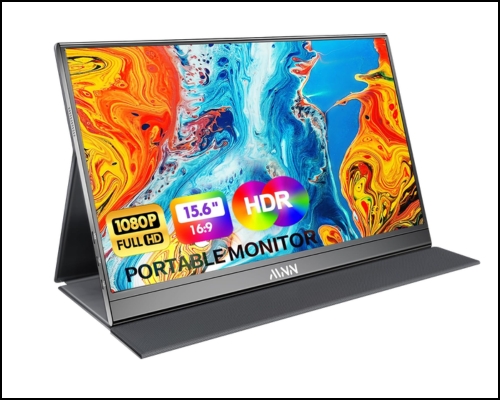
If you want the full Samsung DeX desktop experience, you now need to connect your Galaxy S26 Ultra directly to an external monitor or TV. That’s exactly why the MNN 15.6-inch Portable Monitor became one of my must-have desk accessories. The 15.6-inch Full HD IPS display is the sweet spot for productivity.
It’s large enough to multitask comfortably, yet compact enough to carry around in a backpack. I could keep Google Docs open beside Chrome, Gmail, and YouTube without constantly switching apps. The monitor also comes with two USB-C ports, and the built-in smart cover doubles as a stand, which helped me work anywhere.
Pros
Cons
Best for: Students, writers, and remote workers who travel frequently.
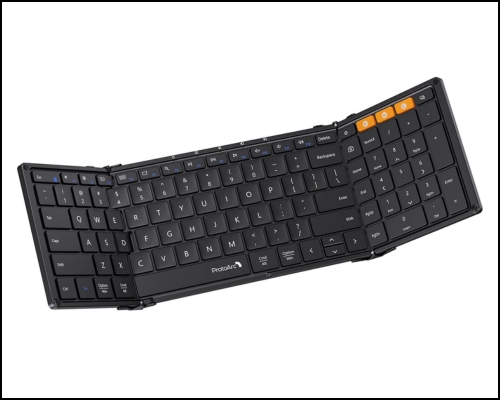
Typing thousands of words on a phone screen gets old very quickly. The ProtoArc Bluetooth keyboard instantly made DeX work like a Windows laptop. It let me use familiar keyboard shortcuts and navigate windows more efficiently. With the Galaxy S26 Ultra, which no longer supports DeX for PC, it becomes even more important.
The best part is that it combines portability with a full-size typing experience. Unlike compact travel keyboards that feel cramped, you get full-sized keys and even a numeric pad, which makes typing more comfortable. Since it connects over Bluetooth, I didn’t have to occupy one of the USB ports on my hub.
It isn’t a mechanical keyboard, so don’t expect tactile feedback. But for productivity, I actually preferred its quieter keys while writing at cafes or libraries.
Pros
Cons
Best for: Anyone who spends hours writing, replying to emails, or working in documents.
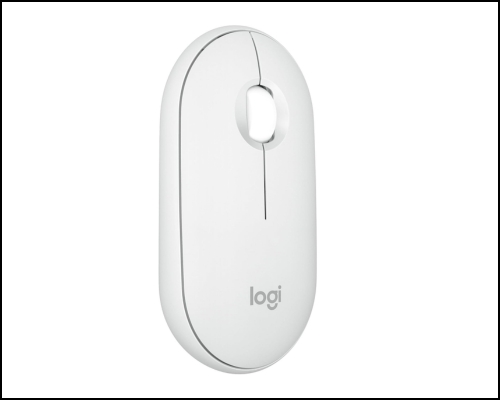
Before adding a wireless mouse to my Samsung DeX setup, I was relying on my Galaxy S26 Ultra’s touchscreen to act as the touchpad, but it never really felt right. The moment I paired the Logitech Pebble Mouse 2, DeX started feeling like an actual desktop operating system.
Once the mouse is connected, you get precise cursor control, right-click context menus, drag-and-drop support, text selection, and much smoother window management. All of this made DeX far more productive and faster to use than relying on touch controls alone.
Logitech built the mouse slim and lightweight, so it didn’t take up much room in my backpack. One feature I appreciated was its Bluetooth connectivity. The connection remained stable throughout long work sessions, and I never noticed any lag while navigating DeX. However, it’s not designed for gaming or professional design work.
Pros
Cons
Best for: If you are planning to use DeX as your primary desktop environment.
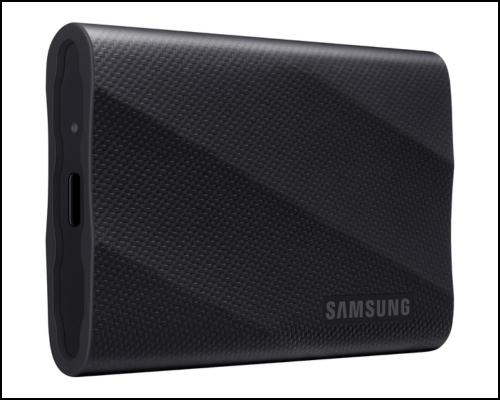
Once I started using my Galaxy S26 Ultra as my main work device, storage filled up much faster than I expected. Screenshots, downloaded files, videos, and project folders quickly ate into my phone’s internal storage.
That’s where the Samsung Portable SSD T9 came to the rescue. Attached through my USB-C hub, the SSD was instantly recognized by Samsung DeX’s My Files, just like any external drive. Being able to transfer files, save backups, and access large media libraries without relying on cloud storage became incredibly convenient.
The T9 also offers up to 2,000 MB/s read and write speeds, making large file transfers quick and hassle-free. Its compact, durable design was easy to toss into my backpack, so I always had extra storage wherever I worked.
Pros
Cons
Best for: Creators, photographers, and anyone working with large files.
Not every accessory made my DeX setup better. In fact, a few purchases ended up collecting dust.
A major letdown is that USB-C hubs without HDMI don’t support Samsung DeX. Samsung suggests using a suitable USB-C-to-HDMI adapter or a USB-C hub with video support; otherwise, DeX simply won’t launch on an external display.
I also skipped buying a Samsung DeX Station or DeX Pad. While these older accessories were designed for previous Galaxy devices, they’re unnecessary for the Galaxy S26 Ultra. A compatible USB-C hub and monitor can replace them and deliver the same desktop-like experience.
Lastly, I tried using wireless DeX on a TV. It worked fine for light browsing and similar tasks, but there were noticeable lag and compression issues when dragging windows around or typing. I’d recommend sticking with a wired connection instead.
Sometimes the simplest setup really is the best one.
This is where DeX genuinely surprised me.
Writing articles felt almost identical to working on a Windows laptop. Chrome handled multiple tabs better than I expected, although opening dozens at once eventually slowed things down.
Google Docs, Microsoft Word, Gmail, Slack, and Notion all worked reliably enough that I didn’t need to touch my phone. Streaming YouTube while working also caused no issues, and photo organization was straightforward.
Where DeX struggled was heavier creative work. Video editing remained slower than I’d like, and certain desktop software simply doesn’t exist on Android.
For me, yes! But only for the right kind of work.
If your day revolves around writing, research, web apps, email, presentations, and meetings, DeX is shockingly capable. However, for editing 4K videos, compiling software, running virtual machines, or using specialized desktop applications, you’ll still want a traditional laptop.
The biggest surprise wasn’t that Samsung DeX could replace my laptop. It was realizing how often I didn’t actually need a laptop in the first place.
Before trying Samsung DeX, I assumed it was a feature I’d show friends once and forget. Instead, it became part of my daily workflow.
If I had to rebuild this setup from scratch, I’d buy the USB-C hub first, followed by a monitor, Bluetooth keyboard, wireless mouse, phone stand, and finally an external SSD. These accessories transformed the Galaxy S26 Ultra from an excellent smartphone into a surprisingly capable workstation.
Have you tried Samsung DeX yet? Share your experience in the comments below!
You may like: Top 6 power banks for Samsung Galaxy S26 Ultra