FaceTime Like a Pro
Get our exclusive Ultimate FaceTime Guide 📚 — absolutely FREE when you sign up for our newsletter below.

FaceTime Like a Pro
Get our exclusive Ultimate FaceTime Guide 📚 — absolutely FREE when you sign up for our newsletter below.


Want to play YouTube videos in the background on your iPhone without keeping the app open? Here's how using Safari and YouTube Premium can do it.
I love video content, but I prefer playing YouTube in the background while browsing or texting on my iPhone. This allows me to listen to music, podcasts, or other videos without watching the visuals – even after locking my iPhone.
While YouTube requires you to get a Premium subscription to use this feature, some nifty Safari tricks let you do the same for free!
If you are excited to learn more about these two methods, here’s a detailed guide on how to get YouTube to play in the background on an iPhone or iPad.
Before we get into the tricks, here are some reasons why you might want to play YouTube in the background on your iPhone:
If you use the free version of the YouTube app, the video will stop playing the moment you push the app to the background or lock your screen. That’s where Safari comes to the rescue.
In Safari, you can play the audio of any YouTube video in the background without even signing in! Don’t believe me? Try it yourself:
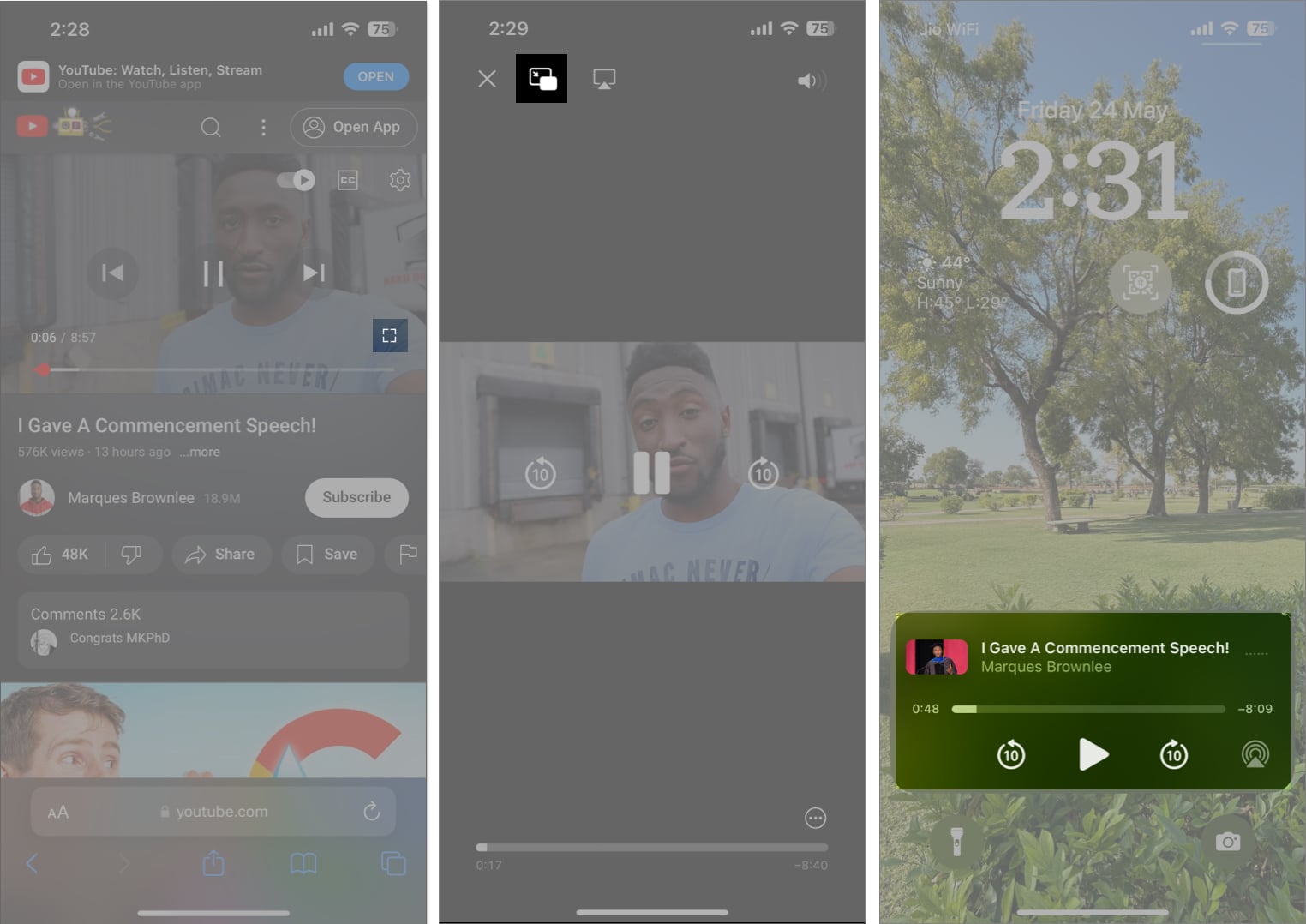
Interestingly, the above method works on a few other iPhone browsers as well. For instance, I tried it with Chrome and got amazing results.
Moving forward, there’s another Safari trick you should know about. It involves using the desktop view of the YouTube website to play audio in the background.
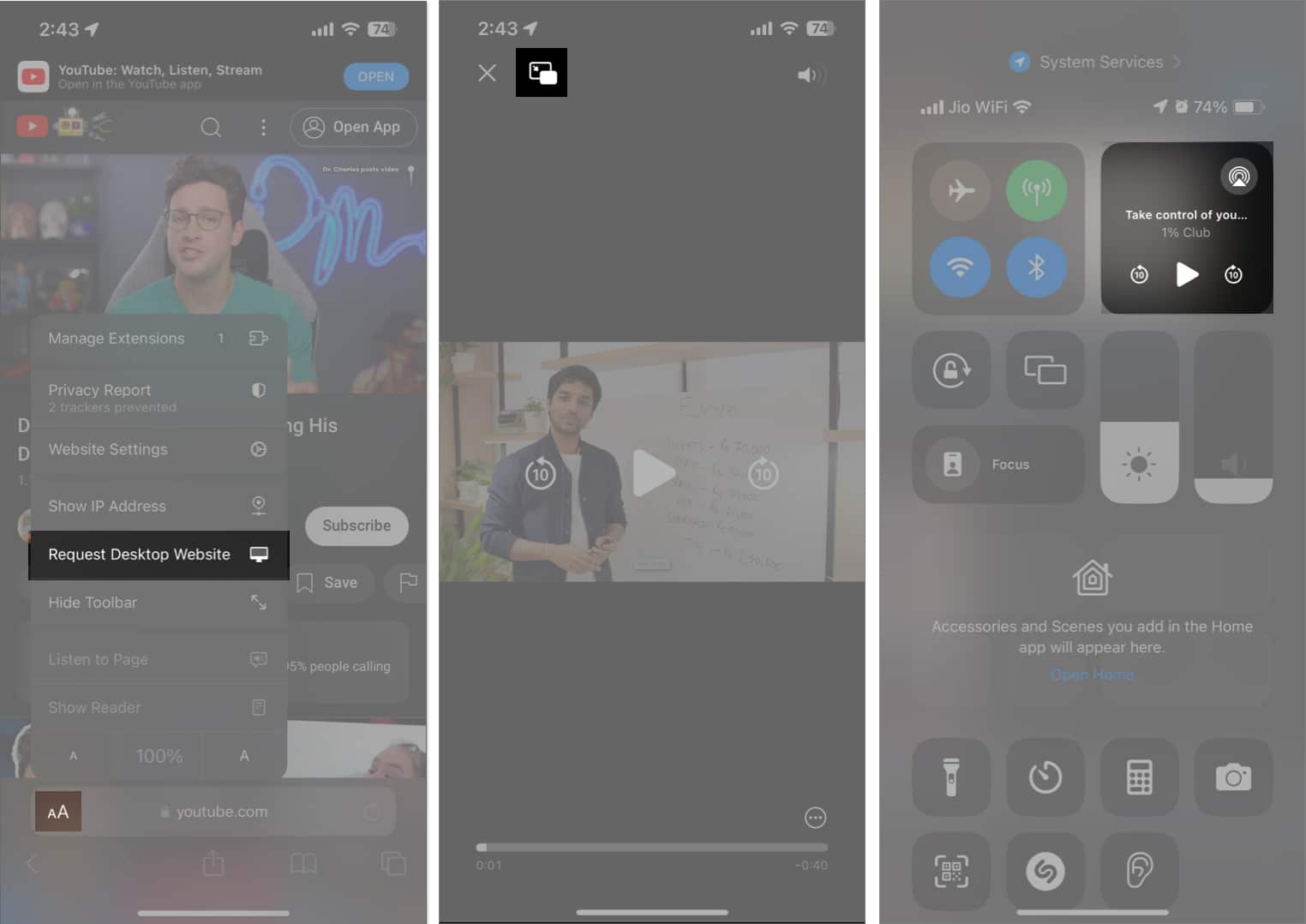
While both these solutions work well, repeating the steps for each video can get tiresome. Also, while testing, I didn’t enjoy the process. Sometimes, I had to switch to landscape mode just to access the PiP icon. Further, I had to sit through the ads before starting a video.
So, to save time and get a more reliable option to play YouTube in the background, I recommend subscribing to YouTube Premium and using its built-in PiP mode.
If you’ve been wondering how to keep YouTube playing on your iPhone while using other apps, YouTube Premium is a lifesaver.
To use the PiP mode in YouTube, you need to satisfy a few conditions:
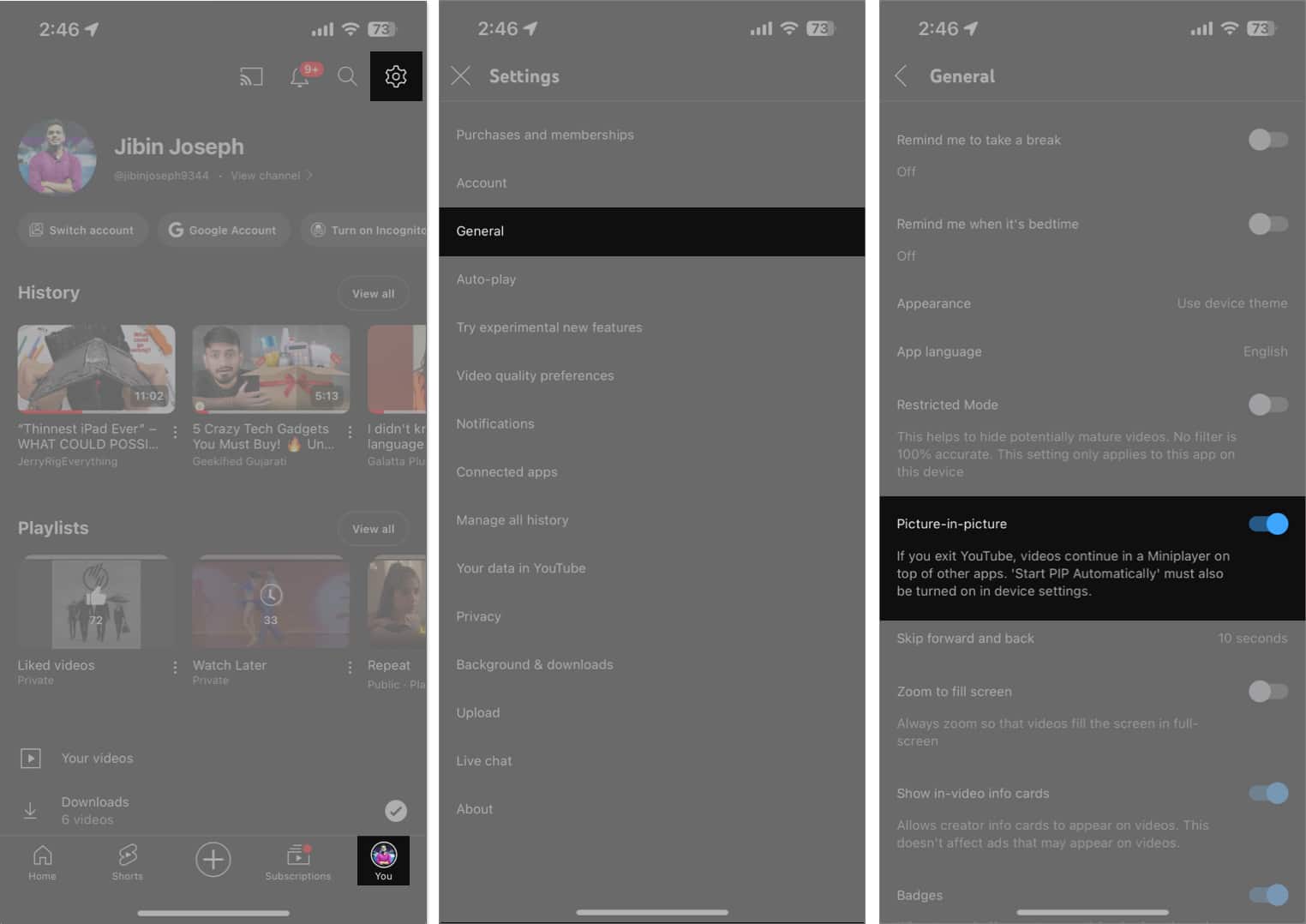
After completing the above formalities, playing YouTube videos in the background is a breeze.
Now, the video should start playing in the background. You can even lock your screen and let the audio play!
To learn more about what you can do in PiP mode, check out our guide on how to use YouTube PiP mode.
Signing off
So, there you have it. If you don’t want to subscribe to YouTube Premium, you can use Safari to force YouTube to play in the background on your iPhone. Additionally, if you don’t mind third-party apps, you can try which can helps you play YouTube in the background on your iPhone or iPad.
However, I prefer using YouTube Premium because the subscription is affordable, ad-free, and includes YouTube Music. What do you think? Share your thoughts in the comments below!
Explore more on YouTube: