
FaceTime Like a Pro
Get our exclusive Ultimate FaceTime Guide 📚 — absolutely FREE when you sign up for our newsletter below.

FaceTime Like a Pro
Get our exclusive Ultimate FaceTime Guide 📚 — absolutely FREE when you sign up for our newsletter below.


A Lock Screen camera means pocket photos and a privacy gap. Here is how to remove the control in iOS 18 and later, and how to disable the camera entirely using Screen Time.
Apple added the camera control to the Lock Screen by default so users can click pictures and record videos instantly. However, this helpful accessibility has left many users frustrated, as the camera app often pops up unintentionally, especially when trying to unlock their iPhones. Fortunately, from the iOS 18 update, Apple finally paid heed to the users’ plight and added the ability to customize iPhone lock screen controls.
Keep reading to learn how to remove the camera from your iPhone Lock Screen.
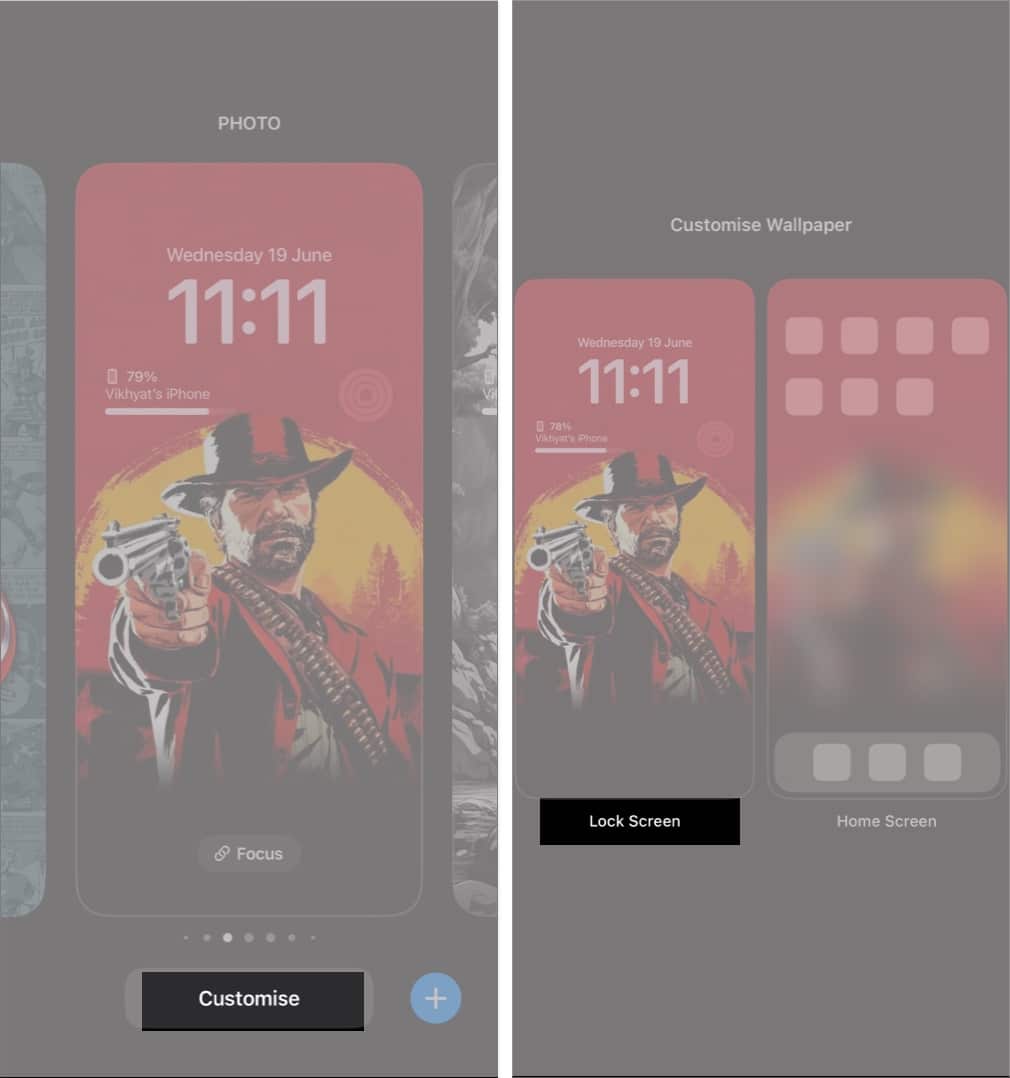
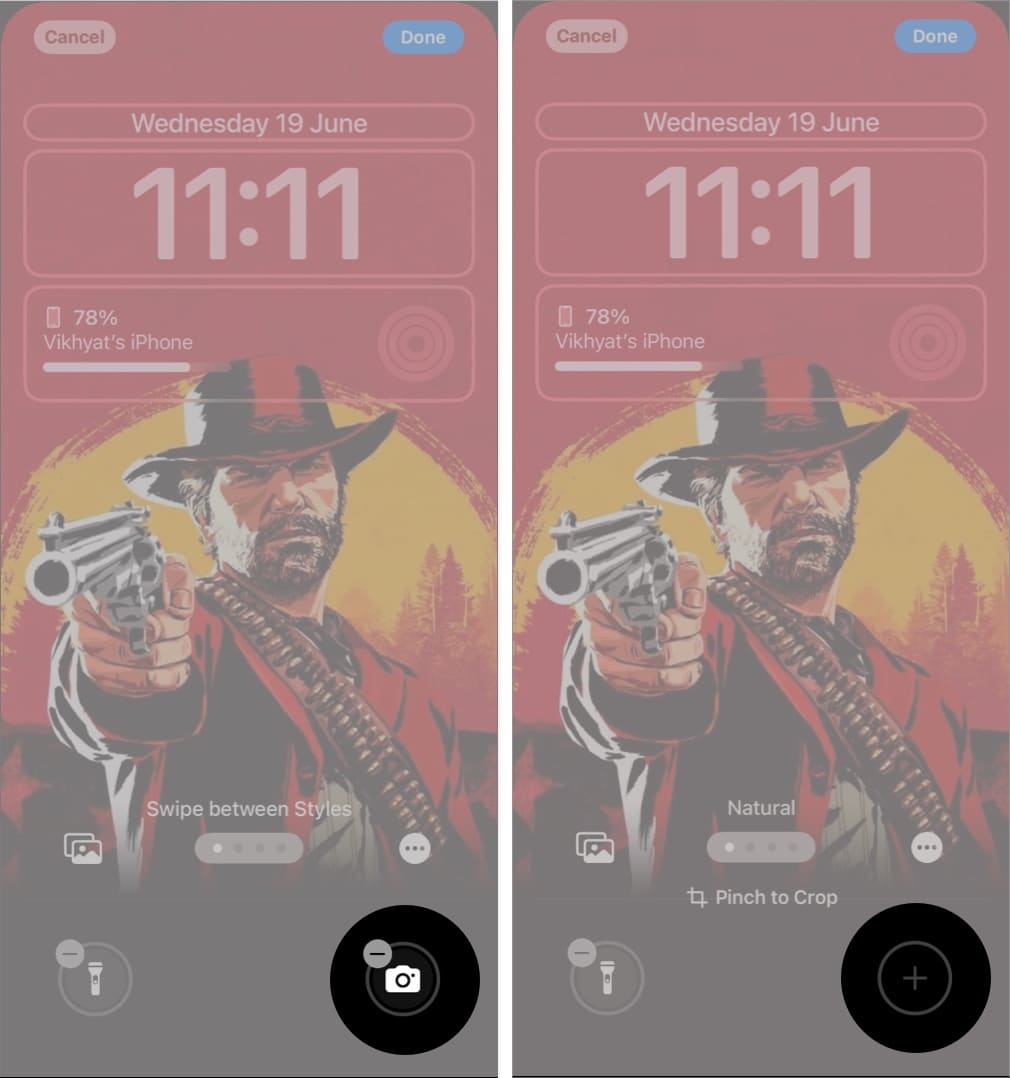
Starting with iOS 18, you can remove or customize the lock screen controls on your iPhone. This means you can remove the Camera control button and get rid of the Camera app constantly popping up.
If removing the camera access from the Lock Screen has more to do with Privacy than just accidentally opening the app, you can head to Screen Time to disable the Camera app altogether. Even swiping left on the Lock Screen won’t open the Camera app.
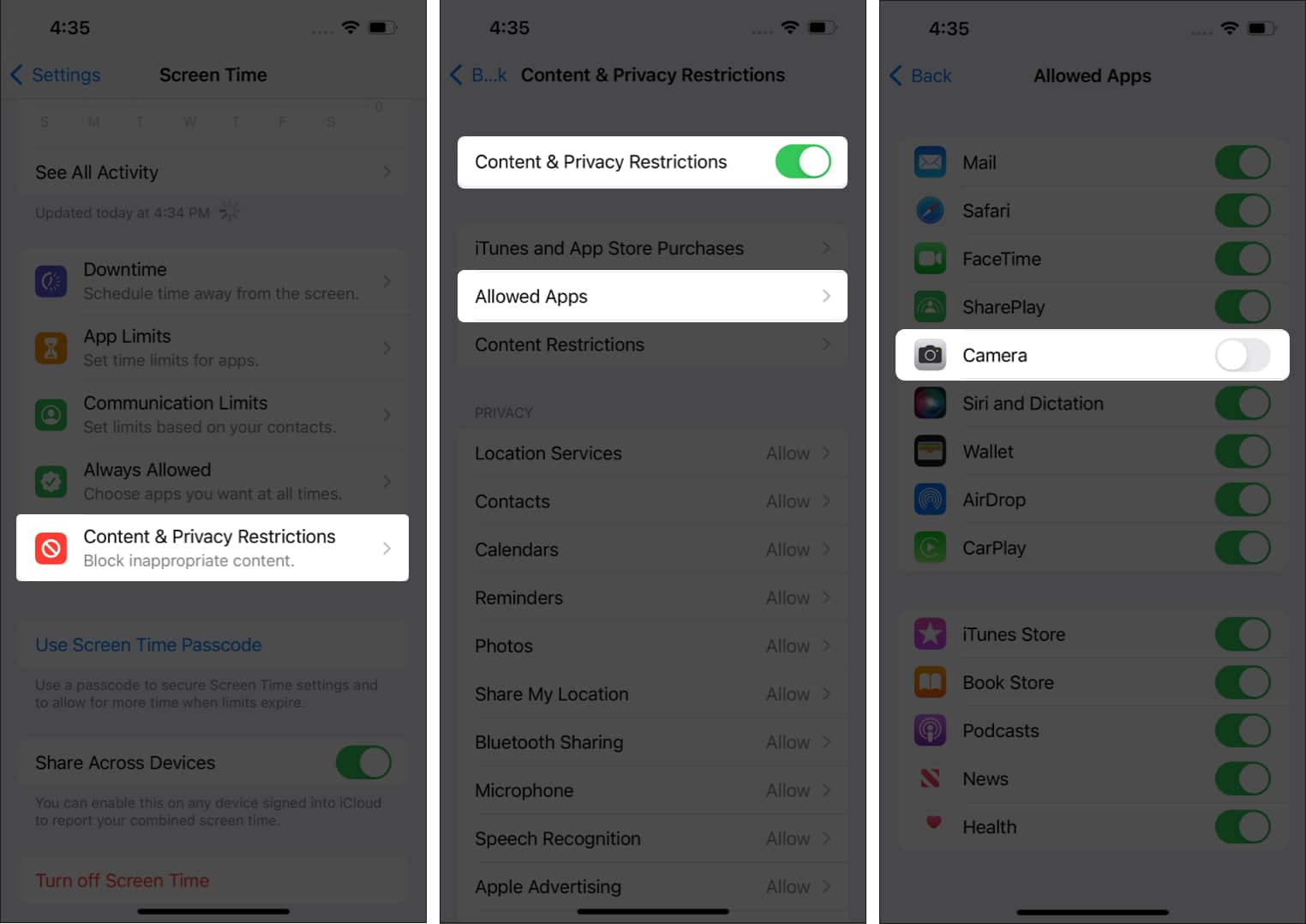
When you lock your screen and swipe left, the Camera app no longer opens. In fact, the Camera icon gets blurred out. To re-enable the Camera app, follow the same steps and toggle Camera access back on.
And that’s it; this is how you disable Camera Access from the Lock Screen on your iPhone. While latest iOS update does allow you to remove the Camera control button from the Lock Screen, you can still access the camera by swiping left on the Lock Screen. On the other hand, the Screen Time method restricts access to the Camera app at all locations, even from the Home Screen. So, whether you want to remove the Camera access due to frustration or privacy concerns, the choice is yours.
If you are still left with some doubts, comment down below, and I’ll happily respond.
You might want to refer to these posts as well:












