
FaceTime Like a Pro
Get our exclusive Ultimate FaceTime Guide 📚 — absolutely FREE when you sign up for our newsletter below.

FaceTime Like a Pro
Get our exclusive Ultimate FaceTime Guide 📚 — absolutely FREE when you sign up for our newsletter below.


Learn how to quickly restore accidentally closed Safari tabs using simple methods.

 ByJignesh Padhiyar and Ava Biswas
Have you accidentally closed an important tab in Safari and can’t remember which page it was? Don’t worry; we’ve all been there. Whether it’s an unintentional tap, a glitch, or a crash, Safari makes it easy to reopen closed tabs on iPhone, iPad, and Mac.
Here’s your complete guide to restoring closed Safari tabs in iOS 26 and macOS Sequoia.
Before jumping into the fixes, it helps to understand why tabs disappear in the first place:
Whatever the reason you mistakenly closed Safari tabs, these solutions will surely help.
Believe me, the iPhone’s Shake to Undo feature is a lifesaver. It’s an Accessibility feature that allows you to quickly undo or redo certain actions. For example, you can quickly undo or redo typing and restore recently closed Safari tabs.
This feature is enabled by default. So, when you accidentally close an active Safari tab, simply shake your iPhone → Pick the Undo Close Tab from the pop-up to reopen the web page.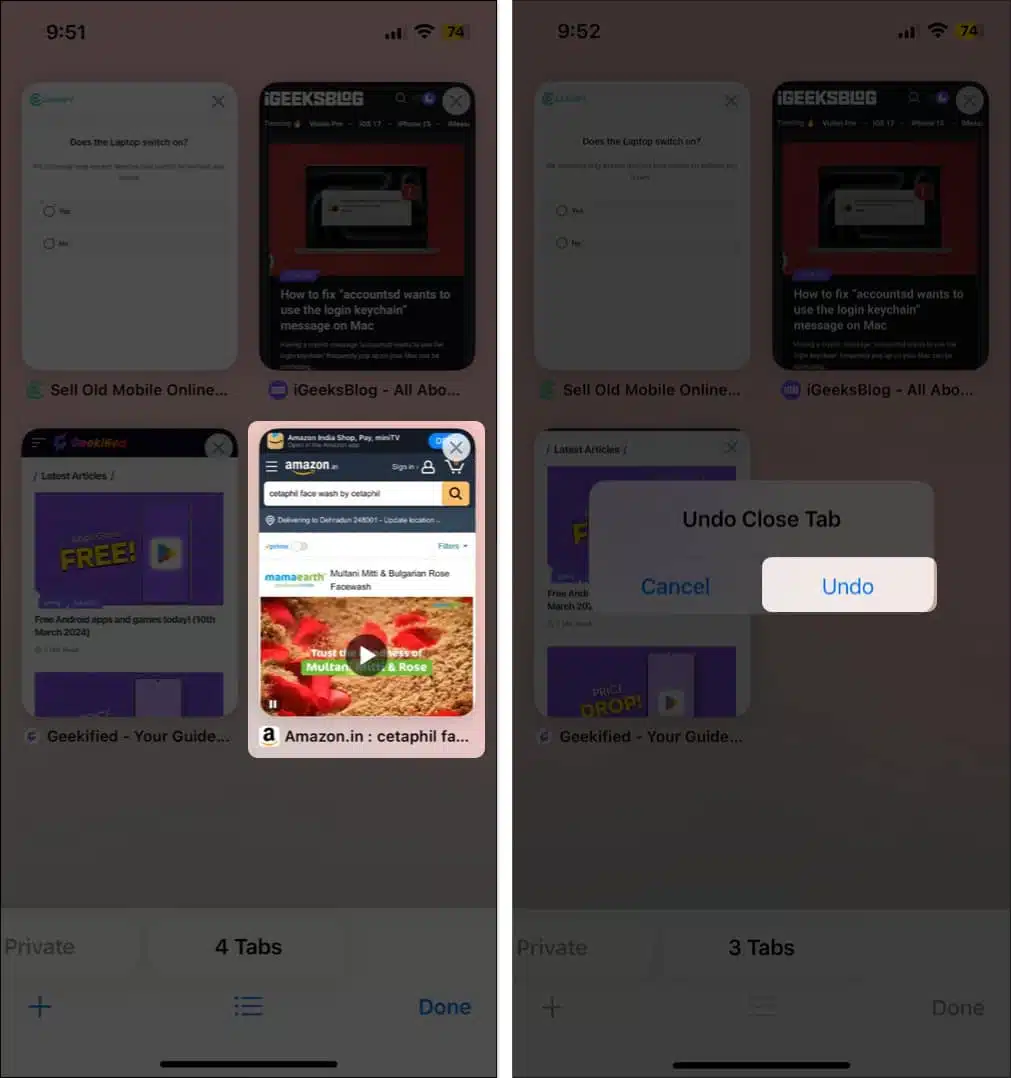
If you are unable to use this feature for some reason, you may need to enable it manually.
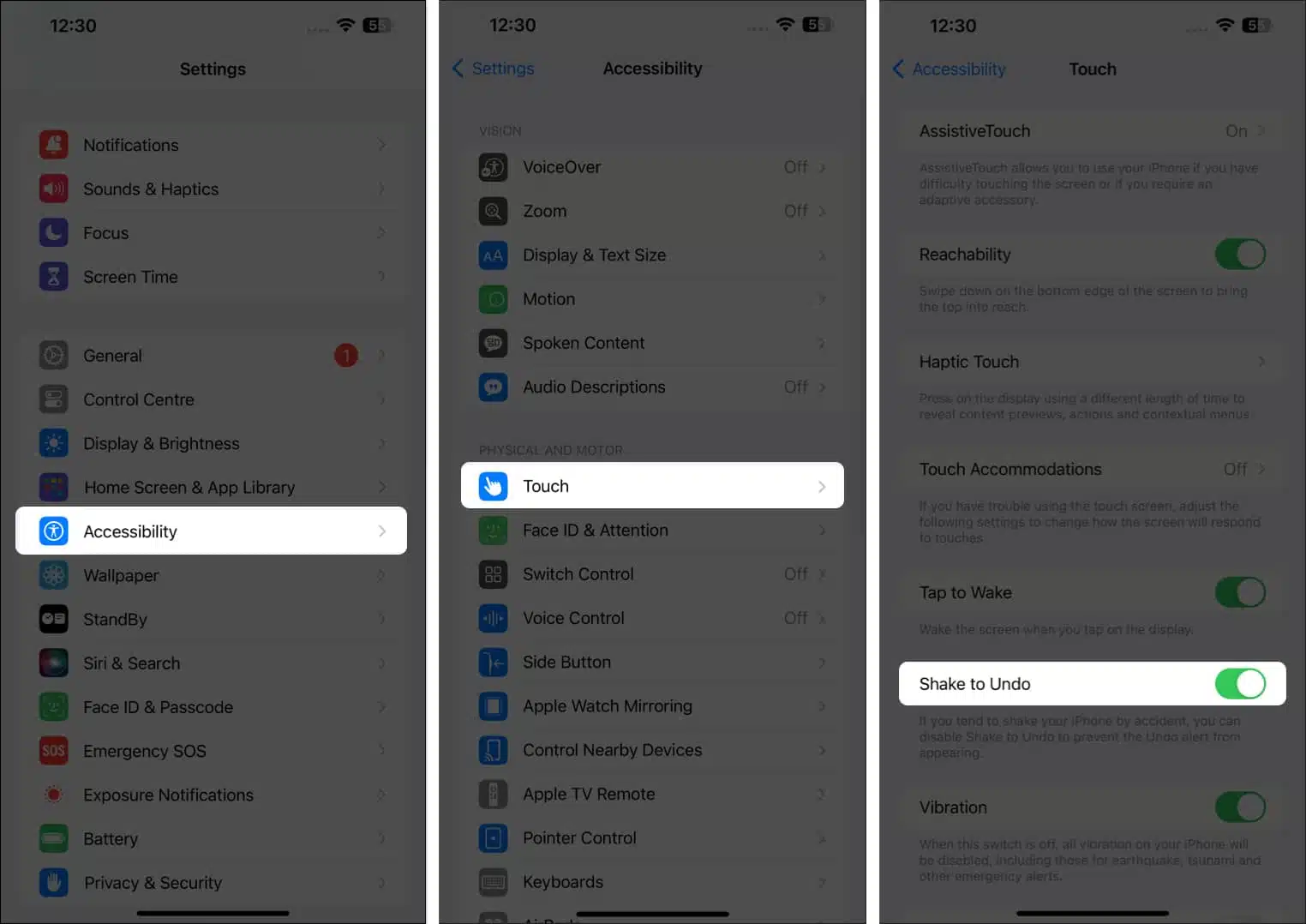
You can use the Shake to Undo feature to instantly restore the last closed tab. But what if you want to reopen multiple closed Safari tabs?
Well, there’s a secret Safari trick that helps you do that. Safari has a hidden Recently Closed Tabs list that lets you access all your past browsing sessions.
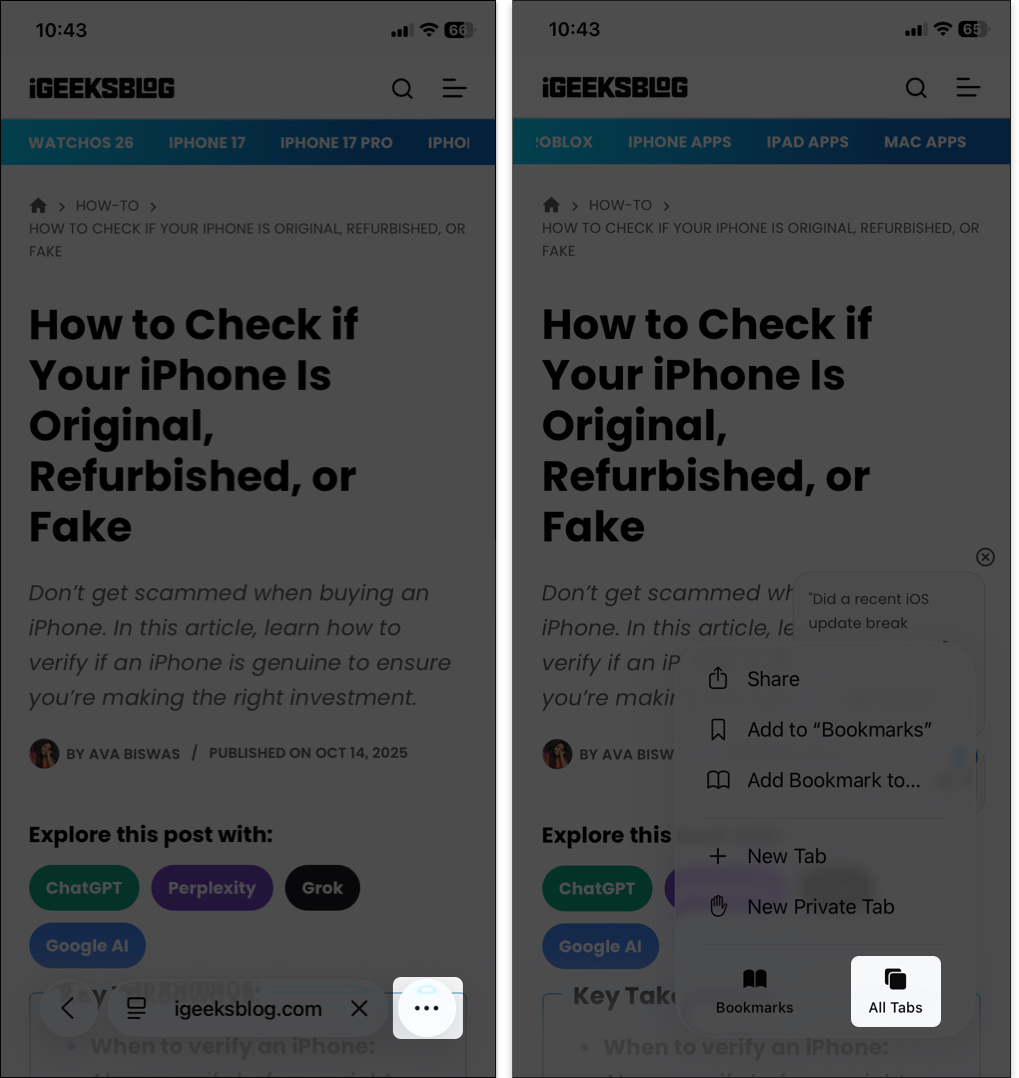
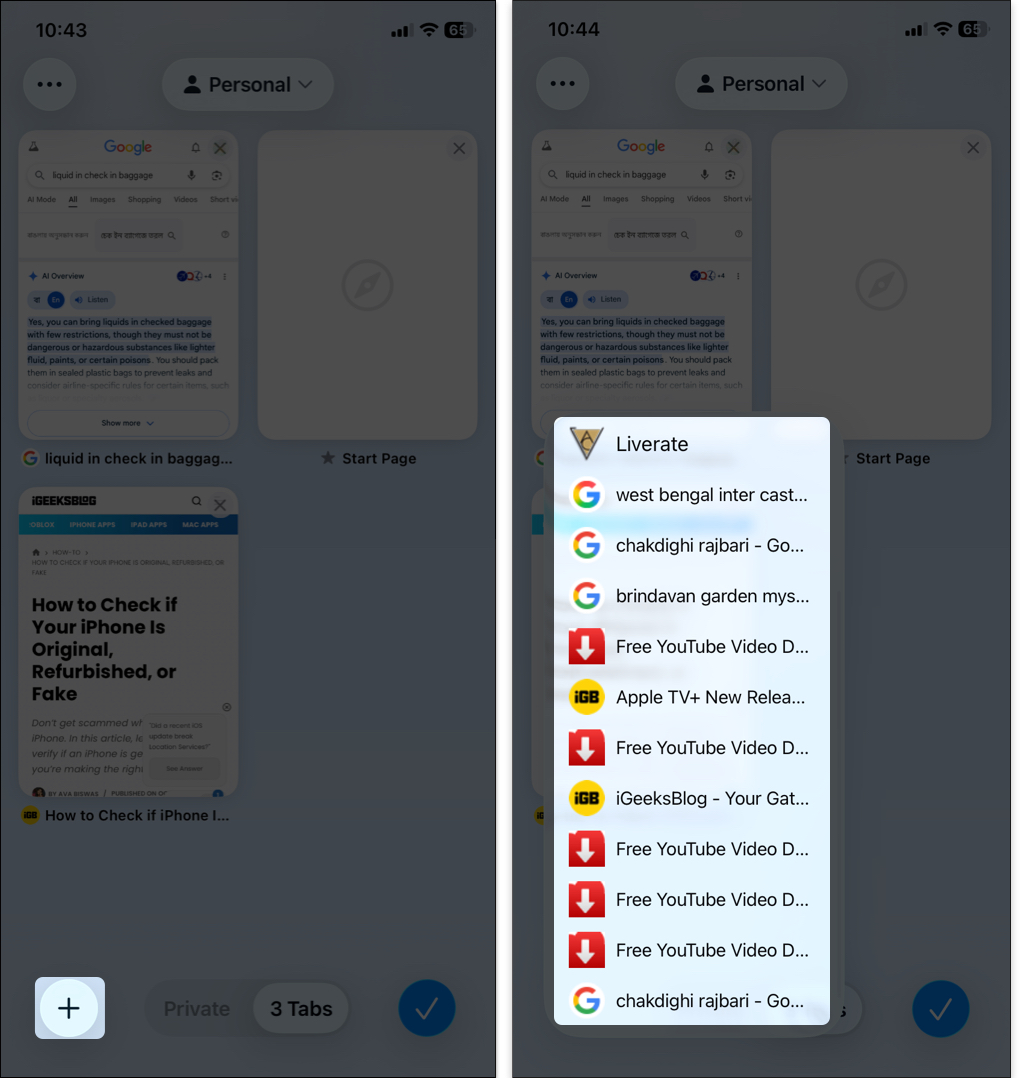
If you can’t find your closed tab in the “Recently Closed Tabs” list, it may have been deleted many days ago. This trick for retrieving closed tabs works not only in Safari but also in most other iPhone browsers.
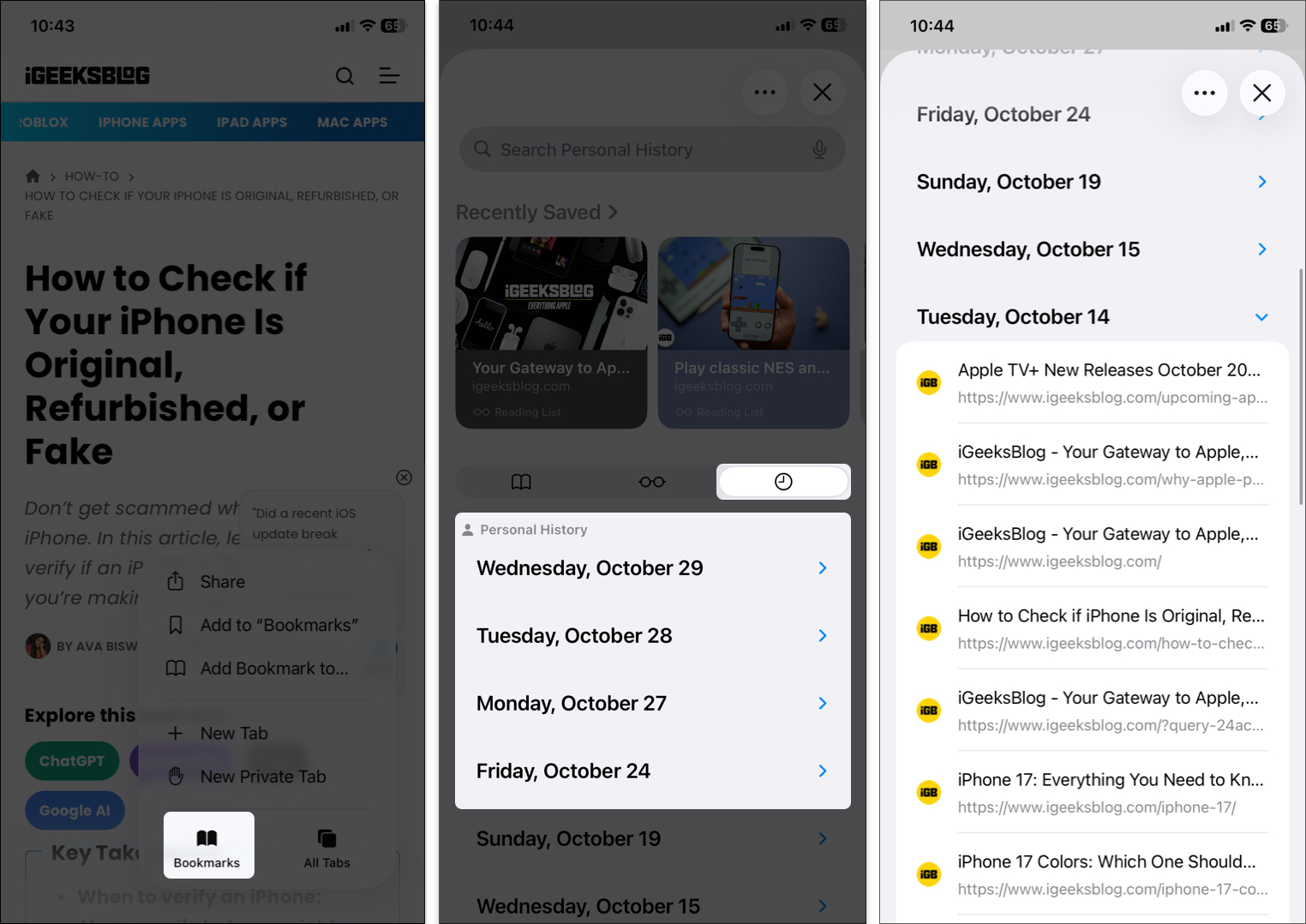
Accessing your Safari browsing history can also help if you are dealing with the disappearing Safari tabs issue on your iPhone.
While researching a topic, I sometimes accidentally close tabs in Safari. So, I use a few tricks to keep my tabs open. You may also follow these tips to mitigate the problem:
If you have lost all your Safari tabs while browsing on a Mac, you can quickly restore them.
The easiest way to restore accidentally closed Safari tabs is to use keyboard shortcuts. Simply press Command (⌘) + Z to undo closing the last tab.
However, if you have performed another action after the tab is closed, this shortcut will undo that action rather than reopening the tab. In this case, the Shift + Command (⌘) + T shortcut can reopen the most recently closed tab.
Whichever Keyboard shortcut you use, press it repeatedly to reopen multiple recently closed tabs on Safari.
You can use Safari’s New Tab icon to get a list of recently closed tabs. Right-click on the + icon at the top right corner of the window. Then select the tab you want to reopen. It will restore it to the location where you first opened it. Thus, you can continue browsing the tabs as organized as before.

However, you accidentally closed the Safari window, so you can’t find the list of recently closed tabs. Therefore, move to the next solution.
Safari records all your browsing activity under the History menu. While a Safari window is open, click History on the menu bar and select Recently Closed. Choose the tab you want to reopen. If your Safari app crashed or was closed accidentally, select Reopen All Windows from Last Session.
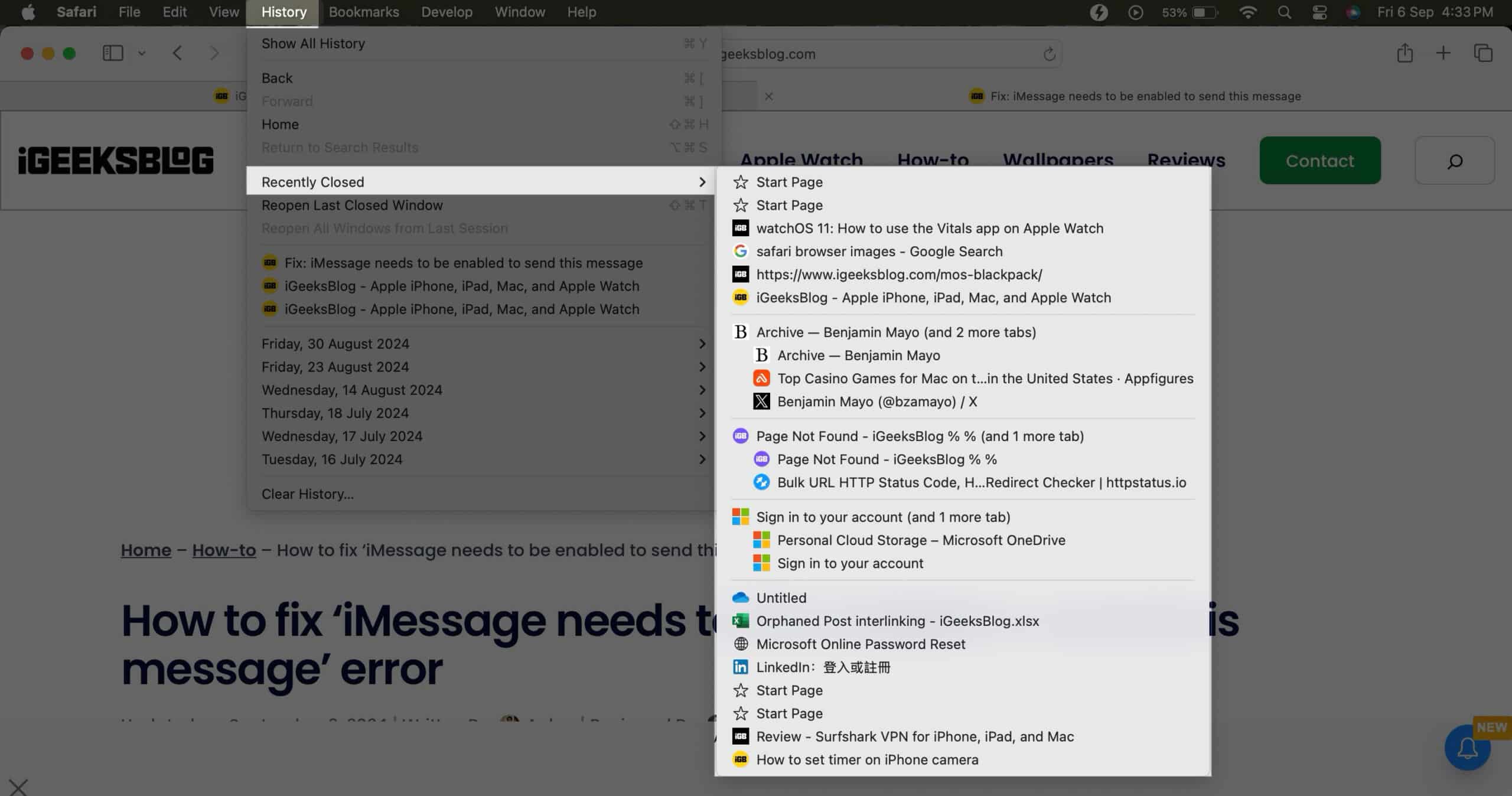
You can choose a method and restore all accidentally closed Safari tabs on a Mac based on the number of tabs.
That’s how you restore closed Safari tabs on your iPhone, iPad and Mac. I suggest following the tips I mentioned to avoid losing Safari tabs. Even if you accidentally hit the close (x) button on a Safari tab, use any of the methods shown in this article.
FAQs
Yes, iCloud stores your Safari tabs if iCloud Sync is enabled for Safari, but they are not included in iCloud backups. When iCloud sync is enabled, your tabs are available on all Apple devices signed in with your Apple ID. To preserve Safari tabs, you should use an encrypted computer backup.
Yes, but only if you allowed Safari to use iCloud in the first place. If you have, then all your Safari Bookmarks, Reading List, Tab Groups, and open browser tabs are automatically backed up.
iPhones can store Safari history for up to a month.
Read more on Safari:











