FaceTime Like A Pro (eBook)

Get our exclusive Ultimate FaceTime Guide πŸ“š β€” absolutely FREE when you sign up for our newsletter below.

How to Remove AudioΒ fromΒ Video on iPhoneΒ (All Methods Explained)

Learn how to remove audio from a video using built-in iPhone tools and third-party apps.

Explore with AI:

IfΒ you’veΒ ever recordedΒ a great videoΒ only to discover loud background noise, chatter, or unwanted sounds,Β you’reΒ not alone. Luckily,Β your iPhone offers several easy ways to remove Audio from any video, and you don’t need professional tools to do so.Β 

In this guide,Β I’llΒ walk you through every method,Β from using the built-in Photos app to popular editing apps like iMovieΒ and even online tools. By the end,Β you’llΒ know exactlyΒ which method fits your situation.

Why Remove AudioΒ fromΒ a Video?Β 

Muting a video can makeΒ a huge differenceΒ in how clean and professional it feels. Here are the most common reasons:

  • Remove Background Noise:Β Wind, traffic, or random talking can make a video distracting.Β Β 
  • Add Your Own Music or Voiceover:Β Many creators remove the original Audio to addΒ background music,Β sound effects,Β or voiceover.Β 
  • Keep Privacy Intact:Β Maybe sensitiveΒ conversations were captured without your realizing it.Β Β 
  • Make Videos Look Professional:Β Silent clipsΒ areΒ great for B-roll, reels, montages, and product videosΒ to avoid copyright claims.Β 
  • Fix Unusable Audio:Β Sometimes the Video isΒ great,Β but the Audio is not salvageable. Muting saves the content.

Therefore, removing Audio gives youΒ more creative freedomΒ and prevents the sharing of unwantedΒ sounds.Β 

Your Complete iOS 26 Playbook:

Get our exclusive Ultimate iOS 26 Guide πŸ“š β€” absolutely FREE when you sign up for our newsletter below.

MuteΒ AudioΒ fromΒ a Video Using theΒ iPhoneΒ Photos AppΒ 

If you want the simplest way to mute a video on your iPhone, theΒ Photos appΒ is the perfect choice.Β It offersΒ a great rangeΒ of tools forΒ basic video editing.Β No downloads, no editing,Β just a quick mute button.

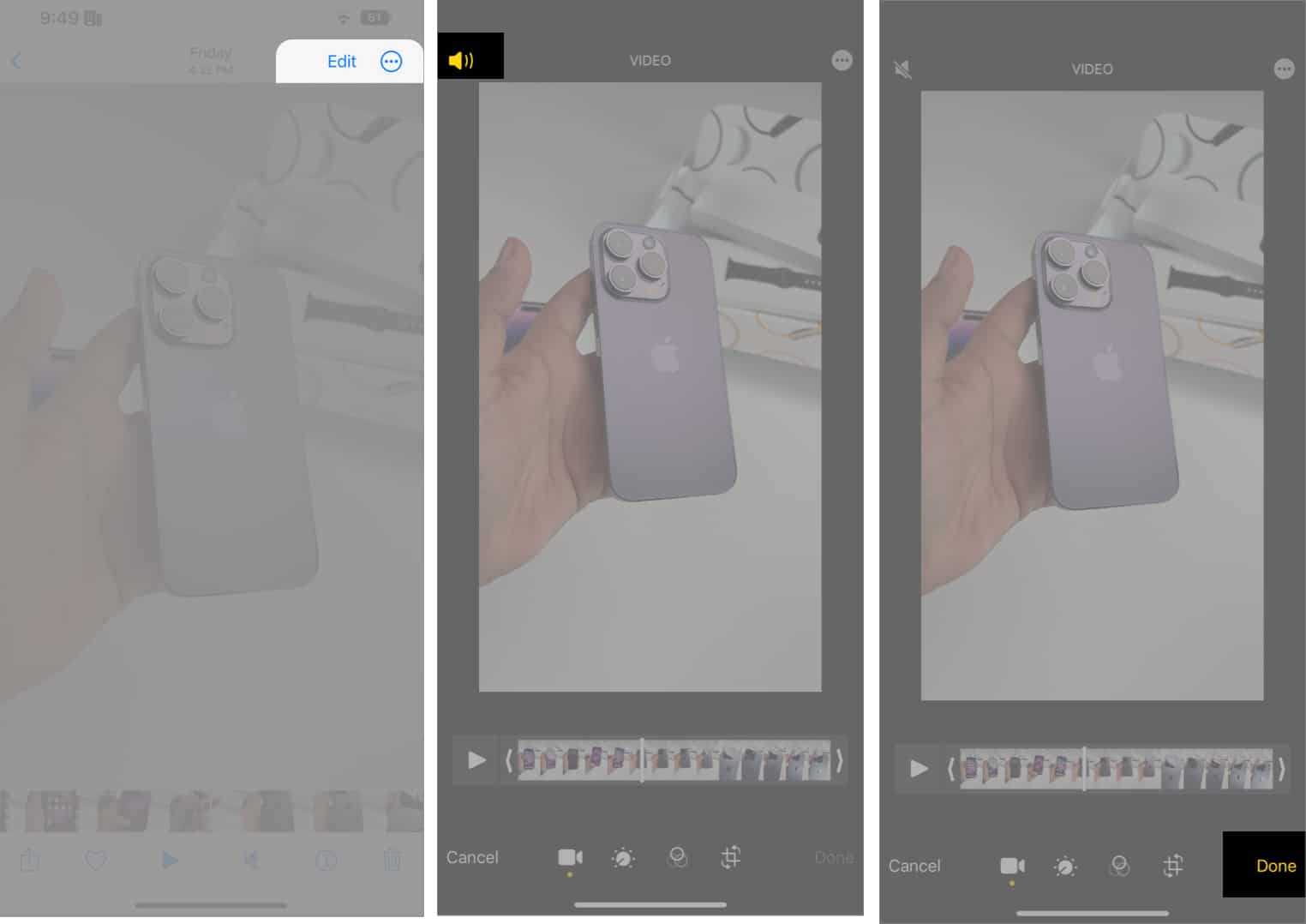
  1. Open theΒ PhotosΒ app.Β 
  2. Select theΒ VideoΒ you want to mute.Β 
  3. TapΒ the Edit buttonΒ in the bottom toolbar.Β 
  4. Tap theΒ speaker iconΒ in the topΒ leftΒ corner.Β 
  5. When the icon shows a line through it, the Audio is removed.Β TapΒ DoneΒ to save.
    Remove audio from video through the photos app on iphone 1 1

The process is extremely quick and perfect for beginners.Β The Video will no longerΒ include an audio file if you plan to shareΒ it.Β However, if you want to remove Audio partially from the Video,Β you’llΒ need a more advanced editor.

Remove AudioΒ fromΒ a Part ofΒ a VideoΒ Using iMovieΒ 

If you only want to mute certain parts of a clip, like one noisy moment, iMovie is the best freeΒ option. ItΒ alsoΒ offersΒ moreΒ controls,Β such asΒ adjusting volume levels,Β replacing Audio,Β merging videos,Β and adding royalty-free musicΒ or voiceover.

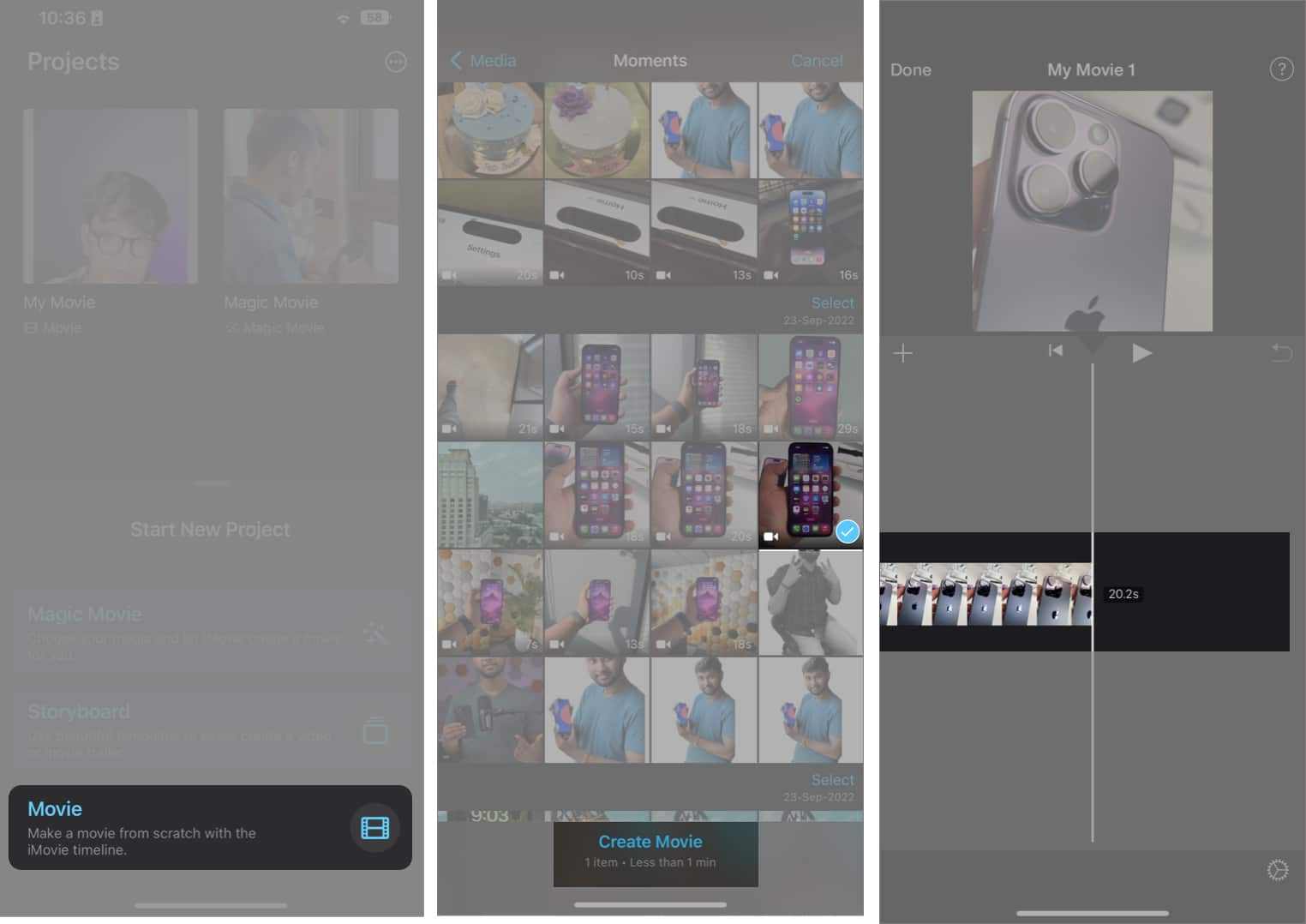
  1. OpenΒ iMovieΒ andΒ selectΒ MovieΒ under Start New Project.Β 
  2. Select yourΒ VideoΒ from your library andΒ tapΒ Create Movie.Β 
  3. The editor interface will appear.Β PlayΒ the Video to reach the section with noise.
  4. Tap theΒ clipΒ inΒ the timeline.Β ChooseΒ SplitΒ to divide it.
    Tap the video timeline to make changes to the video on iphone
  5. Select theΒ sectionΒ you want to mute.
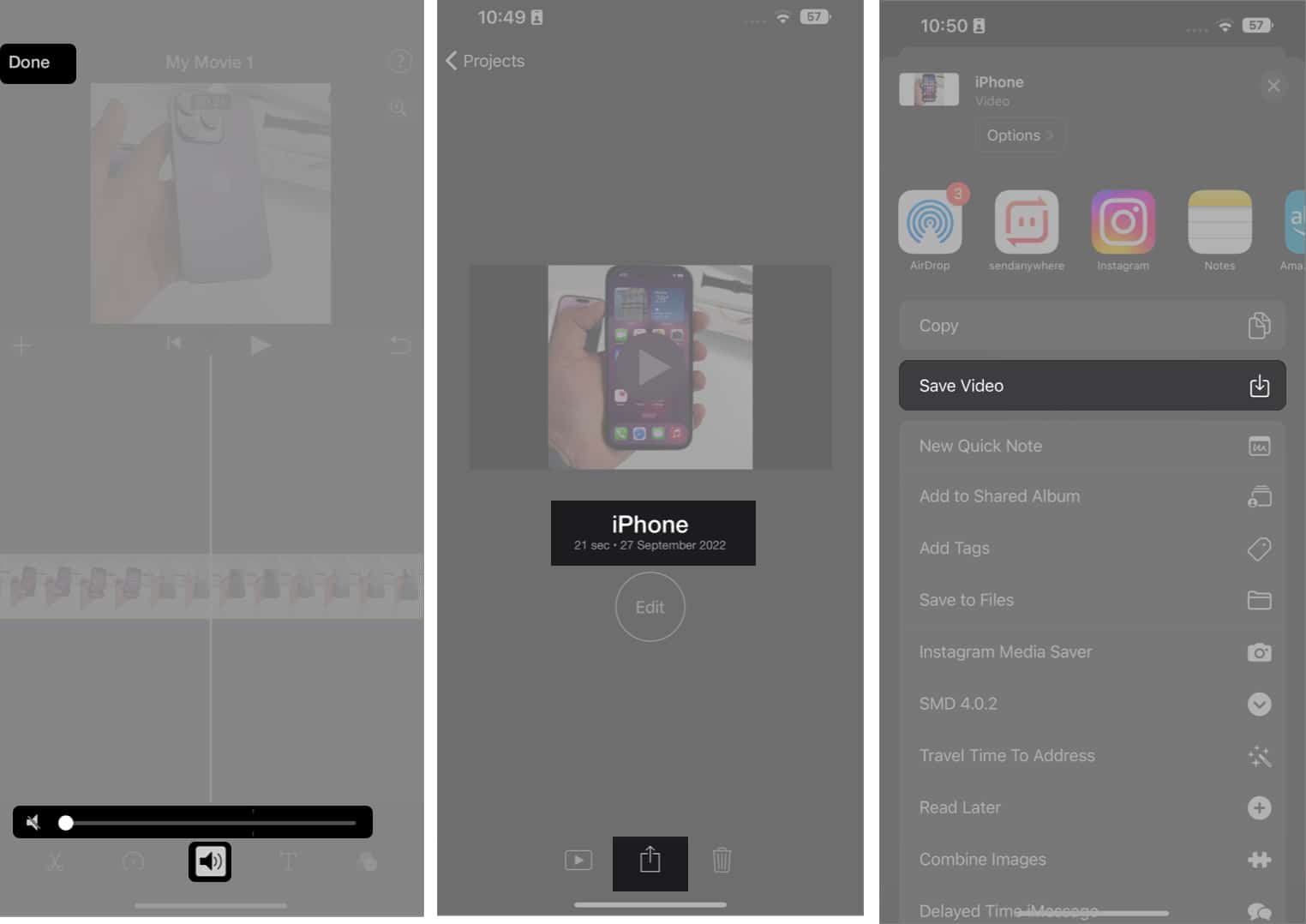
  6. Tap theΒ speaker iconΒ and drag the slider toΒ 0%.Β 
  7. TapΒ DoneΒ at the top left corner.Β 
  8. To rename the Video, tap theΒ file nameΒ above the Edit button and make the necessary changes.Β Β Β 
  9. NowΒ tap theΒ Share button,Β thenΒ Save or Share VideoΒ toΒ export it. Once the progress bar is complete,Β selectΒ Save VideoΒ to download the Video without the Audio.
    How to remove sound from video through imovie on iphone 1

ToΒ mute the entire Video, youΒ don’tΒ need toΒ split the clip. Simply tap the speaker icon and set it to 0%.Β These steps areΒ more or lessΒ the sameΒ for third-partyΒ video editor apps on iPhone.

Remove Audio From an iPhone Video Using Online Tools (No App Needed)Β 

Don’tΒ want to install appsΒ on your iPhone? You can mute a video online usingΒ popular tools like VEED.io,Β Clideo,Β Kapwing, etc.

  1. Open SafariΒ or anyΒ browser you like.Β 
  2. Go to an online video editor.Β Here, I am usingΒ Clideo.Β 
  3. Tap theΒ plus signΒ to upload your Video.Β 
  4. Look for aΒ SpeakerΒ orΒ AudioΒ optionΒ and drag the volume slider to 0%.Β 
  5. Download the muted Video.

Many online video editors offer noise reduction and audio extraction features, which are helpfulΒ for professional editing.Β However, uploading can be slow, depending on your internet connection, and it may add watermarks.Β 

How to Restore the Audio Removed from the Video on iPhone

If you want to restore theΒ AudioΒ you just removed from the Video for whatever reason, you can. However, it only applies if you have used theΒ Photos app.

  1. OpenΒ the PhotosΒ app on your iPhone.Β Β Β 
  2. Select theΒ VideoΒ youΒ removedΒ theΒ Audio from.Β Β 
  3. TapΒ EditΒ at theΒ bottomΒ of the screen.Β Β Β 
  4. Then tapΒ RevertΒ at theΒ topΒ right corner.Β Β Β 
  5. SelectΒ Revert to OriginalΒ to confirm your selection.Β Β Β 

The Audio is restored. You can now share the Video with Audio.

Mute Videos Within Seconds!

RemovingΒ backgroundΒ audio from a video onΒ an iPhoneΒ is incredibly easy once you know the correct method. Whether you want the fastest approach with the Photos app or a full sound-editing setup with iMovie, the iPhone gives you multiple options to fit your workflow.Β 

Which method do you like the most? Let us know in the comments below!

Explore with AI:

Add Igeekblog as a preferred source on Google

Darryl Dsouza
Darryl Dsouza

Consumer Technology and Motorcycles are the two things that excite Darryl the most. Why? Because Tech helps better people's lives, and solving people's problems related to tech is something he enjoys. And what about bikes, you ask? Well, drop a gear and disappear.

Articles: 111

FaceTime Like a Pro:

Get our exclusive Ultimate FaceTime Guide πŸ“š β€” absolutely FREE when you sign up for our newsletter below.

Leave a Reply

Your email address will not be published. Required fields are marked *