
FaceTime Like a Pro
Get our exclusive Ultimate FaceTime Guide 📚 — absolutely FREE when you sign up for our newsletter below.

FaceTime Like a Pro
Get our exclusive Ultimate FaceTime Guide 📚 — absolutely FREE when you sign up for our newsletter below.


Master your iPhone’s Calculator app with these essential tips and tricks!

 ByJignesh Padhiyar and Ava Biswas
The Calculator app on your iPhone might look simple, but it’s packed with hidden tricks that can make your life a lot easier, especially after the iOS 26 update. You can now crunch quick math, convert units, or tackle advanced equations. In this guide, we’ll share some of the best iPhone Calculator tips and tricks you should know about and use to get the most out of the app.
Oops, hit “3720” instead of “3702”? No worries! With iOS 26, the Calculator app got back the C/AC button that was missing in the iOS 18 redesign. Now, you can use:

So instead of restarting your whole calculation, just backspace or hit C to get back on track.
Need to solve a big equation? Thanks to the Math Notes feature, you’ll no longer have to perform lengthy calculations. Powered by Apple Intelligence, Math Notes simplifies calculations like never before. Let’s see how to use it:
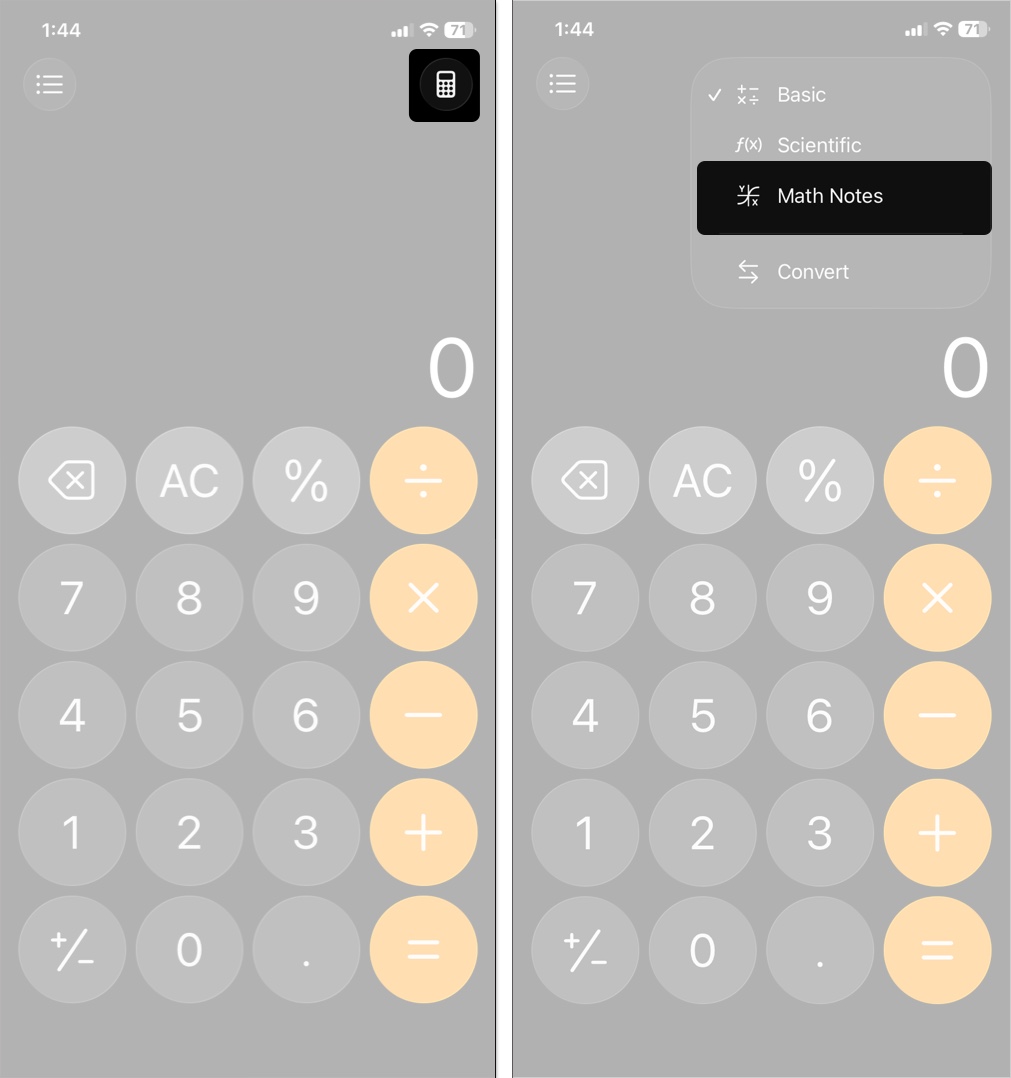
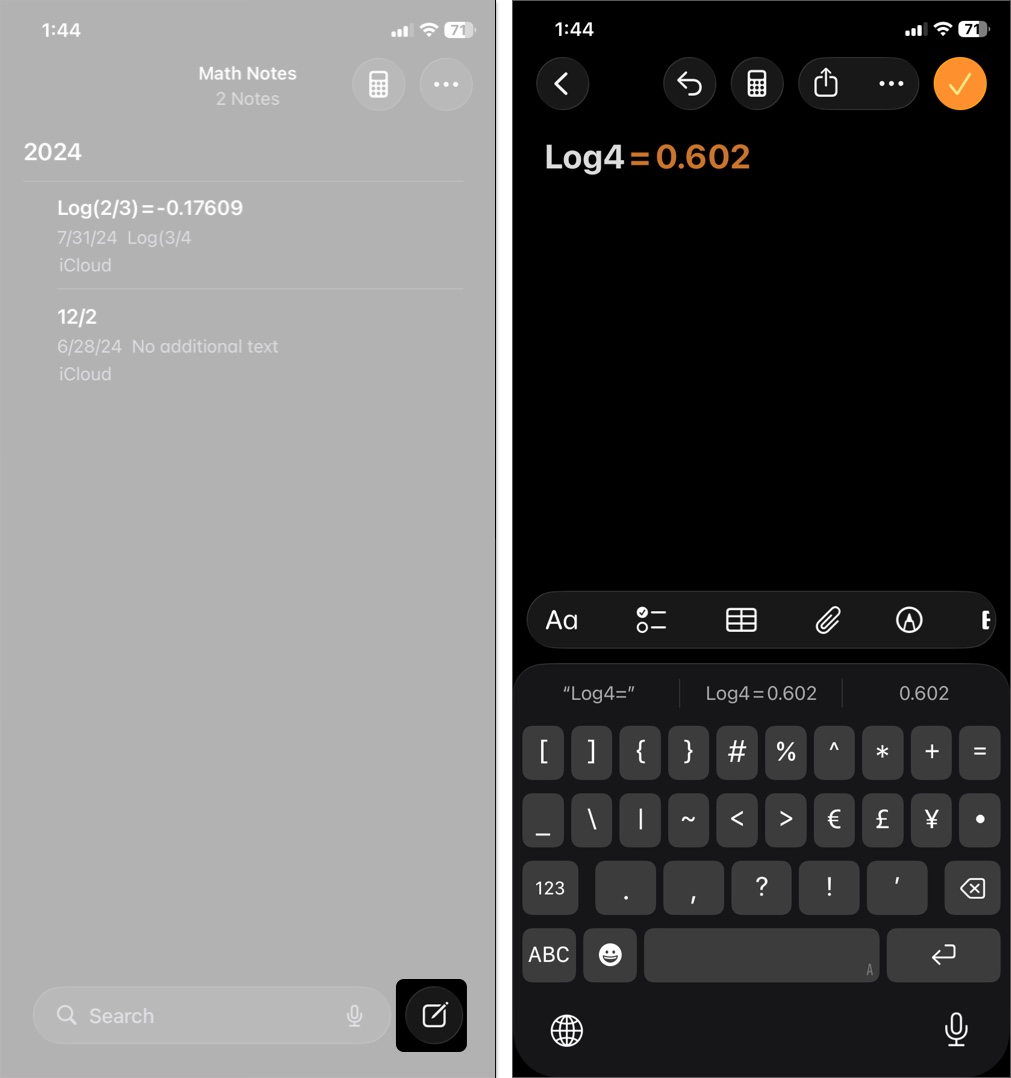
Math Notes also supports variables and 3D graph equations in iOS 26. The best part is that all your calculations are saved on iCloud in the Notes app for easy reference.
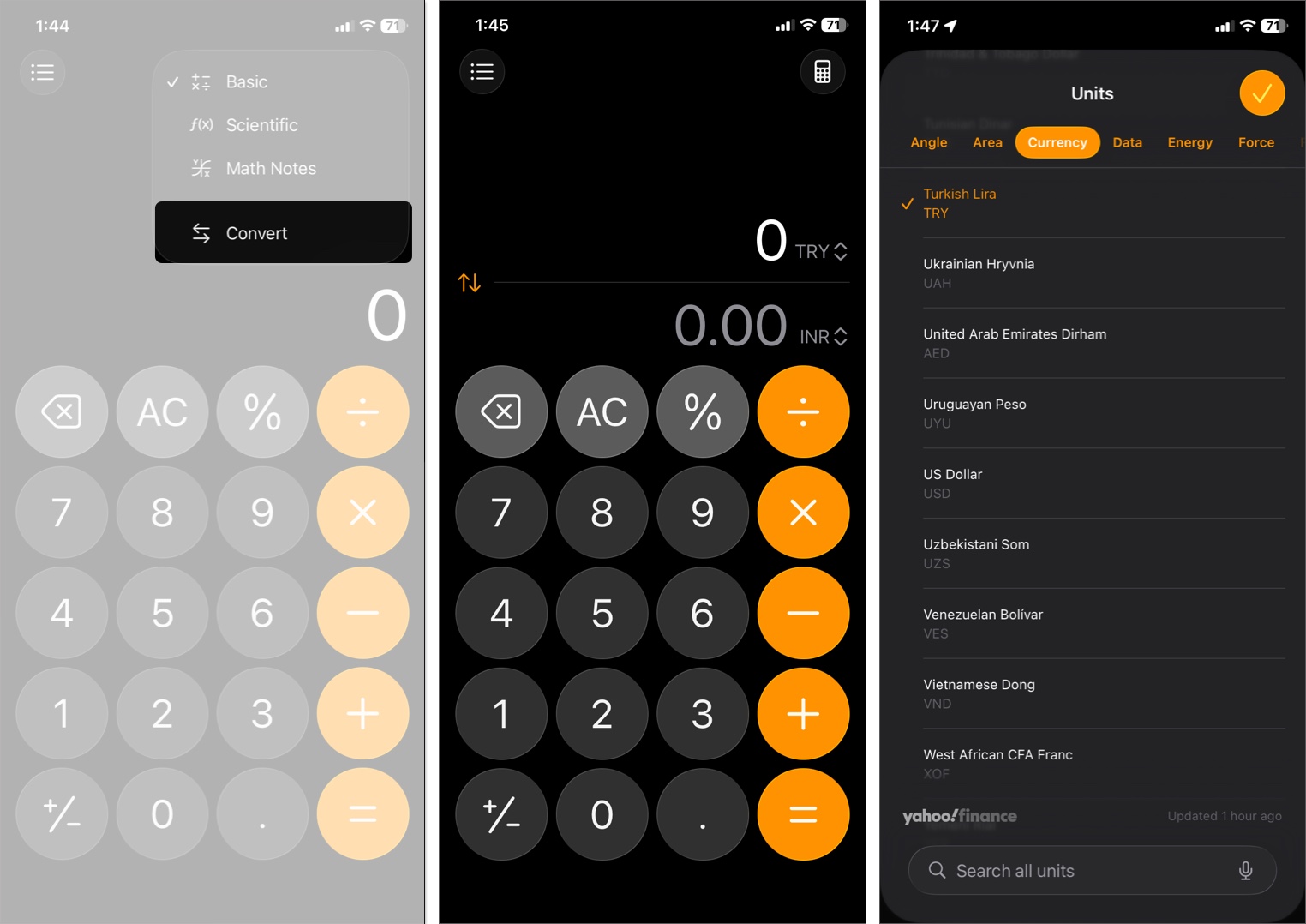
You can also do unit conversion within the Calculator app. This enables you to easily convert between different units of measurement. Whether you need to convert length, area, temperature, currency, or other units, this feature makes it simple and quick.
In the case of currency conversion, rates are updated in real-time, backed by Yahoo Finance.
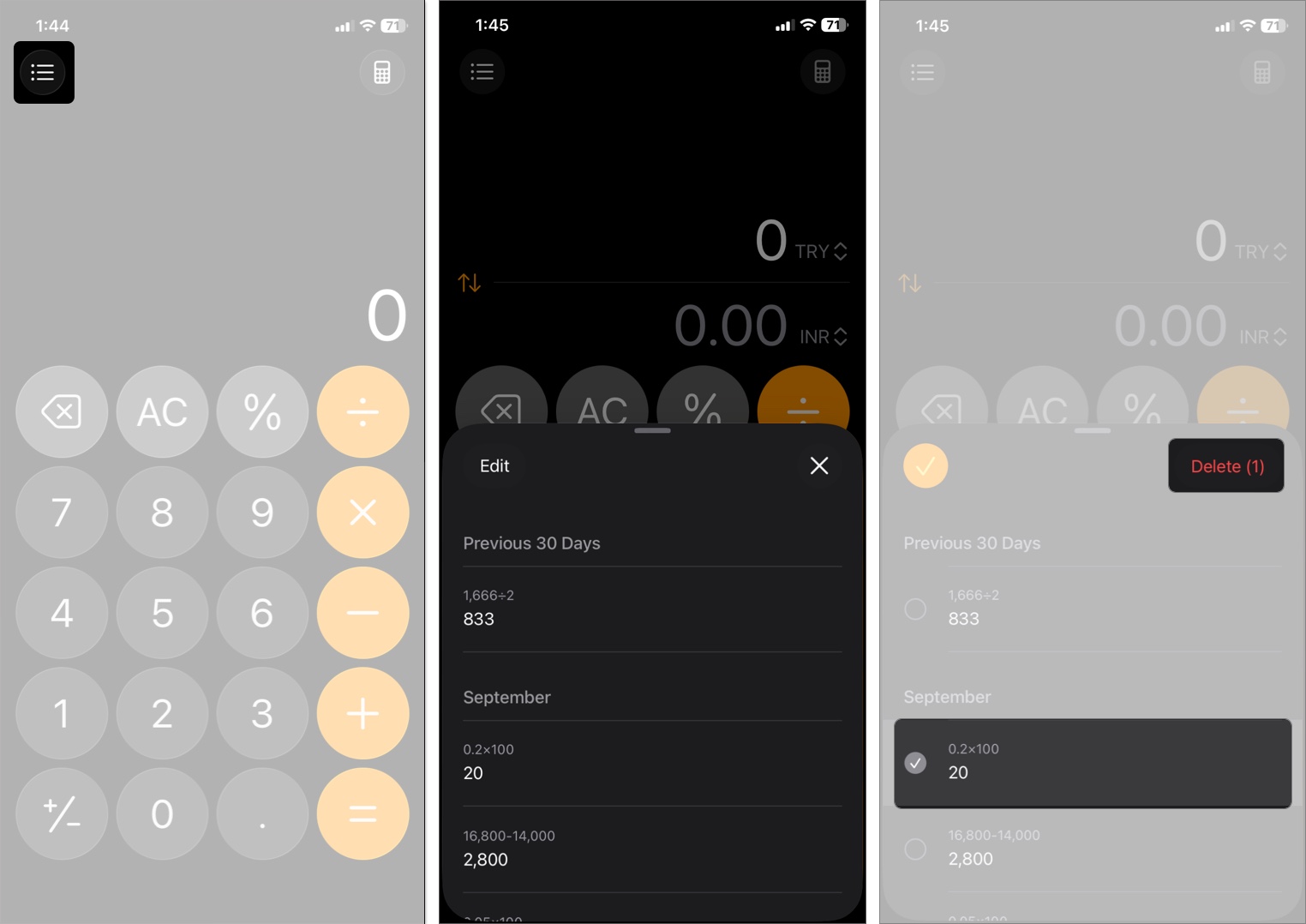
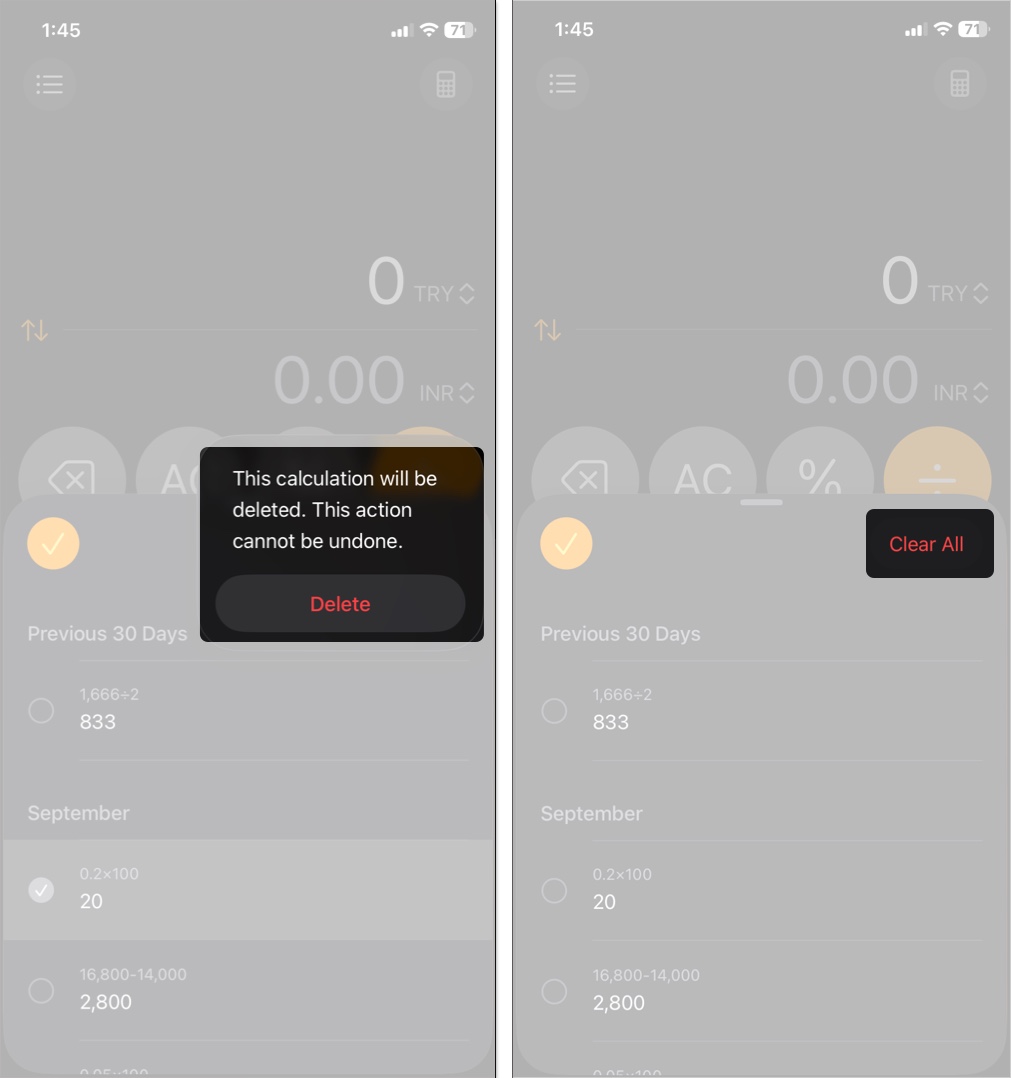
Viewing calculation history lets you keep track of all your previous calculations and easily refer to them later. This feature is especially useful for students, teachers, and professionals who need to keep a record of their calculations.
Apple offers a built-in scientific calculator in its Calculator app to help you with scientific calculations. Here’s how to access it.
If you’re running iOS 18 and later, open Calculator, tap the calculator icon, and select Scientific. You’ll now see new options like trigonometric functions, logarithms, and more on your screen.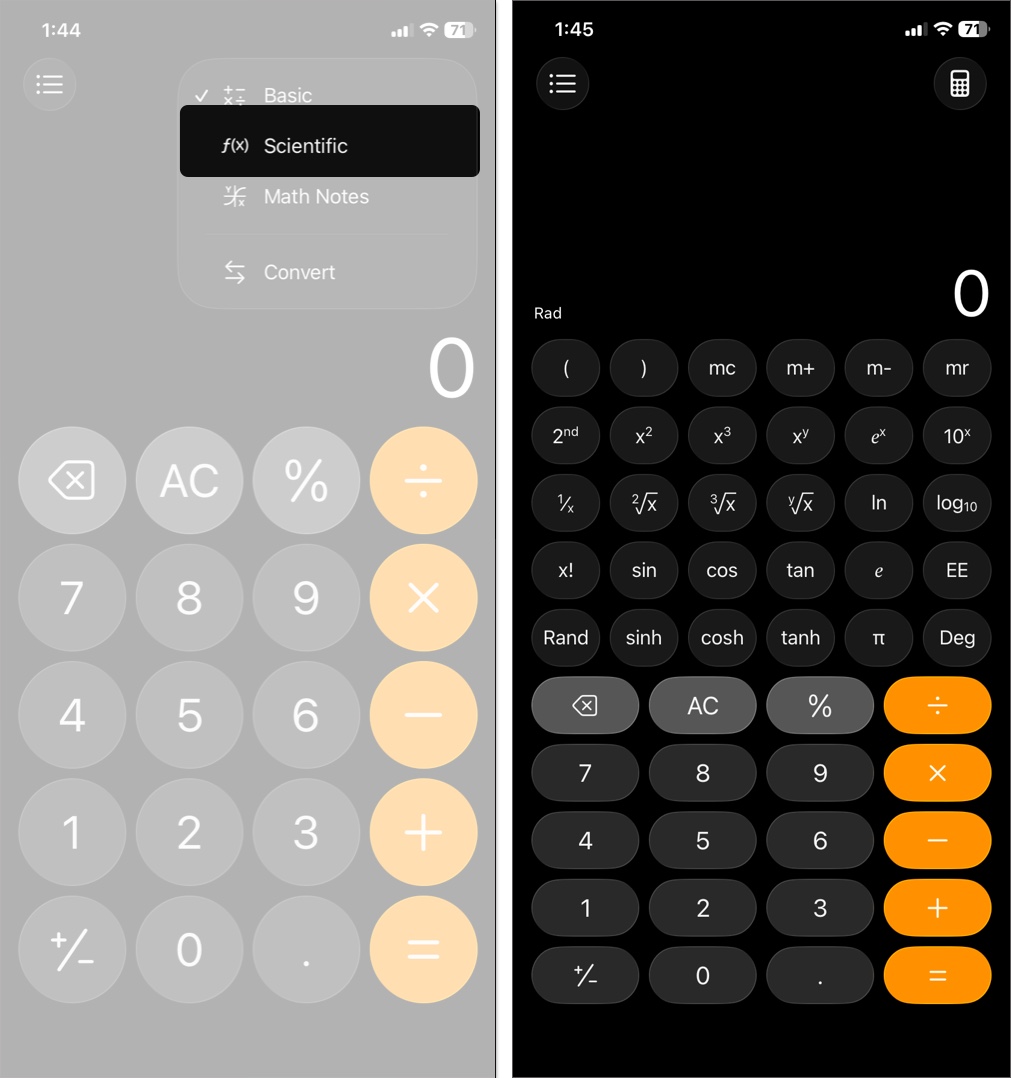
In older iOS, rotate your iPhone to landscape orientation, and you’ll see a bunch of function keys. To reveal more options, tap the 2nd button, and you’ll see some options being replaced by new ones. Tap the same button again to get the old options back.
Instead of opening the calculator app to check the result of your last calculation, you can access it quickly from the Control Center. But before you do, ensure the Calculator is added to the Control Center. Follow the steps below:
Once it’s added, you can proceed with the next step.
Doing so will copy the last result from the calculator to your clipboard.
While using the Scientific Calculator, you can generate a random decimal number. Tap Rand, and you will see a random decimal number on your screen. You can continue pressing the button for more random numbers.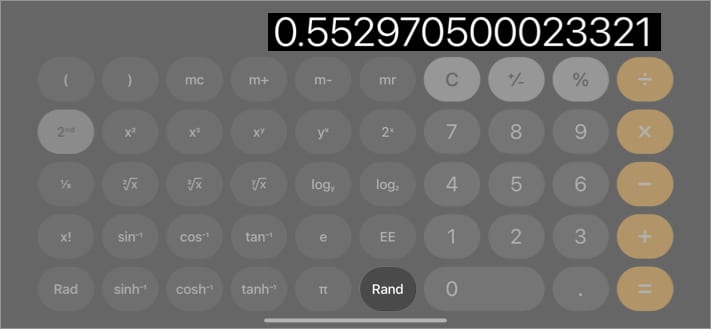
Besides copying your last results, you can also copy the current numbers from the Calculator app. All you have to do is long-press the number you want to copy and tap on copy/paste. The paste option can also be initiated when you tap and hold on the blank screen.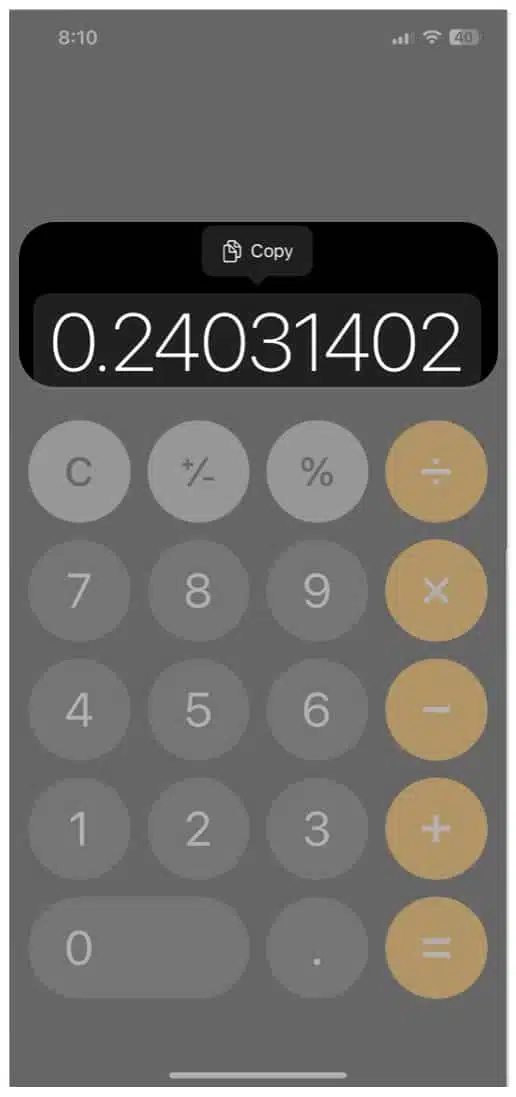
The voice assistant Siri was launched to help you with your everyday activities. If you want to do some quick calculations, then Siri can assist you.
Wake Siri and ask it to do any calculations.
Eg, What’s 4 times 14 or What’s one-third of 45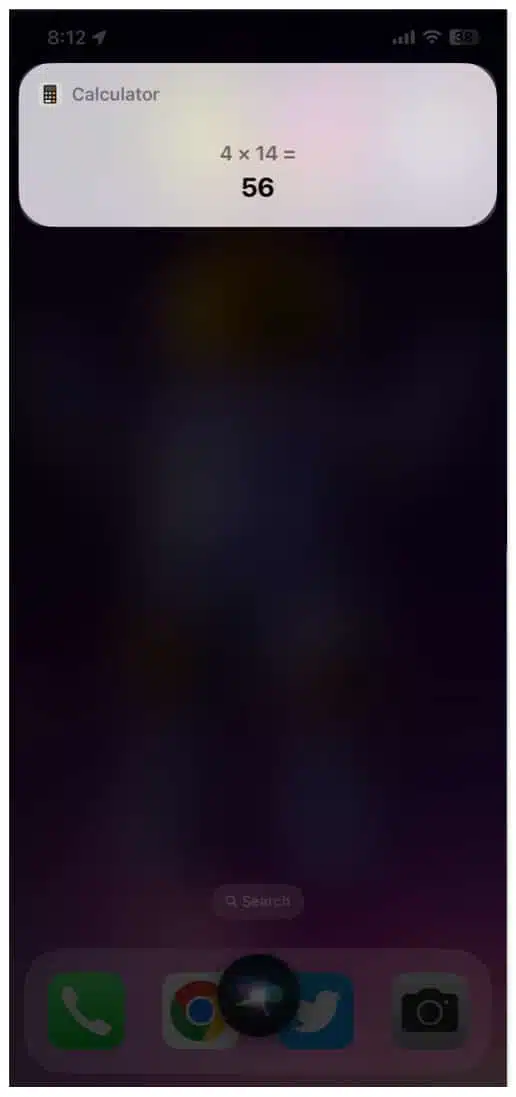
The answer will be displayed instantly.
If Siri is your assistant, then Spotlight should be ‘Assistant to the regional manager.’ Apart from making a quick search, you can use Spotlight to do small activities such as setting a timer, or alarm or even performing instant calculations.

Once you type the problem, the sum will be shown instantly. You can either copy-paste it or move on with your life after getting the solution (mathematical ones, not real-life problems).
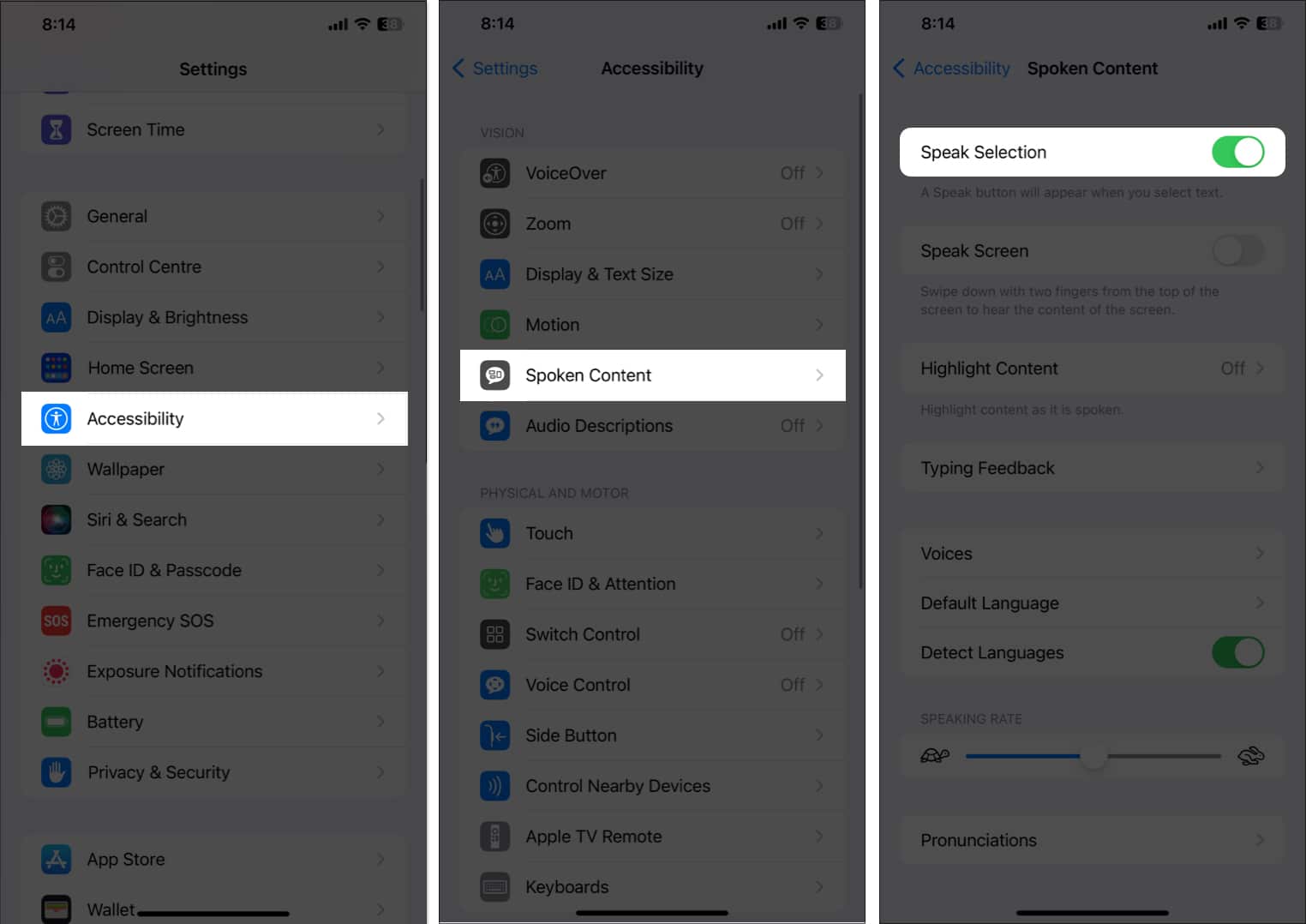
For those who have vision problems or prefer to hear the numbers read aloud, the Calculator app has an option for that. Here’s how to enable it:
There is always an instance where you’d want to calculate a particular percentage of your bill as tips, but your poor mathematical skills will become a villain. Struggle no more, as you have got your iPhone, and it is equipped with a great Calculator app.
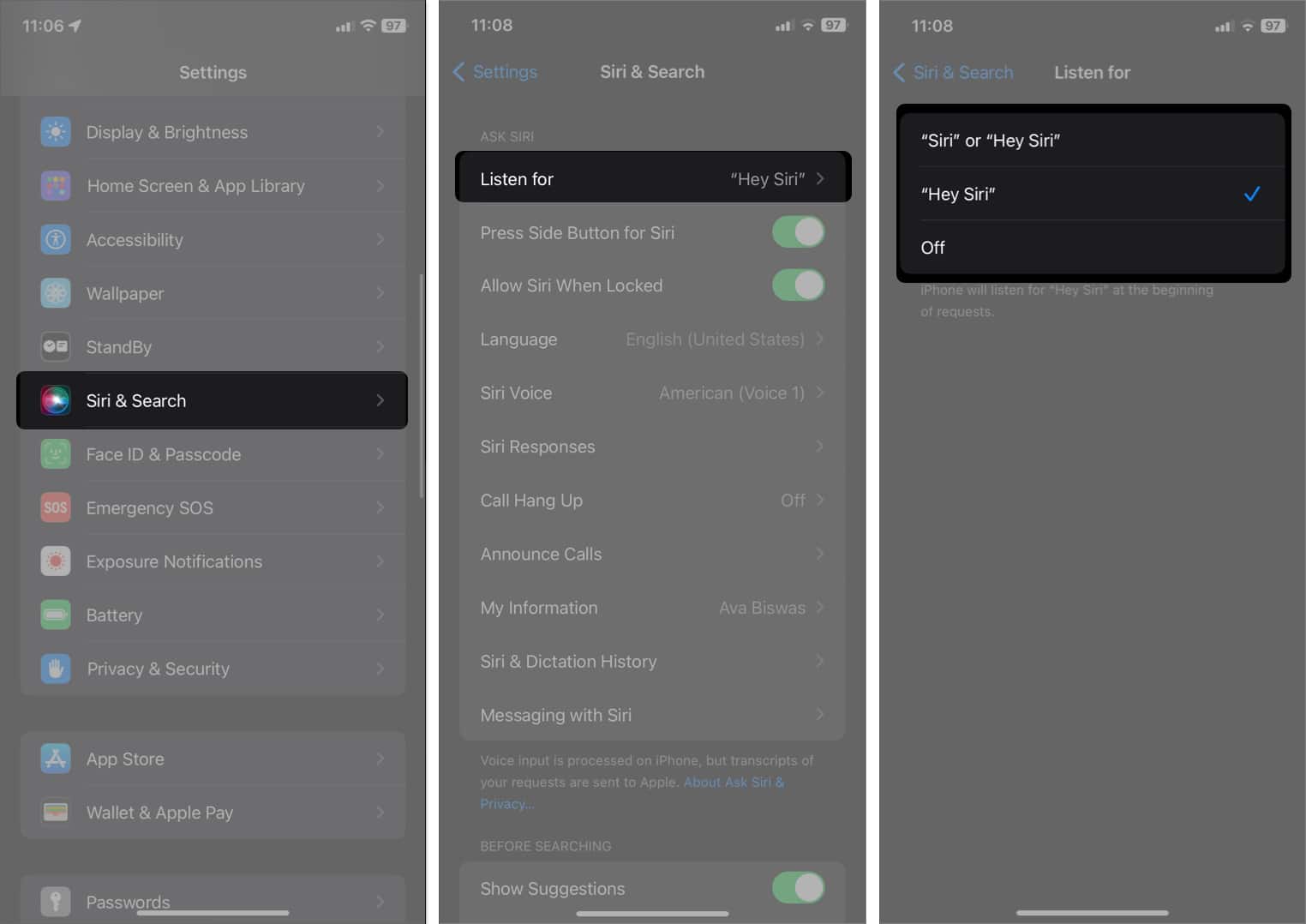
When you need help, you can use Siri, your voice assistant. To calculate tips on your iPhone, follow these steps:
Wake Siri and ask, “Hey, Siri. What’s a 20% tip on 100 dollars?”
Siri will display a Calculator card with the tip amount and the total amount to be paid. You can also try similar phrases to calculate tips using Siri.
Even in my testing, I found it hard to make Siri do this simple trick. If you are facing the same issue, it could be because tipping might not be a custom in your region; hence, Siri was not programmed to show you results accordingly. Regardless, you can still use this feature. Here’s how:

If you have an Apple Watch, then calculating tips is much easier.
You will see the total amount, including the tip.
That’s it!
So, these are some of the finest iOS calculator tips and tricks that you must try on your iPhone. Do you know any other tricks about the calculator app that aren’t included in our list? Do let us know in the comments, and we will surely add it to our list if it works accurately!











