
FaceTime Like a Pro
Get our exclusive Ultimate FaceTime Guide 📚 — absolutely FREE when you sign up for our newsletter below.

FaceTime Like a Pro
Get our exclusive Ultimate FaceTime Guide 📚 — absolutely FREE when you sign up for our newsletter below.


Don’t have access to Wi-Fi for an iOS update? This guide shows how to download iOS updates using cellular data on your iPhone.
Updating your iPhone to the latest iOS version is important for security, performance, and new features. Normally, Apple recommends downloading iOS updates over Wi-Fi because the update files are large. However, there are situations where Wi-Fi isn’t available or too slow, and you may want to update your iPhone using cellular data instead.
In this guide, you’ll learn how to download over-the-air iOS updates using mobile data on iPhone or iPad, when it works, and what to do if the option doesn’t appear.
Yes, newer iPhones running iOS 15 or later allow you to download iOS updates over the air using cellular data, especially on 5G connections and when certain settings are enabled.
Apple added this flexibility so users can update their devices even when Wi-Fi isn’t available. This is especially useful when you begin downloading an iOS update using Wi-Fi but lose connection in the middle. The download will resume over the cellular connection.
If Wi-Fi isn’t available, follow these methods to install over-the-air iPhone software updates. If you have an iPhone that supports 5G (iPhone 12 or later), you can install the iOS update via cellular data without employing any workarounds.
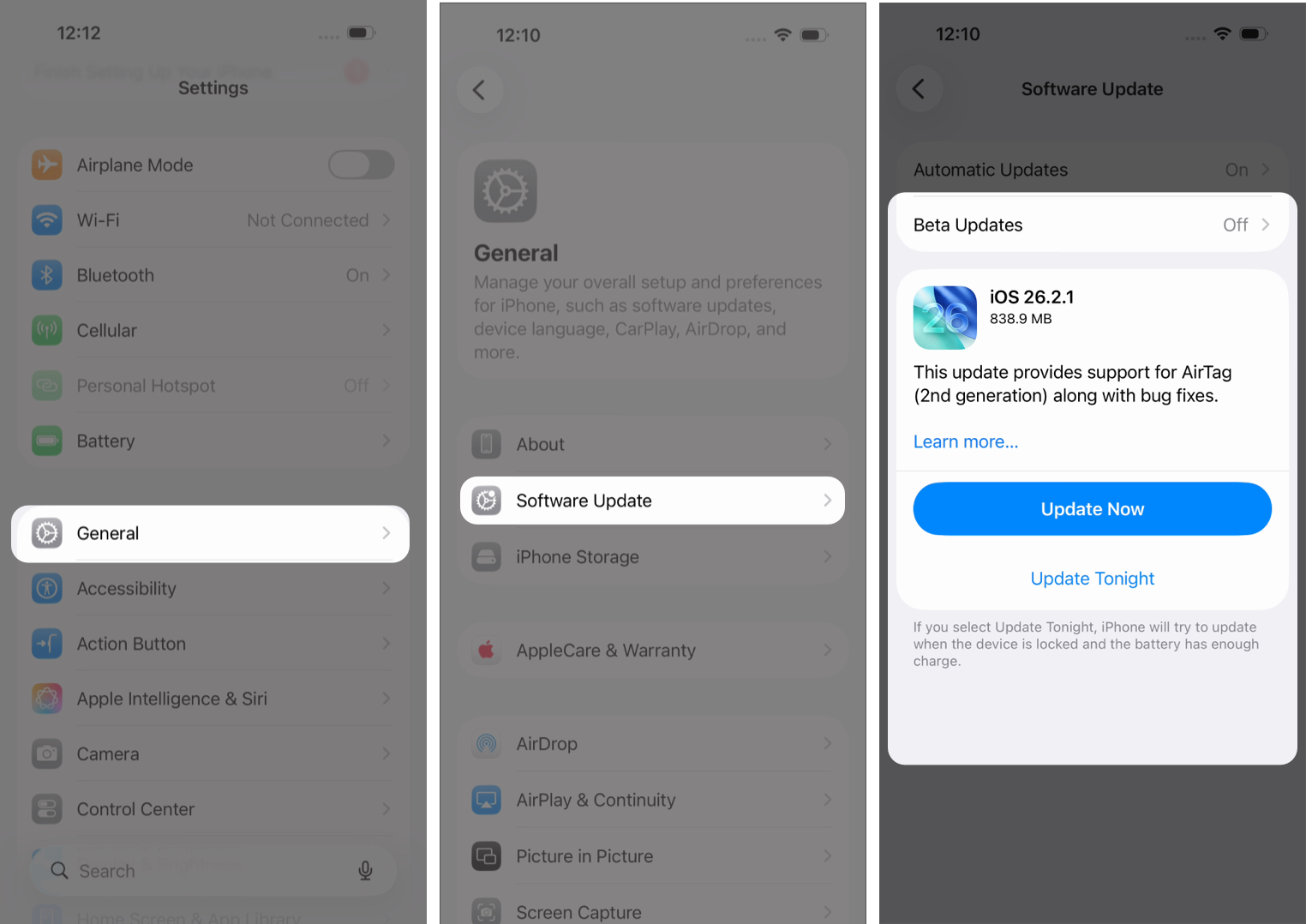
Ensure you have an active cellular plan. These same steps will also be applicable for 4G, LTE, or 3G networks.
However, sometimes it gets restricted due to data limits and carrier settings. To download a large file, all you need to do is:
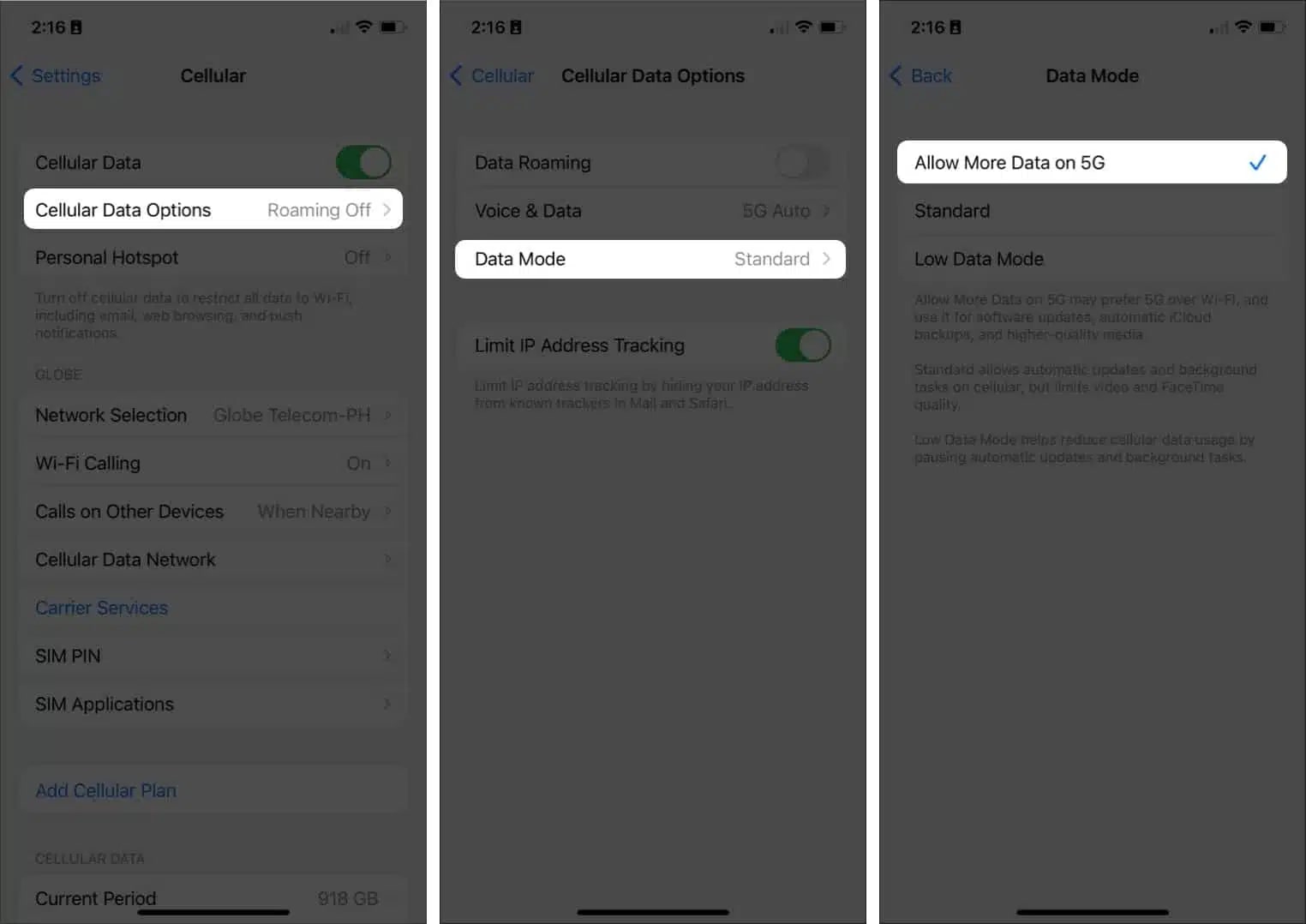
This will allow iOS updates, automatic iCloud backups, and FaceTime in higher quality over cellular. Now, try installing the update again.
Before downloading an iOS update using cellular data, there are a few important things you should keep in mind to avoid interruptions or unexpected data usage.
Taking a moment to check these factors can help ensure your iOS update installs smoothly without interruptions.
If your iPhone won’t download the iOS update, don’t worry! A few simple checks can usually fix the issue.
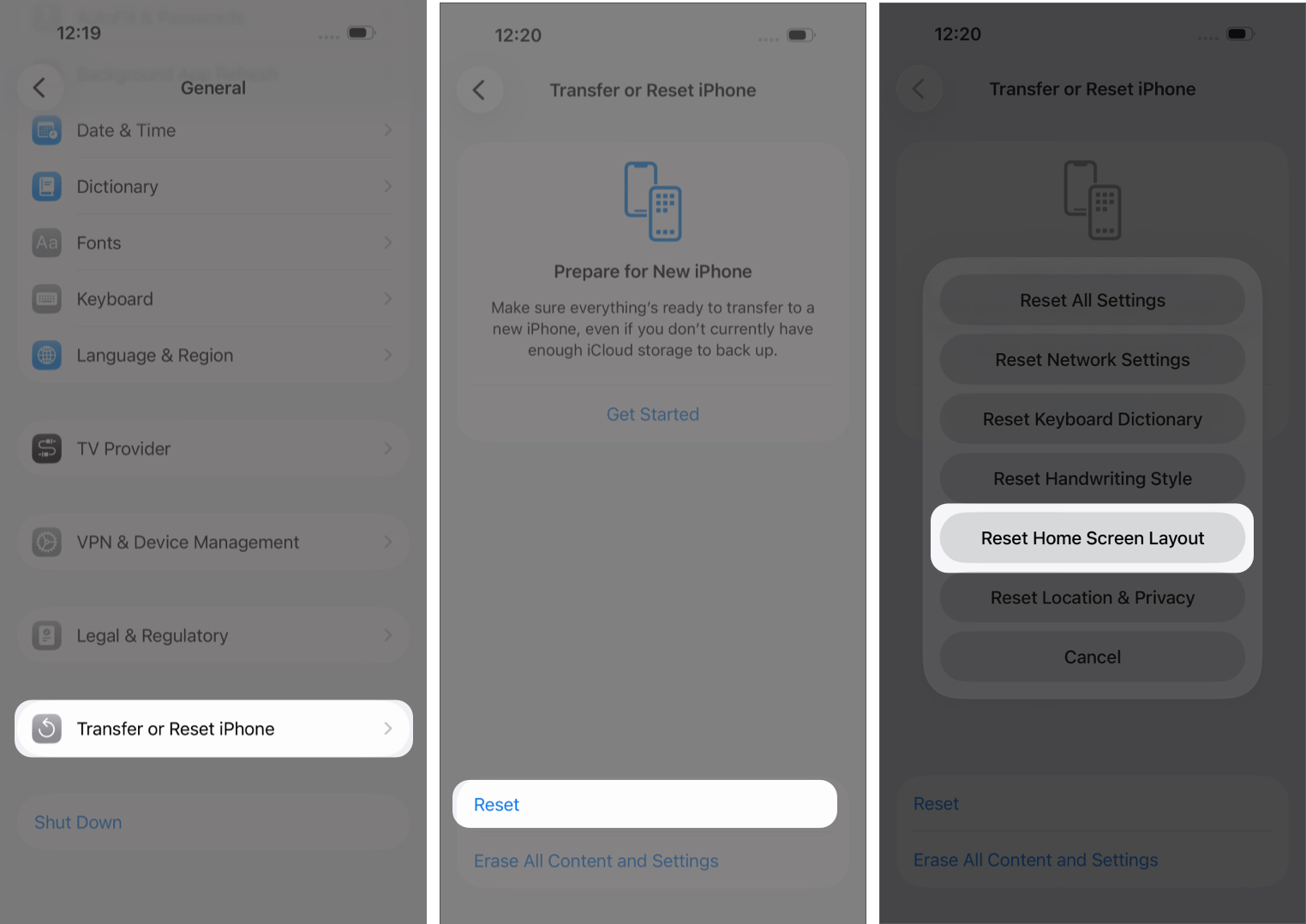
Temporary carrier restrictions or weak signal strength can block large downloads. Moving to a location with better coverage or trying again later may help.
If it still doesn’t work, Apple may be restricting downloads based on region, carrier rules, or network type. In that case, contact Apple Support for the best solution.
If cellular updates are blocked, you can:
Your iPhone treats hotspot connections as Wi-Fi. If nothing works, update your iPhone manually using your Mac or PC.
Downloading an iOS update using cellular data can be a convenient option when Wi-Fi isn’t available. With the right settings enabled and a stable mobile connection, you can keep your iPhone updated without waiting to connect to a wireless network.
Just remember to check your data limit, battery level, and storage space before starting the update to avoid interruptions. Stay updated, stay secure, and make the most of your iPhone!
FAQs
Yes, newer iPhones support iOS updates over cellular data, especially on 5G networks.
Possible reasons include data restrictions, unsupported iOS version, carrier limitations, and low storage.
Yes. A full iOS update can use several gigabytes of data.
Also read:












