FaceTime Like a Pro
Get our exclusive Ultimate FaceTime Guide 📚 — absolutely FREE when you sign up for our newsletter below.

FaceTime Like a Pro
Get our exclusive Ultimate FaceTime Guide 📚 — absolutely FREE when you sign up for our newsletter below.


A camera that shows a black screen usually means an app has claimed it or permissions are denied. Here is what causes it, how to fix the built-in camera, and what to try with an external webcam.
If your camera is not working on MacBook or is unavailable, it hinders your ability to FaceTime, connect with colleagues over video calls, and beyond. Thankfully, if it is not a hardware issue, you can most likely fix it on your own.
Let me show you 11 easy fixes and get your MacBook built-in camera working again.
Here are some of the common reasons why your Mac’s camera isn’t working properly:
Before we go to the troubleshooting tips, it’s essential to understand that Mac’s built-in FaceTime or FaceTime HD camera automatically turns on whenever you open an app that can use it. A green indicator light will glow beside the camera to indicate that your Mac is actively using your camera.
But each app also has its own dedicated settings that control the camera. Just open the app, go to the menu bar, select Preferences, then look for Video or Camera settings. Now that we have taken care of the basics, let’s go through some quick fixes for Mac camera not working.
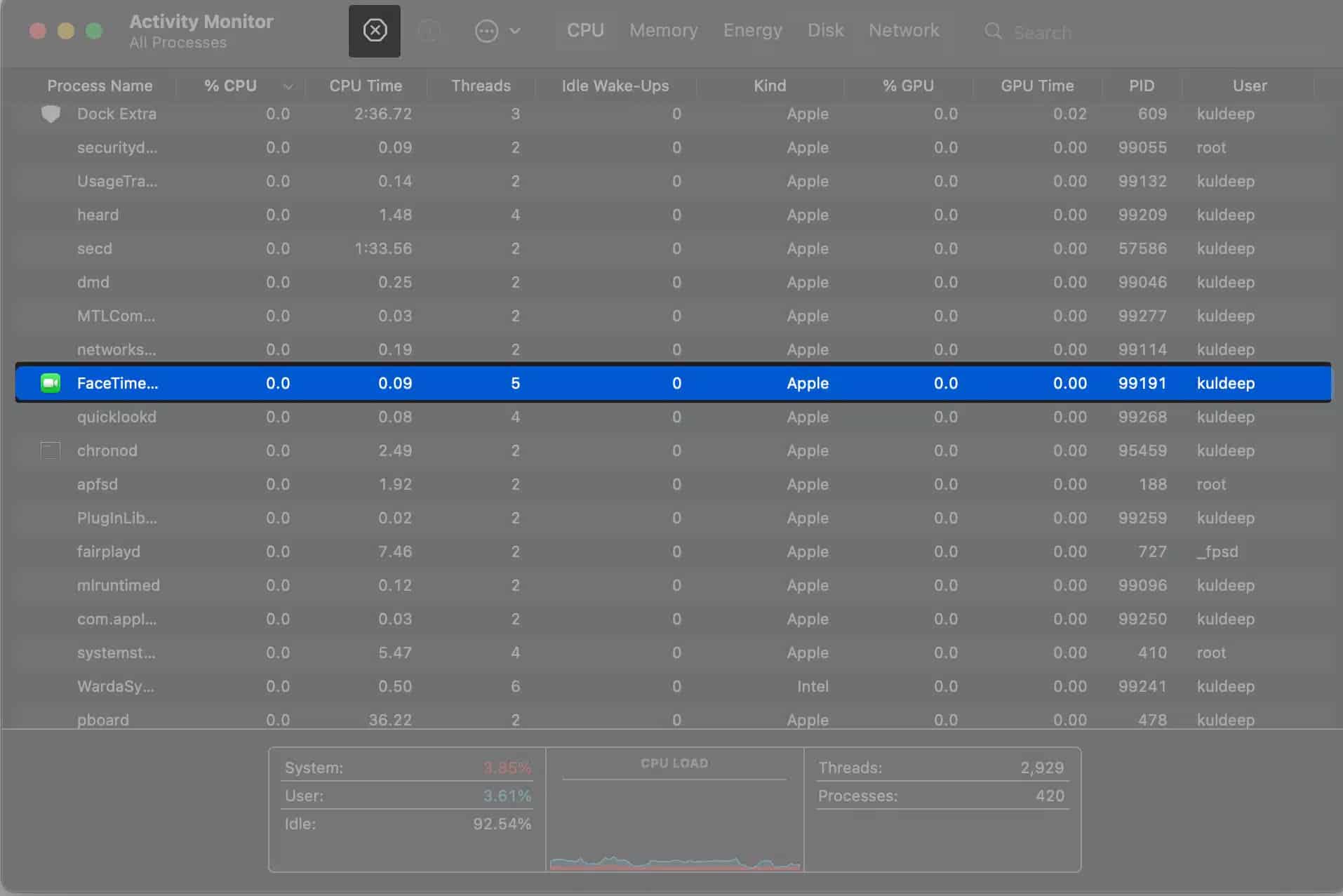
If you are facing issues with the MacBook camera on apps like FaceTime, Skype, Photo Booth, Zoom, etc., force quit these apps.
Note: This will close the apps without saving any pending work. So, save your work before force quitting apps.
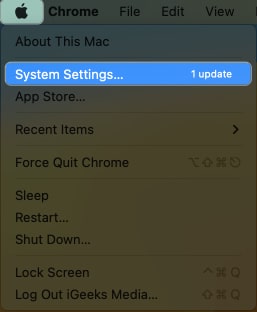
Click the Apple logo at the top right → choose Restart. Now, try using your Mac’s camera. It should work.
Tip: If a simple restart does not fix the problem, try to start your Mac in Safe Mode and see if the camera works.
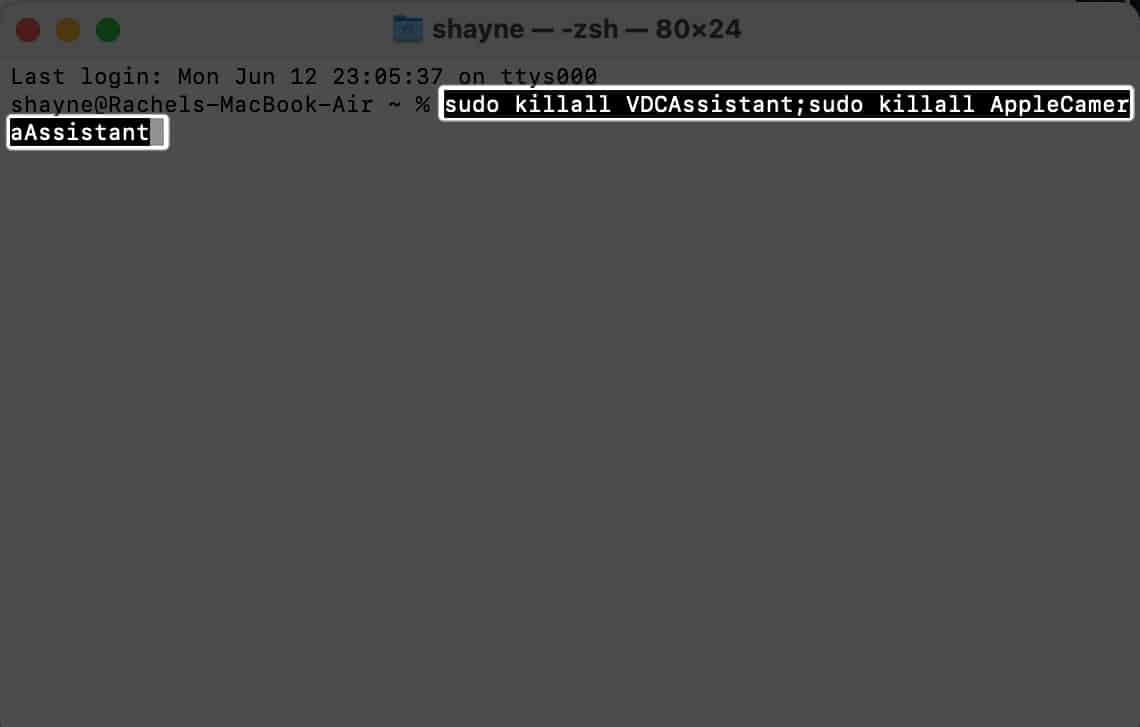
Additionally, you may also open Terminal and run this command to kill camera assistants.
sudo killall VDCAssistant;sudo killall AppleCameraAssistantMake sure that your Mac is running the latest OS. Software updates fix bugs and glitches that may prevent built-in apps and features from working desirably.
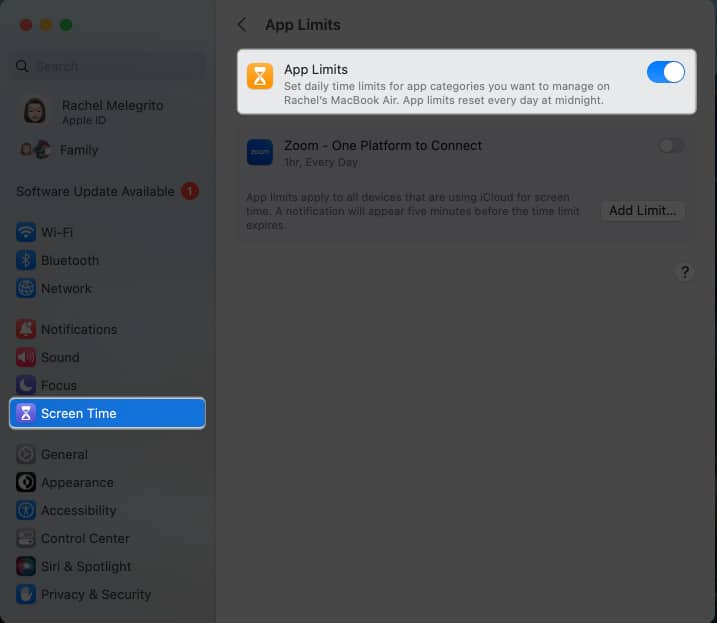
If you’re using Screen Time, it’s possible that the feature is either restricting you from using the camera or the app you want to use doesn’t have remaining time available. To check:
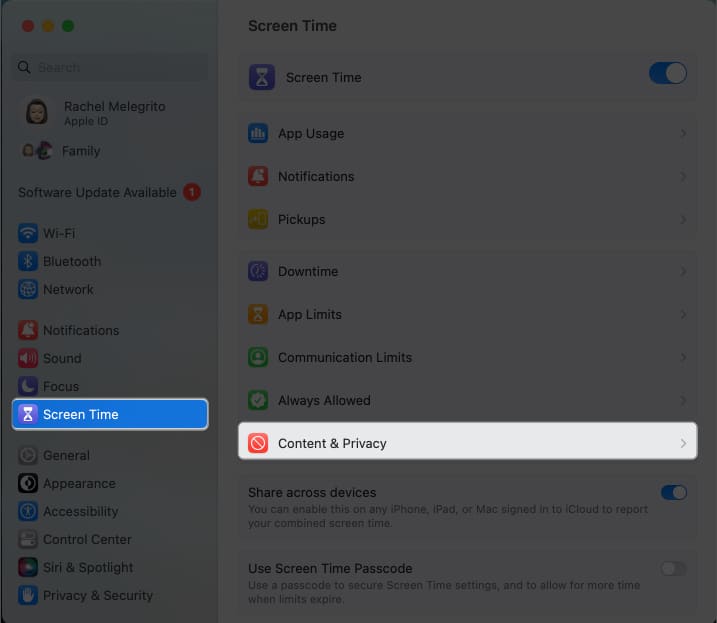
As an added security feature that came with macOS Mojave, you can now choose which specific apps can access your Mac’s built-in camera. It’s possible that you can’t access the camera on your Mac because it doesn’t have access.
To give the app access:
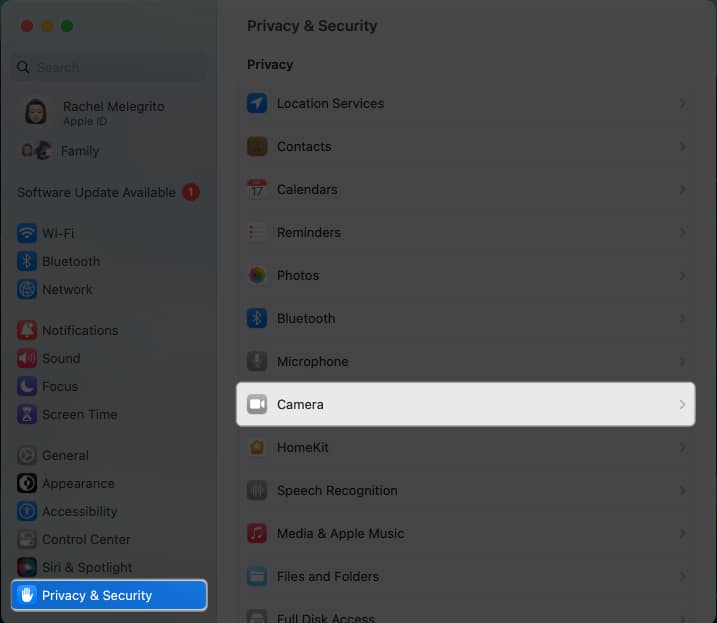
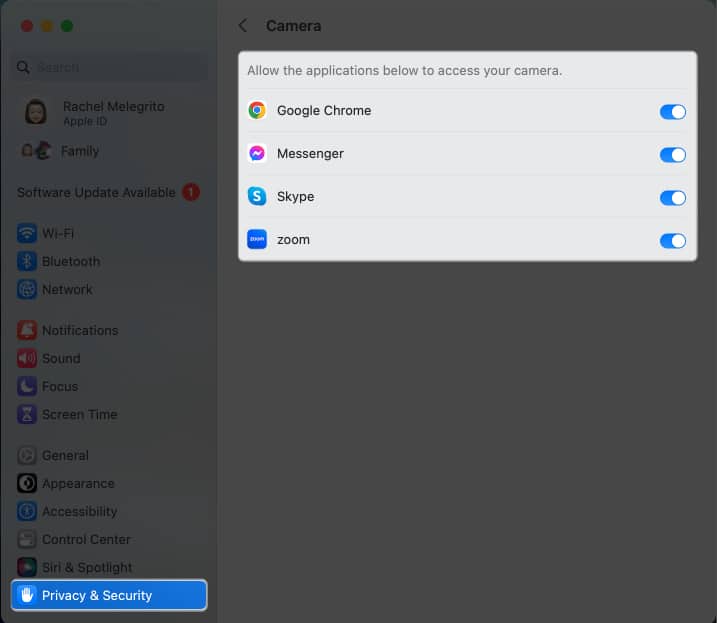
If you have more than one camera connected to your Mac, head to Preferences to see the app’s Camera settings and select Mac’s built-in camera.
Sometimes, the issue isn’t your Mac’s camera but an app. To check, open a different app that utilizes the camera, such as a video conferencing app, and see if everything works. If it does, then the issue is with the app and not on your camera.
If you installed an antivirus on your Mac, check its settings and ensure the software isn’t restricting apps from accessing your camera.
Creating a new user account may help you gain access to your Mac’s camera.
To do this:
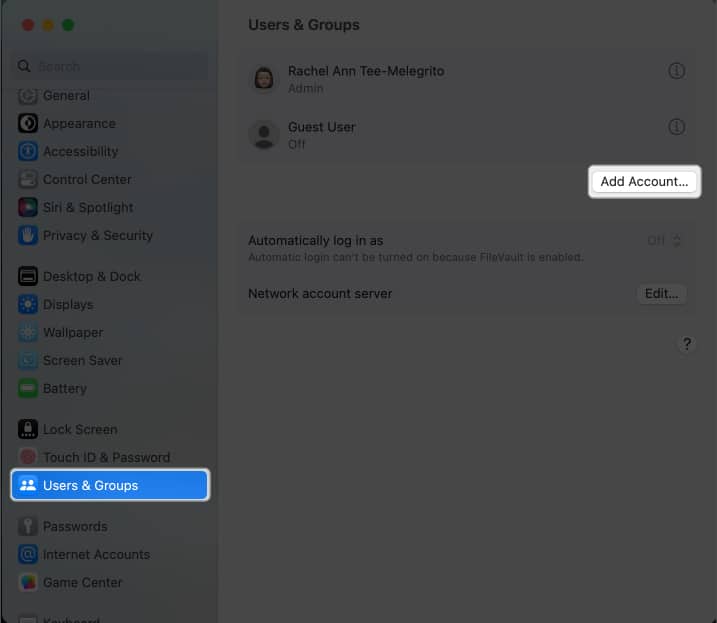
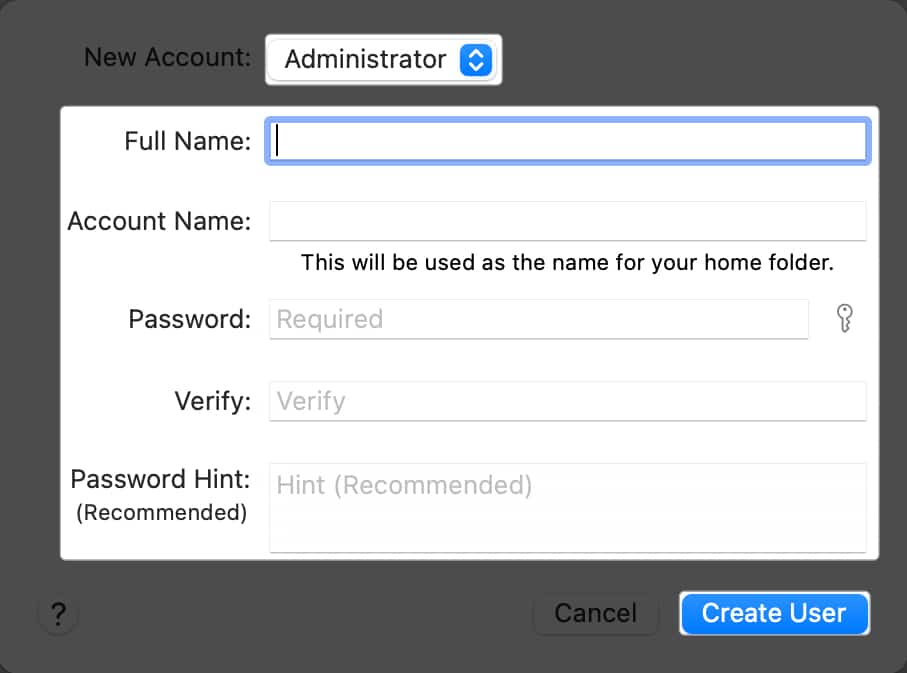
Check if you can access your MacBook’s camera using your new administrator account.
Here are different ways to see if there’s a hardware problem and what you can do with it.
Open an app that uses the camera, such as FaceTime. Check if the camera indicator light glows on your Mac. If not, it may be a hardware issue.
For your MacBook to use its camera, it’s crucial that it can detect it. To check:
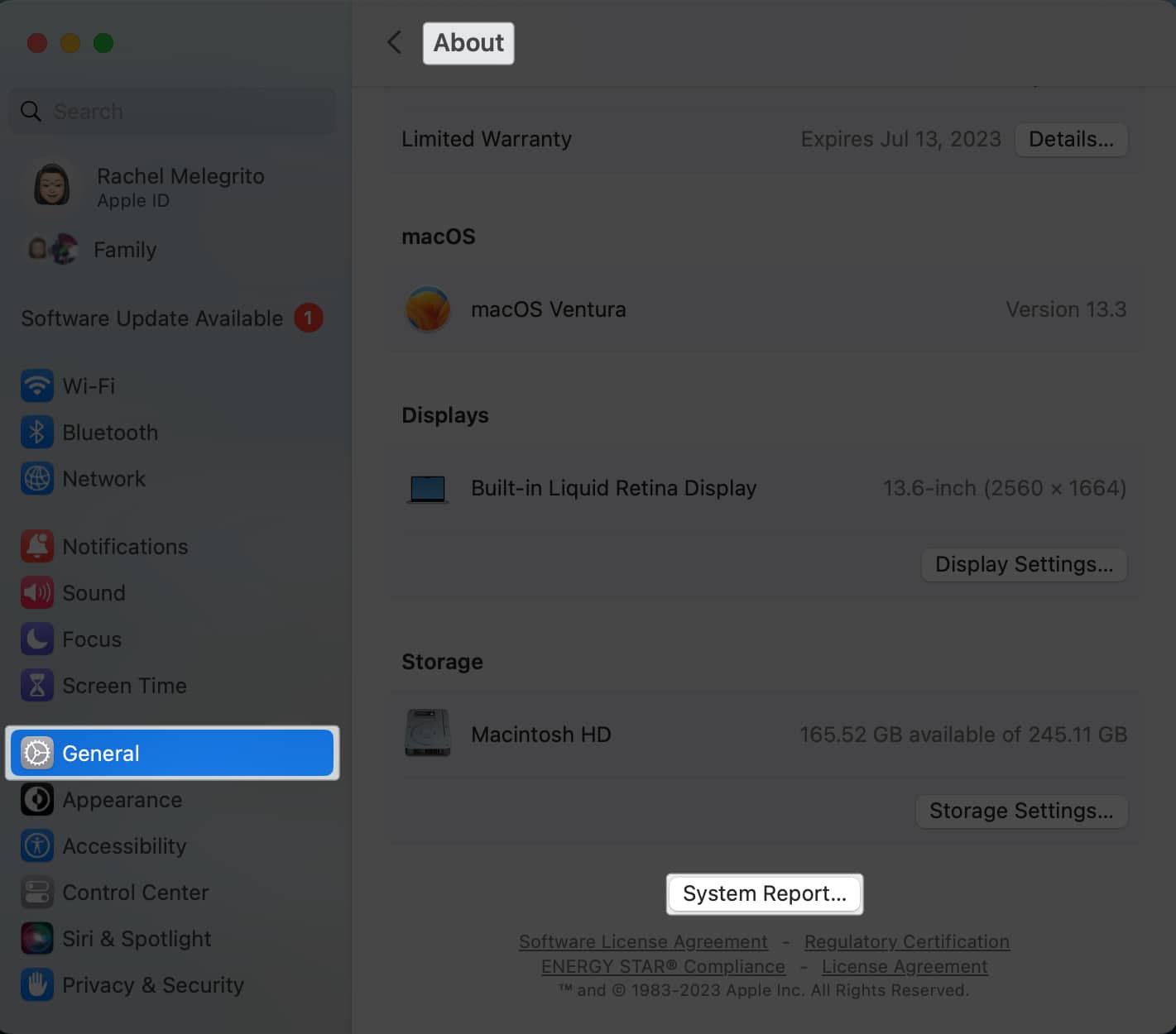
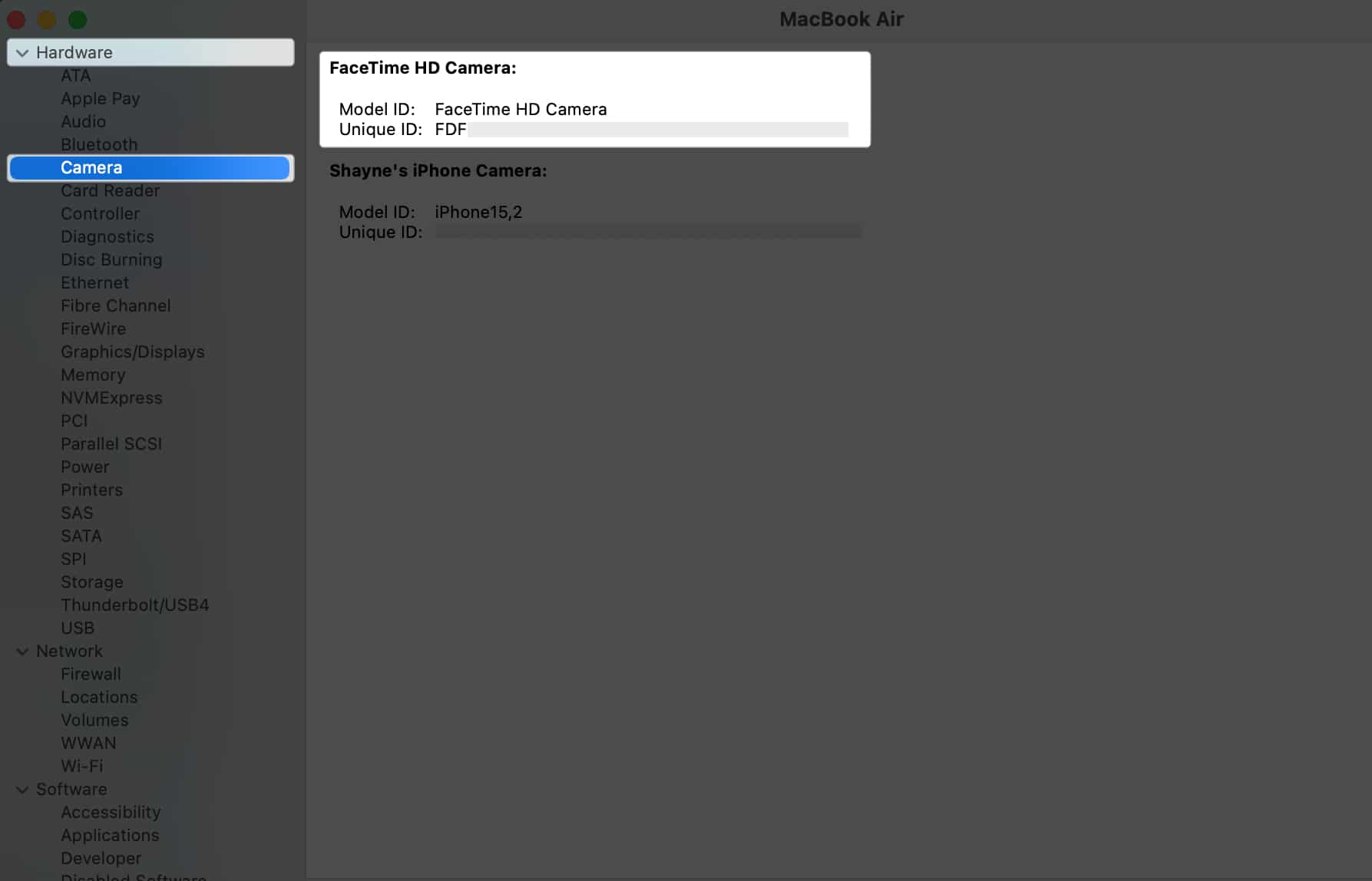
If you don’t see FaceTime HD Camera listed under Camera or its details, then your Mac may not be detecting its camera.
You may try resetting your Mac’s Camera in Terminal using the VDCAssistant Command. VDCAssistant is a process that runs camera controls. Sometimes, this process continues to work despite already closing the app that uses the camera. This may prevent any other apps from using the camera on your Mac. To reset it:
Running Apple Diagnostics can also help you identify which hardware component is the culprit behind the camera issue. Once you run Apple Diagnostics, you’ll see a report on your screen. If you see error codes beginning with N, this confirms that you have a problem with your MacBook’s camera.
You’d better go to the nearest Genius Bar or Apple Store for further help.
If you’re not using your Mac’s built-in cam, but are encountering problems with your external webcam, here are some potential solutions to help it work again:
Wrapping up…
Did any of the above solutions help you restore your MacBook camera’s function? If so, share your experience below!
Read more: