7 Best Ways to Use Your iPhone and Mac Together with Continuity Features
Use Continuity features to connect your iPhone and Mac, switch tasks seamlessly, share content instantly, and boost productivity across devices.
Key Takeaways:
- Continuity links your iPhone and Mac for smoother work by letting you continue tasks, share content, and use one device’s features on the other without extra apps.
- You’ll need the right setup to use Continuity including the latest iOS and macOS updates, the same Apple ID with two-factor authentication, plus Wi-Fi and Bluetooth turned on nearby.
- Set up Continuity in iPhone and Mac settings by turning on Handoff, Continuity Camera, and iPhone Mirroring, making sure both devices stay signed in and connected.
- Seven Continuity tools can speed up your workflow like using your iPhone as a Mac webcam, picking up emails mid-draft, and making cellular calls directly from your Mac.
- Fix common Continuity issues by checking connections updating software, restarting devices, or toggling Wi-Fi and Bluetooth; Apple Support can help if problems persist.
Apple’s Continuity features make your iPhone and Mac work together like a dream team. You can start a task on your iPhone and finish it on your Mac, or use your iPhone’s superior camera as a webcam for your Mac. These tools let you seamlessly switch between devices, share content, and boost productivity without any extra apps.
With the latest iOS 26 and macOS Tahoe updates, Apple has enhanced the Continuity experience with new tools like the Phone app and Live Activities. Here, I’ll share the seven best Continuity features to use on Mac and iPhone, how to set them up, and tips to make the most of them.
Table of Contents
- Prerequisites for Using Continuity Features
- How to Set Up Continuity Features on Mac and iPhone
- Top 7 Continuity Features to Boost Your iPhone and Mac Workflow
- Bonus: Even More Apple Continuity Features
- Quick Tips for Best Continuity Performance
- Troubleshooting Common Continuity Issues
- iPhone + Mac = Productivity Pro!
Prerequisites for Using Continuity Features
To ensure smooth Continuity between devices, your setup must meet these requirements:
- Devices and Software: Your iPhone and Mac need the latest iOS 26 and macOS 26 for all the newest features. Some tools, like iPhone Mirroring, require a Mac with Apple Silicon.
- Apple Account: Both devices must be signed in to the same Apple ID with two-factor authentication enabled.
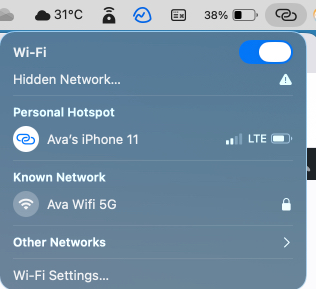
- Connectivity: Wi-Fi and Bluetooth must be enabled on both devices, and they should be within 30 feet (10 meters) of each other. For some features, such as Continuity Camera, your iPhone shouldn’t be sharing its cellular connection, and your Mac shouldn’t be using AirPlay or Sidecar.
- Hardware: Certain features have additional requirements. For example, Continuity Camera for webcam use needs an iPhone 11 or later, while Auto Unlock requires an Apple Watch with watchOS 3 or later.
Check Apple’s official support page for detailed system requirements to ensure compatibility.
How to Set Up Continuity Features on Mac and iPhone
Setting up Continuity is simple:
On iPhone
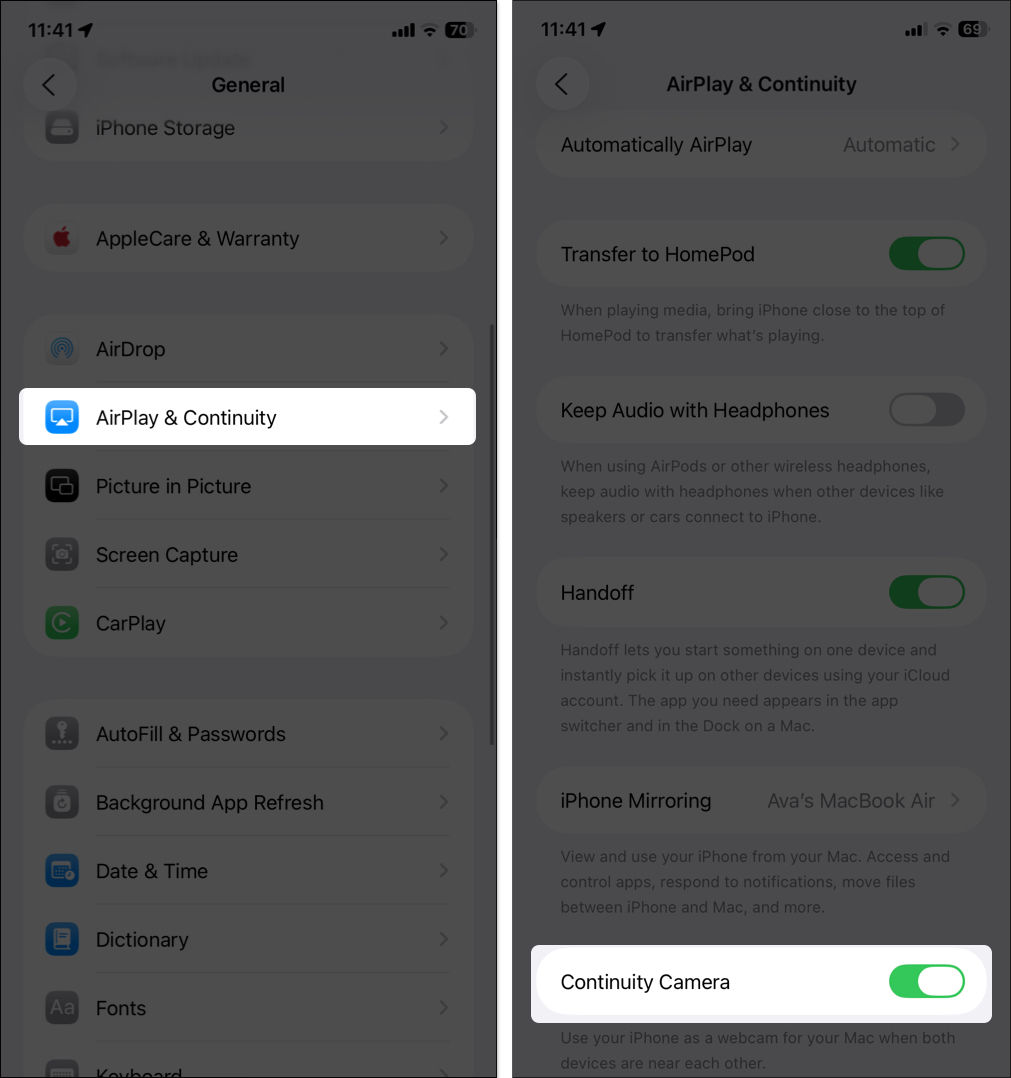
- Go to Settings > General > AirPlay & Continuity and toggle on Handoff.
- Make sure Continuity Camera is enabled.
On Mac
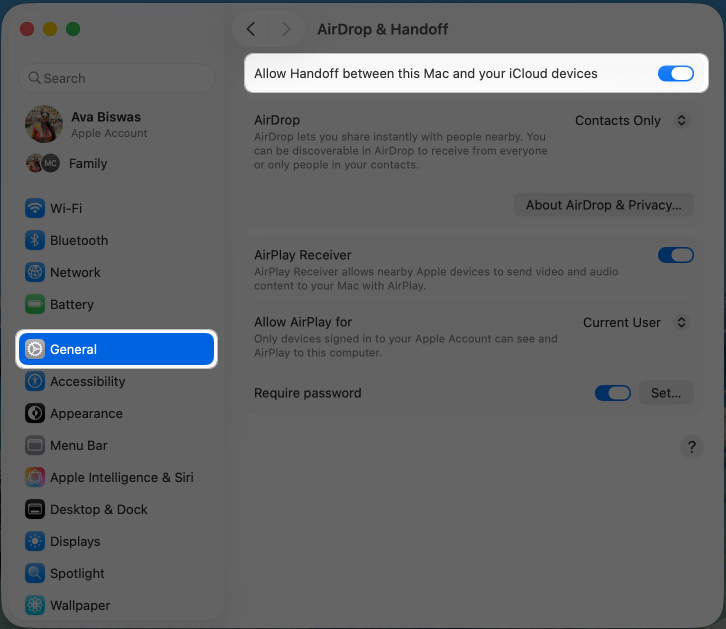
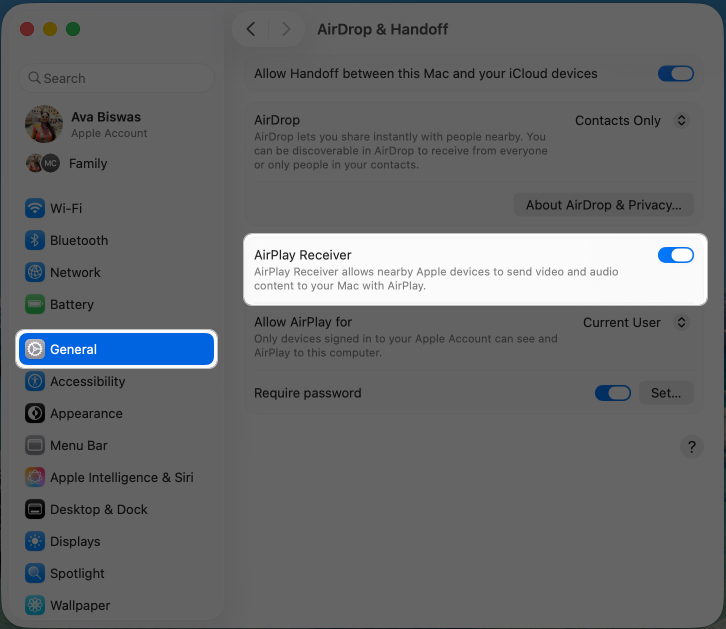
- Click Apple menu > System Settings > General > AirDrop & Handoff.
- Toggle on Allow Handoff between This Mac and your iCloud devices.
Enable iPhone Cellular Calls
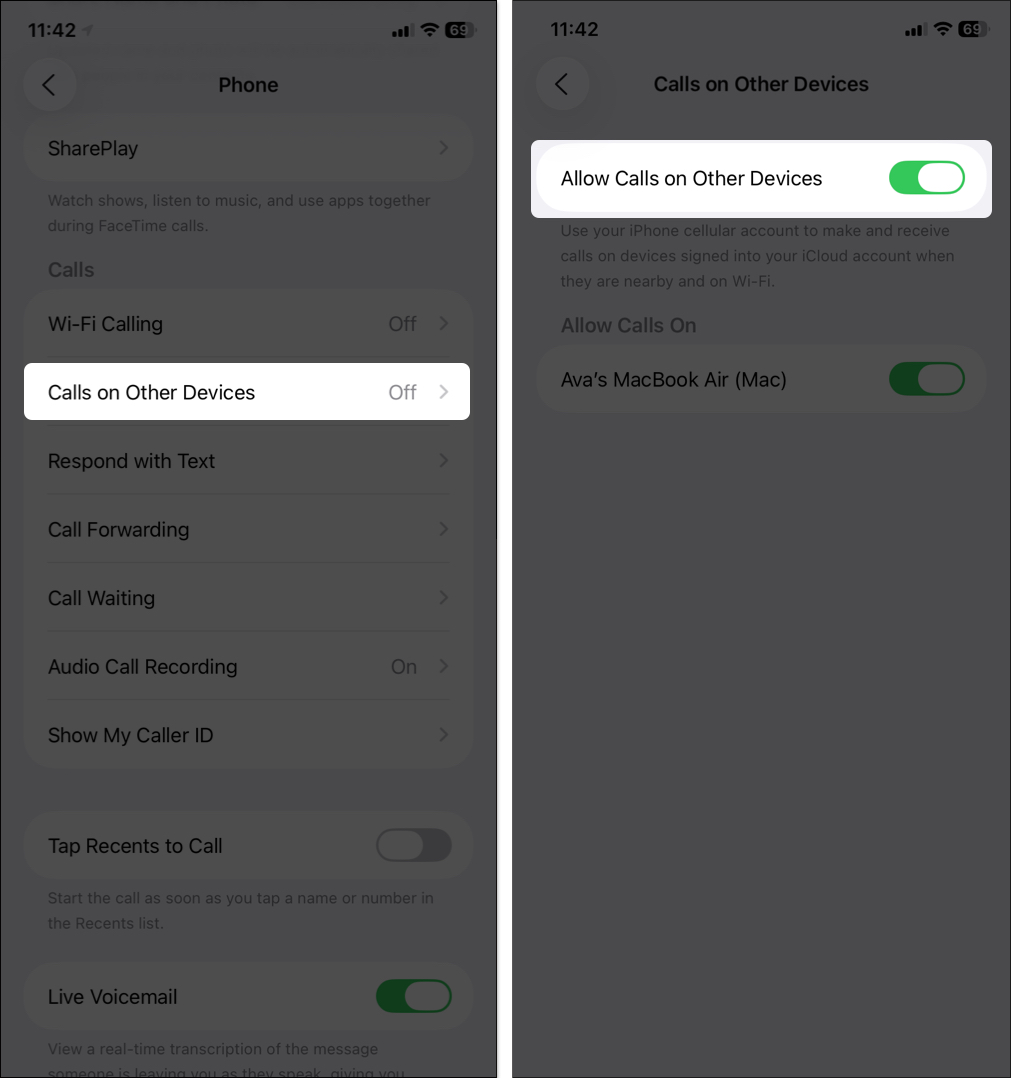
- On your iPhone: Go to Settings > Apps > Phone > Calls on Other Devices, toggle it on, and enable your Mac.
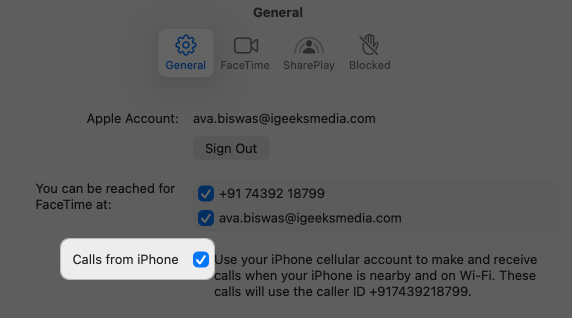
- On your Mac: Open FaceTime, go to FaceTime on the menu bar > Settings, and enable Calls from iPhone.
Set Up Text Message Forwarding
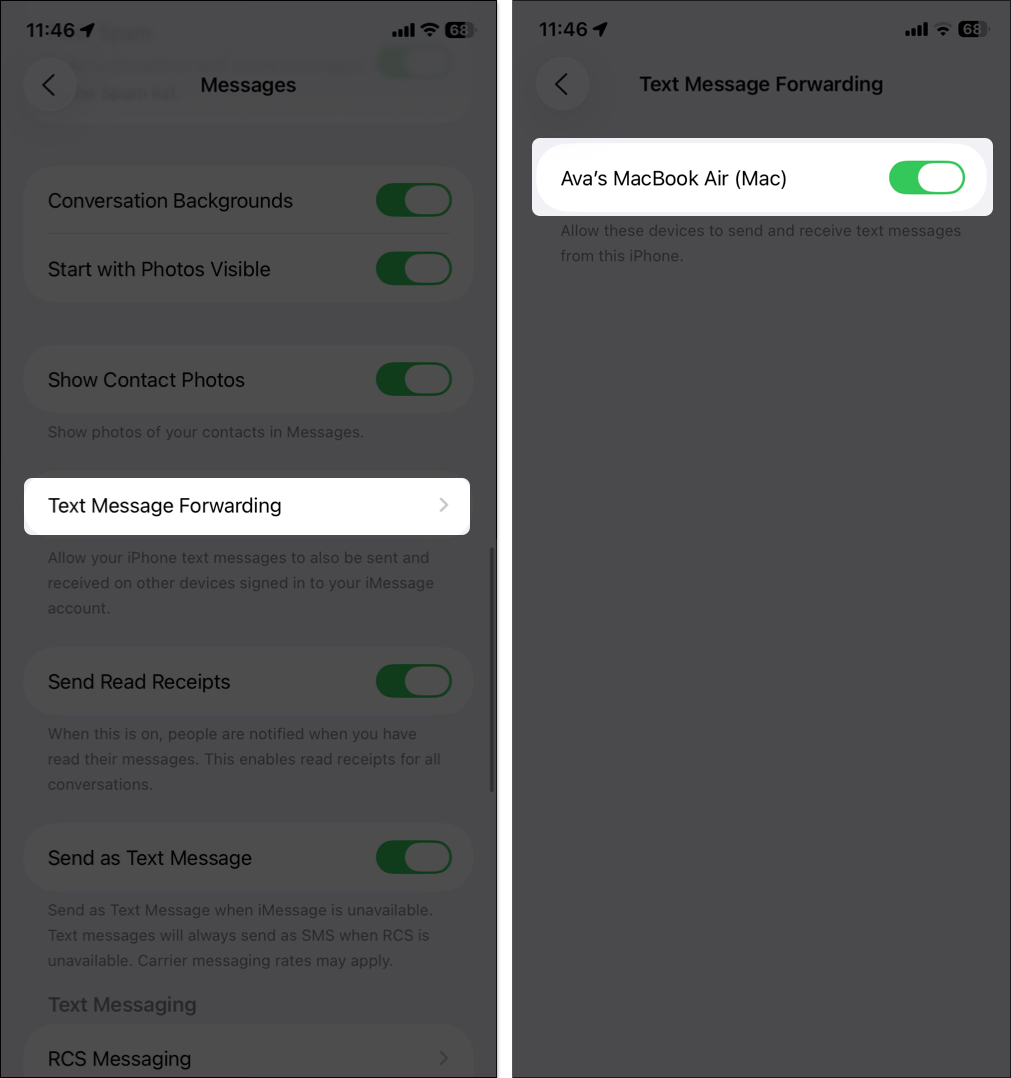
- On your iPhone: Access Settings > Apps > Messages > Text Message Forwarding and toggle on your Mac’s name.
Enable iPhone Mirroring
- On your Mac: Update to macOS Sequoia and later, and you will see the iPhone Mirroring app.
If you run into setup issues, ensure both devices are fully updated and restart them.
Top 7 Continuity Features to Boost Your iPhone and Mac Workflow
Here are the seven best Continuity features to supercharge your iPhone and Mac workflow.
1. Continuity Camera – Use Your iPhone as a Mac Webcam
Why settle for a basic webcam when you can use your iPhone’s powerful camera? Continuity Camera lets you use your iPhone as a high-quality webcam and mic for your Mac, perfect for video calls or livestreams. You can also take photos, scan documents, or create sketches on your iPhone that appear instantly on your Mac.
With iOS 18 and macOS Sequoia, you get features like:
- Center Stage – Keeps you in frame.
- Portrait Mode – Blurs the background.
- Studio Light – Brightens your face.
- Desk View – Shows a top-down view of your workspace.
How to use as a webcam:
- Mount your iPhone in landscape orientation near your Mac.
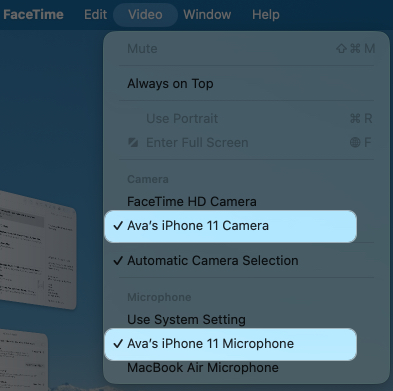
- Open the FaceTime app and click Video in the menu bar.
- Select your iPhone Camera and Microphone from the menu.
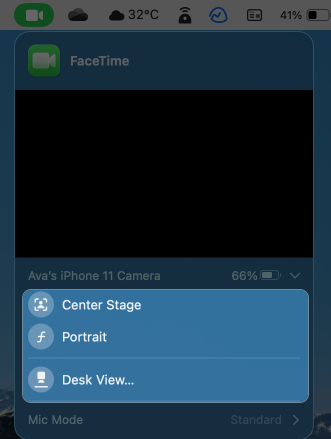
- Tap the FaceTime icon near Control Center and apply Video Effects like Centre Stage, Portrait, or Studio Light.
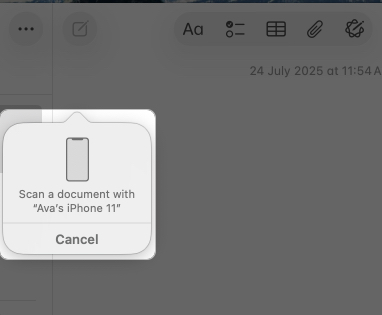
Now, let’s see how to use Continuity Camera to scan documents or take photos that instantly appear in iWork apps like Notes, Mail, Messages, Numbers, Keynote, Pages, and TextEdit.
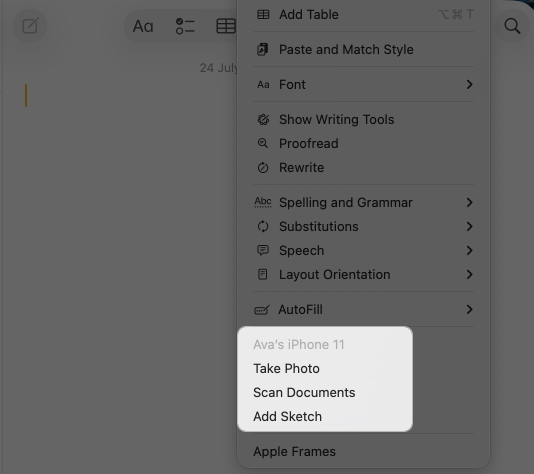
- Open a supported app on Mac.
- Now, Control-click wherever you want to insert an image, sketch, or scan document.
- Select Take Photo, Scan Document, or Add Sketch according to your needs from the shortcut menu.
- You can now click an image, sketch to your heart’s content or scan a document through your iPhone.
- The image, document, or sketch will be inserted at the location you initially clicked on.
2. Handoff – Continue Tasks Across Devices
Handoff lets you start an activity on iPhone and continue it on Mac (and vice versa) without losing progress. Works with apps like Safari, Mail, Pages, Notes, and some third-party apps.
Example:
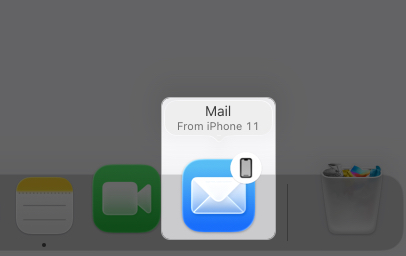
- Start an email on your iPhone, then look for the Mail icon with a small iPhone symbol in your Mac’s Dock. Click it to pick up where you left off.
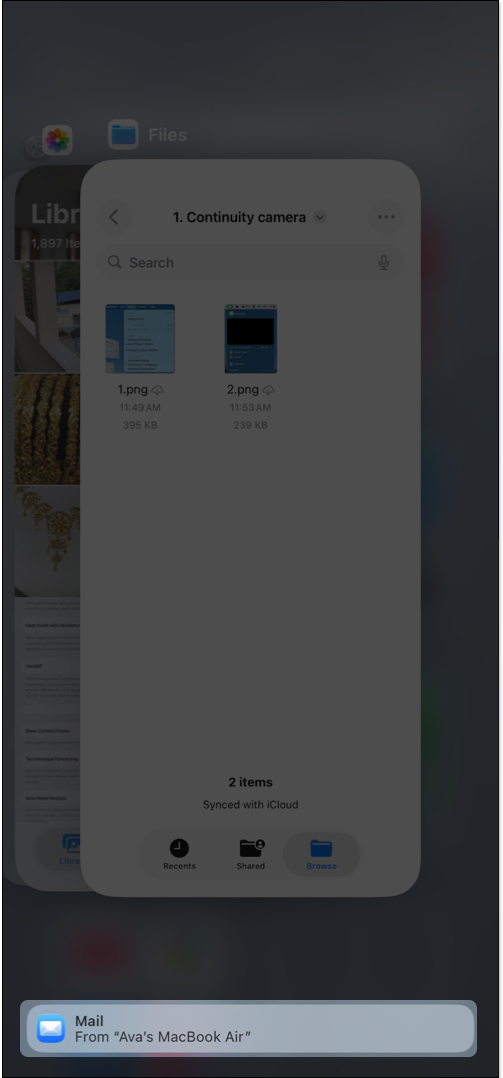
- On your iPhone, swipe up to the App Switcher and tap the app banner at the bottom to continue from your Mac.
- To Handoff FaceTime calls, click the FaceTime icon on your Mac’s menu bar and select Switch.
So, Handoff saves time by letting you switch devices seamlessly, whether you’re browsing, writing, or planning.
3. Make Cellular Calls from Mac
With macOS 26’s Phone app, you can make and receive calls on your Mac without touching your iPhone. You also get iOS 26 features like Hold Assist, Call Screening, and Live Translation.
With the new Phone app on macOS 26, you can make and receive phone calls on your Mac without touching your iPhone. Your Mac acts as a speakerphone and shows caller details and Contact Poster with the same ringtone you have for that contact on your iPhone.
To call on Mac:
- When a call comes in, a notification banner appears on your Mac showing the caller’s name and number or Contact Poster. Click the green call button to answer.
- To make a call, open the Phone app, click the Keypad button at the top, dial a phone number, and click the call button.
- You can check and delete your iPhone call history, access your Voicemails, and block numbers in the Phone app on your Mac.
With this, you can stay productive at your desk while keeping your phone elsewhere.
4. View iPhone Live Activities on Mac
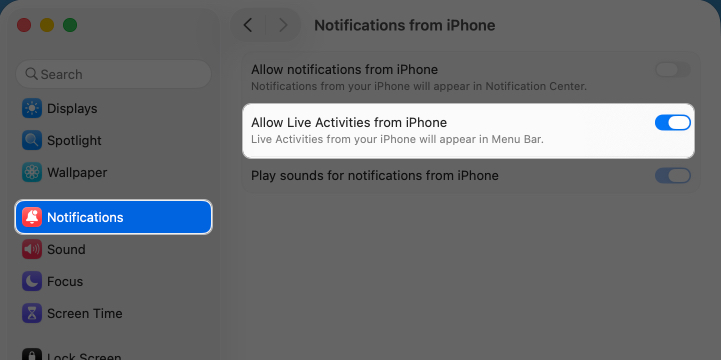
In macOS Tahoe, you can view iPhone Live Activities sports scores, timers, and delivery updates right from your Mac’s menu bar.
To enable Live Activities on your Mac: Go to System Settings > Notifications > Allow Notifications from iPhone, then toggle on Allow Live Activities from iPhone.
5. Universal Control
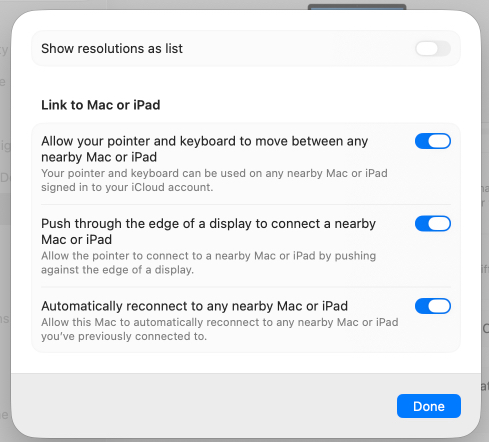
Universal Control lets you use a single keyboard, mouse, or trackpad to control both your Mac and iPad, with your iPhone indirectly benefiting through shared workflows. Move your cursor seamlessly between devices and drag content like sketches from your iPad to your Mac.
Ensure your Mac and iPad are signed into the same Apple Account with Bluetooth and Wi-Fi on. Go to System Settings > Displays > Advanced on your Mac and toggle on all options under Link to Mac or iPad. Now, take your cursor to the edge of your Mac’s screen to control your iPad.
6. Universal Clipboard
Continuity Clipboard, also known as Universal Clipboard, lets you copy text, images, or files on one device and paste them on another. It’s perfect for quick content transfers across your devices without emailing yourself.
- How to Use: Copy something on your iPhone (e.g., text or a photo). On your Mac, press Command + V to paste it in any compatible app (and vice versa).
7. iPhone Mirroring
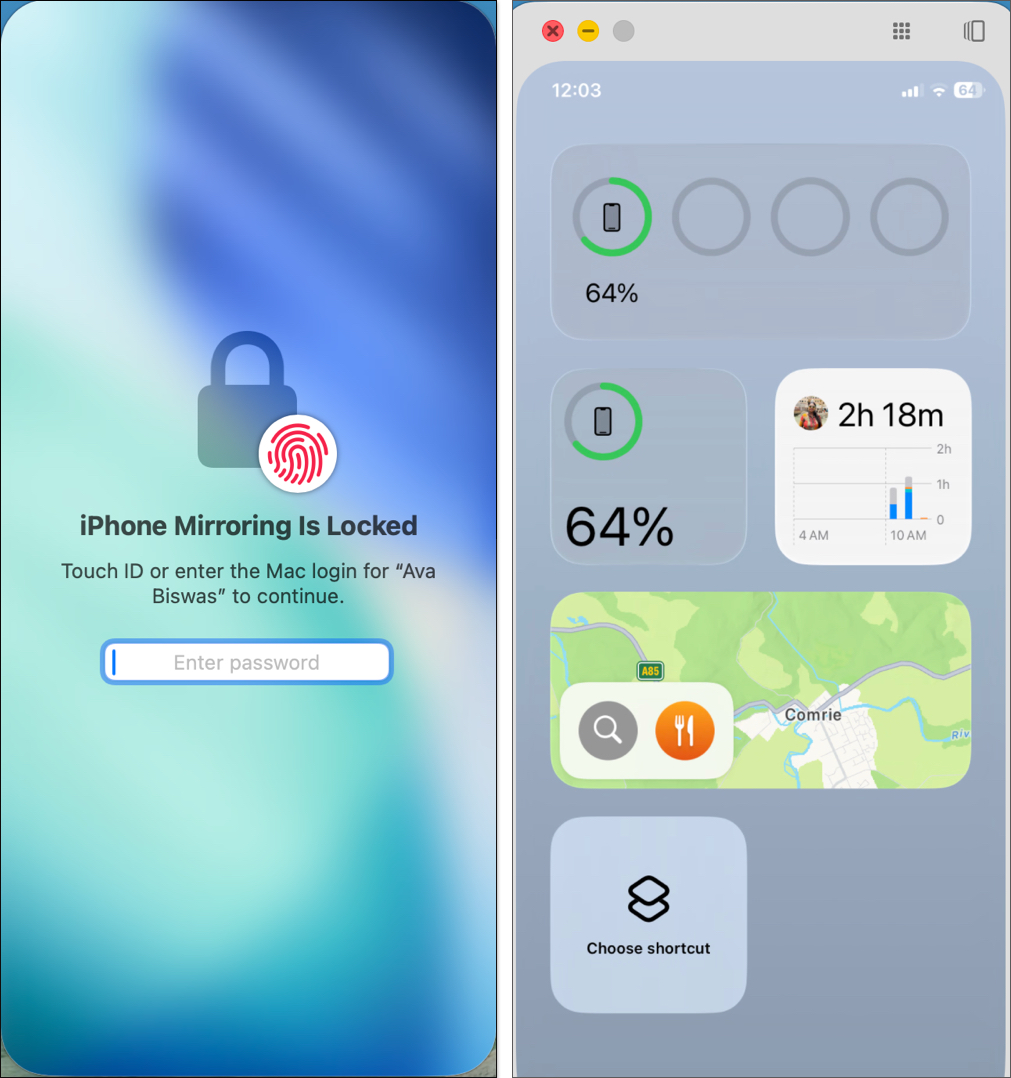
On macOS Sequoia and iOS 18, iPhone Mirroring lets you control iPhone from Mac. Open the iPhone Mirroring app, unlock with your Mac’s passcode, and navigate your iPhone right from your Mac’s screen.
Bonus: Even More Apple Continuity Features
Beyond the top seven, here are other Continuity features to explore:
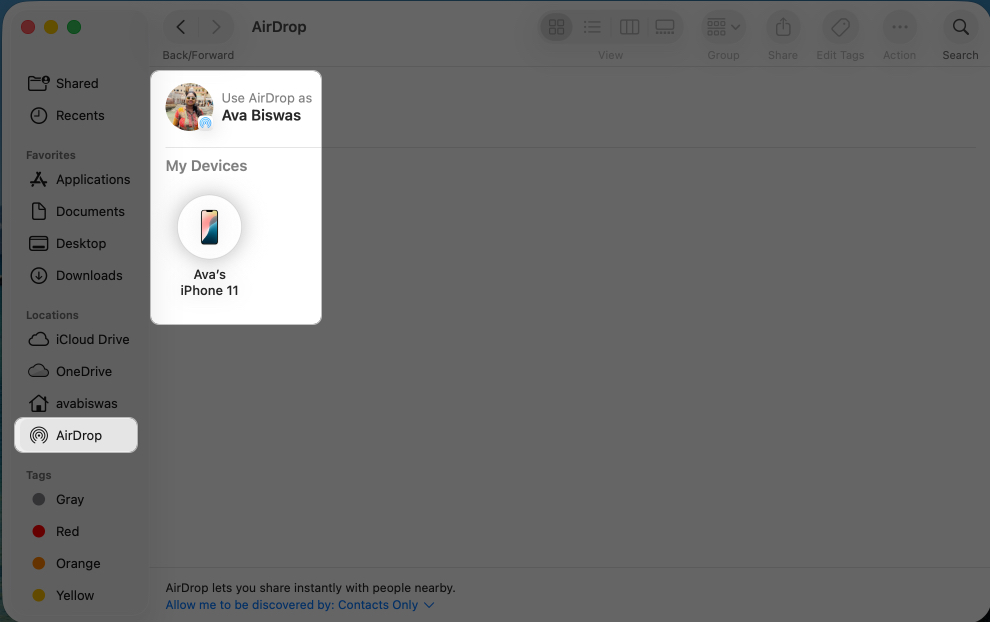
- AirDrop: Quickly share files and media between devices.
- Continuity Markup and Sketch: Annotate documents or create sketches on iPhone/iPad that appear on Mac.
- Auto Unlock Mac: Unlock Mac with your Apple Watch.
- Text Message Forwarding: Send/receive SMS on Mac.
- Instant Hotspot: Use iPhone’s data on Mac without re-entering passwords.
- AirPlay: Stream audio or video from iPhone to Mac.
These features add even more flexibility to your Apple ecosystem.
Quick Tips for Best Continuity Performance
Now, you understand the Continuity features well, here are some expert tips to make the most out of it:
- Keep Devices Updated: Run the latest iOS and macOS versions to access new features and bug fixes.
- Stay in Range: Keep your iPhone and Mac within 30 feet for reliable connectivity.
- Charge Your iPhone: When using Continuity Camera, plug your iPhone into your Mac or a charger to avoid battery drain.
- Use a Stand: For Continuity Camera, an iPhone mount ensures stable video calls or document scanning.
- Check App Compatibility: Some third-party apps support Handoff—check their settings to enable it.
- Secure Your Devices: Use strong passwords and two-factor authentication to protect your Apple Account.
Troubleshooting Common Continuity Issues
Can’t access Continuity features as intended? Let’s quickly fix it:
| Issue | Fix |
| Continuity Camera is not working | Restart devices, update software, ensure iPhone is unlocked at least once since restart, and not sharing cellular data. |
| Handoff not showing | Turn Handoff off/on, confirm same Apple ID, Wi-Fi, and Bluetooth on both devices. |
| Clipboard not syncing | Requires Handoff. Toggle Bluetooth off/on. |
| Calls/texts not syncing | Enable Calls on Other Devices, Wi-Fi Calling, and Text Message Forwarding. |
| iPhone Mirroring fails | Ensure Mac has Apple Silicon or T2 chip, both devices on same network, and restart. |
If problems persist, toggle Wi-Fi and Bluetooth off/on or sign out/in of iCloud. Contact Apple Support for further help.
iPhone + Mac = Productivity Pro!
Apple’s Continuity features transform your iPhone and Mac into a seamless productivity duo. From Continuity Camera to iPhone Mirroring, these tools help you work smarter and faster. Set up your devices today to unlock the full power of the Apple ecosystem.
Read more: