What Does “SOS Only” Mean on iPhone? The Real Reason and Easy Solutions
If your iPhone suddenly shows “SOS Only,” don’t panic. Here’s what it really means, why it happens, and how to restore your network connection quickly.
Key Takeaways:
- Meaning of SOS on iPhone: ‘SOS Only’ means your iPhone has lost connection to your carrier’s network and can only make emergency calls.
- Emergency access during SOS mode: You can still call local emergency numbers like 911, 112, 999, or 000 based on your country’s network regulations.
- Where SOS status appears: The ‘SOS’ or ‘SOS Only’ label shows in the top-right corner, replacing your carrier name and signal bars.
- SOS Only vs. Emergency SOS Mode: ‘SOS Only’ is a network limitation, while Emergency SOS Mode activates Apple’s quick emergency call and alert features.
- Fixing SOS Only errors: Try toggling Airplane Mode, reseating your SIM, updating iOS, or resetting network settings if the issue persists.
If you’ve ever looked at your iPhone and noticed “SOS Only” in the top corner, you’re not alone. It can be confusing and even a little stressful, especially if you’re waiting for an important call or trying to get online. I know how frustrating it feels when your phone suddenly stops working as expected.
So, what does “SOS Only” mean, and how can you fix it? Let’s walk through everything you need to know, with clear steps and real-world tips to get your iPhone back to normal fast.
Table of Contents
- What Does SOS Mean on iPhone?
- Where Does "SOS Only" Appear on iPhone?
- Why Does My iPhone Say "SOS Only"? (Common Causes)
- How to Fix "SOS Only" on iPhone
- 1. Check for Carrier or Account Issues
- 2. Toggle Airplane Mode
- 3. Turn Cellular Data Off and On
- 4. Restart Your iPhone
- 5. Enable Data Roaming (If Traveling)
- 6. Update Carrier Settings and iOS
- 7. Switch to 4G/LTE
- 8. Toggle Network Selection
- 9. Reinsert SIM or Check eSIM
- 10. Verify APN or Carrier Profile
- 11. Enable Wi-Fi Calling
- 12. Reset Network Settings
- 13. Contact Apple or Your Carrier
- What to Do If Your iPhone Is Stuck in SOS Only Mode
- Conclusion: Staying Connected and Informed
What Does SOS Mean on iPhone?
When your iPhone displays “SOS Only” (or just “SOS”) in the top-right corner where you’d usually see signal bars and your carrier name, it means your device can’t connect to your regular cellular network.
In this state, your iPhone can only make emergency calls. Regular calls, texts, and mobile data won’t work until your phone reconnects to your carrier network. Don’t worry, this is usually temporary and can be fixed with a few quick steps.
What Emergency Numbers Can You Call?
Depending on your country, your iPhone automatically connects to local emergency services. You can dial:
- 911 (United States & Canada)
- 112 (Europe)
- 999 (United Kingdom)
- 000 (Australia)
Even if you’re unsure, your iPhone will automatically dial the correct emergency number for your region.
Where Does “SOS Only” Appear on iPhone?
You’ll see “SOS” or “SOS Only” in the status bar at the top of your screen, replacing your normal network name or signal bars.
“SOS Only” vs. Emergency SOS Mode: What’s the Difference?
These two terms sound similar but mean very different things:
- SOS Only is a network status. It appears when your iPhone can’t connect to your carrier’s network, but it can still contact emergency services.
- Emergency SOS Mode is a feature you activate manually (by pressing and holding the side and volume buttons) to quickly call emergency services if you’re in danger.
Emergency SOS via Satellite (iPhone 14 and Newer)
If you have an iPhone 14 or newer, you can reach emergency services via satellite when there’s no cellular or Wi-Fi signal. This feature currently works in select regions and is a lifesaver in remote or disaster-struck areas.
Why Does My iPhone Say “SOS Only”? (Common Causes)
Here are the most common reasons your iPhone might be stuck in SOS Only mode:
1. Out of Network Coverage
You’re in an area without coverage from your carrier, such as rural regions, tunnels, or underground areas. Your iPhone can still connect to other networks for emergency calls.
2. Carrier Outage
Sometimes, your carrier experiences temporary outages. For example, during the AT&T outage in February 2024, millions saw “SOS Only” for over 12 hours.
3. Account or Billing Issues
If your account is suspended due to billing or verification problems, your phone may lose network access.
4. Airplane Mode
If Airplane Mode is accidentally turned on, you’ll see “SOS Only” or “No Service.”
5. Roaming or Data Roaming Disabled
When traveling internationally, your phone may show “SOS Only” if roaming is off or your plan doesn’t support it.
6. SIM or eSIM Problems
A damaged, deactivated, or incorrectly installed SIM card can cause connectivity issues.
7. Carrier Profile or APN Misconfiguration
Switching carriers or an iOS update can cause your phone’s APN settings to go out of sync.
8. iOS Bugs or Outdated Software
Glitches or outdated iOS versions sometimes interfere with connectivity.
9. Hardware Malfunction
Damage to your iPhone’s antenna or SIM slot can prevent proper network access.
10. 5G Instability
In areas with weak 5G coverage, your phone might struggle to connect and switch to “SOS Only.”
11. Device Blacklisting
If your device’s IMEI is blacklisted (e.g., reported stolen), your carrier may restrict it to emergency use only.
How to Fix “SOS Only” on iPhone
Follow these steps in order:
1. Check for Carrier or Account Issues
- Visit your carrier’s status page or use an outage tracker like Down Detector to see if there’s a known problem in your area.
- Log in to your carrier account to confirm your plan is active, and there are no billing issues.
- If necessary, contact your carrier for clarification.
2. Toggle Airplane Mode
- Open Control Center and tap the Airplane icon to enable Airplane Mode.
- Please wait 30 seconds, then tap again to disable it.
- Alternatively, go to Settings → Airplane Mode.
3. Turn Cellular Data Off and On
- Open Control Center and tap the Cellular Data icon to turn it off, wait a few seconds, then turn it back on.
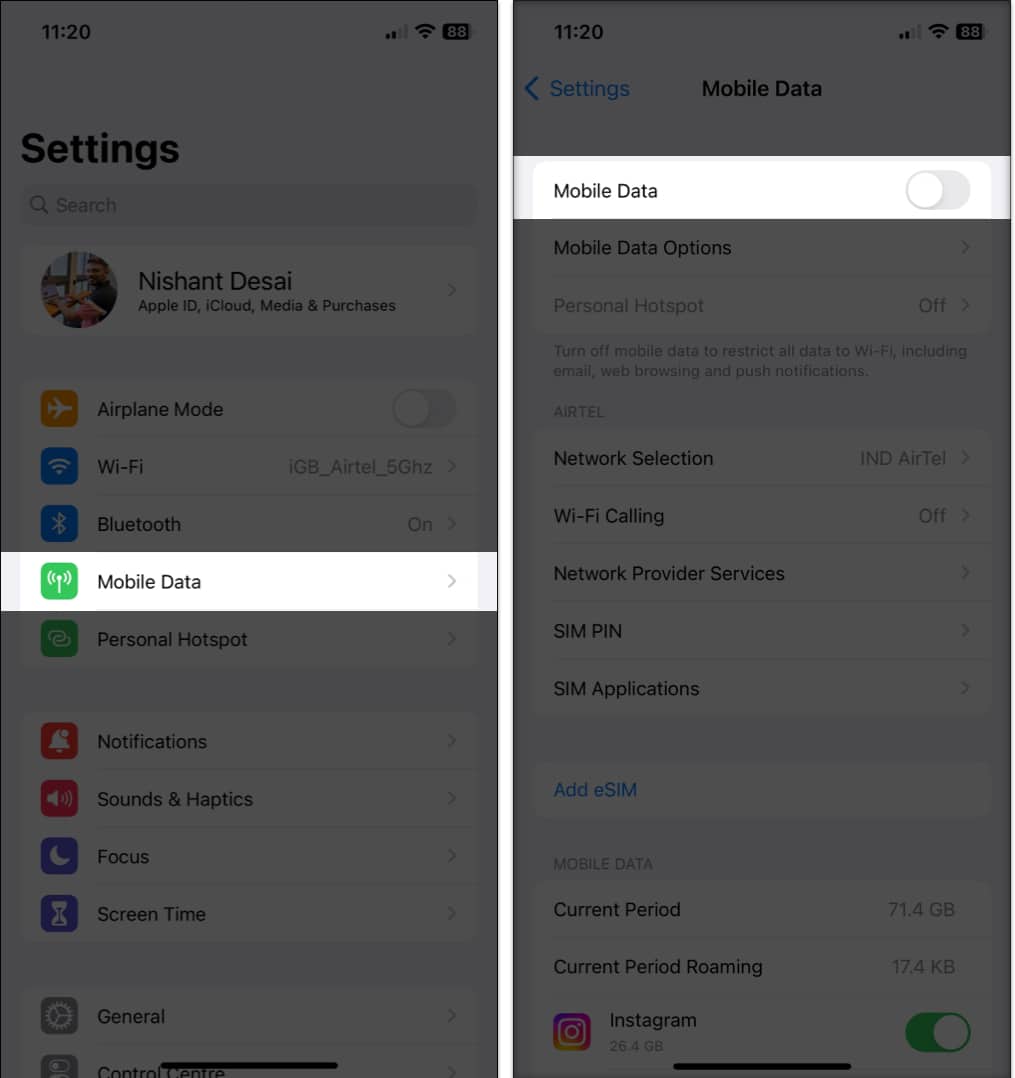
- Or go to Settings → Cellular/Mobile Data → toggle off, wait, then toggle on.
4. Restart Your iPhone
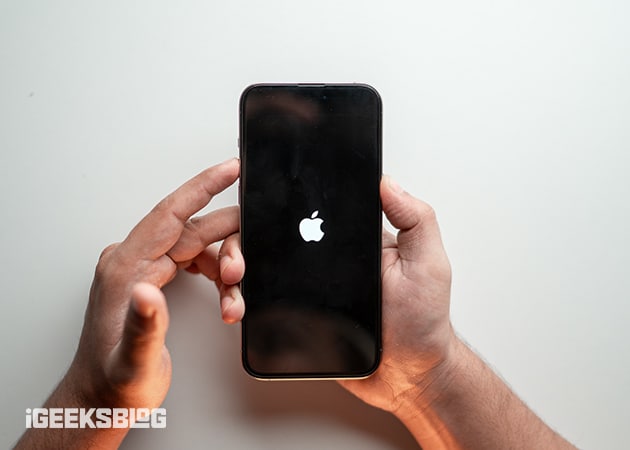
- For iPhone X or newer: Press and hold the side and volume buttons until the power off slider appears. Slide to power off. Wait 30 seconds, then press and hold the side button to turn your iPhone back on.
- For older models: Press and hold the power button, slide to turn off, then restart.
5. Enable Data Roaming (If Traveling)
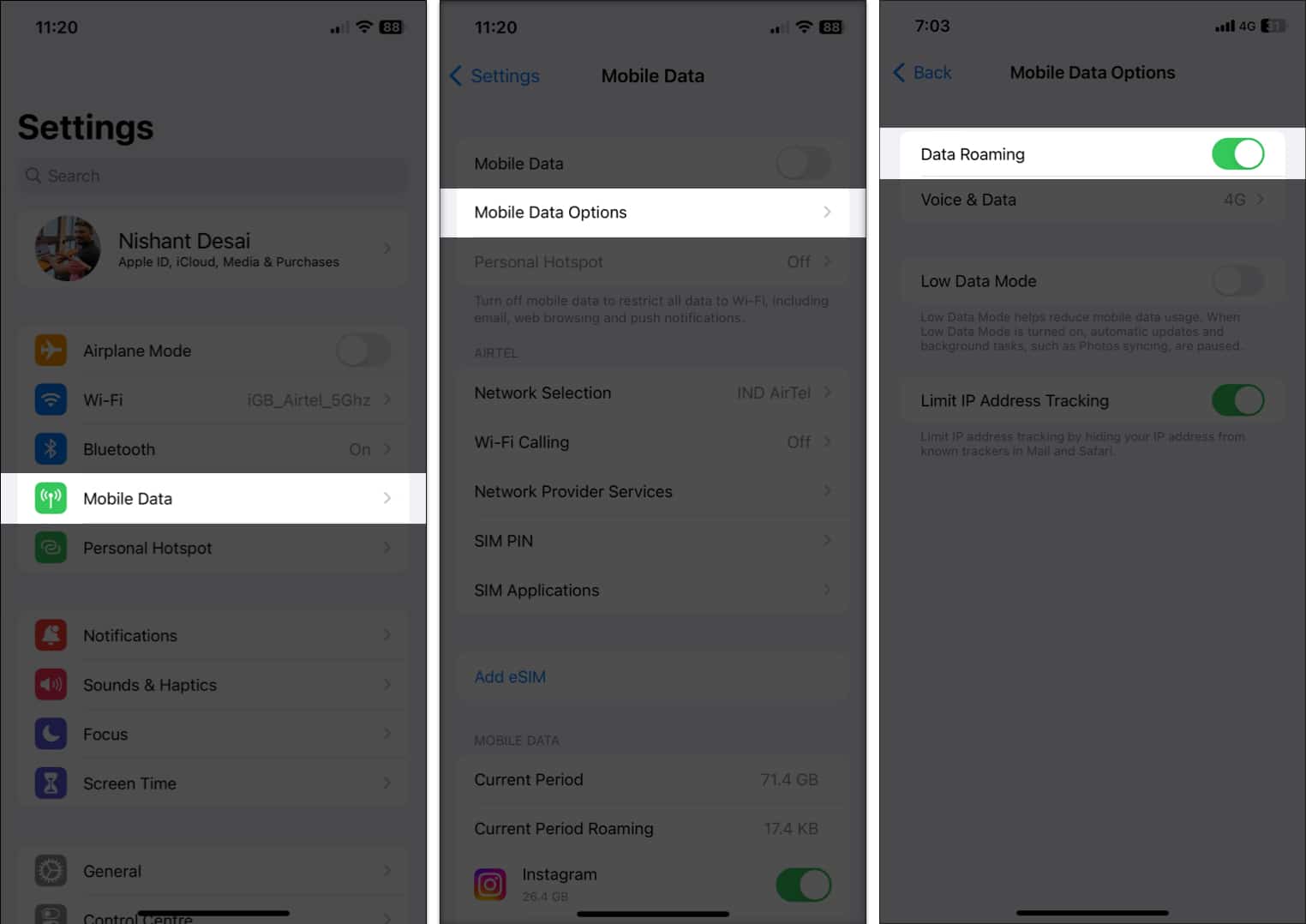
- Go to Settings → Cellular/Mobile Data → Cellular Data Options.
- Toggle on Data Roaming.
6. Update Carrier Settings and iOS
- Connect to Wi-Fi, go to Settings → General → About. If a carrier update is available, you’ll see a prompt.
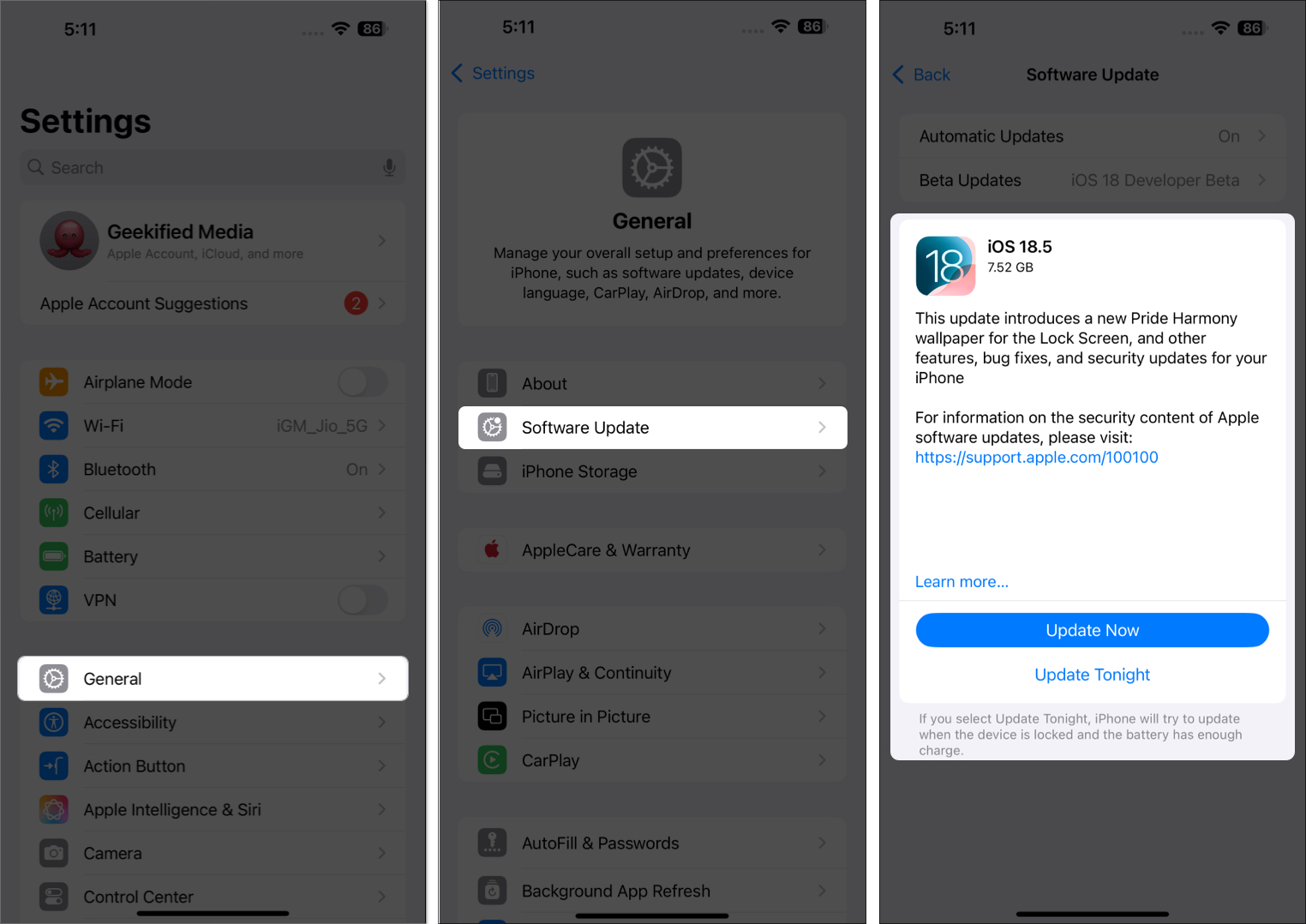
- To update iOS, go to Settings → General → Software Update.`
7. Switch to 4G/LTE
- Go to Settings → Cellular → Cellular Data Options → Voice & Data.
- Select 4G or LTE instead of 5G.
8. Toggle Network Selection
- Go to Settings → Cellular/Mobile Data → Network Selection.
- Toggle off Automatic, wait a few seconds, then toggle it back on.
9. Reinsert SIM or Check eSIM
- Use a SIM ejector tool to remove and reinsert your SIM card.
- For eSIM users: Do not delete or reset your eSIM unless your carrier instructs you, as you may lose service and need carrier assistance to reactivate.
10. Verify APN or Carrier Profile
- If you’ve recently switched carriers or updated your phone, ask your carrier to confirm your APN settings or push a new carrier profile.
11. Enable Wi-Fi Calling
- Go to Settings → Phone → Wi-Fi Calling and toggle it on.
- This allows you to make calls over Wi-Fi if cellular service is unavailable.
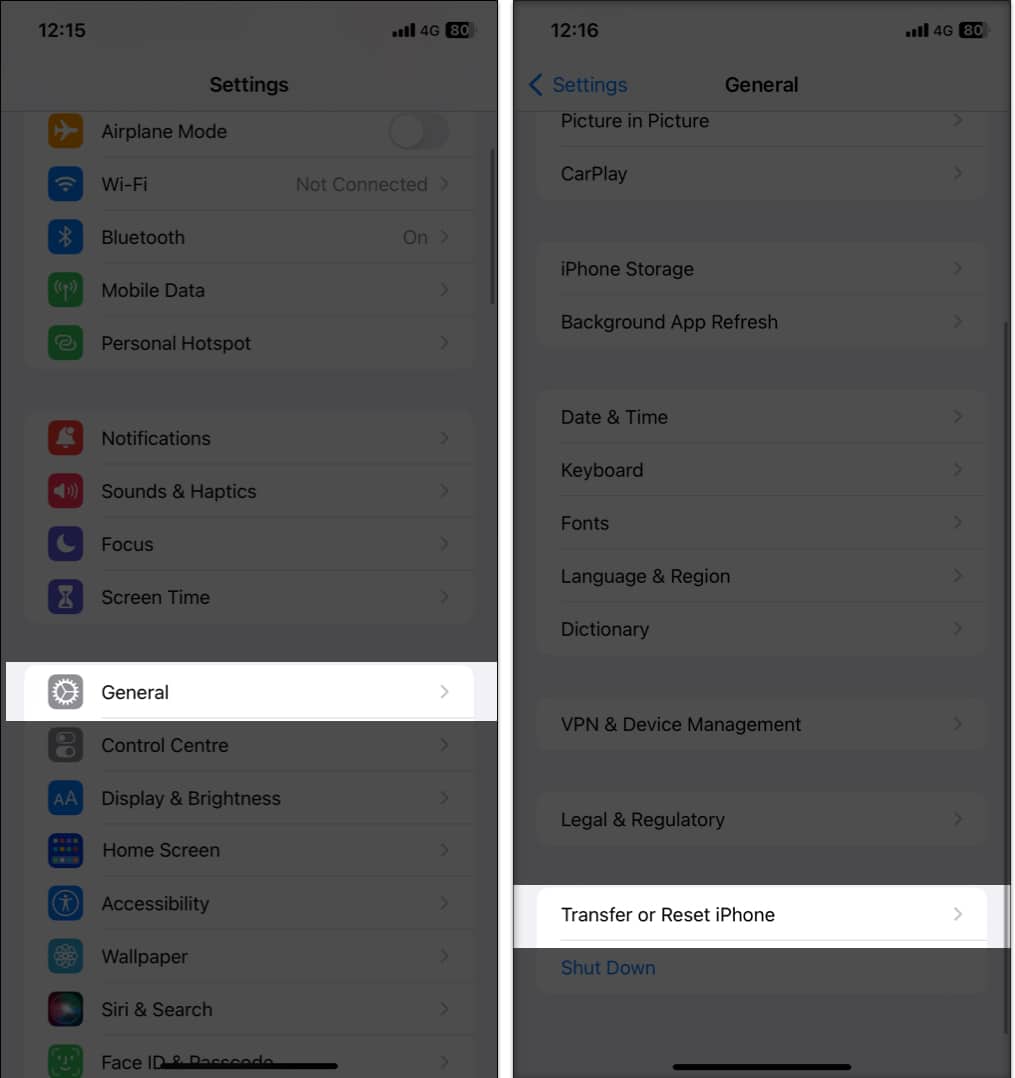
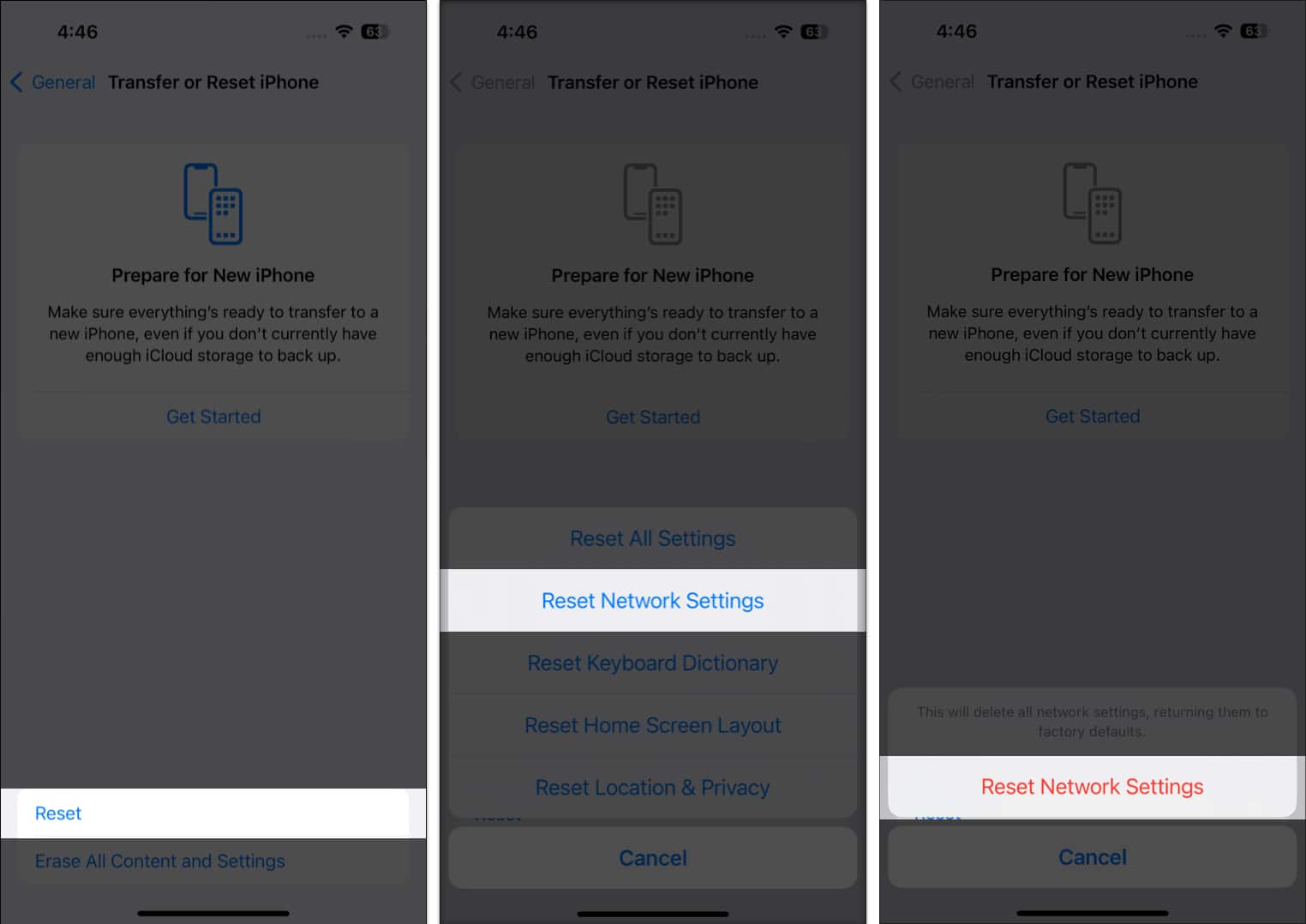
12. Reset Network Settings
- Go to Settings → General → Transfer or Reset iPhone.
- Select Reset → Reset Network Settings.
- Enter your passcode and confirm.
13. Contact Apple or Your Carrier
If none of these steps fix it, reach out for professional support. Bring your iPhone, SIM card, and any details about when the issue started.
What to Do If Your iPhone Is Stuck in SOS Only Mode
If you’ve tried everything and still see “SOS Only”:
- Test your SIM card on another phone to rule out SIM damage.
- If it works there, your iPhone may have a hardware issue. Visit an Apple Store or authorized repair center.
- If you bought your phone secondhand, check that it’s not blacklisted by your carrier.
Conclusion: Staying Connected and Informed
Seeing “SOS Only” on your iPhone can be frustrating, but in most cases, it’s a temporary issue you can fix yourself. Start with simple steps like toggling Airplane Mode or restarting your phone.
If the problem persists, your carrier or Apple Support can help you get back online. As iPhones become smarter with features like eSIM and satellite connectivity, staying updated ensures you’re always prepared to stay connected wherever you go.
If you’re still puzzled or want extra help, drop a comment below. I’m always happy to help!
FAQs
It usually happens due to network outages, SIM/eSIM issues, or account problems. Try the troubleshooting steps above.
“SOS Only” means you can still call emergency services. “No Service” means your iPhone can’t connect to any network at all.
No, cellular data won’t work but you can use Wi-Fi.
Not necessarily. It’s often temporary, but if it persists, it may indicate a hardware issue.
Keep your iOS and carrier settings updated, stay in strong coverage areas, and make sure your SIM/eSIM is properly activated.
Yes, you can still call emergency services or, on iPhone 14 and newer, use Emergency SOS via Satellite in supported regions.
Restart your phone, update carrier settings, or reset network settings to restore your connection.
You might want to refer to these posts as well:

- How to fix Cannot Verify Server Identity error on iPhone
- How to fix Hey Siri not working on iPhone
- How to fix AirDrop not working