FaceTime Like a Pro
Get our exclusive Ultimate FaceTime Guide 📚 — absolutely FREE when you sign up for our newsletter below.

FaceTime Like a Pro
Get our exclusive Ultimate FaceTime Guide 📚 — absolutely FREE when you sign up for our newsletter below.


Broken location breaks Maps, Find My, and weather at once. Here is why Location Services fail, especially after an iOS update, and ten fixes that restore accurate positioning.
Whether you use Maps to find routes to the nearest café or want to track the location of your devices using Find My, you need Location Services for almost every activity on your iPhone. Some iPhone users encounter issues with Location Services not working after updating to latest iOS version.
In this guide, I will explain a handful of reasons why this issue might occur and provide practical solutions to fix Location Services not working on iPhone in current iOS.
When Location Services starts acting up on your iPhone, you can’t use any apps that need your precise location to function. So, you can’t use Maps navigation, check the weather, share location, send Check-ins to your friends or family, order food, book cabs, and much more.
So, most of your iPhone functionalities get a hit. But why is this basic yet essential service not working all of a sudden? Some of the most common reasons for issues with Location Services include:
Now that you have a clear understanding of the issue, let’s troubleshoot it. Follow the methods mentioned below:
Before you move on to advanced solutions, one of the first things you should do is ensure that the Location Services are enabled on your iPhone.
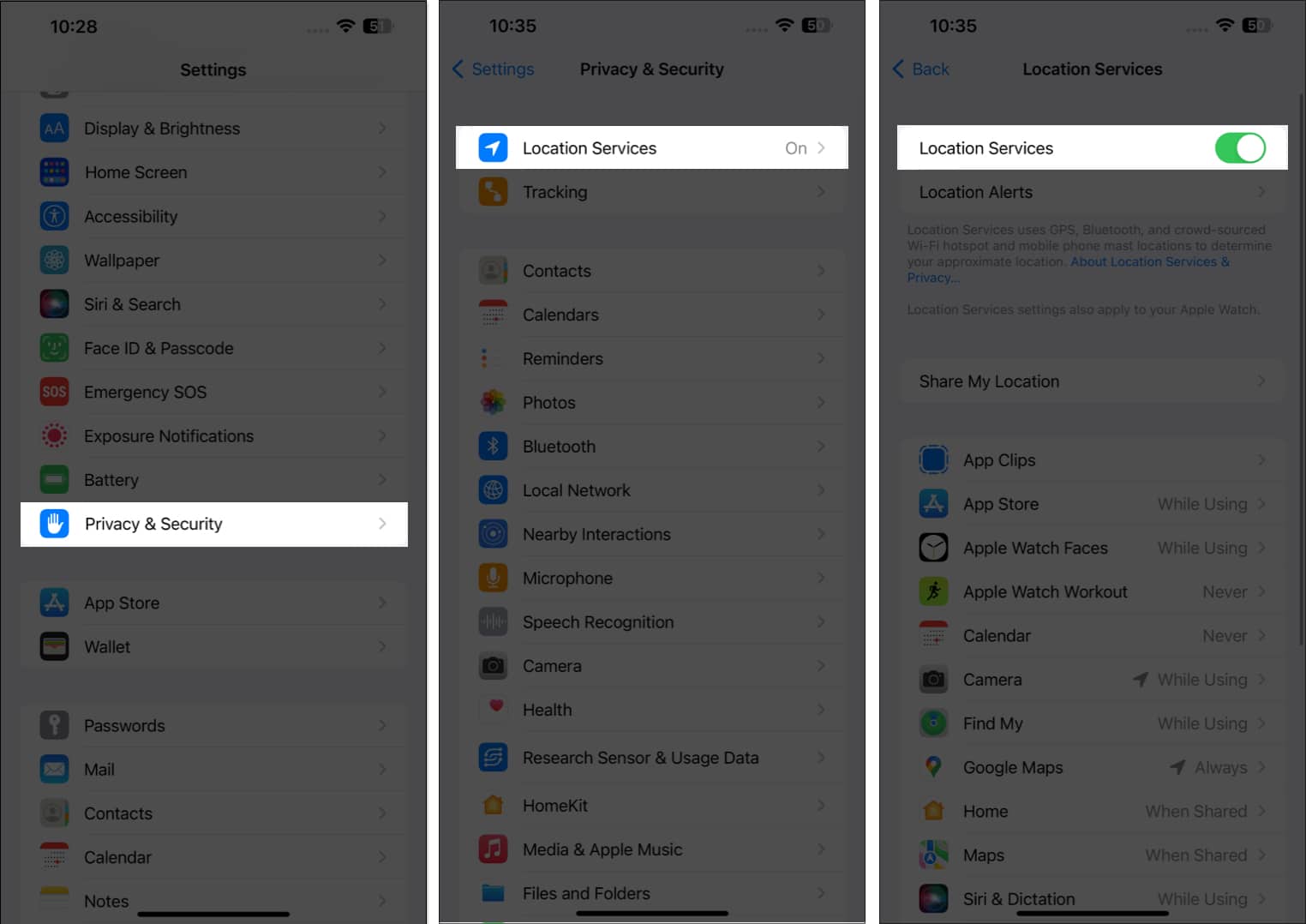
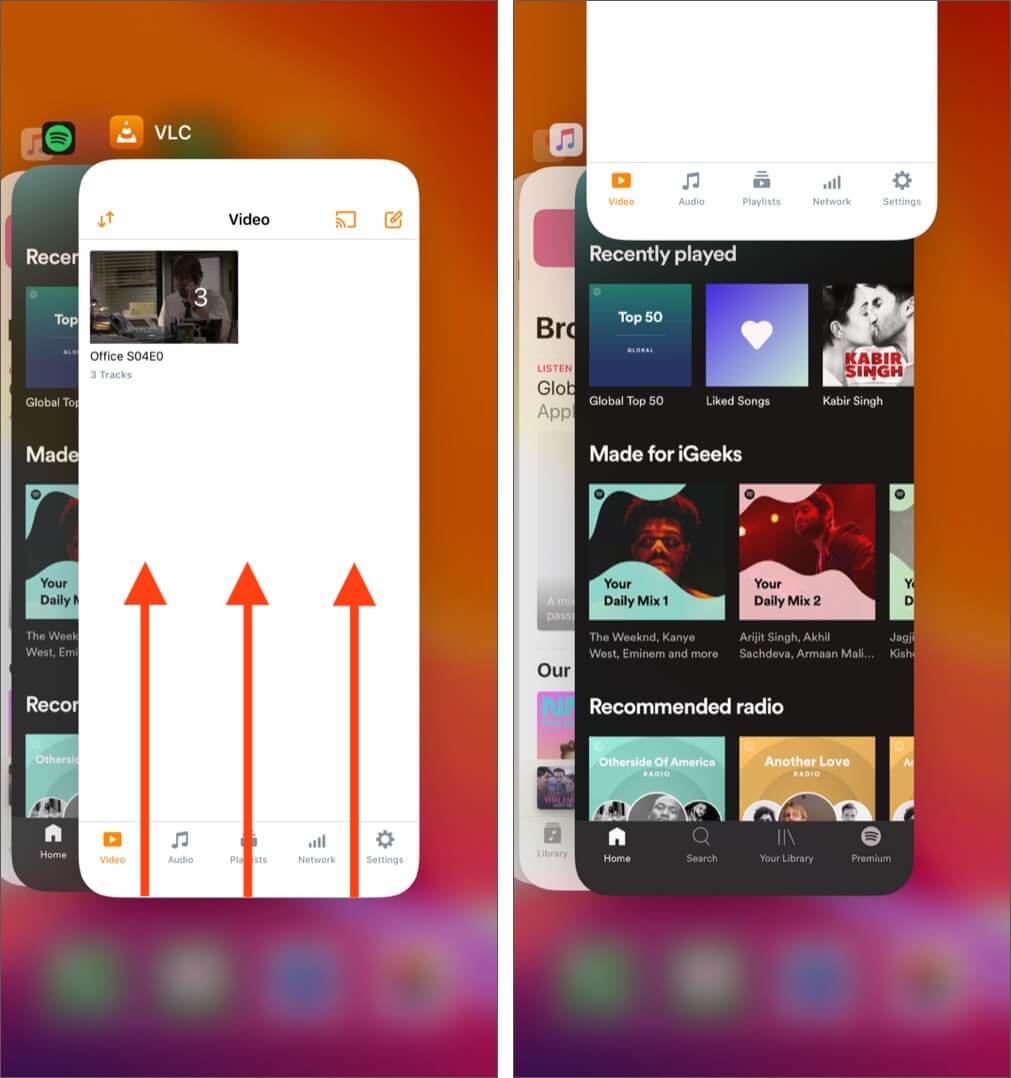
Often, most apps, including the ones that use Location Services, face minor technical glitches due to an overload of memory. However, this can be fixed simply by just closing and reopening the app. It will refresh the app cache and establish a new connection. Here’s what you need to do:
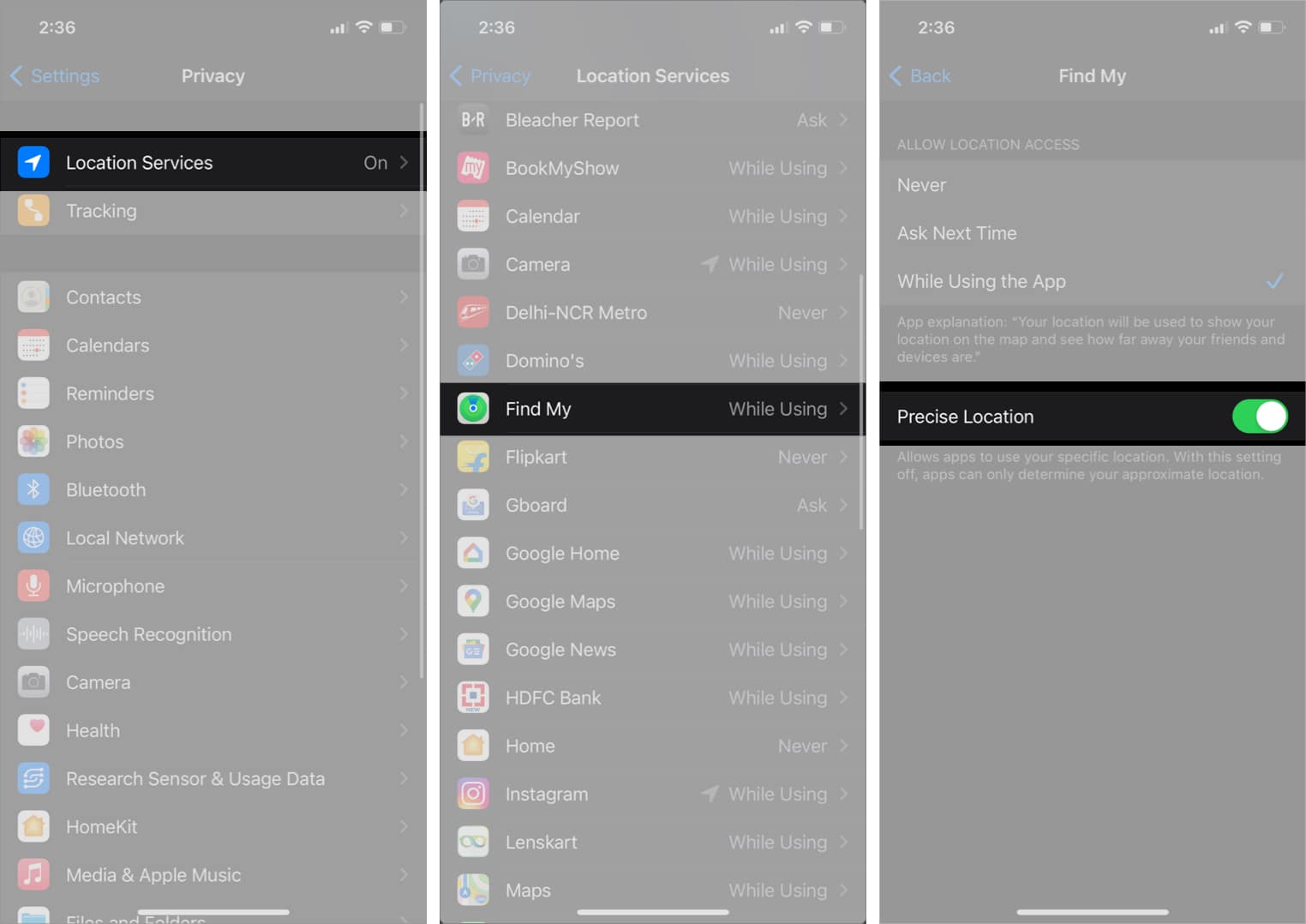
Many third-party apps on your iPhone require your precise location data to function correctly, especially Maps, food delivery, and cab rental apps. Hence, you must follow the steps below to check if the app has access to your precise location.
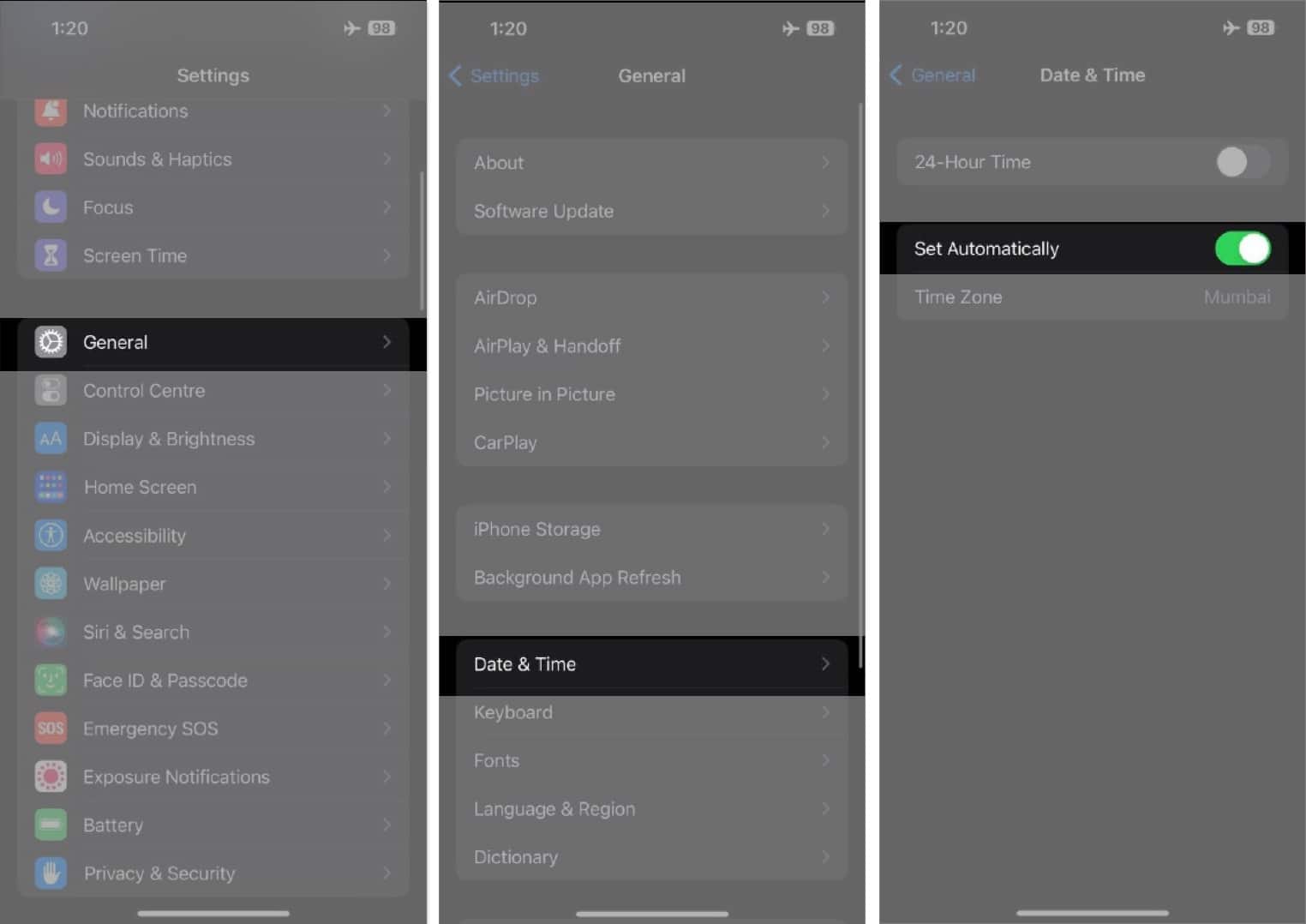
Inaccurate Date and Time settings can prevent your iPhone GPS from accessing the Location Services and interrupt the function. Therefore, it’s good practice to let the iPhone fetch the Date and Time data automatically from Apple servers.
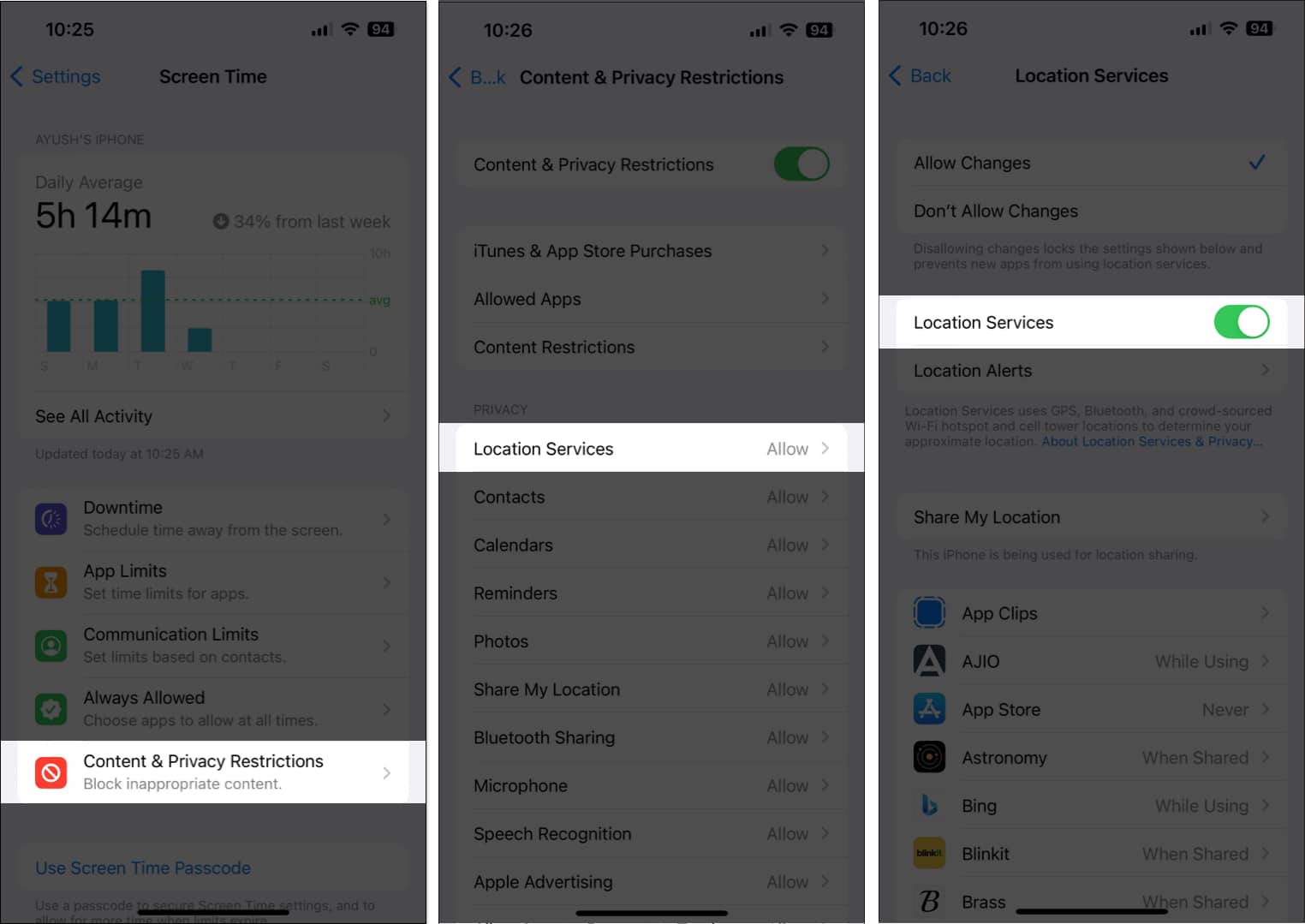
Location services may cease to function if you’ve accidentally disabled them using the Content & Privacy Restrictions feature on your iPhone.
If you’re unsure about how you can re-enable Location Services, you can follow these steps:
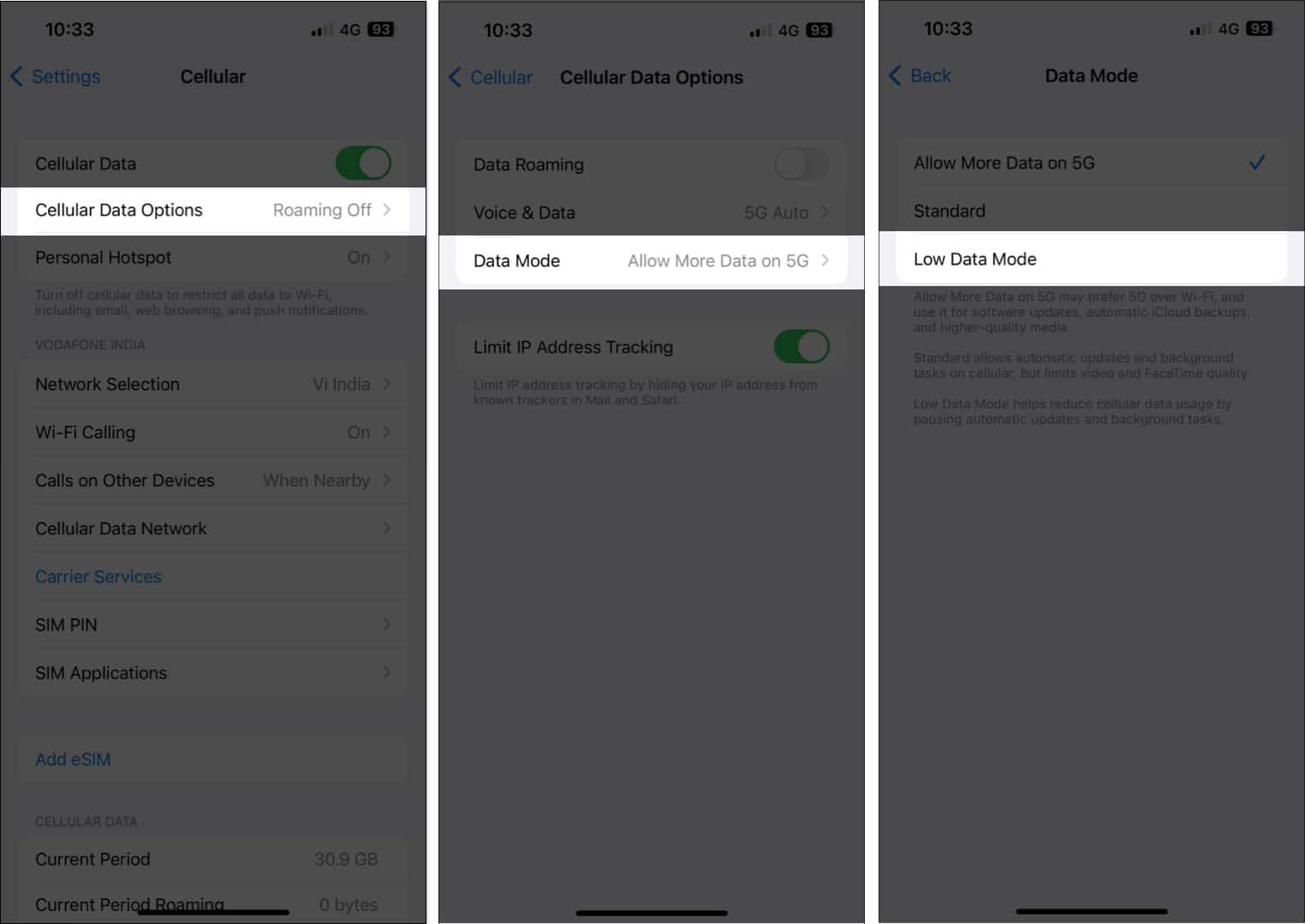
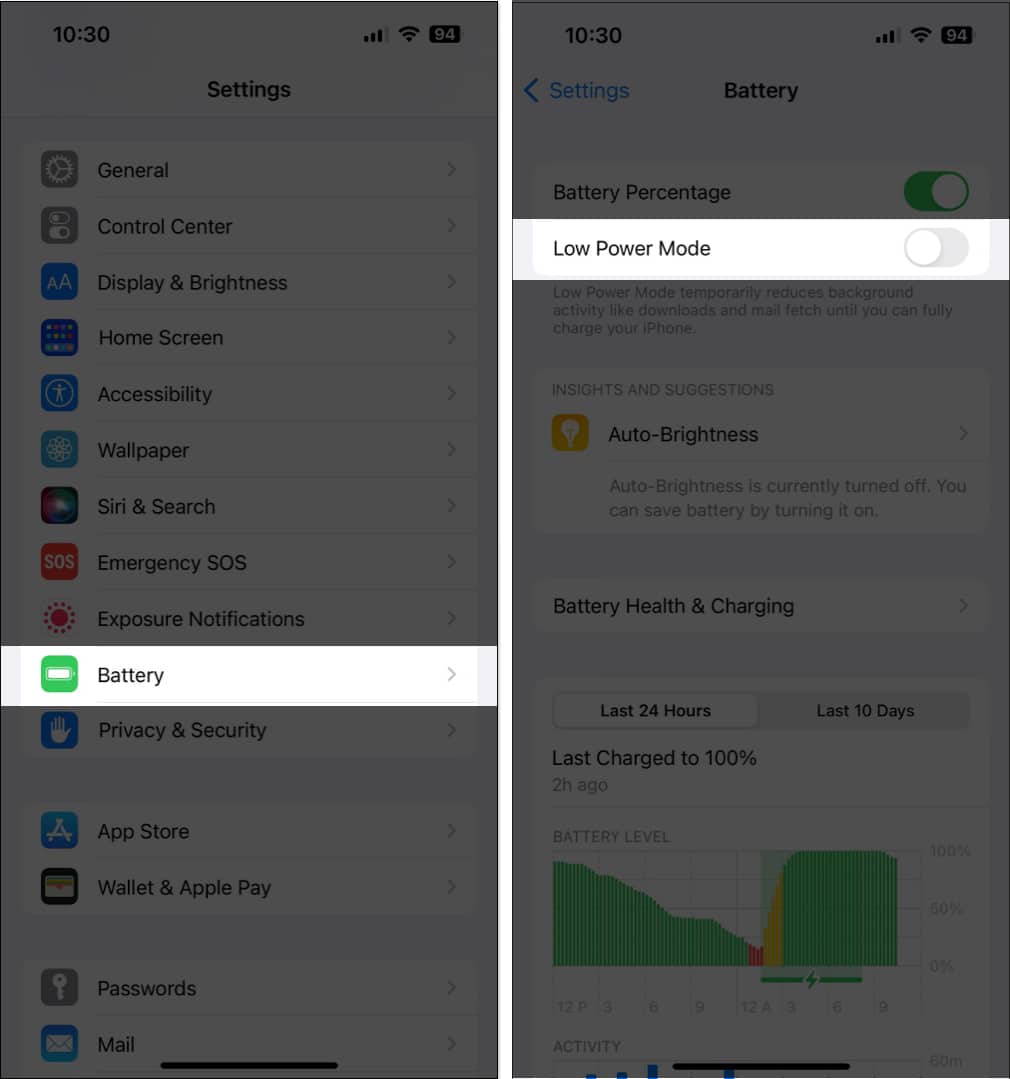
Have you enabled Low Data Mode and Low Power Mode to preserve your iPhone’s battery and restrict cellular data allowance? These both surely help. However, using them ceases the function of many utilities. Thus, they can prevent apps from accessing Location Services on your iPhone.
Therefore, you must disable Low Data and Low Power Mode on your iPhone.
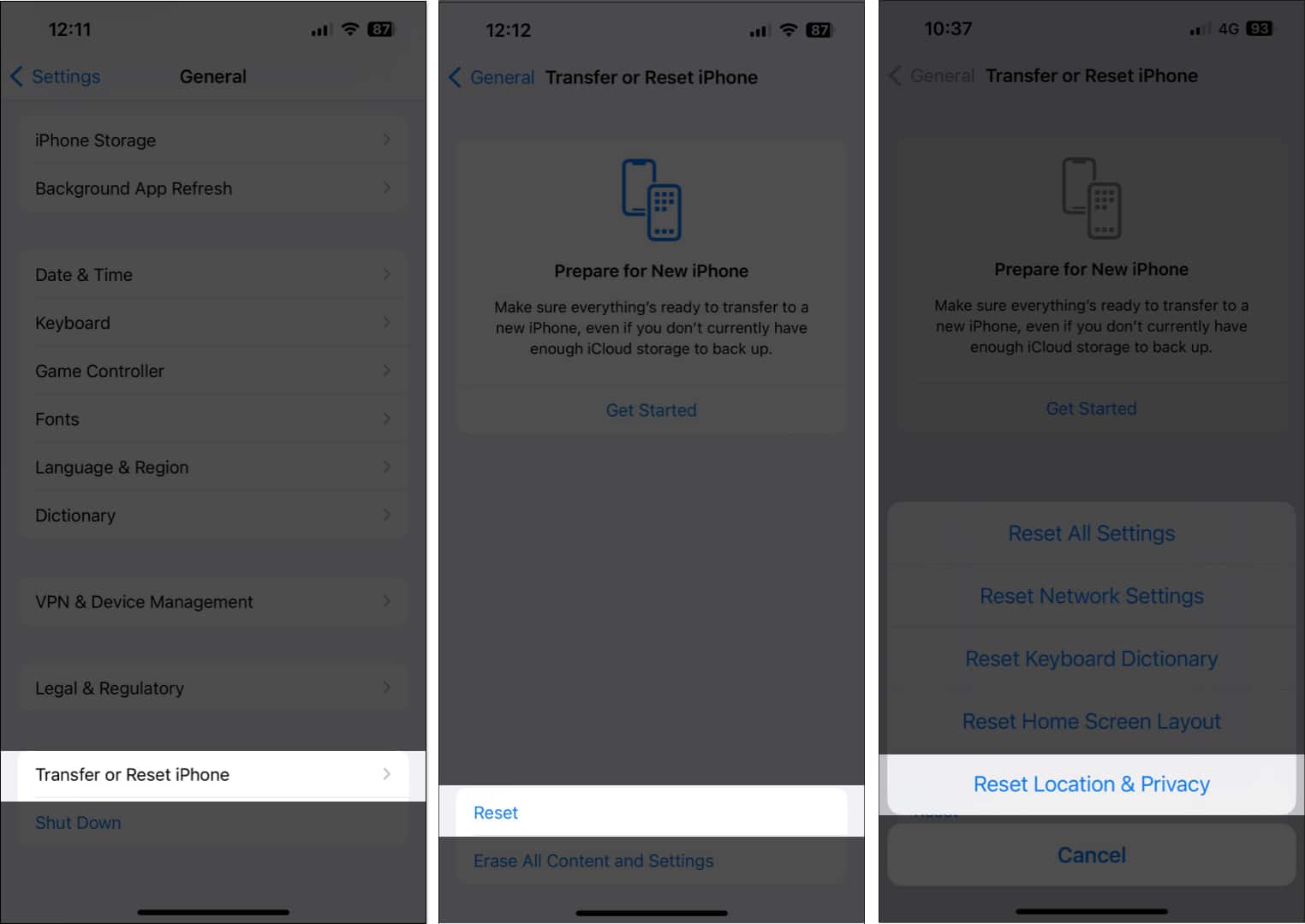
In case you still can’t get the Location Services working on your iPhone, your best bet will be to reset the Location and Privacy settings to their default values. It will delete any customization you made to the settings and remove any faulty configuration. Here’s how you can do this:
Software bugs or glitches in your iOS version can also render some important features like Location Services unusable.
If you’re facing a similar issue, it’s good to check if Apple has issued a new iOS update that includes bug fixes to patch such issues.
Also, if you using the beta iOS version, you may switch to the stable version to avoid potential bugs.
Thanks to these easy solutions, you should be able to quickly restore Location Services on your iPhone on current iOS update and track devices using Find My, check the weather, or do other things without hitches.
However, please let me know in the comments section if you have any further queries.
Read more: