
FaceTime Like a Pro
Get our exclusive Ultimate FaceTime Guide 📚 — absolutely FREE when you sign up for our newsletter below.

FaceTime Like a Pro
Get our exclusive Ultimate FaceTime Guide 📚 — absolutely FREE when you sign up for our newsletter below.


Learn how to sync your iPhone's photos, contacts, messages, and apps to your iPad.
Got a shiny new iPad and want to access all your iPhone’s stuff like contacts, photos, messages, apps, etc., on it? The good news is Apple lets you to sync data across devices wirelessly. In this guide, we will discuss 3 simple methods to sync your iPhone and iPad. So, let’s get started!
Syncing keeps your information up to date on both devices, regardless of which one you happen to be holding. After setting up, you can:
It’s the actual superpower of Apple’s ecosystem!
Apple’s ecosystem is built around Continuity features, meaning most of your personal data can stay consistent across devices automatically. However, not everything syncs the same way.
Here’s a clear breakdown of what can (and can’t) be shared between your iPhone and iPad:
| Data Type | Sync Method |
|---|---|
| Contacts | iCloud Contacts |
| Photos & Videos | iCloud Photos |
| Messages | iCloud Messages |
| Mail, Calendar & Notes | iCloud Mail, Calendar, Notes |
| Safari Data | Bookmarks, tabs, reading list |
| Passwords & Passkeys | iCloud Keychain |
| App Data | Depends on developer support |
| Reminders & Calendar Events | iCloud Reminders, Calendar |
| Documents & Files | iCloud Drive |
| Apple Music Library | iCloud Music Library |
| Health Data | iCloud Health Sync |
| Wallet & Apple Pay Info | Linked via Apple ID |
Some types of data don’t automatically sync or require manual transfer methods:
iCloud remains the easiest and most comprehensive way to sync Apple devices.
Just make sure both your iPhone and iPad are running iOS 26 or iPadOS 26, and are signed in with the same Apple ID.
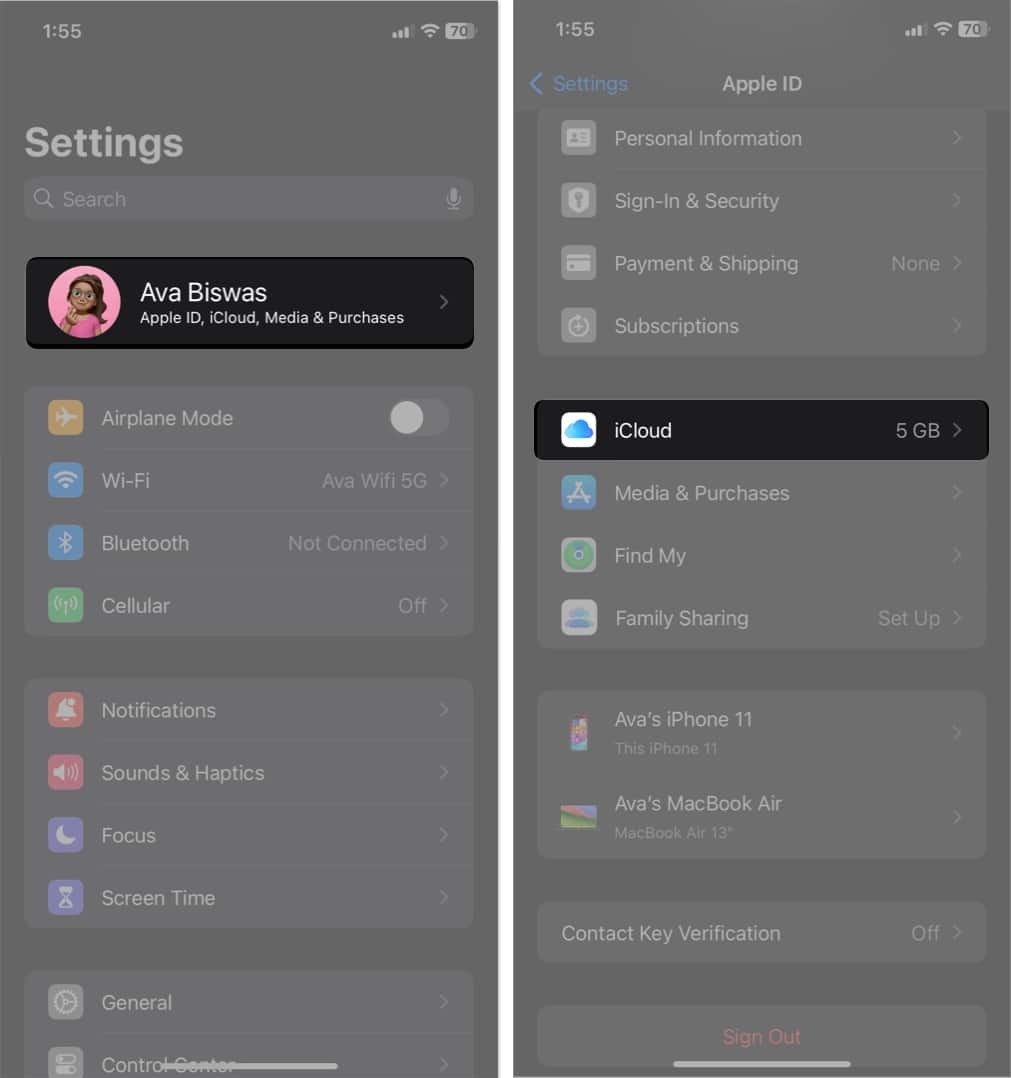
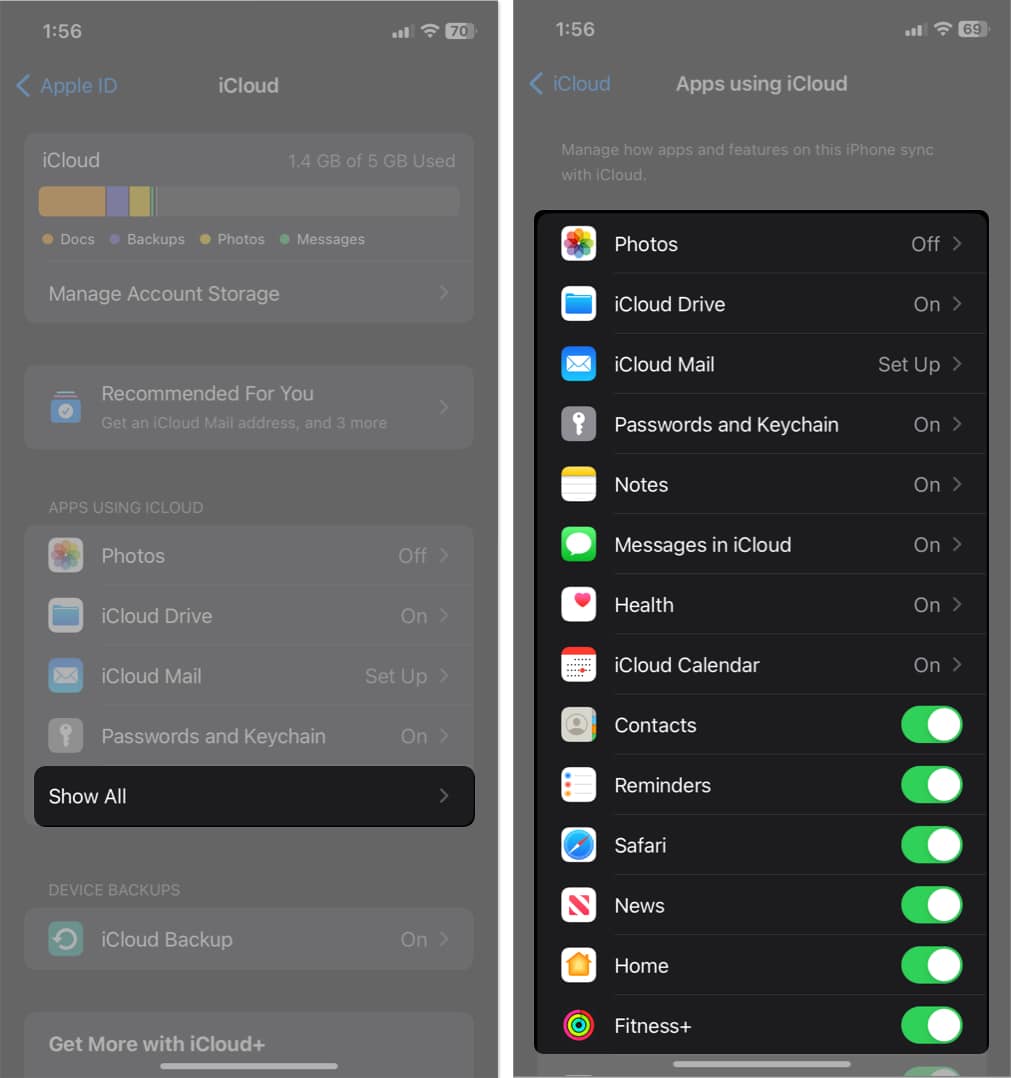
Your iPhone will now start uploading data to iCloud. This may take a few minutes depending on your Wi-Fi speed.
Now, move over to your iPad:
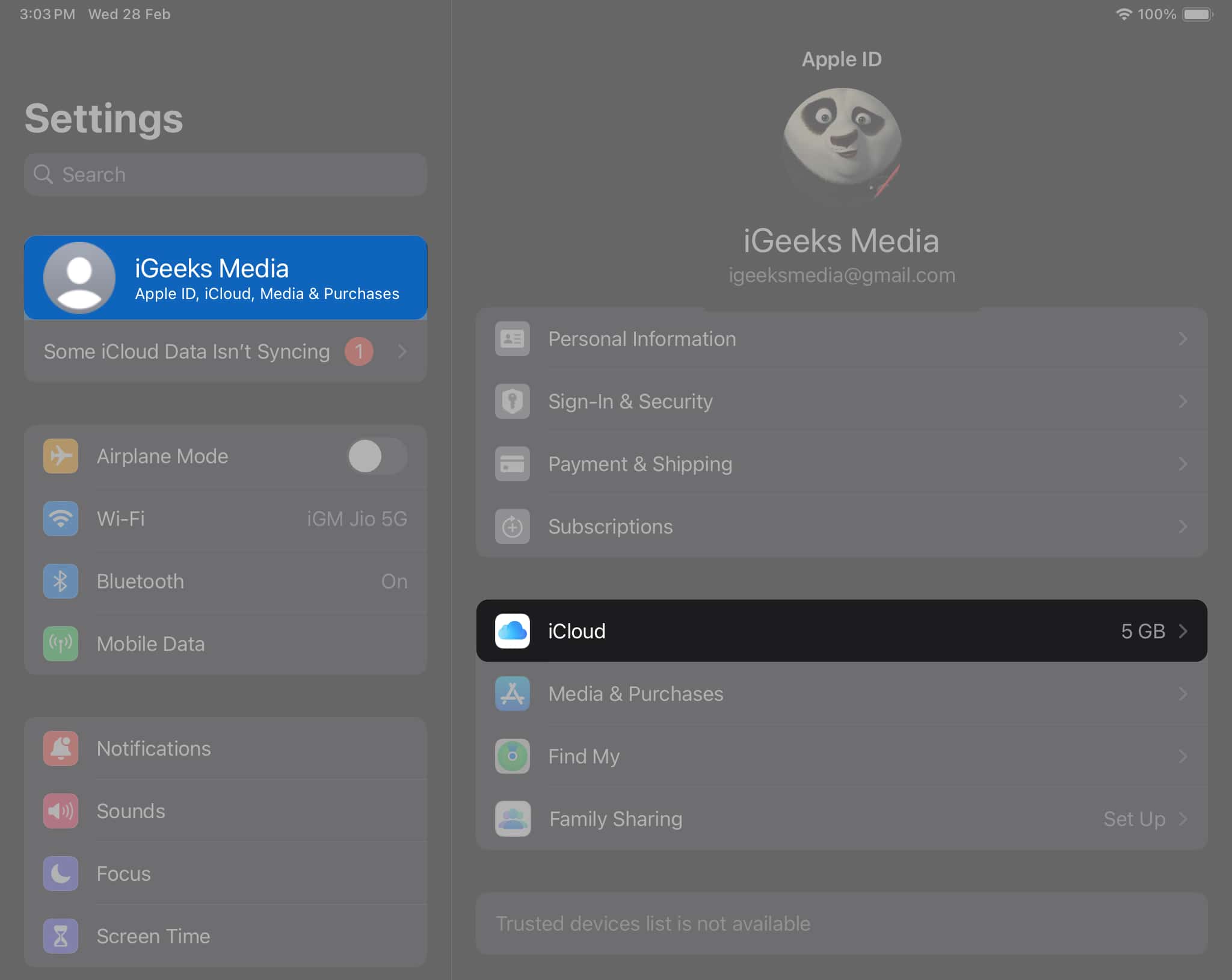
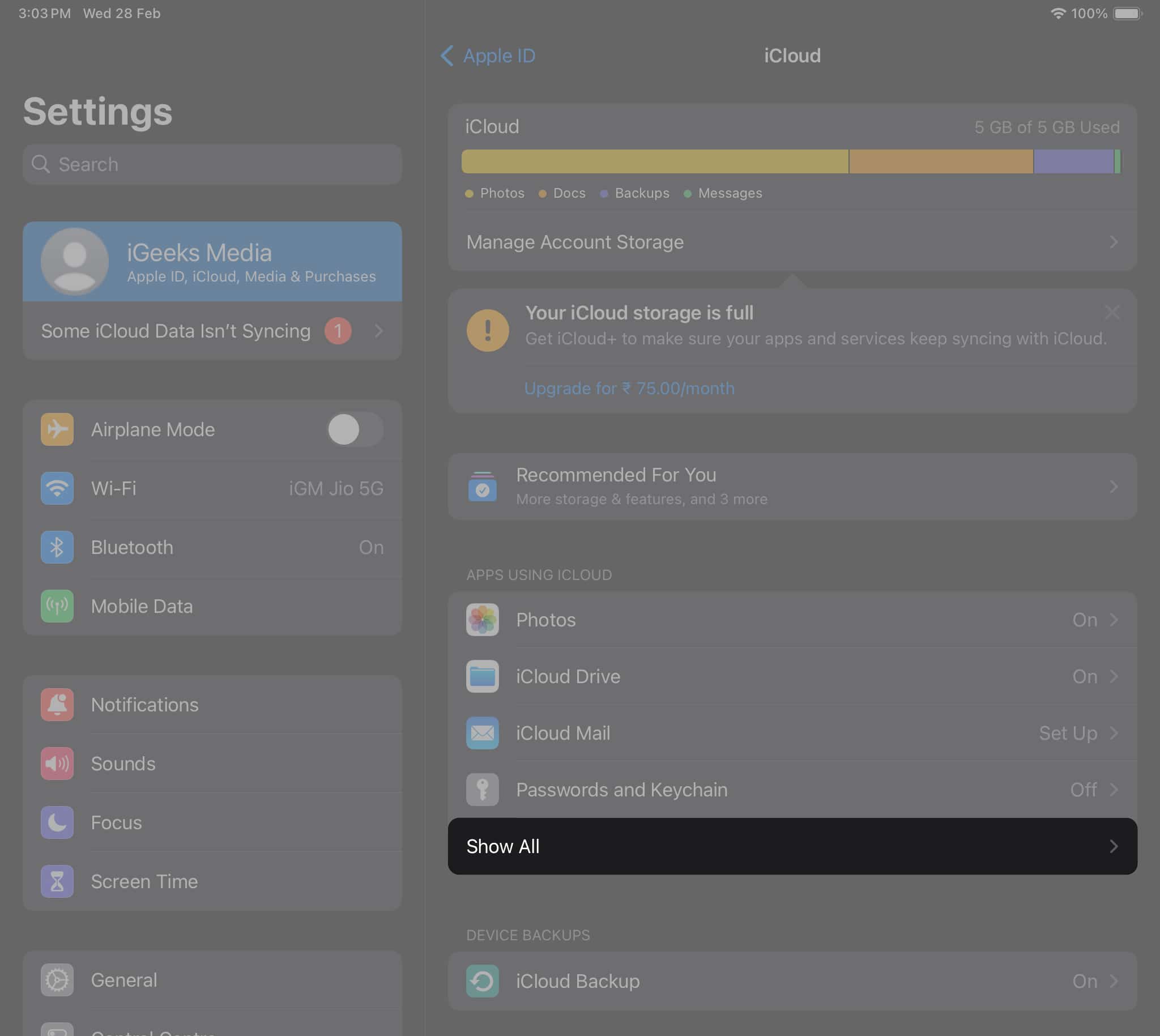
As soon as you do, your iPhone’s synced data (contacts, messages, photos, documents, etc.) will begin appearing on your iPad. Depending on the size of your data, syncing may take a while. Keep both devices connected to power and Wi-Fi.
Want new apps installed on your iPhone to automatically appear on your iPad?
Here’s how:
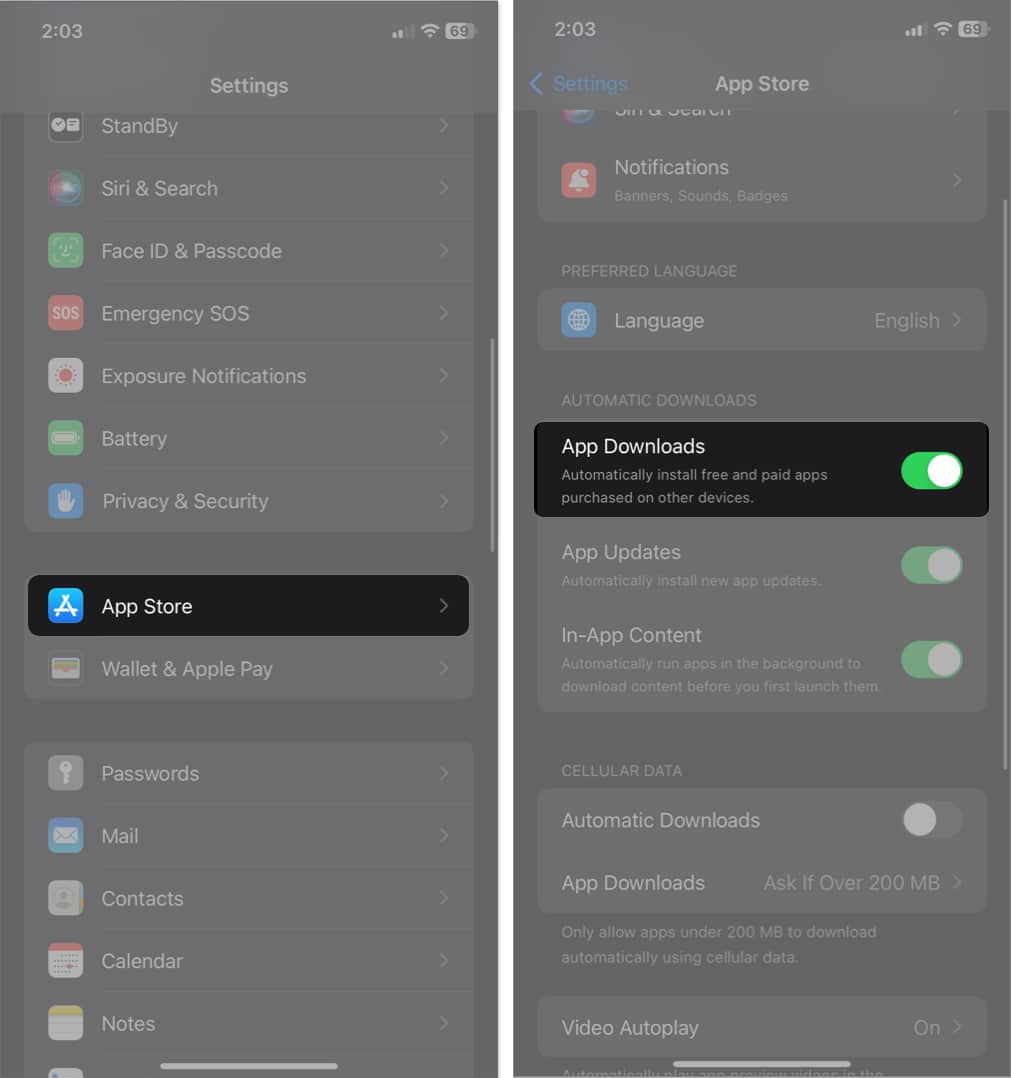
From now on, whenever you download a new app on one device, it’ll show up on the other as long as the app supports iPad. Also, deleting an app from one device won’t remove it from the other.
You can also sync your purchased books and podcasts on your iPhone and iPad. Perform the below steps on both of your devices.
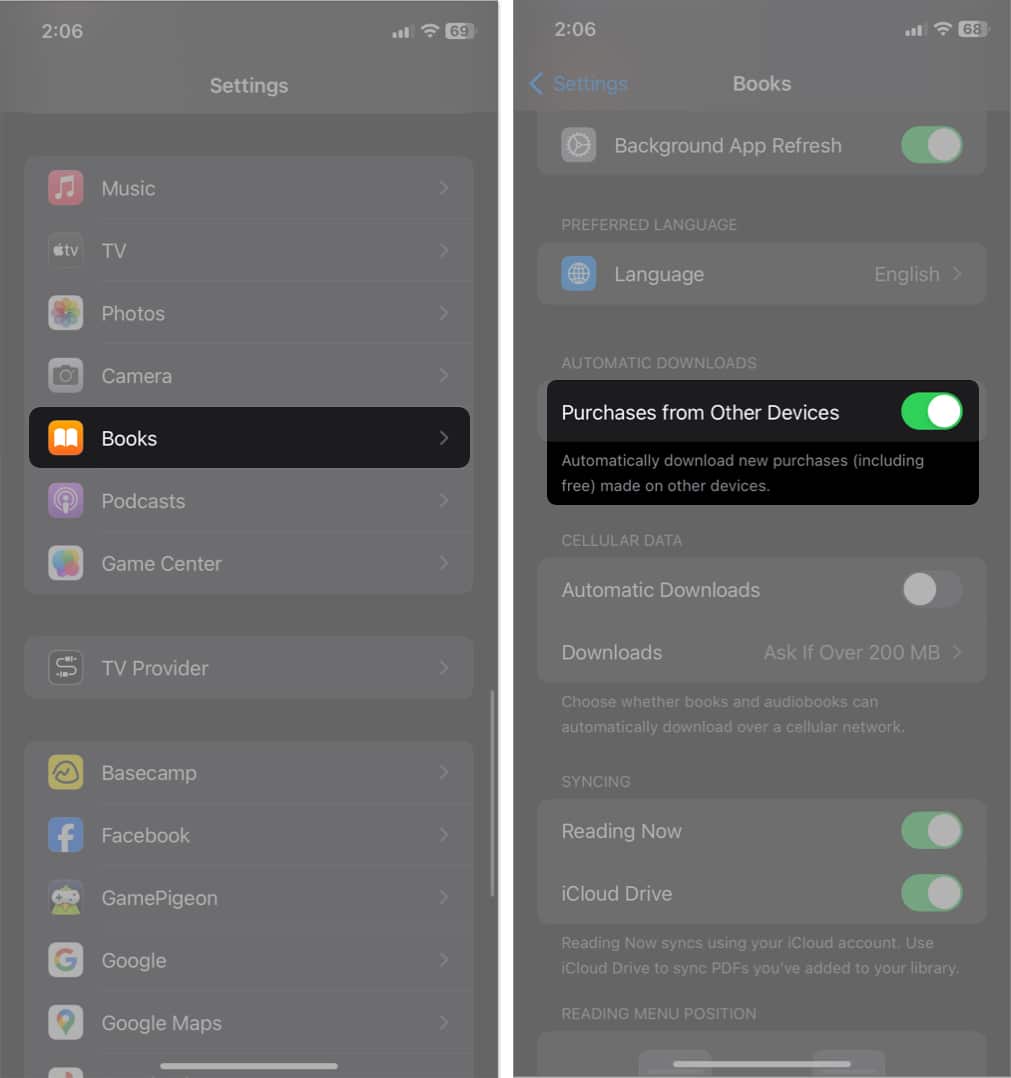
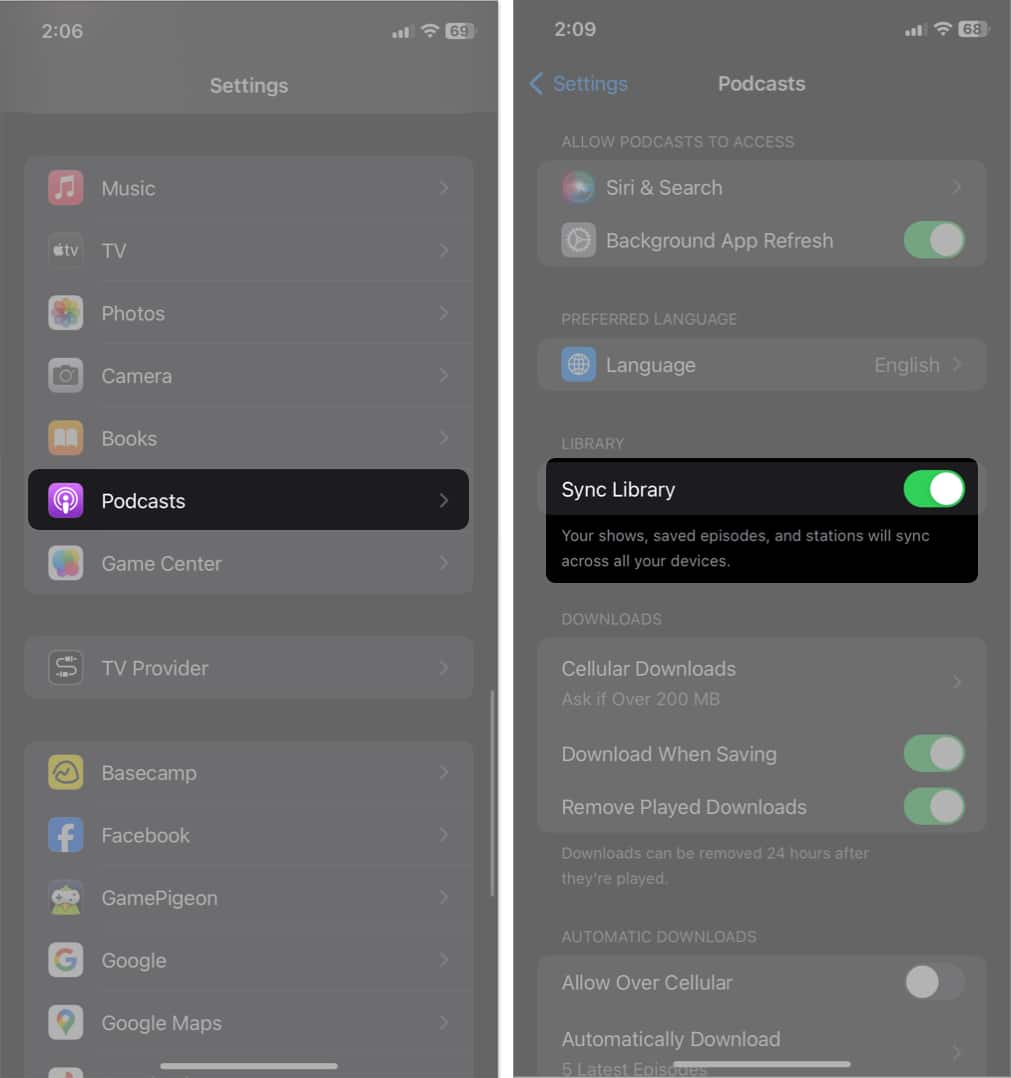
If you haven’t set up your iPad yet or are okay factory resetting it, Quick Start is the fastest way to clone your iPhone’s content and settings.
First, you need to back up your iPhone using iCloud first.
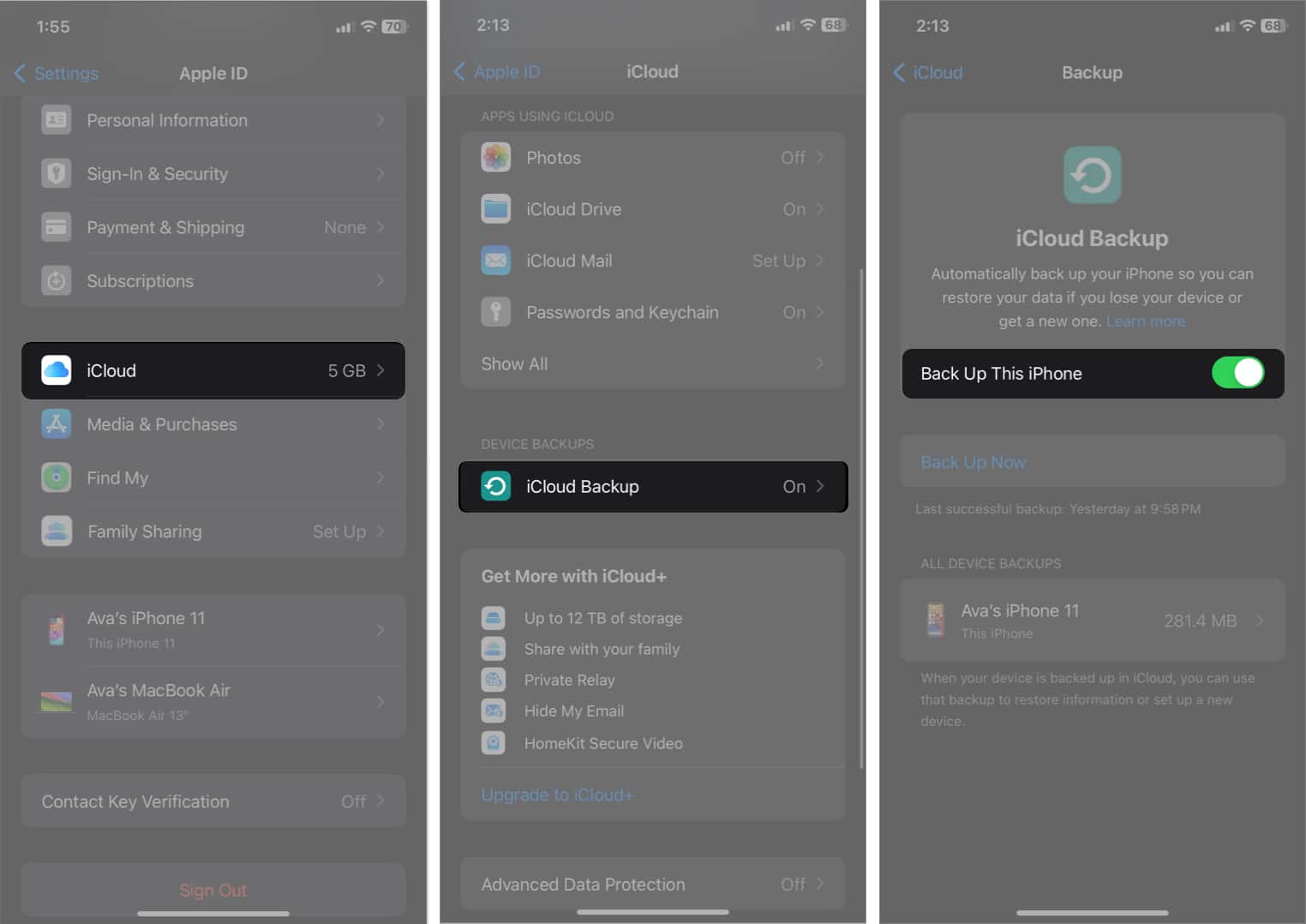
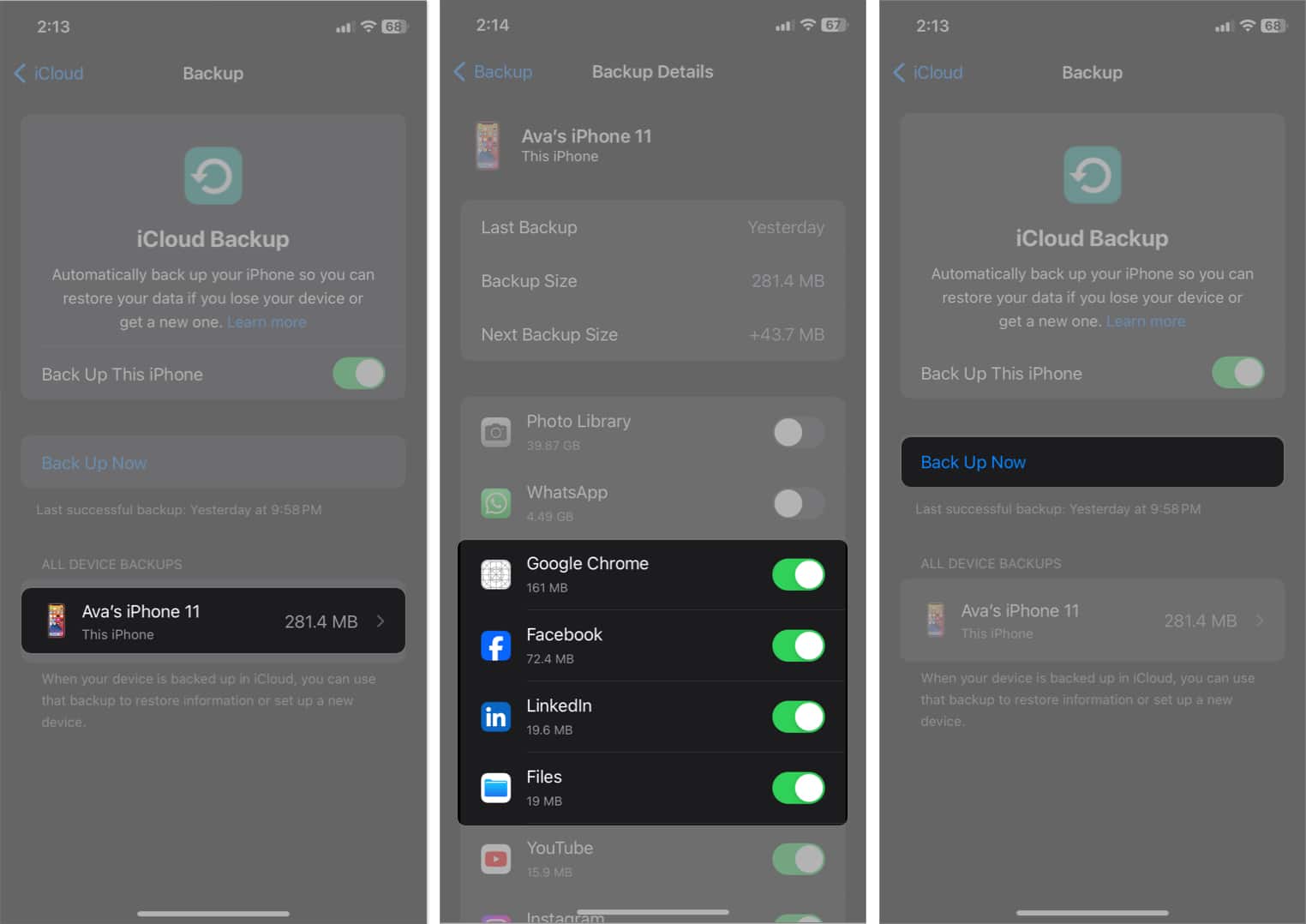
Once your backup is successful, start setting up your iPad:
That’s it! Your iPad will mirror your iPhone’s setup, including Wi-Fi settings, Apple ID, and most apps.
Not a fan of iCloud? No problem! Plenty of great alternatives work seamlessly across iPhone and iPad:
| Service | Best For | How It Helps |
|---|---|---|
| Google Drive or Google One | Files, Photos, Docs | Syncs via Google account and auto-saves documents, images, and backups. |
| Microsoft OneDrive | Files & Office Docs | Great for users who also use Windows or Office apps. |
| Dropbox Backup | File Sharing | Offers selective sync and quick sharing features. |
| Evernote / Notion | Notes | Syncs text, images, and tasks across devices. |
Even data that isn’t technically “synced” still feels connected thanks to Apple’s Continuity suite:
Together, these features make your Apple devices feel like one seamless system.
Need a little privacy separation between your devices? You can easily unsync them.
Option 1: Sign Out of iCloud on iPad
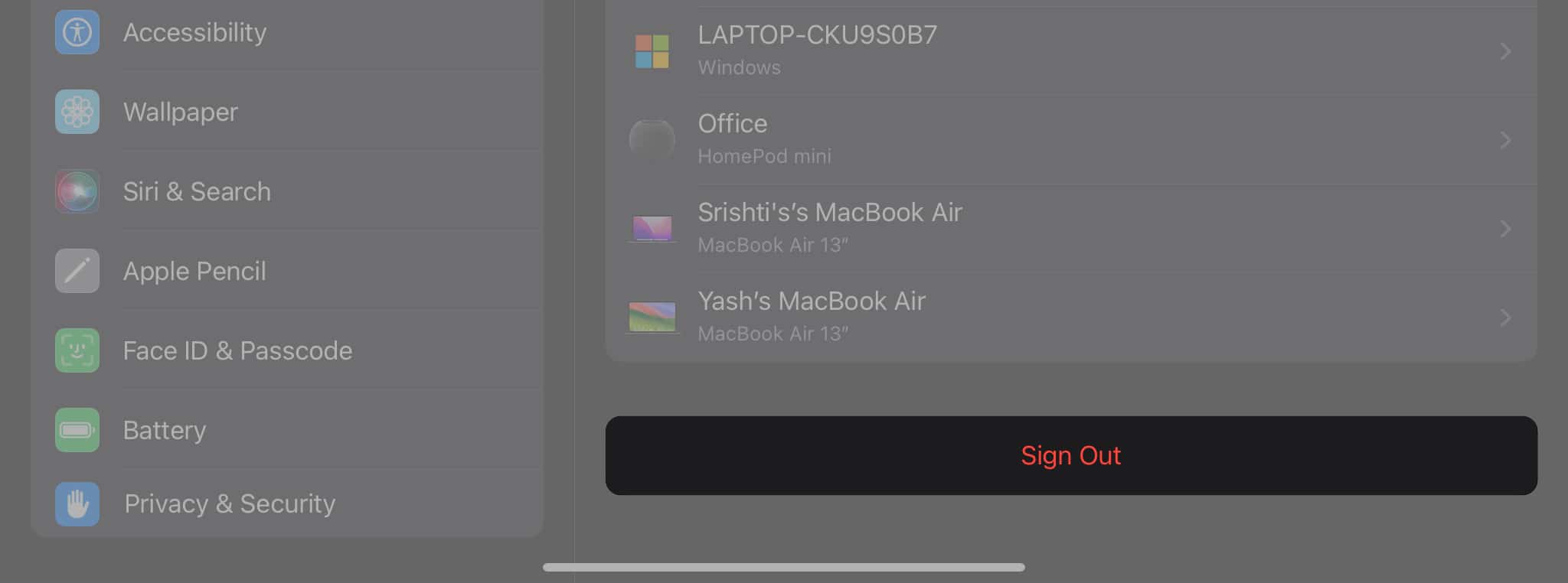
Option 2: Stop Syncing Certain Apps
If syncing isn’t working, use these quick solutions:
Still stuck? Reach out to Apple Support to get professional assistance.
Read more: Why is Syncing with iCloud Paused? Solutions and Tips
By syncing your iPhone and iPad, you get the best of Apple’s ecosystem. So, you can enjoy seamless continuity, shared data, and cross-device productivity. With iOS 26, the process is faster, more secure, and more customizable than ever.
So go ahead, enable sync, sit back, and enjoy that Apple magic!
FAQs
Make sure both devices are on the same Apple ID and Wi-Fi network. Also, verify iCloud Sync turned on for the apps you wish under Settings > Apple ID > iCloud > Show All.
Yes, use Quick Start during setup or use cloud apps like Google Drive or OneDrive for manual sync.
No. App removal is local so deleting from one device doesn’t affect the other.
Absolutely. Just make sure both are running iOS 26/iPadOS 26, signed in to the same Apple ID, and iCloud is enabled.
Explore more:












