
FaceTime Like a Pro
Get our exclusive Ultimate FaceTime Guide 📚 — absolutely FREE when you sign up for our newsletter below.

FaceTime Like a Pro
Get our exclusive Ultimate FaceTime Guide 📚 — absolutely FREE when you sign up for our newsletter below.


Explore Apple’s new Calculator app on iPad. Learn to use Math Notes with Apple Pencil, scientific calculations, and the built-in converter for currency, length, and more.
After nearly 15 years, Apple has finally added a native Calculator app to the iPad. At first glance, it may look like a larger version of the iPhone’s Calculator, and in some ways it is, but the iPad version takes full advantage of the bigger screen. It offers quick access to basic, scientific, and handwritten calculations through Apple Pencil support.
If you’ve just updated to iPadOS 18 or later, exploring everything the new Calculator app can do might feel a little overwhelming. This guide walks you through every feature and shows you exactly how to use the Calculator app on iPad.
Apple’s new iPad Calculator app includes several useful tools for solving equations, graphing, and unit conversions. Here’s a closer look at what you can do.
The Calculator app handles standard operations like addition, subtraction, multiplication, and division with ease. You can now see a mini history of your recent calculations right above the result, which makes it easier to track your work.
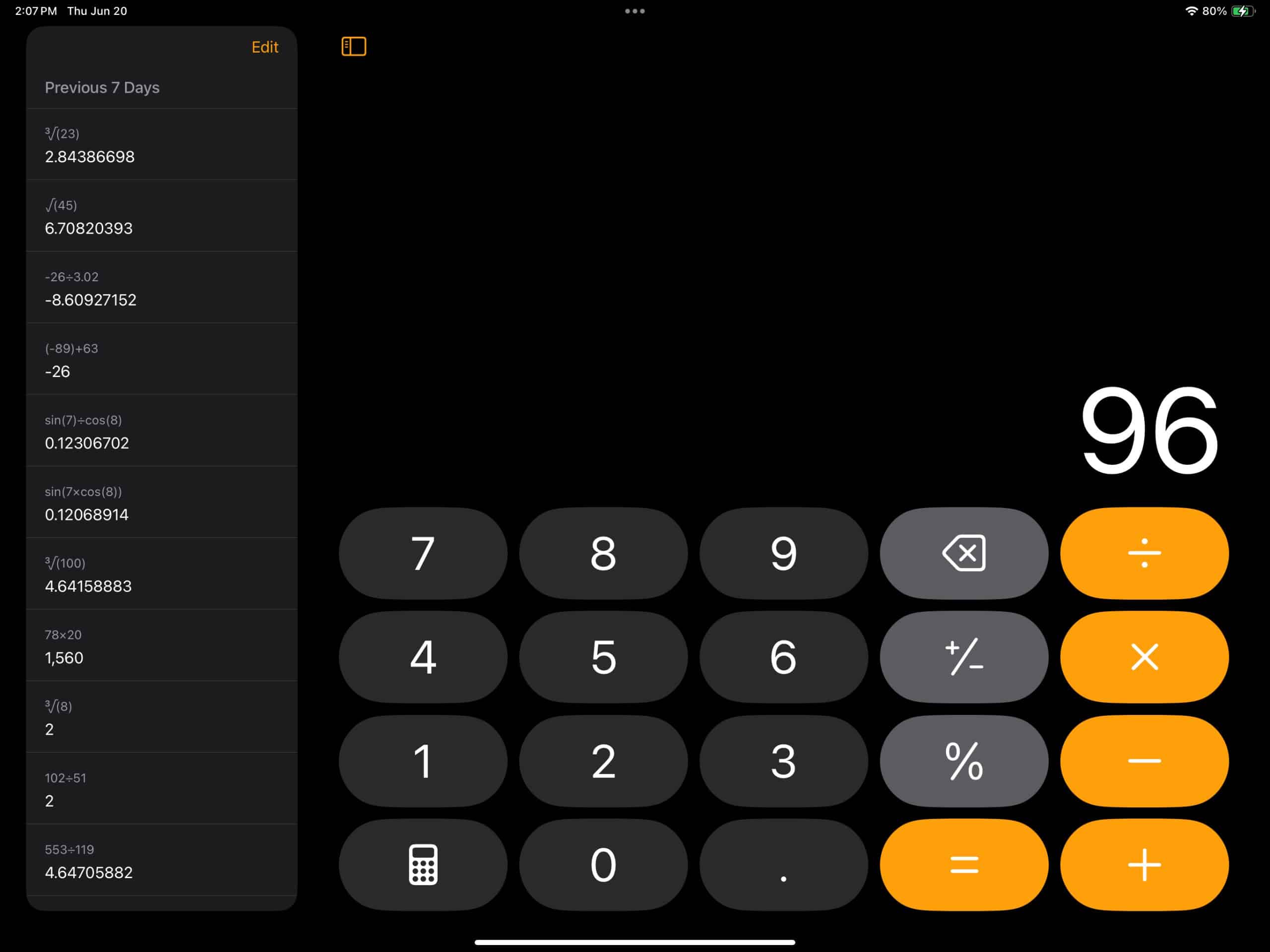
Made a mistake while typing? Tap the delete button to remove the last digit—just like on the iPhone Calculator.
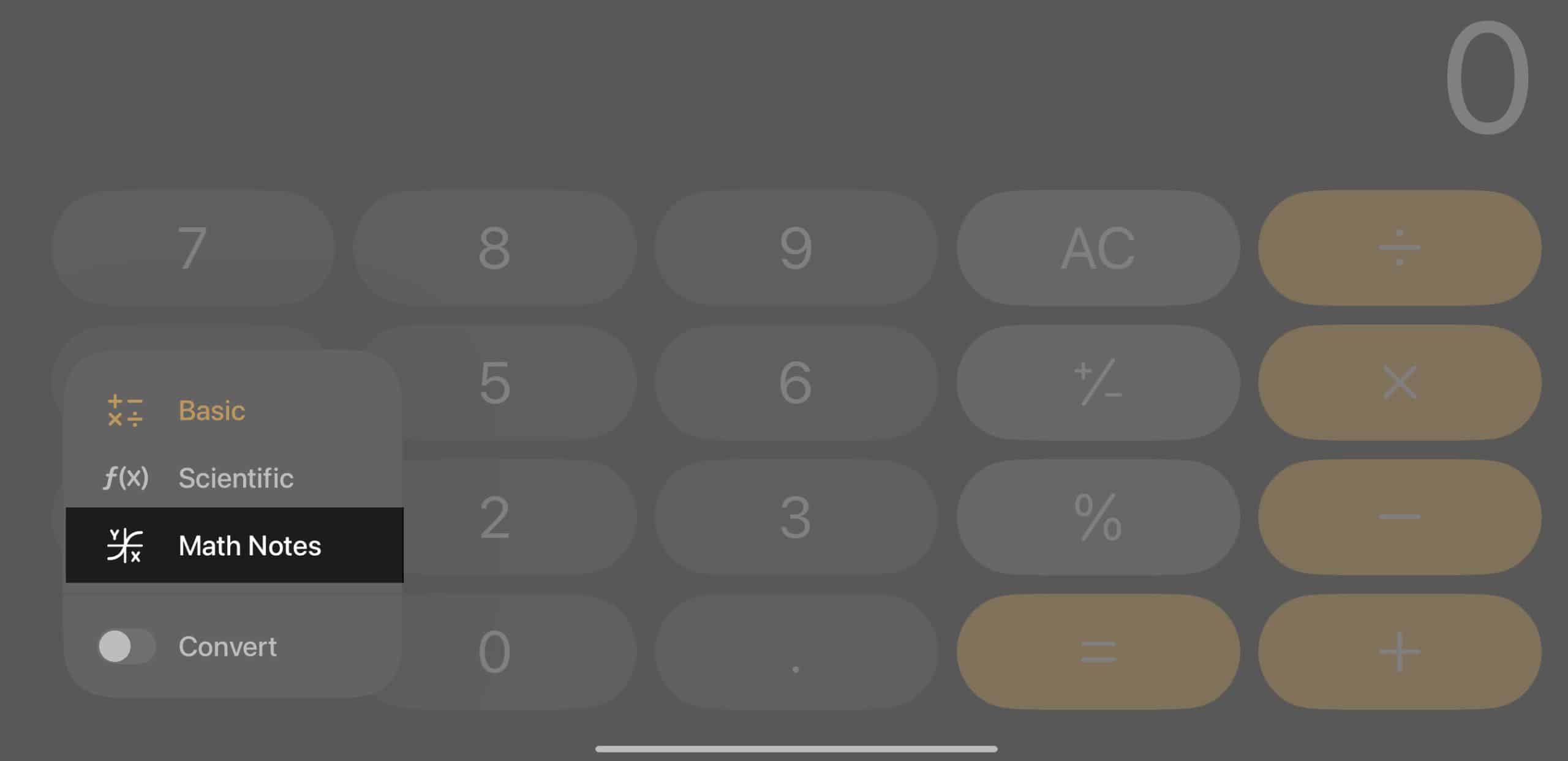
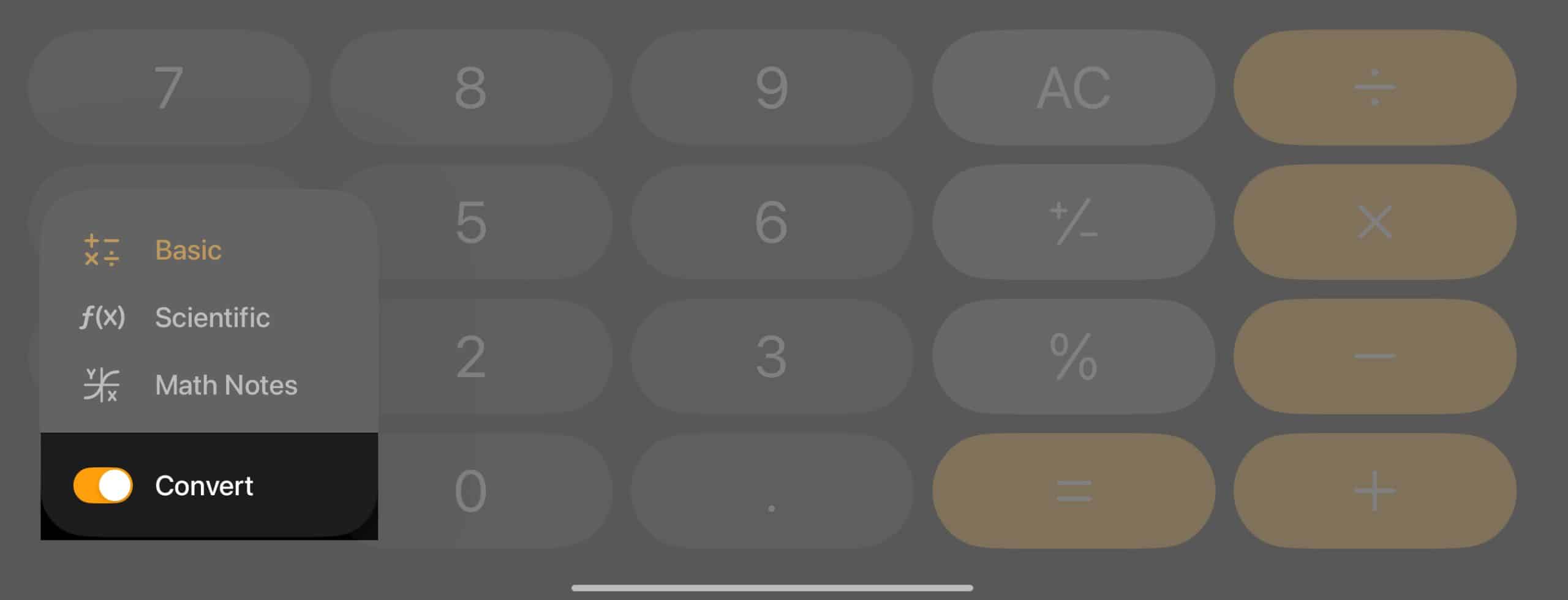
To access the scientific calculator on iPad, tap the calculator icon in the bottom-left corner and select Scientific.
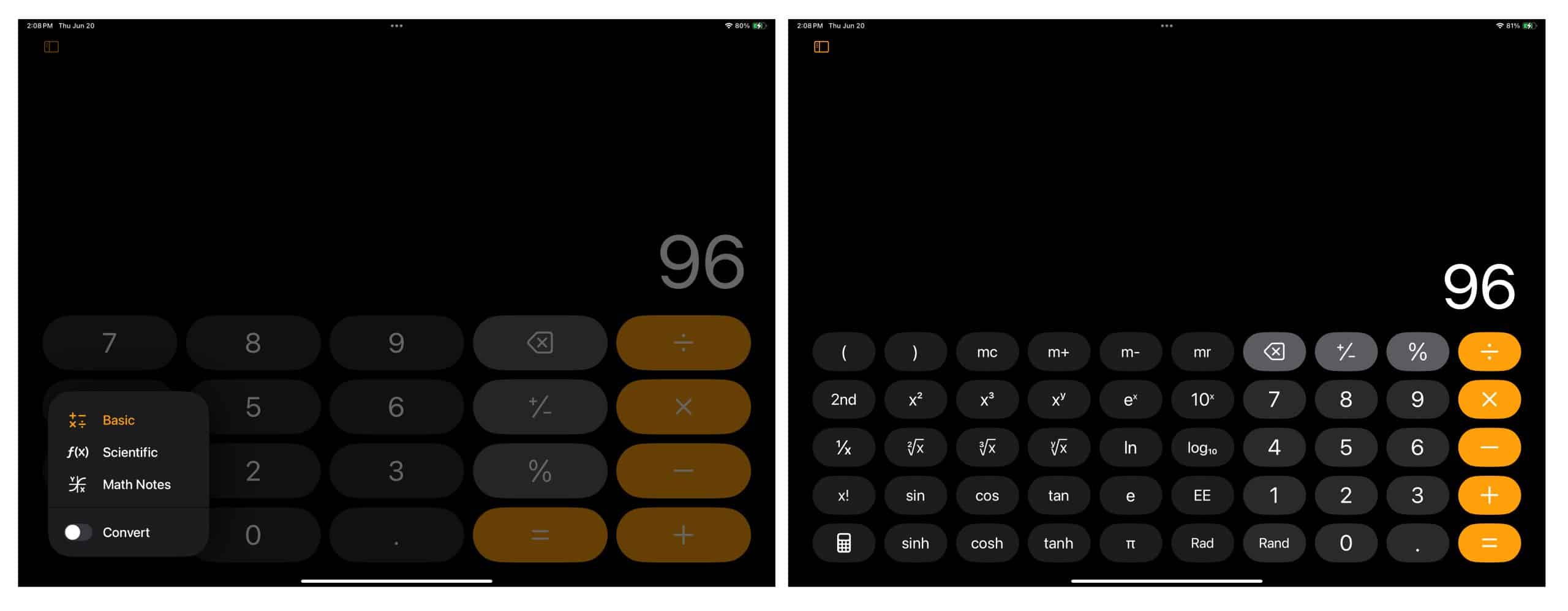
This mode gives you access to advanced functions such as sine (sin), cosine (cos), tangent (tan), logarithms (log and ln), exponents (eˣ), and square roots (√). It’s ideal for students, engineers, or anyone who regularly deals with complex equations.
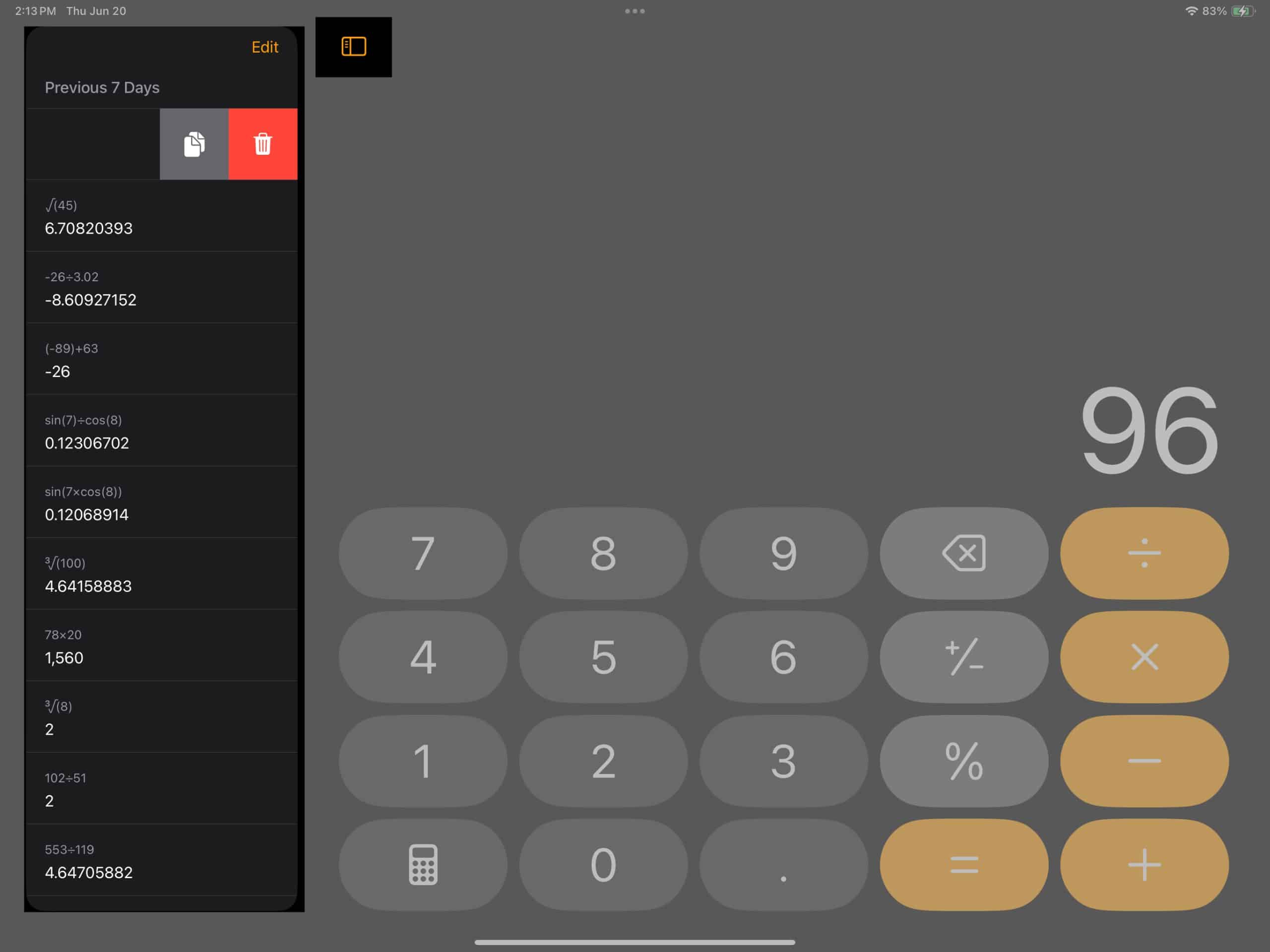
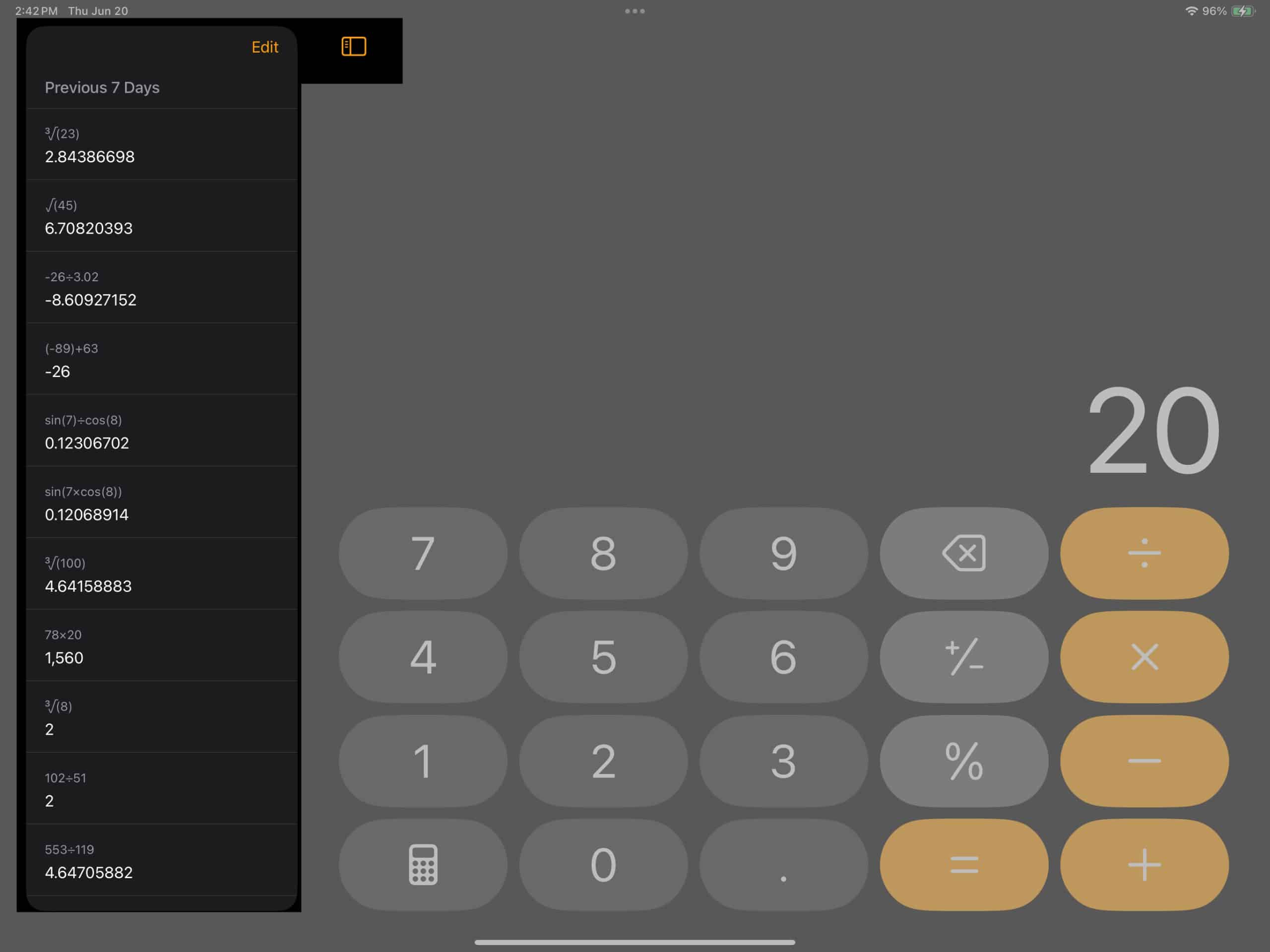
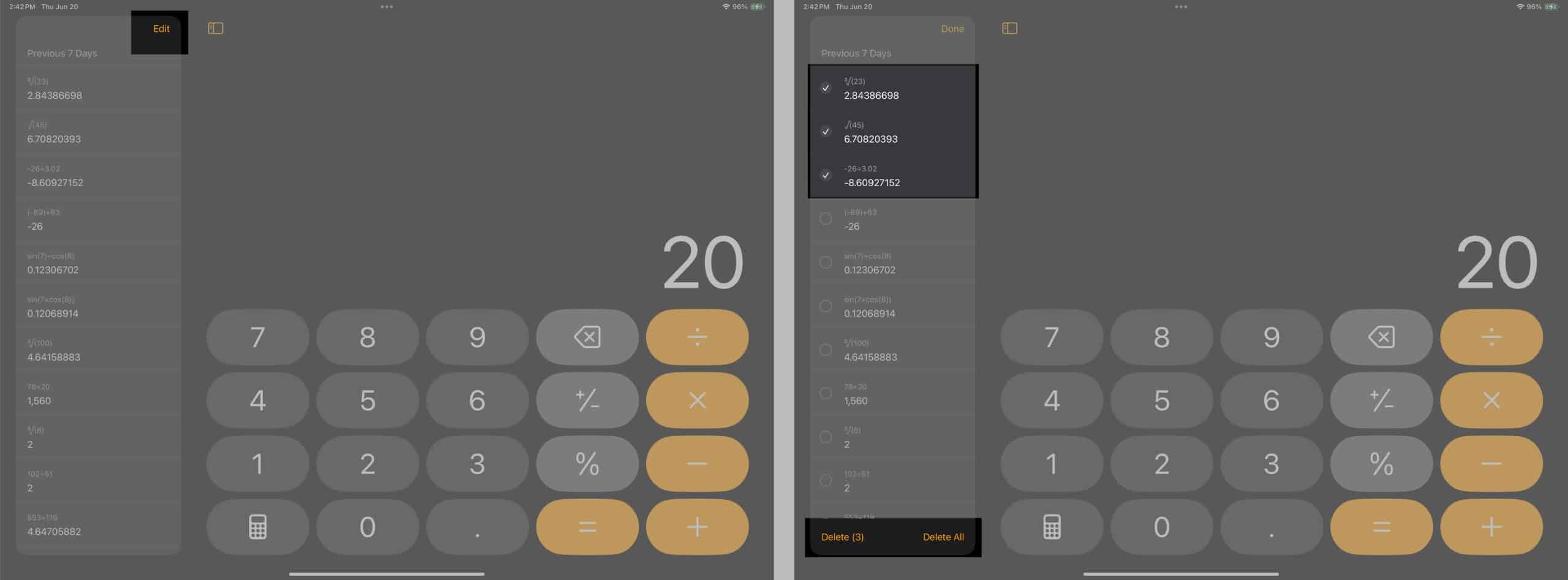
The iPad Calculator app now includes a View History feature. Unlike the iPhone, which used to show only your current session, the iPad version saves your full calculation history. You can scroll back through older results and delete any entries you no longer need.
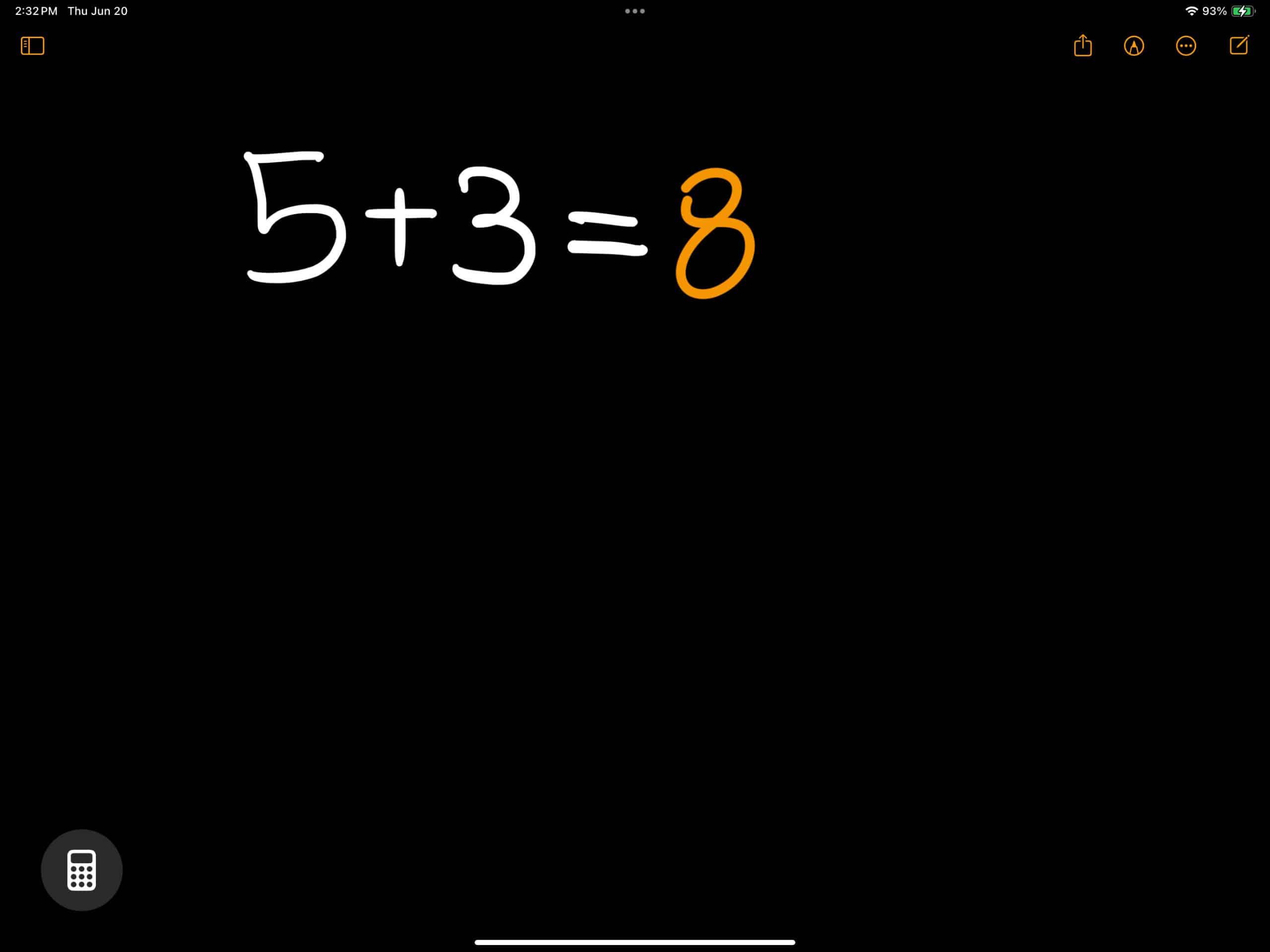
Math Notes is the highlight of the iPad Calculator app. It lets you write math problems directly on the screen using your Apple Pencil or finger and get instant results.
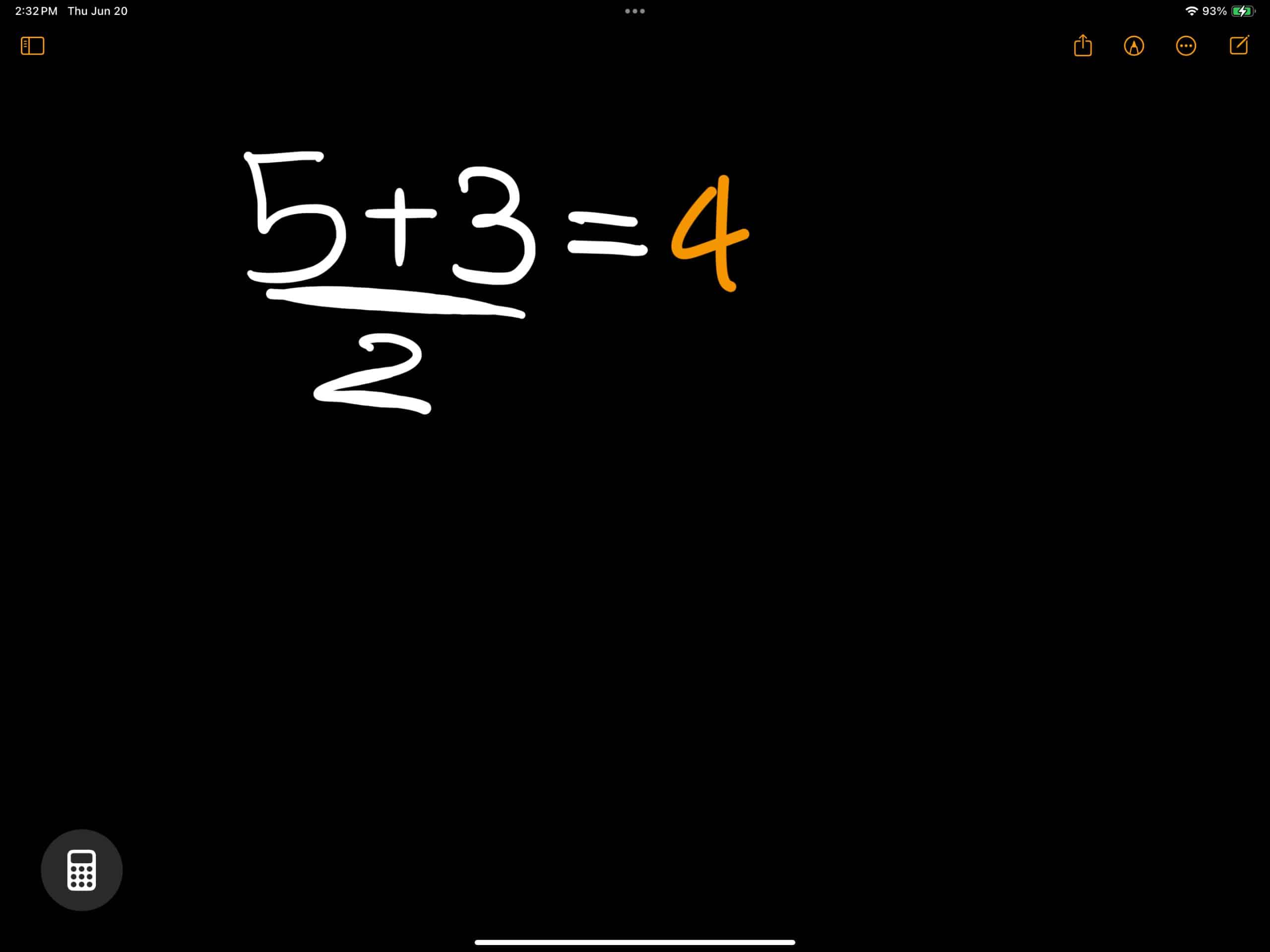
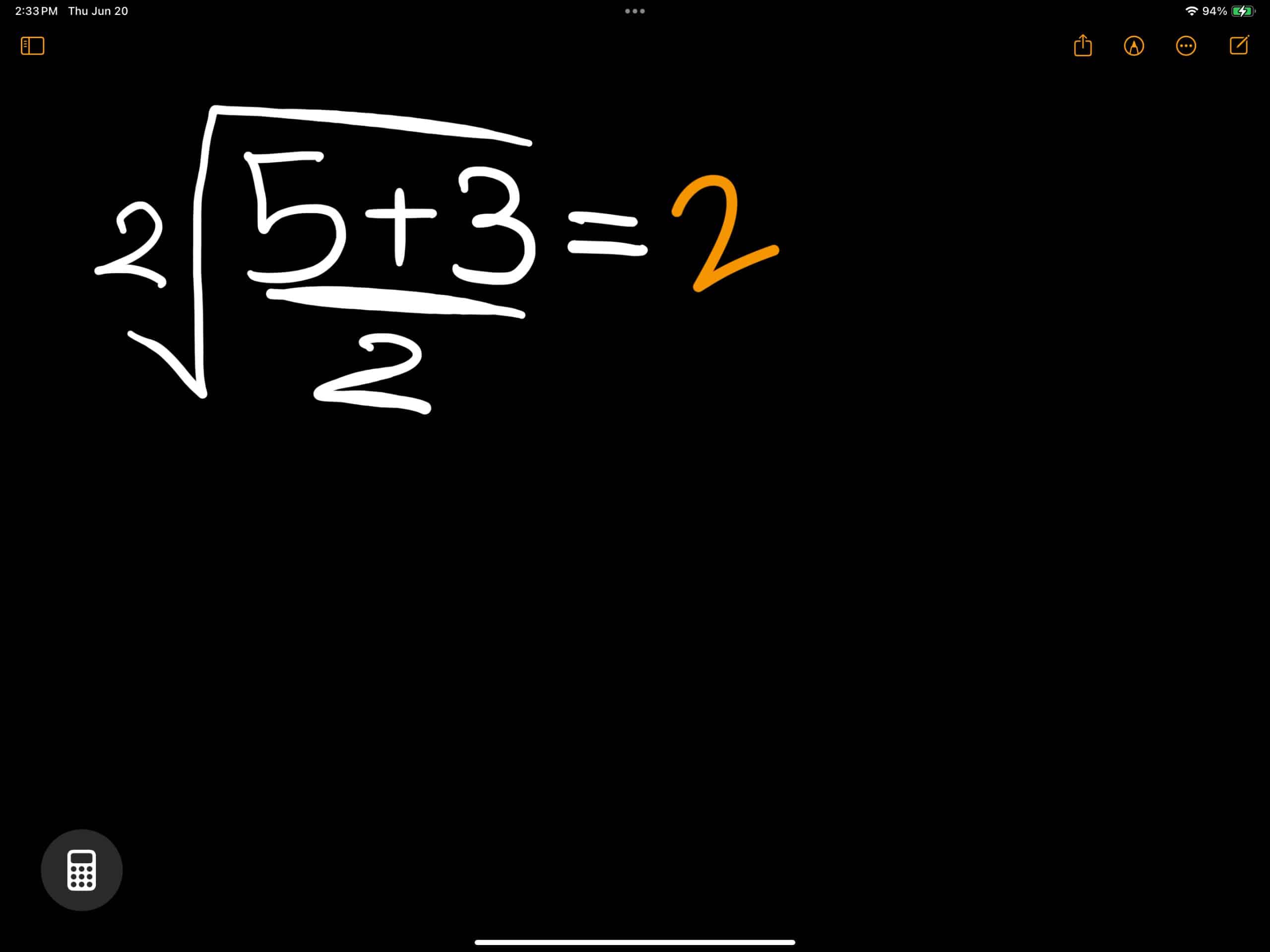
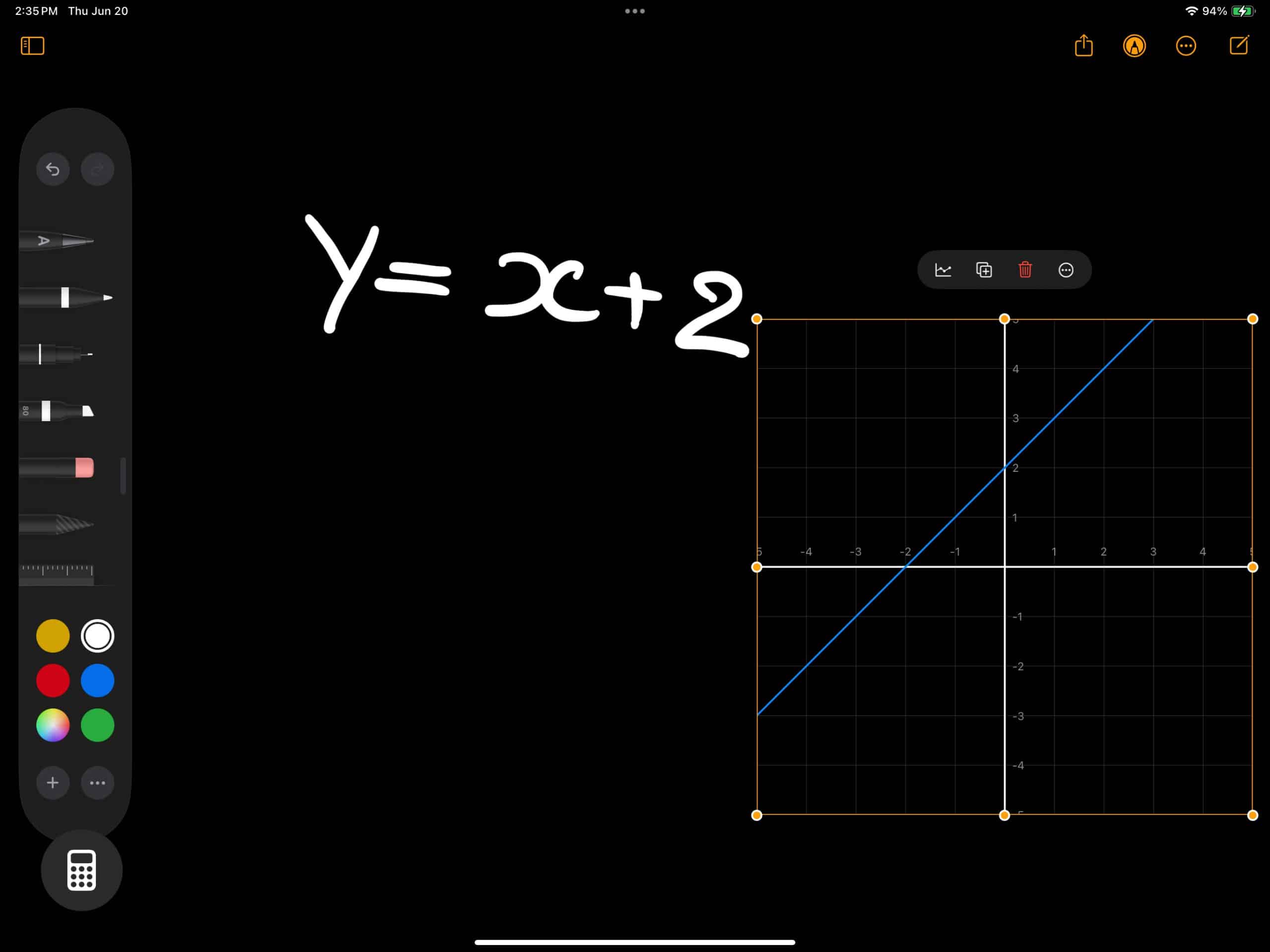
Simply jot down an equation (for example, “5 + 3 =”) and the answer appears automatically. If you modify the equation, the answer updates in real time. You can also create graphs from written equations such as “y = x + 2.” When prompted, tap Insert Graph and the app will plot it for you.
It’s an intuitive way to visualize and experiment with math, especially for students or anyone who prefers a handwritten workflow.
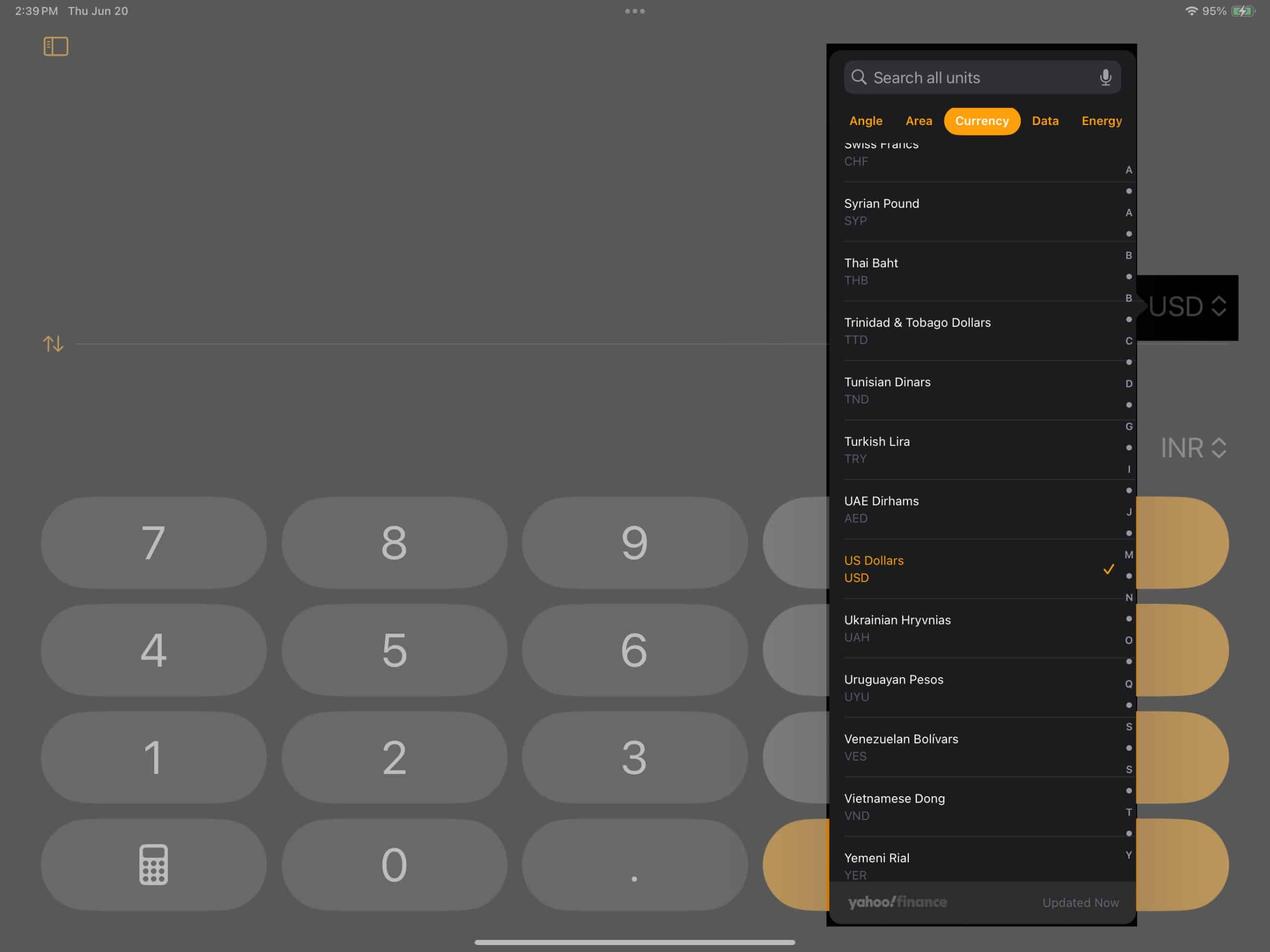
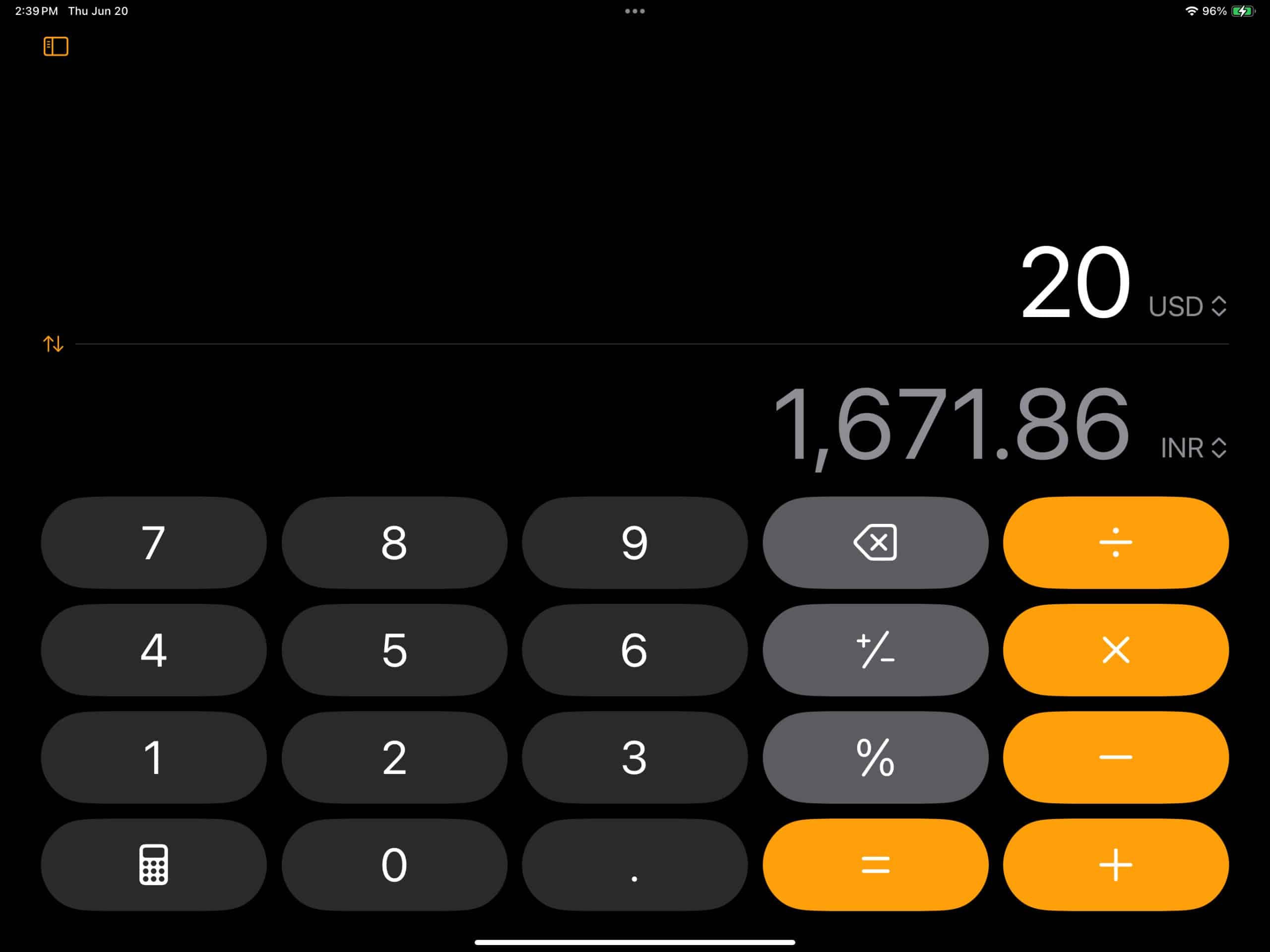
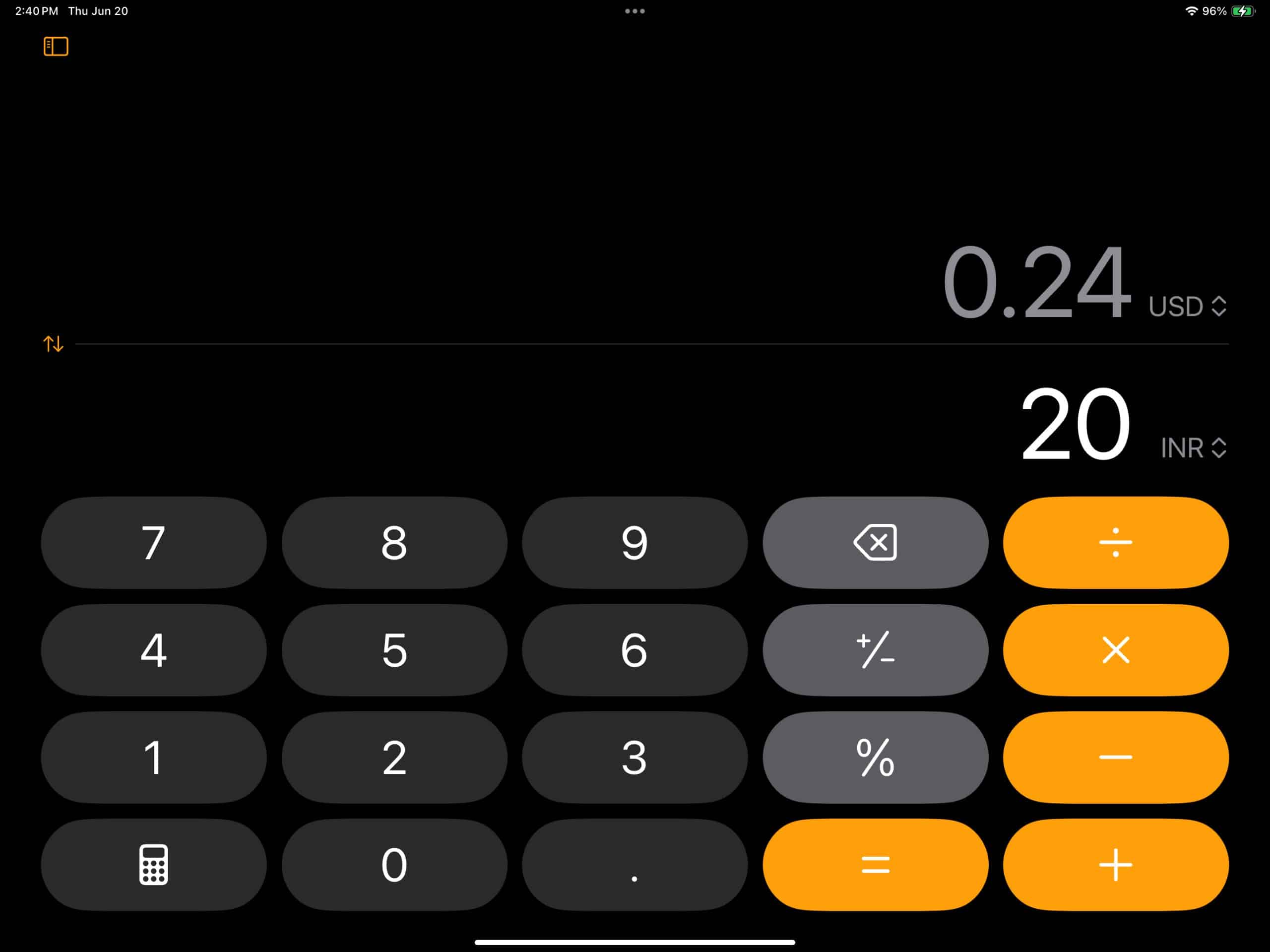
The Calculator app also includes a powerful unit converter. You can switch between units of currency, length, weight, temperature, time, angle, area, and speed.
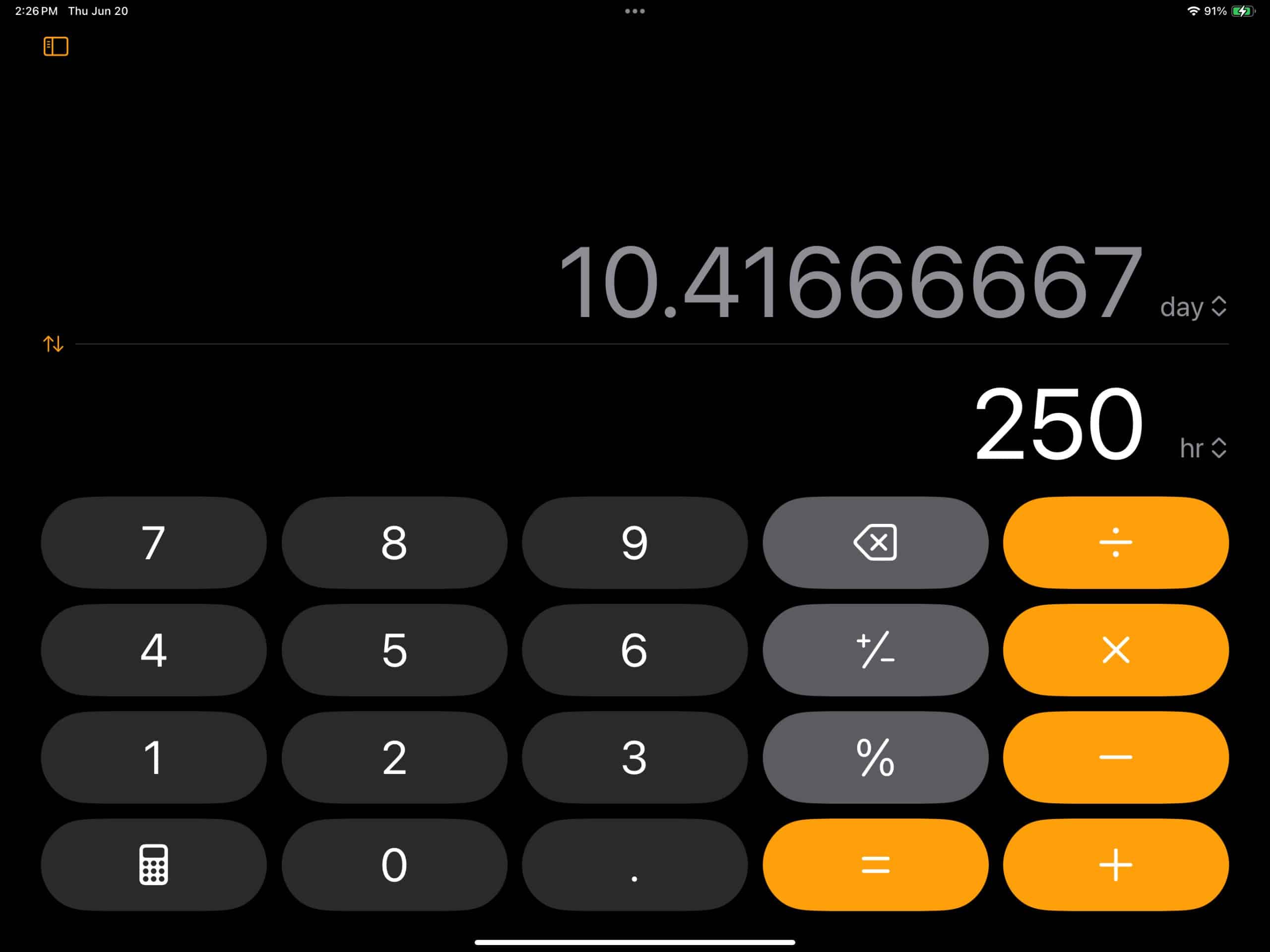
Just select your preferred unit, type the number, and the app converts it instantly. This feature is especially handy for quick currency conversions while traveling.
Now that you know what the app can do, here’s how to use each feature step by step.
Another thing that I personally liked the most about the new app is that it can also draw graphs for you. Here’s how:

The new Calculator app on iPad is more than just a tool for basic math. Its combination of touch and Apple Pencil support makes it a smart, flexible workspace for solving problems, visualizing equations, and converting units.
Whether you’re a student, teacher, or professional, the app’s clean design and real-time feedback make it a practical addition to your daily workflow. Plus, since most features are mirrored on the iPhone Calculator app, you can easily switch between devices without missing a beat.
If you have any questions about using the Calculator app on iPad, drop them in the comments below, we’re happy to help.
Read more:













