How to Control F on iPhone to Find Words Instantly
In this guide, I'll show you exactly how to use "Control F" on your iPhone to search for specific words or phrases across Safari, Chrome, PDFs, and even Notes.
Key Takeaways:
- Using Control + F on iPhone: Your iPhone has a built-in “find” feature, similar to Control+F, for searching text in many apps.
- What does Control + F do?: Control + F (or Command + F on Mac) helps quickly find words or phrases in documents, web pages, or PDFs, and this utility is now available on iPhone for easier navigation through long content.
- Why use Control + F on iPhone?: This feature is especially useful for scanning long articles, searching PDFs, or finding specific details within lengthy Notes or Pages documents efficiently.
- How to use Control + F in Safari and Chrome: To search within a webpage, use ‘Find on Page’ in Safari (via the Share menu or Reader Mode) or ‘Find in Page’ in Chrome (via the Share button or three-dot menu).
- In Files and Notes: Search within PDFs using the Files app’s search bar or use the “Find in Note” feature for Apple Notes.
Ever wished you could use Control + F on your iPhone like you do on a computer? Good news: you can. While there’s no literal Control key on your iPhone, Apple has built the same functionality right into iOS—it’s just hiding in plain sight.
In this guide, I’ll show you exactly how to use “Control F” on your iPhone to search for specific words or phrases across Safari, Chrome, PDFs, and even Notes.
What does Control + F do?
Control + F (or Command + F on Mac) helps you quickly find words or phrases in documents, web pages, or PDFs without manually scrolling. On iPhone, this function is just as useful—especially when you’re digging through long articles or dense notes.
Why use Control + F on iPhone?
Here are common use cases:
- Scanning long articles in Safari or Chrome.
- Searching PDFs or eBooks for a term or reference.
- Finding details inside lengthy Notes or Pages documents.
How to use Control + F on iPhone in different apps
Whether you’re browsing in Safari or Chrome, reading a PDF, or digging through Notes, here’s how to quickly find exactly what you need.
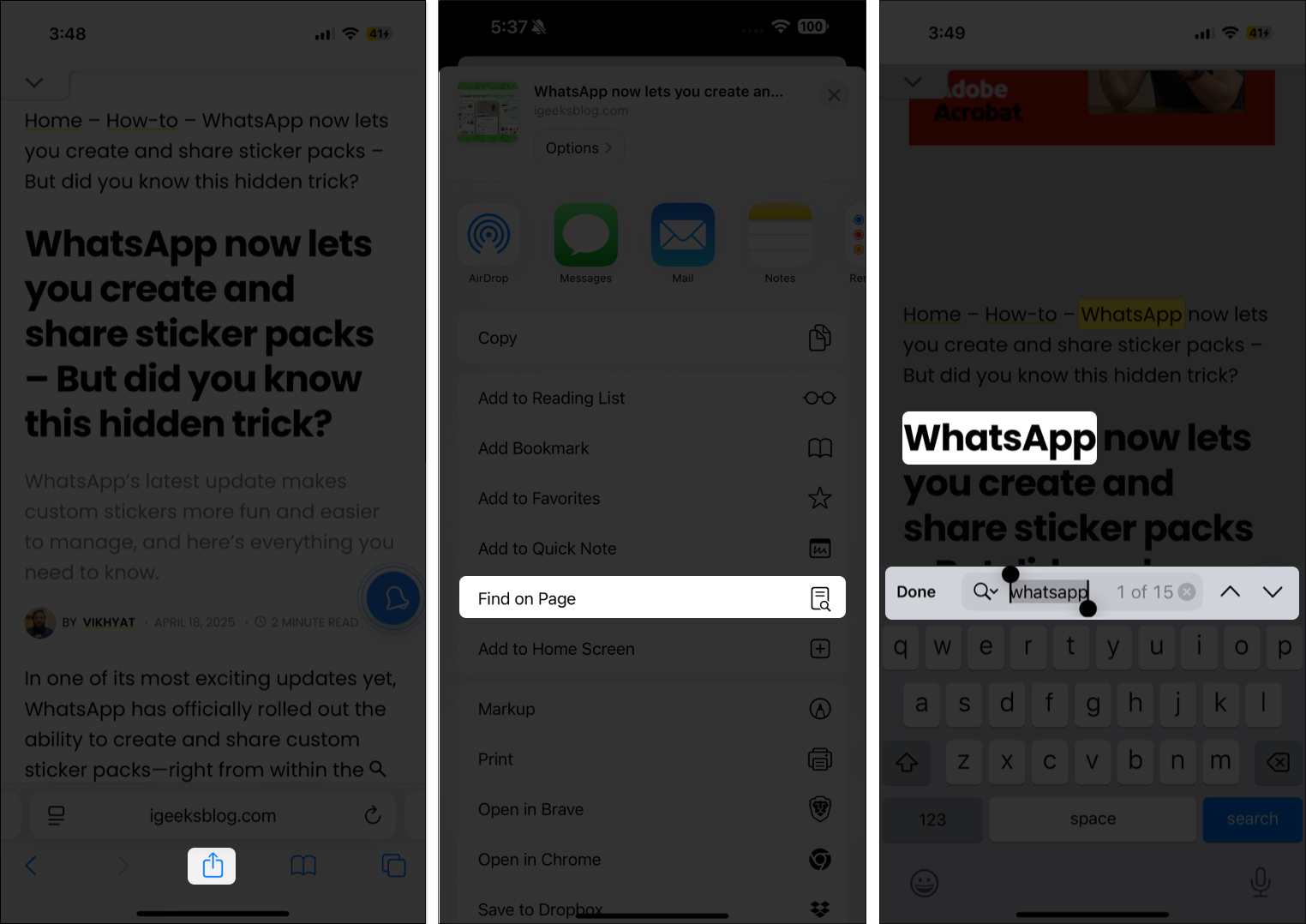
How to Use Control F on iPhone in Safari
Safari hides the “Find on Page” tool in a couple of places. Here’s how to access it:

Method 1: Using Reader Mode
- Open the Safari webpage where you want to search for a particular word or phrase.
- Tap the Reader Mode icon in the address bar.
- Tap the Find on Page button at the bottom left corner.
- Enter the word or phrase you’re looking for, and the matches will be highlighted instantly.
- Use the arrows at the right to move between the matches.
Method 2: Using the Share Menu
- Tap the Share button.
- Scroll and tap Find on Page.
- Type the term and navigate using the arrows.
Bonus tip: You can also type the term directly into the address bar, scroll down, and tap Find “[term]” On This Page from the results.

How to Use “Control F” in Google Chrome on iPhone
Chrome offers a similar “Find in Page” feature:

- Open the Google Chrome webpage.
- Tap the Share button next to the address bar
- Select Find in Page.
- Type your term and use the arrows to browse matches.
Alternatively, you can tap the three-dot button menu > choose the Find in Page option in the menu that appears.

Search within a document via Files app
PDFs in the Files app come with a built-in search tool:
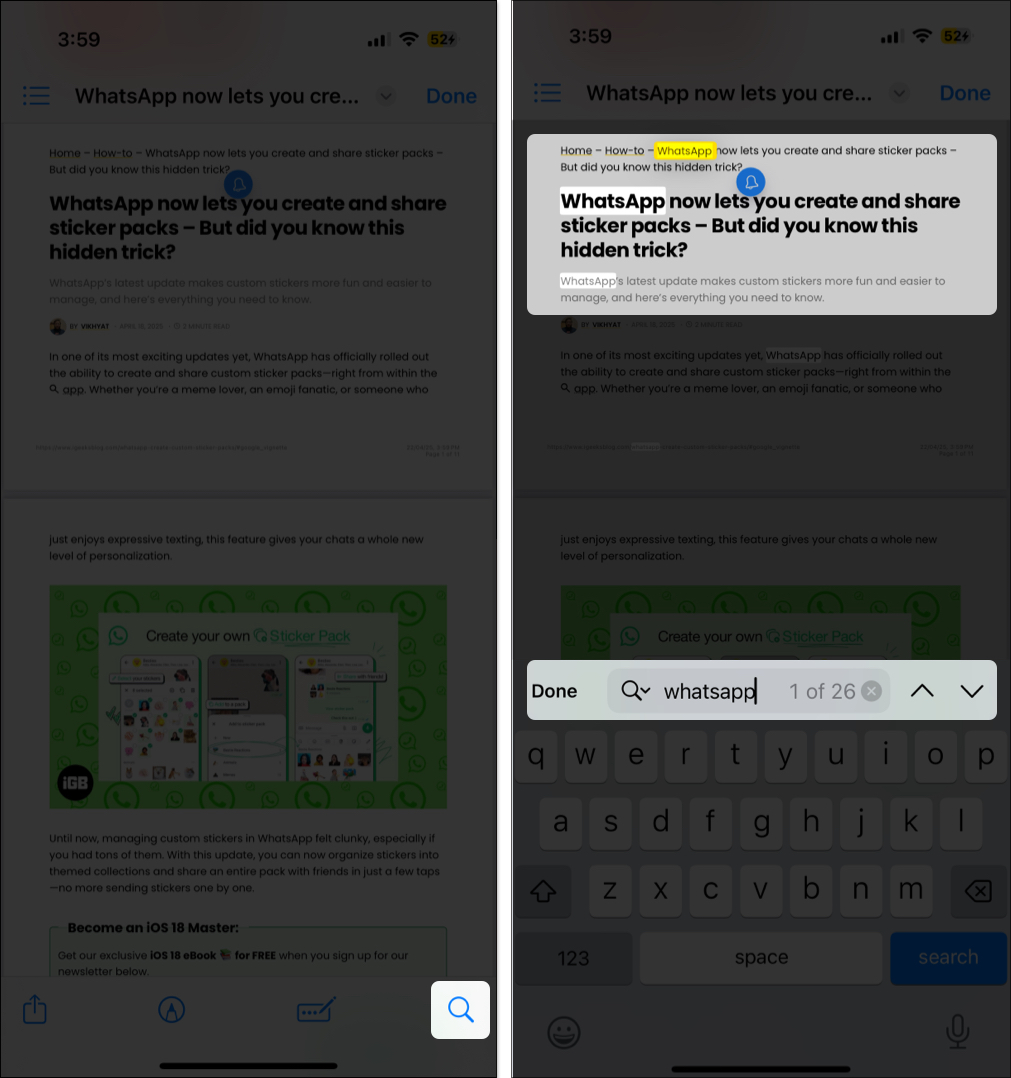
- Go to the Files app and open the PDF document in which you want to look for a particular word or phrase.
- Tap the Magnifying Glass (Search) icon.
- Enter your search term and use the arrows to switch between results.
Search for words or phrases within Apple Notes
Apple Notes makes it effortless to search within a note:
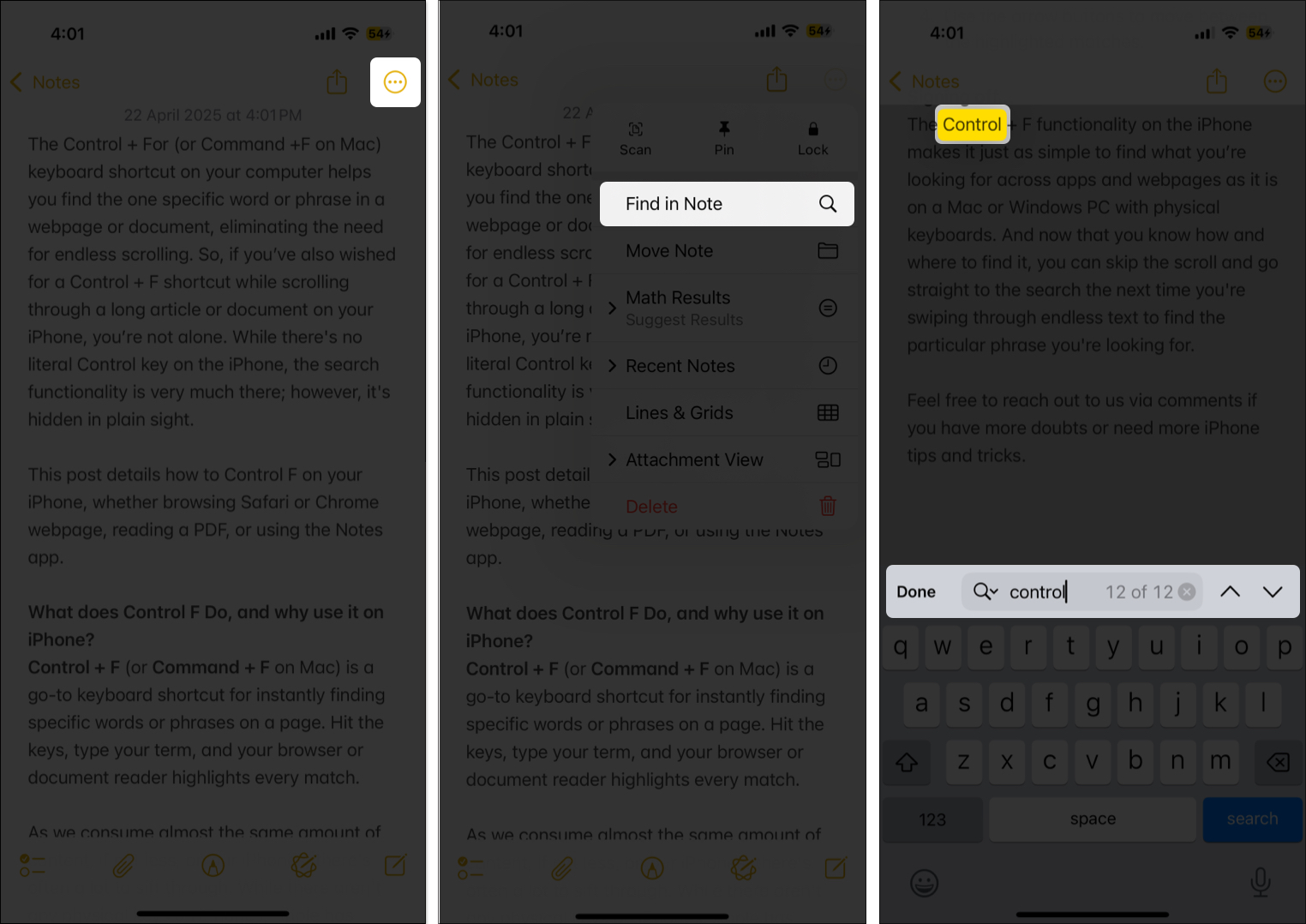
- Open the note in the Notes app.
- Tap the Three Dot button at the top right corner.
- Select Find in Note.
- Enter the word or phrase you want to look for, and the matches will be highlighted instantly. Use the arrow buttons to move between the highlighted matches.
Stop Scrolling, Start Searching
The Control + F shortcut isn’t exclusive to computers anymore. Whether you’re researching online, scanning PDFs, or reviewing notes, your iPhone has smart tools to help you find exactly what you need in seconds.
Now that you know how to “Control F” on iPhone, ditch the endless scrolling and jump straight to the info that matters.
Explore more iPhone tips and tricks:

- How to take a screenshot on an iPhone and iPad
- How to clear iCloud storage on iPhone and iPad
- Safari tips and tricks for iPhone