
FaceTime Like a Pro
Get our exclusive Ultimate FaceTime Guide 📚 — absolutely FREE when you sign up for our newsletter below.

FaceTime Like a Pro
Get our exclusive Ultimate FaceTime Guide 📚 — absolutely FREE when you sign up for our newsletter below.


Local Capture on iPad makes it easier to record high-quality audio and video directly on your device. Here’s what it does, how it works, and how to set it up.

 ByVikhyat and Ava Biswas
When Apple introduced Local Capture in iPadOS 26, I immediately saw its potential for anyone who records interviews, podcasts, meetings, or other video calls.
In iPadOS 27, the feature remains one of the most useful built-in tools for creators because it lets you record high-quality audio and video locally while you’re on a video call, no matter which app you’re using.
In this guide, I’ll explain what Local Capture does, how to set it up in iPadOS 27, where recordings are saved, how to use an external microphone, and what you need to know to get the best results.
Local Capture is a feature introduced with iPadOS 26 that enables users to record their own audio and video locally on the iPad during an active video call. Unlike a normal screen recording, Local Capture isn’t designed to capture everything happening on your display. It records your own camera video and microphone audio locally.
This makes it particularly useful for:
Once the video call ends, your recording is automatically stored in the Files app for safekeeping and easy sharing. Apple designed the feature around a workflow similar to a double-ender: each person records their own high-quality audio and video locally, and the recordings can then be combined in apps such as Logic Pro or Final Cut Pro.
Key Benefits of Local Capture:
Local Capture works independently of the videoconferencing app’s own recording system. For example, I can join a FaceTime, Zoom, Google Meet, or another supported app and use Local Capture from iPadOS itself.
Moreover, the feature is not enabled by default. You must turn it on manually whenever you want to record during a call.
When activated, Local Capture:
If another app is already using your camera, Local Capture records audio only. You can also deliberately choose Audio Only when starting a Local Capture session.
Note: It records only your audio and video, not the other participants’, to maintain privacy and clarity.
Before you start, I recommend having:
Apple also supports using compatible AirPods for recording audio and capturing video remotely during a videoconference.
Before using Local Capture, you need to add its button to Control Centre:
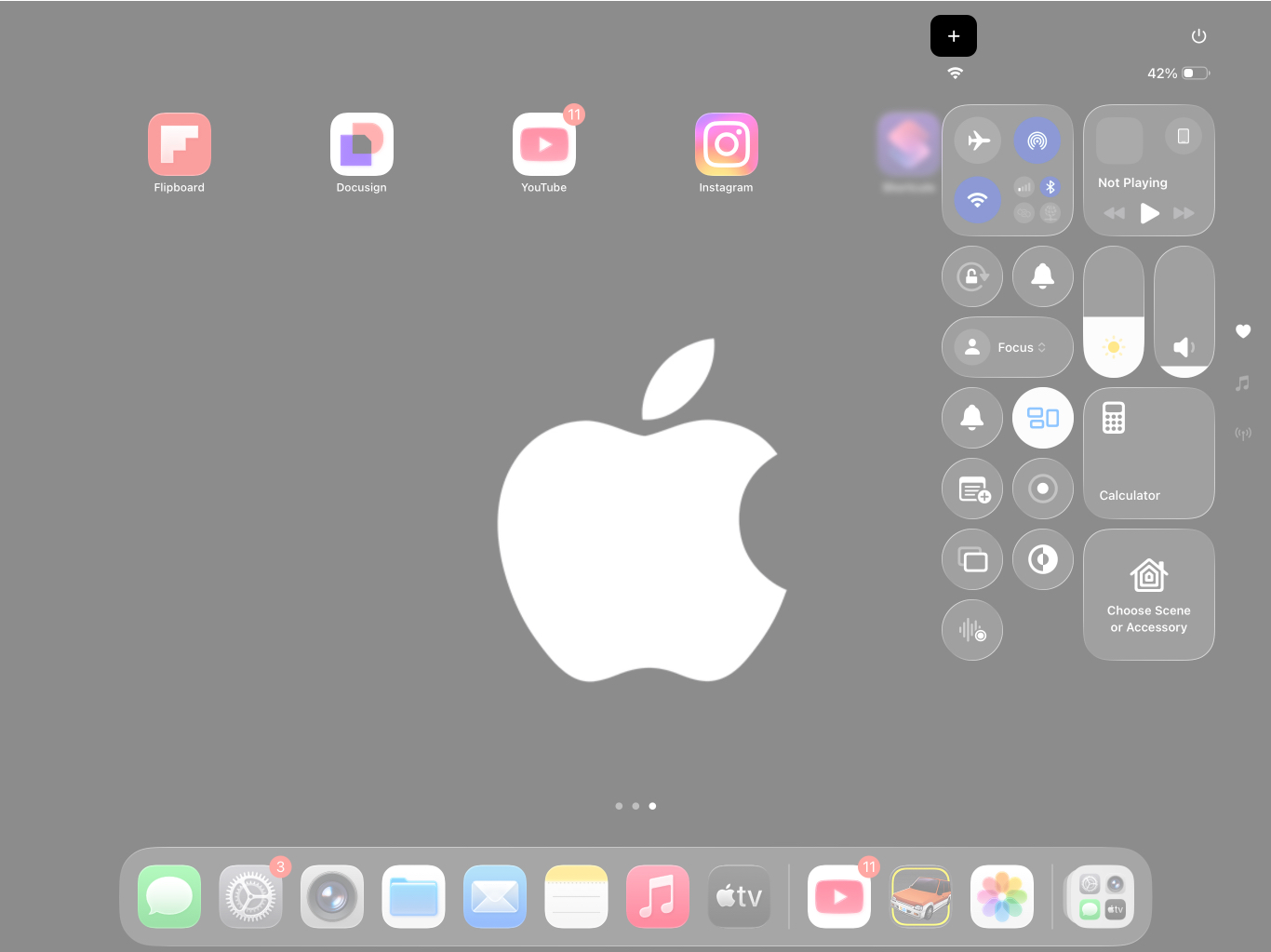
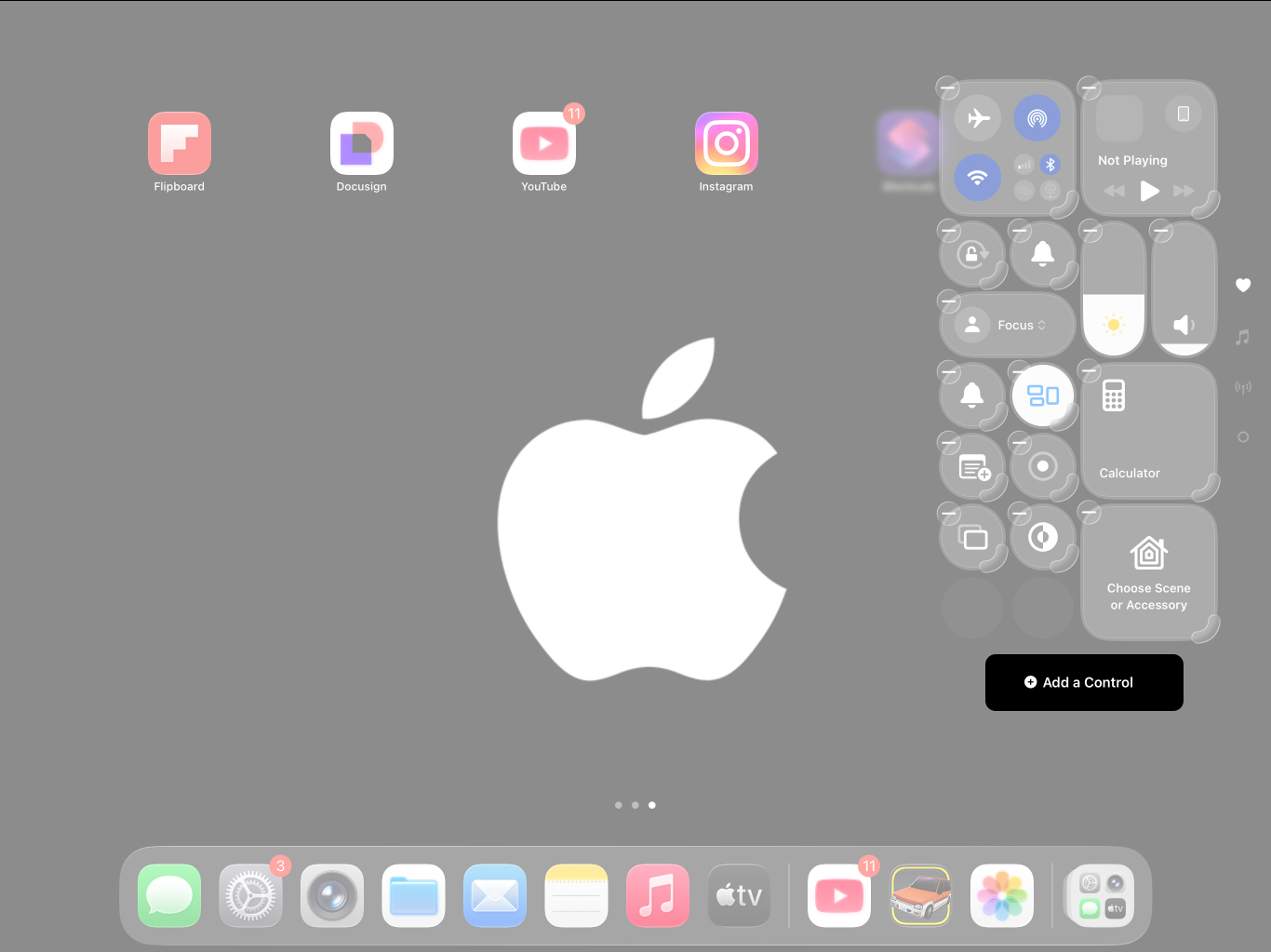
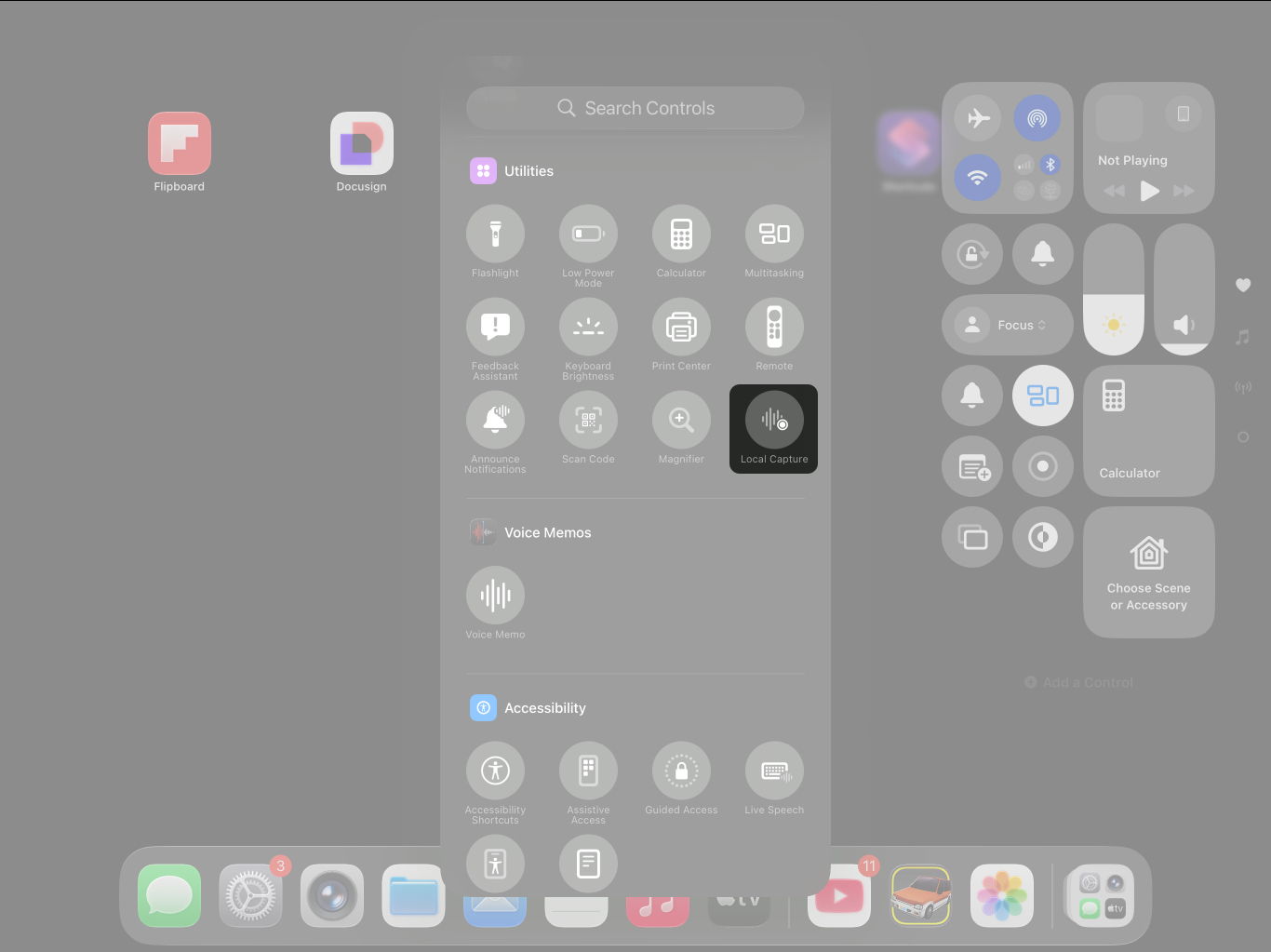
Now, Local Capture will be accessible during any video call from the Control Center.
Once Local Capture is available in Control Center, recording is straightforward. Here’s how to start using Local Capture during a call:
Note that if your camera is already in use by another app, Local Capture records only audio.
One of the more useful iPadOS 27 improvements is the ability to choose the input source used by an app or website. If I’m recording an interview or podcast, I’d generally choose a good external microphone instead of relying on the iPad’s built-in microphone.
To select a microphone:
This is especially useful if you’re using an external USB microphone, headset, or another supported audio input. With a supported external USB microphone, iPadOS can also provide an input gain control to attenuate the incoming volume when starting Local Capture.
Yes, but there’s an important distinction.
Voice Isolation can be used during the live session, but it isn’t applied to the Local Capture recording.
For a normal app audio session, you can:
Voice Isolation reduces background noise during the live call.
However, if your goal is the cleanest possible Local Capture file, plan to do noise reduction or other audio processing during editing.
By default, Apple saves the recordings in the Downloads folder in the Files app.
To find a recording:
The exact file location can be changed, so if you can’t find your recording in Downloads, check the Local Capture save location configured in Settings.
iPadOS 27 lets you choose where Local Capture recordings should be saved.
Here’s how:
From then on, Local Capture uses the location you’ve selected instead of the default Downloads folder.
For example, if I were using Local Capture regularly for podcast interviews, I’d create a dedicated folder in Files, such as “Podcast Recordings,” and set that as my save location. That saves me from having to dig through Downloads every time I finish a recording.
After the recording has been saved:
Apple also notes that Local Capture recordings can be shared with other participants and combined with their recordings in post-production software such as Logic Pro or Final Cut Pro.
Yes. If you don’t need a video recording, choose Audio Only when configuring Local Capture from Control Centre.
This is useful when:
Apple has also included a dedicated Audio Only toggle in Settings > General > Local Capture.
If you have supported AirPods or AirPods Pro, you can use them to remotely start and stop audio and video recording during a videoconference.
Simply press the AirPods stem to start and stop recording. This can be particularly useful when your iPad is positioned several feet away from you.
For example, if I’m recording an interview with the iPad on a tripod, I don’t necessarily want to reach over to the screen every time I need to start or stop recording.
Make your recordings shine with these pro tips:
Although Local Capture in iPadOS is effortless and quick to use, you may still encounter some issues. Here are some common issues users face, along with quick fixes.
| Problem | Solution |
|---|---|
| Local Capture not available | Check whether your iPad supports iPadOS 26 and later, and is up to date with the latest version. |
| Local Capture button not showing in Control Center | The Local Capture button isn’t available in the Control Center by default; you must add it manually. |
| Recording not saved or missing | Check whether your iPad has enough free storage. If not, delete files that are no longer required. |
| I only get audio, not video | Check whether another app is already using the iPad camera. |
| Audio sounds noisy | Remember that Voice Isolation doesn’t process the Local Capture file. Clean the audio during post-production. |
Local Capture turns your iPad into a mobile content creation studio. No more dependency on external apps or devices—record interviews, presentations, podcasts, or video logs effortlessly and professionally.
The biggest thing to remember is that Local Capture isn’t a conventional meeting recorder. It records your own high-quality audio and video locally, making it ideal for the double-ender workflow rather than for capturing everything in a video call.
Have you used Local Capture on your iPad? Share your experience or favourite tips in the comments!
Related articles worth reading:











