Sharing a Story on Instagram is one of the quickest ways to share your favorite moments with friends and followers. However, not every memory needs to be shown in full screen. Sometimes you may resize a photo or video to add text or stickers, or to create a cleaner layout. When you do that, Instagram fills the empty space with a default background color, and it does not always match the content you are sharing.
Fortunately, Instagram offers different ways to change the Story background color to better suit your photo, video, or design. Continue reading to learn how.
Why Change the Background Color on Instagram Stories?
Instagram Stories attract huge daily engagement, but they also move fast. So the way your content looks can determine how quickly it captures attention. A custom background helps set the tone and makes your Story visually stand out.
Here are a few practical reasons people change Story backgrounds:
Make text more readable against photos
Maintain a consistent aesthetic or brand color scheme
Highlight reposted posts or announcements
Create minimal or bold Story designs
Separate different Story slides visually
1. Change Instagram Story Background to a Solid Color
Using a solid color background is one of the easiest ways to customize your Instagram Story. It allows you to create a clean canvas and then add photos, videos, text, or stickers on top of it.
Open the Instagram app and swipe left to access the Instagram Camera.
Here, tap the Capture button to take a photo.
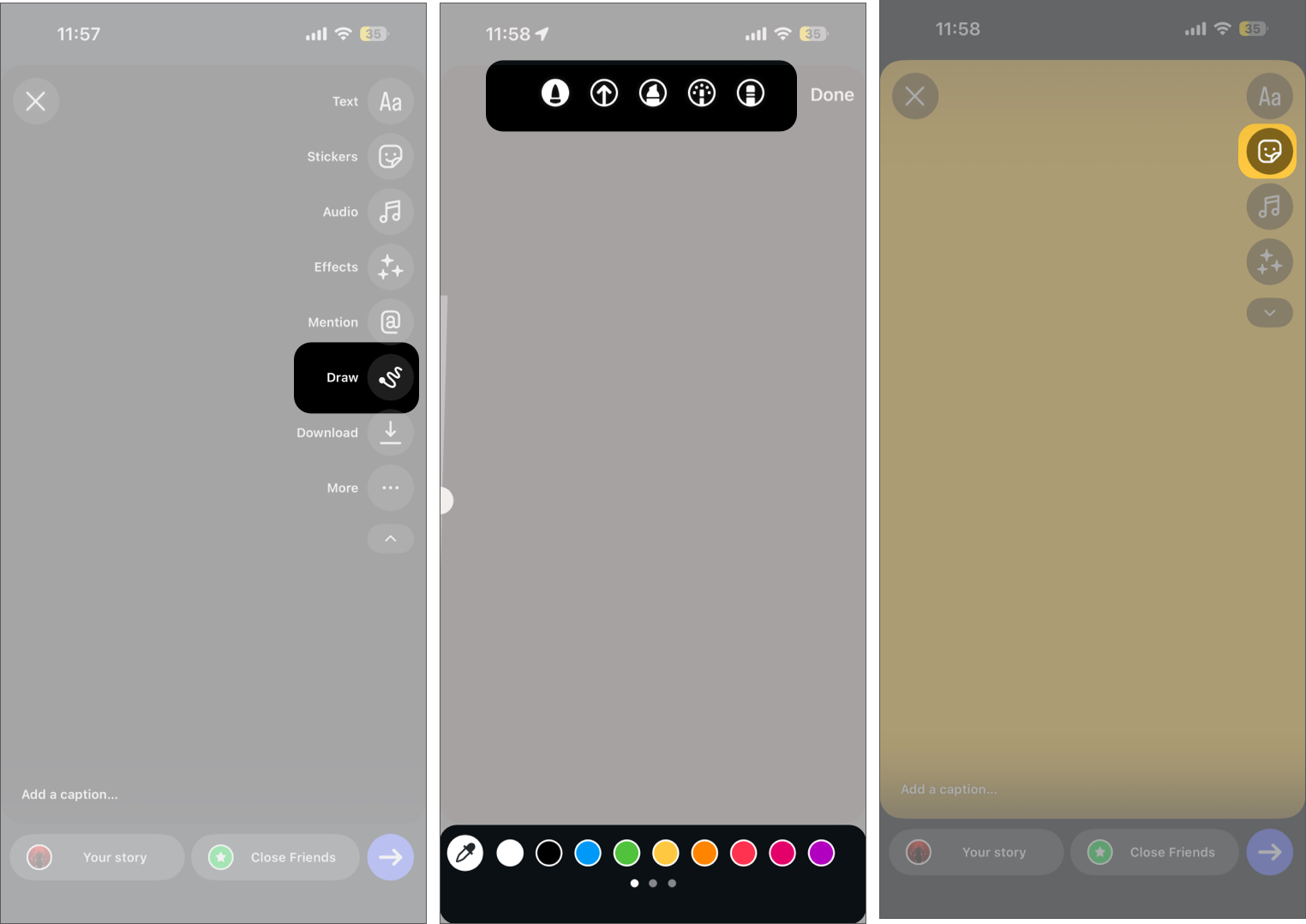
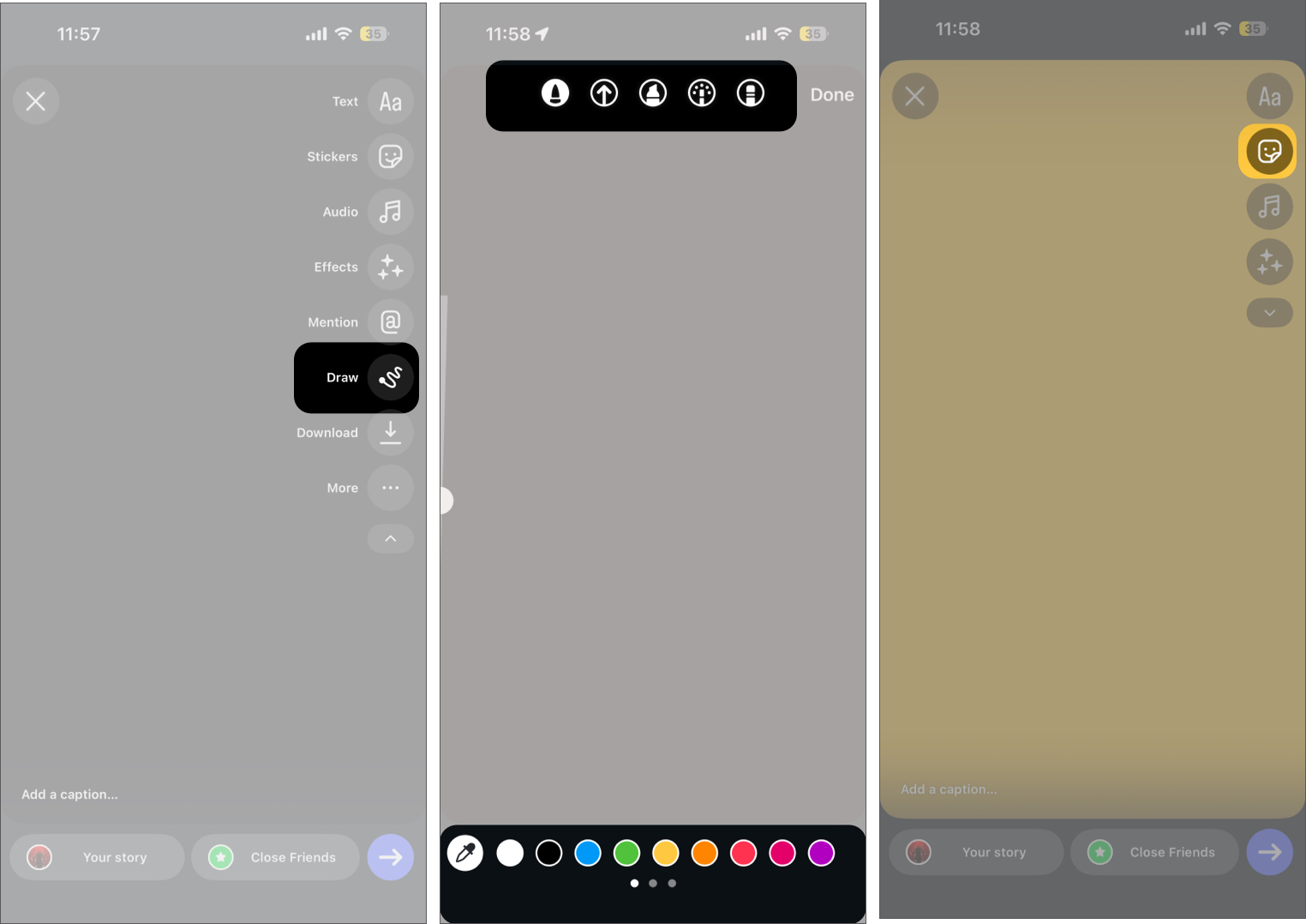
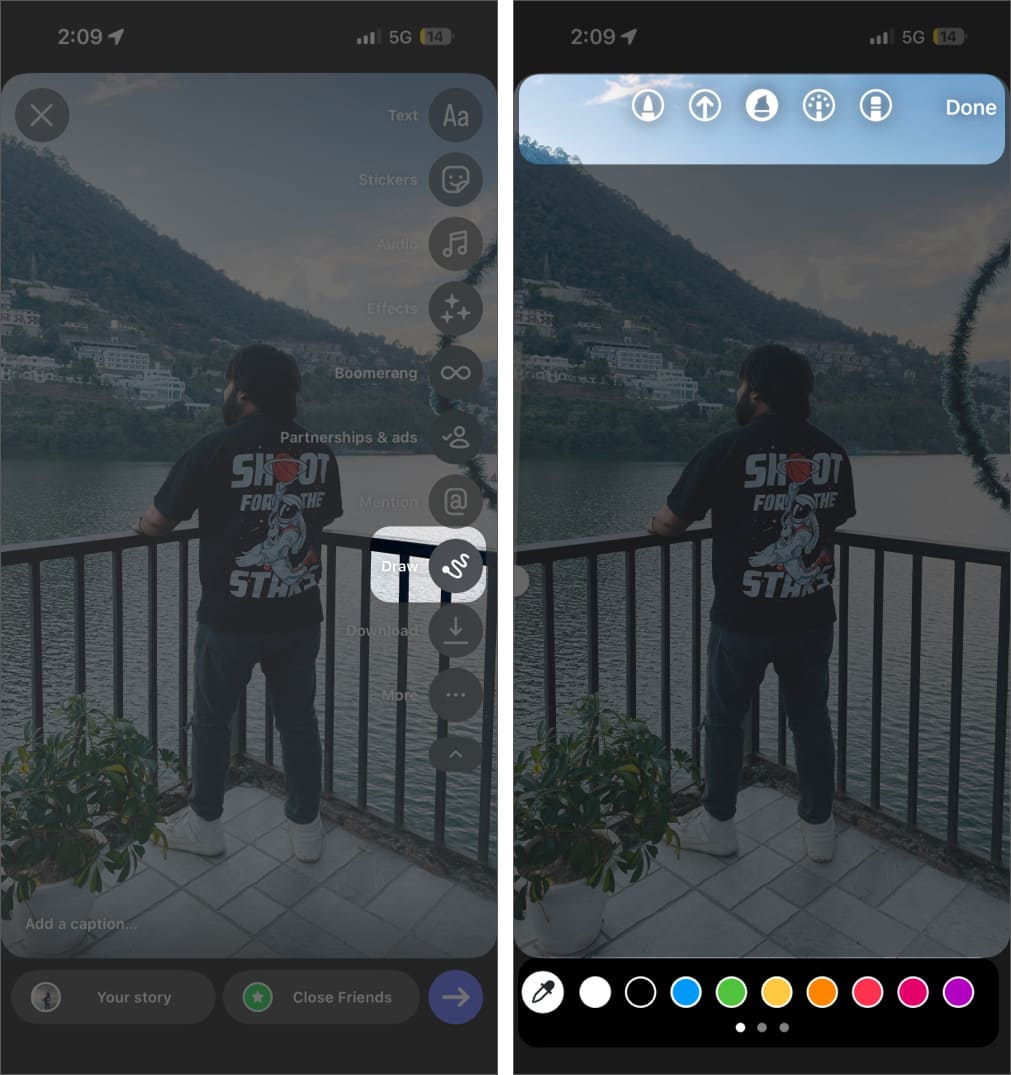
Tap the Draw tool icon in the vertical toolbar on the side.
Choose a color from the palette at the bottom.
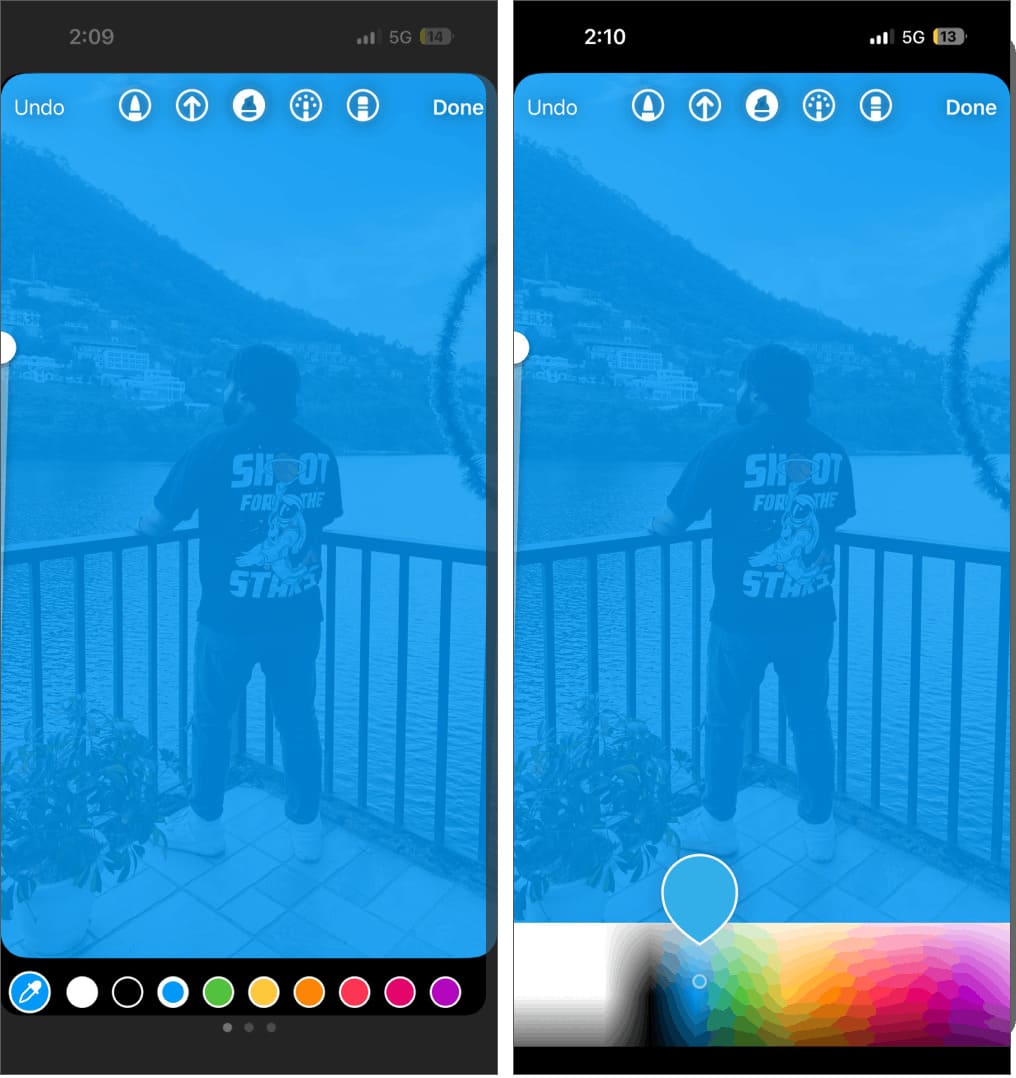
If the available colors do not suit your design, you can tap and hold any color to open the full color slider and choose a custom shade.
Press and hold anywhere on the screen for a second until the background fills with the selected color, then tap Done.
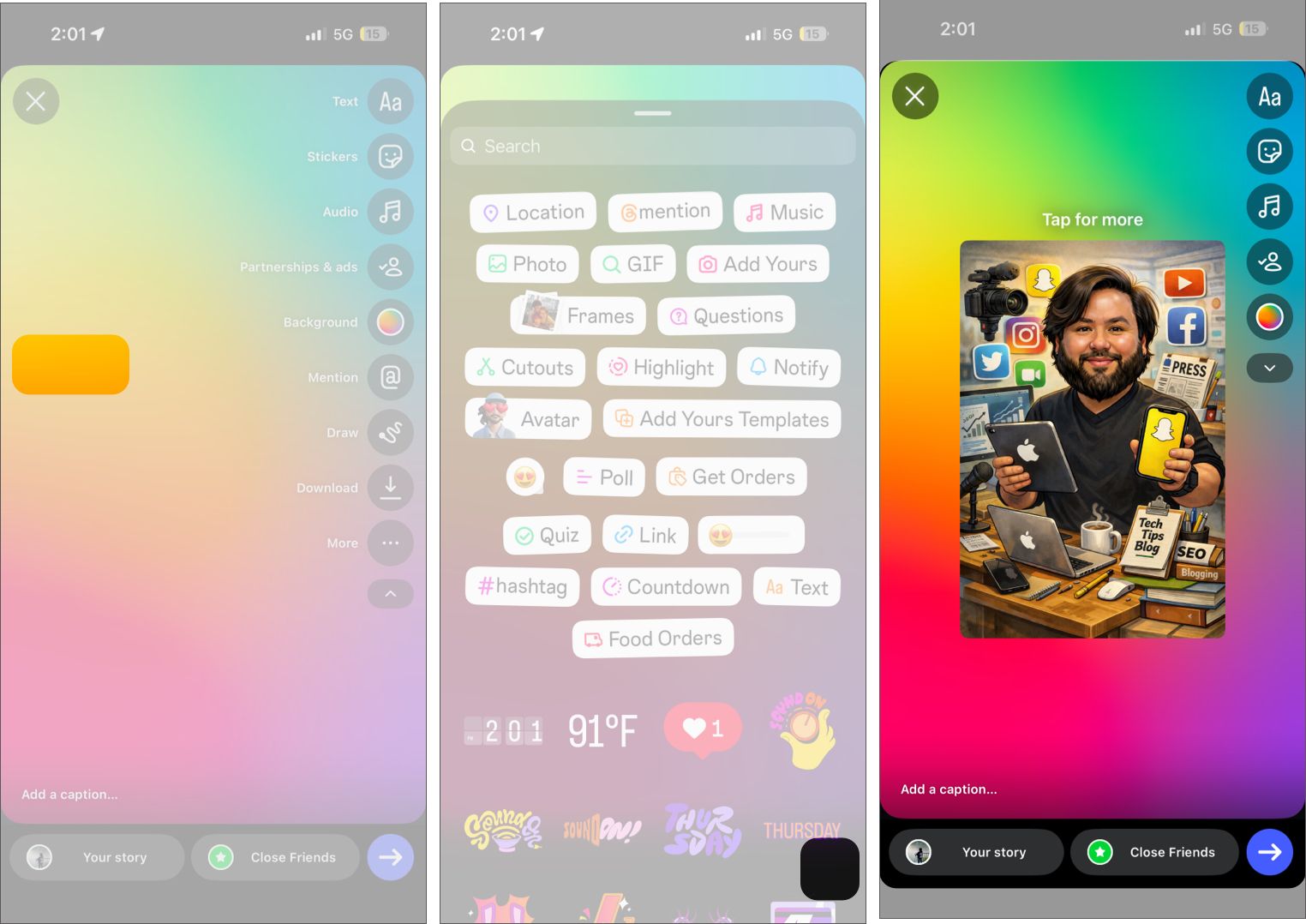
Now, tap the Sticker icon in the side toolbar.
Select Photo, then choose the photo or video you want to place on the Story.
You can resize and reposition the added photo or video anywhere on the colored background.
Similarly, you can add text, stickers, GIFs, or additional photos to design your Story the way you want. You can also use the Draw tool again to change the background color.
2. Use Create Mode for Gradient Backgrounds on Instagram Stories
Instagram’s Create mode lets you quickly add colorful gradient backgrounds to your Stories without uploading a photo or manually filling the canvas.
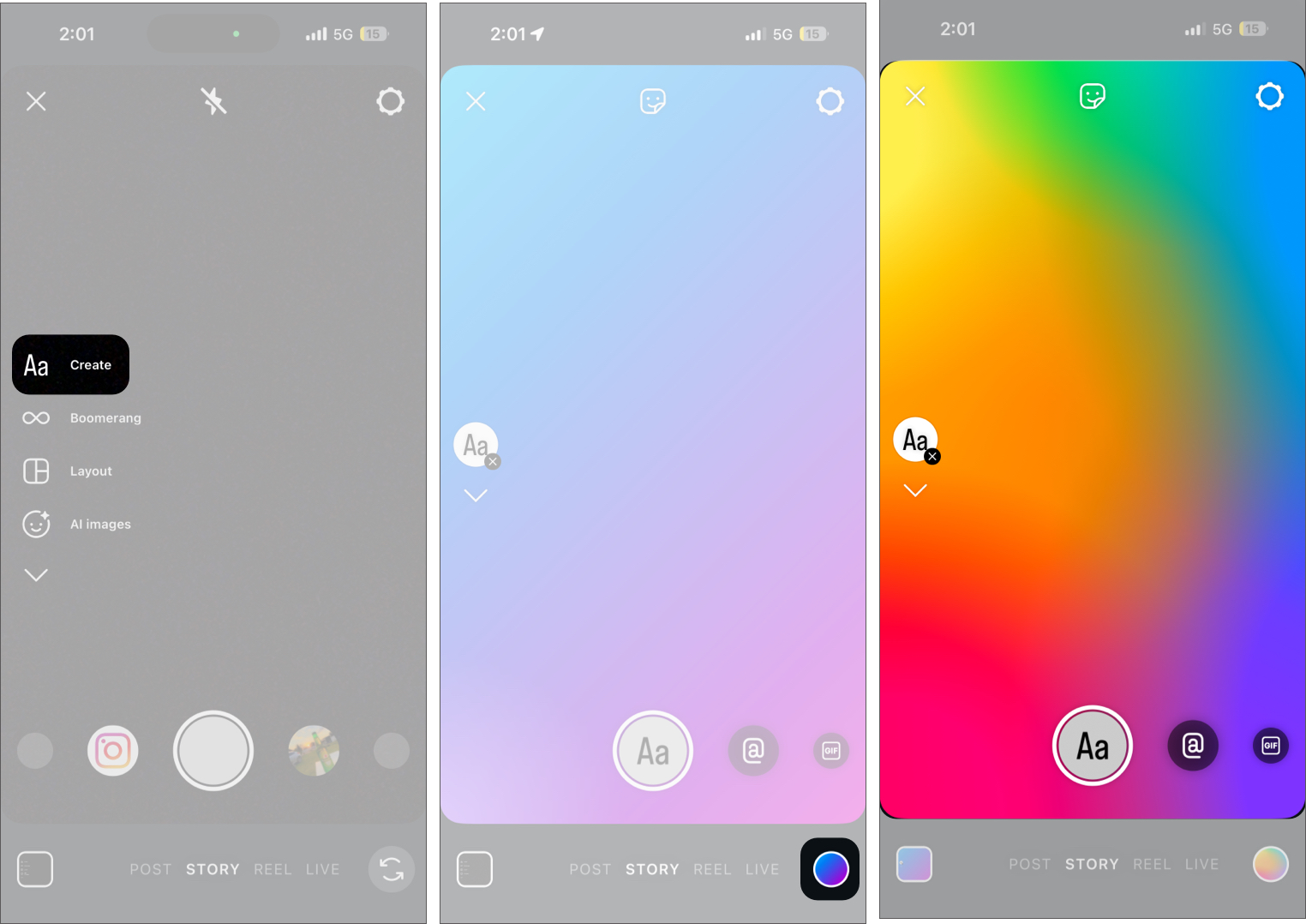
Open Instagram, then swipe right to open the camera.
Tap the Aa Create on the left side of the screen. Instagram automatically adds a gradient background.
Tap the color circle in the bottom corner to cycle through different gradient styles.
Once you find a background you like, tap the Capture button to continue editing your Story.
Now, you can add a photo or video, text, stickers, GIFs, polls, or music to complete your Story.
3. Add a Color Overlay to a Photo in Instagram Stories
This method adds a translucent color tint over the photo instead of covering it completely, allowing the image to remain visible while giving your Story a distinct visual style.
Upload a photo to your Instagram Story.
Tap the Draw tool icon in the vertical toolbar on the side.
Here, select the Highlighter tool at the top.
Next, select the preferred color from the color palette or tap and hold a color to open the full color slider and pick a custom shade.
Once done, press and hold anywhere on the uploaded photo for a second until the selected color overlay appears.
4. Change the Background Color When Sharing a Post to Instagram Story
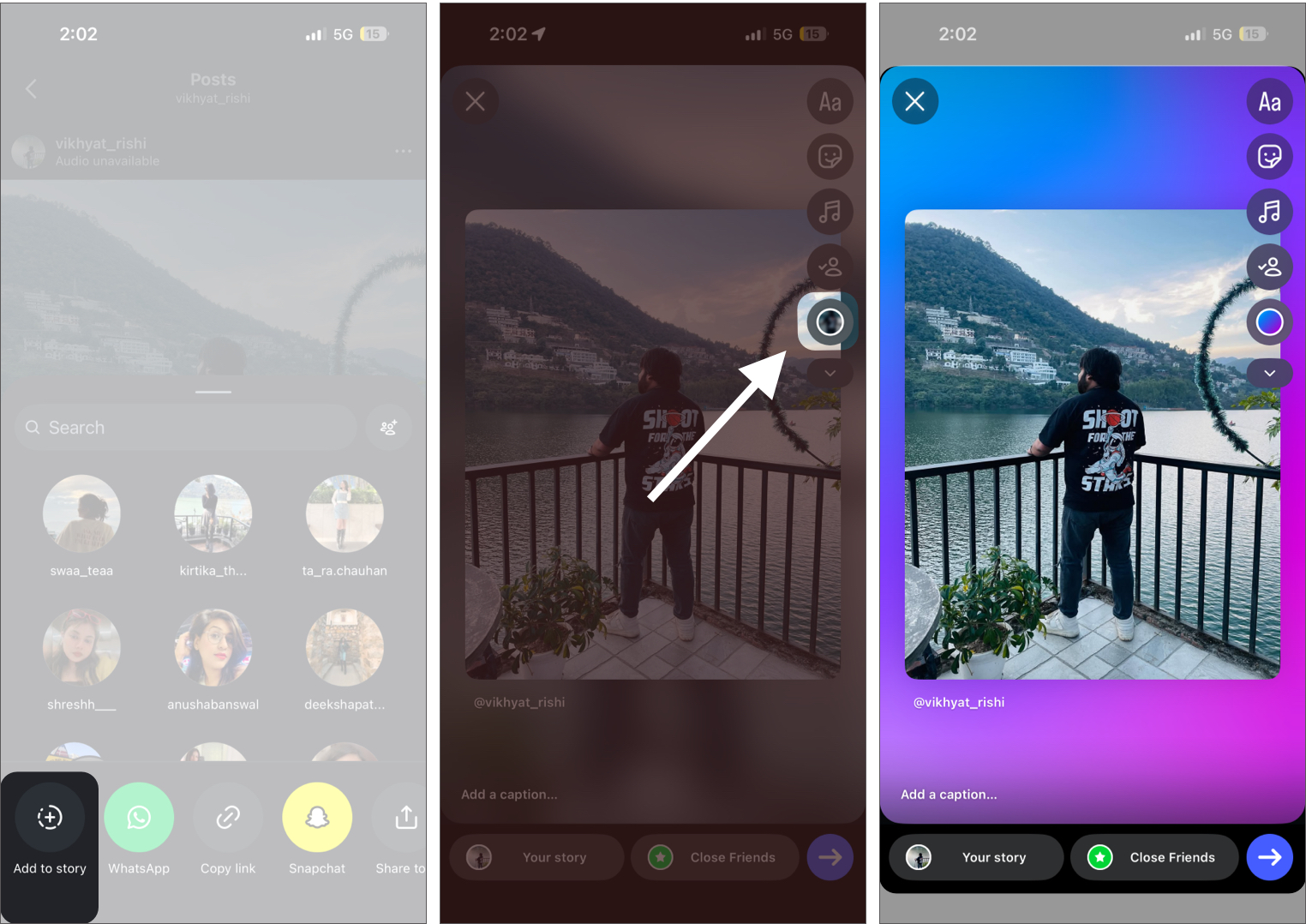
When you add a post to your Story, Instagram automatically generates background colors based on the post you share. You can use the generated background color or switch among the available options until you find one that looks good with the post.
Tap the Share button under the post you want to share to your Story.
Next, tap Add to Story.
Here, tap the background color circle in the right toolbar to cycle through different background color variations.
5. Use a Custom Image as Your Instagram Story Background
Using a custom image as the background gives you greater creative control. Many creators use gradient designs, aesthetic wallpapers, or branded templates to make their Stories look more polished and visually consistent.
Upload the photo or gradient design you want to use as your Story background.
Now, tap the Sticker icon in the side toolbar.
Select Photo, then choose the photo or video you want to place in the foreground of the Story.
Repeat the same steps to add more photos, text, or stickers.
Resize and position the added photos, text, or stickers according to your preferences.
Tips to Design Better Instagram Story Backgrounds
Changing the background color might be the first step, but it should not be the last. A few simple design choices can make your Instagram Story look more polished and visually appealing.
Use contrasting colors: Choose background colors that complement your text or stickers. This helps your content remain easy to read and visually clear.
Stick to a consistent color theme: Using the same set of colors across multiple Stories can give your content a more cohesive and recognizable look.
Layer photos creatively: Instead of using a single image, try adding multiple photos using the Photo sticker. Arrange and resize them to create a collage-style story.
Keep the layout clean: Avoid overcrowding your Story with too many elements. A minimal layout often looks cleaner and keeps the focus on the main content.
Use gradients or textures: Custom gradient backgrounds or subtle textures can make your Story look more visually interesting than a plain color.
Make Your Instagram Stories Stand Out
Changing the background color on your Instagram Story is a simple trick that can dramatically improve the visual appeal of your content. Once you start experimenting with colors, gradients, and overlays, you will find countless ways to make your Instagram Stories stand out.
Tried any of these methods? Share your experience in the comments.
Vikhyat has a bachelor's degree in Electronic and Communication Engineering and over five years of writing experience. His passion for technology and Apple products led him to the tech writing space, where he specializes in writing App features, How-to guides, and troubleshooting guides for fellow Apple users. When not typing away on his MacBook Pro, he loves exploring the real world.




 ByVikhyat