
FaceTime Like a Pro
Get our exclusive Ultimate FaceTime Guide 📚 — absolutely FREE when you sign up for our newsletter below.

FaceTime Like a Pro
Get our exclusive Ultimate FaceTime Guide 📚 — absolutely FREE when you sign up for our newsletter below.


WhatsApp is filled with icons and symbols that many people use every day without fully understanding them. Here’s a simple explanation of what each one actually means.
 ByVikhyat
WhatsApp is packed with tiny icons and symbols that most people use daily without fully understanding what they mean. Some are easy to recognize, while others can be confusing enough to make users think something’s wrong with their messages, calls, or privacy settings.
A single gray tick, a tiny clock icon, a green ring around a profile picture, or even the new Meta AI symbol all serve different purposes inside WhatsApp. The app has also become much more feature-packed over time with additions like WhatsApp communities, disappearing messages, and AI-powered tools.
I also started noticing more unfamiliar icons after WhatsApp introduced WhatsApp channels, especially around updates, broadcasts, and notifications.
Understanding these icons helps you use WhatsApp faster, avoid confusion, and take advantage of features you might not even know exist.
In this post, I’ll explain the meaning of the most common WhatsApp icons and symbols on iPhone and Android.
The most talked-about symbols on WhatsApp are easily the message ticks. These tiny indicators have probably caused more overthinking than any other feature in the app.
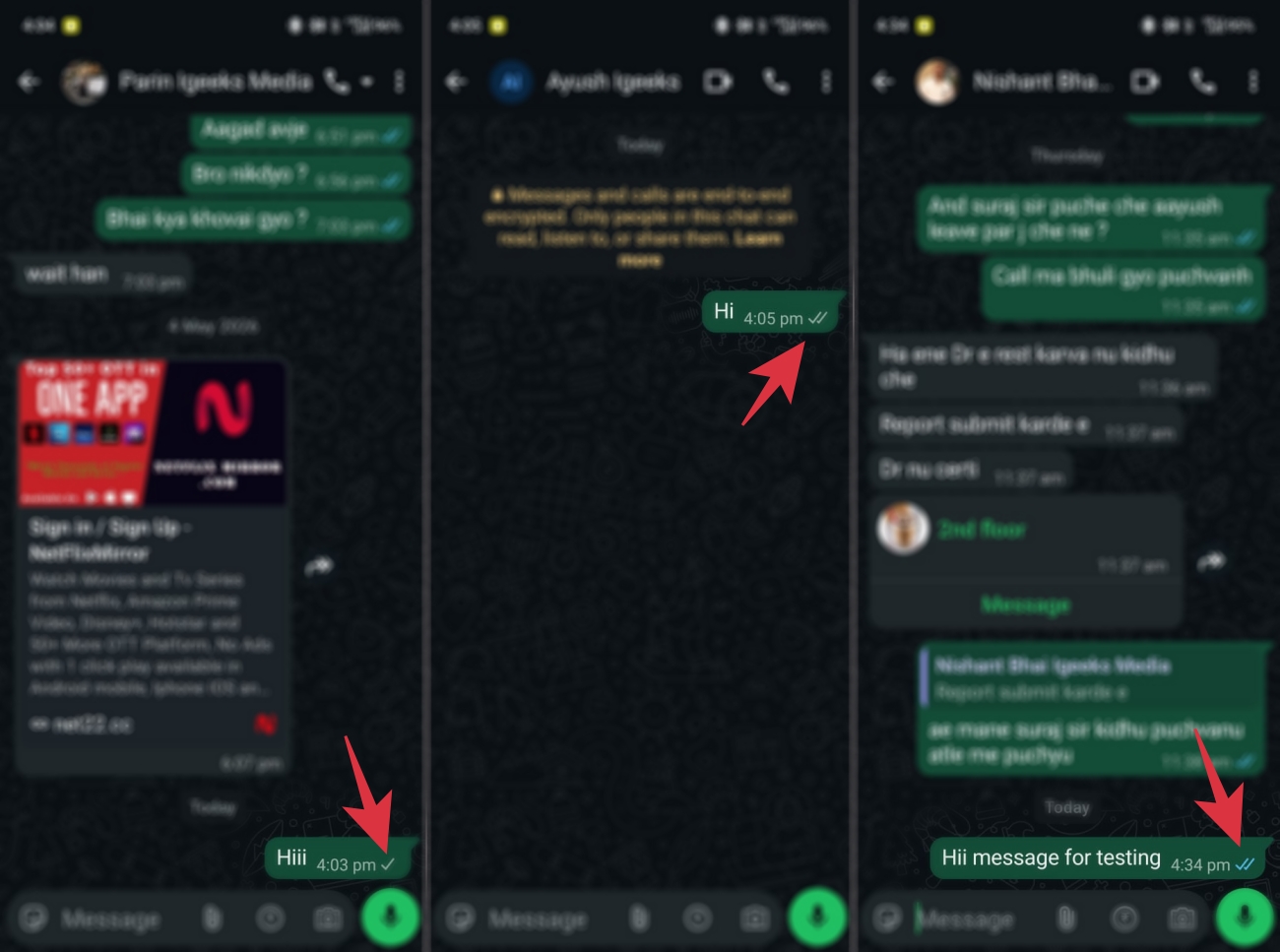
One gray tick simply means your message has been sent from your phone to WhatsApp’s servers, but it hasn’t yet reached the other person’s device.
This usually happens when:
However, if the single gray tick doesn’t turn into double gray or blue ticks for a long time across multiple messages, there’s also a possibility that the other person may have blocked you. Still, a single gray tick alone is not enough to confirm that.
Once your message reaches the recipient’s phone, the single tick turns into double gray ticks. This only confirms that the message has been delivered, not that it has been read.
You may continue seeing double gray ticks even after the recipient reads and replies to your message if they have read receipts disabled.
Blue ticks appear after your message has been read. In personal chats, this usually happens the moment someone opens the conversation. In group chats, though, blue ticks only appear after every participant has seen the message.
A lot of users disable read receipts entirely, so sometimes you may never see blue ticks even after the person has clearly read your message.
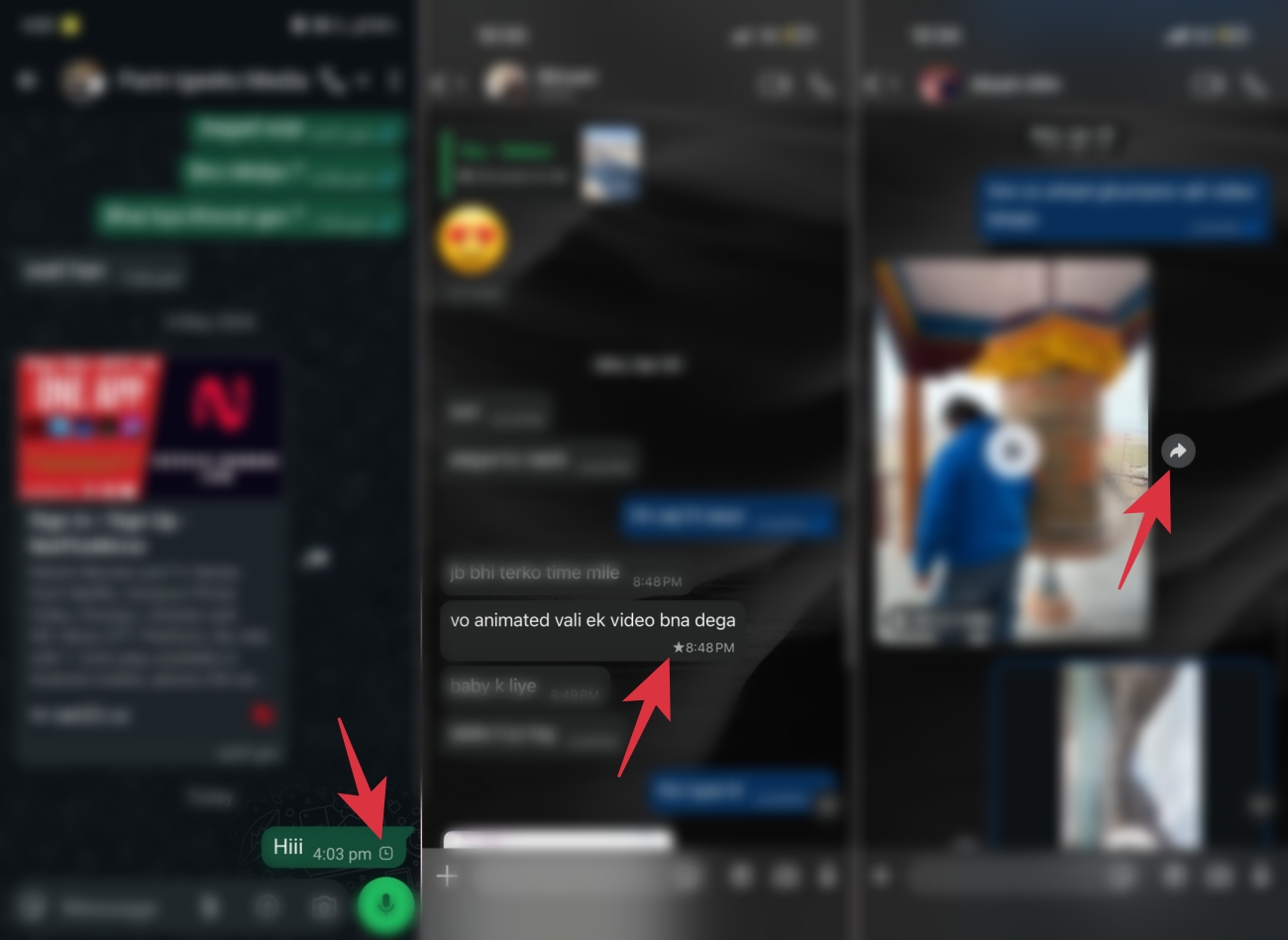
The tiny clock icon appears when WhatsApp is still trying to send your message. You’ll usually notice this during:
Once the message is finally sent, the clock disappears and turns into ticks.
The star icon appears beside a message after you mark it as important on WhatsApp. It helps you quickly identify saved messages and makes them easier to find later from the Starred Messages section.
The right curved arrow icon appears beside photos, videos, links, and other media on WhatsApp. It’s the forward button, and tapping it lets you quickly share that media with another chat or group.
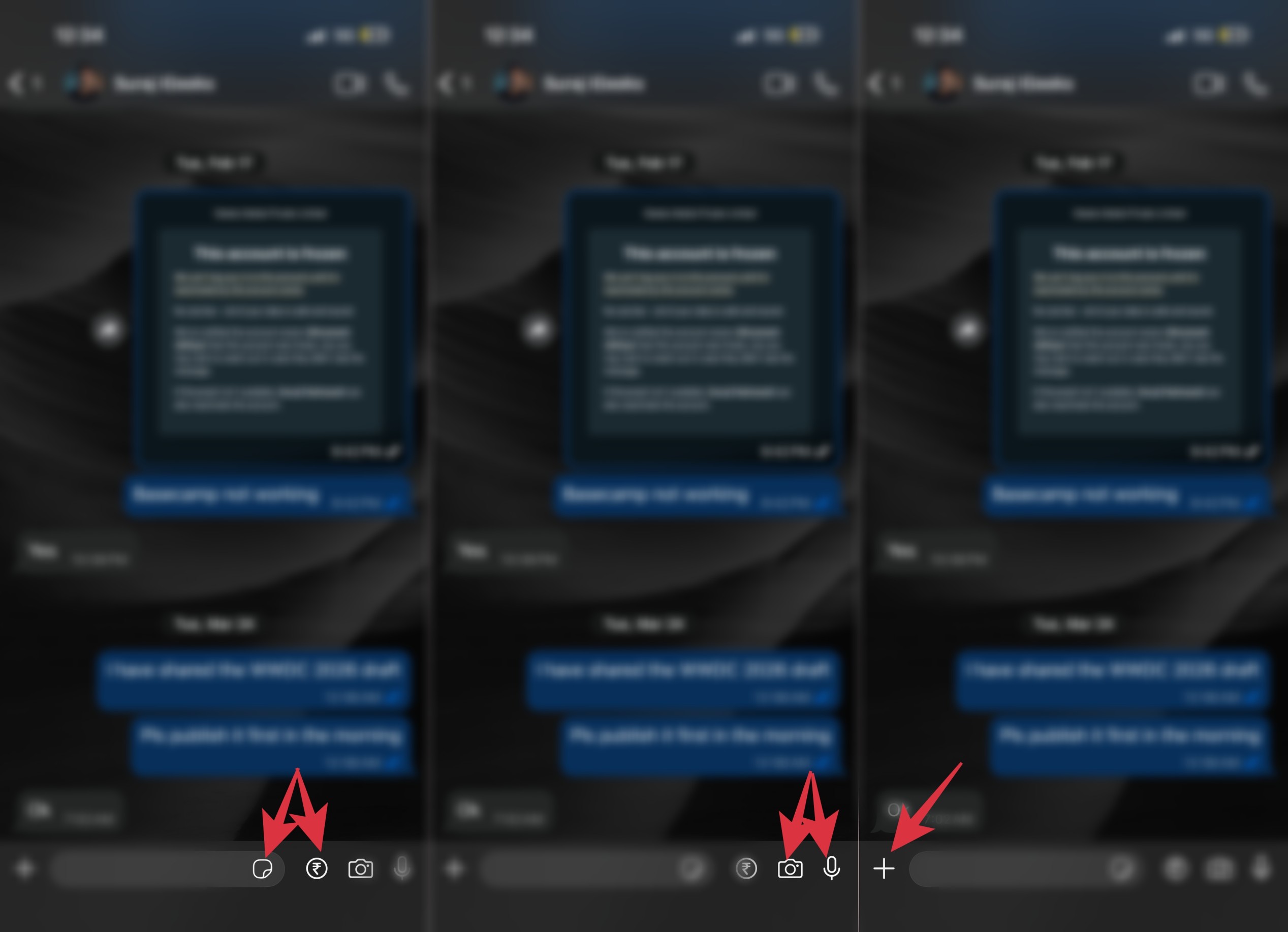
Open any WhatsApp conversation, and you’ll notice several small symbols surrounding the text area. These icons are designed to make sharing content faster without constantly digging through menus.
The camera icon opens WhatsApp’s built-in camera instantly. Most people use it for quick snaps instead of opening the phone’s Camera app first. It’s also one of the fastest ways to upload a Status.
The microphone icon is for voice notes. Instead of typing long paragraphs, you can hold the button and record audio directly inside the chat. Over the years, voice notes have basically become their own communication style on WhatsApp.
The ➕ icon beside the chat box is where most sharing options now live on WhatsApp.
Tapping it lets you quickly send:
It’s basically the main attachment and sharing hub inside WhatsApp chats.
Alongside the typing area, WhatsApp also gives quick access to stickers and GIFs to make conversations more interactive.
The options let you:
In India, the ₹ rupee icon inside WhatsApp chats is used for WhatsApp Pay. It lets users send and receive money directly through UPI without leaving the app.
Tapping the icon allows you to:
The feature works after setting up WhatsApp Pay with a supported bank account.
WhatsApp uses different phone and camera icons to represent voice and video calls.
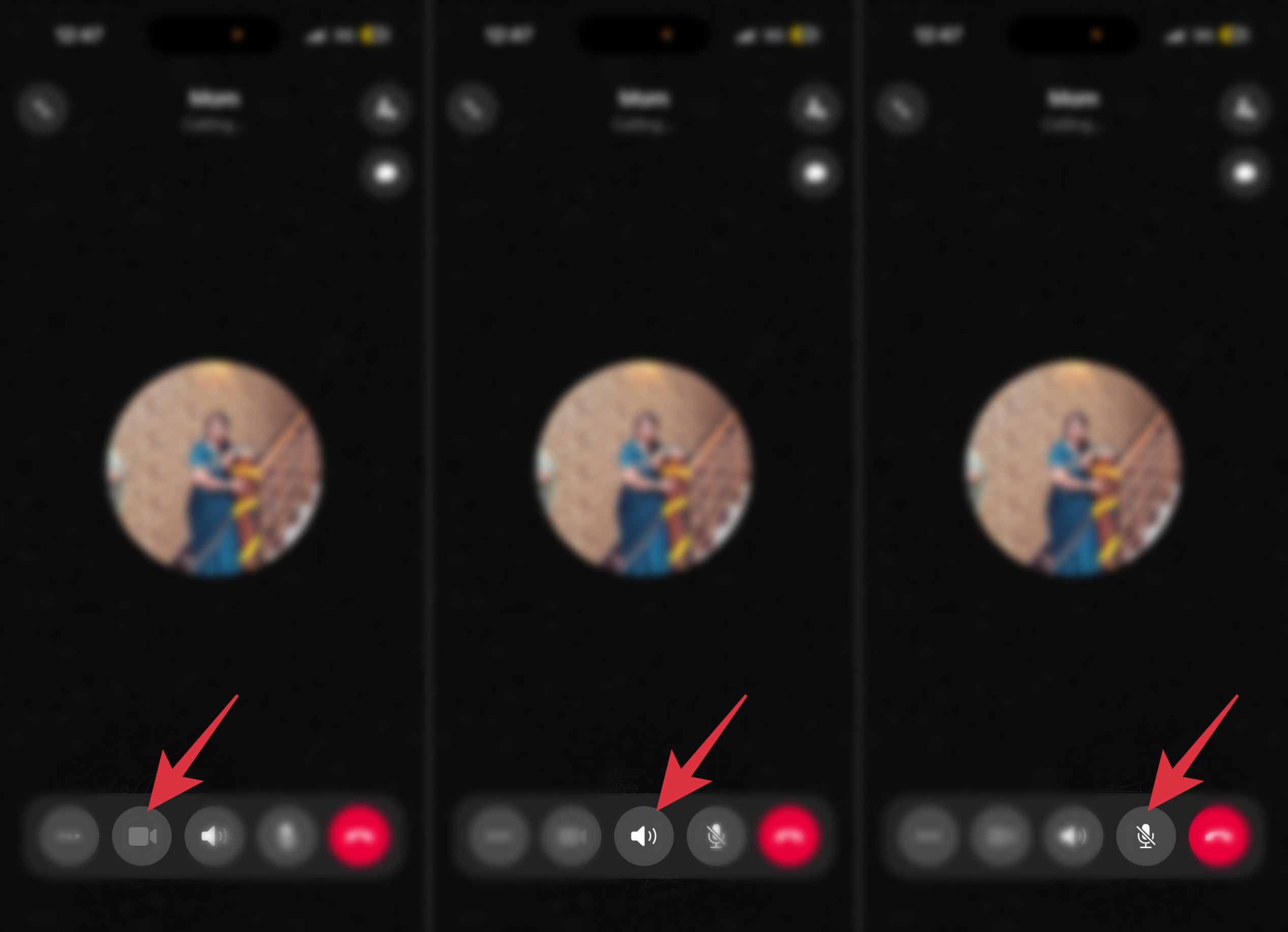
The phone icon starts or represents a voice call.
You’ll see it:
The video camera symbol is used for video calls. Tapping it instantly starts a WhatsApp video call with the selected contact or group.
This switches call audio between:
During calls, this symbol means your microphone is muted, and other participants can’t hear you.
WhatsApp Status has its own set of symbols, and surprisingly, many users still don’t know what some of them mean.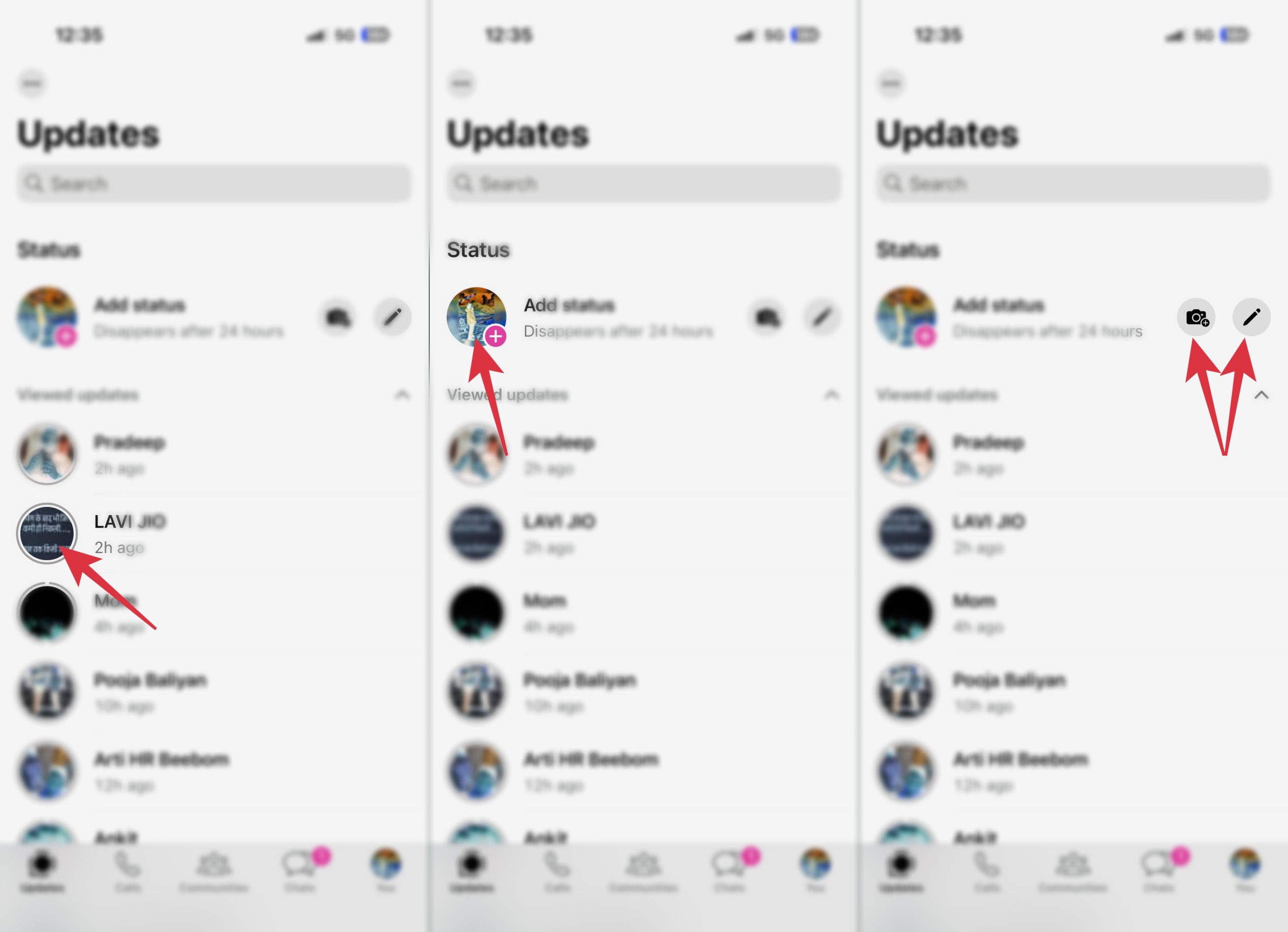
This green circular ring means someone uploaded a new Status that you haven’t viewed yet.
In the Status section, the ➕ button on your profile picture is used to create a new WhatsApp Status.
Tapping it lets you quickly upload:
These are used for creating Status posts:
Some of WhatsApp’s most important symbols are the ones related to privacy and security.
This indicates end-to-end encryption. It means:
Not even WhatsApp itself can read encrypted conversations.
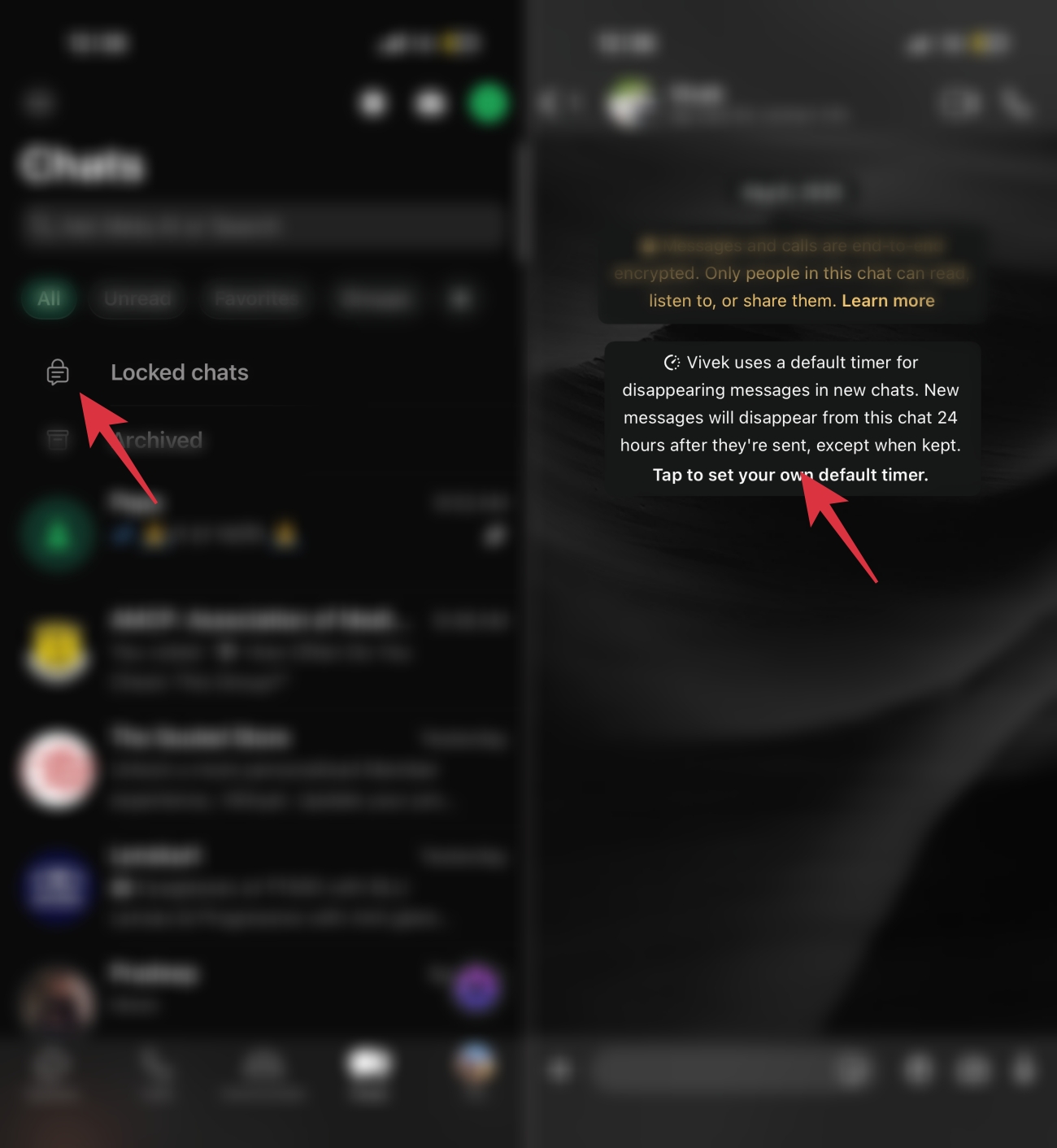
The timer-like icon means disappearing messages are turned on for that chat.
Messages automatically delete after a selected period, like:
This icon appears on photos and videos that can only be opened and viewed once before disappearing permanently. WhatsApp introduced this feature for more private media sharing.
Group chats on WhatsApp have a few unique icons and symbols that don’t usually appear in regular personal chats.
The “Admin” label appears beside a participant’s name in a group chat and indicates that the person manages the group.
Admins can:
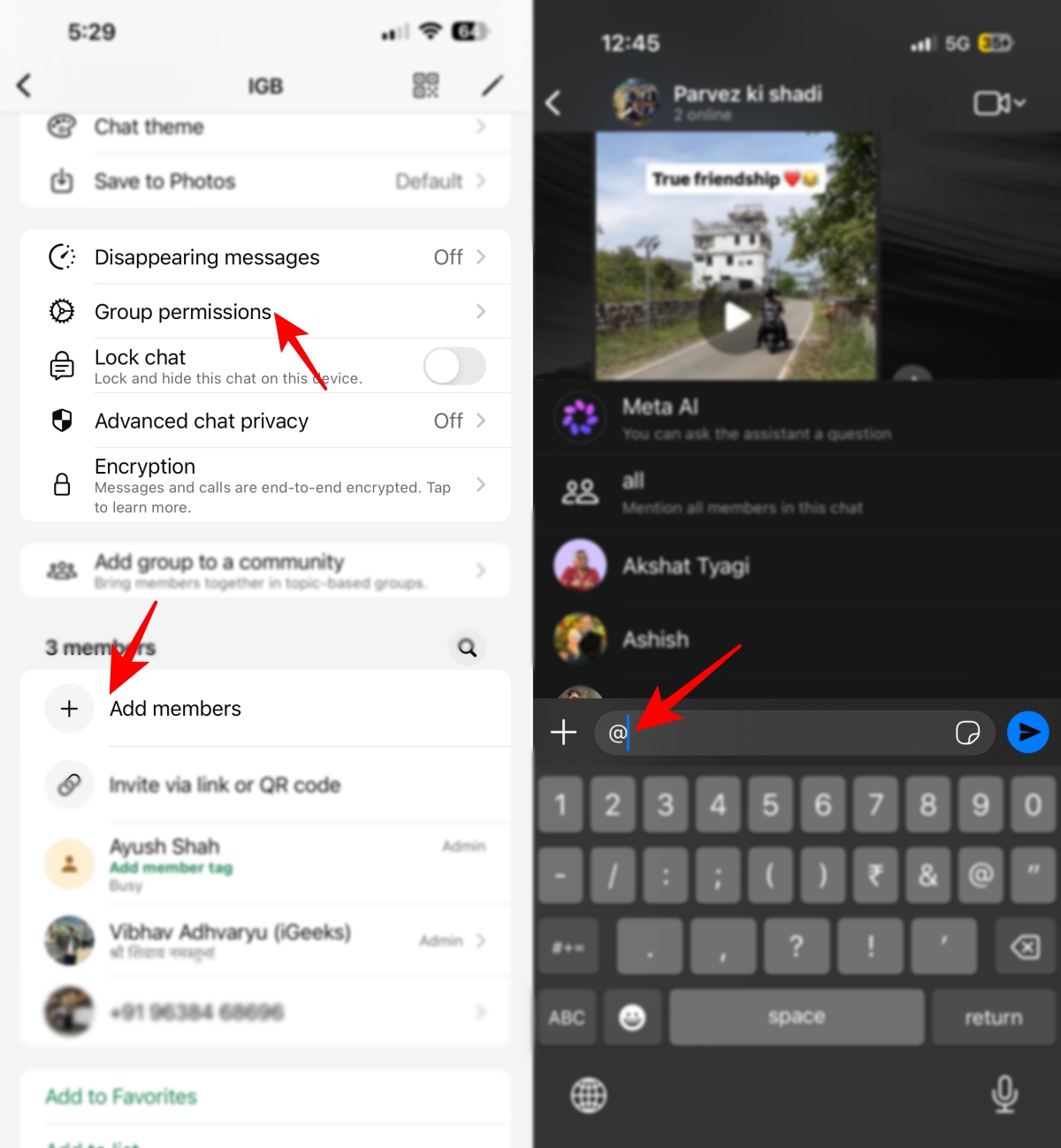
@ is used to mention a specific person inside a group conversation. When someone is tagged using @, WhatsApp sends them a separate notification so they don’t miss the message in busy chats.
Apart from chat, call, and Status indicators, WhatsApp also includes several navigation and control icons that help you manage conversations, access settings, and move around the app more quickly.
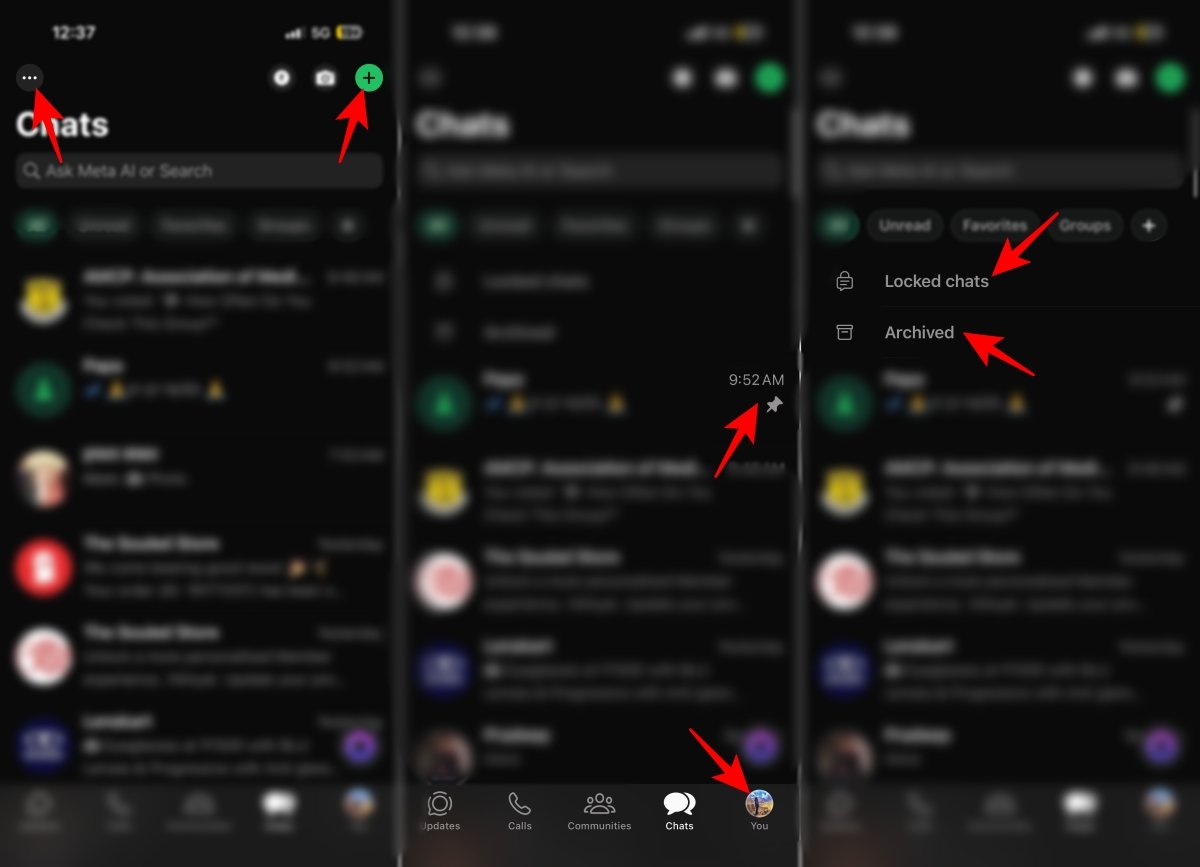
The three-dot button on the Chats screen reveals additional options like Select Chats, Read All, and chat management controls.
The plus icon in the Chats tab is used to start a new conversation on WhatsApp. Tapping it lets you create a new chat, group, or community.
The pin icon appears beside a chat after it has been pinned on WhatsApp. It lets you keep important chats fixed at the top of your WhatsApp chat list, so they’re easier to access.
Your profile picture icon appears in the bottom-right corner of WhatsApp and opens your account and app settings, including profile details, privacy settings, linked devices, and storage options.
The archive icon appears at the top of the Chats tab and represents your archived WhatsApp conversations. It is used to hide chats from the main Chats tab without deleting them.
The locked chats icon appears on WhatsApp when Chat Lock is enabled for certain conversations. Locked chats are moved into a separate protected section that can only be opened using Face ID, fingerprint authentication, or a passcode.
If you’ve recently noticed a glowing blue-purple circle inside WhatsApp, that’s the Meta AI icon. WhatsApp added it as a shortcut to Meta’s built-in AI assistant, allowing users to interact with AI directly inside the app.
You can use it to ask questions, get suggestions, brainstorm ideas, or generate text without leaving WhatsApp.
| WhatsApp Symbol | What Many Users Think | What It Actually Means |
|---|---|---|
| Single gray tick | You’ve been blocked | The message was sent but not delivered yet |
| Double gray ticks | The message has been read | The message was only delivered |
| Blue ticks | They always appear after messages are read | Read receipts can be turned off |
| Green ring around profile picture | The person is online | They uploaded a new Status |
| Clock icon beside a message | The message failed to send | WhatsApp is still trying to send it |
| Archived chat icon | The chat was deleted | The chat was only hidden from the main Chats tab |
| Mute icon on a chat | You won’t receive messages anymore | Notifications for that chat are muted |
| Lock icon in chats | The chat is hidden | The chat is protected using Chat Lock or encryption |
One reason users get confused about WhatsApp icons is that the app doesn’t always look the same for everyone.
Icons can vary depending on an iPhone or Android device, app version, beta updates, dark mode, and regional feature rollouts.
Meta also redesigns icons occasionally, so some symbols may shift position or appearance after updates.
WhatsApp’s icons and symbols may seem small, but they control nearly every part of the app experience. Understanding what these indicators mean helps you use WhatsApp more confidently and avoid common misunderstandings around messages, calls, privacy, and Status updates.
And as WhatsApp continues adding new AI, Communities, and sharing features, learning these symbols becomes even more useful.
Did we miss a WhatsApp icon or symbol you’ve seen recently? Let us know in the comments and we’ll add it to the guide.
Must like:











