
FaceTime Like a Pro
Get our exclusive Ultimate FaceTime Guide 📚 — absolutely FREE when you sign up for our newsletter below.

FaceTime Like a Pro
Get our exclusive Ultimate FaceTime Guide 📚 — absolutely FREE when you sign up for our newsletter below.


Watching long YouTube videos can take forever, especially when you just need the important parts. I tried a few Gemini tricks that quickly summarize videos, pull key points, and save a lot of time.
I used to open long YouTube videos with good intentions, then quit halfway because I didn’t have 40 minutes to spare. Later, those same videos would sit in my Watch Later list forever. If you are struggling with the same problem, you are in the right place.
Recently, I found a much faster way to pull out the key points from a video without watching every second. The trick is not simply to “watch faster.” It is to use Gemini to decide which sections are actually worth your time. It feels like having a smart shortcut for long tutorials, podcasts, interviews, reviews, and explainers.
Here’s how I use Gemini to finish long YouTube videos faster without missing the parts that actually matter.
Watching videos at 2x speed used to feel productive. But after a while, I realized I was often just wasting time faster.
The problem with 2x speed is that you are still watching the whole video. Most long YouTube videos are not built efficiently. They usually include a slow intro, repeated points, a sponsor section, background context you may already know, and a conclusion that mostly restates the title.
So now, before I watch a long video, I ask Gemini whether I should watch it at all. That one step makes a huge difference. At 2x speed, a 40-minute video still takes 20 minutes. With Gemini, I can usually understand whether I need to watch the full video, only one section, or nothing beyond the summary.
This approach is especially useful for tutorials, product reviews, AI tool demos, interviews, and long explainers where the title sounds useful but the actual value may be buried somewhere in the middle.
To use the following tricks properly, you need to turn on the YouTube extension in Gemini. This helps Gemini recognize pasted YouTube URLs correctly and use YouTube context more effectively when generating a response.
Here’s how to enable it:
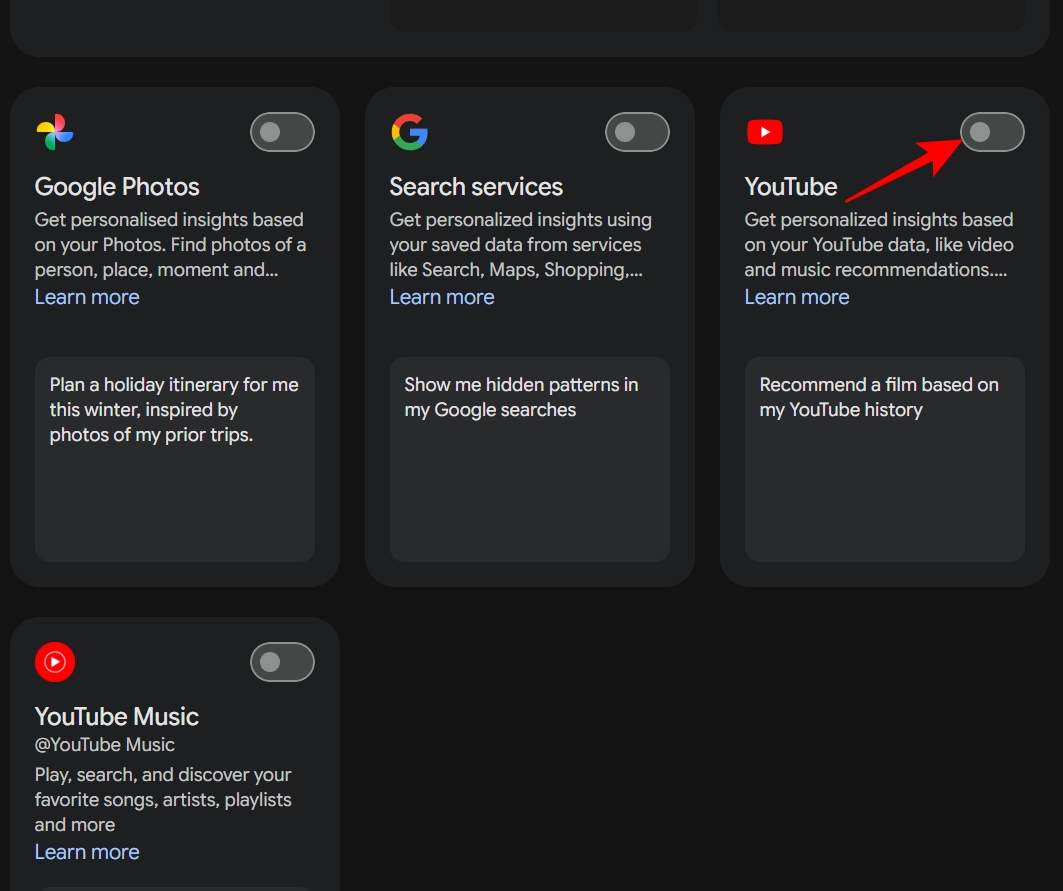
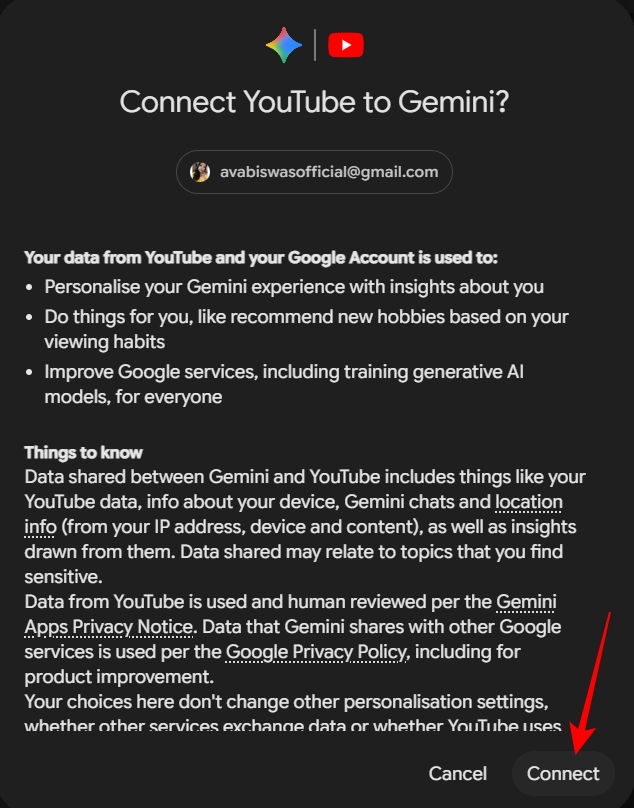
Once that is done, you are ready to use Gemini as a smarter way to watch YouTube tutorials, reviews, podcasts, and playlists.
This is the first thing I do now. Before I watch a long video, I ask Gemini to judge it instead of simply summarizing it. That distinction matters. A summary tells you what the video says. A judgment tells you whether you should care.
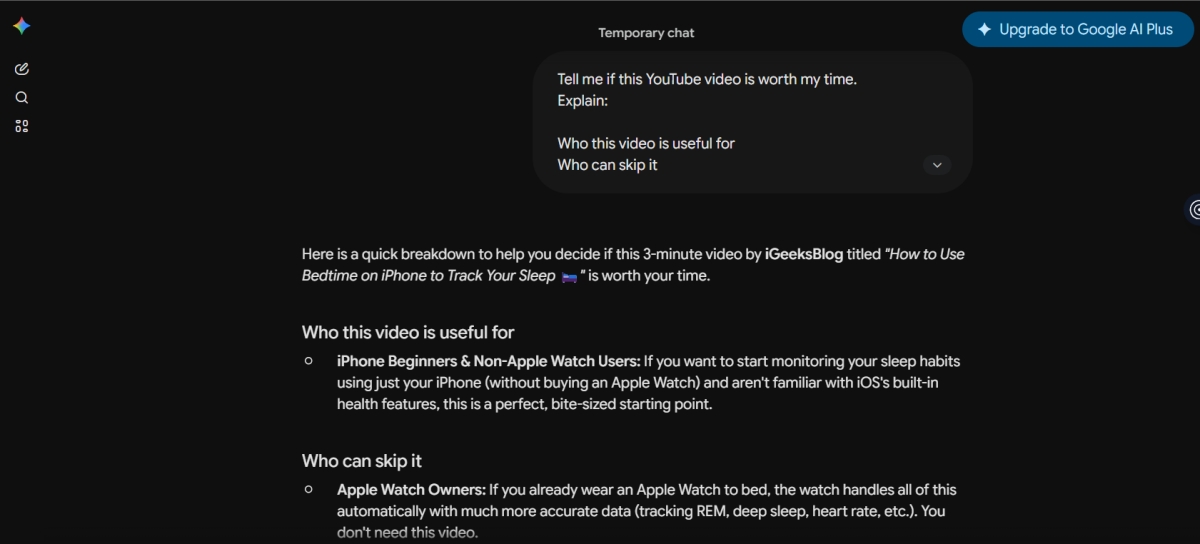
Here’s the prompt I use:
“Tell me if this YouTube video is worth my time.
Explain:
This works especially well for videos with ambitious titles like “Everything You Need to Know About” or “The Only Guide You’ll Ever Need.” When I tested this with long tech tutorials, Gemini helped me understand whether the video was beginner-friendly, practical, too basic, or filled with unnecessary context.
The most useful part is asking who can skip it. That forces Gemini to be more critical. If you only ask, “What is this video about?” you will usually get a polite summary. But when you ask, “Who should skip this?” the answer becomes much more useful.
My favorite version of this prompt is even sharper: “Be strict. If this video is mostly filler, tell me. If only one section is useful, tell me which one.”
That prompt is great when you are trying to clean up your Watch Later list and do not want to spend time on videos that only sound useful.
This is where Gemini becomes more than a YouTube summary tool. I use this method mostly for long tutorials, app walkthroughs, coding videos, AI tool demos, and productivity videos. Instead of replaying the same section again and again, I ask Gemini to extract the steps for me.
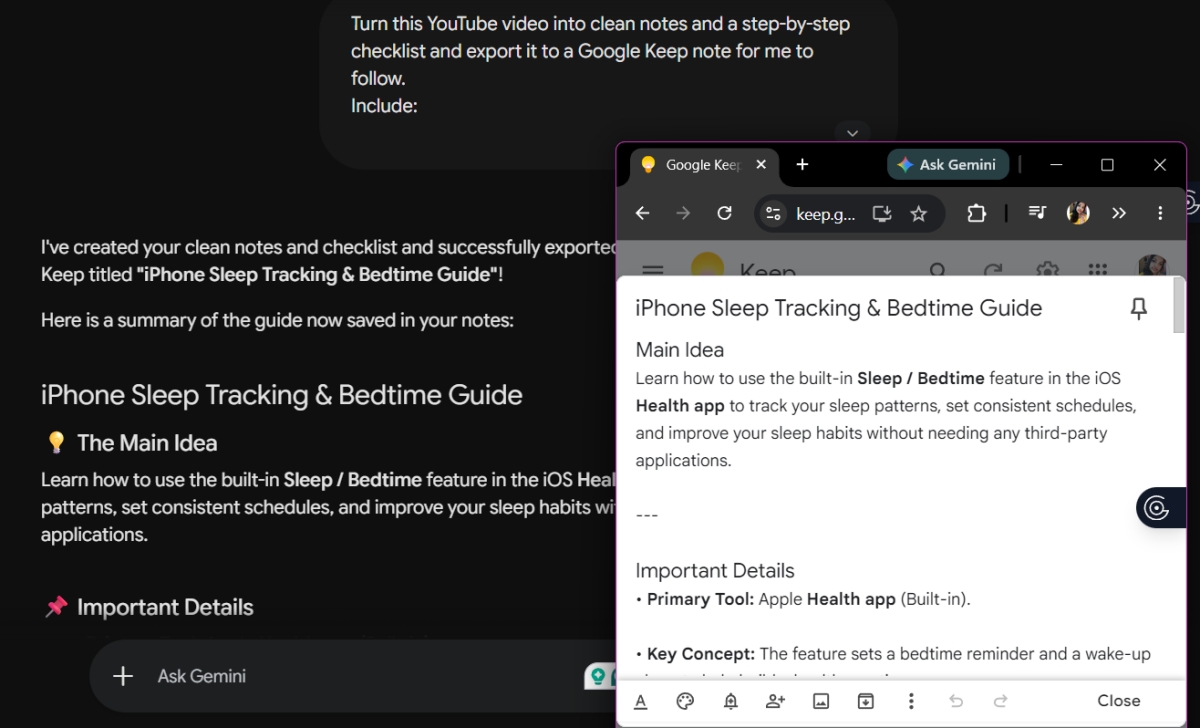
Here’s the prompt:
“Turn this YouTube video into clean notes and a step-by-step checklist and export it to a Google Keep note for me to follow.
Include:
Gemini analyzes the video, including its chapters and transcript when available, and pulls out the process in a cleaner format. With setup-style videos, the checklist format is far easier to follow and share with others. I can keep the checklist open, follow each step, and return to the video only when I need to see a visual detail.
For learning videos, I use a slightly different prompt: Turn this video into study notes. Include: key concepts, definitions, examples, important warnings, practical takeaways, and a short recap at the end.
And if I want to actually remember the topic, I add: Create a short quiz from these notes with answers. This turns a long video into something closer to a mini-lesson.
The Gemini sidebar is the method I use when I do not want to break my flow. Instead of copying things back and forth, I can keep the video open and ask Gemini for quick help while I am watching. The feature is useful enough that even Samsung browser on Windows offers a similar side panel experience.
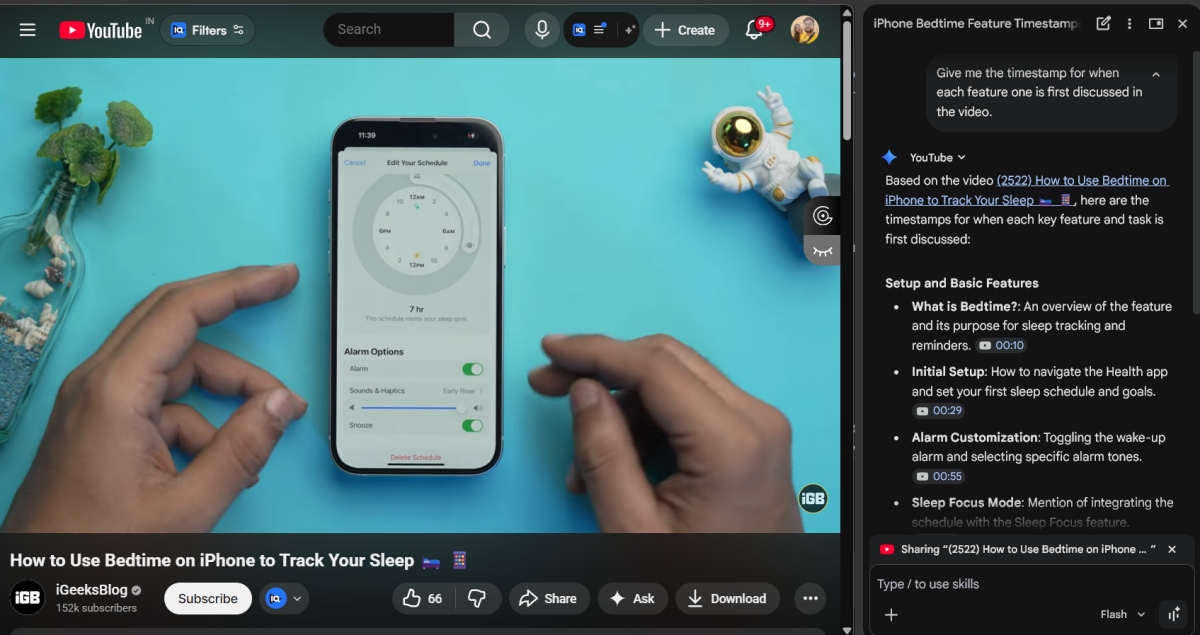
To use it, click the Ask Gemini button at the right corner of the browser window. Once the sidebar opens, you can ask quick questions like:
The sidebar is also useful when a video mentions a concept you only half-understand. Instead of pausing the video, opening a new tab, searching Google, and reading three articles, you can ask Gemini directly.
If you use the same prompts often, Gemini’s Skills feature can also help you reuse them faster. You can create a repeatable workflow for summaries, notes, checklists, reviews, or learning prompts.
You can also click the Ask button under the video playback to chat with Gemini.
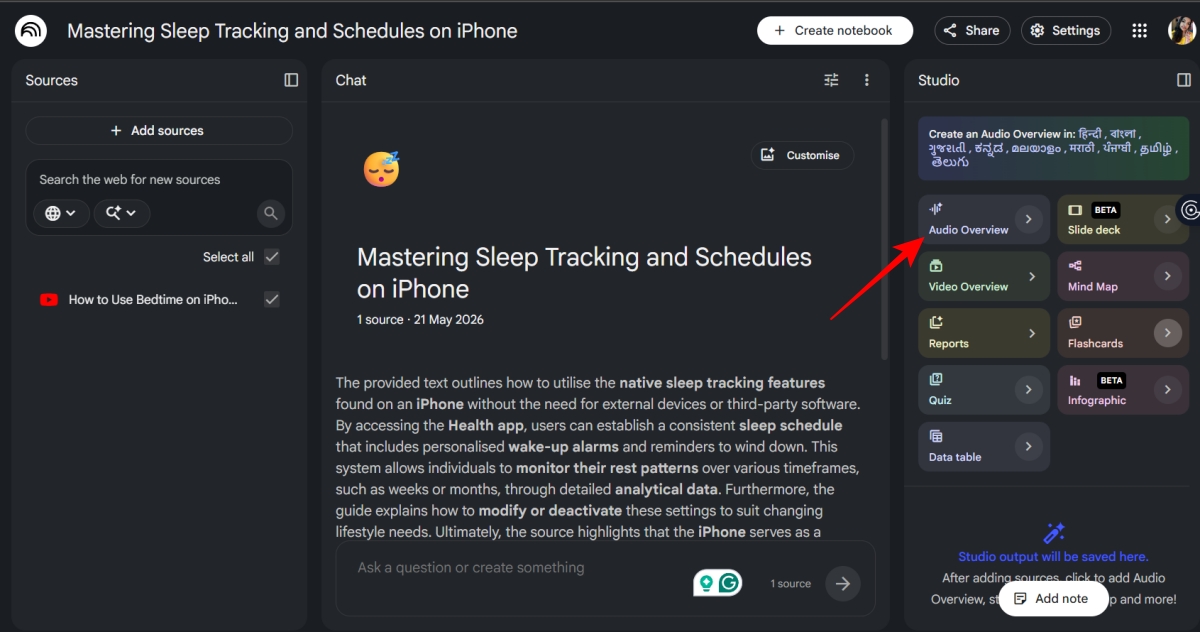
Gemini is great for one video. But if I am dealing with a full playlist, I prefer NotebookLM.
Chrome offers a YouTube to NotebookLM extension that lets you import videos from a YouTube playlist into a notebook. In a few minutes, you can get transcripts from those videos and turn the entire playlist into something much easier to study.
Once you have added all sources, open NotebookLM and use the Audio Overview feature to generate a podcast-style explanation from the videos. I use this to condense the main ideas and customize the format based on what I need.
If podcasts are not your style, you can turn the playlist into notes, FAQs, study questions, summaries, and topic-based breakdowns.
For example, you can use a follow-up prompt like: What are the advanced concepts that connect videos 2, 3, and 5?
NotebookLM can answer like a tutor and give automatic suggestions. You can click Save to note and then Convert to source to keep those insights inside the notebook.
This works especially well for learning technical topics. If I am watching a playlist about an AI tool, a programming concept, a productivity system, or a software workflow, I do not want ten disconnected summaries. I want one organized learning hub that helps me understand how everything connects.
These are the prompts I keep coming back to. They work because they don’t ask Gemini to be vague. They force it to make decisions.
Be strict. If this video is too long for the value it provides, tell me.

Include:
- what is useful
- what is filler
- what is repeated
- what I should watch
- what I can safely skipIf I only have 10 minutes, which parts of this video should I watch?
Give me:
- the must-watch sections
- the skippable sections
- the fastest way to understand the videoTurn this video into structured notes.
Use:
- headings
- bullet points
- examples
- definitions
- practical takeawaysSummarize this review into:
- pros
- cons
- deal-breakers
- who should buy it
- who should avoid it
- final verdictGroup the best ideas from this conversation by topic.
Tell me:
- the strongest points
- the most interesting arguments
- the parts worth watching
- the parts that are repetitive
Teach me the topic from this video like I am new to it.

Then give me:
- simple notes
- examples
- common mistakes
- a short quiz with answers
That last one is my favorite when I’m cleaning up my Watch Later list. It turns a video into study material.
Gemini can’t replace watching videos completely. There are still some instances wherein I have to view the video manually, such as software demos, UI walkthroughs, coding steps, product footage, camera samples, design work, and anything where the creator is showing something instead of just explaining it.
I also watch manually when the topic is high-stakes or easy to misunderstand. These topics include videos related to health, money, law, security, or fast-changing news.
Additionally, AI summaries can miss nuance. They may flatten opinions or make uncertain points sound cleaner than they really are. And sometimes the most valuable part of a video can be a small demo, a warning, or an offhand comment. That’s why I still decide what to trust.
Long YouTube videos are still useful, but I no longer treat them like something I have to watch from start to finish. With Gemini, I can quickly understand the main points, find the sections that matter, and skip the parts that do not add much value.
For me, these tricks make YouTube feel less overwhelming. Whether I am watching a tutorial, interview, podcast, or explainer, Gemini helps me save time while still getting the information I came for.
What do you think about these Gemini features? Share your thoughts in the comments below!
You might also like:












