FaceTime Like a Pro
Get our exclusive Ultimate FaceTime Guide 📚 — absolutely FREE when you sign up for our newsletter below.

FaceTime Like a Pro
Get our exclusive Ultimate FaceTime Guide 📚 — absolutely FREE when you sign up for our newsletter below.


AI Overviews have made Google Search feel cluttered. These simple tricks helped me remove AI-heavy results and bring back a cleaner, faster search experience.
 ByVikhyat
Google Search has changed dramatically over the past few years. Instead of showing a straightforward list of websites, most searches now begin with AI-generated summaries, recommendation cards, Reddit threads, videos, and other elements that push traditional search results much further down the page.
While AI Overviews can occasionally be useful, they also make Search feel unnecessarily crowded. In many cases, I found myself scrolling past the AI section just to access the actual websites I wanted to visit.
That eventually sent me down a rabbit hole of strange search tricks, hidden filters, browser tweaks, and URL modifiers. Surprisingly, some of them genuinely work.
If you also miss the cleaner Google Search experience from a few years ago, here are the methods that helped me reduce the AI clutter.
When Google first introduced AI Overviews, I did not dislike the feature. For quick searches, the summaries were occasionally useful and saved a few clicks.
That changed once AI answers started appearing on almost every search. Instead of immediately showing websites, Google began filling the top half of the page with generated summaries, which pushed the actual links much lower than before. While researching topics for work, I kept finding myself scrolling past the AI section just to reach the sources I actually wanted to open.
Over time, Search started feeling slower and more cluttered. Instead of helping me discover useful websites faster, Google increasingly tried to answer everything itself first.
That completely changed how Search felt to use, and it became the main reason I started looking for ways to reduce AI-heavy results and bring back a cleaner Google experience.
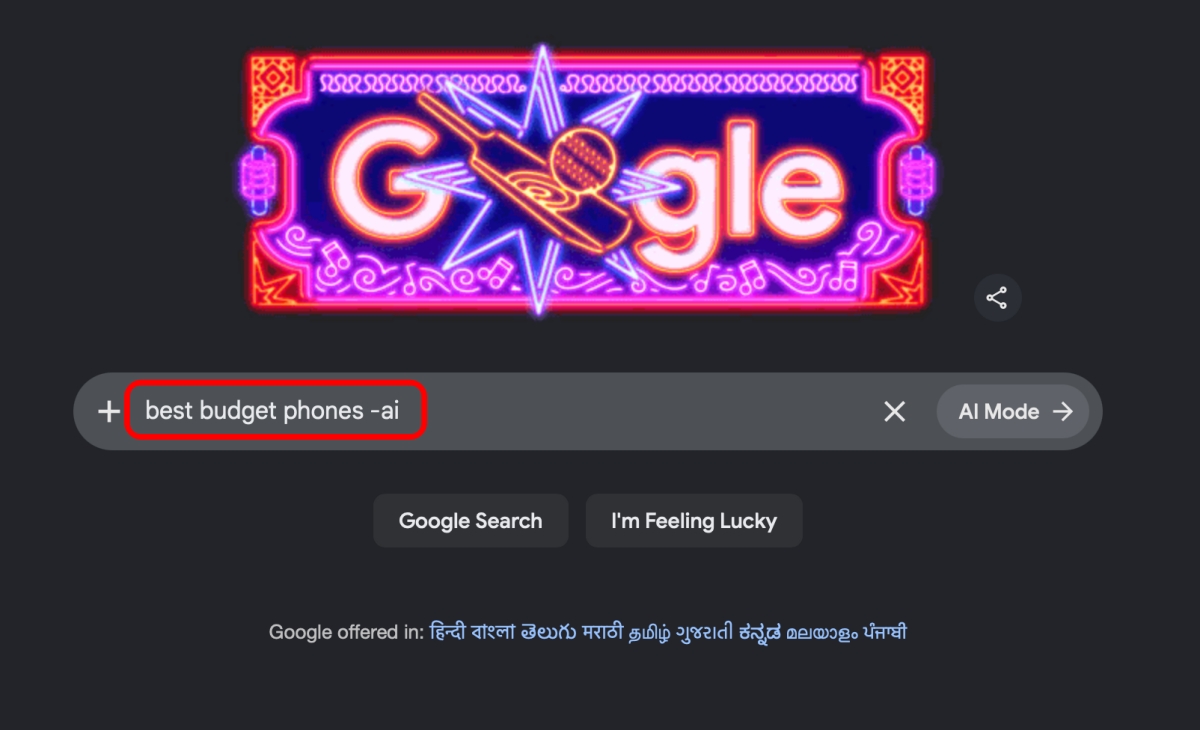
This is the easiest trick I found, and surprisingly, it works quite well.
Simply add -ai at the end of your search query:
best budget phones -ai
In many cases, Google stops showing the AI Overview completely and switches back to more traditional web results. The change is immediate, which makes this method far more convenient than constantly adjusting browser settings or installing extensions.
It is not perfect for every search, but it works often enough that I now use it automatically during research.
Must read: Top 7 Gmail extensions to boost productivity
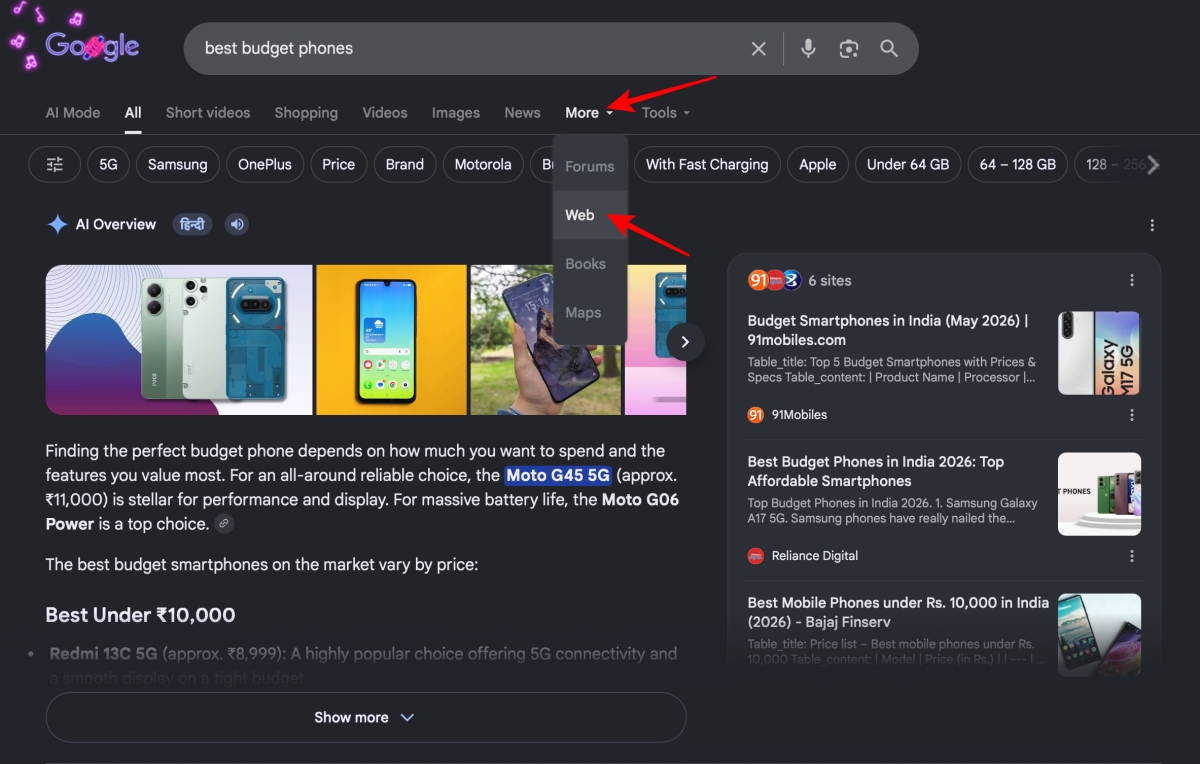
Google still includes a dedicated Web filter inside Search, though it is much less visible than before.
After searching for something, switch from the default All tab to Web. On some browsers, you may need to open the More menu first.
The difference is surprisingly noticeable.
The Web tab removes much of the extra clutter and focuses mainly on traditional search links. AI summaries become far less aggressive, and the entire results page feels easier to scan quickly.
This ended up becoming my preferred search mode while researching articles because it cuts down unnecessary scrolling almost immediately.
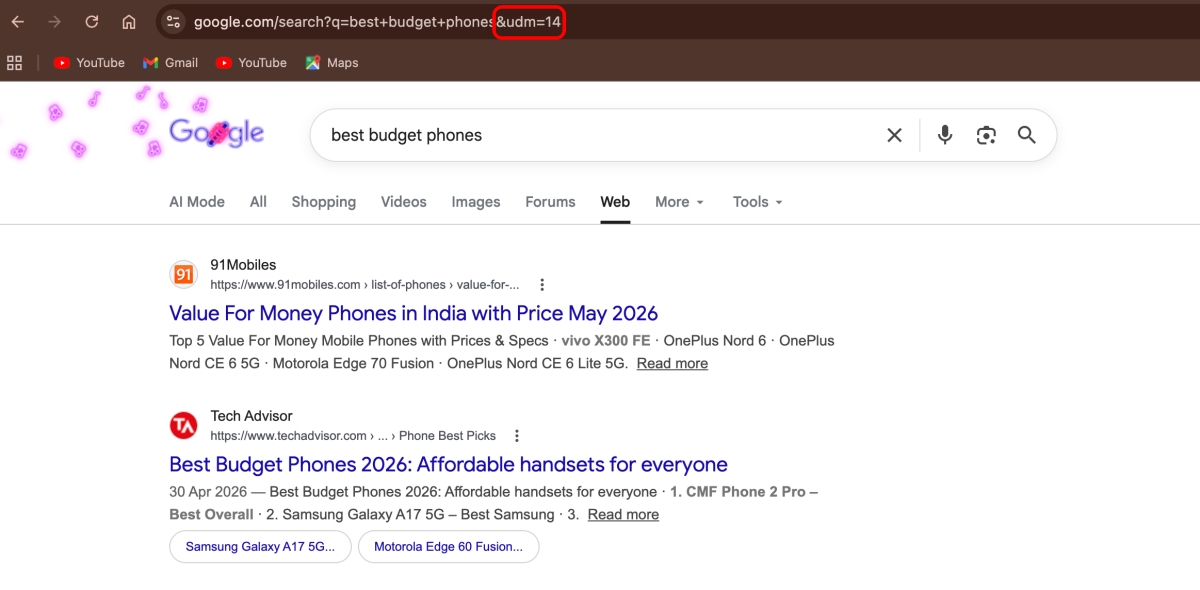
Another workaround that works surprisingly well involves modifying the Google Search URL itself. Adding &udm=14 at the end of a search URL forces Google into a cleaner, web-focused layout.
A search URL looks something like this:
google.com/search?q=best+gaming+laptops&udm=14
Once loaded, the page strips away many AI-heavy interface elements and gives far more importance to regular web results.
Some users are even configuring this parameter as their default search behavior in browsers like Chrome and Firefox. After trying it myself, I understood why almost immediately. The results page feels lighter, faster, and far less distracting.
Must Read: Why Google redesigned Gmail and Workspace icons: Explained
If you want Google to always open in this cleaner web-focused layout, you can configure the &udm=14 parameter as the default search behavior directly in your browser.
On Google Chrome
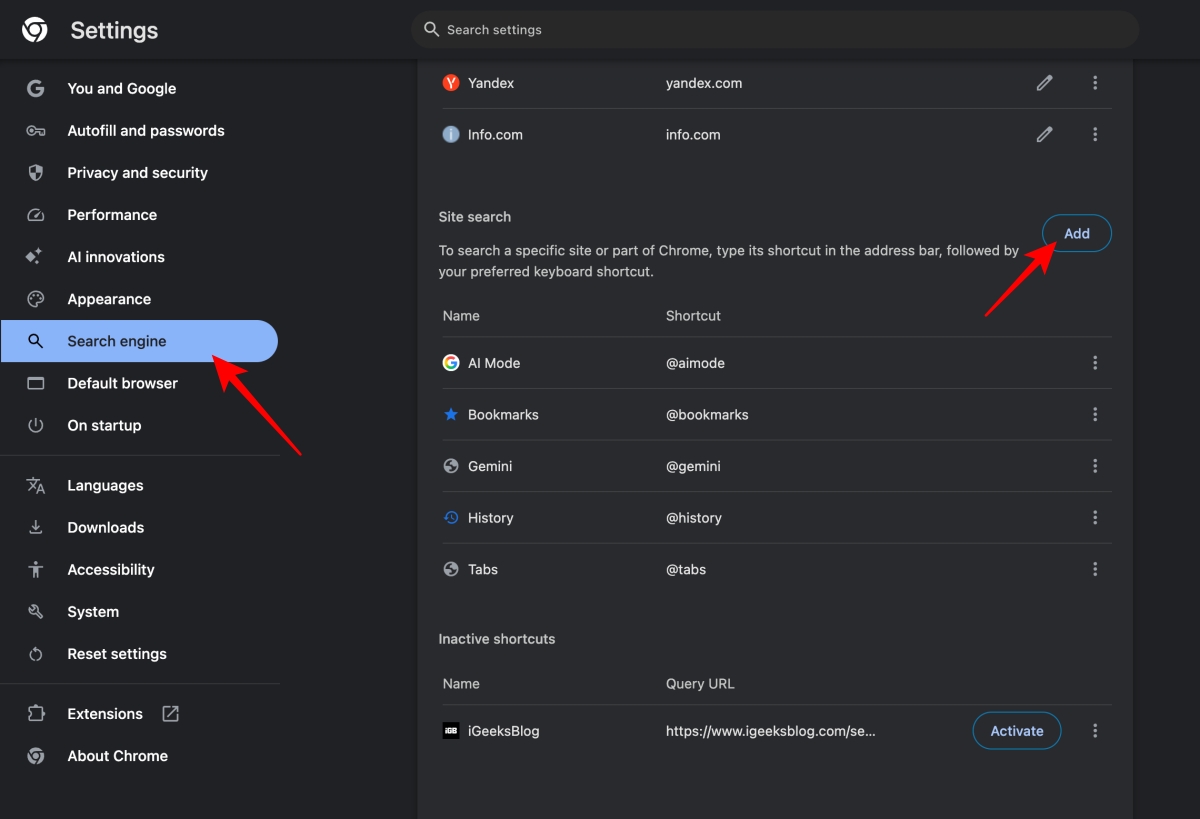
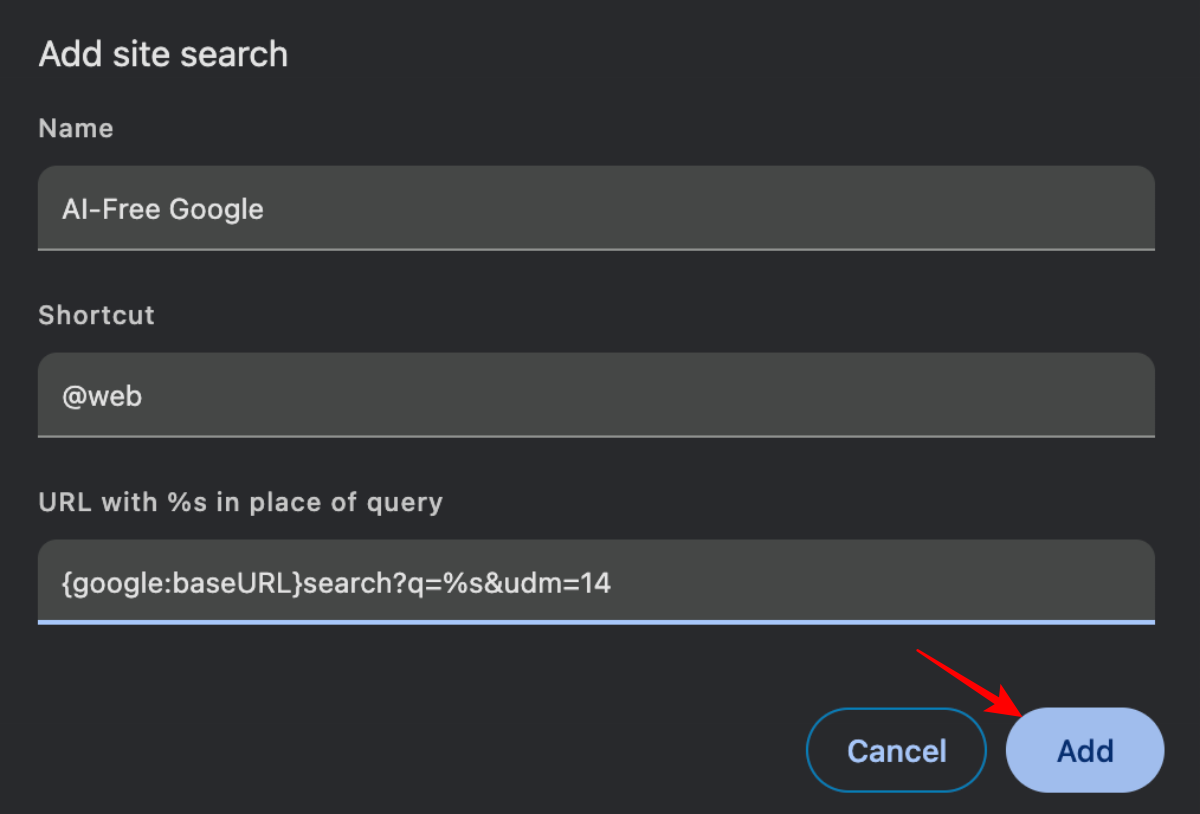
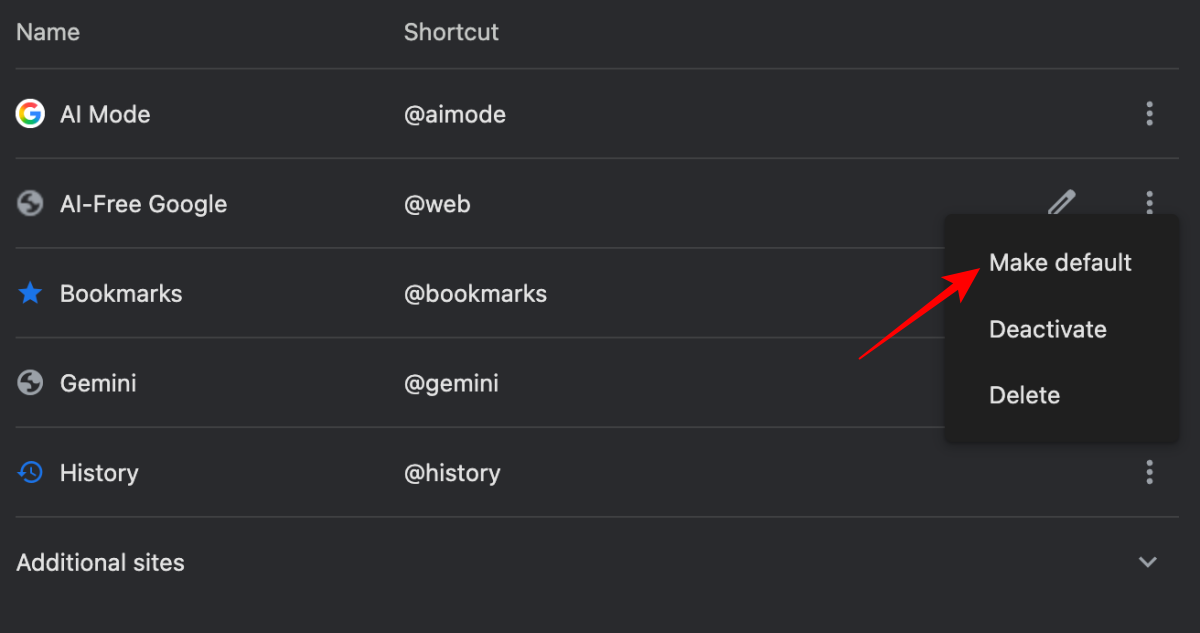
Once saved, every search typed into Chrome’s address bar will automatically open in the cleaner web-focused layout instead of the default AI-heavy view.
Most Chromium-based browsers support the same setup, including Microsoft Edge, Brave, Opera, and Vivaldi.
Unfortunately, Safari still does not offer a simple system-wide way to apply this trick.
If you want a more permanent solution and do not want to modify browser settings manually, browser extensions are another solid option.
Extensions like “Hide Google AI Overviews” and “Bye Bye, Google AI” can automatically remove AI-generated summaries from Google Search pages before they even appear. Many users are also relying on custom filters in uBlock Origin to block AI Overviews and other cluttered Search elements.
The overall experience becomes much cleaner once these elements disappear automatically. Search pages load with fewer distractions, making Google easier to navigate during long research sessions.
The downside is that Google changes Search layouts frequently, so some extensions may temporarily stop working until developers update them.
While testing these tricks, I also started spending more time using alternative search engines.
Ironically, many smaller search engines currently feel more focused than Google itself.
Google clearly wants AI-generated answers to become a core part of Search moving forward, so a proper “turn off AI” toggle still does not exist. Until that changes, these tricks are probably the best way to make Google Search feel closer to its older, cleaner experience.
AI Overviews are clearly becoming a major part of Google Search, and right now, there is still no proper option to disable them completely.
But after trying these tweaks for a while, I noticed that even small changes, like using the Web filter, adding -ai to searches, or configuring the udm=14 parameter, make Search feel significantly cleaner.
Out of all the methods, the -ai modifier and the permanent udm=14 setup ended up being the most useful in daily use because they require almost no extra effort once configured.
If you have also been frustrated with AI-heavy Google results lately, these tricks are genuinely worth trying.
Must Read: How to stop Google Search from saving uploaded photos and audio