
FaceTime Like a Pro
Get our exclusive Ultimate FaceTime Guide 📚 — absolutely FREE when you sign up for our newsletter below.

FaceTime Like a Pro
Get our exclusive Ultimate FaceTime Guide 📚 — absolutely FREE when you sign up for our newsletter below.


Learn how to delete voicemails on your iPhone, whether it’s one message, multiple, or all at once. Find out how to recover deleted messages and clear space quickly.
 BySandy
Voicemails, just like emails, can pile up before you know it. One day you’re just checking messages, and the next, your inbox is full of old voicemails you don’t need anymore. If you’re ready to do a little digital cleanup, here’s how to delete voicemails on your iPhone, whether it’s a single message or all of them at once.
If you just want to remove a few messages, you can delete voicemails one by one directly in the Phone app.
Here’s how:
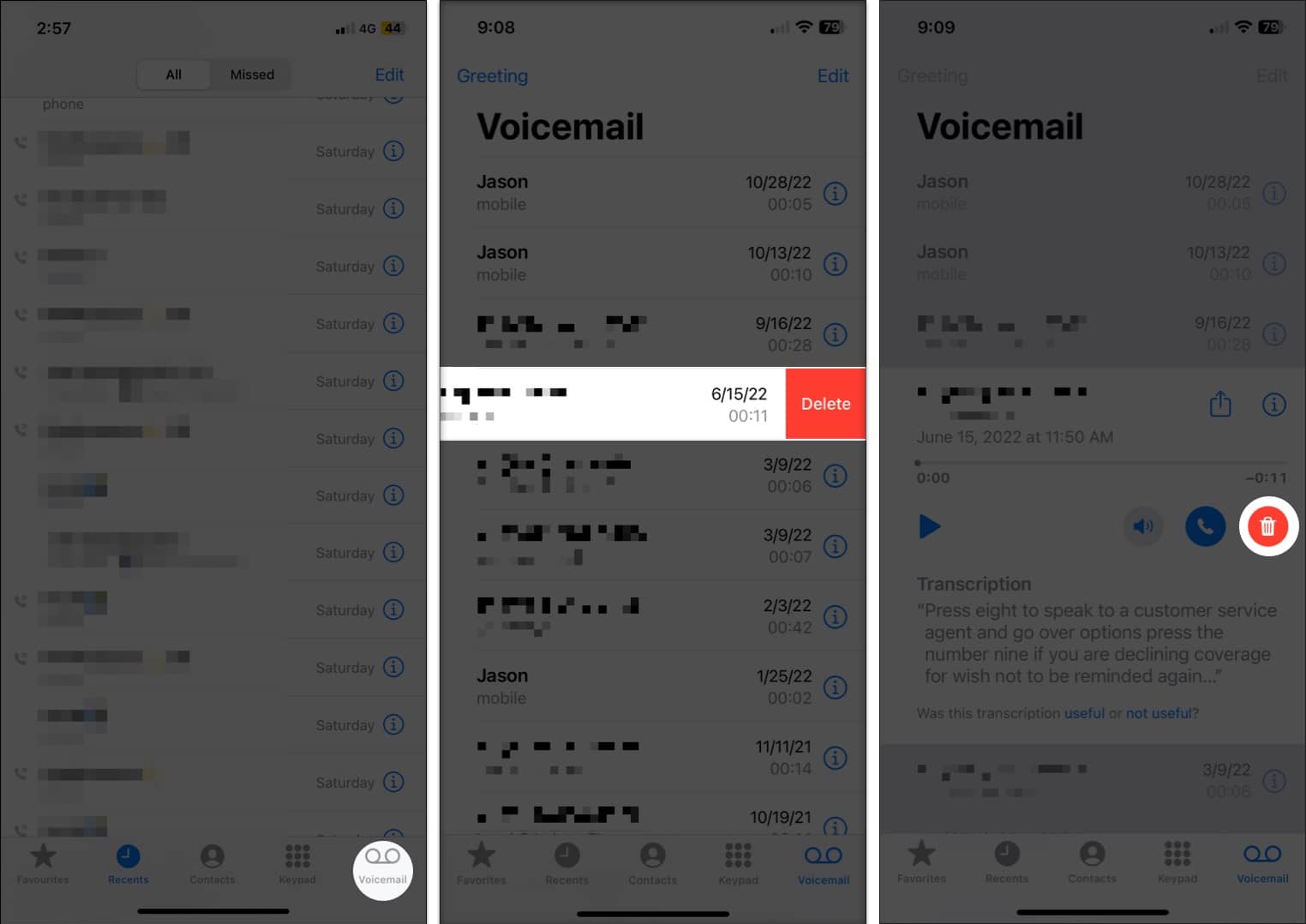
You will not be asked to confirm when you delete a voicemail. The message simply vanishes from your voicemail list.
If you’ve got a bunch of old messages you want to clear out quickly, you can delete several at the same time.
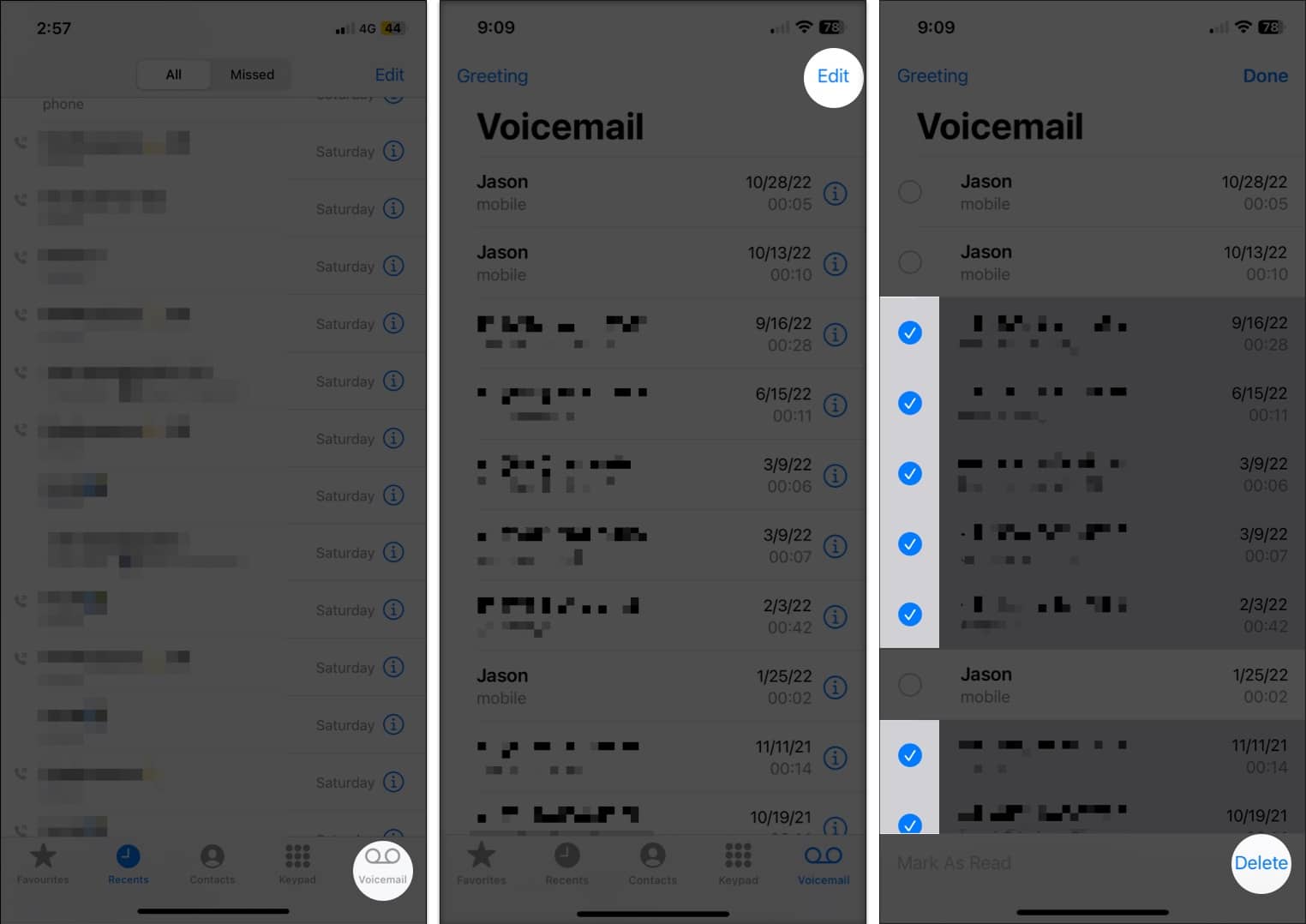
Again, your iPhone won’t ask for confirmation. The messages will simply be removed from your list.
Accidentally deleted an important voicemail? Don’t worry, if it hasn’t been permanently removed, you can still recover it.
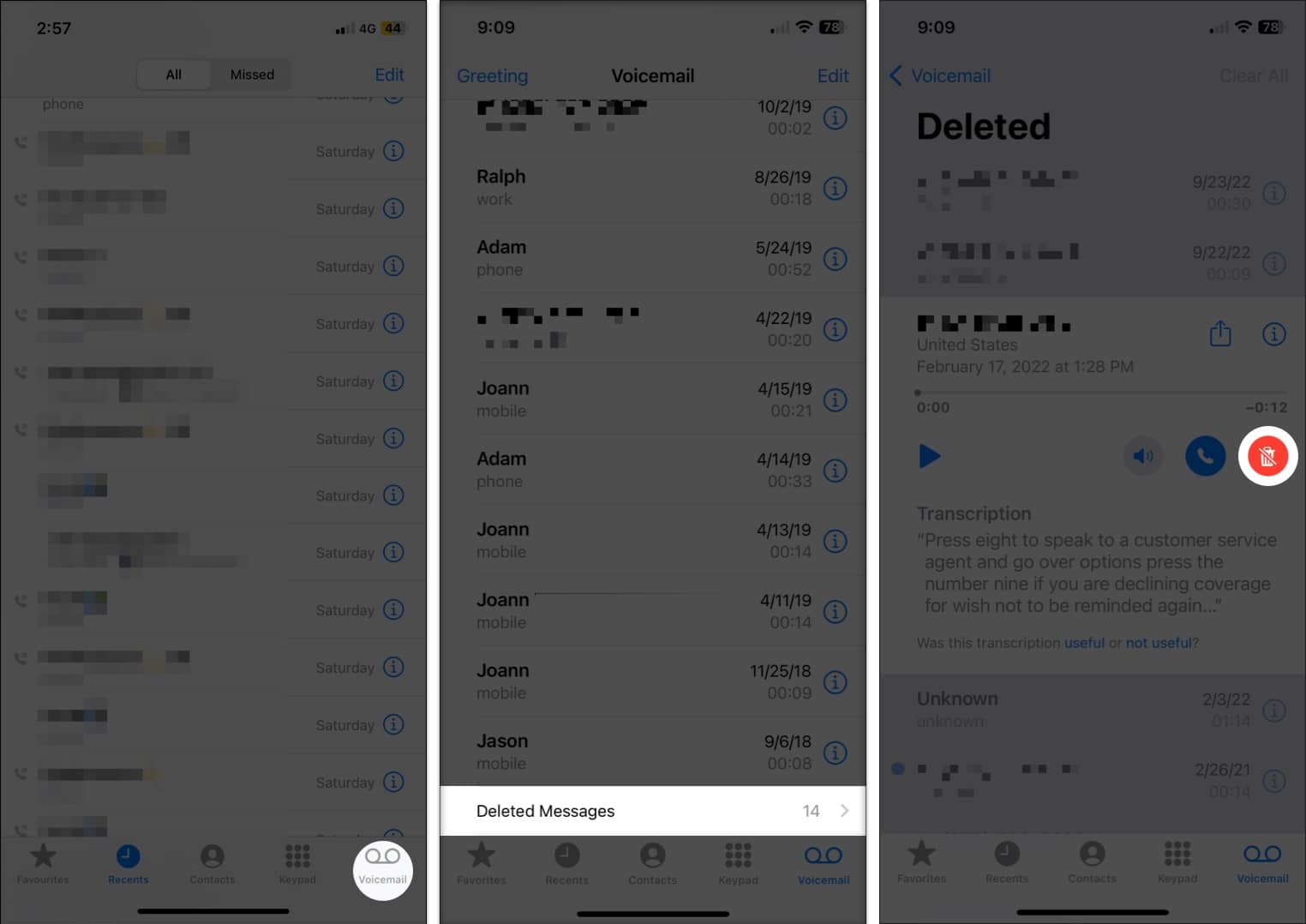
The voicemail will instantly return to your main message list.
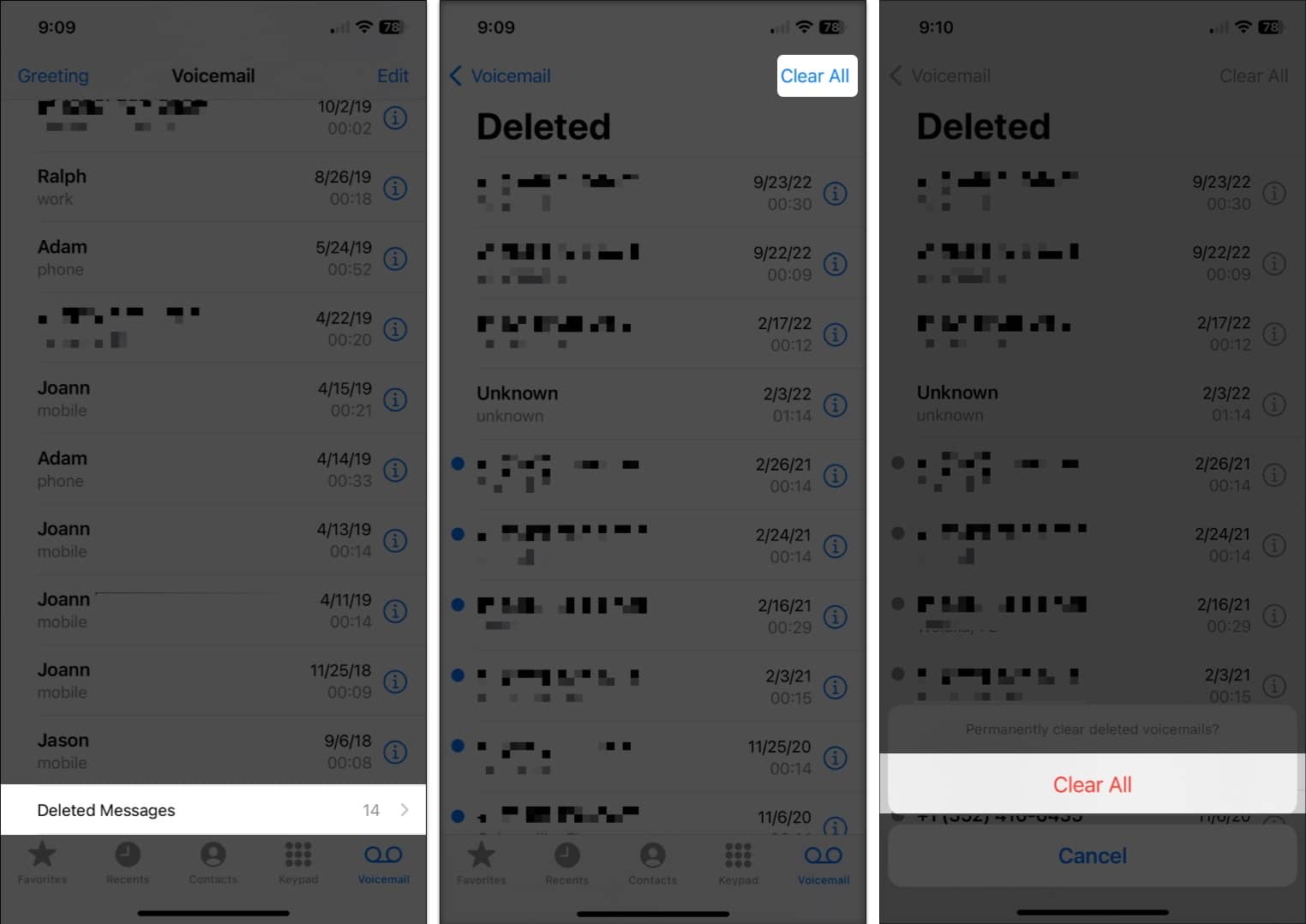
This will permanently remove those voicemails from your device.
Once you’ve cleared your Deleted Messages folder, there’s no direct way to recover those voicemails. However, you can try contacting your carrier’s support. Some carriers may be able to retrieve recently deleted voicemails from their servers, but it’s not guaranteed.
Now that you know how to delete voicemails on your iPhone and recover them if needed, you can finally clear out that cluttered inbox.
Will you take a few minutes to tidy up your voicemail list today?
If you’d rather not deal with voicemail at all, check out our guide on how to turn off voicemail on iPhone for good.
Read more:











