
FaceTime Like a Pro
Get our exclusive Ultimate FaceTime Guide 📚 — absolutely FREE when you sign up for our newsletter below.

FaceTime Like a Pro
Get our exclusive Ultimate FaceTime Guide 📚 — absolutely FREE when you sign up for our newsletter below.


Snapchat Memories lets you save and revisit your favorite Snaps and Stories in a private gallery. Here’s how to use, edit, share, and protect them easily.
 ByVikhyat
Besides letting you connect with friends through Snaps and Stories, Snapchat also gives you a private in-app gallery called Memories. Launched in 2016, Snapchat Memories allows you to save and revisit your favorite Snaps and Stories—so you never lose a meaningful moment.
This guide explains everything about Snapchat Memories: what it is, how it works, and how to make the most of its features.
Snapchat Memories is your private gallery within the app where you can save Snaps and Stories to view, relive, and reuse later. Unlike regular Snaps and Stories that disappear after being viewed or within 24 hours, content saved to Memories stays there until you delete it.
But it’s more than just storage. Snapchat Memories is like a digital time capsule. It automatically creates:
These flashbacks appear at the top of the Memories gallery in a story-style format, making it easy to relive your favorite memories.
Here are some standout features that make Memories such a powerful tool:
Earlier, you could save as many Snaps as you wanted in your Memories. However, Snapchat has now introduced new Memories storage plans, offering users 5 GB of free space for Memories. Once this limit is reached, users will need to subscribe to a paid plan to continue saving content. The 100 GB plan costs $1.99 per month, while Snapchat+ subscribers get 250 GB, and Platinum members receive up to 5 TB of storage.
Existing users who’ve already crossed the 5 GB cap will get 12 months of complimentary storage to manage their data. After that, they’ll need to upgrade or risk losing older Memories. Snapchat says this move addresses the growing cost of storing vast amounts of user content.
To avoid losing your precious Memories, we suggest downloading your Snapchat data in advance.
Snapchat is always evolving—AR lenses, AI stickers, and filters come and go. But Memories offers a consistent space for saving your favorite content.
Here’s why it’s useful:
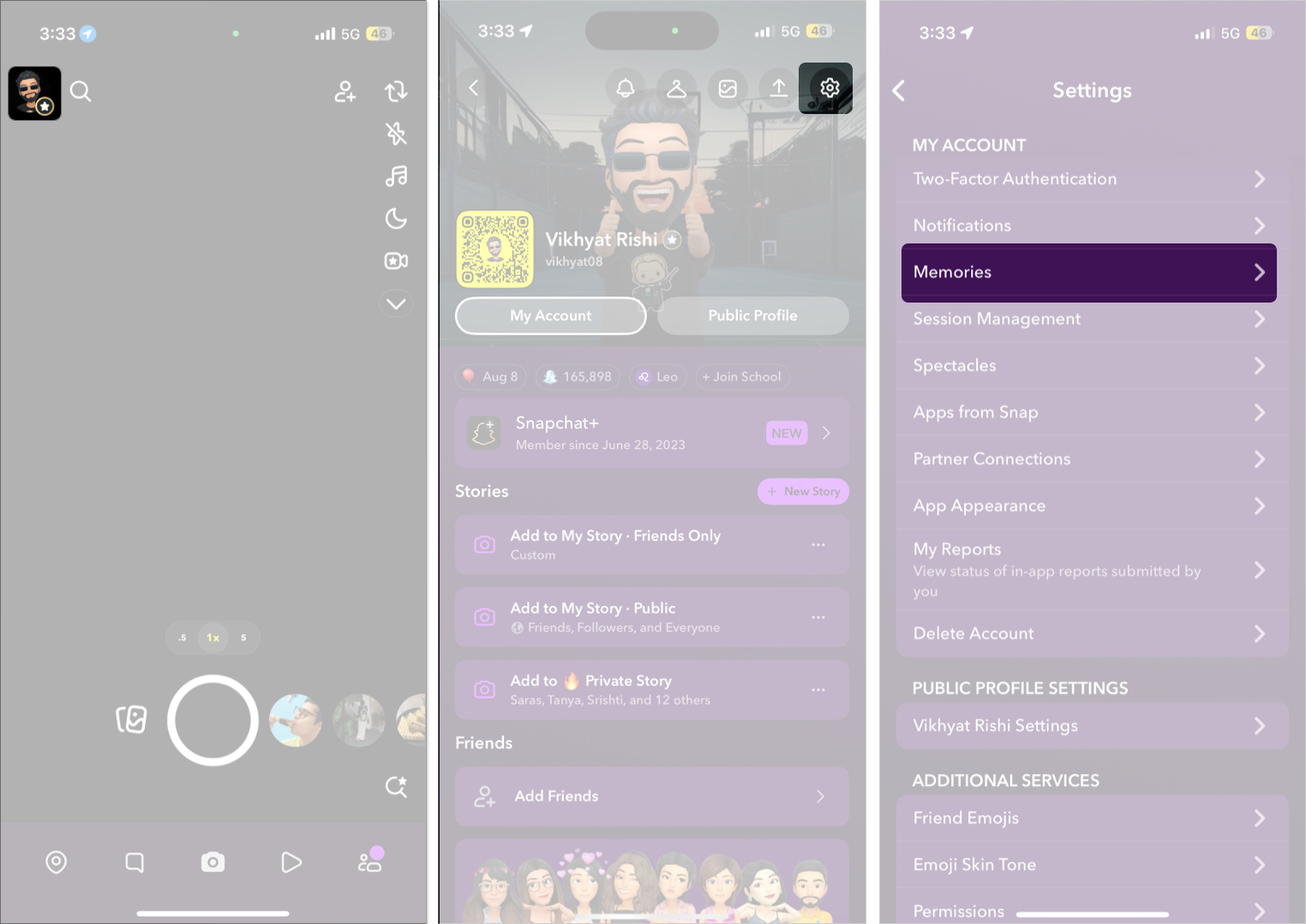
You can set Snapchat to automatically save your Stories to Memories. Here’s how:
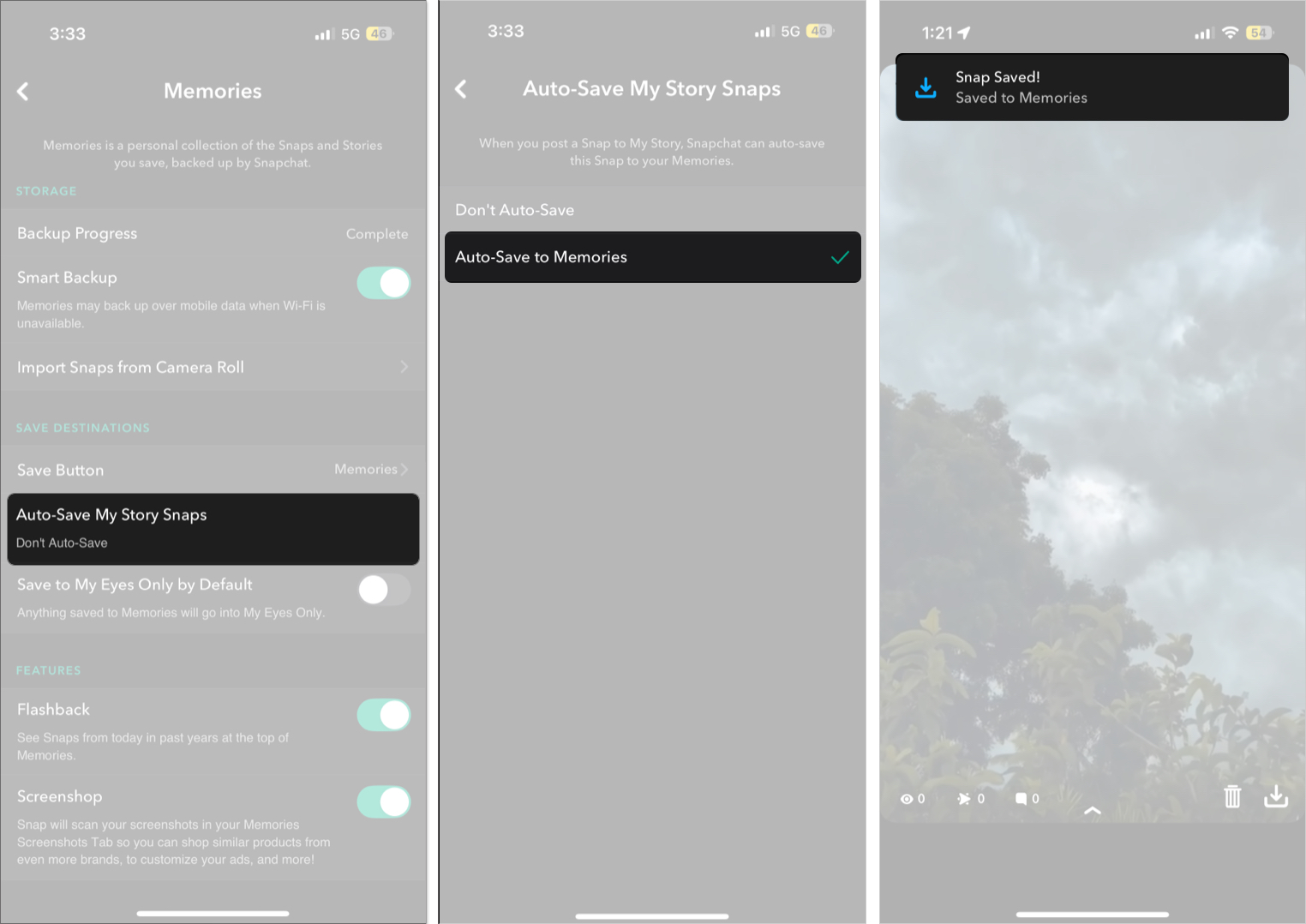
To save already posted Stories:
To manually save Snaps or unposted Stories:
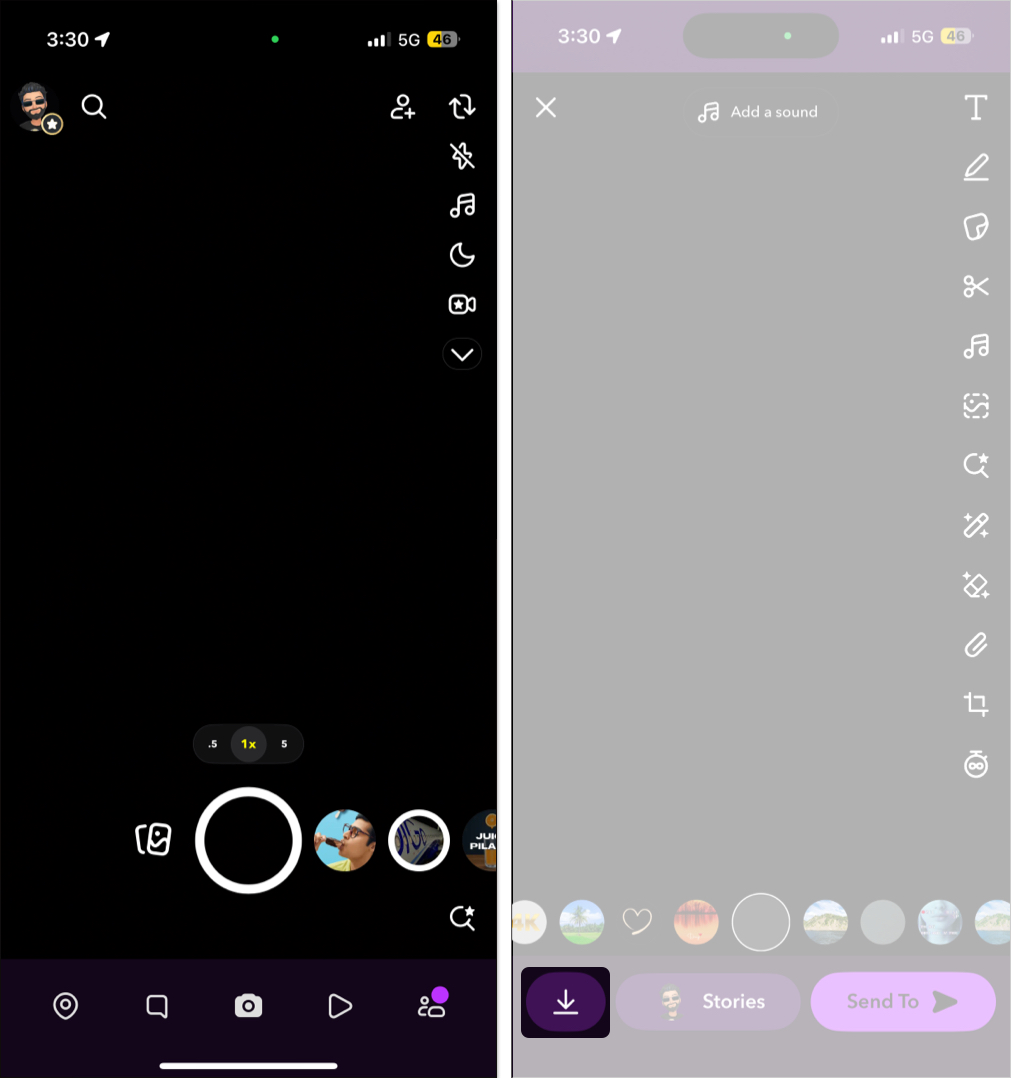
Accessing Memories is just as easy:
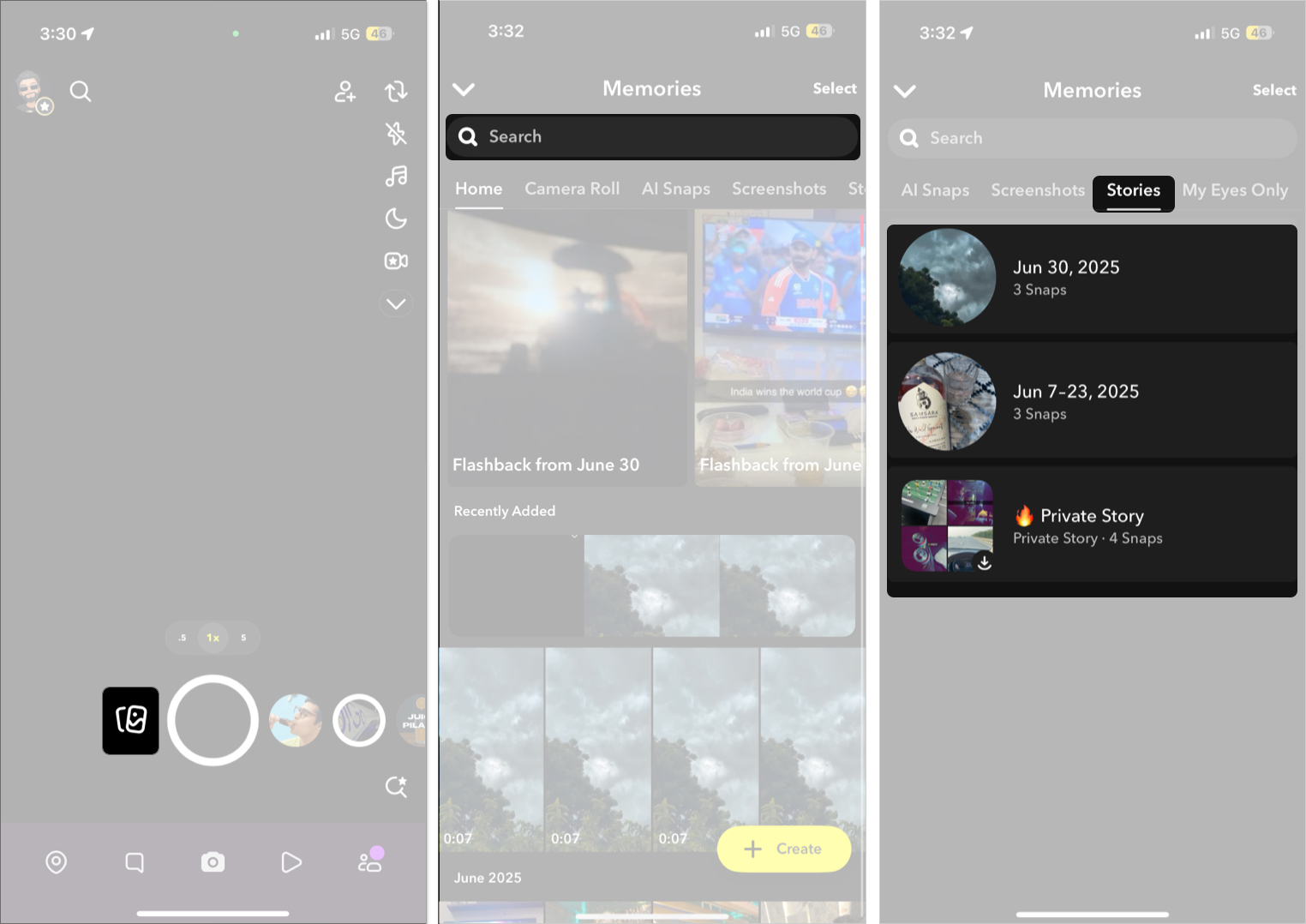
The Home tab shows all your saved Snaps and Stories in a single scrollable view. To view saved Stories separately, swipe right on the Home tab until you arrive at the Stories tab.
Moreover, you can also view your monthly recaps, “This Day in History” flashbacks, random throwback snaps, and more in the form of a highlight reel at the top of the Memories section.
Snapchat lets you edit and repost saved Snaps:
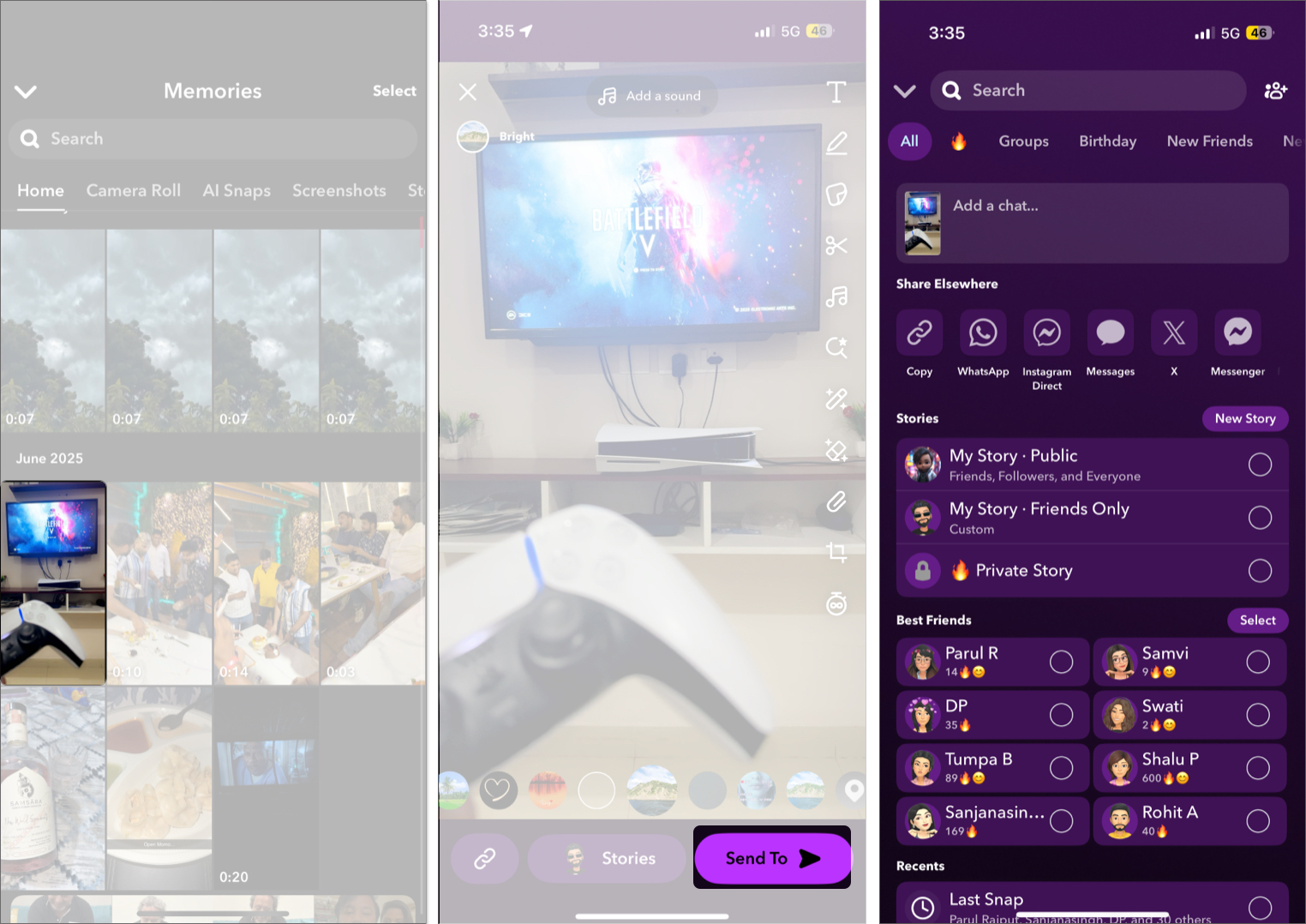
For more dynamic content, you can go beyond basic editing and use Quick Cut to turn multiple saved Snaps or clips into a music-synced video in seconds — perfect for posting to Stories or sending as a Snap.
Note: Snaps reshared from Memories count as chats, not toward Snapstreaks.
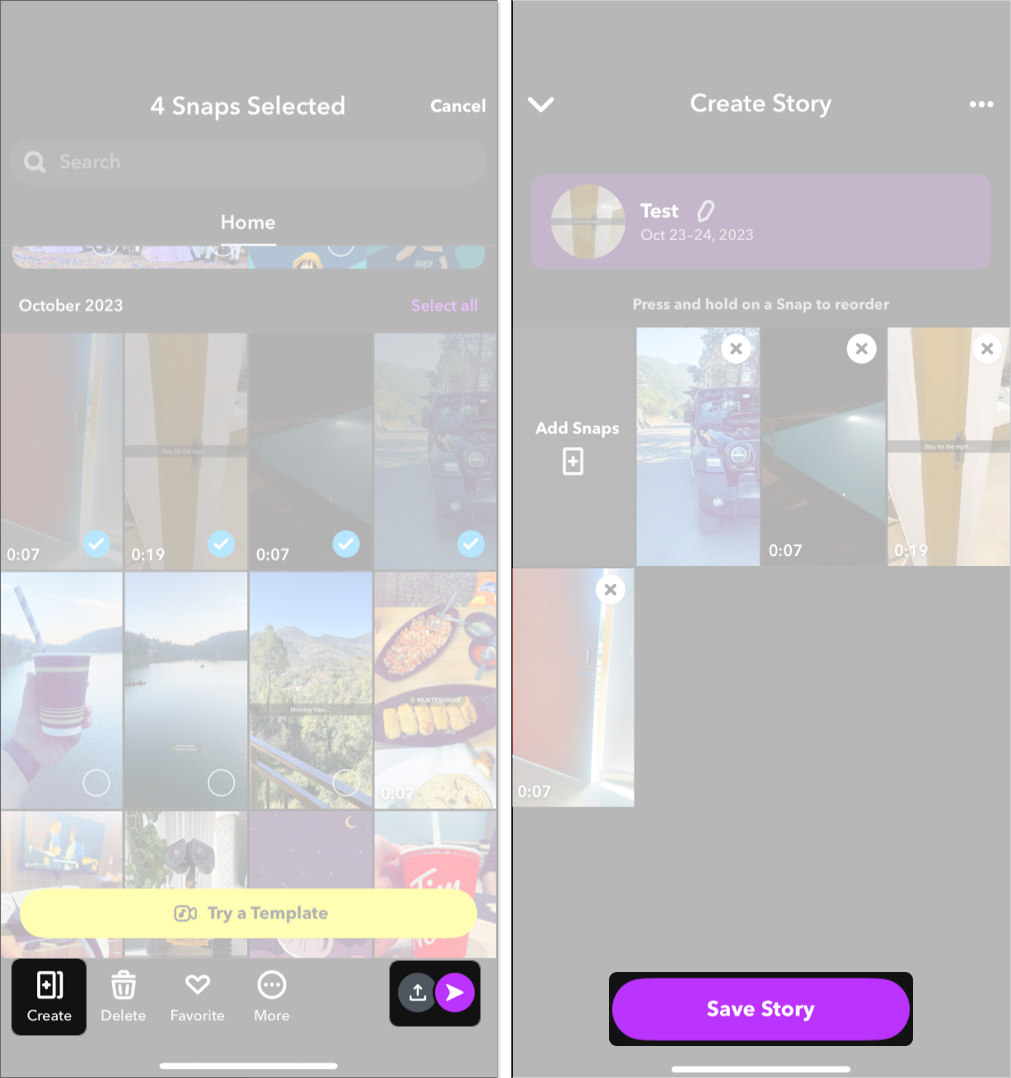
Want to compile a story from saved Snaps? Here’s how:
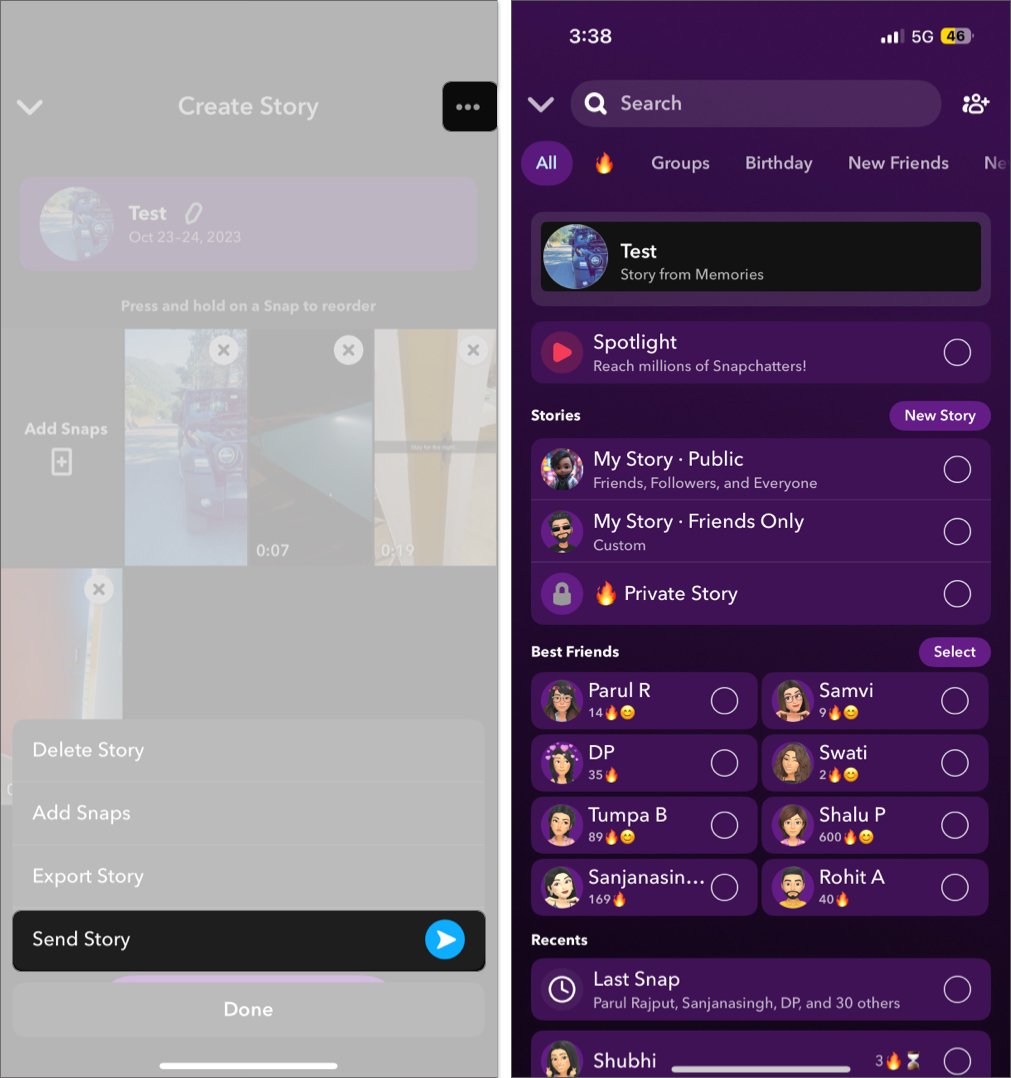
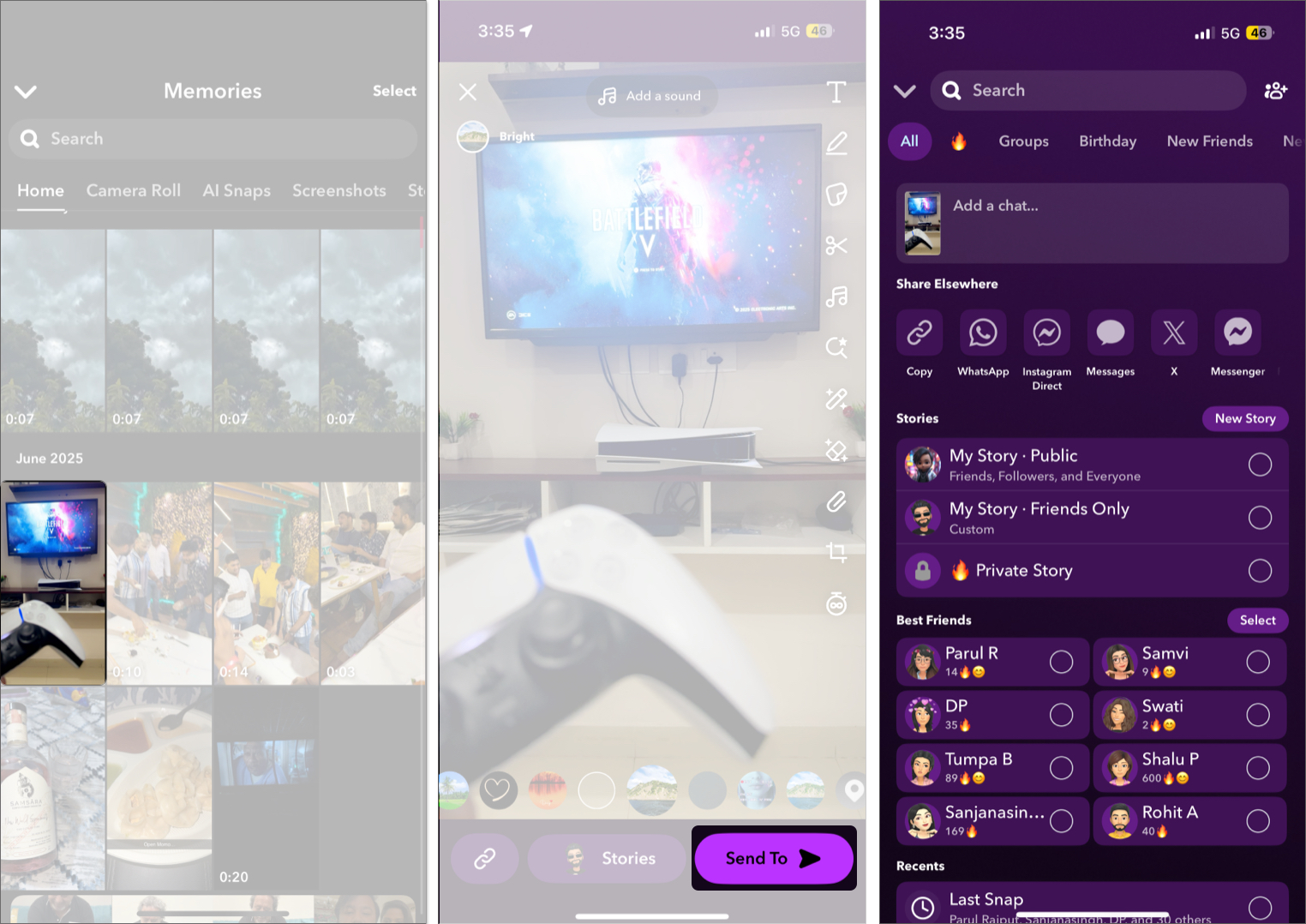
To share a saved Snap outside Snapchat:
To delete saved Snaps or Stories:
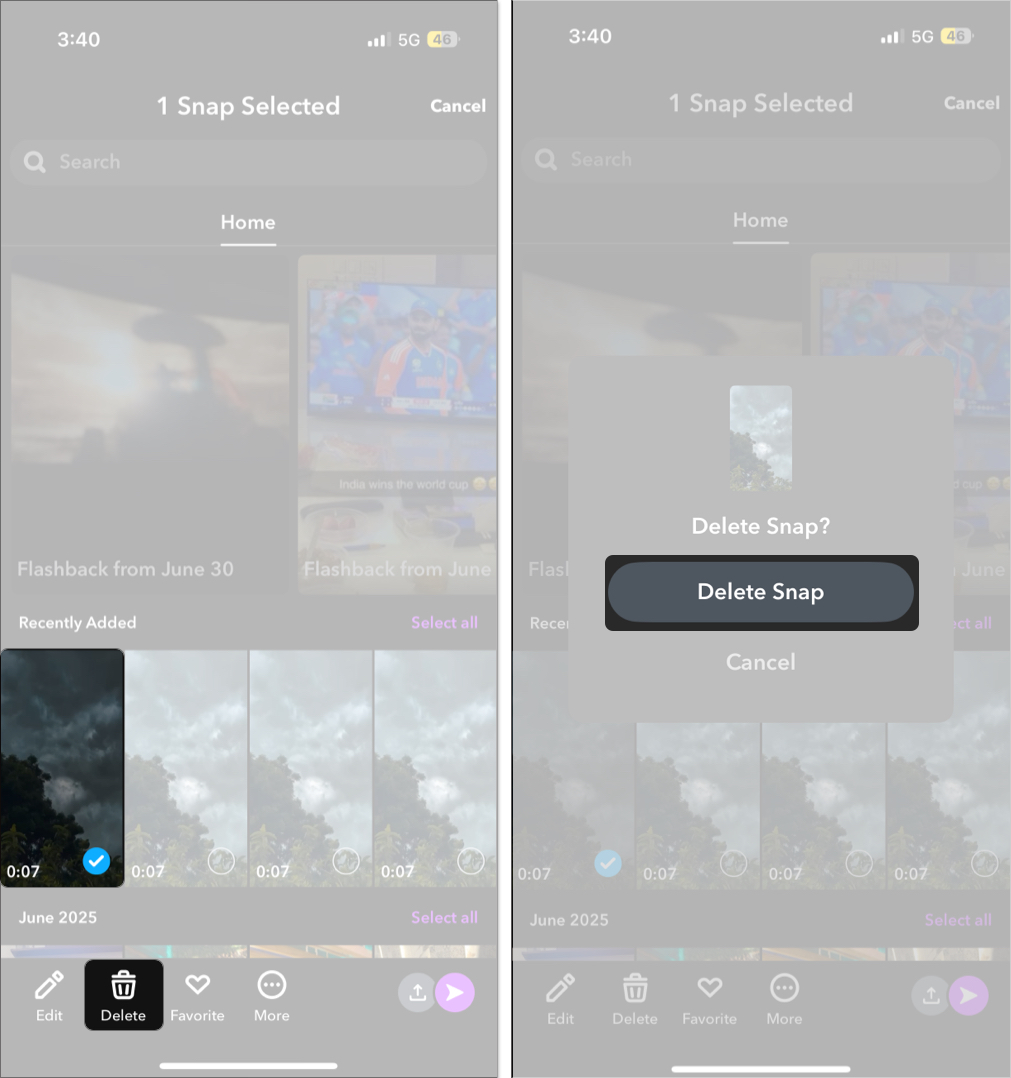
Once deleted, it’s gone permanently and can’t be recovered.
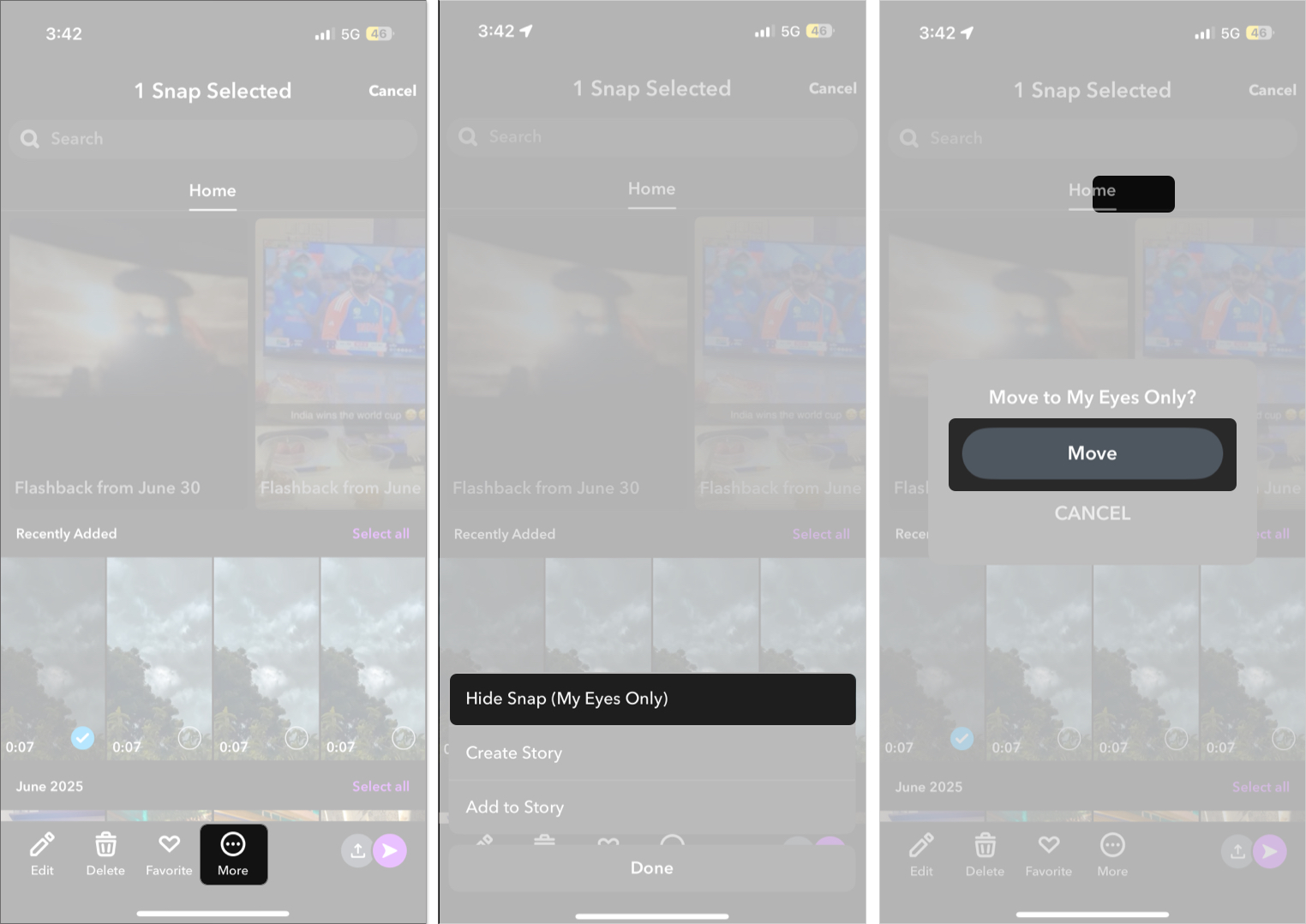
While Memories are private, anyone who opens your app can view them—unless you use My Eyes Only.
To move a Snap to My Eyes Only:
Alternatively, you can enable Snapchat to automatically save all your Snaps and Stories to My Eyes Only by default. Here’s how:
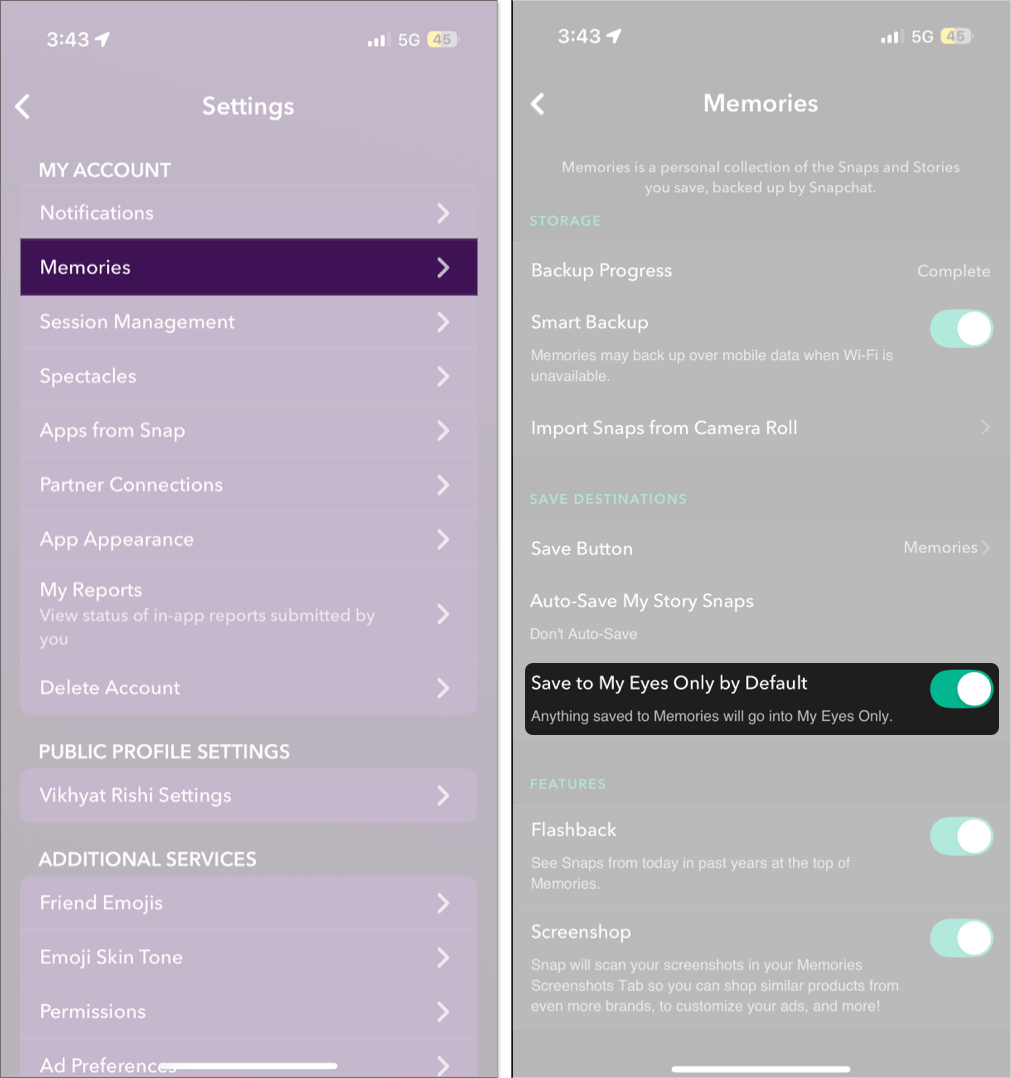
Now, every time you hit the save button on a Snap or Story, it will be directly saved to My Eyes Only.
Here’s how to fix common problems:
| Issue | Solution |
|---|---|
| Memories Not Loading | Memories require Wi-Fi or mobile data to sync with Snapchat’s servers. So check whether your phone has an active internet connection. |
| Snaps Not Saving to Memories | Revisit Memory settings and ensure “Auto-Save” is toggled on. Also, check whether your phone has enough free storage. |
| Memories Missing After Phone Change | Make sure you’re logged into the same Snapchat account used on your old phone. Also, Check your backup status in Settings → Memories → Backup Progress — it should say “Complete.” |
| App Crashing When Accessing Memories | Update Snapchat from the App Store or Play Store. |
Snapchat Memories turns your Snaps into a curated archive of life’s moments—easily accessible, creatively editable, and completely private. Whether you’re saving travel memories, editing a throwback Snap, or reliving a Story from last year, Memories gives you the tools to do it effortlessly.
Feel free to reach out to us via comments if you need further help.
FAQs
No. Memories are stored in Snapchat’s cloud. If you save to your Camera Roll, they will use local storage.
Yes. Log in with the same Snapchat account and your Memories will sync from the cloud.
There’s no official limit. Just ensure you have internet for backups.
No. You can’t add or edit another person’s Snap in your Memories.
Related articles worth reading:











