How to Clear X (Twitter) Cache on iPhone, Android, and Web for a Faster Experience
Tired of Twitter (X) slowing down or crashing? Learn how to clear cache on iPhone, Android, and web to fix lag, free storage, and enjoy a smoother app experience.
Key Takeaways:
- Why X (Twitter) Builds Cache and Why You Should Clear It: X caches media and webpages for faster loading, but excessive buildup can slow performance, drain storage, and cause app glitches.
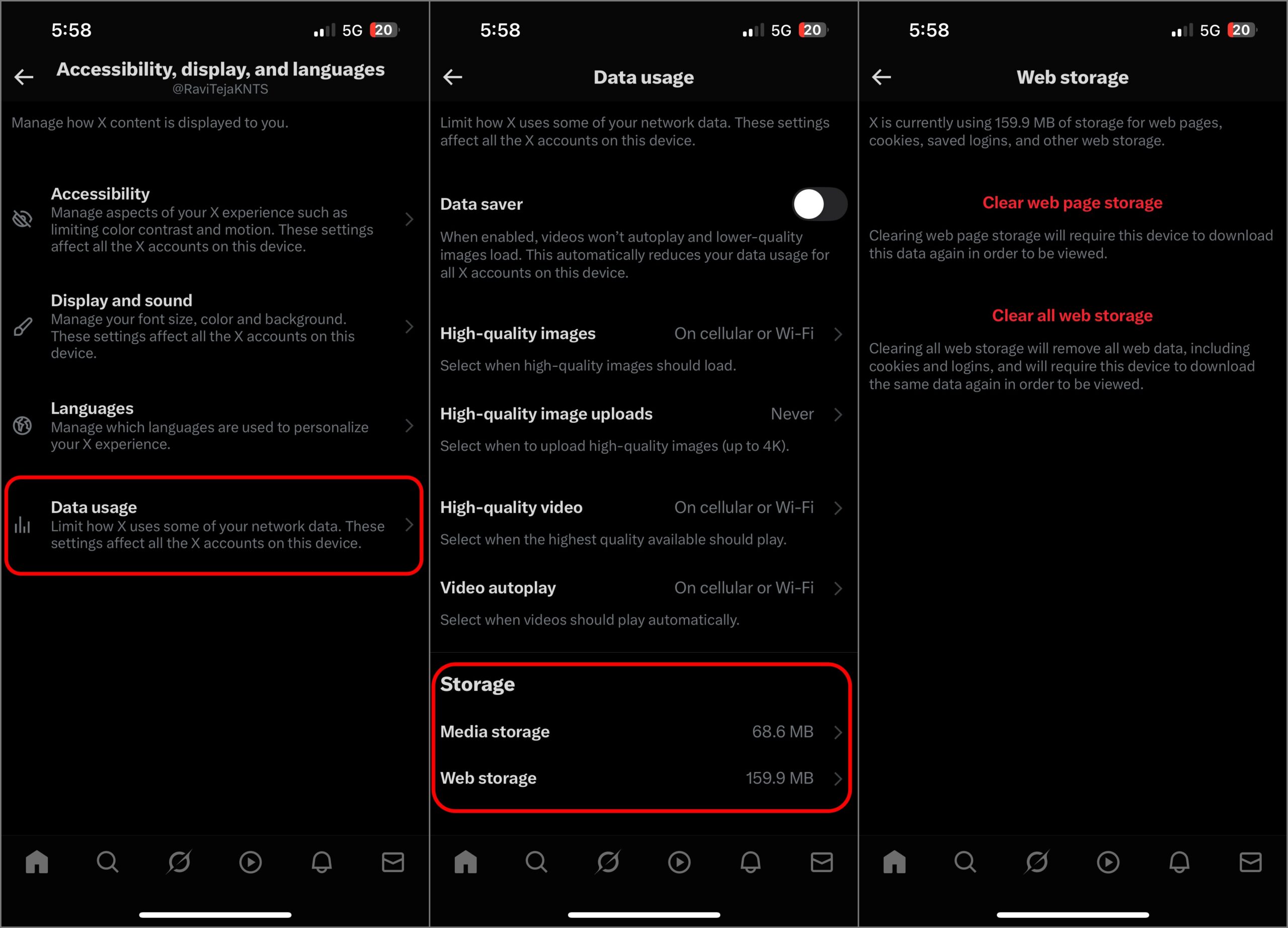
- How to Clear X (Twitter) Cache on iPhone or iPad: You can clear cache only inside the X app under Media storage and Web storage, since iOS blocks system-wide cache clearing.
- How to Clear X (Twitter) Cache on Android: On Android, you can clear cache from system settings by opening app info, selecting Storage, and tapping Clear cache.
- How to Clear X (Twitter) Cache on Web Browsers: In browsers like Chrome or Firefox, clear all cached data in settings or just reset X cache using DevTools’ Empty Cache and Hard Reload.
- What Happens After Clearing X Cache?: Cache clearing wipes temporary files but keeps tweets and account data intact, improving speed and freeing up valuable device storage.
If you use Twitter (or X, as it’s now called) every day, you’ve probably noticed the app slowing down over time. Maybe videos take forever to load, posts repeat themselves, or the app even crashes randomly. Most of the time, the culprit is that Twitter caches all the temporary data it stores on your phone to make things feel faster. But when that data piles up, it does the opposite.
The good news? Clearing your X (Twitter) cache gives the app a fresh start and frees up space on your device.
Table of Contents
Why X (Twitter) Builds Cache and Why You Should Clear It
Every time you scroll through your feed, X saves images, videos, and web pages so they load quicker next time. That’s why you can sometimes view posts offline or instantly replay videos you’ve already seen.
But over time, this hidden storage balloons, slowing down the app, hogging storage, and even causing glitches. If you’ve been dealing with lag, outdated info, or crashes, it’s a sign your cache needs clearing.
How to Clear X (Twitter) Cache on iPhone or iPad
Unlike Android, iOS doesn’t let you clear app cache from system settings. Luckily, Twitter has a built-in option:
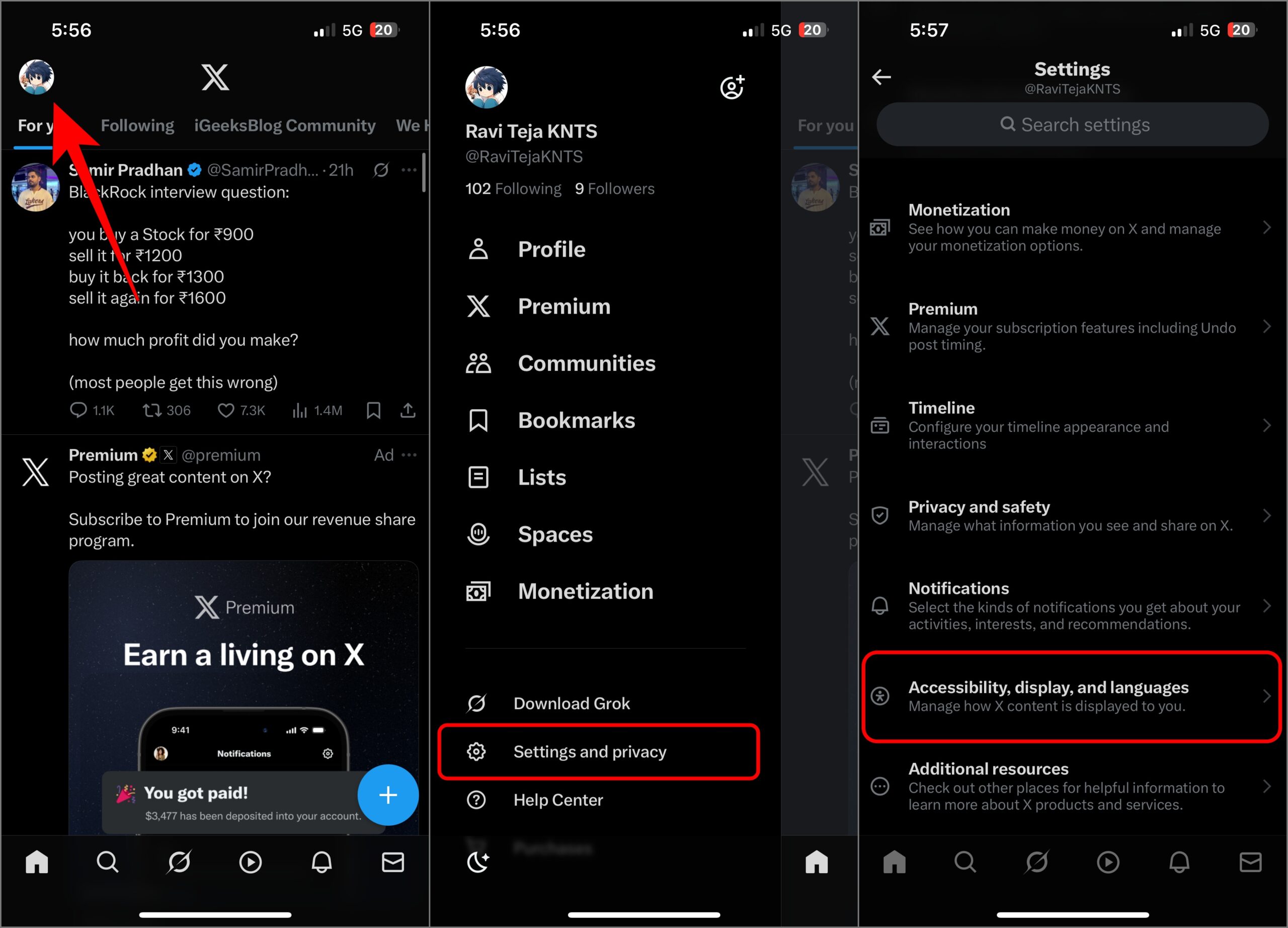
- Open the Twitter (X) app and tap your profile picture in the top-left corner.
- Tap Settings and privacy.
- Go to Accessibility, display, and languages.
- Then tap on Data usage.
- At the bottom, tap Media storage and confirm Clear media storage twice.
- Back on the Data usage page, tap Web storage.
- Pick either Clear web page storage (keeps you logged in) or Clear all web storage (logs you out too). Confirm by tapping twice.
That’s it. You’ve just reset the app’s stored files. If you want Twitter to use less space in the future, you can also turn on the Data Saver option in the same menu. This reduces image quality and stops videos from autoplaying, but saves storage long term.
How to Clear X (Twitter) Cache on Android
Android makes things much simpler because you can wipe cache from system settings directly:
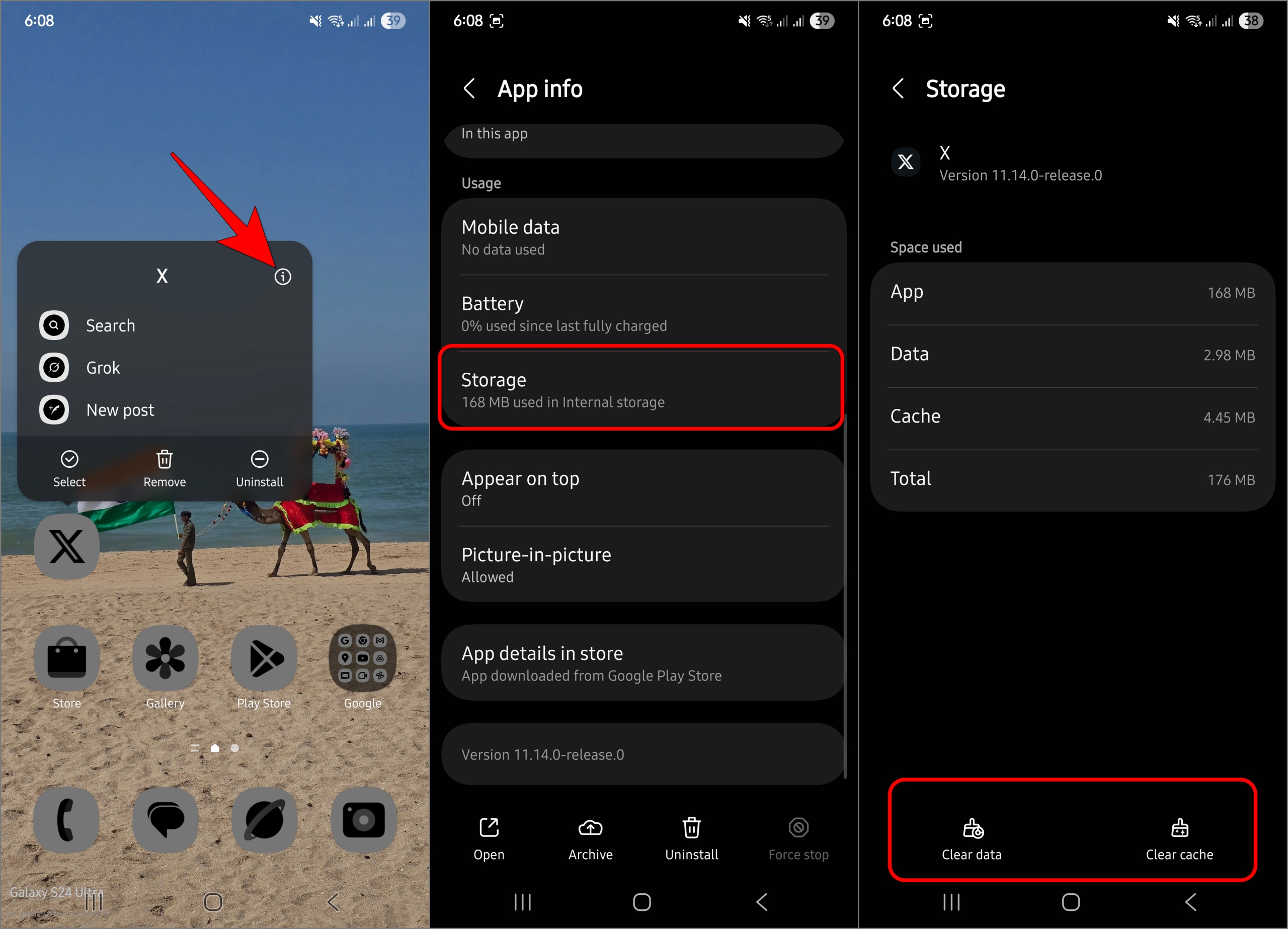
- Long-press the Twitter (X) app icon and select App info.
- Tap Storage or Storage usage.
- Tap Clear cache. If you need even more space, you can also tap Clear data, but that will reset the app entirely.
Cache is gone instantly, and the app will start loading fresh data the next time you open it.
How to Clear X (Twitter) Cache on Web Browsers
If you use X in Chrome, Safari, or Firefox, you’ll need to clear cache in your browser:
Option 1: Clear Entire Browser Cache
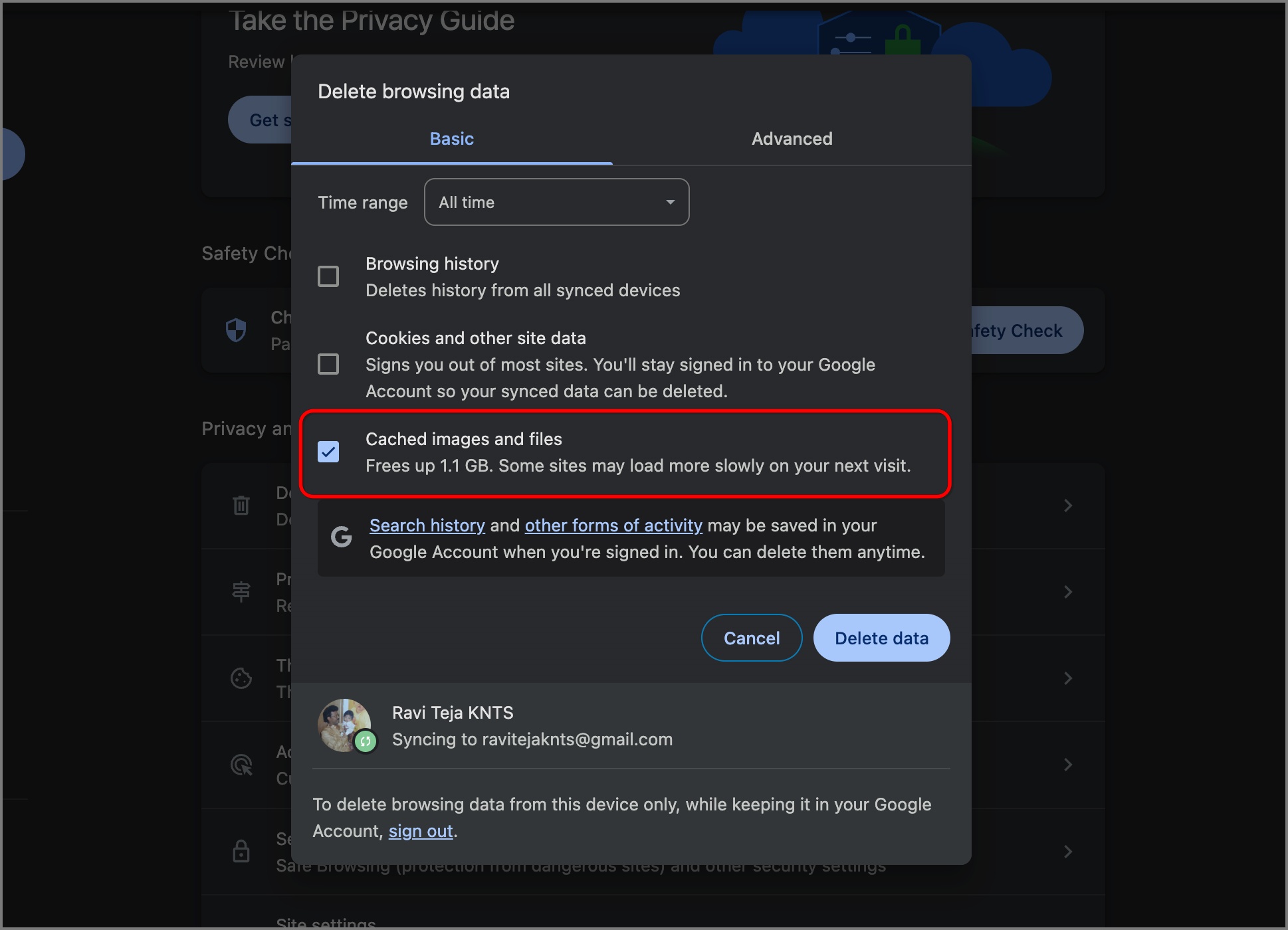
- Open your browser settings.
- Find the option for Privacy or Clear browsing data.
- Select Cached images and files and clear them.
Option 2: Clear Cache Just for Twitter
- Open Twitter in your browser.
- Right-click anywhere on the page and click Inspect (or press F12 / Cmd+Option+I) to open DevTools.
- Click-and-hold the Reload button (next to the address bar).
- Select Empty Cache and Hard Reload.
- This clears cache just for twitter.com and forces a fresh load.
This forces Twitter to load fresh content without affecting other sites.
What Happens After Clearing X Cache?
Clearing the cache doesn’t delete your tweets or account data. It simply resets temporary files so the app can start fresh again. Here’s what you can expect:
- The app or browser reloads all content fresh.
- Media and tweets may take slightly longer to load the first time.
- Login details are usually not affected, unless you clear cookies on the web.
- Benefits include a smoother app, updated content, and reduced storage usage.
- Temporary files are deleted, freeing up space on your device.
- It can fix issues like crashes, glitches, or excessive lag without affecting your personal data.
- Clearing the cache does not log you out or reset your app settings; that only happens if you clear app data.
- Core user data like login info, posts, account settings, and downloaded files remain untouched; only temporary files are removed.
Also Read: How to fix Twitter not working on iPhone or iPad?
Tips to Manage X Cache Better
Managing the cache is not just about clearing it once. With a few habits and settings, you can slow down how quickly it builds up and keep the app light and smooth.
- Clear the cache once every few weeks if you are a heavy user. This prevents the app from slowing down and keeps your phone responsive.
- Turn off Autoplay videos or limit media downloads to reduce how quickly cache builds up.
- Use Lite mode or enable Data Saver to save space, though this will lower image quality and stop videos from autoplaying.
- Keep your Twitter app updated regularly, since updates often include improvements that optimize cache handling.
Keep It Smooth: Make Cache Clearing a Habit
Clearing your Twitter (X) cache is one of the easiest ways to fix lag, glitches, or endless loading screens. Think of it as digital spring cleaning, it frees space, refreshes your feed, and makes the app feel brand new. Add it to your regular phone maintenance routine, just like deleting old photos or clearing your inbox.
Try it now, and enjoy a smoother, faster Twitter (X) experience.
FAQs
No, your tweets, followers, and account data stay intact. Only temporary files are removed.
No. Clearing cache removes temporary files, while deleting data resets the app and logs you out.
Every few weeks, if you use the app daily, or whenever you notice lag or storage issues.
Because images, videos, and web data keep piling up in the cache. Clearing it regularly helps control storage use.
Don’t miss these related reads:

- How to See Sensitive Content on X (Twitter)
- How to clear Instagram cache on iPhone
- Threads vs. Twitter (X): Key Differences You Need to Know