FaceTime Like a Pro
Get our exclusive Ultimate FaceTime Guide 📚 — absolutely FREE when you sign up for our newsletter below.

FaceTime Like a Pro
Get our exclusive Ultimate FaceTime Guide 📚 — absolutely FREE when you sign up for our newsletter below.


Just updated to iOS 27? Check out 30+ iPhone settings worth changing to improve privacy, battery life, security, and your overall iPhone experience.

 ByMarcus Mears III and Vikhyat
I’ve been using iOS 27 since it launched, and there are quite a few settings I think you should check after updating your iPhone. Some are completely new, while others have been improved with Apple’s latest software.
From Siri AI and Live Translation to smarter Safari tools, expanded parental controls, and new camera options, these settings can help you get more out of your iPhone. If you’re setting up an iPhone 18 Pro, or planning to get the new iPhone Duo, here are the settings I recommend checking first after updating to iOS 27.
Apple has introduced a new version of Siri powered by the next generation of Apple Intelligence. Siri AI can understand more natural requests, use personal context, understand what’s on your screen, and perform actions across apps.
For example, instead of giving Siri a simple command, you can ask it to find information buried in your apps, draft an email, or help you work with content on your iPhone.
Siri AI is available in beta on supported Apple Intelligence-enabled iPhones and is currently rolling out in English. Availability varies by language and region.
Apple says Siri AI is available on iPhone 15 Pro and 15 Pro Max, iPhone 16 models and later, including iPhone 18 Pro models and iPhone Duo.
iOS 27 also gives Siri AI a more expressive voice experience on supported models.
If you’re using an iPhone 18 Pro, iPhone 18 Pro Max, iPhone Air, or supported iPhone 17 Pro models, you can adjust Siri’s voice, pace, and expressivity.
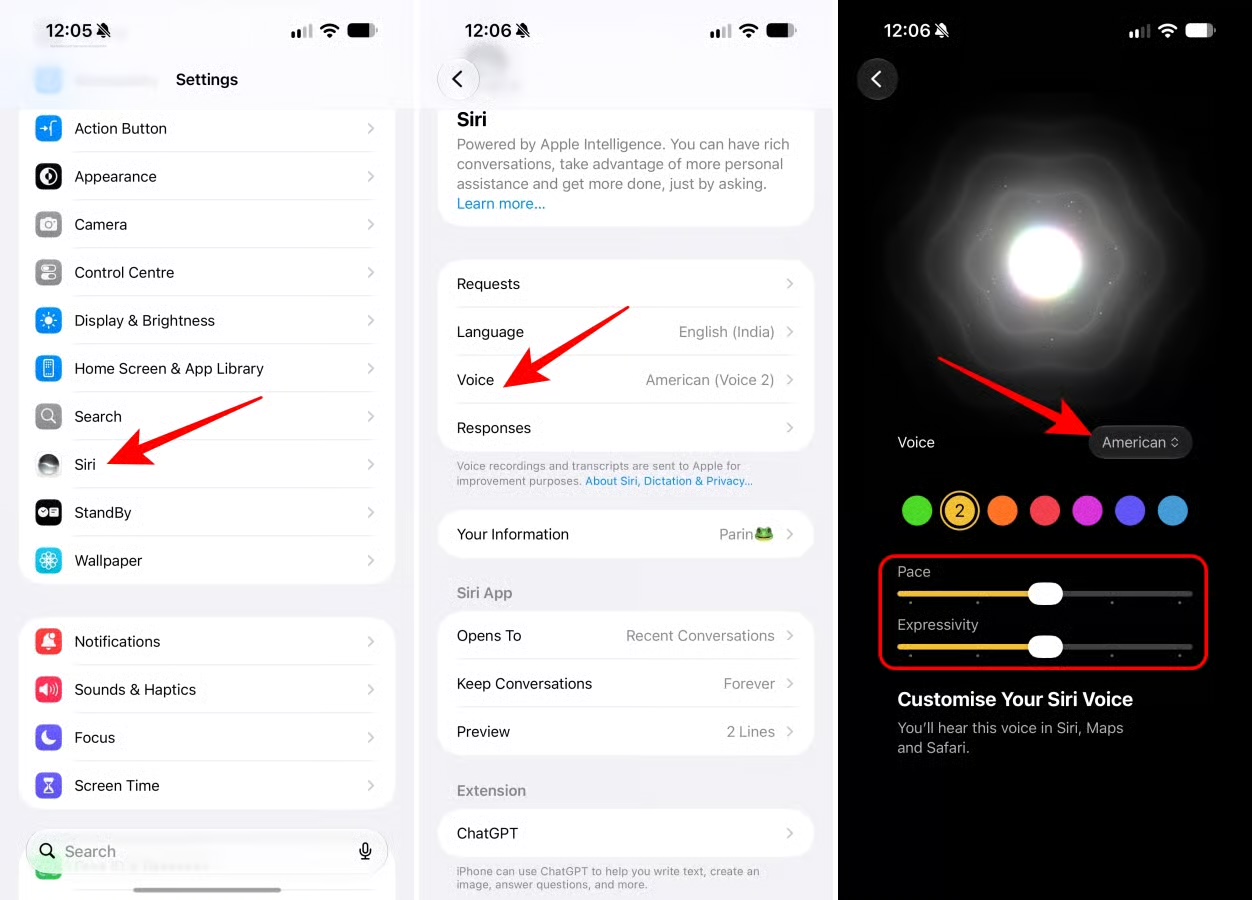
If Siri sounds too robotic or too slow for you, this is worth checking.
Live Translation is one of the most useful iOS 27 features if you regularly communicate with people who speak another language. It works in Messages, Phone, and FaceTime, translating conversations in real time. Apple says the feature runs entirely on-device, although availability varies by language and region.
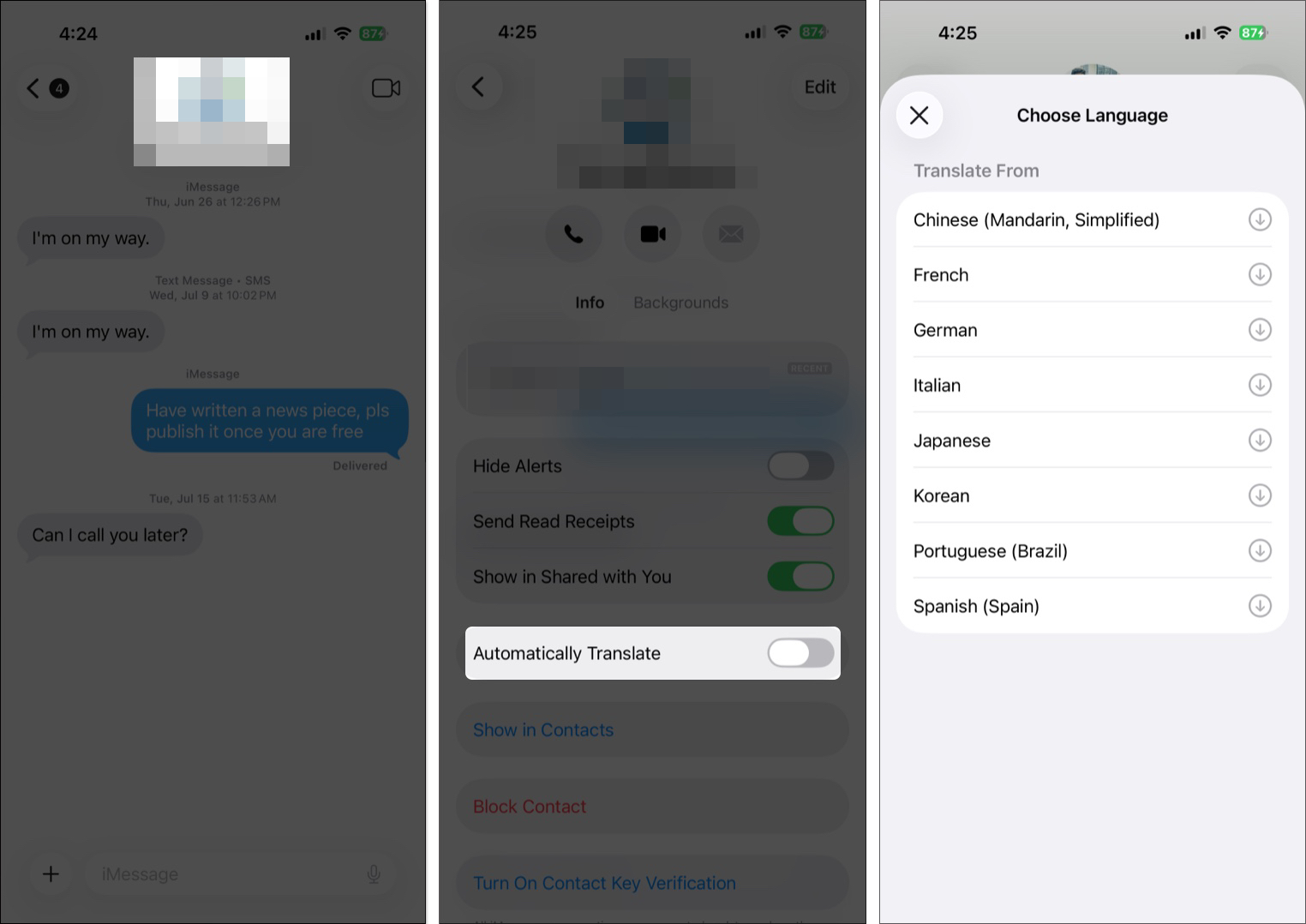
When you send it, the recipient receives both the translated message and your original message. Messages you receive are also translated into your preferred language.
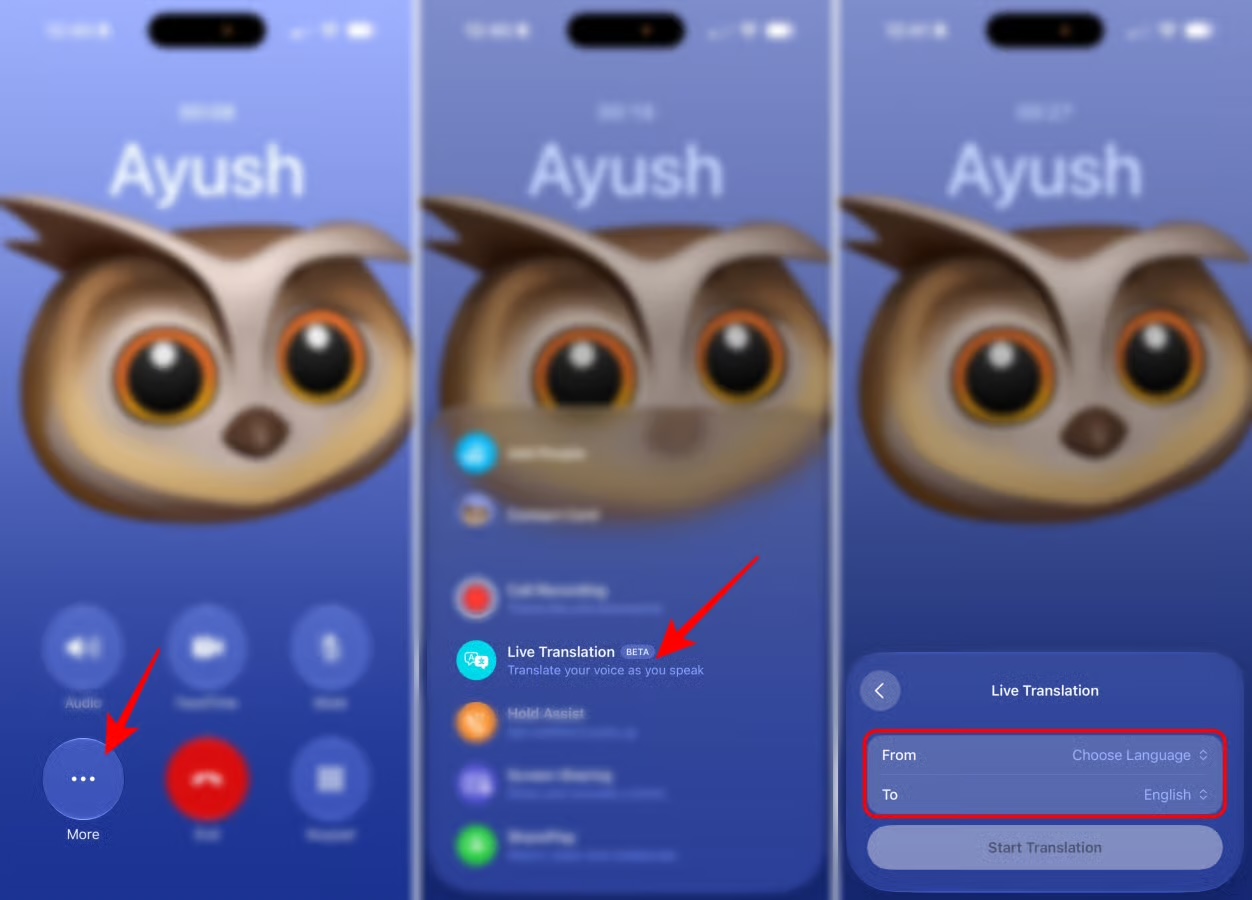
You can also use Live Translation during a phone call.
If unknown callers constantly interrupt me, Call Screening is one of the first Phone settings I’d enable.
With Call Screening, iPhone can ask an unknown caller for their name and reason for calling before I decide whether to answer.
How to set it up
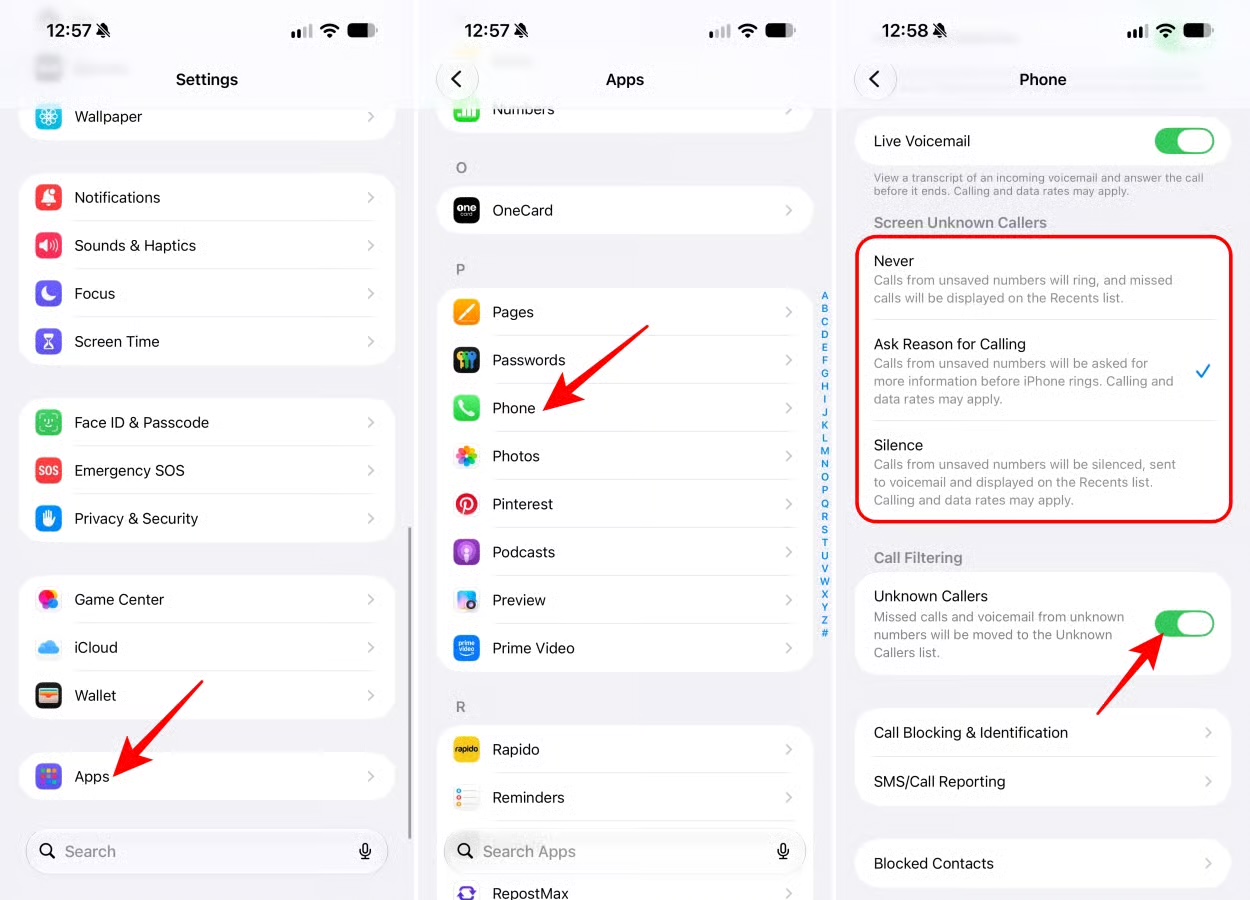
This is particularly useful if you receive lots of calls from numbers you don’t recognize.
Adaptive Power is designed to extend battery life by learning how I use my iPhone and automatically adjusting on days when my usage is higher.
Apple introduced Adaptive Power with iOS 26, and it remains relevant for compatible devices in the current iOS generation. Apple says it learns typical battery usage and adjusts the system to help extend battery life.
To enable it, go to Settings → Battery → Power Mode, then toggle on Adaptive Power.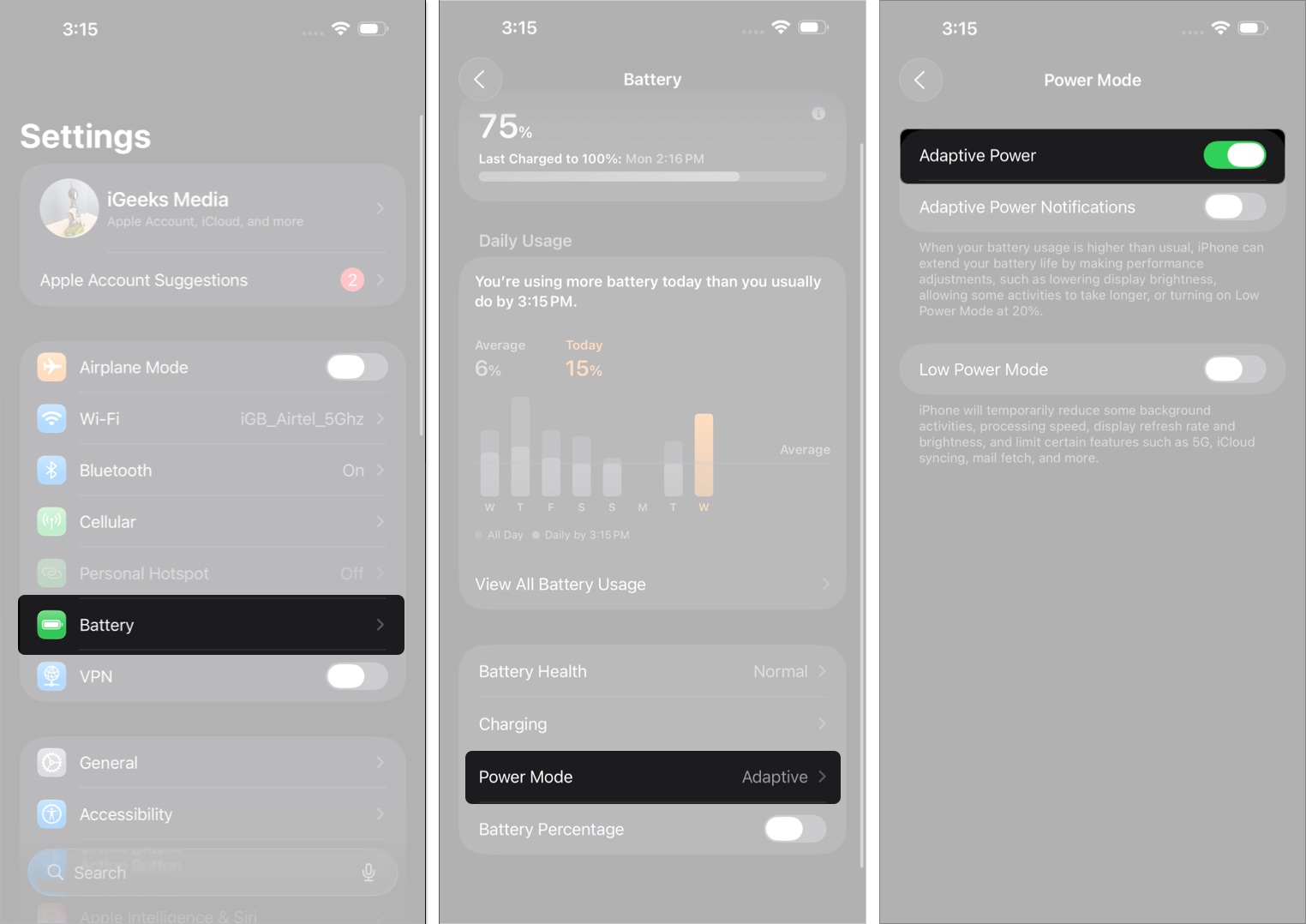
If battery life matters more to you than squeezing out every bit of performance, I’d leave this enabled.
If you don’t like the transparency of Apple’s Liquid Glass interface, you don’t have to live with the default appearance.
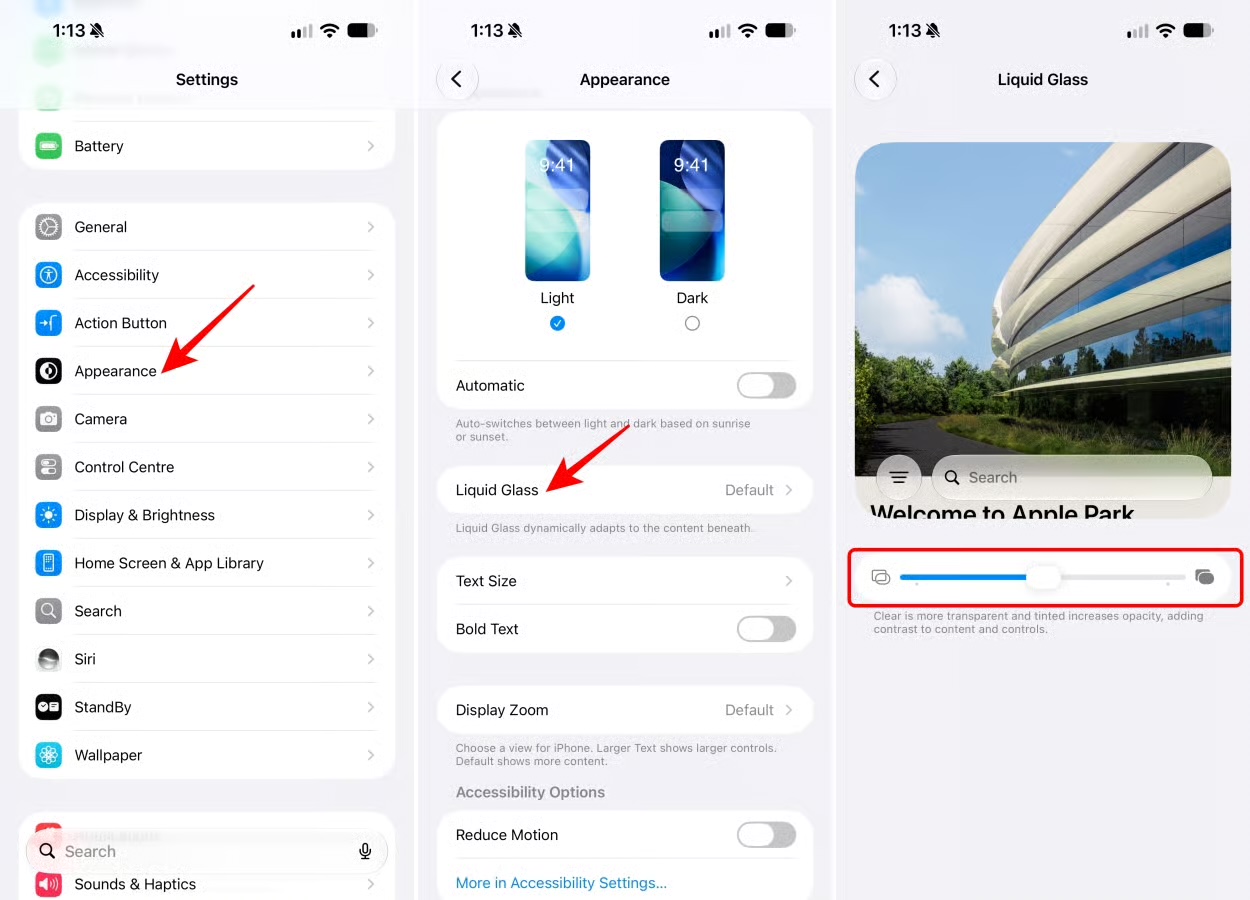
I particularly recommend this if transparent menus or backgrounds make text harder to read.
iOS continues to display screenshots as full-screen previews by default.
Personally, I prefer the old temporary thumbnail because I often take several screenshots in quick succession.
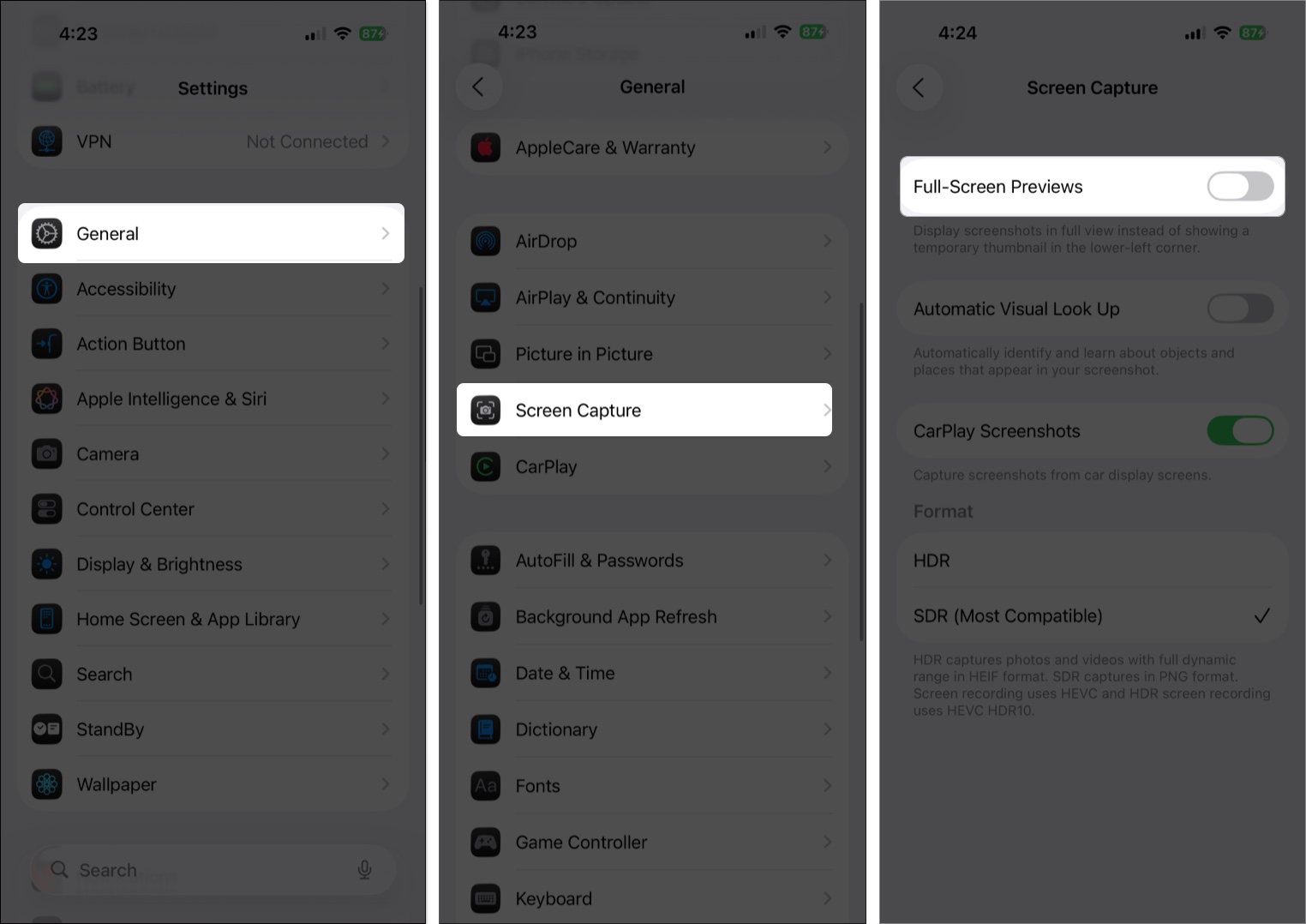
Apple confirms this setting remains available in iOS 27.
If you usually have dozens of Safari tabs open, iOS 27 can now organize them automatically. Safari’s Topics feature groups your open tabs based on their content, such as Technology, News, or Travel, making them easier to find.
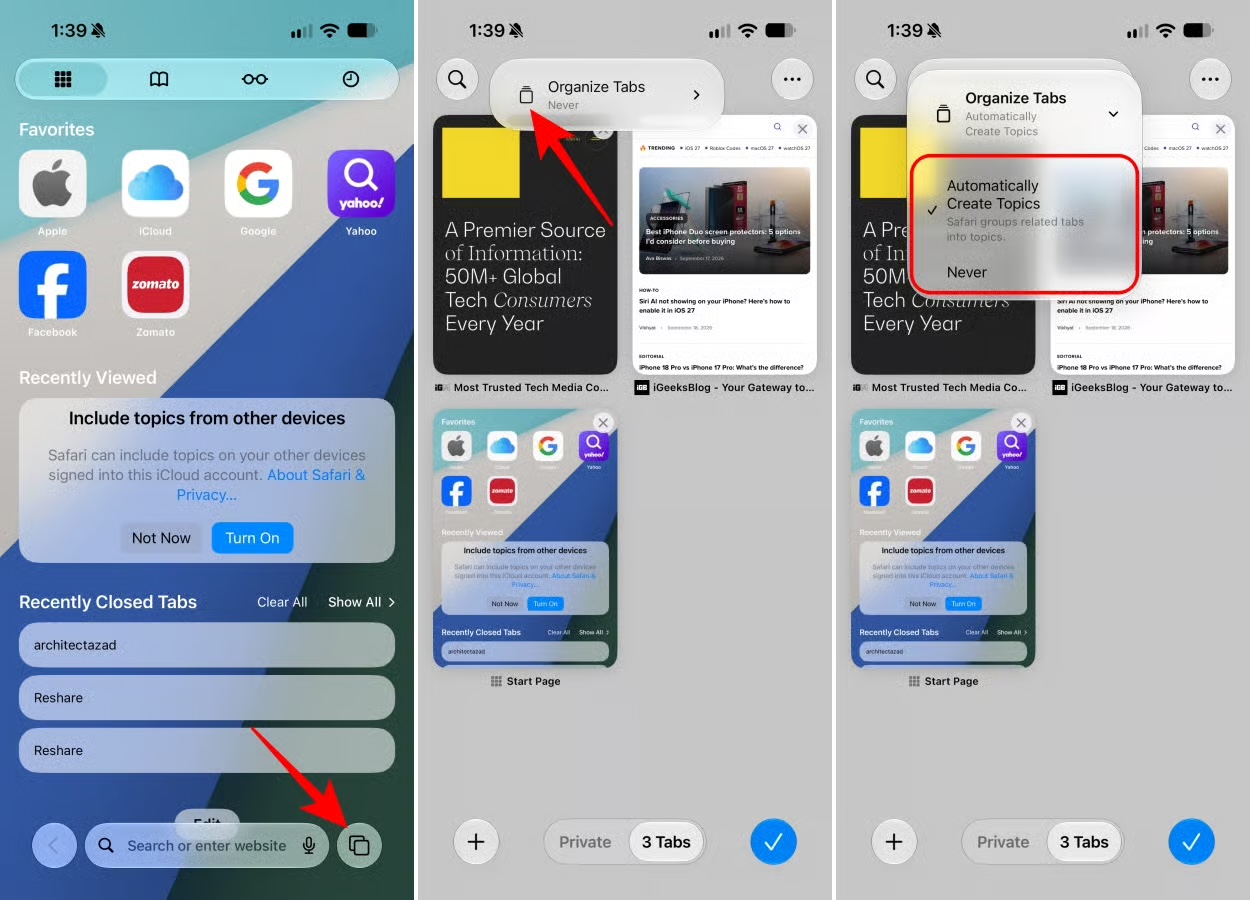
Safari will then group your tabs into relevant topics. Tabs that don’t fit a topic will remain separate.
You can also try the Notify Me feature in Safari to get alerts when something changes on a webpage, such as a product becoming available or a price changing.
The Action Button remains one of my favorite shortcuts on recent iPhones.
On supported models, it can launch features such as Silent Mode, Camera, Visual Intelligence, Flashlight, Voice Memo, Translate, Magnifier, Shortcuts, and Accessibility.
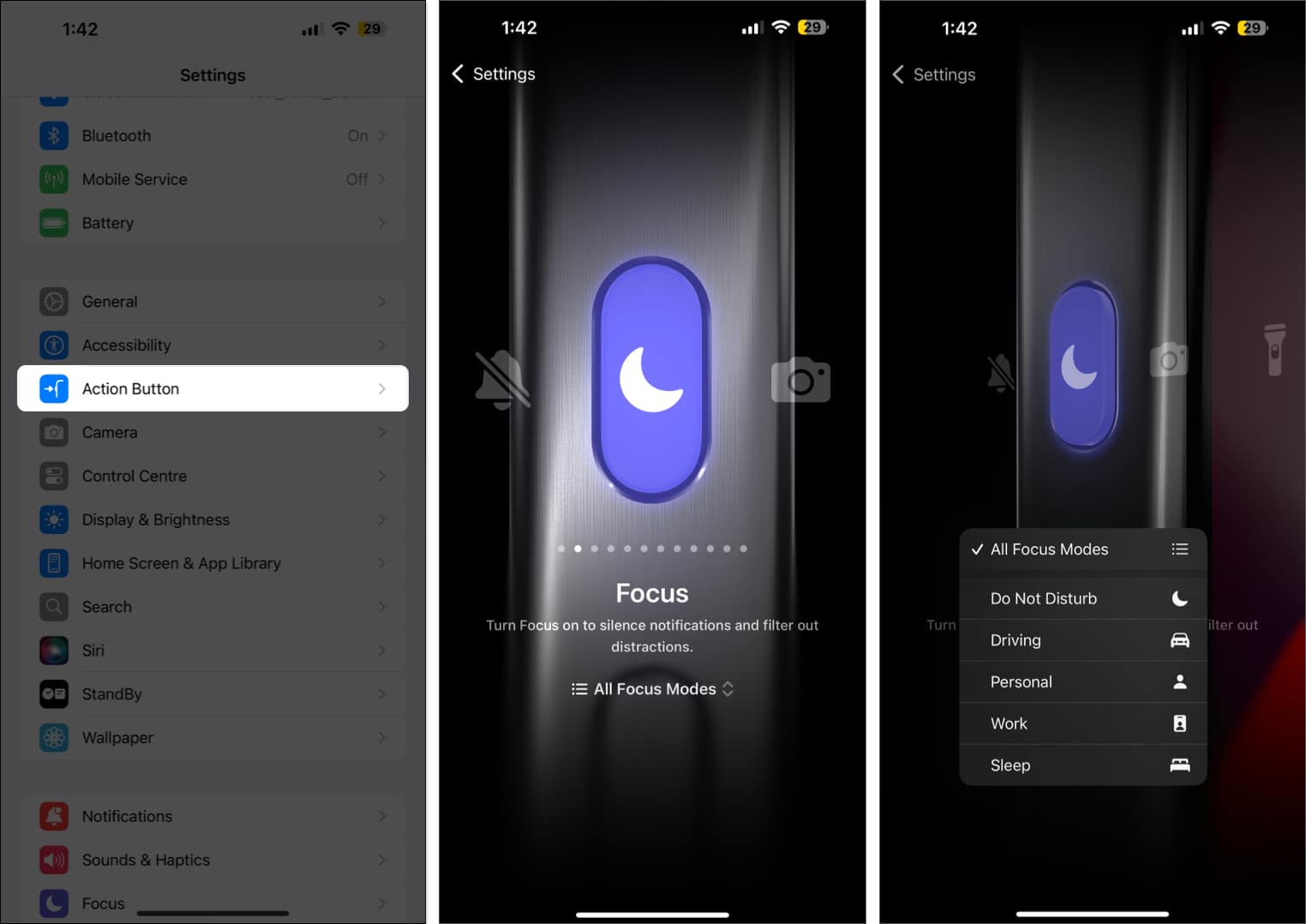
If I were setting up a new iPhone 18 Pro today, I’d definitely revisit this setting rather than leaving it at the default.
The iPhone 18 Pro continues to include Camera Control, and iOS 27 gives me more control over how it behaves.
You can access settings such as:
You can also customize which controls appear and change their order.
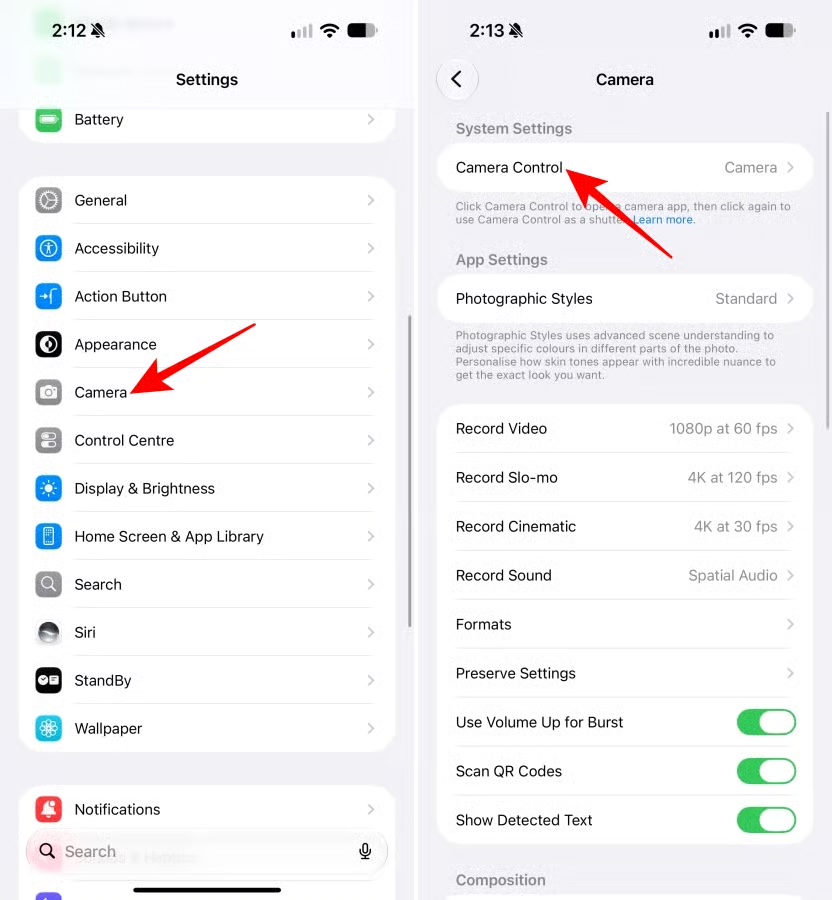
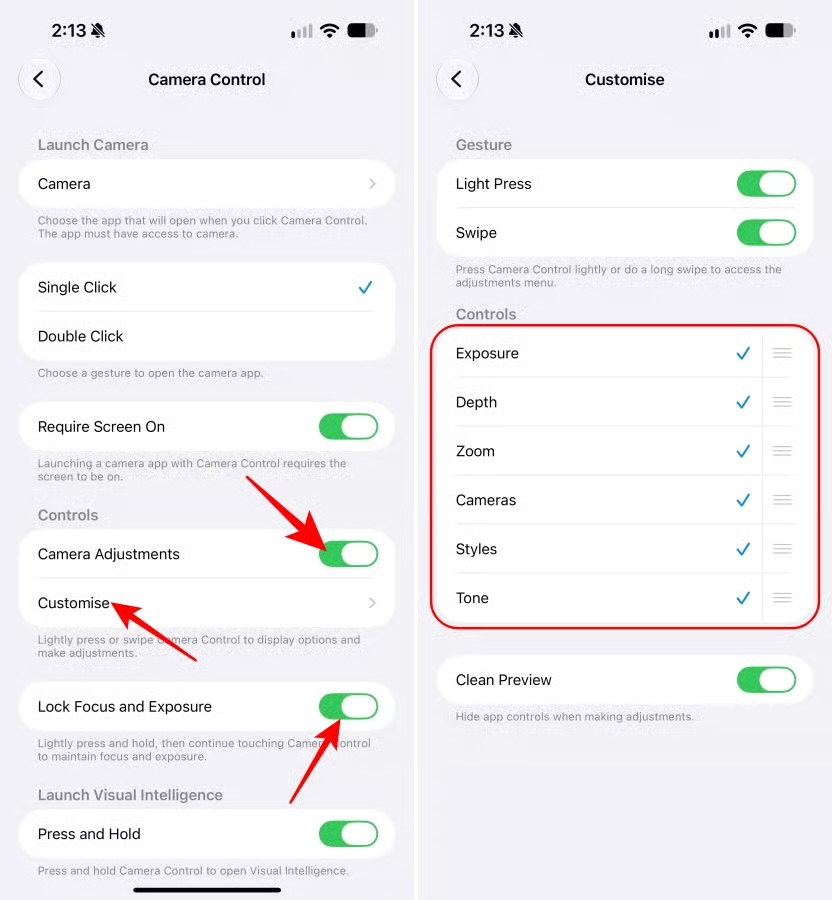
Camera Control also provides options to open the native Camera or Instagram Camera with a single click or double-click.
If you’ve upgraded to an iPhone 18 Pro or 18 Pro Max, there are several camera settings worth exploring.
The new 48MP Fusion Main camera has a variable aperture with ƒ/1.48, ƒ/1.8, ƒ/2.8, and ƒ/4.0 options. The Pro models also have 48MP Ultra Wide and Telephoto cameras, with up to 8x optical-quality zoom.
Apple also adds Pro controls for:
You can also put your favorite camera controls above the viewfinder:
Optimized Battery Charging is still worth enabling if you plan to keep your iPhone for several years. It learns your charging routine and reduces the amount of time the battery remains fully charged.
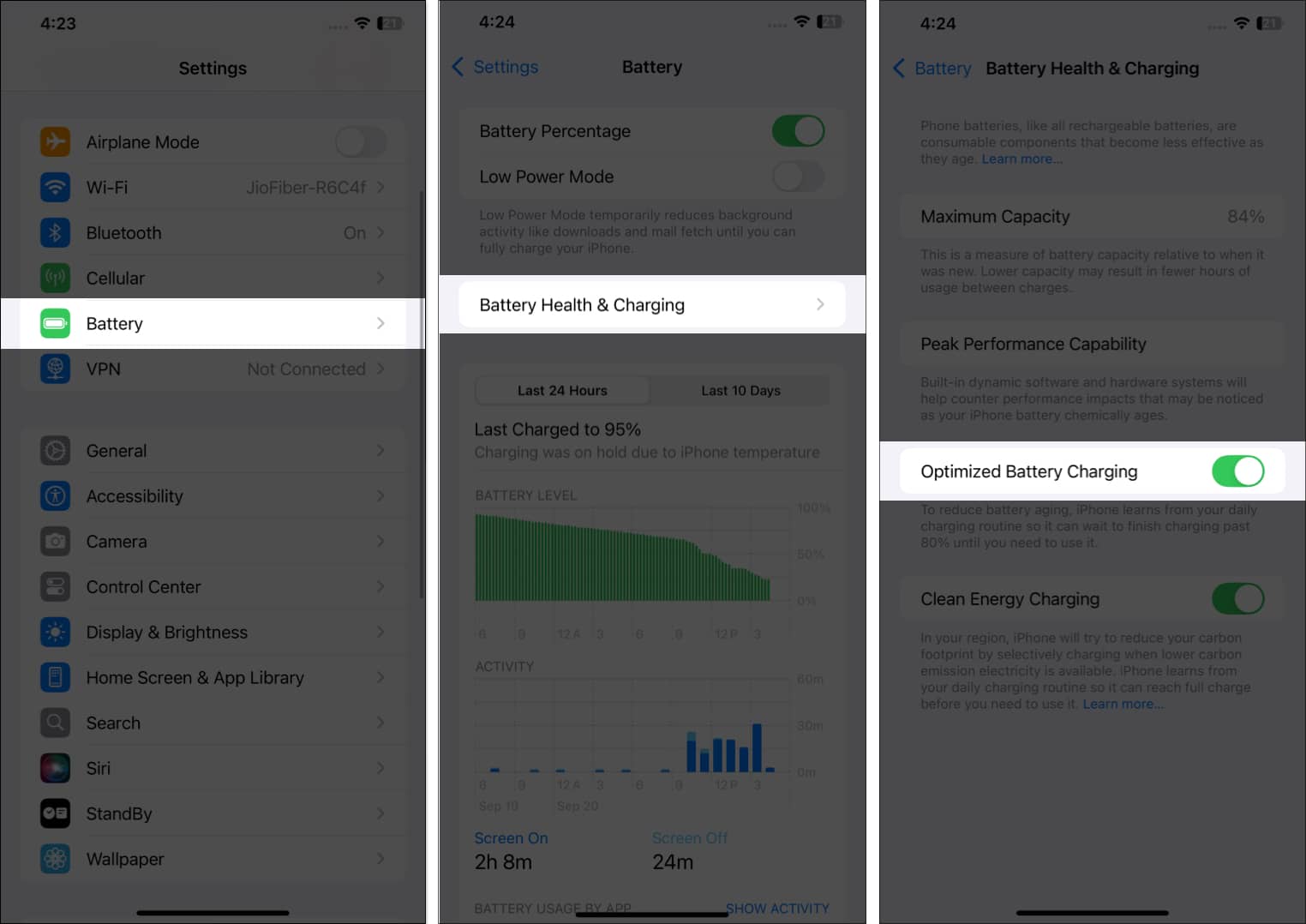
I have set my Charge Limit at 80% to preserve battery lifespan.
If I want to reduce Apple’s use of my activity for ad personalization, I check this setting.
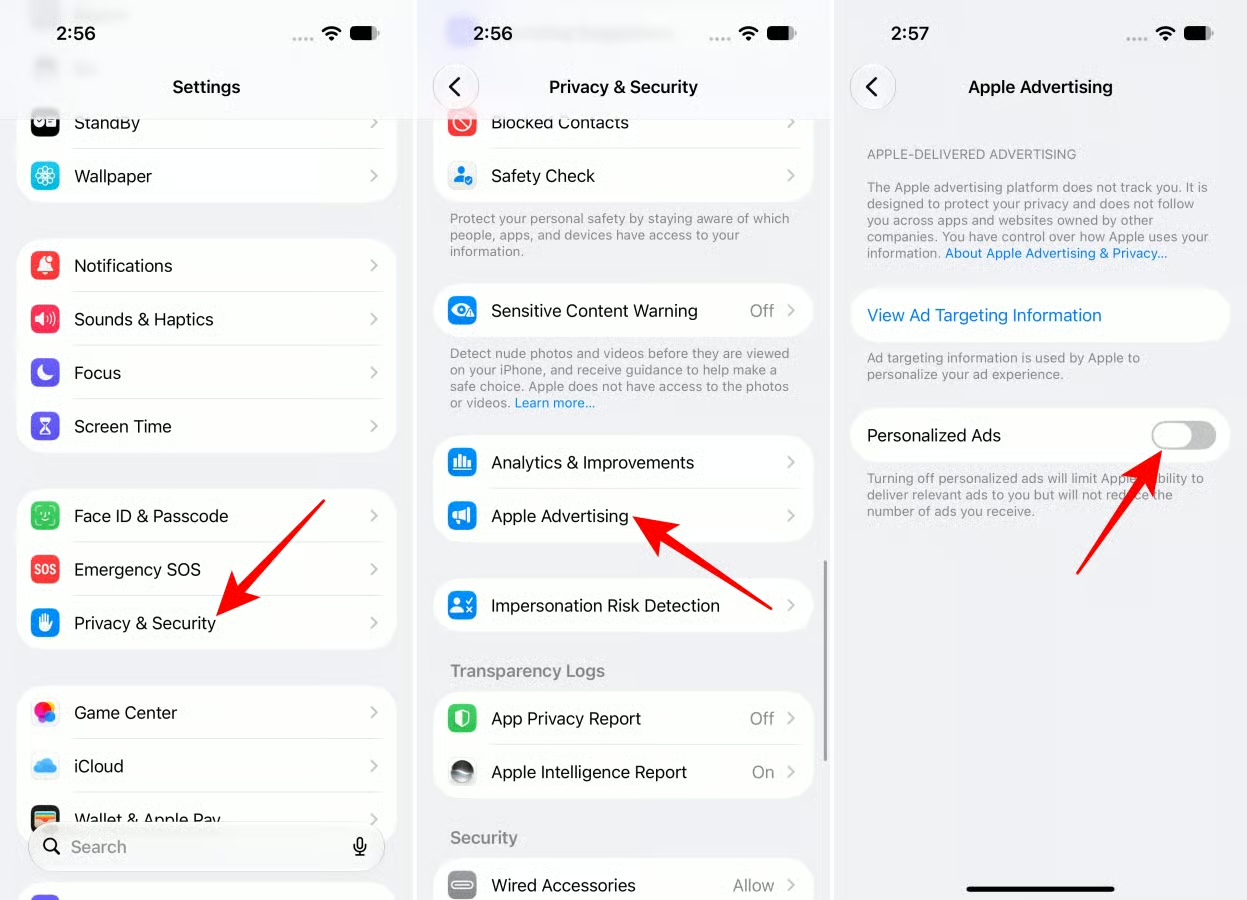
Keep in mind that this doesn’t necessarily reduce the number of advertisements you see. It changes how personalized Apple’s ads are.
Those “Rate this app” pop-ups can get annoying.
To stop them:
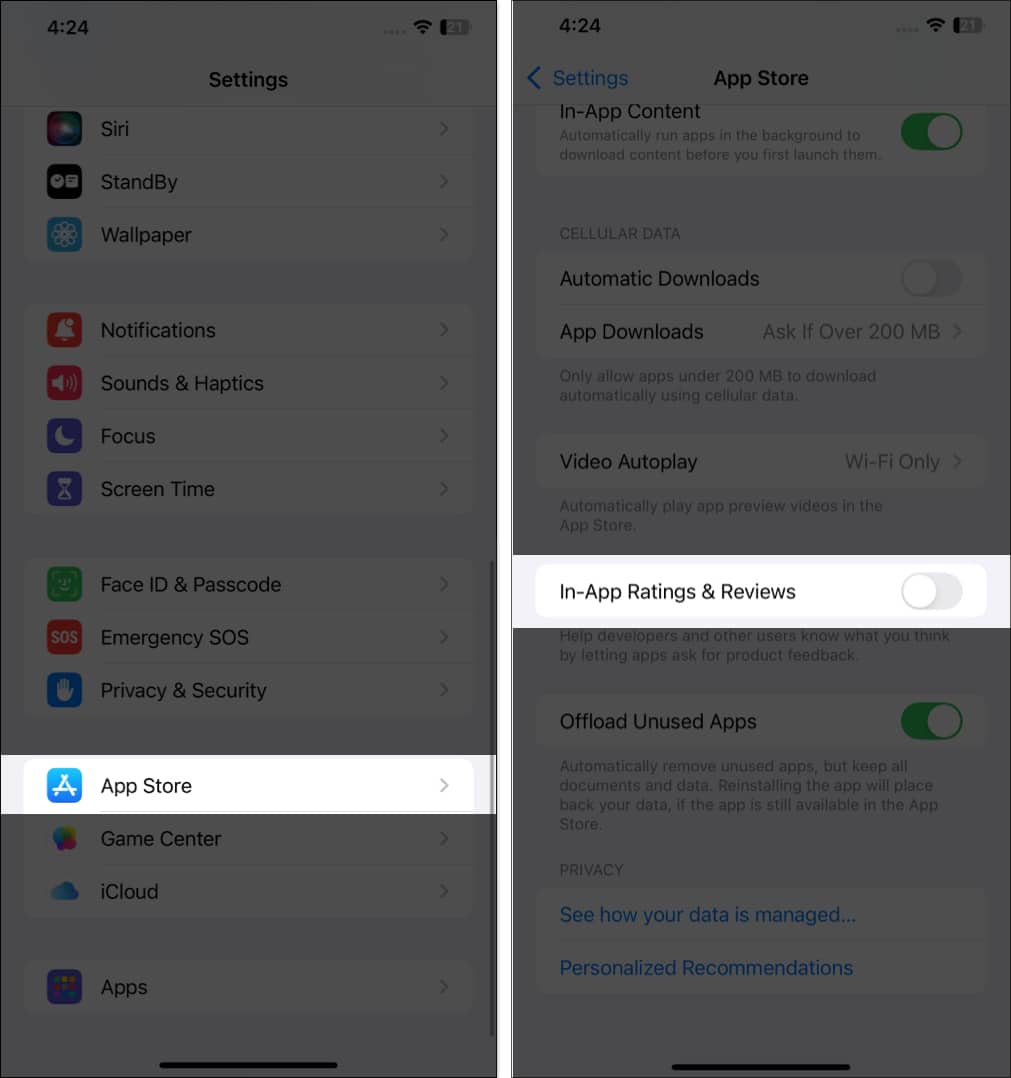
I usually turn this off because I prefer leaving reviews when I actually decide to do so.
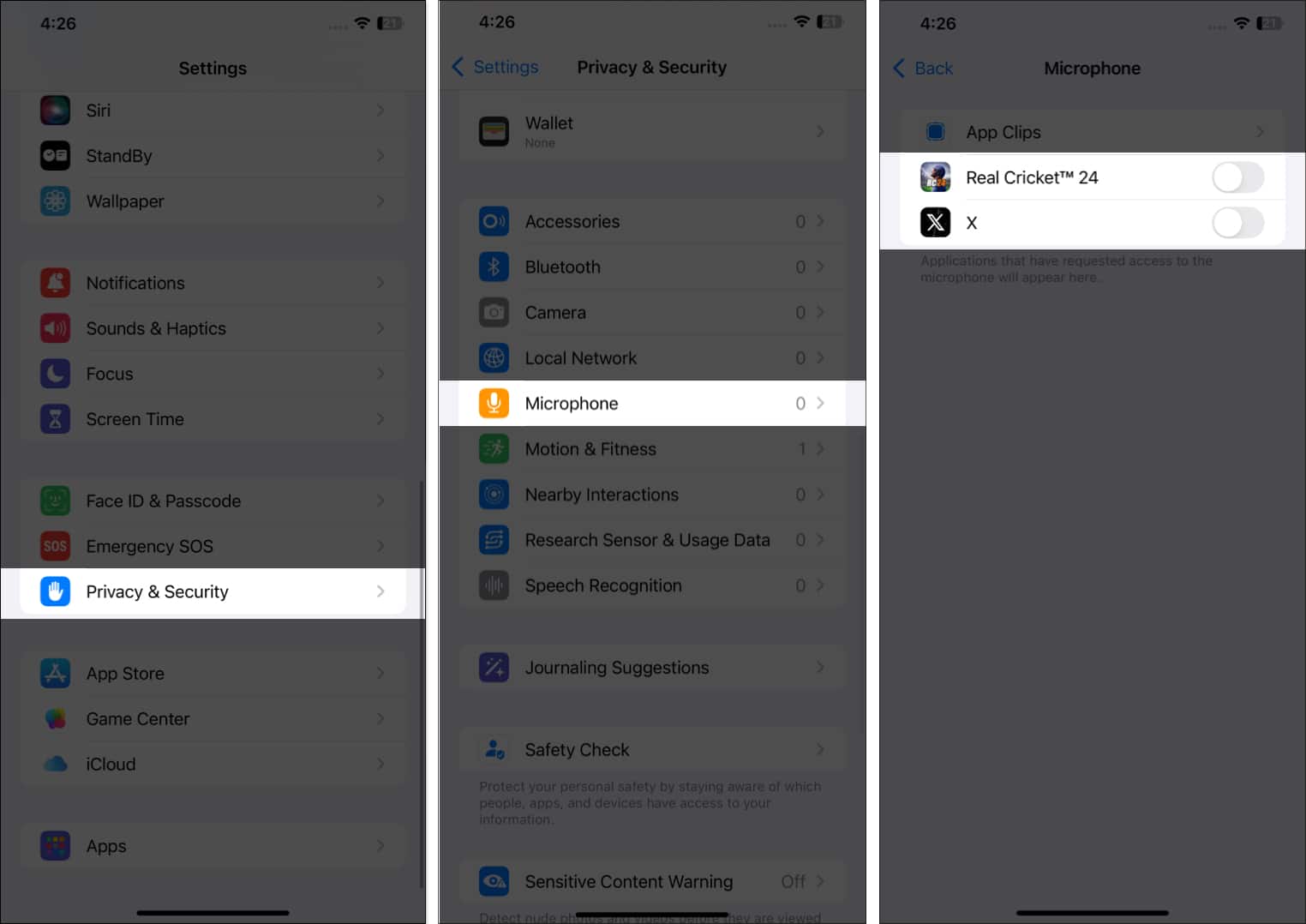
I don’t like giving every app unrestricted access to my microphone and camera, so I keep my private moments safe.
If you’re concerned about someone accessing features while your iPhone is locked, review your Lock Screen access settings.
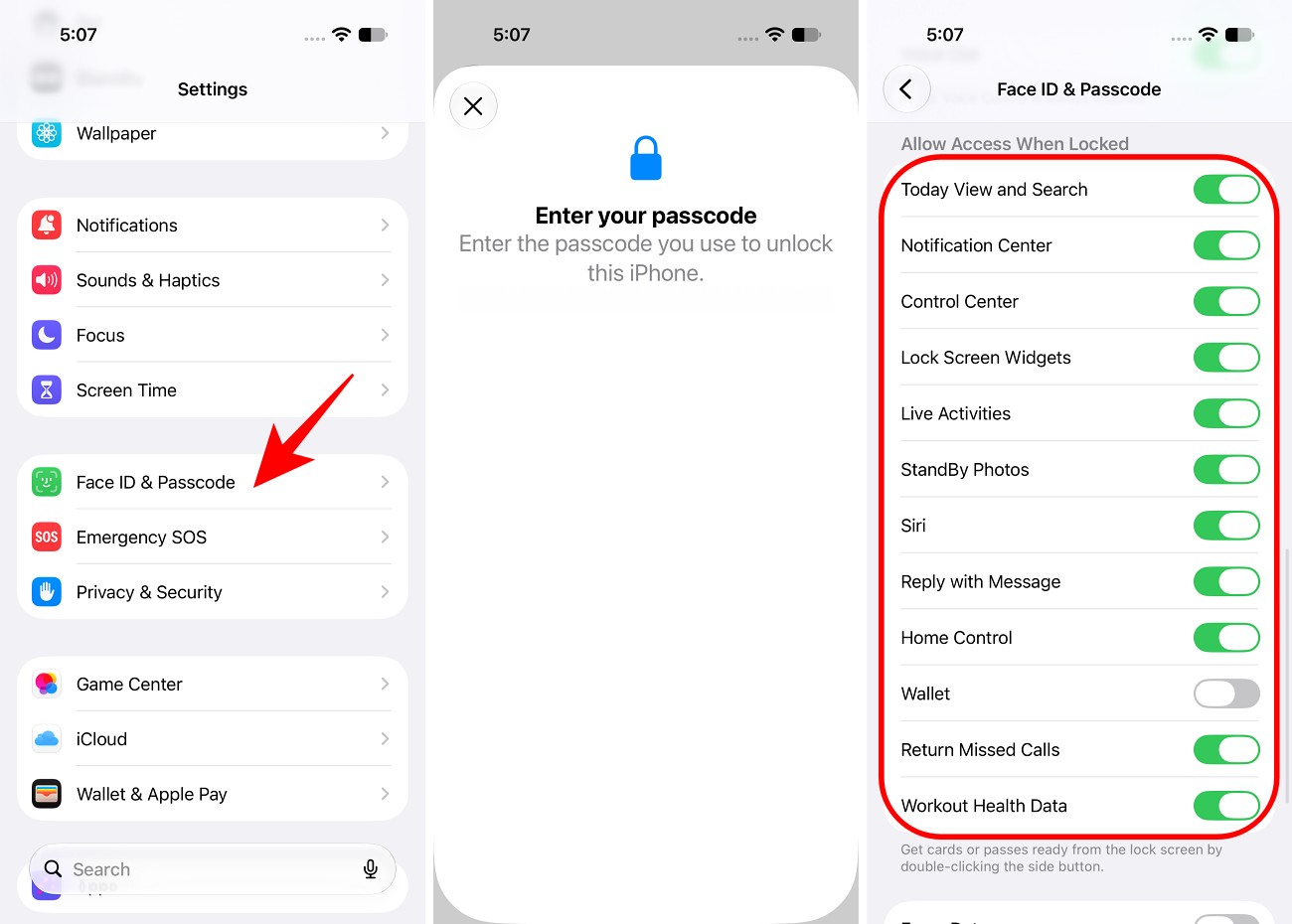
I personally recommend disabling anything you don’t need while the phone is locked.
This is one setting I never recommend skipping.
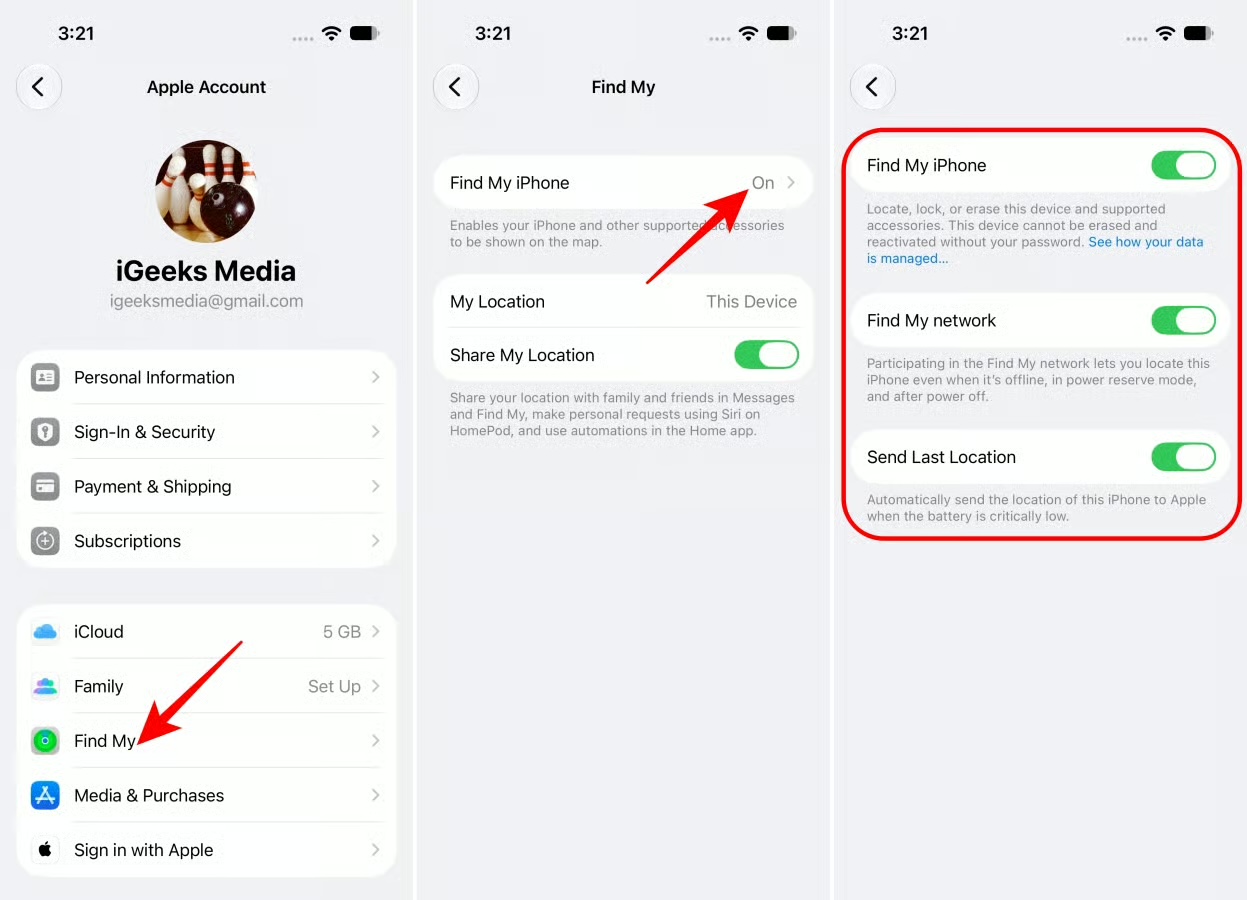
Apple’s Find My app lets you locate your iPhone if it’s misplaced, lost, or stolen. But it only works if Find My iPhone is enabled beforehand. Otherwise, you won’t be able to track your iPhone using Apple’s Find My network.
High-quality photos take up a lot of space, and a large collection can quickly strain your iPhone’s storage. Switching to the High-Efficiency format (HEIF/HEVC) reduces file size while maintaining image quality.
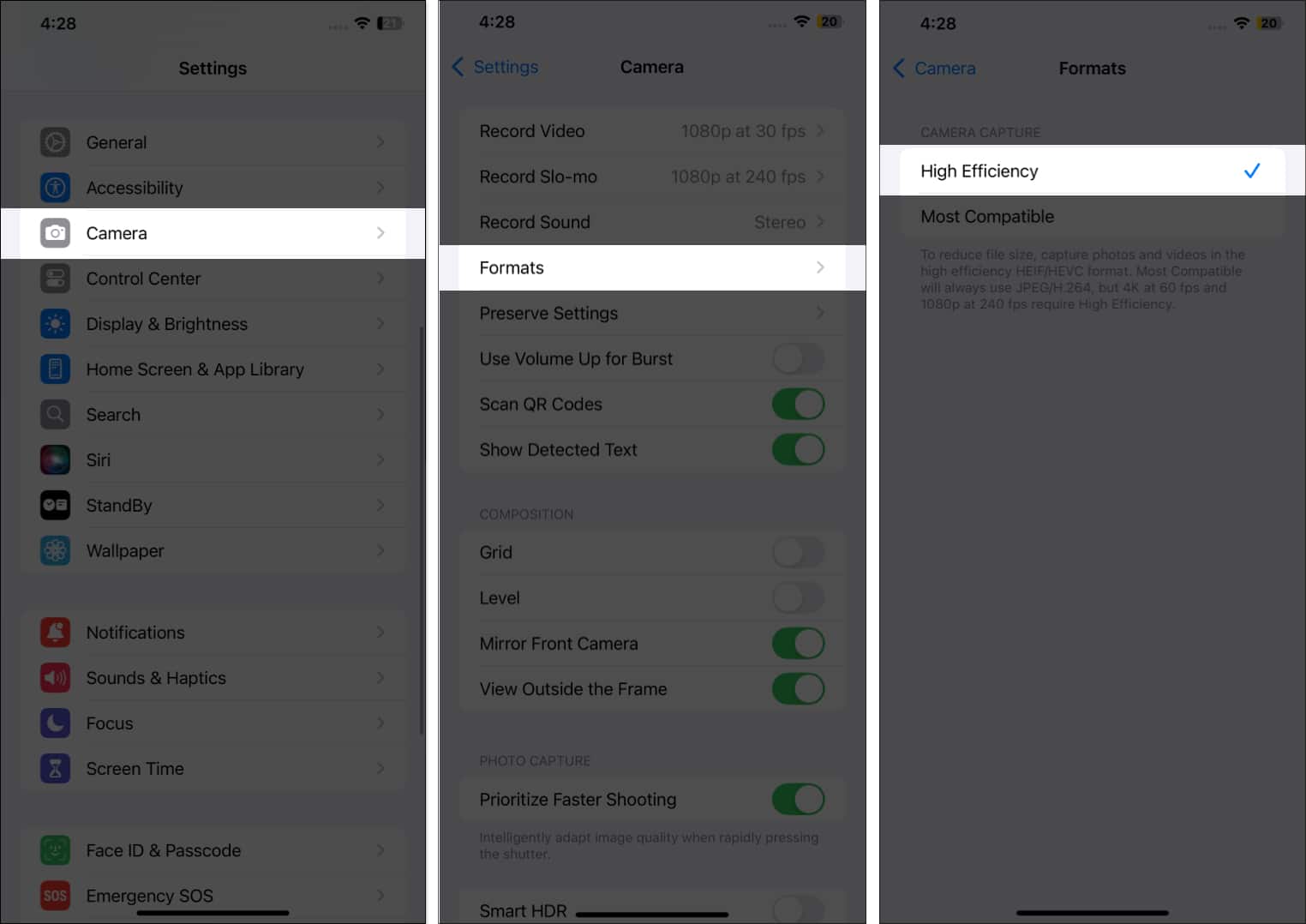
This is especially useful if you’re taking lots of high-resolution photos and 4K video.
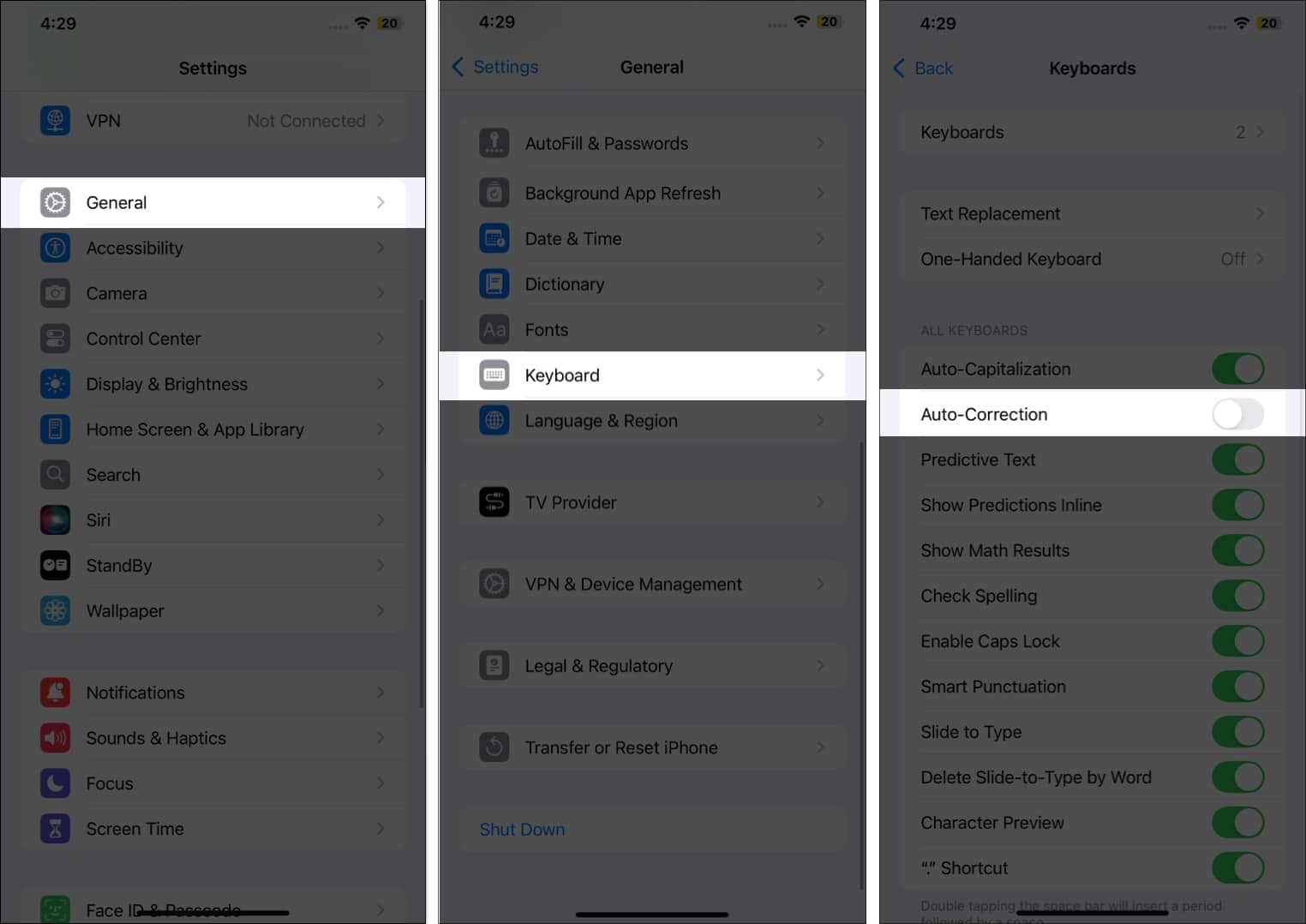
Auto-Correction can be helpful, but I know I’m not the only person who has had an iPhone “correct” a perfectly intentional word.
If you’re using Dark Mode, I recommend checking your Home Screen customization too.
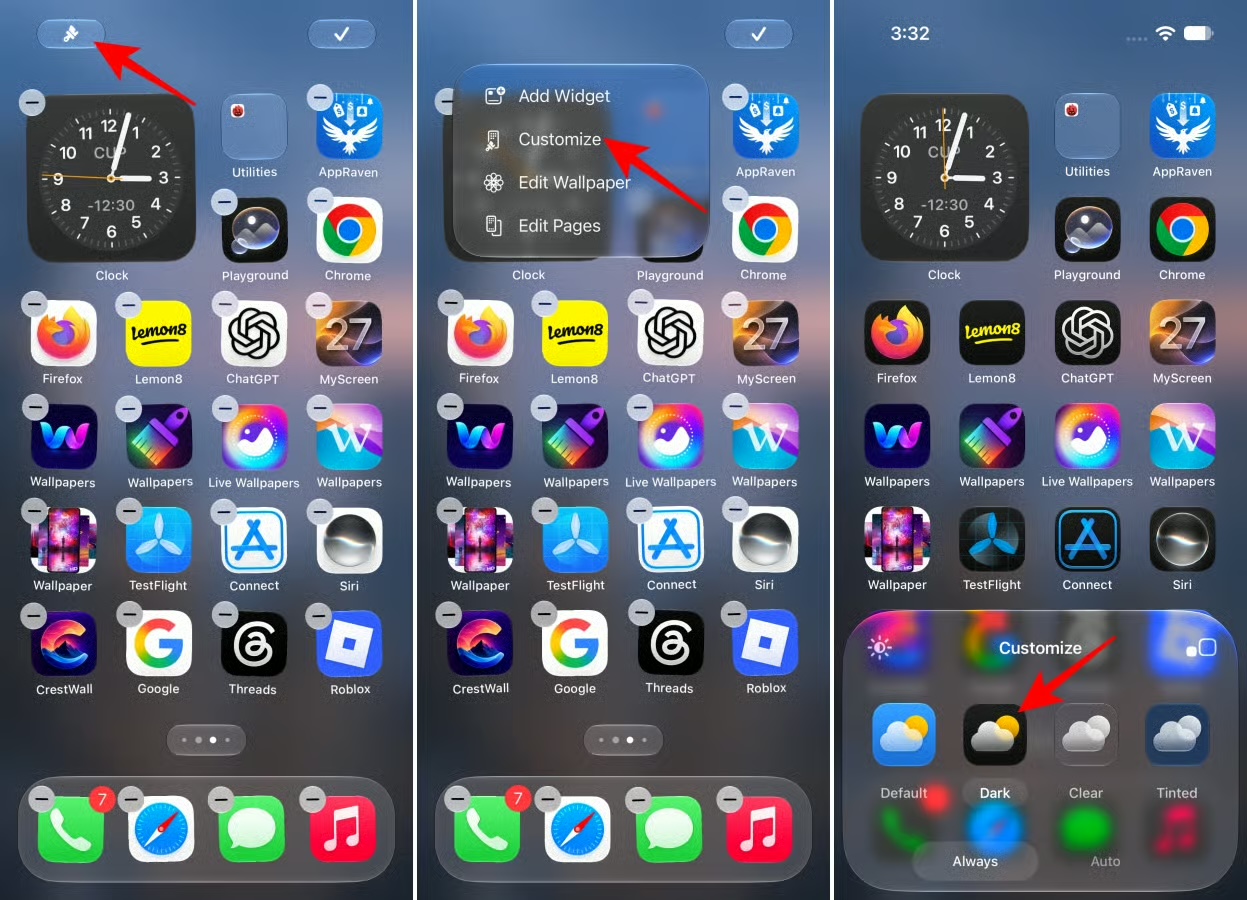
You can also explore the other appearance options available in iOS 27.
I hope you never need this setting, but it’s worth configuring before an emergency happens.
Go to Settings → Emergency SOS, then review options such as:
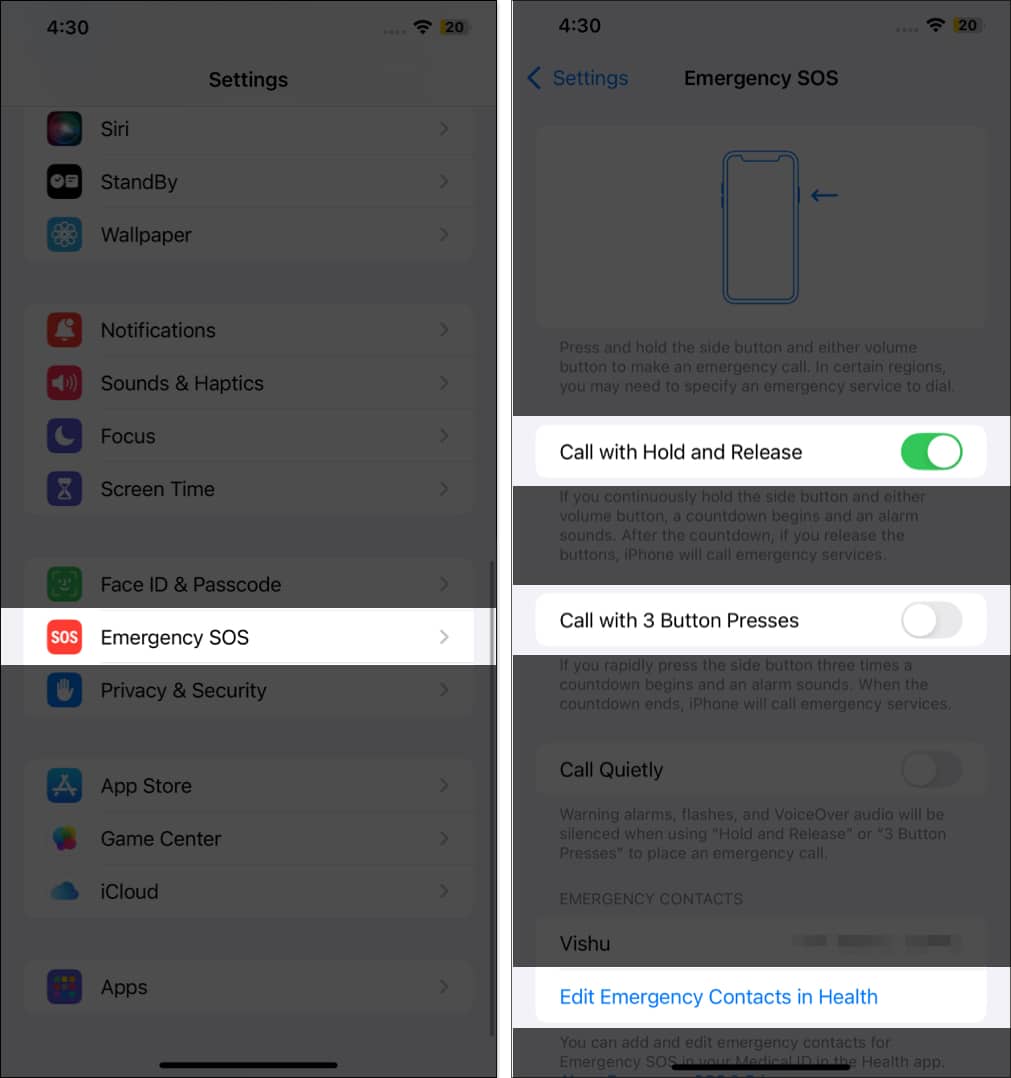
Make sure you have set up emergency contacts.
Apple redesigned Screen Time and added several new controls for parents.
Parents can now use Time Allowances for categories such as Entertainment, Games, and Social Media, while Schedules can control which apps are available at particular times.
To access the new controls, open: Settings→ → Family → [Child’s Name].
From there, you can manage options including:
Apple says the new Screen Time experience requires the relevant family devices to be updated to iOS 27 or the corresponding new operating systems.
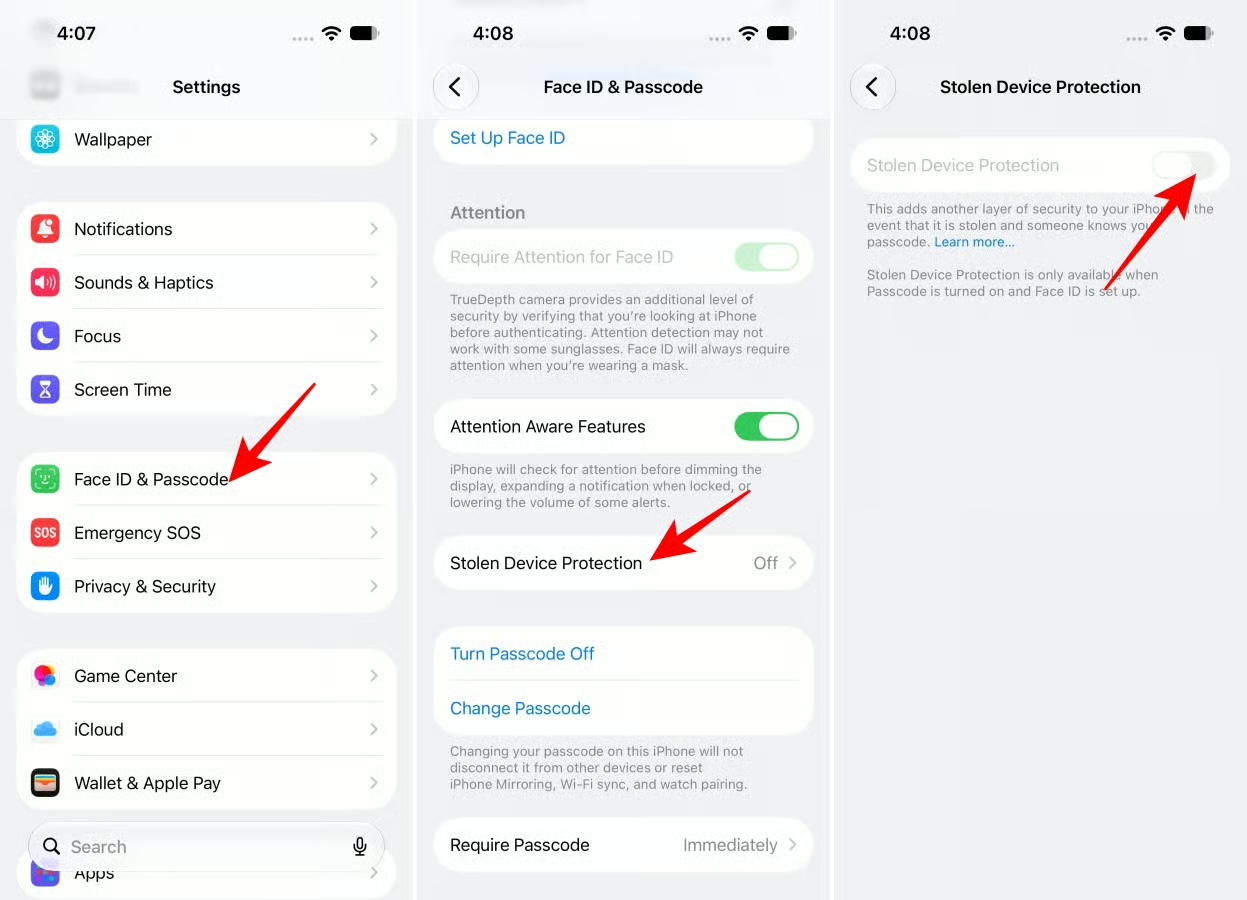
I strongly recommend checking this after setting up a new iPhone.
Stolen Device Protection adds a one-hour delay when you’re away from trusted locations and requires Face ID to change critical details like your Apple ID password. So, no one can change sensitive settings on your iPhone—even if they know your passcode.
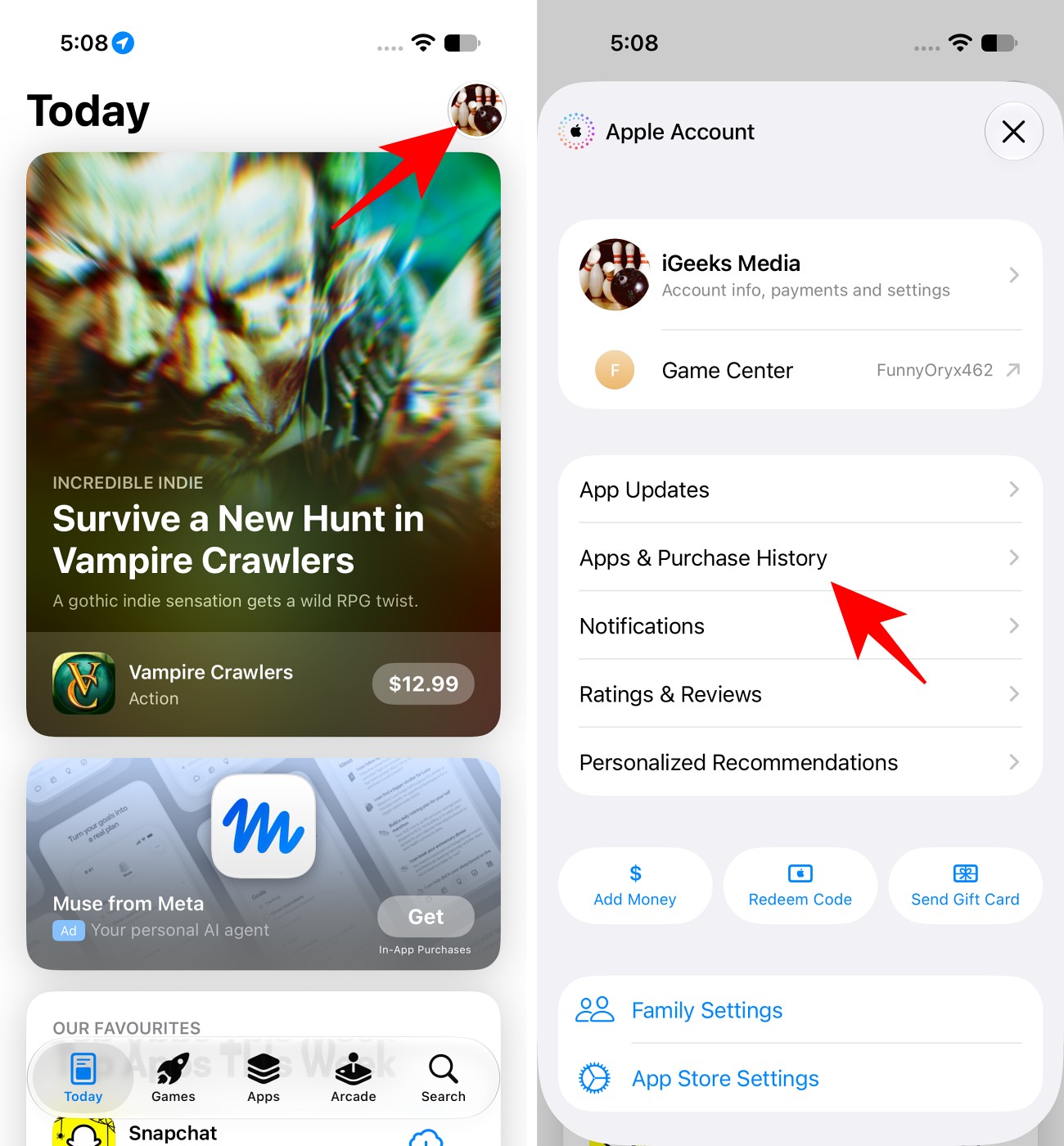
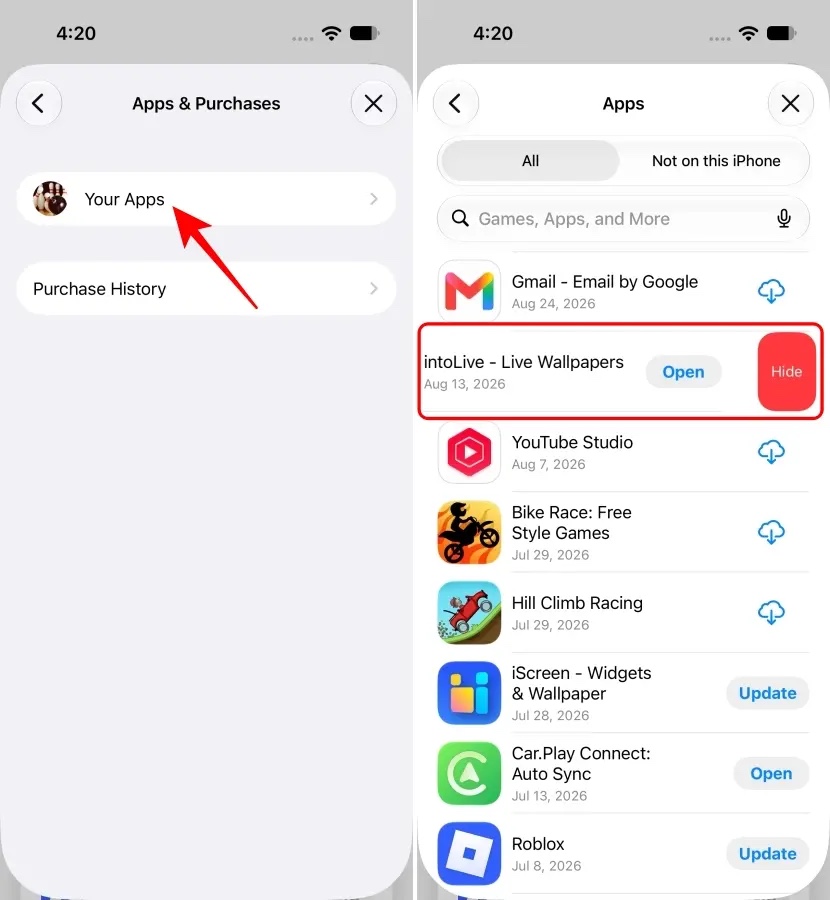
There’s always one app you once had on your iPhone, but you don’t want your partner to find out you did. In that case, you can replace the Cloud icon next to the App’s name on the App Store with the Download icon.
Once you’re done, no one will ever know that you downloaded the particular app in the past.
Live Voicemail lets you see a transcription of what someone is saying while they’re leaving a voicemail. So, you can decide whether to answer immediately.
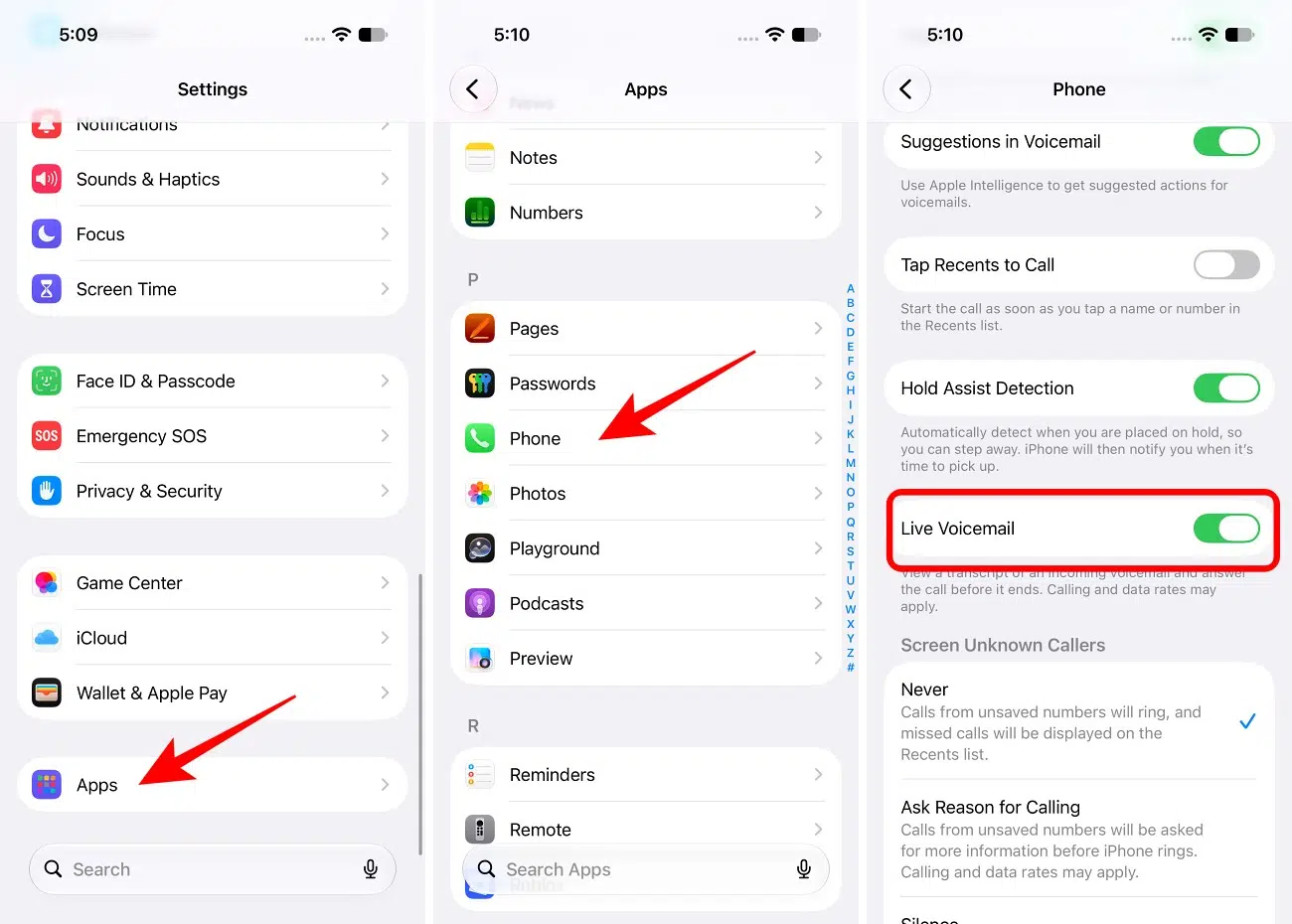
This is useful when I don’t recognize the number but still want to know why someone is calling.
If you have sensitive apps on your iPhone, iOS lets you lock them with Face ID to keep them secure from prying eyes.
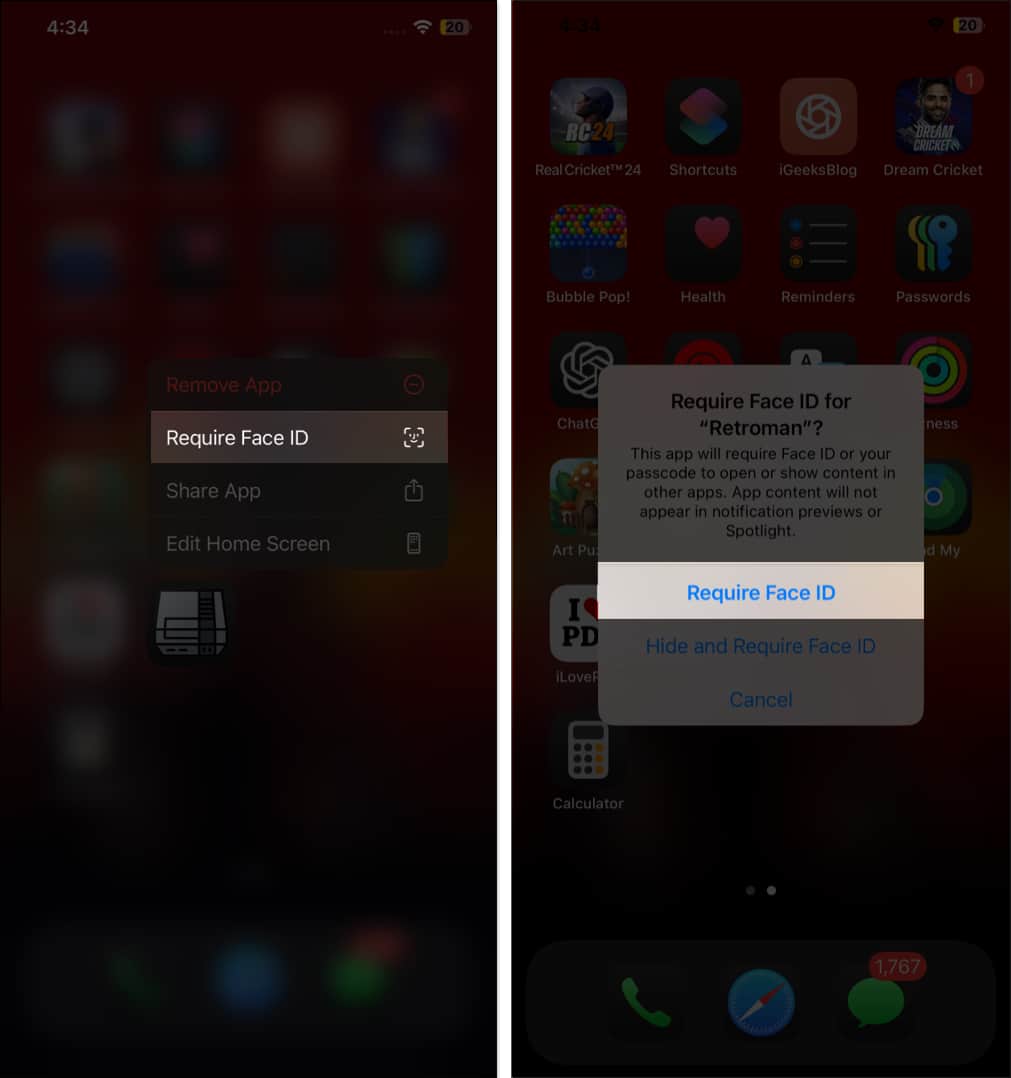
This is particularly useful for banking, messaging, photo, and note-taking apps.
For better security, I choose Hide and Require Face ID. It moves the app to the Hidden folder in the App Library.
If looking at your iPhone in a moving vehicle makes you feel nauseous, try Vehicle Motion Cues.
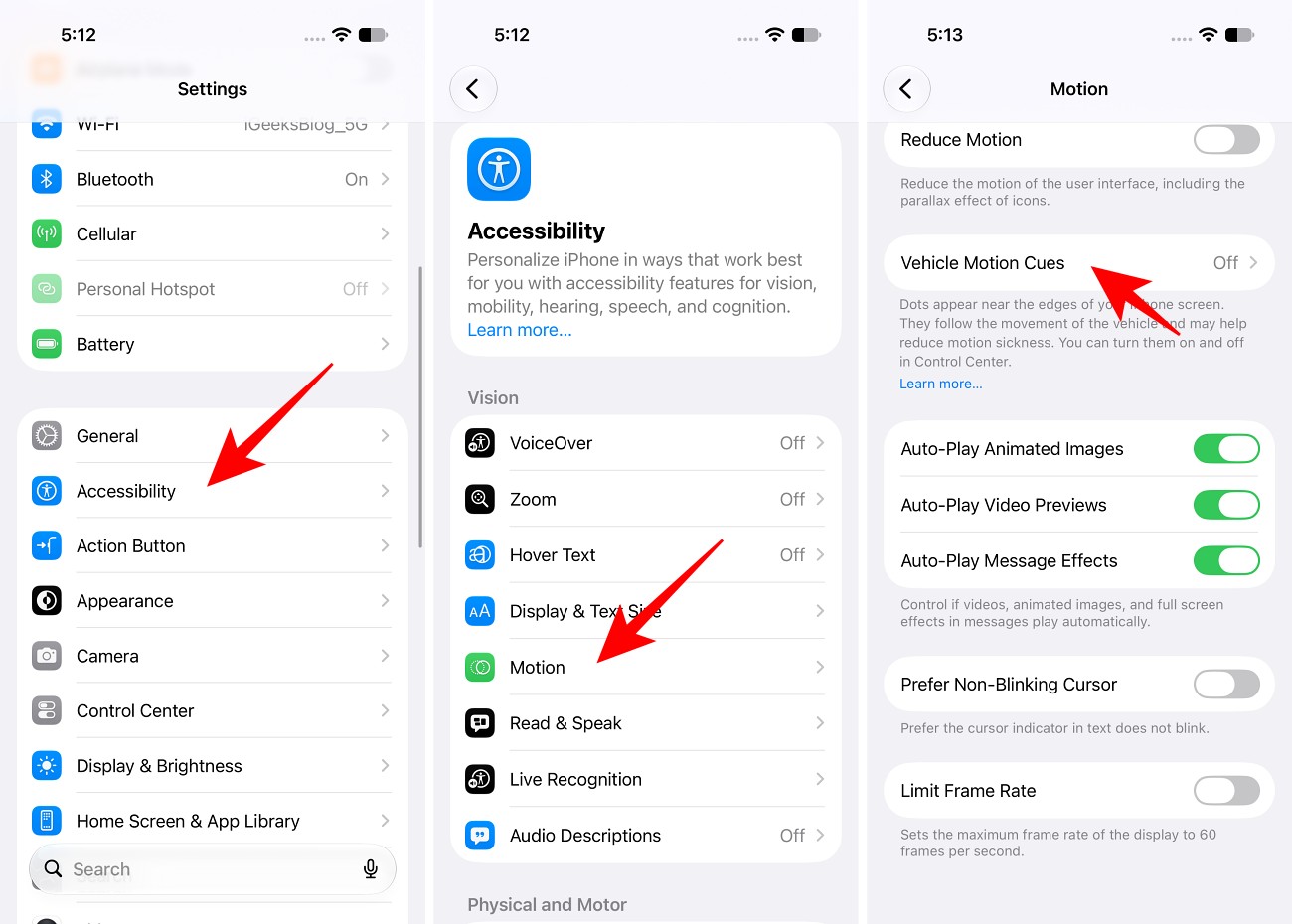
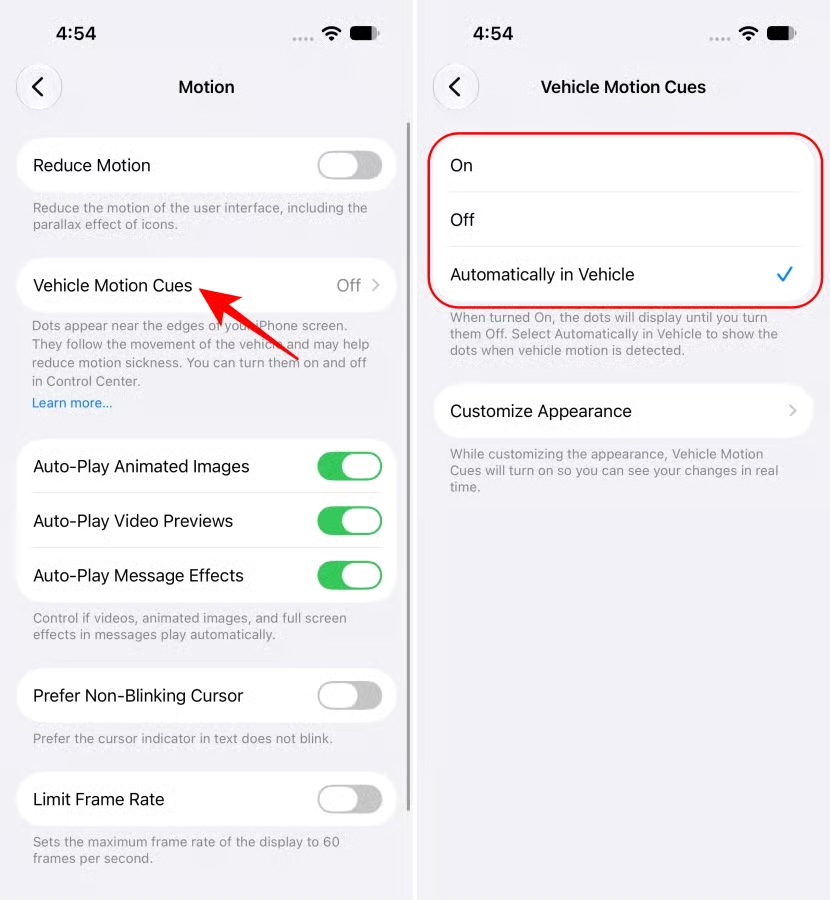
The feature displays animated dots along the edges of the screen that correspond with vehicle movement.
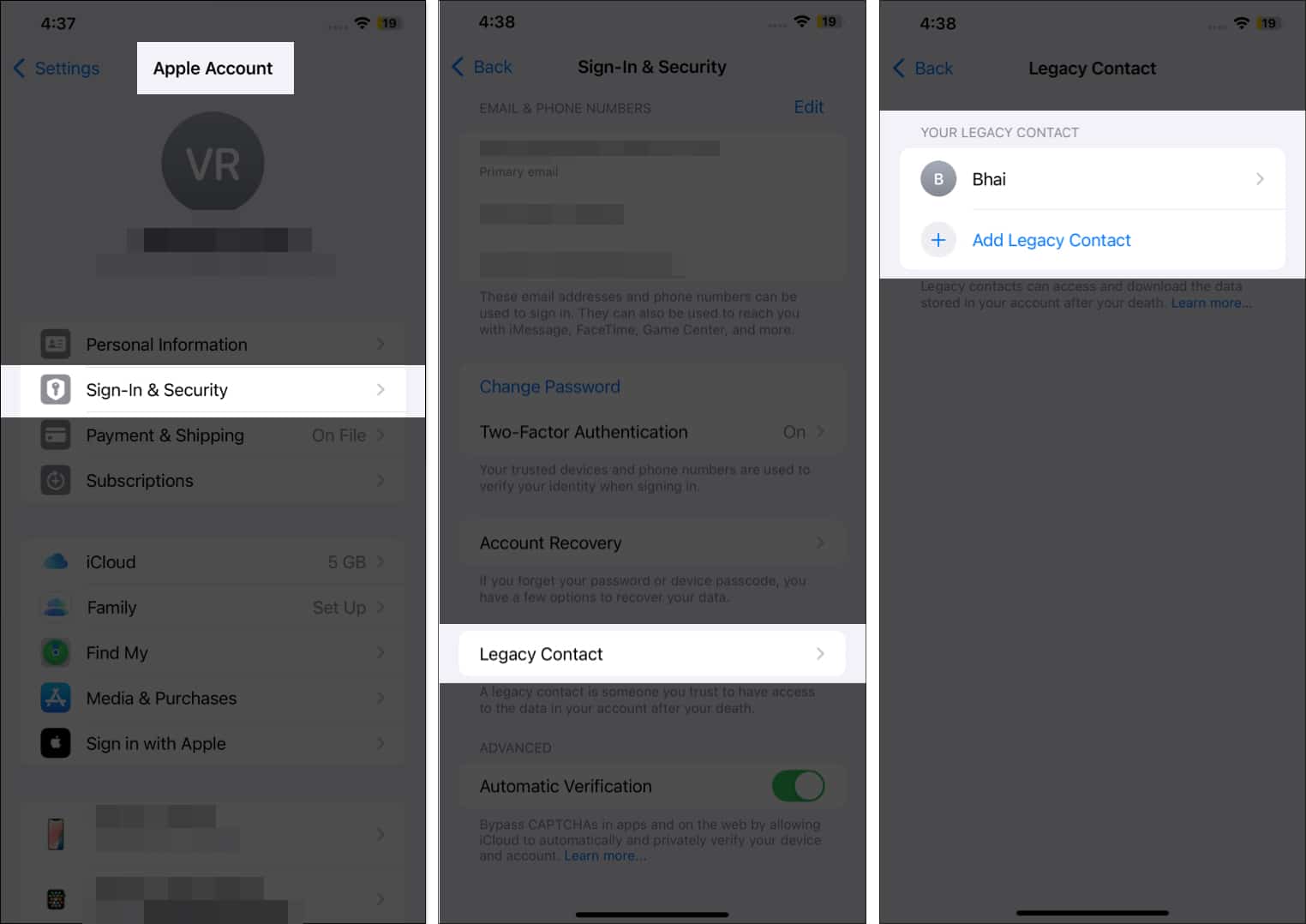
With Legacy Contact, you can designate a trusted friend or family member to access your data—like photos, videos, notes, and other important information—after you pass away. This ensures your loved ones can preserve cherished memories.
How to set it up:
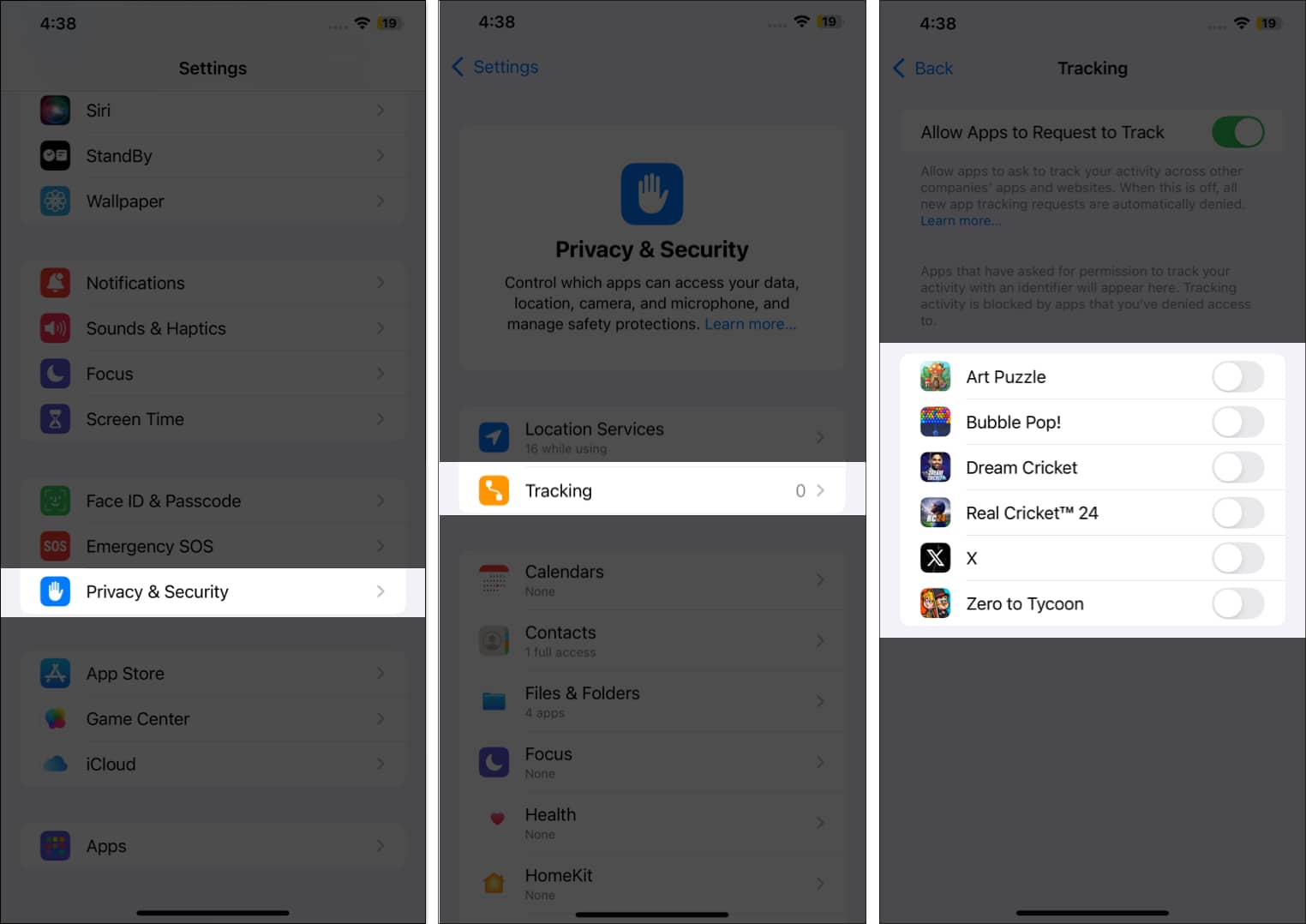
I recommend reviewing app tracking permissions after every major iOS update.
Many apps track your activity across websites and other apps to build profiles and serve targeted ads. Disabling tracking stops this data collection, protecting your privacy.
Background App Refresh can be useful, but I don’t necessarily need every app updating in the background.
Disabling Background App Refresh saves battery, reduces data usage, and boosts performance by stopping apps from updating when not in use.
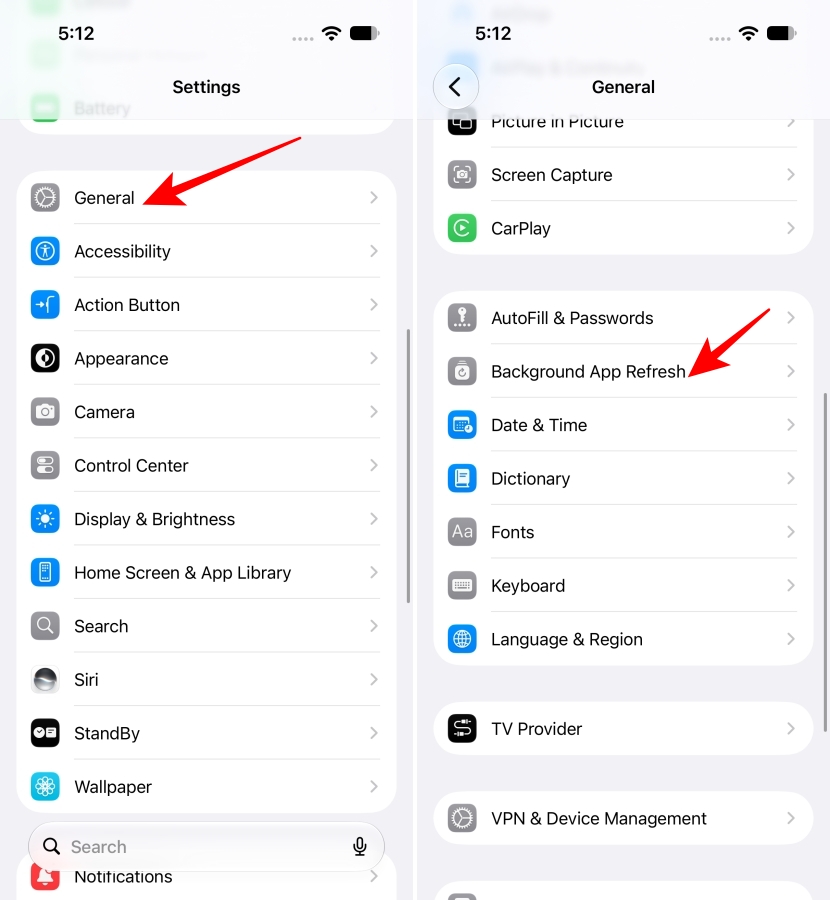
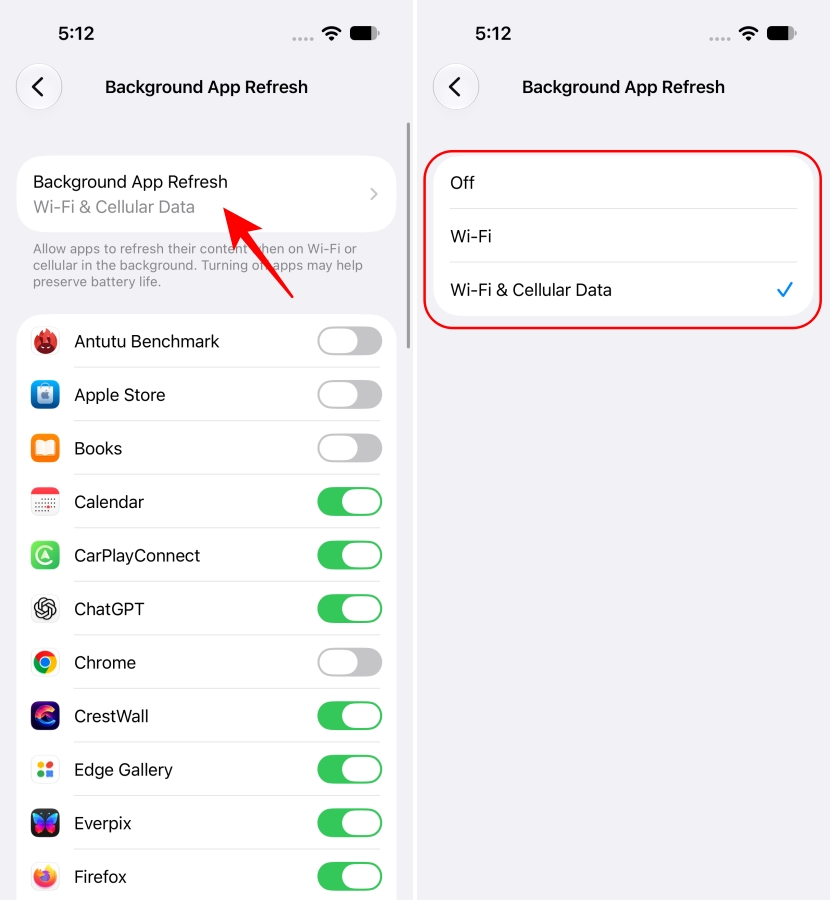
I prefer reviewing the app list and disabling unnecessary ones rather than automatically turning the feature off for everything.
iOS lets you replace the default Lock Screen controls with other options.
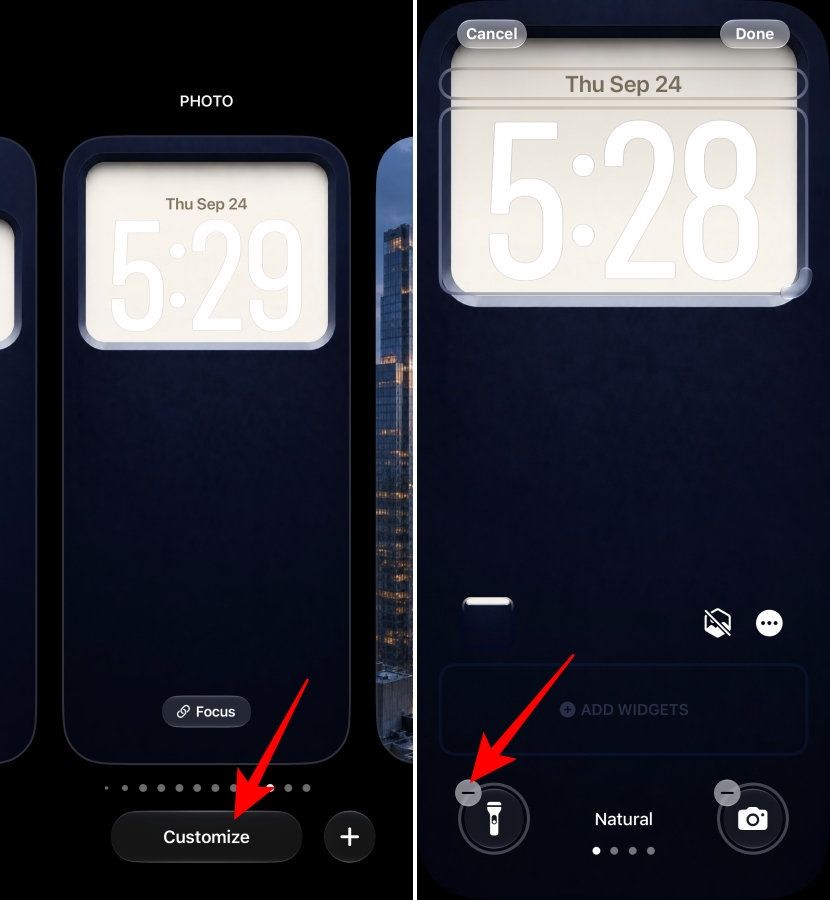
This can be a convenient place to put shortcuts to the features you use regularly.
Screen Distance can warn you when you hold your iPhone too close to your face for an extended period. It helps reduce eye strain and the risk of myopia.
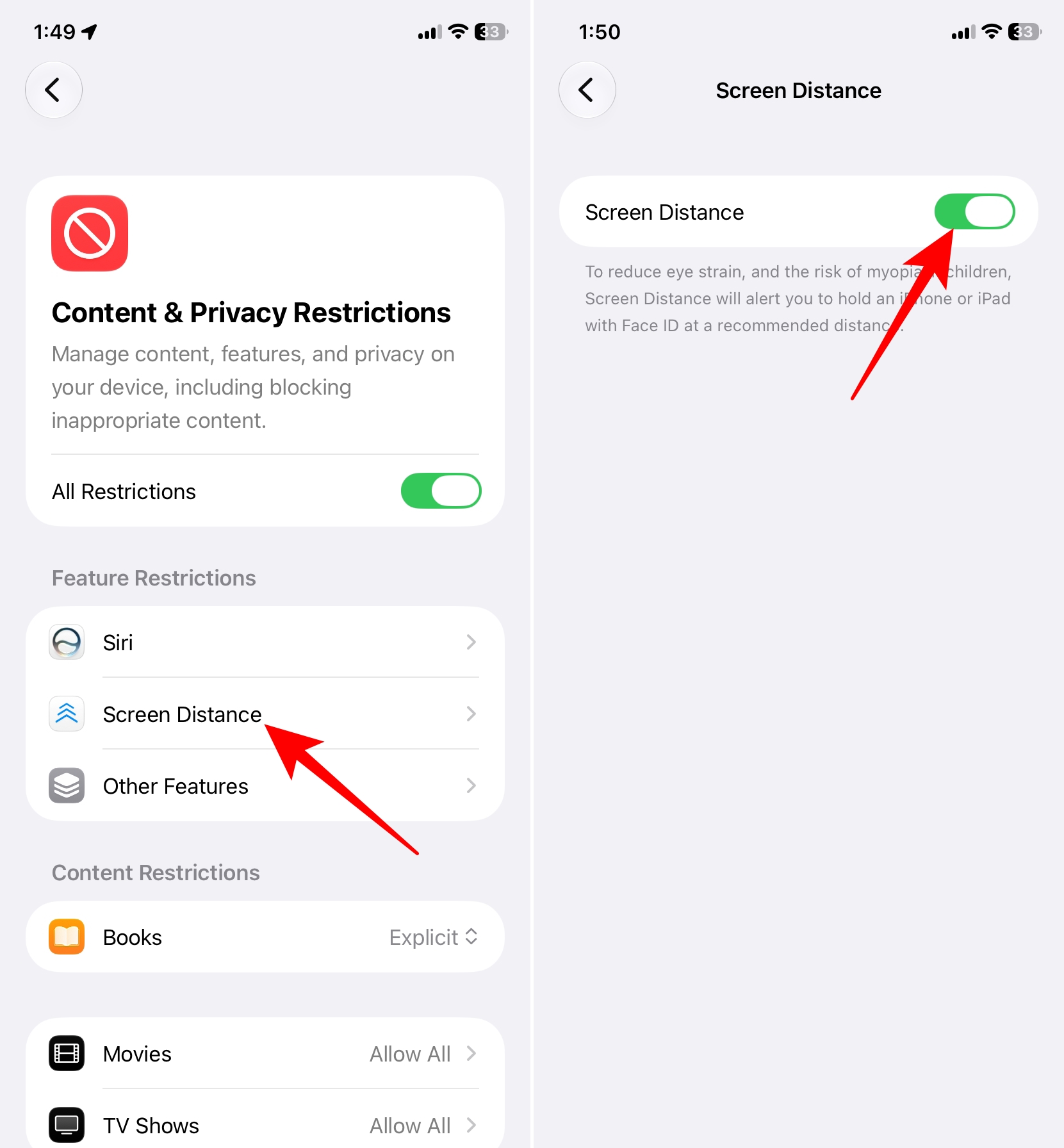
If you’re comfortable with the feature, I’d leave it enabled. If you find the warnings disruptive, you can turn it off here.
Finally, if you frequently use AirPods or headphones, check your headphone safety settings.
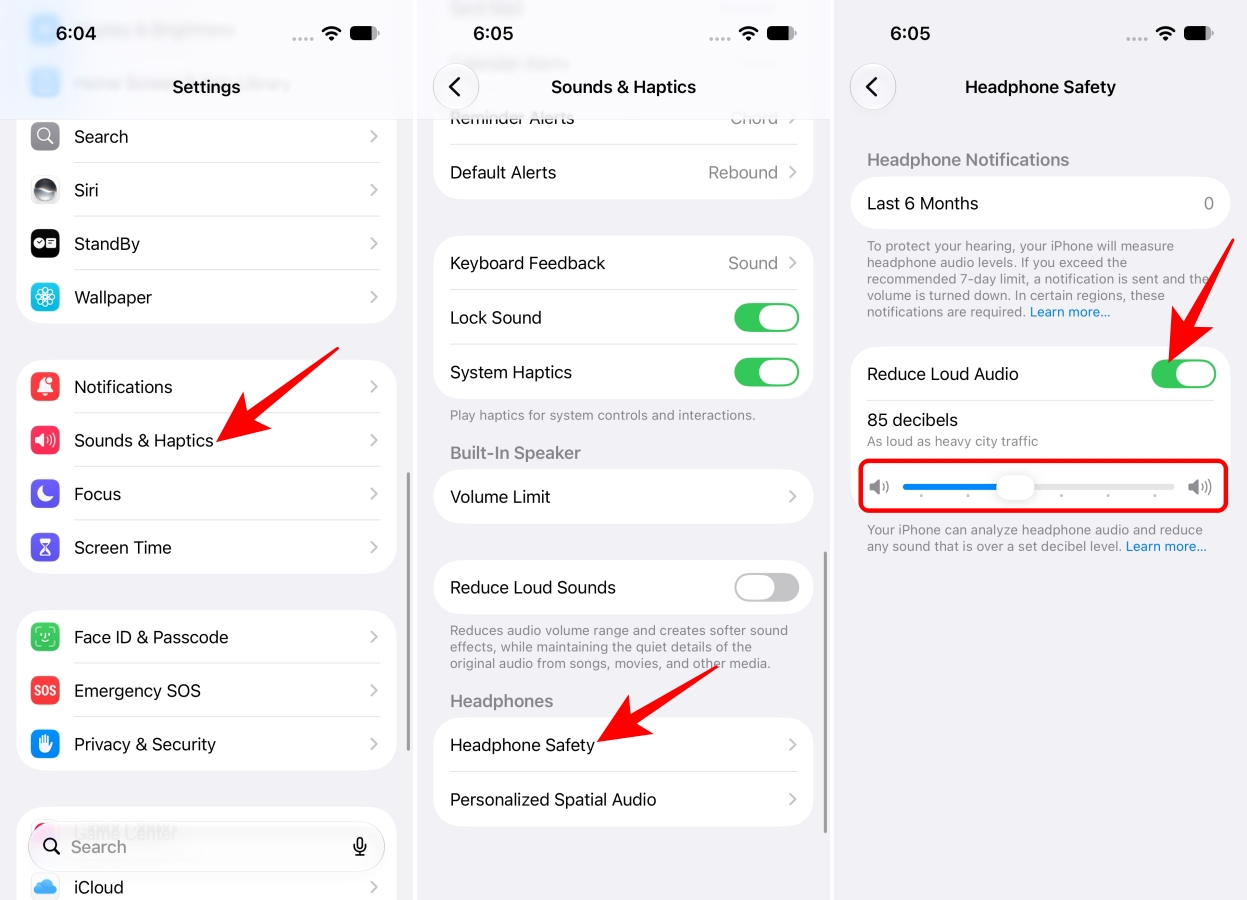
This can help prevent headphone audio from exceeding the level you’ve selected.
iOS 27 is much more than another visual update. Apple has pushed Siri much further, expanded Apple Intelligence into everyday apps, added useful Safari automation, introduced new parental controls, and made the iPhone 18 Pro’s camera hardware more configurable.
The biggest change for me is that the iPhone is becoming more context-aware. Siri can work with what I’m typing, what’s on my screen, what’s in my camera view, and information inside my apps.
And with iPhone Duo arriving October 23, Apple’s iOS experience is about to extend to a completely new form factor.
If you’ve just installed iOS 27, I wouldn’t change every setting on this list blindly. Instead, go through it once and enable the features that actually fit the way you use your iPhone.
Which iOS 27 feature did you like the most?
Read More