FaceTime Like a Pro
Get our exclusive Ultimate FaceTime Guide 📚 — absolutely FREE when you sign up for our newsletter below.

FaceTime Like a Pro
Get our exclusive Ultimate FaceTime Guide 📚 — absolutely FREE when you sign up for our newsletter below.


Discover simple steps to take screenshots on iPhone and iPad devices with Face ID quickly and effortlessly.

 ByNidhi Bohra and Ava Biswas
Capturing a screenshot on an iPhone is an essential skill that every iPhone user must know from the day they first get their hands on one. Screenshots help you document proofs of financial transactions, capture in-game achievements, share information that is difficult to explain textually or verbally, and more.
While taking a screenshot on an iPhone is relatively straightforward for seasoned users, it can be a bit confusing for new users migrating from an Android device. Continue reading to discover how to take screenshots on an iPhone, whether using buttons or not.
Starting with the iPhone X, Apple replaced Touch ID with Face ID on all subsequent iPhones, except for the SE series, thereby removing the Home button, which was a primary requirement for capturing screenshots.
So, if you just upgraded from your classic iPhone to a modern one, including the latest iPhone Duo, iPhone 18 pro, iPhone Air, here’s how you can take a screenshot:

Tip: iOS 26 lets you take high-quality screenshots so you can easily view the details and edit it later without blurring. Go to Settings > General > Screen Capture and select HDR. Now, your iPhone will save screenshots in HEIF and screen recordings in HEVC HDR 10. HDR screenshots preserve rich colors with full dynamic range but take up less space.
Capturing a screenshot on an iPhone with a Home button (iPhone 6, 6 Plus, 6s, 6s Plus, 7, 7 Plus, 8, 8 Plus, and iPhone SE 2020 & 2022) is as easy as capturing one on an iPhone without the Home button.
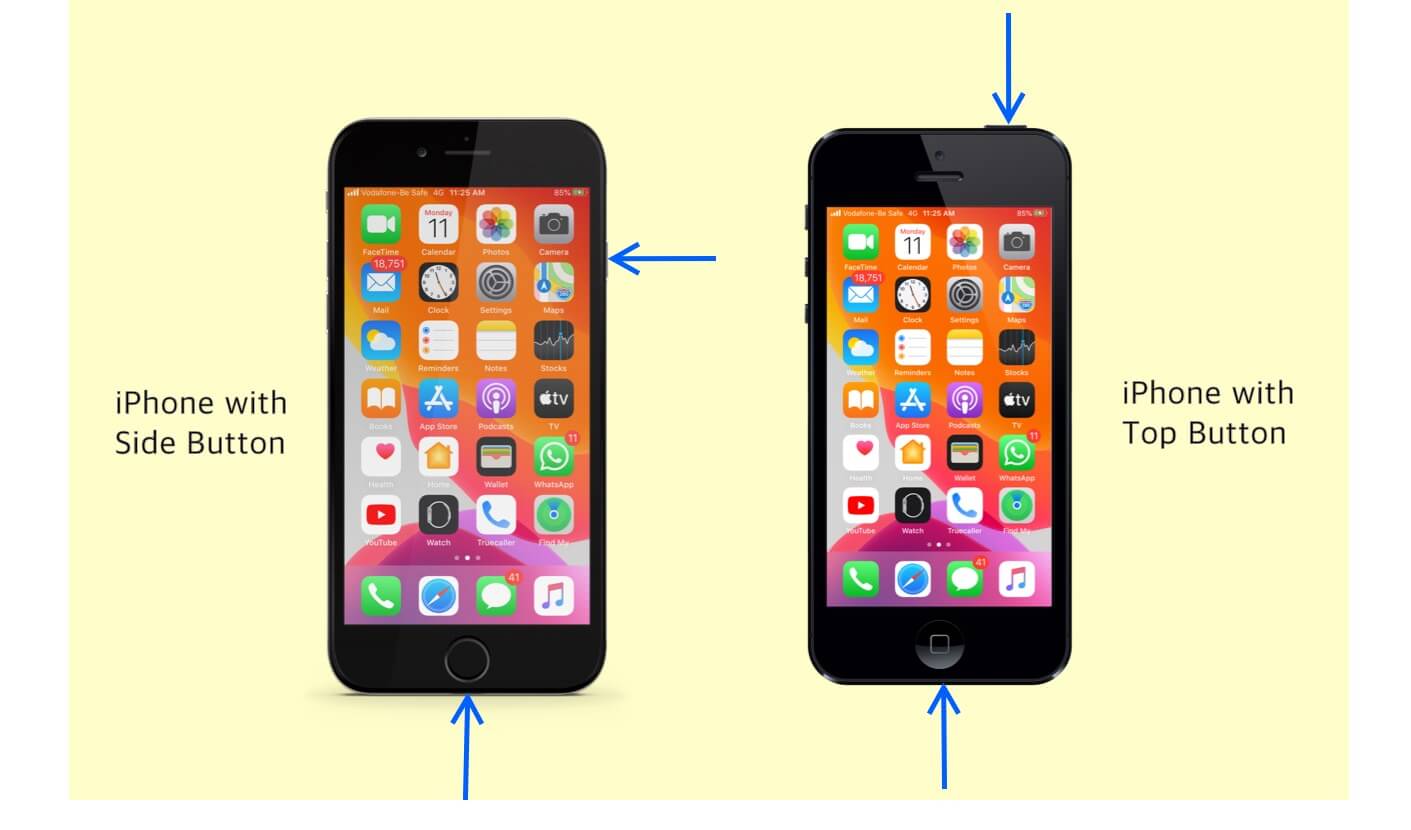
Just like on the iPhone, Apple replaced the Touch ID with Face ID on modern iPad models as well. Therefore, capturing a screenshot on an iPad with Face ID is precisely the same as doing so on an iPhone. You only need to:

Again, the process of taking a screenshot on an iPad with a Home button is similar to taking one on an iPhone with a Home button. Here’s how you can do this:

While you can use all the iPhone methods to capture a screenshot on iPads without physical buttons, there’s one method that is specifically reserved for iPads that support Apple Pencil. Here’s how you can use an Apple Pencil to take screenshots on an iPad that supports it:
If using the buttons every time you want to capture a screenshot is too much of a task for you, you can simply ask Siri to take a screenshot. Here’s how it works:

While Apple designed the Assistive Touch feature to help users with physical and motor skill impairments, anyone can customize the feature to perform tasks like taking screenshots, saving them the hassle of pressing physical buttons.
Here’s how to set up and use Assistive Touch to capture screenshots with a single tap:


Now that you have enabled AssistiveTouch and assigned the Screenshot functionality, you only need to tap the AssistiveTouch button, and the screenshot will be taken.
Introduced with iOS 14, but supported only on iPhone 8 or later models, Back Tap allows you to perform various tasks on your iPhone, such as invoking Siri, launching apps, and capturing screenshots. To use it, assign the functionality and double-tap or triple-tap on the back of your iPhone.
To use Back Tap for taking screenshots on your iPhone, you must set it up first. Here’s how:


Going forward, you can simply double or triple-tap on the back of your iPhone, and it will take a screenshot.
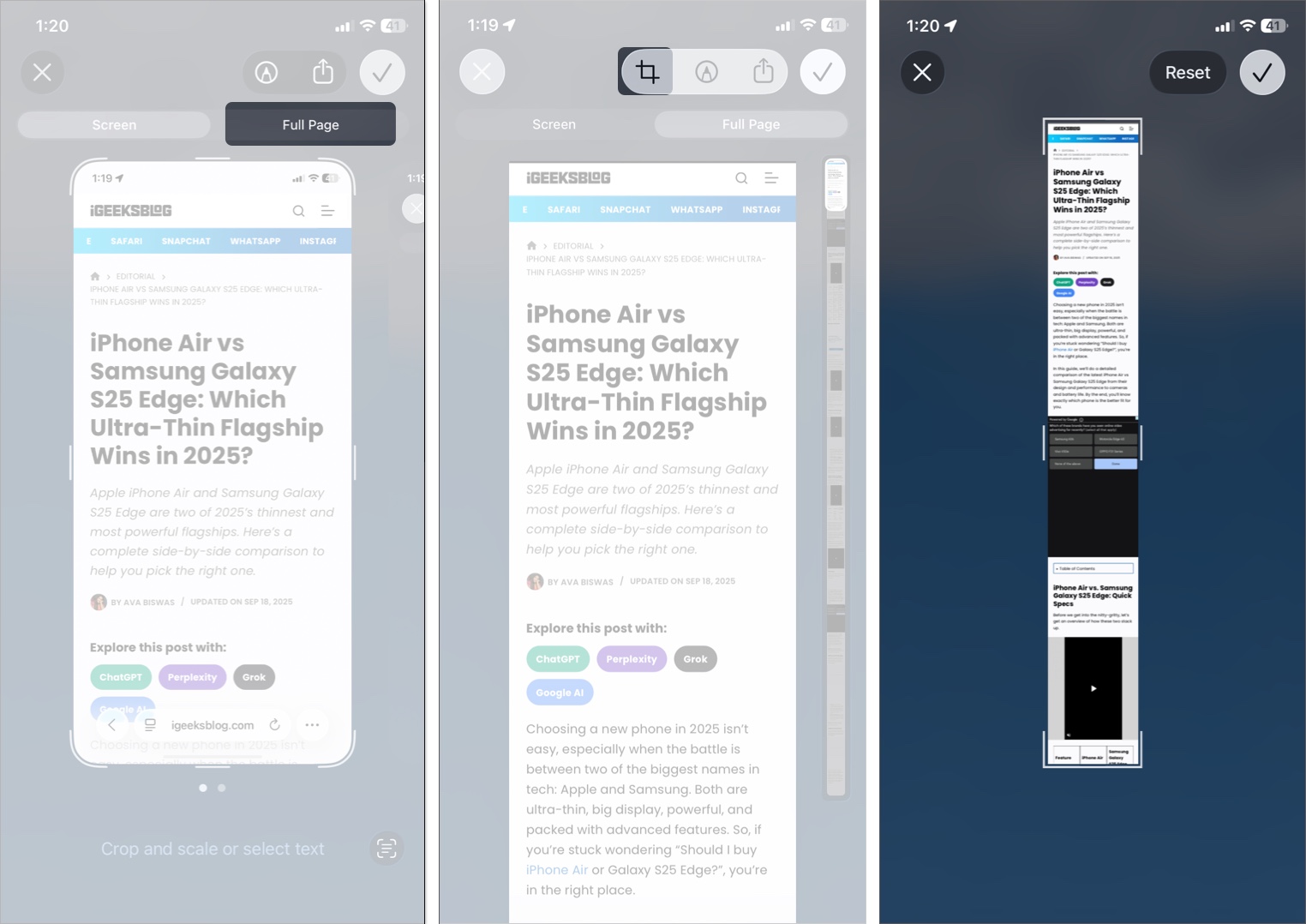
There are times when the information you want to capture isn’t confined to a single screen, like a web page, email, or PDF file. In this case, taking a regular single-page screenshot won’t suffice.
Thankfully, Apple allows you to capture scrolling screenshots on your iPhone and save them as PDFs or a regular image. Here’s how:
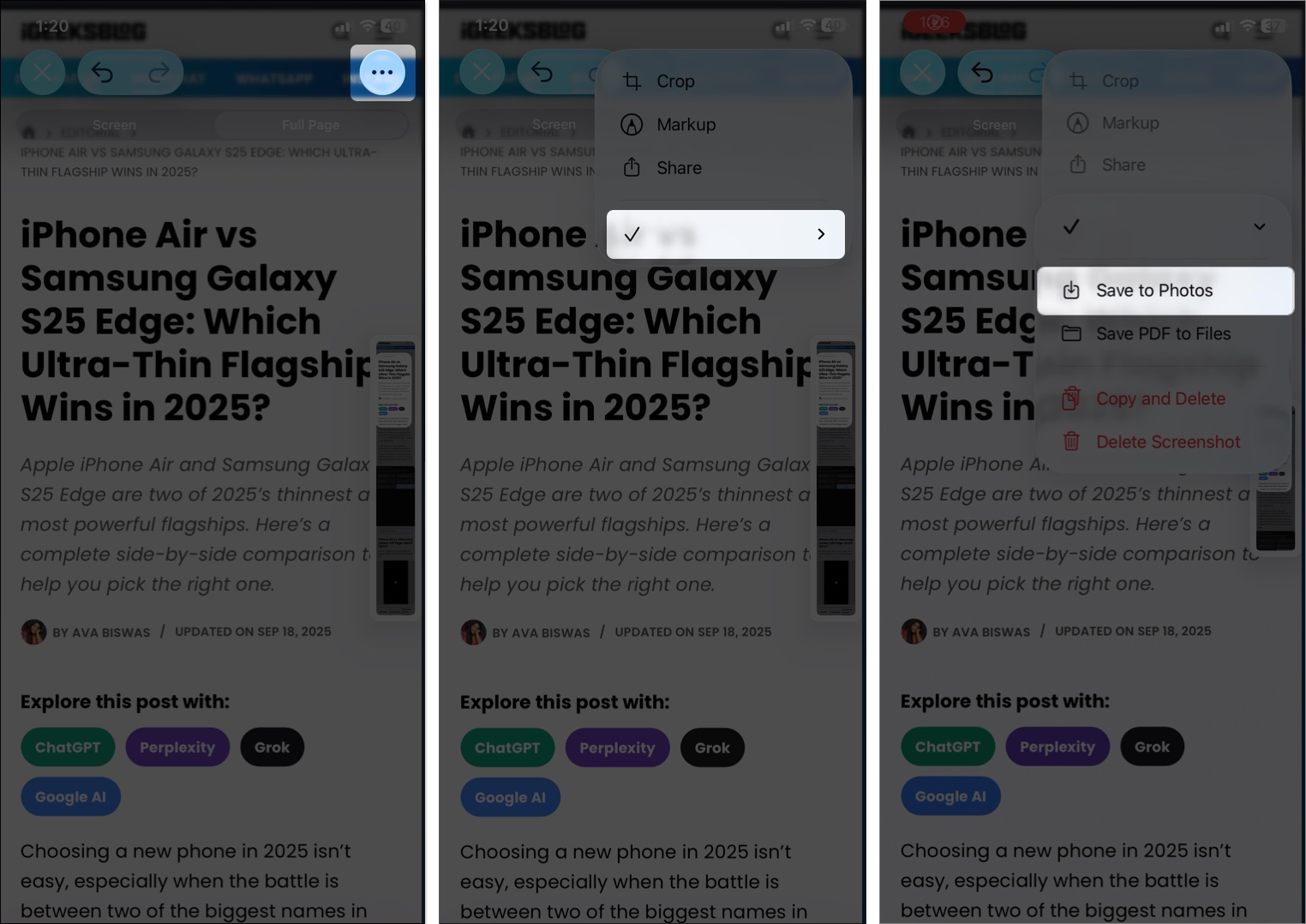
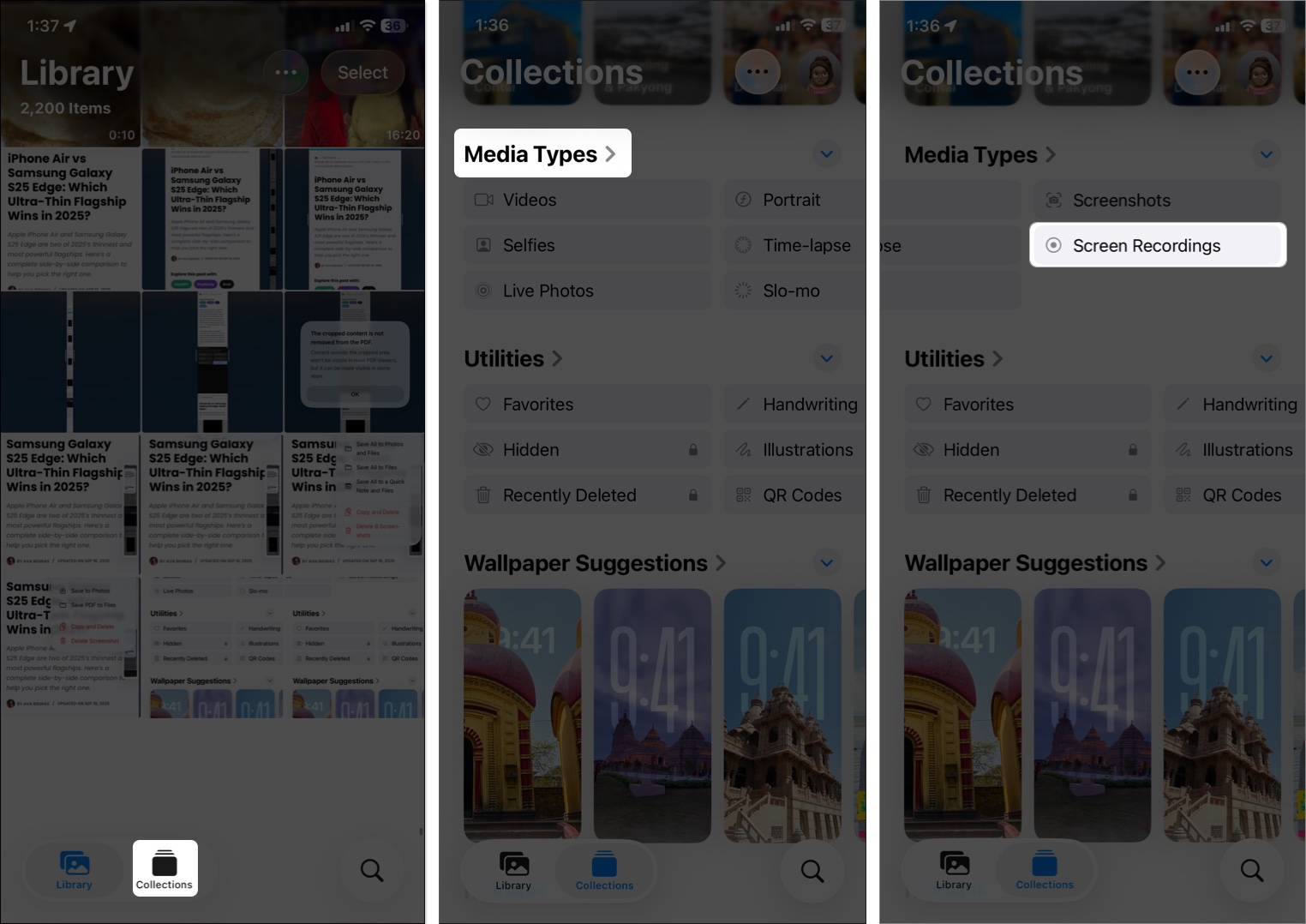
All the screenshots you take on your iPhone or iPad are automatically saved and can be viewed within the Photos app, as long as you didn’t delete one from the preview screen itself. Here’s how you can view screenshots on your iPhone and iPad:
These are all the methods you can use to take screenshots on your iPhone or iPad. Whether you prefer button-based methods, using Siri, or accessibility methods, the choice is yours. Also, note that you can only save a scrolling screenshot as an image if your iPhone runs on iOS 17 or later. Before iOS 17, one could only save a scrolling screenshot as a PDF.
Feel free to contact us via comments if you have any questions or concerns regarding the topic or any other Apple-related matter.
FAQs
Once the screenshot is taken, a small preview of it will appear in the bottom-left corner. Tap the preview to open the screenshot, then choose the appropriate available tool to markup the screenshot on iPhone.
Damaged or malfunctioning physical buttons can be among the various reasons screenshots are not working on your iPhone. In that case, you can use Siri, AssistiveTouch, or Back Tap to take a screenshot.
In case you missed it: