
FaceTime Like a Pro
Get our exclusive Ultimate FaceTime Guide 📚 — absolutely FREE when you sign up for our newsletter below.

FaceTime Like a Pro
Get our exclusive Ultimate FaceTime Guide 📚 — absolutely FREE when you sign up for our newsletter below.


Your iPhone holds sensitive data, but default settings aren’t enough. Learn the essential privacy and security settings you should change right now.
 ByVikhyat
Your iPhone is the gateway to all your personal, financial, and professional data. So, no matter how secure Apple claims the iPhone to be, it remains a prime target for hackers, data brokers, and even prying eyes around you. While every iPhone ships with industry-leading security features, it’s up to you to fine-tune these settings for maximum privacy and protection.
This guide highlights the most important iPhone privacy and security settings you should adjust immediately.
Apple frequently releases iOS updates packed with new features and critical security patches. These patches fix vulnerabilities and bugs that cyber attackers might exploit. Keeping your iPhone updated ensures it remains protected against the latest threats.
Go to Settings → General → Software Update to check for and install the latest version.
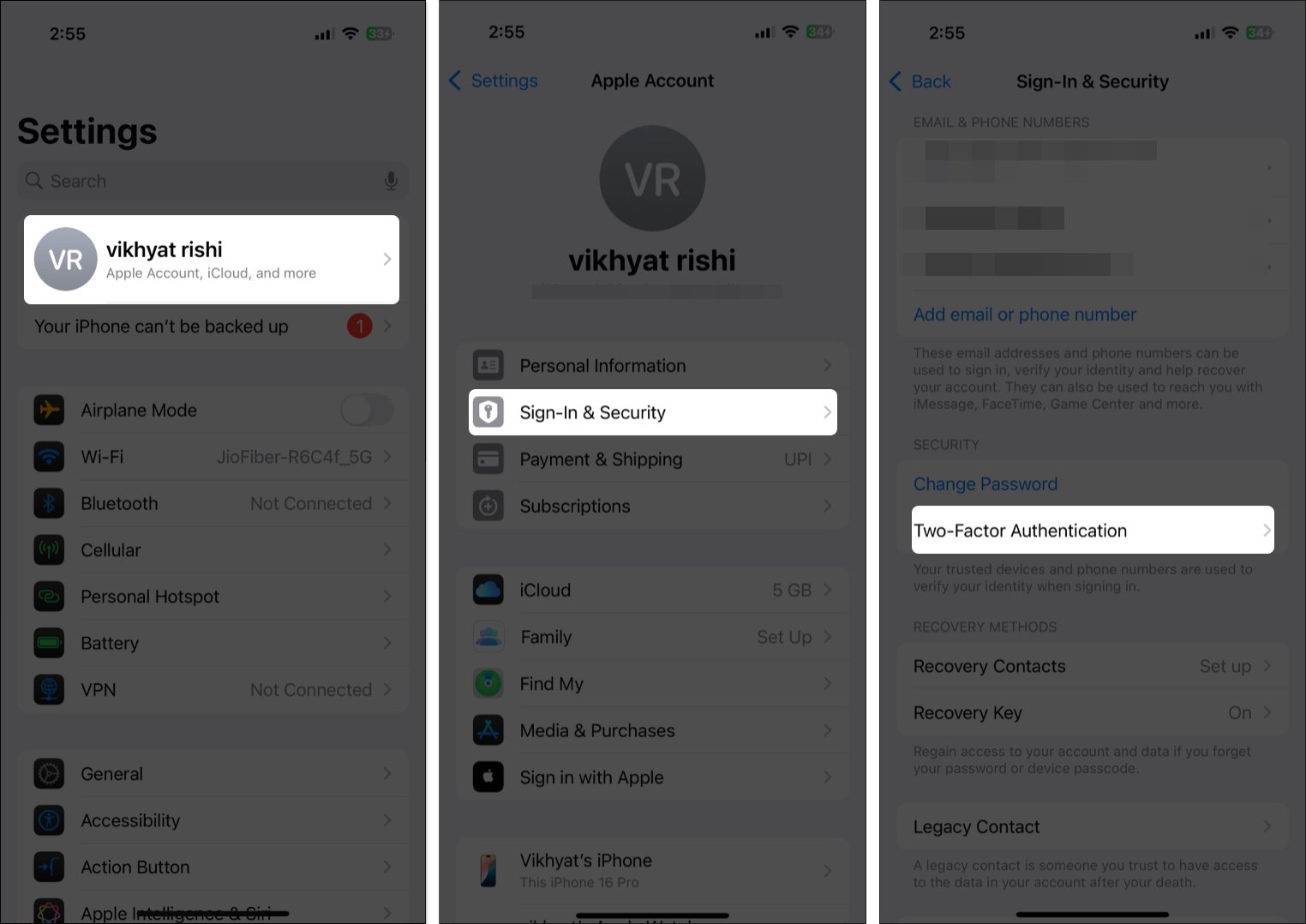
Your Apple Account (formerly Apple ID) is the core of your Apple ecosystem. It grants access to iCloud data, App Store purchases, and device management, making it vital to secure.
While a strong password helps, it’s not enough. Two-factor authentication ensures that even if someone guesses your password, they can’t log in without the second layer of verification.
To enable:
Find My iPhone isn’t just for locating lost devices. It enables Activation Lock, which prevents thieves from erasing or reactivating your iPhone without your Apple ID.
To enable:
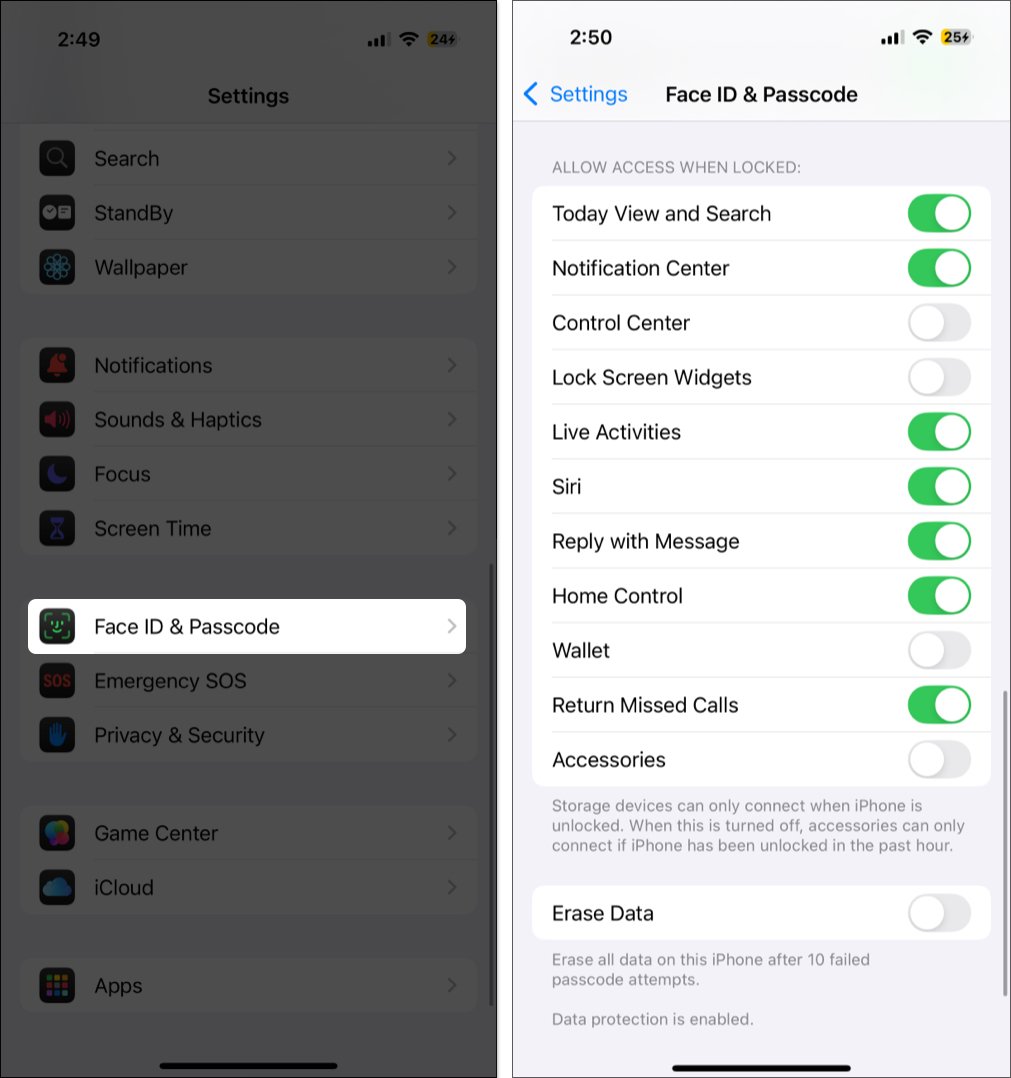
Even when locked, your iPhone’s Lock Screen may expose notifications, widgets, Siri, and more. Anyone nearby could access your data without unlocking your phone.
To secure your lock screen:
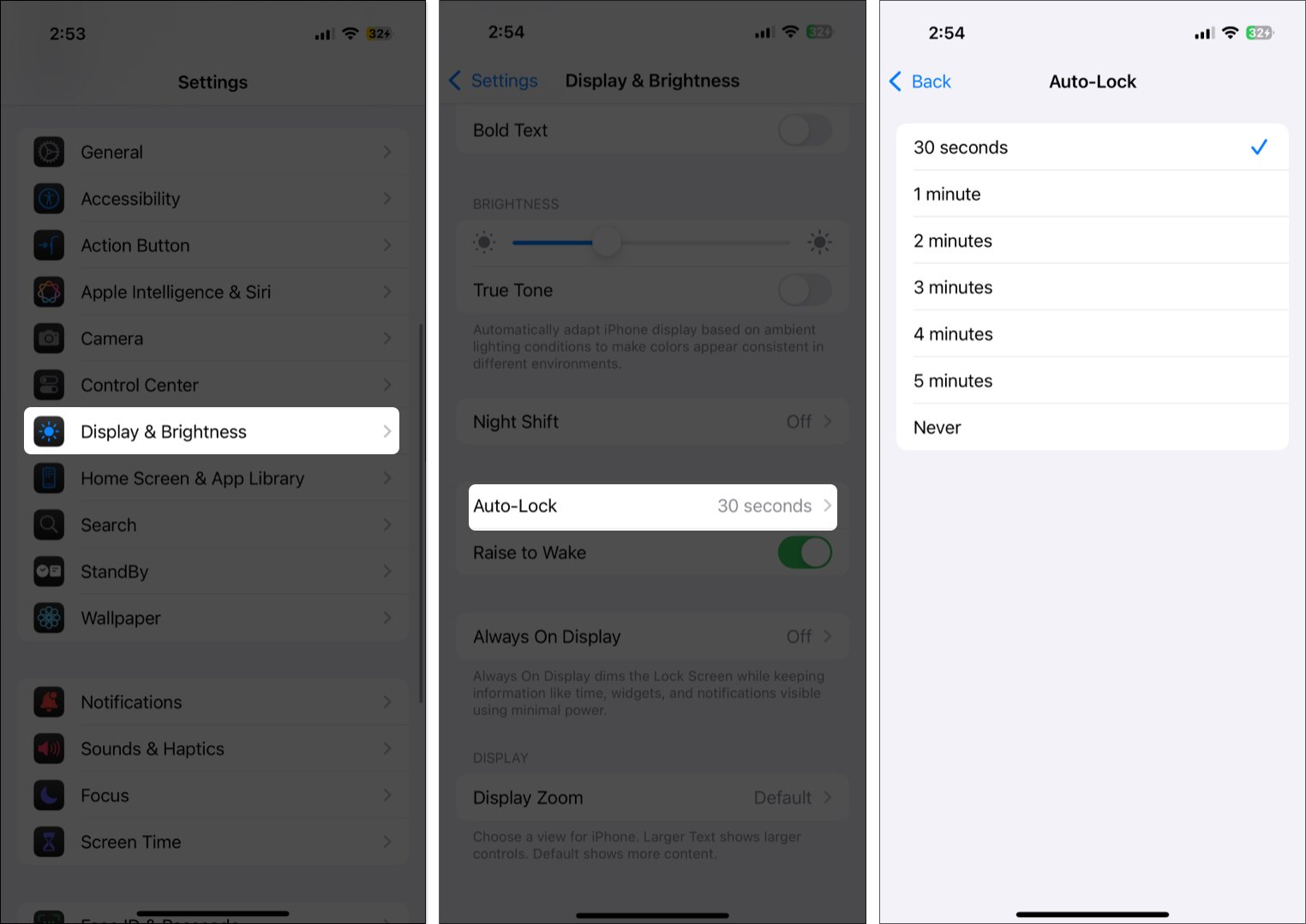
Leaving your iPhone unattended — even for a minute — can expose your data. Setting a short auto-lock timer reduces this risk.
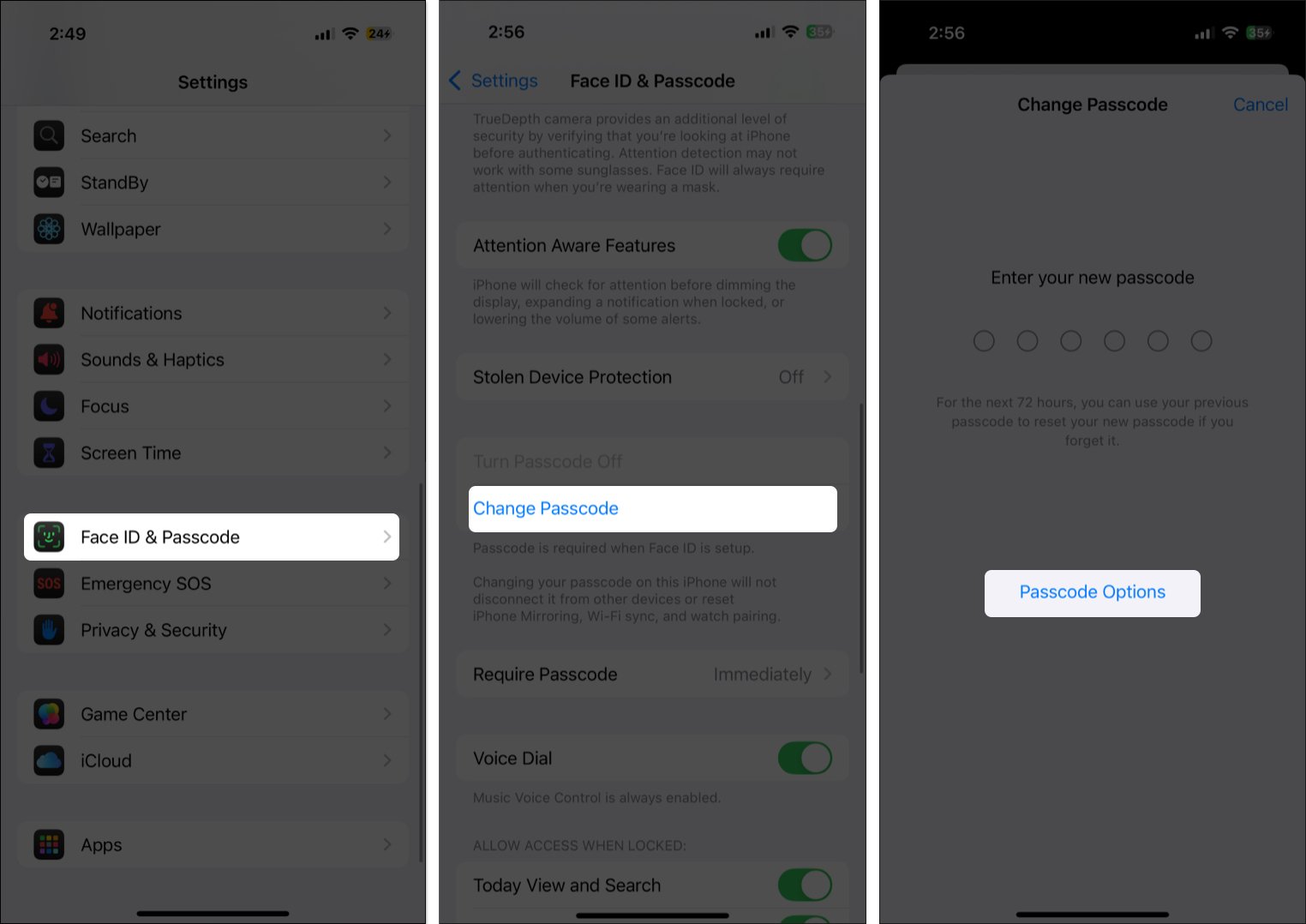
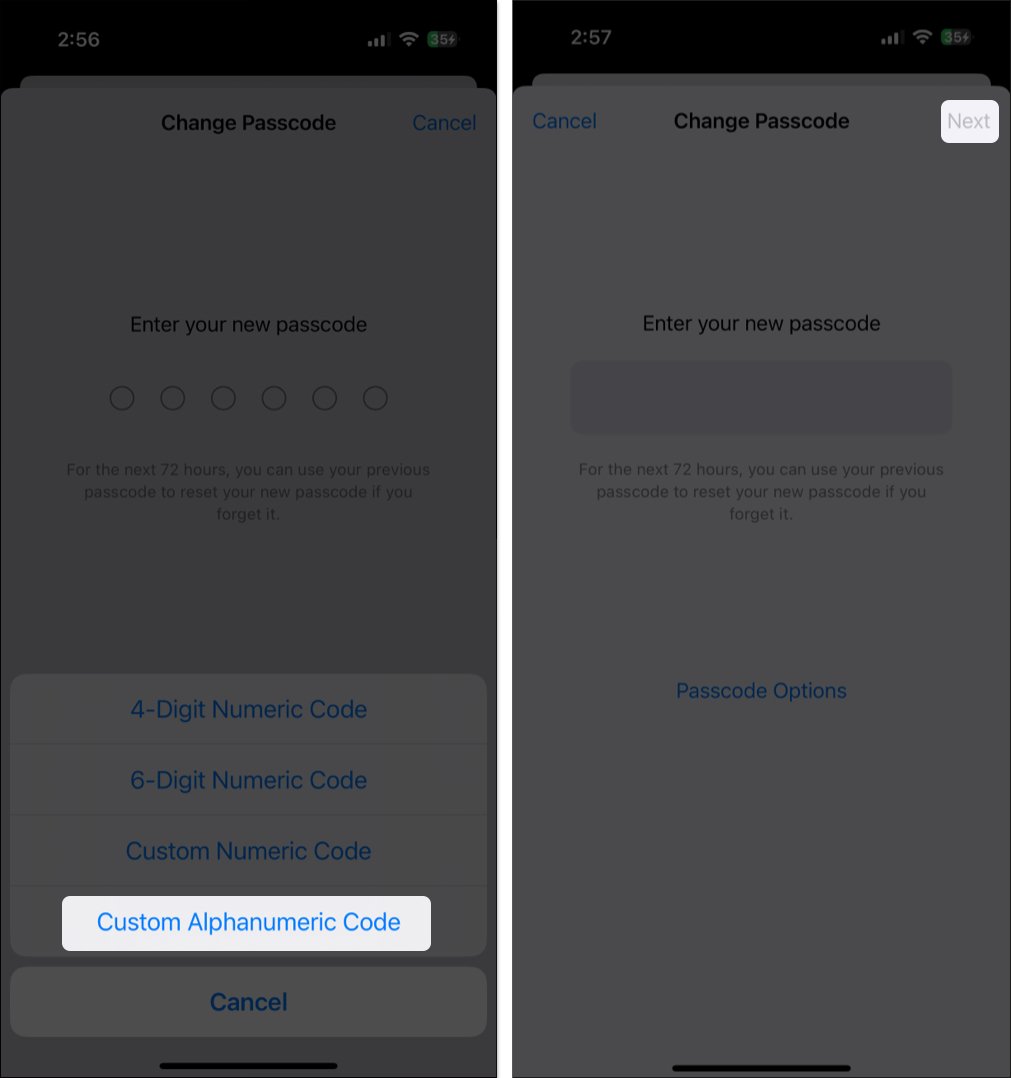
Next, use a strong alphanumeric passcode instead of a simple 4- or 6-digit one:
To change your passcode:
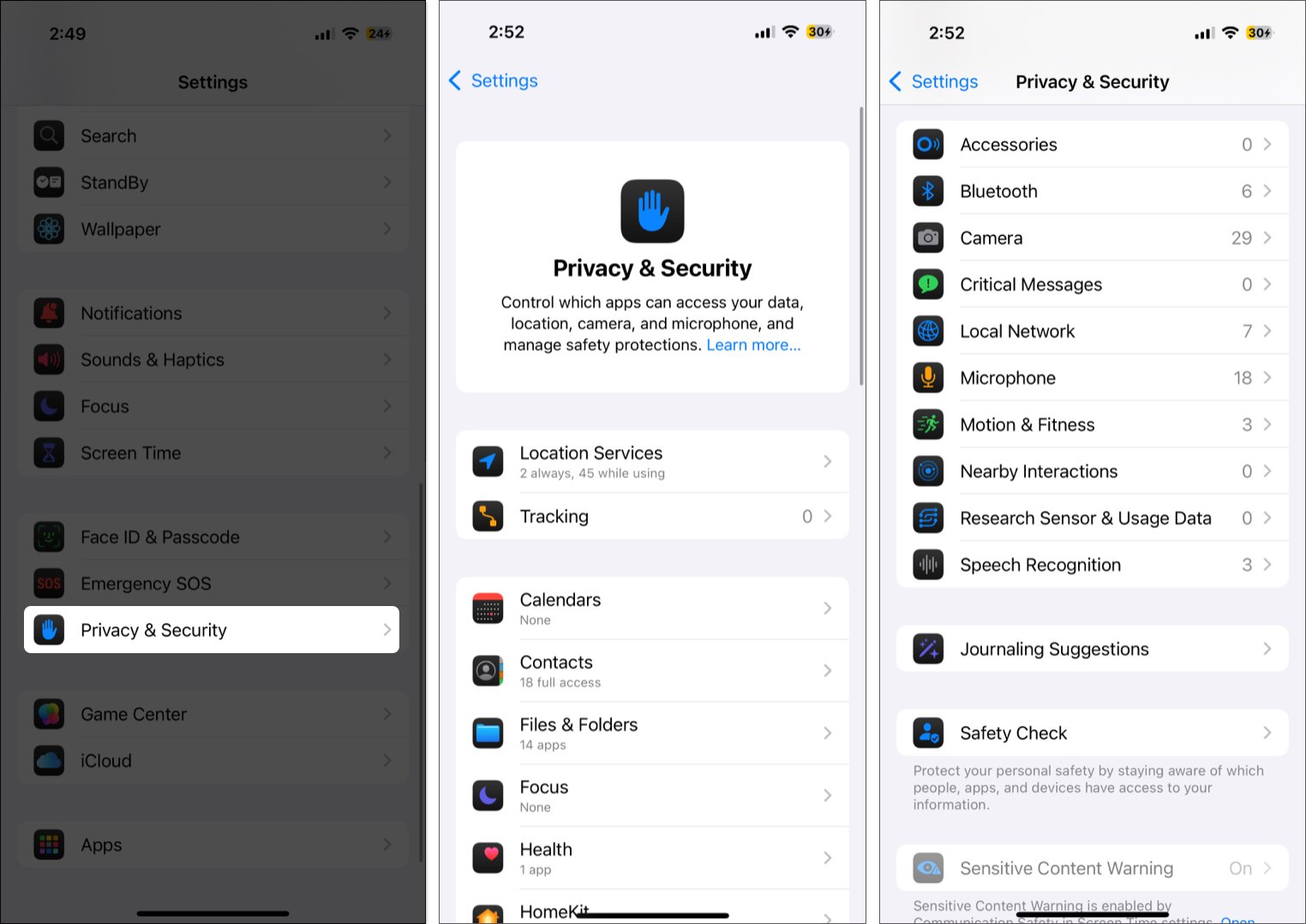
Some apps request access to your camera, microphone, or location unnecessarily. Regularly reviewing app permissions helps keep your data private.
Even a locked iPhone can be vulnerable to physical attacks like “juice-jacking” when connected to public charging stations.
To disable USB access while locked:
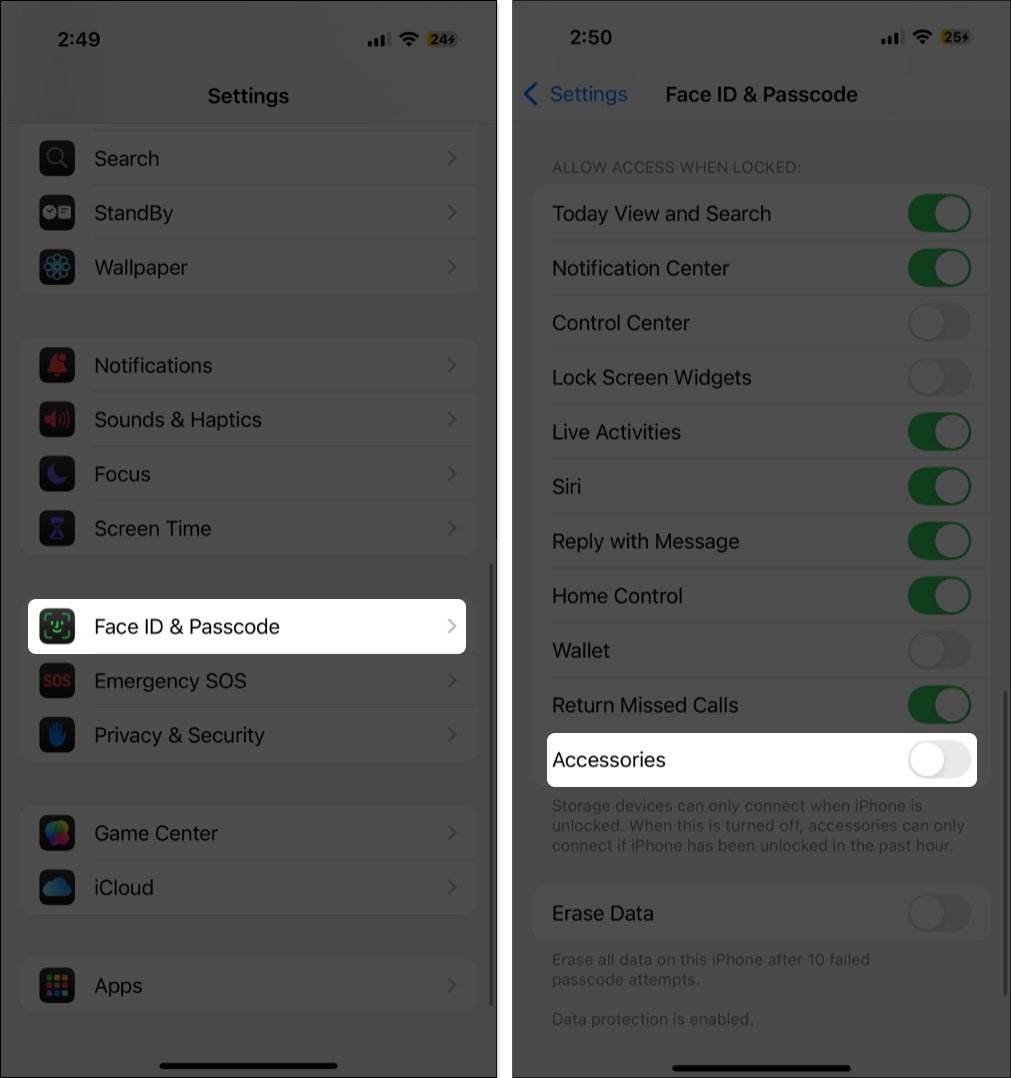
Once done, your iPhone will not allow data connections via the Lightning or USB-C (depending on your iPhone model) port when it has been locked for more than an hour.
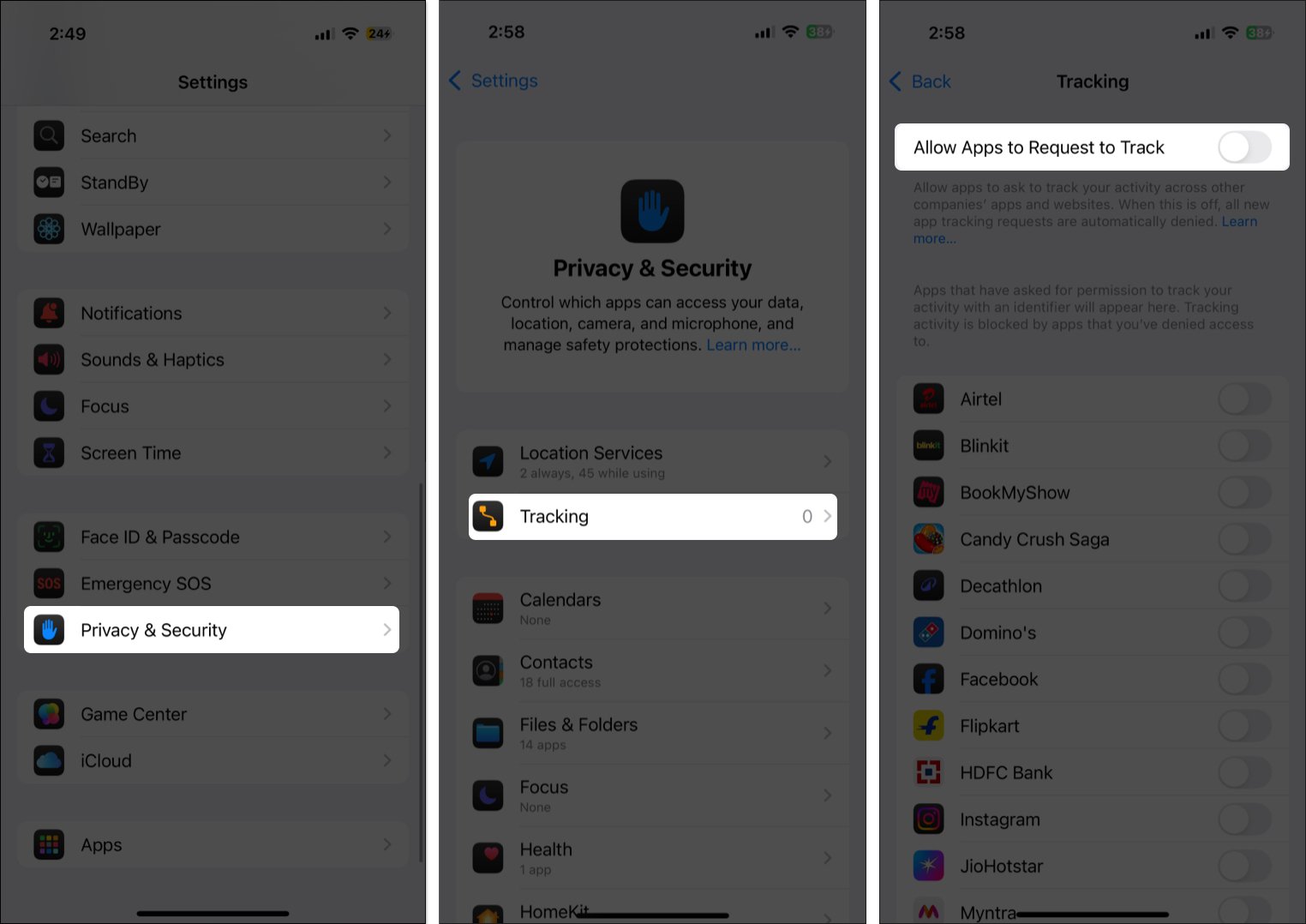
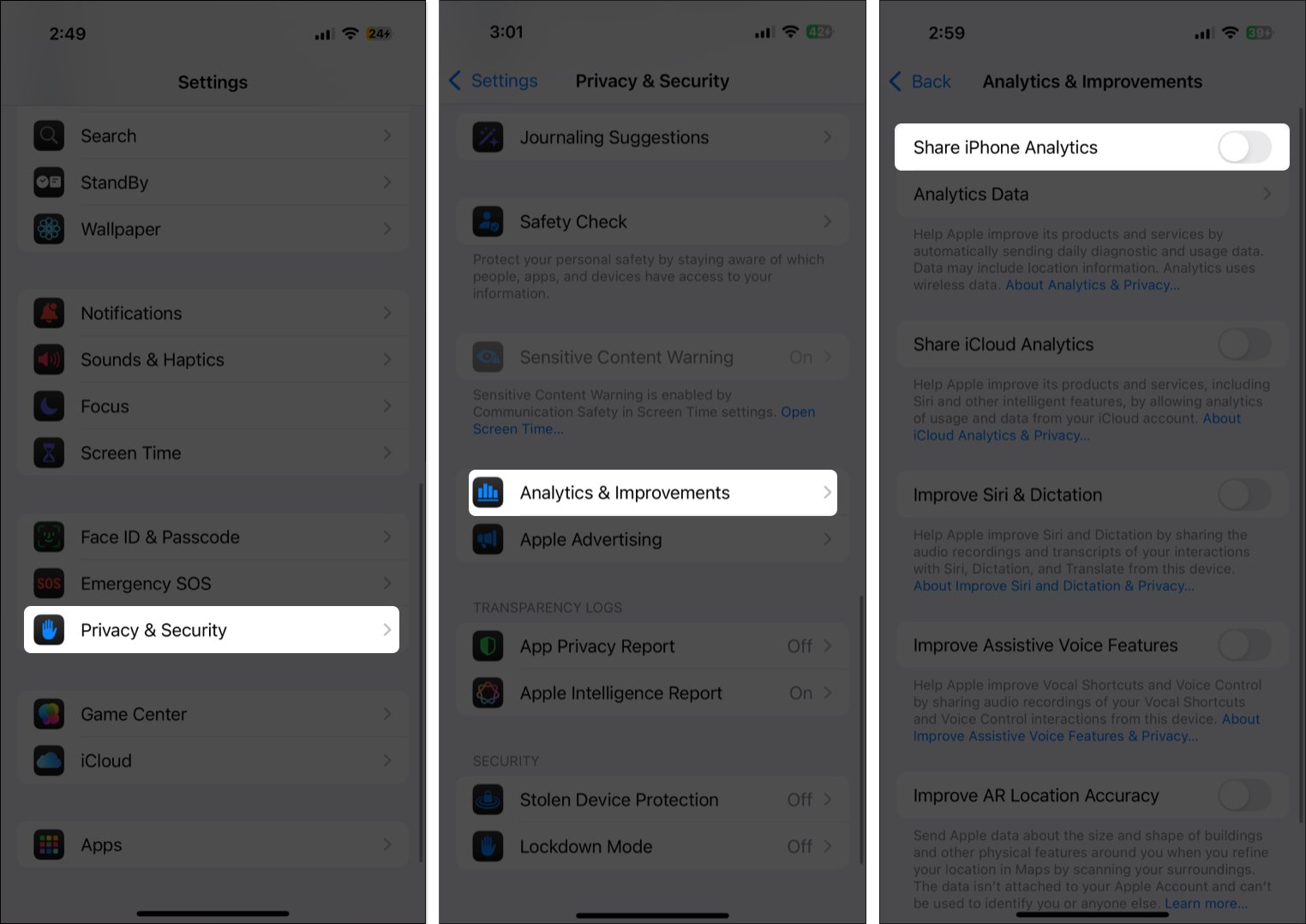
Many users unknowingly allow apps to track their behavior or share iPhone usage data with Apple. Turning these off reduces profiling and data collection.
To disable tracking and analytics:
If you’re an iCloud+ subscriber, Private Relay hides your IP address and Safari browsing activity. If not, a trusted VPN can protect your privacy across all apps.
To enable Private Relay:
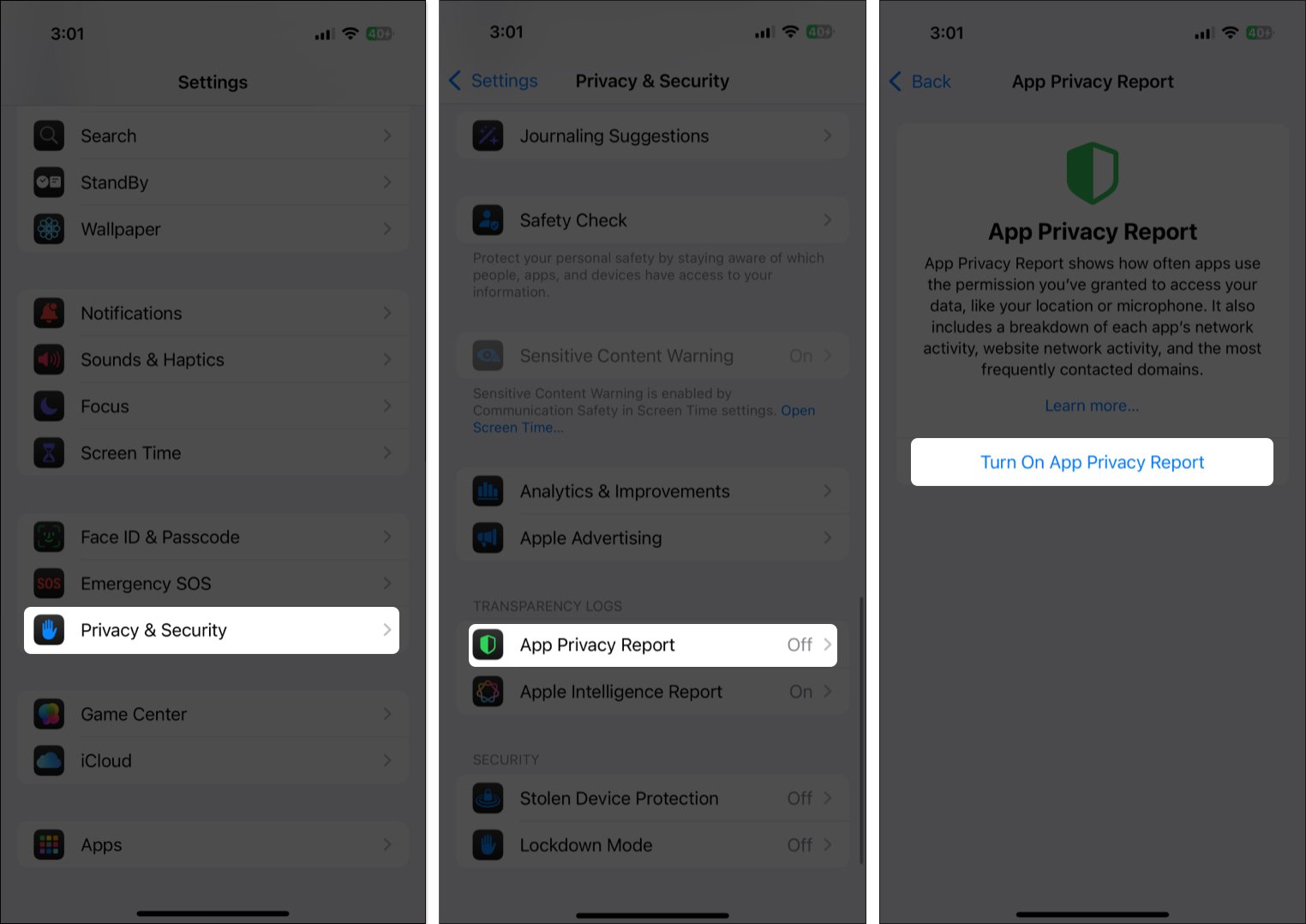
The App Privacy Report lets you monitor how often apps access sensitive permissions — and whether they share data with third parties.
To enable:
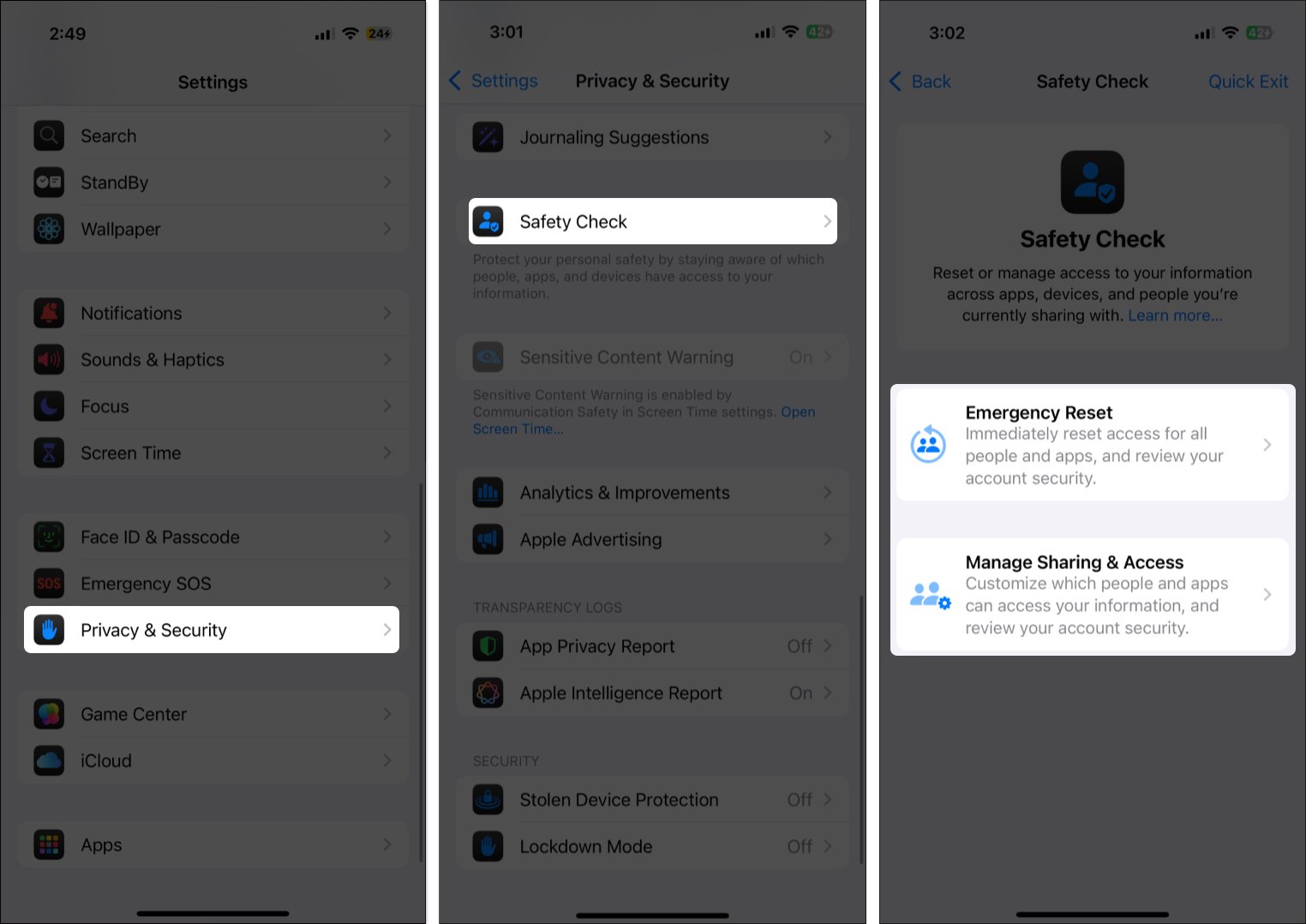
For those in vulnerable or abusive situations, Safety Check is a lifesaver. It lets you instantly revoke app access, sign out of iCloud on other devices, and more.
Here are a few more quick settings that can strengthen your iPhone privacy:
That’s it, you’re now equipped with the essential iPhone privacy and security settings that can dramatically reduce your digital risk. From locking down sensitive app permissions to protecting your Apple ID and browsing habits, these simple changes go a long way.
Take a few minutes to implement these changes today and keep your iPhone and everything on it safe from prying eyes.
Read more:











