FaceTime Like a Pro
Get our exclusive Ultimate FaceTime Guide 📚 — absolutely FREE when you sign up for our newsletter below.

FaceTime Like a Pro
Get our exclusive Ultimate FaceTime Guide 📚 — absolutely FREE when you sign up for our newsletter below.


Instagram DMs can get spammy fast. This guide shows how to block, restrict, mute, or manage messages to take back control of your inbox.
 ByVikhyat
Direct messages on Instagram are a great way to connect with your friends and followers, but they do have some associated privacy concerns. There are instances where you may feel overwhelmed by spam or unsolicited messages popping up in your chat feed. While Instagram doesn’t let you disable DMs altogether, there are effective ways to block, restrict, or mute them based on your preferences.
This post details every possible way to manage, limit, or silence your Instagram inbox.
Direct messages on Instagram are one-to-one or group conversations between users on the platform. Users can send text, photos, videos, voice messages, and even disappearing media.
By default, anyone with an Instagram account can send you a DM on the platform unless you configure the following settings:
Even though Instagram DMs help you stay connected, they can sometimes feel invasive. Here’s why many users choose to restrict or silence them:
Let’s explore different ways you can control who gets to message you on Instagram:
Anyone you follow or have messaged before can send you new DMs. But you can stop message requests from strangers. Here’s how:
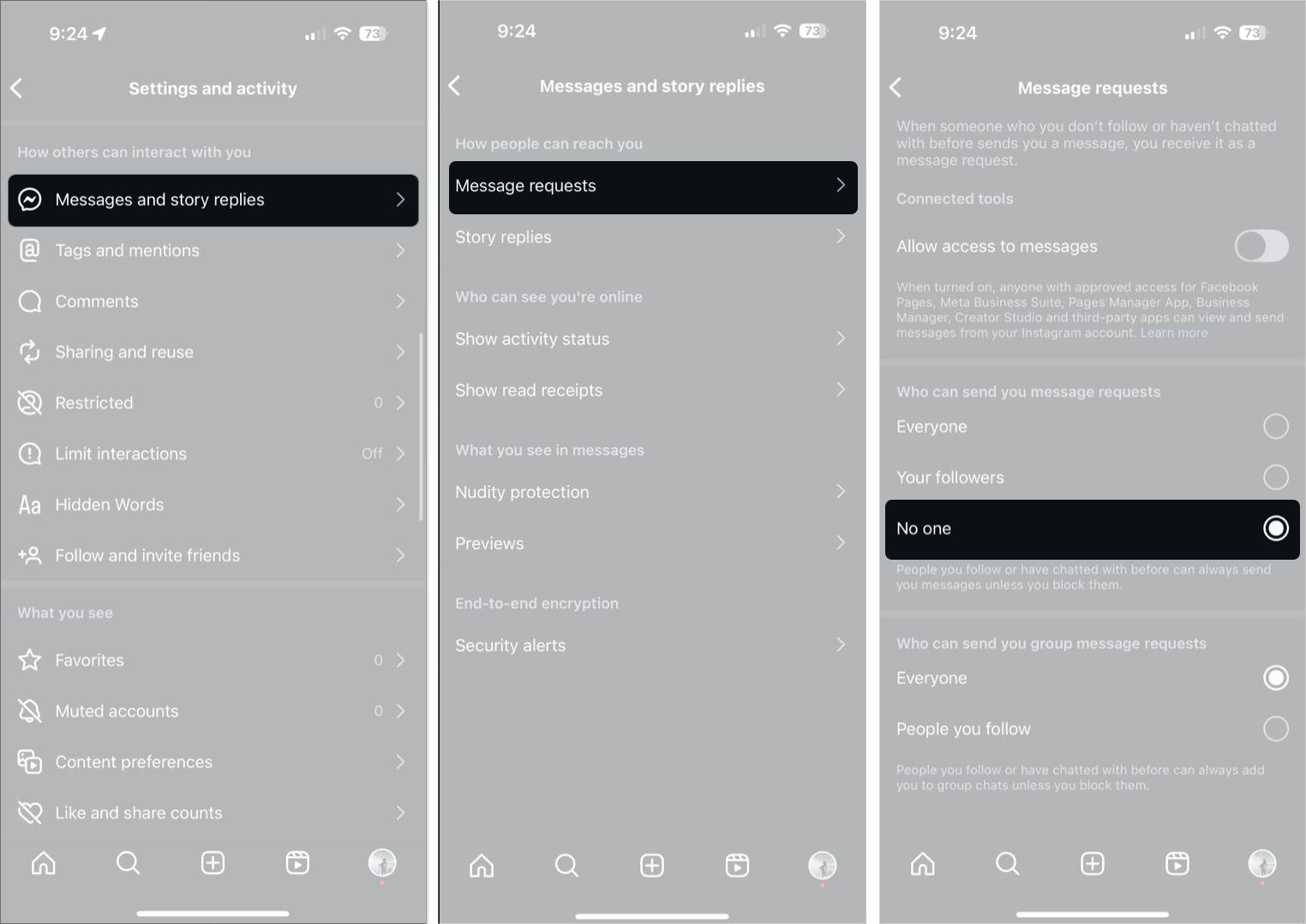
This stops new message requests from unknown users while keeping current conversations intact.
Instagram Stories are a major entry point for unsolicited DMs. You can disable story replies to reduce the noise:
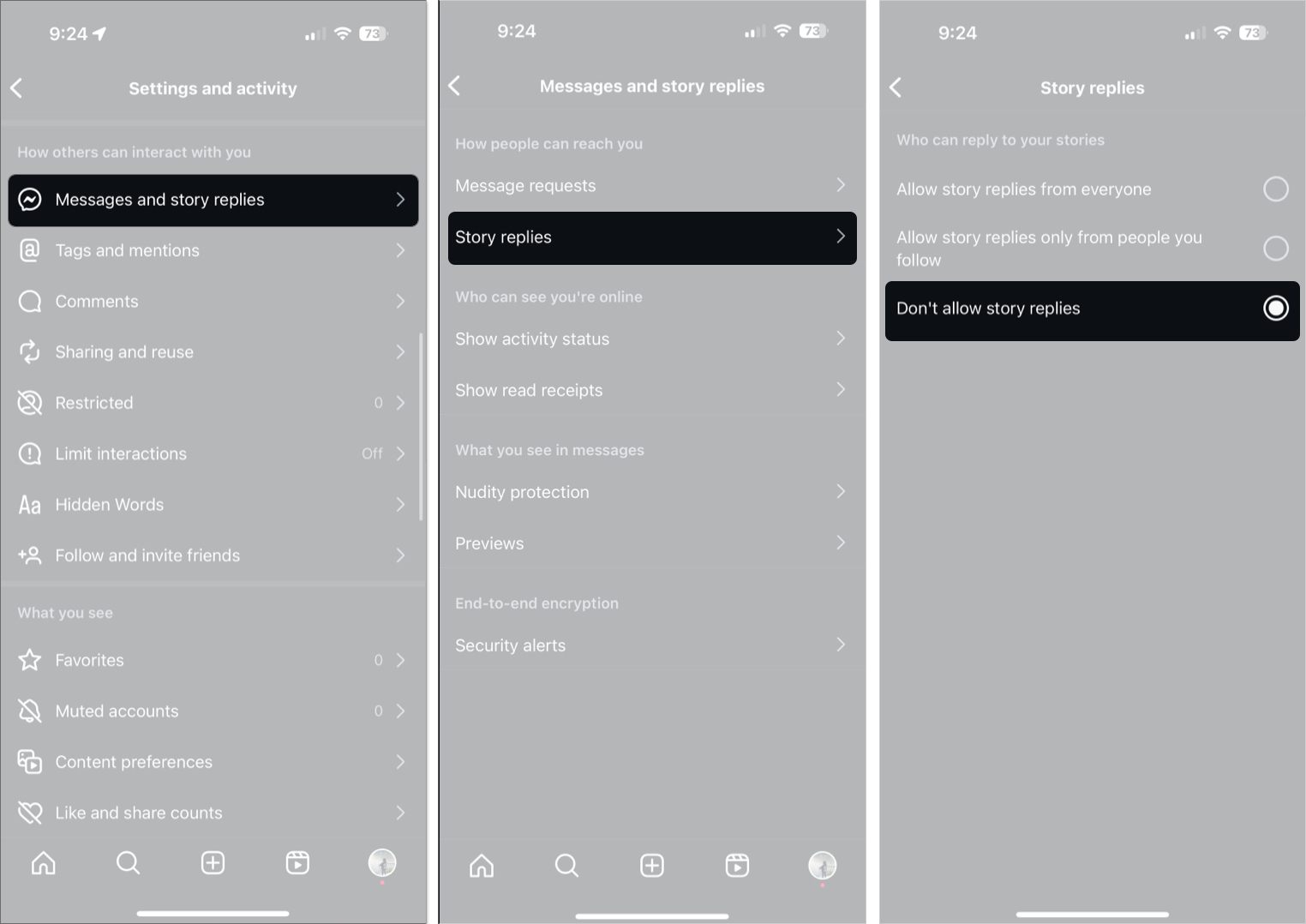
This prevents both emoji reactions and typed responses from cluttering your DM feed.
Tired of getting dragged into random group messages? Here’s how to fix that:
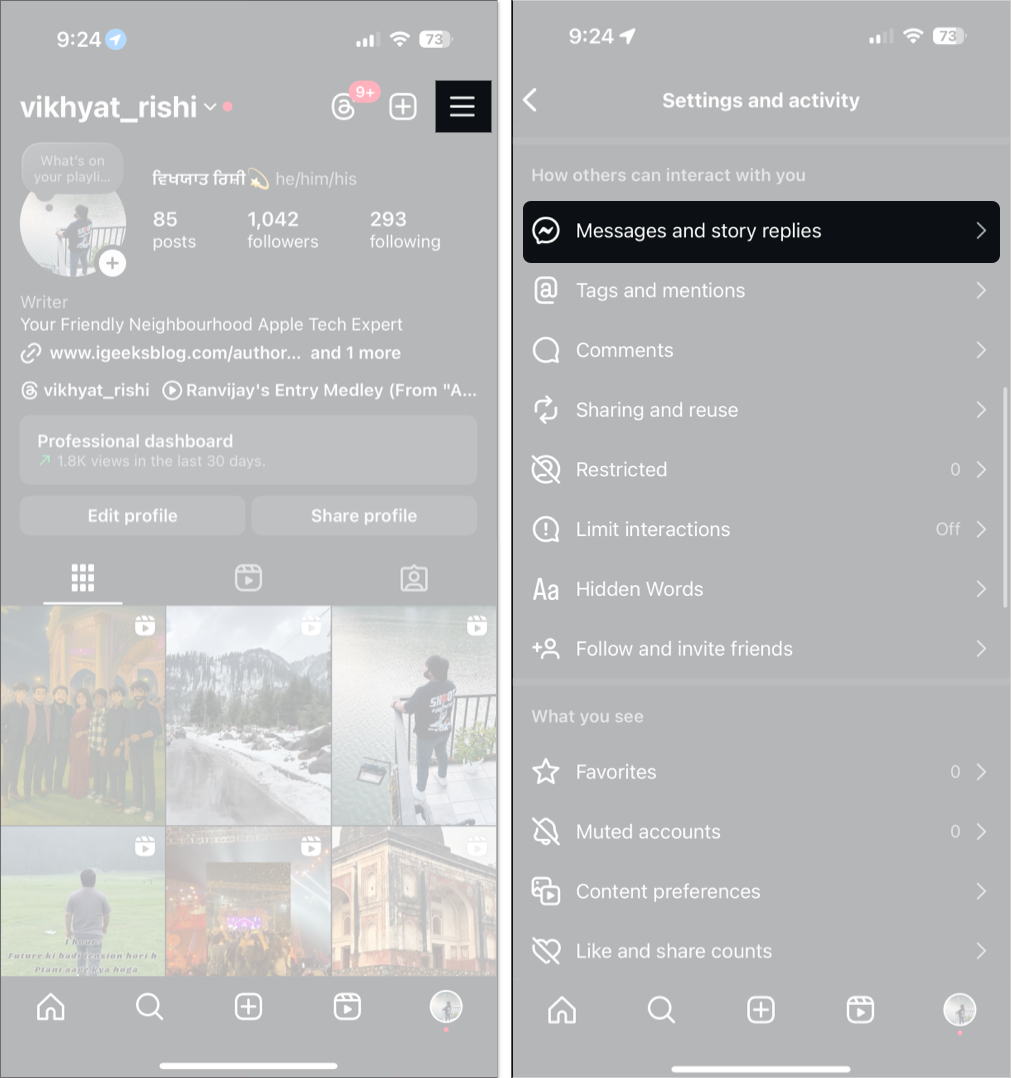
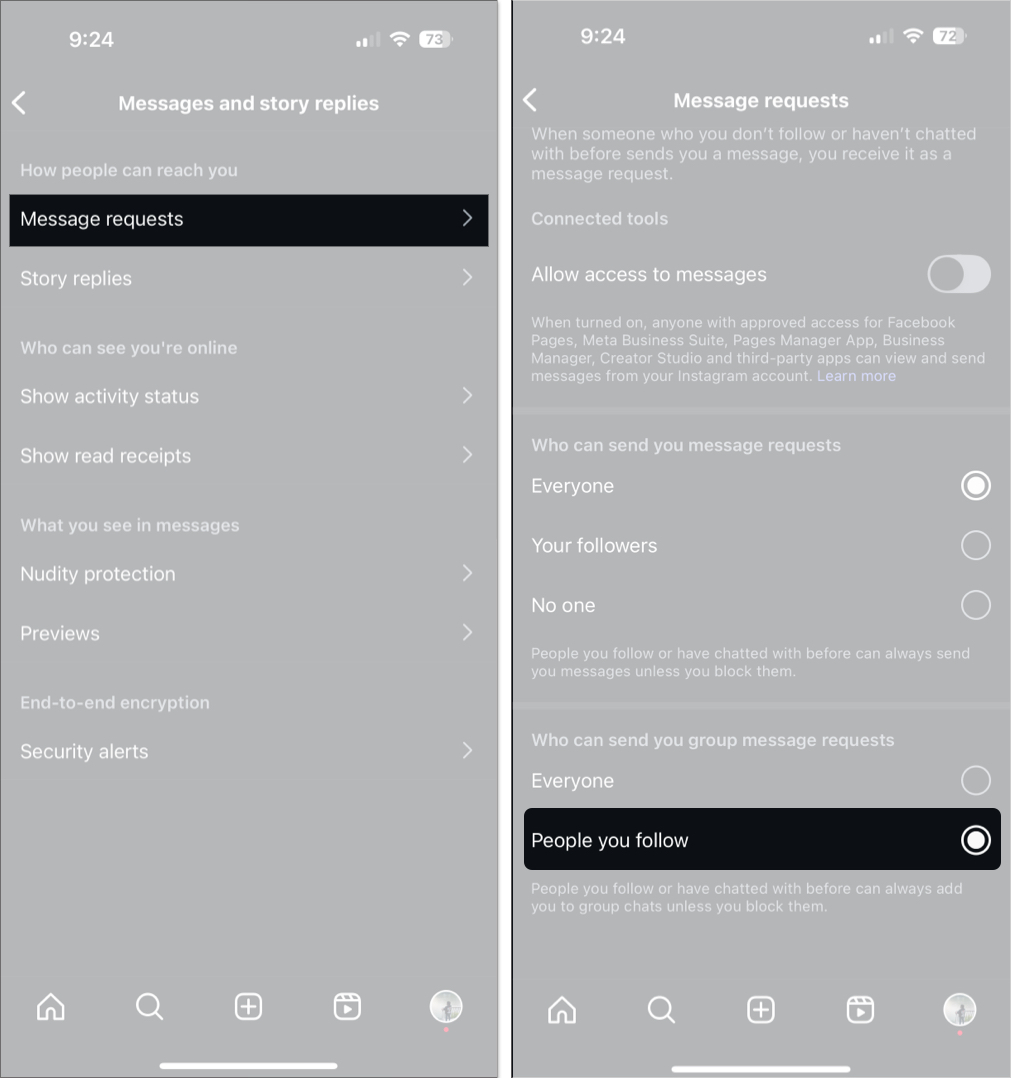
This setting limits group chat invites only to those you follow.
If someone keeps messaging you—even someone you follow—you’ll need to block or restrict them.
To block a user from messaging:
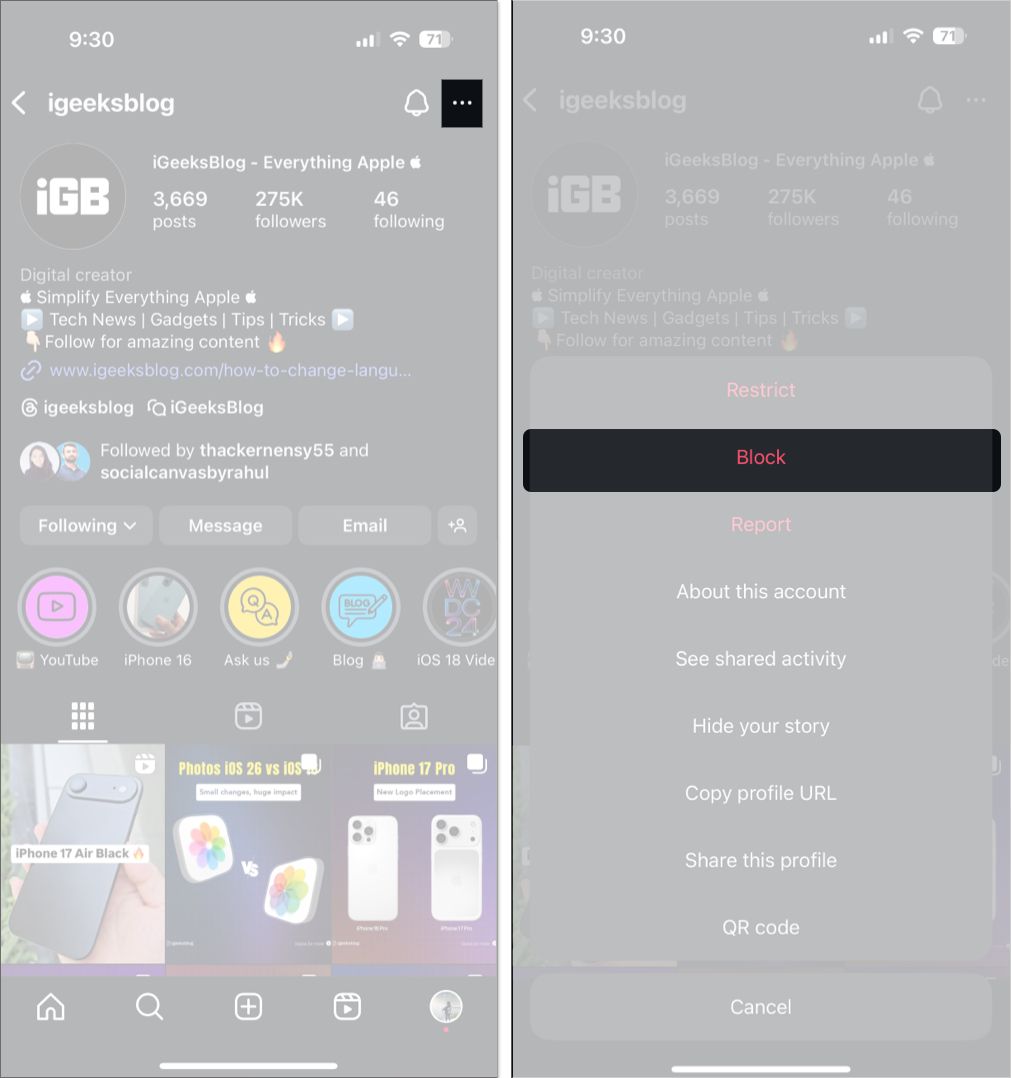
To restrict a user from messaging:
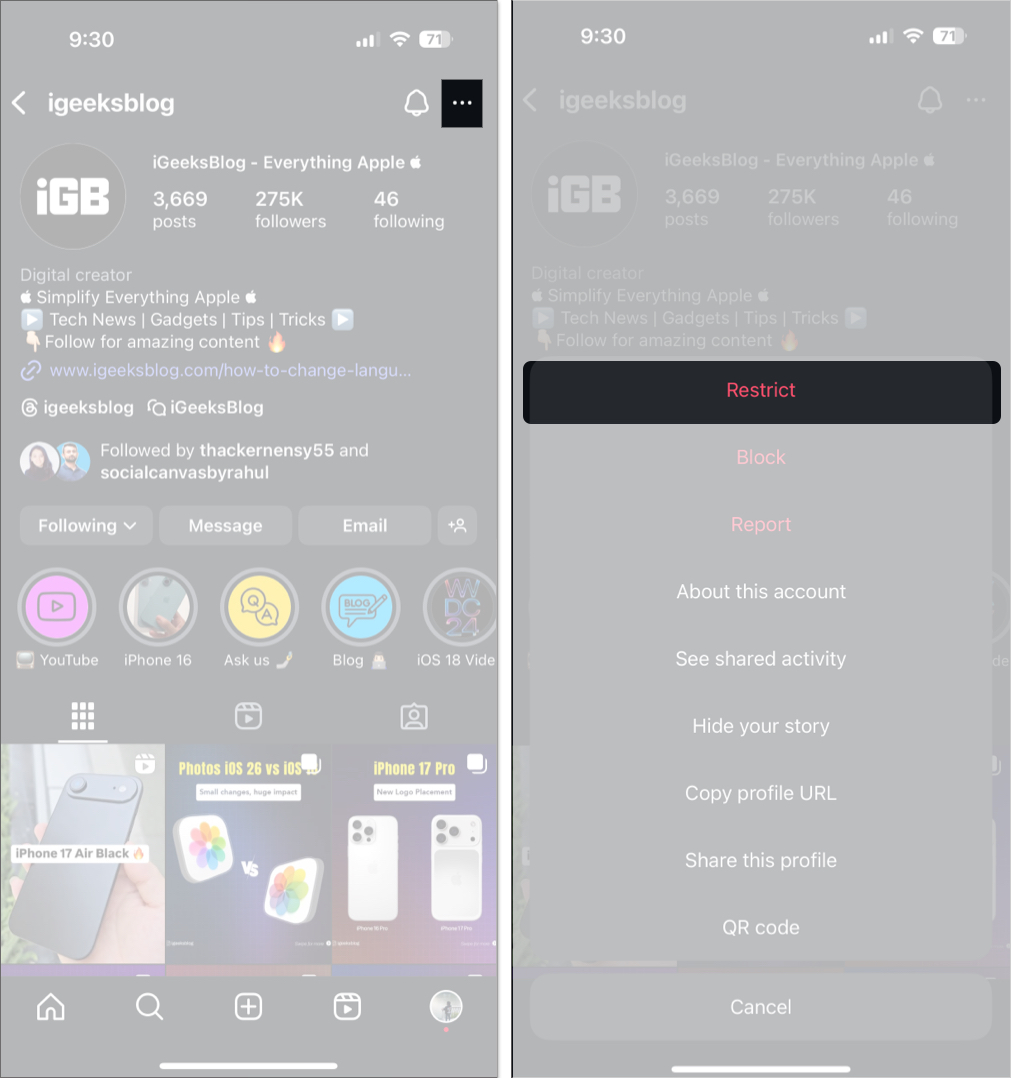
Blocked users can’t see your content or message you. Restricted users can send messages, but they land in Message Requests, and you won’t get notified.
If blocking feels too harsh, muting is a gentler way to regain peace:
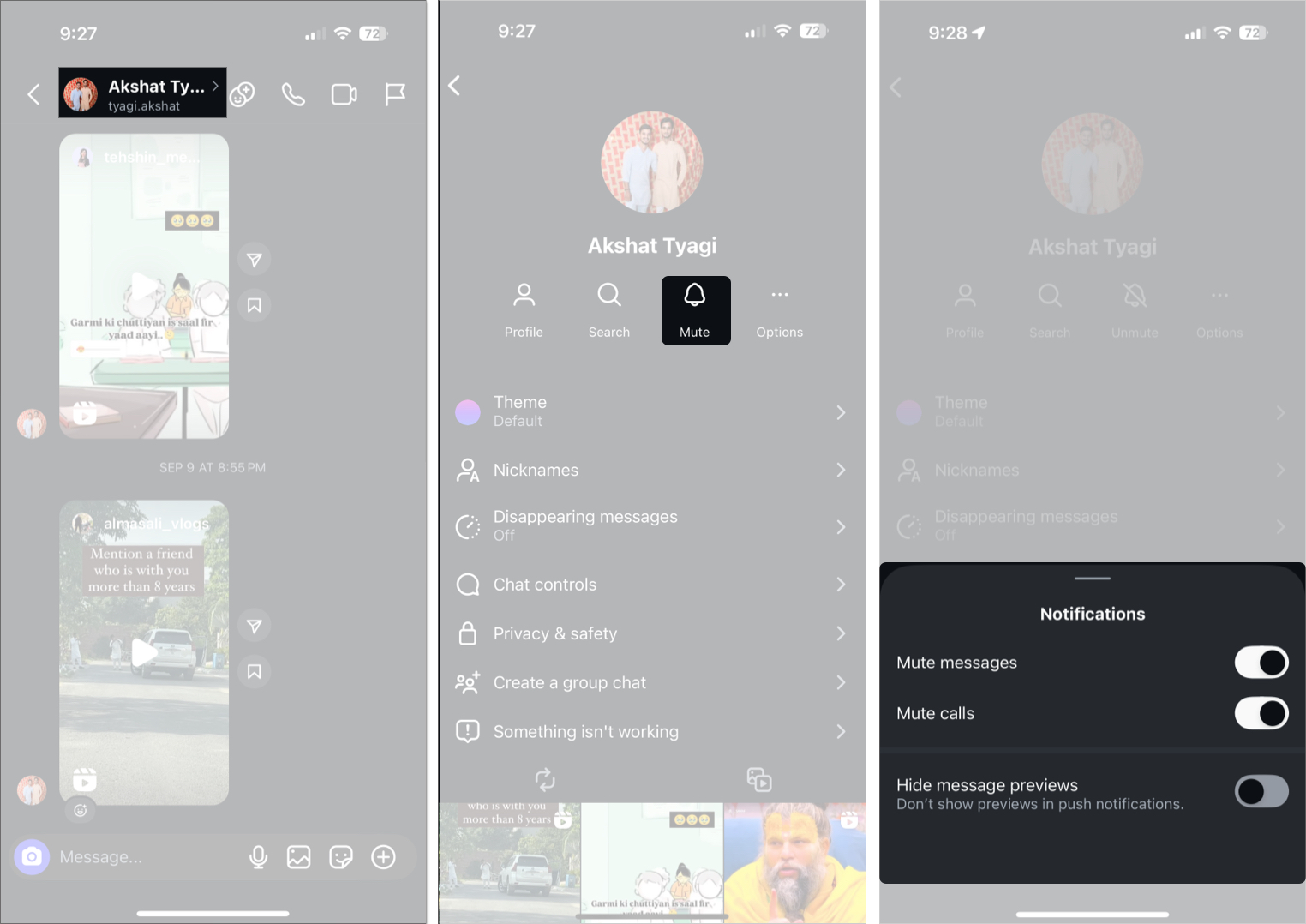
Want to keep sharing Stories without getting flooded with replies? Use the Close Friends feature.
When you post a Story only for Close Friends:
Fewer viewers = fewer unwanted DMs.
Blocking alone isn’t enough if someone is harassing you. Help Instagram take action by reporting the behavior.
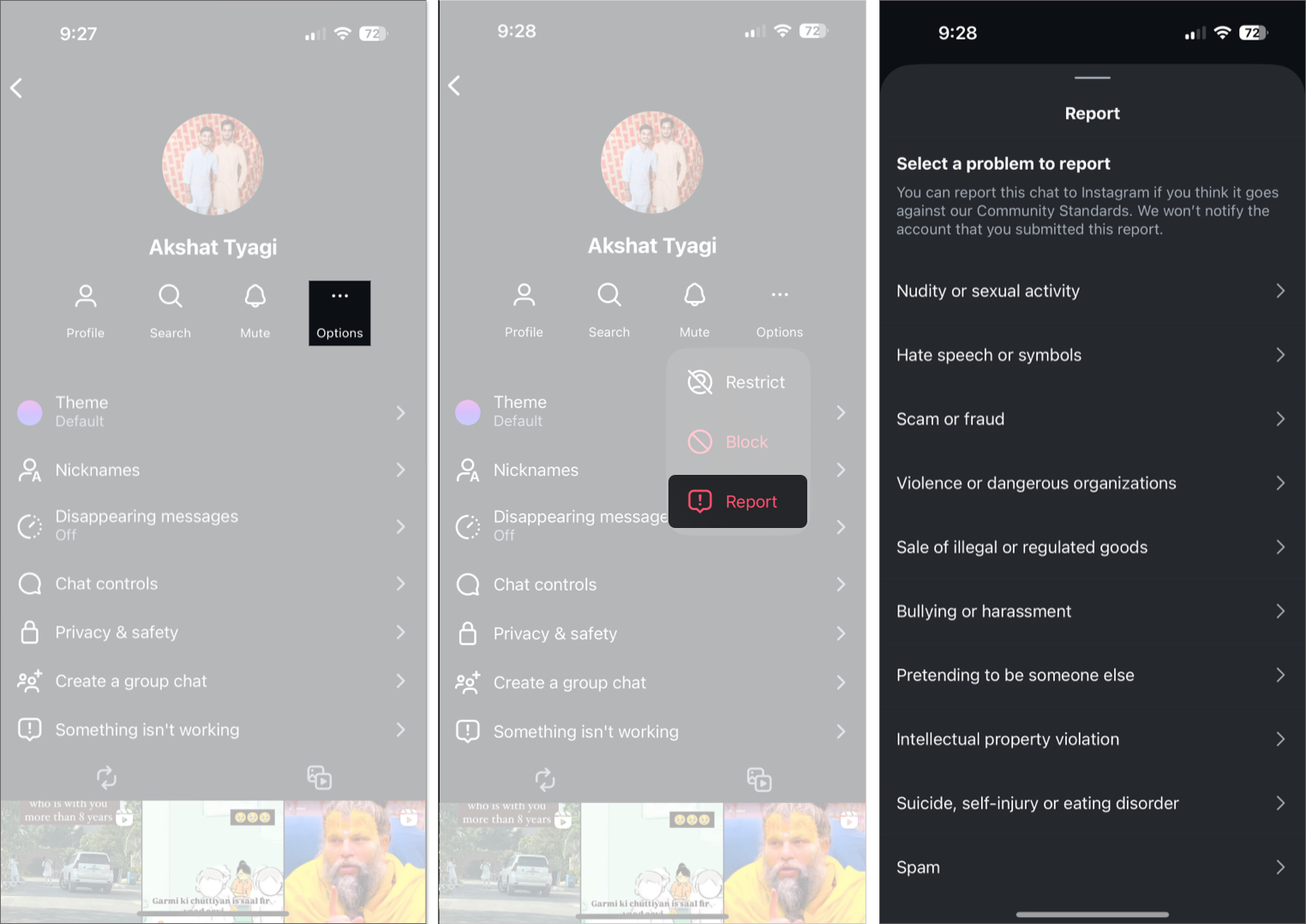
You don’t need to delete your Instagram account or go fully private just to stop spammy or annoying messages. A few smart tweaks in your DM settings can bring peace to your digital space. Take five minutes today and implement the steps above to enjoy a cleaner inbox and more meaningful connections.
FAQs
Yes, you can still see old messages after turning off DMs. Blocking, restricting, or limiting who can message you only affects new incoming messages.
Yes, you can block message requests from strangers and followers while keeping your profile public.
Instagram doesn’t offer a built-in feature to automatically delete regular DMs. However, you can use Vanish Mode in one-on-one chats, and messages sent in this mode disappear once they are viewed and the chat is closed.
No, Instagram does not notify the person when you restrict them.
Yes, Story replies on Instagram count as direct messages. Even an emoji reaction to a Story is counted as a DM.
Read more: