How to Use the Calendar App on Apple Watch: Add, View & Manage Events
The Calendar app on Apple Watch makes it easy to check events, receive timely reminders, and manage your day without pulling out your iPhone. Learn how to get the most out of this handy tool.
Using Calendar on Apple Watch: You can manage appointments from your wrist, including adding events, viewing schedules, and responding to invitations without reaching for your iPhone.
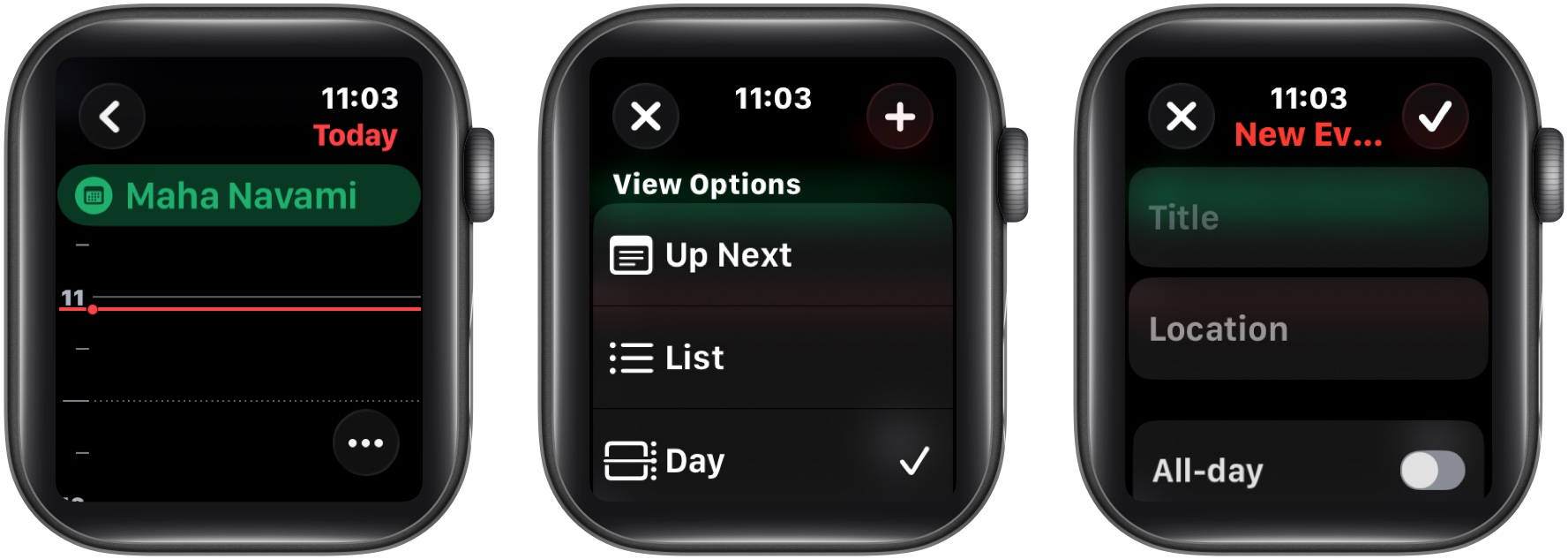
Adding Calendar Events: Tap the three dots in the Calendar app, select the plus icon, enter event details, and hit save to create a new entry.
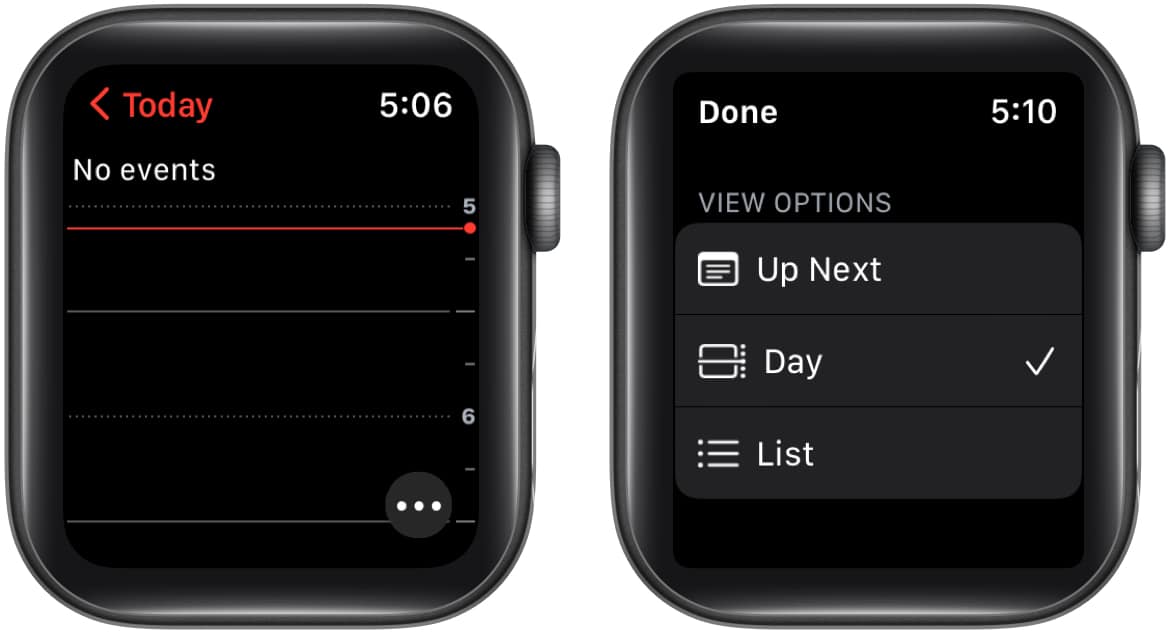
Viewing Daily Schedules: Switch between Up Next, Day, or List views inside the Calendar app to quickly see upcoming appointments or scan your full day.
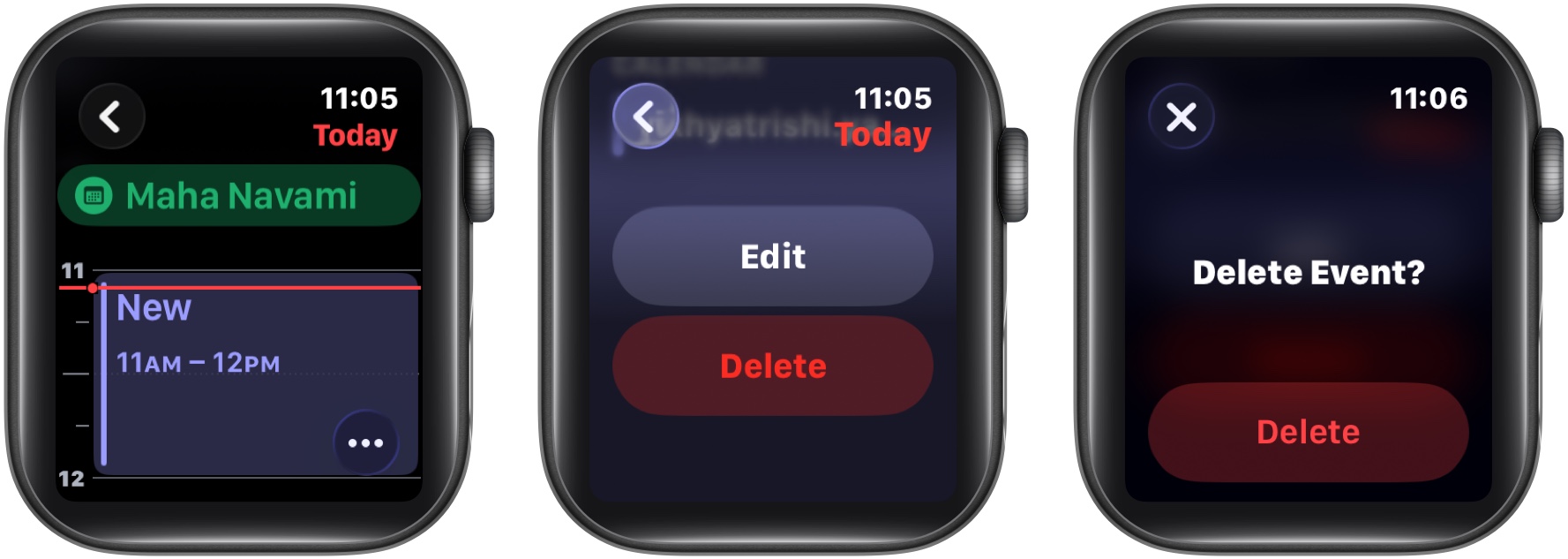
Editing or Deleting Events: Delete events directly on Apple Watch, but for detailed changes like notes or attendees, you’ll need to edit them on your iPhone.
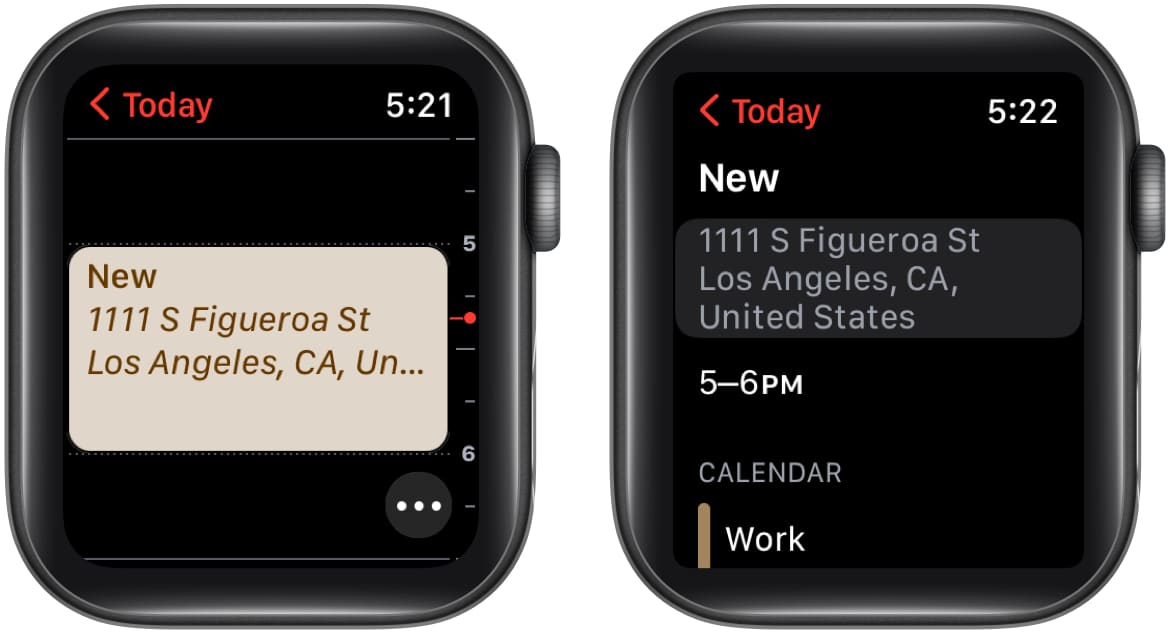
Invitations and Directions: Respond to meeting invites instantly and tap event addresses to open Maps for turn-by-turn directions right from your Apple Watch.
Using the Calendar app on your Apple Watch is a great way to stay organized and informed. It helps you keep track of your appointments without needing to pull out your iPhone. Thanks to the Apple Ecosystem, you can add, view, remove, and even respond to a Calendar invite right from your wrist.
In this tutorial, I’ll show you how to use the Calendar app on the Apple Watch.
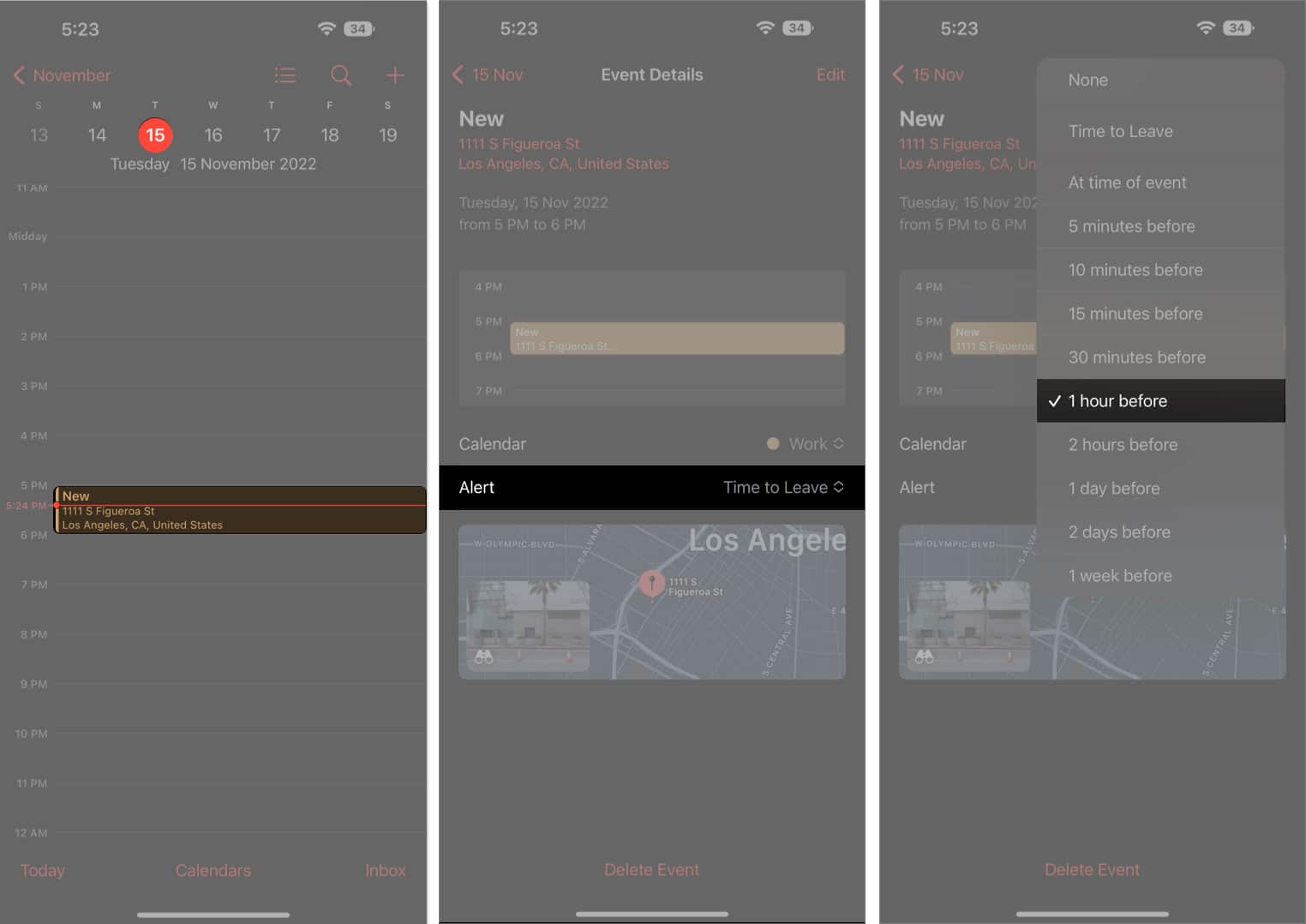
On your Apple Watch, there will be a leave now alert with an address for the event. The alert will be based on the estimated travel time. To adjust the alert’s time interval, follow the procedures below.
Launch the Calendar app on your iPhone.
Go to the event.
Tap alert and choose another option.
Adjust Calendar Settings on Apple Watch
Open the Watch app on your iPhone.
Tap My Watch → Calendar.
Tap Custom under the Notifications or Calendars section. Then change the settings according to your preferences.
Wrapping Up
And that’s how you use the Calendar app on your Apple Watch to stay ahead of your schedule. Whether you want a quick glance at your day’s agenda, manage appointments, or receive timely reminders, the Calendar app on your Apple Watch can do it all right from your wrist.
Don’t hesitate to reach out to us via comments if you have any doubts regarding the watchOS or everything Apple.
Bhaskar is a tech guru who turned wordsmith. Hiding his B.Tech degree in a closet, he ditched the corporate path to simplify tech for everyone. For the past 5 years, he's been dishing out how-tos, reviews, and sharp insights. But there's more! He's a witty interview champ and has been sharing his wisdom for 3 years. Furthermore, he has honed his editing skills for 1.5 years and is now delving into marketing to assist newcomers. When not jamming his fingers on those mechanical keyboards, you may find him on strings or engaging in sports. And by evening, his quotes will be appearing on your Instagram feeds.