FaceTime Like a Pro
Get our exclusive Ultimate FaceTime Guide 📚 — absolutely FREE when you sign up for our newsletter below.

FaceTime Like a Pro
Get our exclusive Ultimate FaceTime Guide 📚 — absolutely FREE when you sign up for our newsletter below.


Smart Stack on Apple Watch shows personalized widgets based on your activity, time, and location - Keeping you informed without cluttering your watch face.

 BySajid Shaik and Vikhyat
I used to think of Smart Stack as a convenient place to check the weather, upcoming appointments, and activity progress without opening individual apps. But Apple has made it much more useful in watchOS 27 by improving contextual suggestions and introducing a new single-tap gesture that lets you interact with widgets using one hand.
Smart Stack is one of those Apple Watch features that becomes more useful once you customize it around your daily routine. In this guide, I’ll explain how Smart Stack works in watchOS 27, what’s new, how to add and pin widgets, and solutions to common issues.
Smart Stack is a dynamic collection of widgets that you can access directly from your Apple Watch face. It surfaces contextual and relevant information from your apps, such as weather forecasts, calendar appointments, activity progress, timers, and Live Activities.
Unlike complications, which occupy specific areas of a watch face, Smart Stack lets you access multiple widgets without changing your watch face.
Smart Stack also uses information such as your location, time of day, and recent activity to suggest relevant widgets. When it has an immediately useful suggestion, your Apple Watch can gently tap your wrist and display a hint at the bottom of the watch face.
For example, you might see a workout suggestion around your usual exercise time or a reminder related to an upcoming event.
Smart Stack makes it easier to access important information without opening several apps or cluttering your watch face with complications.
Here are the main reasons I recommend using it:
There are several ways to open Smart Stack, depending on your Apple Watch model and the gestures you have enabled.
On compatible Apple Watch models (Series 9, Ultra 2, SE 3 or later), you can use hand gestures to navigate Smart Stack.
The new single-tap gesture in watchOS 27 is especially useful when your other hand is occupied. Gesture availability depends on your Apple Watch model and settings.
Apple hasn’t redesigned Smart Stack from scratch in watchOS 27. Instead, it has made the feature more proactive and easier to use.
Smart Stack can now surface additional suggestions when they become relevant to your routine or circumstances.
Examples include:
These suggestions appear when Apple Watch determines that the information may be useful. You don’t necessarily need to pin every widget manually.
watchOS 27 introduces a single-tap gesture to select Smart Stack widgets and interact with supported widget controls without using the Digital Crown or touching the display.
For instance, it helped me quickly select a widget or interact with a supported music playback control.
Remember that single tap and Double Tap serve different purposes. Double-tap can open and scroll through Smart Stack on supported models, while a single tap selects a widget or control.
Smart Stack continues to learn from your daily routine and uses on-device data and trends to determine when a suggestion might be helpful.
For example, it might suggest a workout around a time when you regularly exercise or surface relevant information based on your recent activity.
These suggestions may take time to become useful because Apple Watch needs to learn your routine. You shouldn’t expect every contextual suggestion to appear immediately after updating to watchOS 27.
Live Activities provide real-time information from supported apps. Depending on the app, you can use them to follow a running workout, monitor a timer, or check the progress of another ongoing activity.
They update as the activity progresses, allowing you to see relevant information without repeatedly opening the associated app.
You can add, remove, rearrange, and pin widgets directly on your Apple Watch. I recommend pinning the widgets you use regularly and allowing Smart Stack to suggest other information when it becomes relevant.
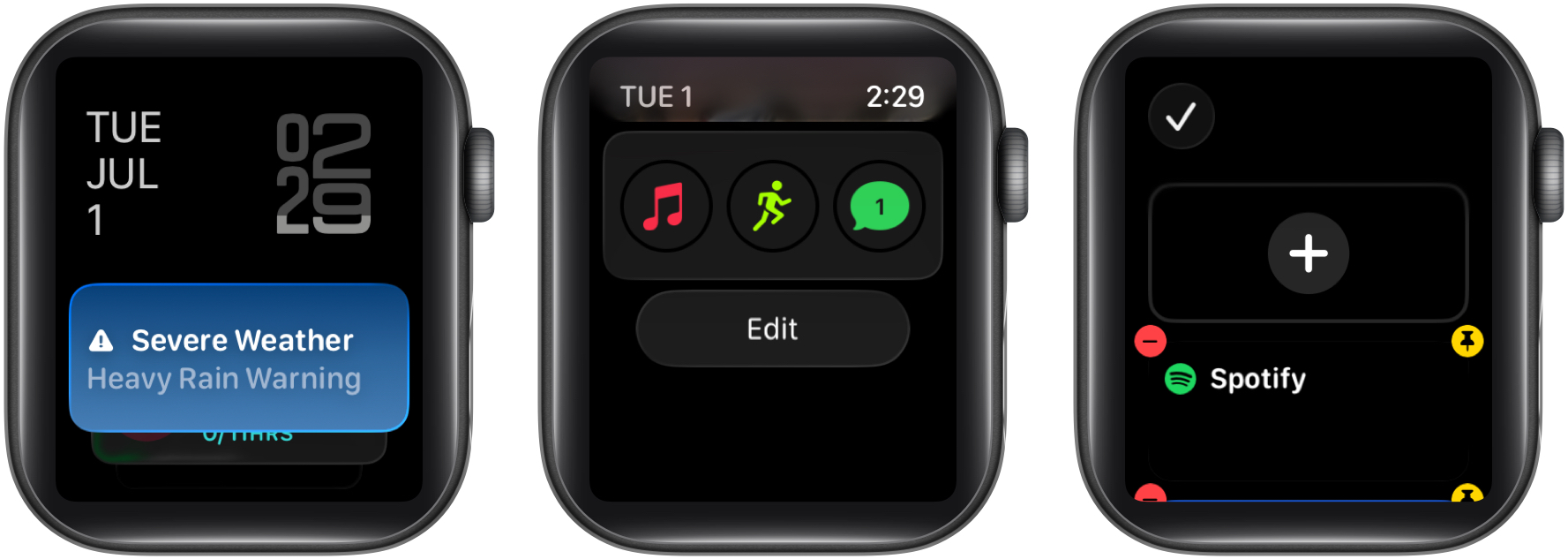
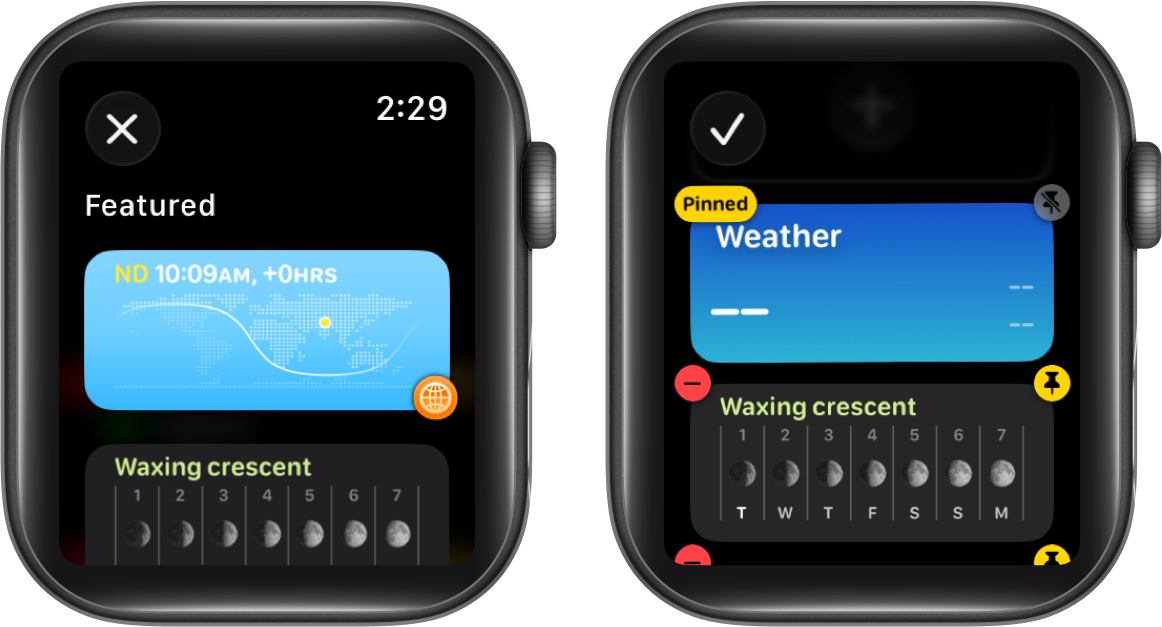
Some apps provide multiple widgets or additional customization options, so check the available choices before adding one.
The Watch app on your iPhone allows you to decide which apps can automatically or never display widgets in the Smart Stack.
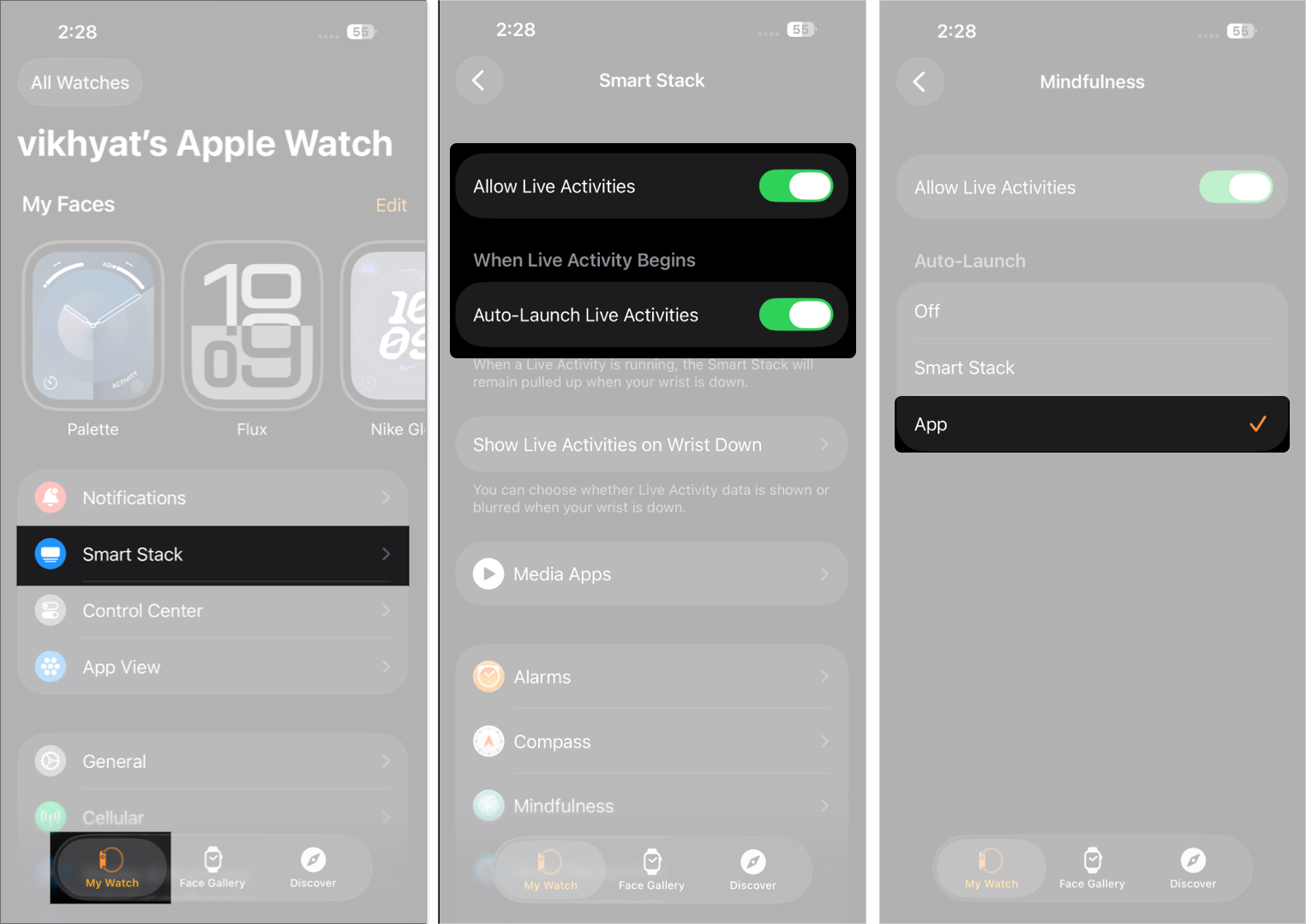
If your Apple Watch keeps showing an ongoing activity when you’d rather see your widgets, review these settings before removing useful widgets from the stack.
Although Smart Stack automatically adjusts based on context, here are some top widgets to consider pinning:
Maximize your Smart Stack experience with these expert tips:
While Apple designed the Smart Stack to work seamlessly, like any other technology feature, it can occasionally encounter issues. Here are some common problems users face and how to fix them:
| Issue | Solution |
|---|---|
| Smart Stack Not Appearing | Ensure your Apple Watch is updated to the latest version. |
| Widgets Keep Disappearing | If a widget disappears, it may be because you have not pinned it or it is no longer relevant to your needs. Thus, to keep a widget visible at all times, pin it. |
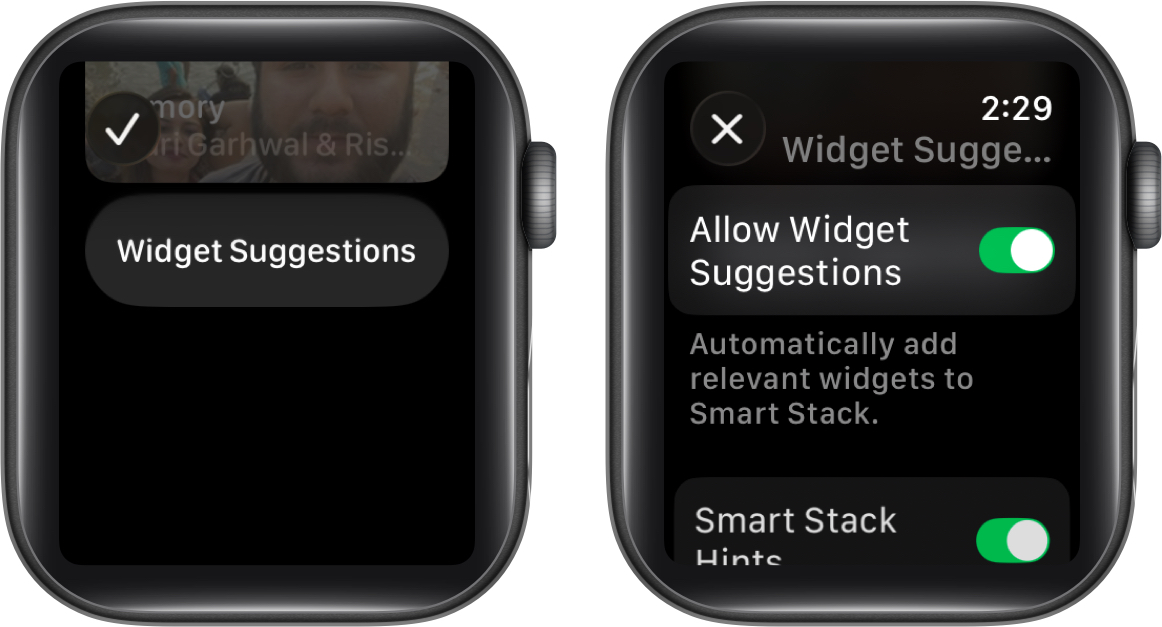
| Wrong Widgets Are Showing | Apple Watch uses on-device intelligence to display widgets. If it shows irrelevant widgets, access Smart Stack → tap Edit → Widget Suggestions → toggle off Allow Widget Suggestions. |
| Smart Stack Opens Automatically | Live Activities from certain apps are the root cause of this issue. To fix it, open the Watch app → Smart Stack → Show Live Activities on Wrist Down → Toggle off Show Live Activities. |
| Live Activities Appear Too Often | Review the Live Activities settings in the Watch app on your iPhone and adjust the available automatic-launch options. |
Smart Stack is more useful when you treat it as a personalized information hub rather than just another place to store widgets. With watchOS 27, contextual suggestions make it easier to find relevant information, while the new single-tap gesture offers another way to interact with widgets when your hands are occupied.
My recommendation is to pin the information you check every day, keep unnecessary widgets out of the stack, and give Smart Stack time to learn your routine. That way, your Apple Watch face stays clean without sacrificing quick access to useful information.
FAQs
Smart Stack is a built-in watchOS feature. Rather than disabling the entire feature, you can remove unwanted widgets, pin the ones you need, and adjust the available suggestion settings.
Apple doesn’t specify a universal maximum number of widgets in its user guide. The available selection depends on compatible apps and widgets. Add the ones you find useful rather than following an arbitrary widget limit.
Yes. Compatible third-party apps can provide widgets for Smart Stack. The available widgets depend on the app and its support for your watchOS version.
Complications display selected information directly on your watch face. Smart Stack is a separate collection of widgets that you can open to access more information without changing your watch face.
Related articles worth reading: