
FaceTime Like a Pro
Get our exclusive Ultimate FaceTime Guide 📚 — absolutely FREE when you sign up for our newsletter below.

FaceTime Like a Pro
Get our exclusive Ultimate FaceTime Guide 📚 — absolutely FREE when you sign up for our newsletter below.


Customize the Photos app on your iPhone to create, reorder, and hide collections so you can organize photos your way.
 ByVikhyat
The Photos app went through one of its biggest redesigns with iOS 18, replacing the familiar tab-based interface with a unified, scrollable layout. Apple later refined that approach based on user feedback, and the Photos app in iOS 27 continues with separate Library and Collections tabs while giving users considerably more control over how their photos are organized.
I find the customization options particularly useful because the default Collections view can put Apple’s automatically generated collections ahead of the albums and sections I actually use. In iOS 27, you can change the size and appearance of collection tiles, reorder collections, customize Pinned Collections, and control how people and pets are featured.
Here’s how to customize the Photos app on your iPhone running iOS 27.
Apple redesigned the Photos app to make navigation easier. However, the redesign focuses more on system-generated albums than what a user would want. Fortunately, Apple has prepared in advance for this situation and allows you to customize the default Photos app view to suit your fancy.
Here’s how to customize the Collections view:
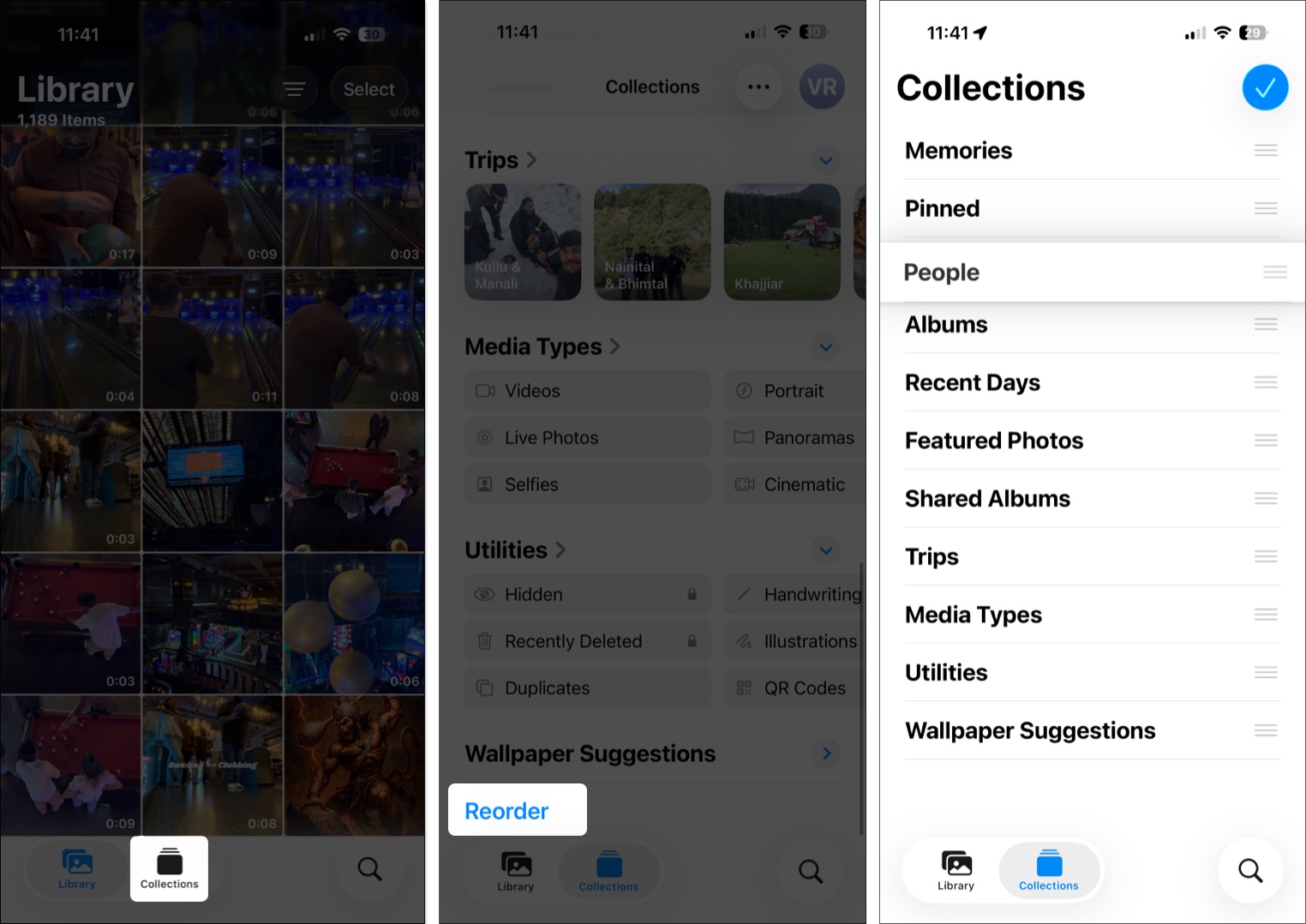
Apple also lets you choose which library is represented in Collections if you use an iCloud Shared Photo Library. You can choose Both Libraries, Personal Library, or Shared Library.
My tip: I prefer keeping the collections I use most frequently near the top. If you mainly use Photos for albums rather than automatically generated memories, moving Albums and other frequently used collections higher up can make the app much quicker to navigate.
iOS 27 also gives you better control over the main photo library itself.
You can sort photos by when they were added to your library or when they were originally captured.
The Added option organizes photos according to when they were added to your library, while Captured sorts them according to when they were taken.
You can also filter the library instead of scrolling through everything.
You can combine multiple filters, which is useful when you’re trying to find a specific type of photo. For example, I can use Media Types to show only videos, screenshots, or photos and combine that with another filter.
To return to the complete library, tap Remove Filters.
If your photo library is full of screenshots, photos synced from a Mac, or images shared with you through Messages, iOS 27 lets you hide those categories from the main library without deleting them.
Here’s how:
Tap the option again if you want those items to appear in your library again.
This is one of the changes I’d recommend trying if your Library feels unnecessarily cluttered.
The People & Pets collection automatically groups photos based on the people and animals Photos recognizes in your library. You can click on any Headshot to view a collection of images featuring that individual.
However, you don’t have to let Photos repeatedly feature someone you don’t want appearing in Memories, Featured Photos, or other curated areas. The controls also let you create a group of two or more individuals, or even add new individuals to the People and Pets section.
Here’s how:
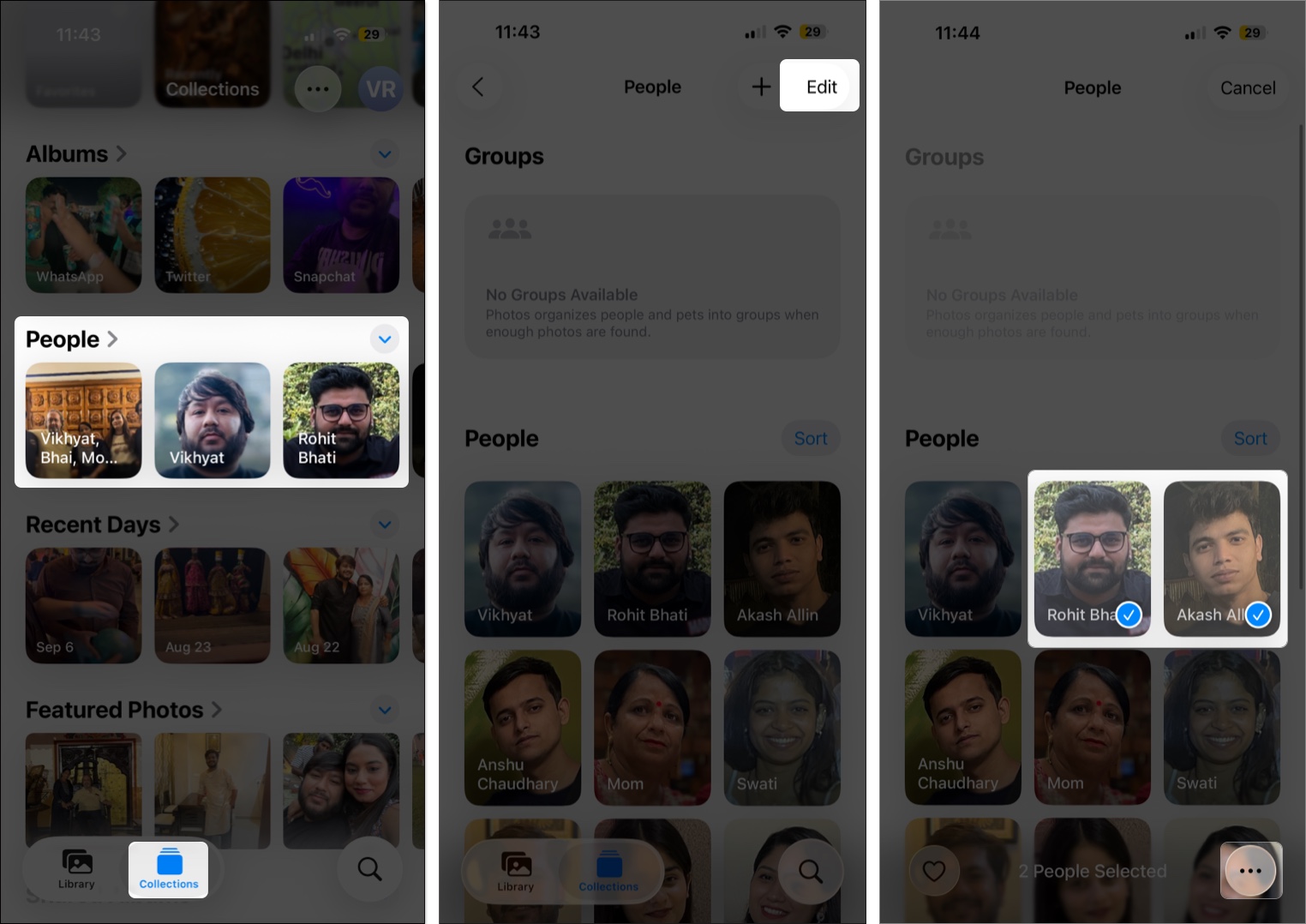
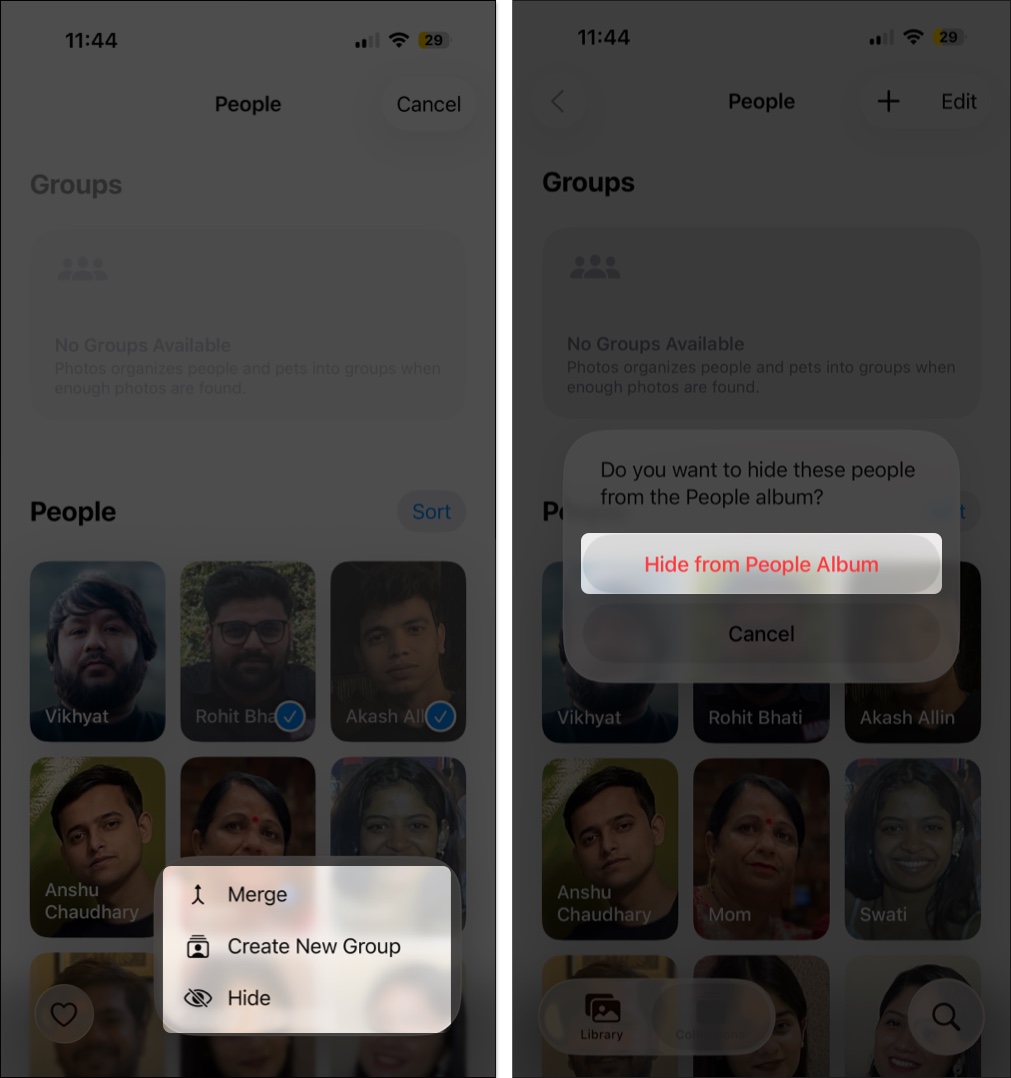
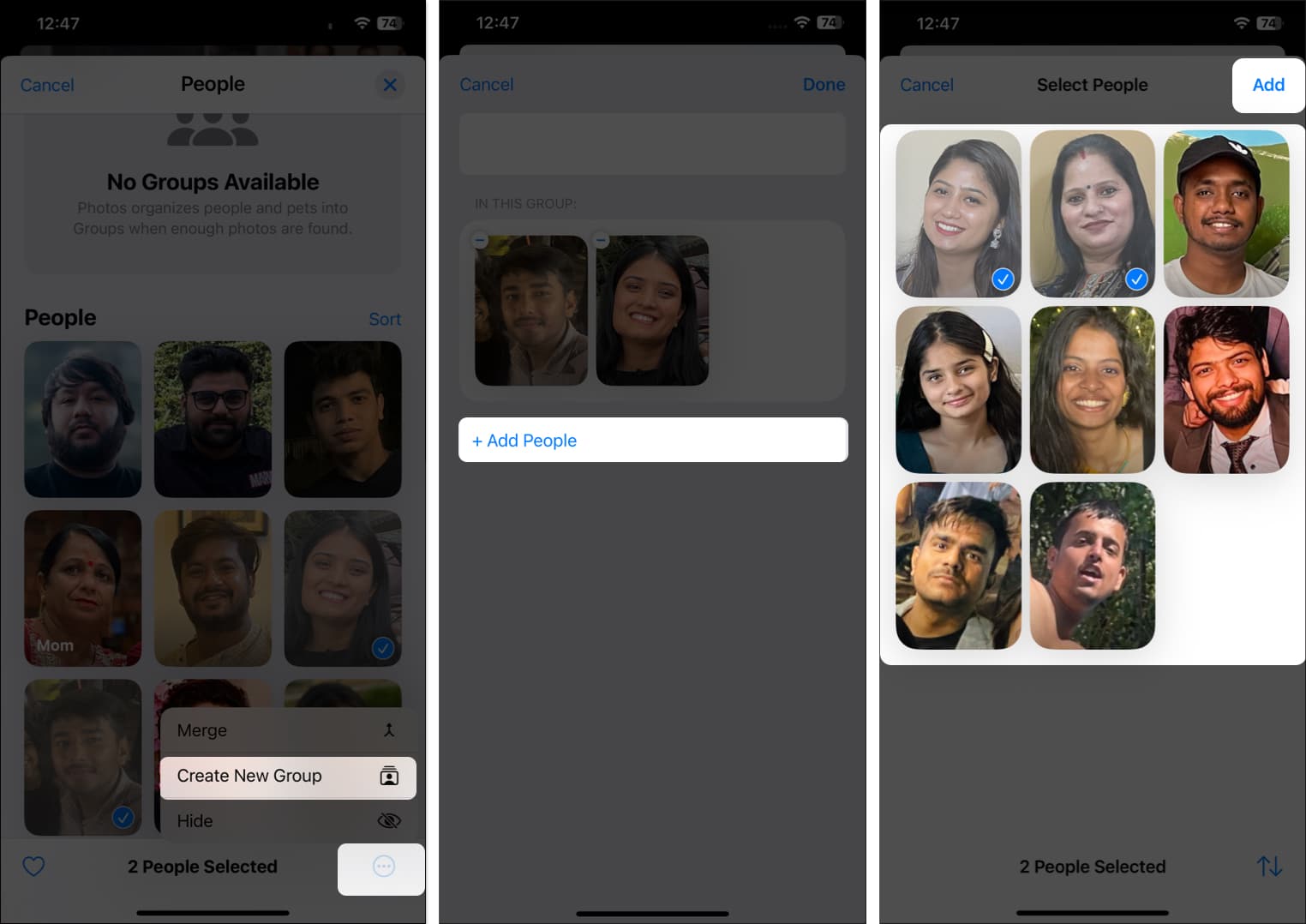
You can further customize the People album to change someone’s key photo, merge groups of the same person, or stop featuring some people.
By default, the Pinned Collections in the Photos app comprise the albums iOS thinks are most important to you, but this may only hold true for some users. If you are not one of those users, you can modify the Pinned Collections at your convenience.
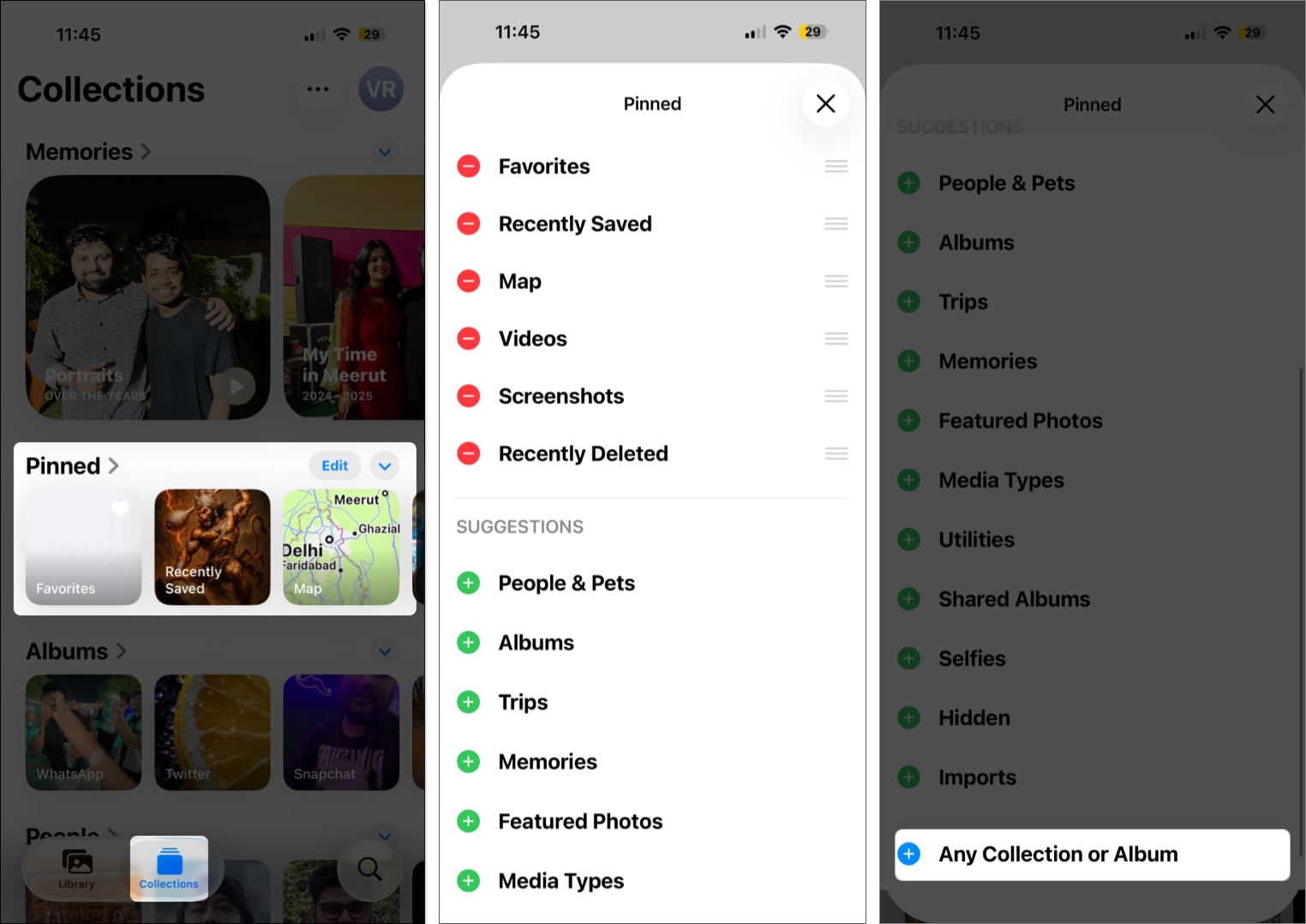
There’s also a quicker way to manage this. You can touch and hold a collection or album and select Pin to add it to Pinned, or select Unpin to remove it.
The Featured Photos section includes images from various years featuring you and different people your iPhone selected to highlight. However, not all memories are worth celebrating.
So, keeping that in mind, the Photos app allows you to remove photos from the Featured Photos album.
Here’s how:
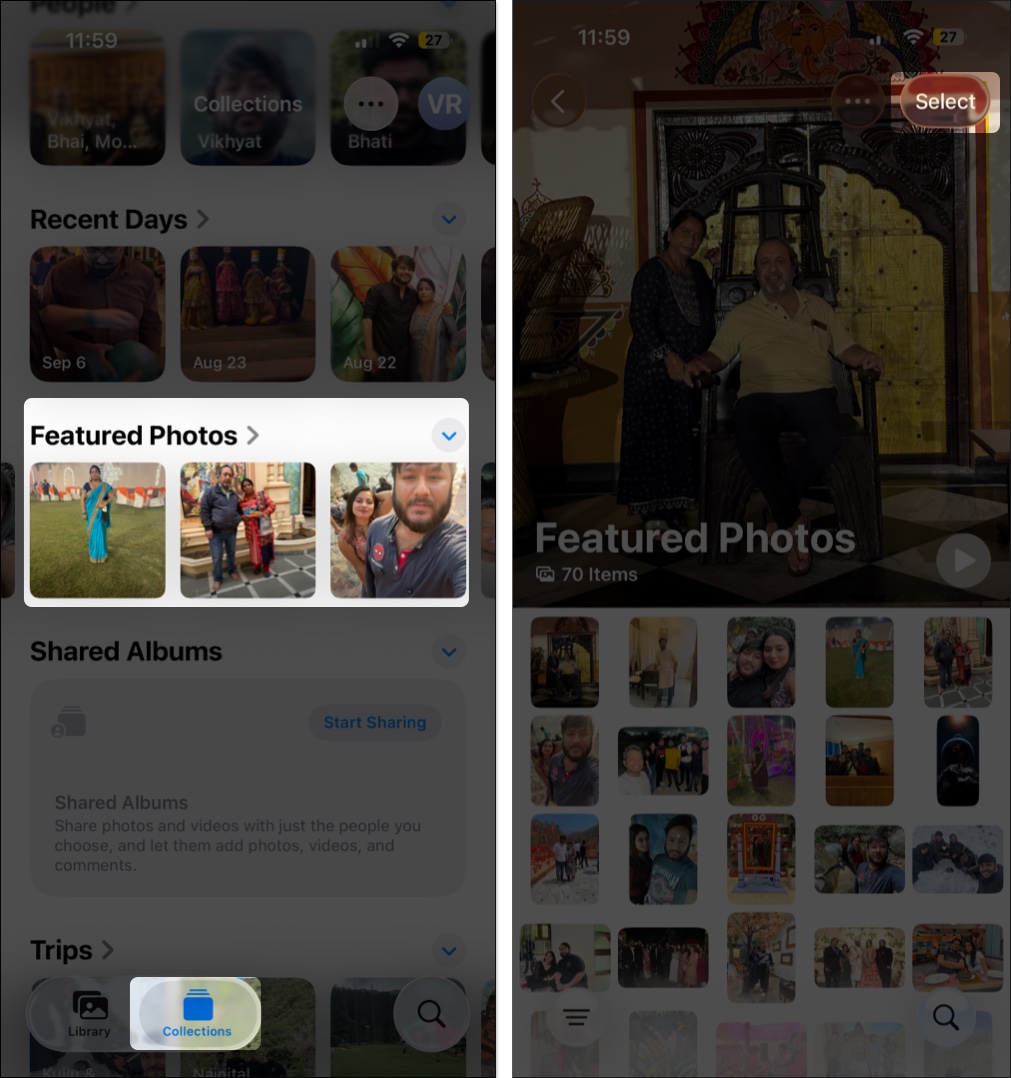
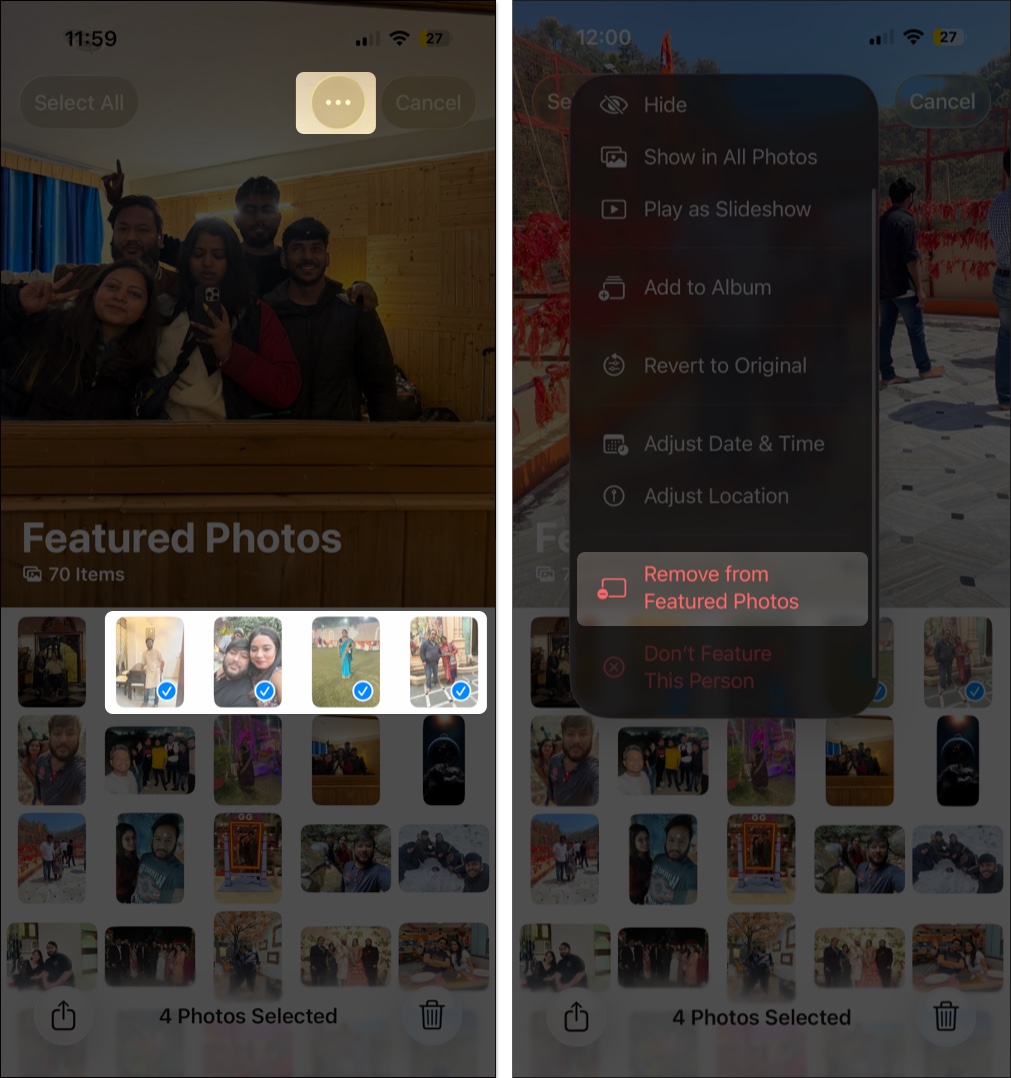
Albums remain available under Collections, and iOS 27 gives you additional ways to organize them.
To create an album:
You can also sort albums by different options, including a custom order. With Sort by Custom Order selected, touch and hold an album, then drag it to the position you want. You can also drag an album onto another to merge them.
If the default view of the Media Types or Utilities collections feels off to you, you can reorder the items according to your will. However, your iPhone must be running iOS 18 or later to do so. Here’s how:
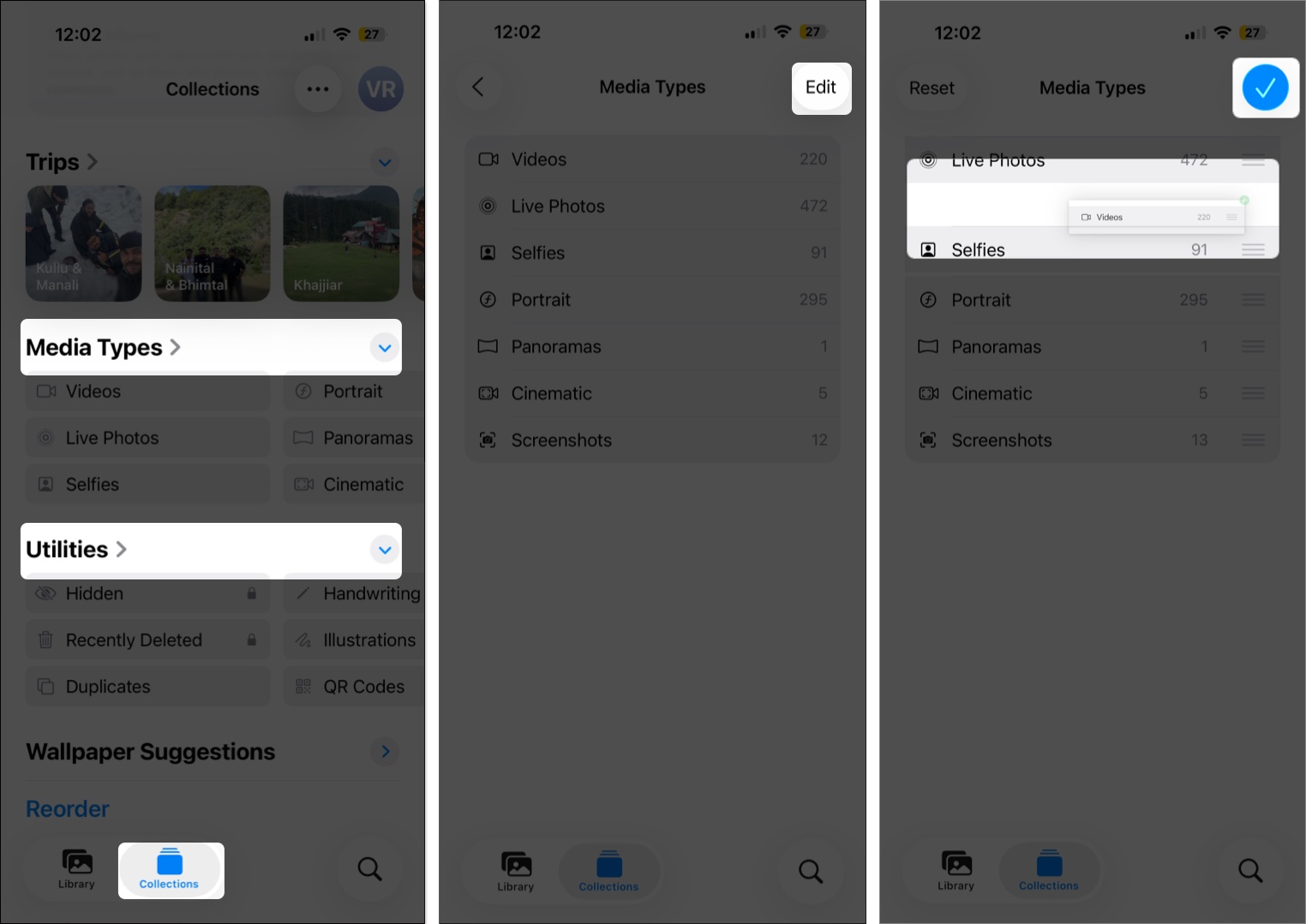
While most of the collections under Utilities deserve their spot, the same can’t be said about the Recently Viewed and Recently Shared collections. On iOS 18.4 and later, you can disable Recently Viewed and Recently Shared in Photos settings. Here’s how:
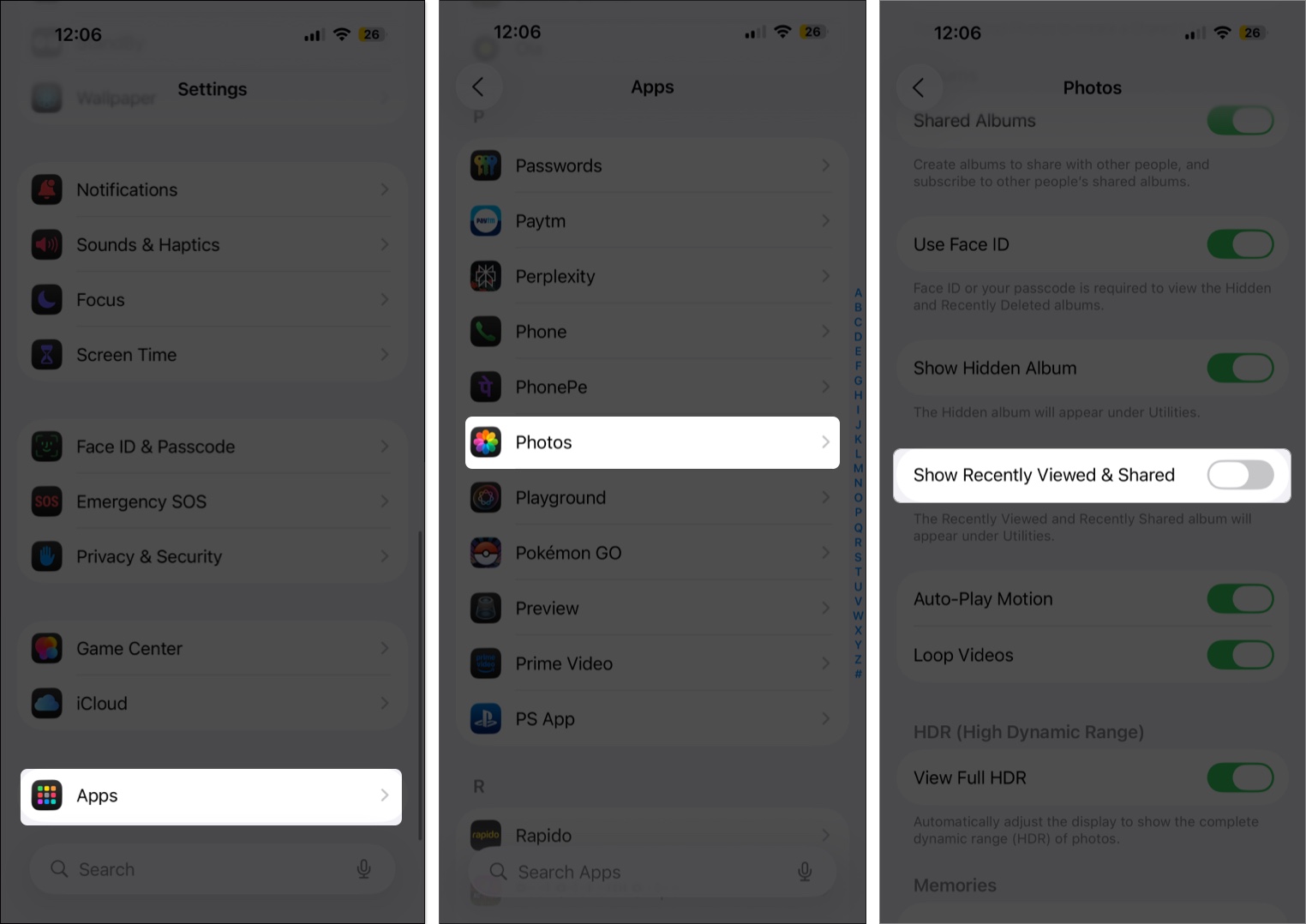
From here, you can go to Featured Content to stop Memories and holiday events from automatically appearing on your device.
The Photos app has come a long way since the controversial redesign introduced with iOS 18. Rather than simply restoring the old interface, Apple has continued refining the Library and Collections approach while giving users more control over how the app is organized.
In iOS 27, I find the Layout and Reorder controls particularly useful because they let me decide how much space Collections occupy and which sections appear first. Pinned Collections also make it easier to keep my most-used albums and collections within quick reach.
If the default Photos layout doesn’t work for you, I wouldn’t simply put up with it. Spend a few minutes customizing Collections, Pinned items, People & Pets, and Library filters, and the Photos app can feel much more personal and considerably easier to navigate.
Read more:











