
FaceTime Like a Pro
Get our exclusive Ultimate FaceTime Guide 📚 — absolutely FREE when you sign up for our newsletter below.

FaceTime Like a Pro
Get our exclusive Ultimate FaceTime Guide 📚 — absolutely FREE when you sign up for our newsletter below.


Reduce notification overload with Priority Notifications. This Apple Intelligence feature ensures you never miss important alerts.
With so many apps installed on your iPhone, you’re likely to get flooded with alerts and notifications, ranging from messages and emails to social media alerts and app updates. However, only some notifications are essential and require immediate attention. Sadly, finding them isn’t easy.
Fortunately, Priority Notifications, an Apple Intelligence feature, is there to ensure you never miss important alerts while reducing notification overload. Keep reading to learn more about Priority Notifications, including how to set it up on your iPhone.
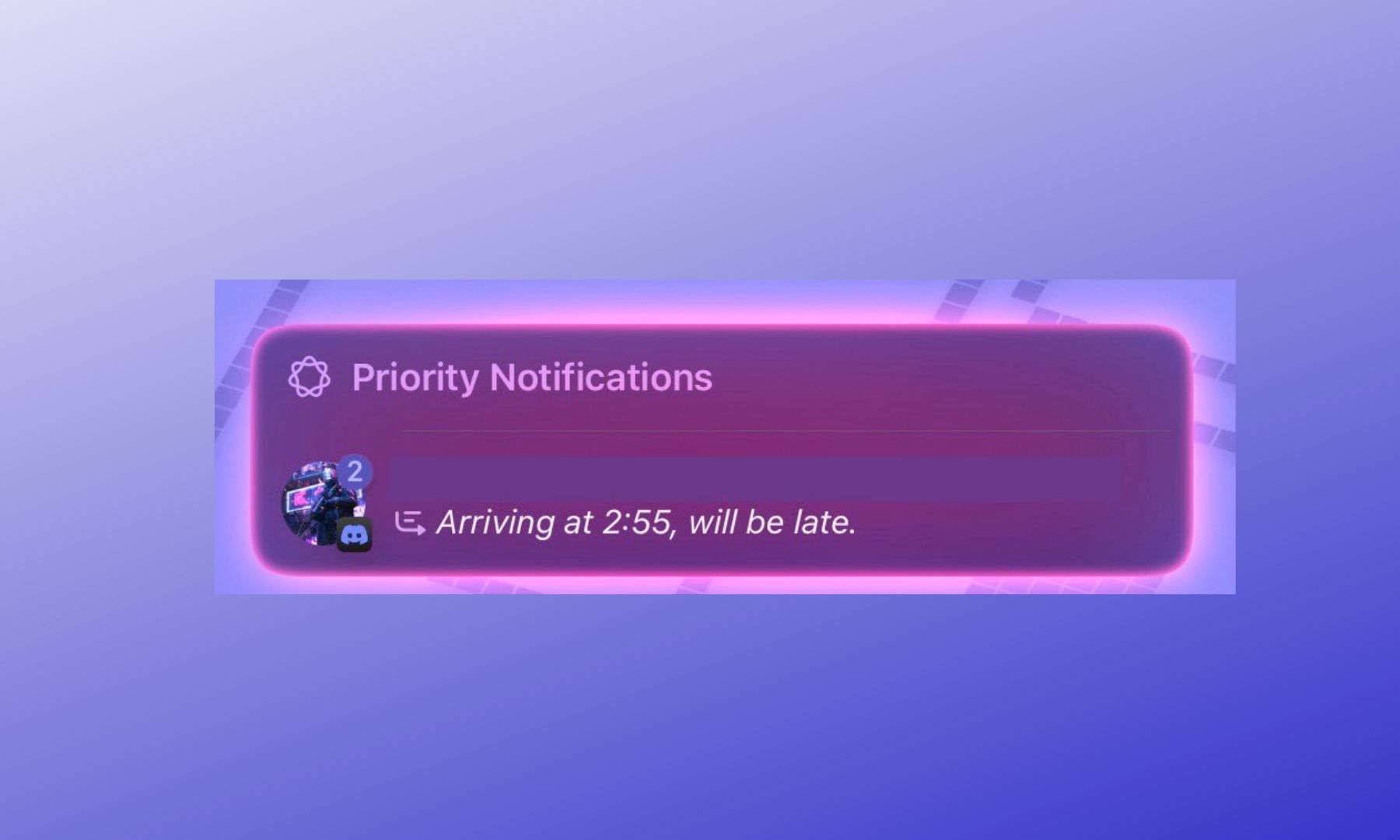
Priority Notifications is a part of the Apple Intelligence suite. It uses on-device intelligence to analyze all incoming notifications on your iPhone and determine which are more significant than others. Notifications deemed more important are then grouped and displayed in a dedicated section on the Lock Screen to ensure you don’t miss anything important.
Let’s take an example to understand how the feature actually can be helpful in real life: Imagine you’re in the middle of a busy workday, and your iPhone is buzzing with notifications from various apps, including an urgent reminder about an important meeting from the Calendar app and other notifications from social media apps.
Usually, your iPhone would have kept the latest arriving notifications at the top. However, with Priority Notifications enabled, Apple Intelligence identifies that the meeting reminder is time-sensitive. It then highlights it on your Lock Screen in the Priority Notifications section while grouping less urgent social media notifications below. Thanks to this, you won’t miss critical alerts while still keeping track of other ongoing updates.
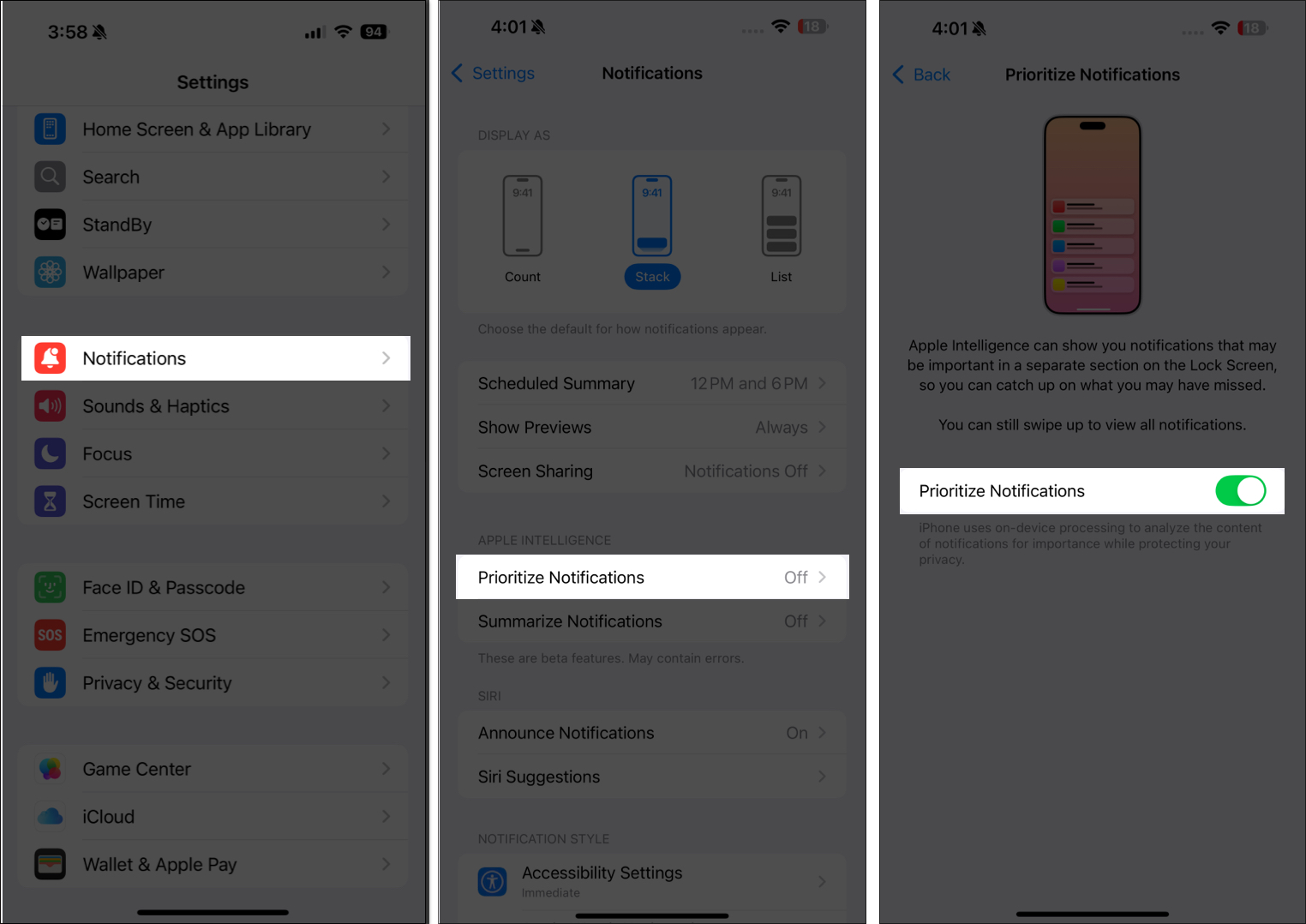
Unlike most Apple Intelligence features, such as Writing Tools, Clean Up, and more, which are enabled by default, Priority Notifications isn’t. Follow these steps to enable it on your iPhone:
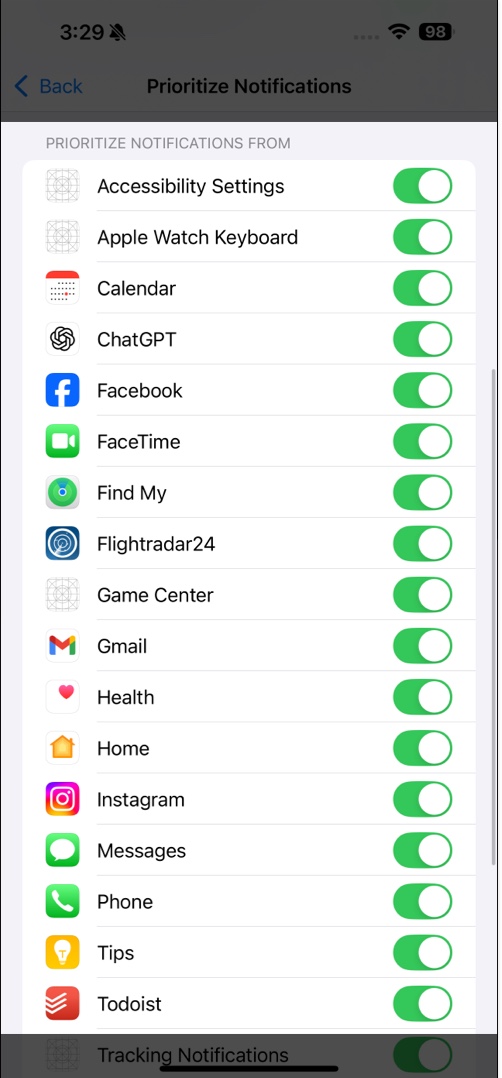
While having Priority Notifications enabled ensures you don’t miss anything important, not all apps deserve access to this privilege. This is why Apple lets you decide which apps deserve prioritization.
All you need to do is toggle on Priority Notifications, then scroll down and toggle off the apps you don’t think deserve prioritization.
Going forward, if you don’t like the Priority Notifications feature, you can disable it. Just flip the Priority Notifications toggle off.
Summing up…
Priority Notifications isn’t the only notification-related feature available on your iPhone. There’s also Scheduled Summary (previously Notification Summary), which bundles your notifications and shows them at your preferred time, and Summarize Notifications, which uses Apple Intelligence to condense multiple notifications into summaries so you can quickly understand the key details.
However, what’s different about Priority Notifications is that it takes a more dynamic approach. Rather than grouping and showing notifications later or summarizing notifications, it uses Apple Intelligence to identify important notifications and makes sure they are prominently visible on the Lock Screen so you never miss them.
You may find these interesting:













